How to Execute JavaScript in Headless Chrome with PHP
Run JavaScript-dependent pages in a real headless Chrome browser from PHP. Set up Symfony Panther or chrome-php/chrome, wait for rendered content, and troubleshoot common driver issues.
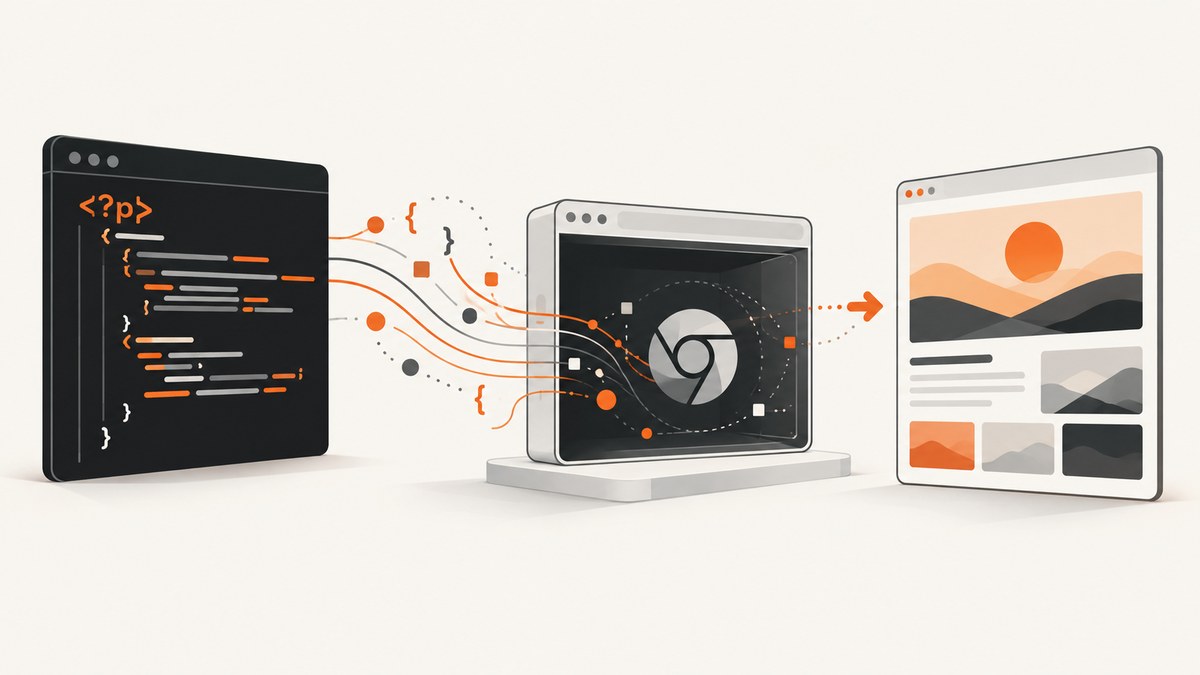
To execute page JavaScript from PHP, control a real Chrome or Chromium browser instead of fetching the page with an HTTP client. Two practical options are Symfony Panther, which uses WebDriver and suits browser tests and crawling, and chrome-php/chrome, which gives PHP a direct API for controlling Chrome. Both can navigate JavaScript-driven pages; choose based on the API and workflow you need.
This guide sets up Panther, waits for asynchronously rendered content, runs browser-side JavaScript, and captures a screenshot. It also shows the direct Chrome-PHP route, deployment and debugging notes, and when a screenshot API can save you from managing browser binaries.
1. Why an HTTP request does not execute page JavaScript
A PHP request made with cURL or an HTTP library downloads the server’s response. If the page fills its content after loading by running JavaScript, the initial HTML may contain only a shell. Parsing that response does not run scripts, click links, or wait for client-side rendering.

A browser automation library controls Chrome or Chromium. The browser loads the document, executes its scripts, and exposes the resulting page to PHP through a browser-control protocol. This is useful for end-to-end tests, crawling pages whose content is rendered in the browser, screenshots, and PDF output.
Symfony’s Panther introduction distinguishes its real-browser approach from Goutte, which does not support JavaScript. Chrome for Developers describes headless mode this way: “Headless mode shares code with Chrome.” That means headless Chrome runs Chrome’s browser code without displaying a window; it is not an HTML parser that simulates page scripts. Symfony Panther introduction · Chrome Headless mode
2. Choose a PHP browser-control library
| Choice | Best fit | What you control | Setup consideration |
|---|---|---|---|
| Symfony Panther | PHP browser tests, end-to-end workflows, and crawling | WebDriver browser client, navigation, waits, DOM queries, screenshots | ChromeDriver must be available to Panther |
| chrome-php/chrome | Direct PHP control of Chrome or Chromium | Pages, navigation, JavaScript evaluation, screenshots, PDFs | Install the package and have a compatible Chrome/Chromium binary |
Panther is also usable outside a Symfony application. Its documentation explains how to load Composer’s autoloader for standalone projects. The chrome-php/chrome repository describes a direct PHP API rather than a WebDriver testing layer. Neither source provides a directly comparable performance benchmark, so choose by integration style and the browser operations your code needs, not an assumed speed advantage.
3. Install Panther and prepare ChromeDriver
For a test-only dependency, add Panther with Composer:
composer require --dev symfony/pantherIf browser automation is part of a production application rather than its test suite, install it as a regular dependency according to your project’s dependency policy. Panther’s documentation describes installing the browser driver installer and detecting drivers:
composer require --dev dbrekelmans/browser-driver-installer
vendor/bin/bdi detect drivers
Alternatively, make ChromeDriver available on PATH or put it in the project’s drivers/ directory. ChromeDriver controls the browser for Panther; installing Chrome alone does not satisfy that separate requirement. Check the current Symfony documentation when choosing browser and driver versions, because this guide does not assert a fixed compatible release pair.
In a standalone PHP script, load Composer’s autoloader before using Panther:
<?php
require __DIR__ . '/vendor/autoload.php';
4. Navigate, wait for JavaScript, and read the page
The important sequence is: start the browser client, navigate to the URL, wait for a page condition that indicates the needed JavaScript has completed, then query the rendered DOM. A fixed sleep is easy to write but makes runs slower when the page is fast and flaky when it is slow. Prefer waiting for a selector that appears when the content is ready.
<?php
require __DIR__ . '/vendor/autoload.php';

use Symfony\Component\Panther\Client;

$url = 'https://example.com';
$client = Client::createChromeClient();

try {
    $client->request('GET', $url);

    // Replace this selector with an element rendered by the page's JavaScript.
    $client->waitFor('.page-ready');

    $title = $client->getTitle();
    $items = $client->getCrawler()->filter('.result-item');

    printf("Title: %s\n", $title);
    foreach ($items as $item) {
        echo trim($item->textContent) . "\n";
    }

    $client->takeScreenshot(__DIR__ . '/page.png');
} finally {
    $client->quit();
}
Use a selector that belongs to the state you care about, such as a populated results container or a known completion marker. Waiting for a generic element like body only confirms that the document exists; it does not prove an API request or client-side render has finished. Panther’s documented end-to-end example covers a Chrome client, navigation, selector waits, content access, and screenshots. See the current Panther documentation for API details as they evolve.
5. Run JavaScript in the browser context
Page JavaScript runs in Chrome. Your PHP code can interact with the page through browser APIs, including clicking elements and querying the rendered DOM. When you need to execute a custom expression, use the execution method documented by the library version in your project; API details can change, so confirm the exact method against the current documentation rather than copying an unverified call signature.
For common workflows, prefer browser-level actions and waits: navigate, wait for a selector, click a link or button, then wait for the destination or resulting element. This makes the workflow resemble a user journey and avoids coupling the script to internal JavaScript variables. For a scraping workflow, read text or attributes from the DOM after the target content appears. For a screenshot, take it only after the same readiness condition.
Do not treat a page’s JavaScript execution as permission to ignore the site’s access rules or privacy constraints. Keep requests proportionate, and avoid collecting data you do not need.
6. Headless mode, debugging, and CI configuration
Panther supports headless operation for automated runs and a visible browser mode for debugging. The documented controls include these environment variables:
| Setting | Purpose | When to use it |
|---|---|---|
PANTHER_NO_HEADLESS |
Show the browser instead of running headlessly | Local debugging when you need to watch navigation and interaction |
PANTHER_CHROME_BINARY |
Select a Chrome binary at a non-default path | Containers or hosts with a browser installed outside the default location |
PANTHER_CHROME_ARGUMENTS |
Supply Chrome command-line flags | When your environment requires specific browser arguments |
PANTHER_NO_SANDBOX |
Disable Chrome’s sandbox | Only when an environment specifically requires it and its risk is understood |
The Panther documentation labels disabling the sandbox unsafe. Do not use it as a routine speed tweak. In CI, install the browser and driver as explicit job dependencies, make their paths predictable, and verify that the job can launch Chrome under its configured user. Keep environment-specific flags in deployment configuration rather than scattering them across application code.
For remote browser infrastructure, Panther’s documentation names Selenium Grid, SauceLabs, and BrowserStack as remote testing options. Evaluate their current availability and terms directly; the documentation listing is not an endorsement or a claim about present pricing.
7. Direct Chrome control with chrome-php/chrome
If you prefer a PHP API for Chrome or Chromium without Panther’s WebDriver-oriented interface, install the package through Composer:
composer require chrome-php/chromeThe project describes support for opening pages, navigating, evaluating JavaScript, making screenshots, and creating PDFs. Its README’s stated PHP and Chrome requirements can change; check the repository before choosing versions or deploying. The repository reports Linux testing and compatibility with macOS and Windows, but platform-specific setup still depends on your installed browser binary and environment.
A minimal project should load Composer’s autoloader, start the browser using the package’s current documented API, open a page, wait for the relevant content, perform the required operation, and close browser resources. Because package APIs and examples can change, use the current README for the exact constructor and method signatures rather than relying on an unverified snippet. This is especially important for JavaScript evaluation, where return-value handling and timing depend on the library version.
Choose this route when direct browser-control primitives suit your script. Choose Panther when its testing and crawling client, WebDriver workflow, and documented wait behavior fit better. For either route, include browser startup and shutdown in error handling so failed navigation does not leave processes running.
8. Reliability, performance, and operating cost
- Wait on state, not a guessed duration. A selector or explicit page condition reduces both premature reads and wasted waiting. Use a timeout appropriate to the page and environment.
- Reuse work carefully. Starting a browser has overhead. For batches, consider whether your library and workload allow safe reuse of a browser or page, and isolate sessions when cookies or logged-in state could leak between tasks.
- Plan for external failures. A target site can time out, change markup, show a bot challenge, or return an error. Distinguish a browser launch failure from a page-level failure, and record the URL, stage, and useful error details.
- Keep browser versions controlled. Browser and driver compatibility affects reliability. Pin or manage them deliberately and consult current compatibility guidance before upgrades.
- Budget for infrastructure. Self-hosting means maintaining PHP dependencies, Chrome/Chromium, drivers, CPU and memory capacity, and CI or server configuration. There is no reliable comparable benchmark in the research for Panther versus chrome-php/chrome; profile your own pages and workload.
For a small number of captures, managing a browser locally may be straightforward. At higher concurrency, browser processes consume host resources and need operational care. A screenshot API can move browser provisioning out of your PHP deployment when the output you need is a screenshot or PDF rather than arbitrary browser interaction.
9. Troubleshooting common failures
| Symptom | Likely cause | Fix |
|---|---|---|
| Panther cannot start ChromeDriver | Driver is missing or not discoverable | Run the documented driver detection step, add ChromeDriver to PATH, or place it in drivers/. |
| Chrome binary not found | Chrome is absent or installed at a non-default path | Install Chrome/Chromium or set PANTHER_CHROME_BINARY to the actual binary path. |
| Driver starts but browser exits immediately | Browser and driver setup may be incompatible, or the runtime environment blocks launch | Check current compatibility guidance, binary permissions, container configuration, and the browser’s startup error output. |
| Selector wait times out | The selector is wrong, the page did not reach the expected state, or the timeout is too short | Inspect the rendered page in visible mode, confirm the selector, and wait for a meaningful completion marker. |
| Content is empty even though navigation succeeded | JavaScript rendering or a later network request has not completed | Wait for the specific content element or state transition before reading the DOM. |
| Works locally but fails in CI | CI may lack Chrome, ChromeDriver, display configuration, or needed launch permissions | Install browser dependencies in the job and configure headless mode and the binary path explicitly. |
| Sandbox-related launch error | The runtime’s user or container setup conflicts with Chrome’s sandbox | Correct the container/user configuration where possible. Panther documents a sandbox-disabling option but labels it unsafe; use only with a deliberate security decision. |
| Screenshot misses images or late content | Capture happened before those resources or elements loaded | Wait for relevant selectors or page readiness conditions before taking the screenshot. |
10. Or skip the browser setup
If your PHP task is to produce a screenshot or PDF and does not need arbitrary browser interaction, ScreenshotNeo is a website screenshot API and MCP server. One GET request returns a PNG, JPEG, WebP, or PDF. See the API documentation for request options and formats.

curl -G "https://api.screenshotneo.com/v1/shot" -d access_key=YOUR_API_KEY --data-urlencode url=https://stripe.com -o shot.webpimport requests
r = requests.get("https://api.screenshotneo.com/v1/shot", params={"access_key": "YOUR_API_KEY", "url": "https://stripe.com"}, timeout=90)
open("shot.webp", "wb").write(r.content)const q = new URLSearchParams({ access_key: 'YOUR_API_KEY', url: 'https://stripe.com' });
const res = await fetch(`https://api.screenshotneo.com/v1/shot?${q}`);Cookie banners are accepted and removed before the shot, along with known newsletter popups and chat widgets; each step can be turned off. Bot checks, blank pages, failed loads, timeouts, and cache hits are never billed, and response headers identify the page verdict and billing status. An MCP server gives AI agents tools for screenshots, page information, and PDF capture. The free plan includes 1,000 screenshots a month with no card; paid plans start at $5 for 3,000.
Sign up free for 1,000 screenshots a month, with no card required.
11. FAQ
Can PHP execute JavaScript without Chrome?
PHP can run JavaScript through separate runtimes or services, but that does not provide a browser DOM by itself. If the task depends on browser APIs, page layout, or browser interactions, use browser automation such as Panther or chrome-php/chrome.
Can Panther click JavaScript links?
Panther controls a real browser through WebDriver, so it is suitable for browser interactions such as clicking elements. Wait for the resulting page or state after the click before reading data.
Can I use Panther outside Symfony?
Yes. Symfony’s documentation says it can be installed outside a Symfony application; load Composer’s vendor/autoload.php and configure the browser driver.
Which library is faster?
The research sources do not provide a comparable performance benchmark. Measure the pages and workload you need to run, including browser startup, rendering waits, and concurrency.
When should I use a screenshot API instead?
Use one when you need an image or PDF result and do not need to control a local browser session or perform arbitrary interactive steps. Keep Panther or direct Chrome control when your workflow needs those browser actions.


