Why ExpertPDF Stops Rendering Images and How to Fix It
Fix missing ExpertPDF images by resolving relative URLs, checking converter access, handling authentication, and updating legacy rendering engines.
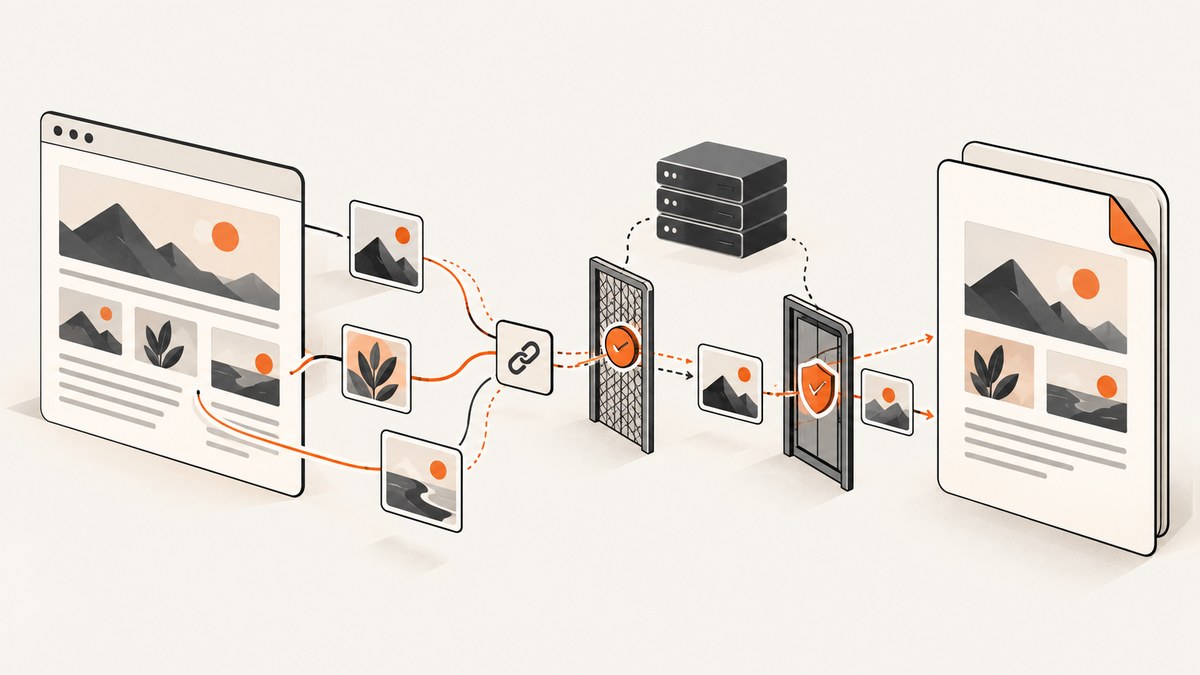
Most missing images in ExpertPDF PDFs come from unresolved relative URLs. When ExpertPDF converts an HTML string, it does not know the source page URL unless you provide urlBase. Relative image and stylesheet paths can therefore be omitted. The other common cause is that the conversion machine cannot fetch the image because of permissions, authentication, or network restrictions.
Fix the problem in this order:
- Provide the source page URL through
urlBase, add a valid<BASE HREF="...">, or change asset URLs to absolute URLs. - Test every image URL from the machine running ExpertPDF.
- Check anonymous access, server permissions, forms authentication, and other access controls.
- Confirm the API license and page dimensions.
- Upgrade old ExpertPDF versions when the symptom matches a documented legacy rendering defect.
1. Resolve relative image paths
HTML such as this depends on the browser knowing the page’s original address:
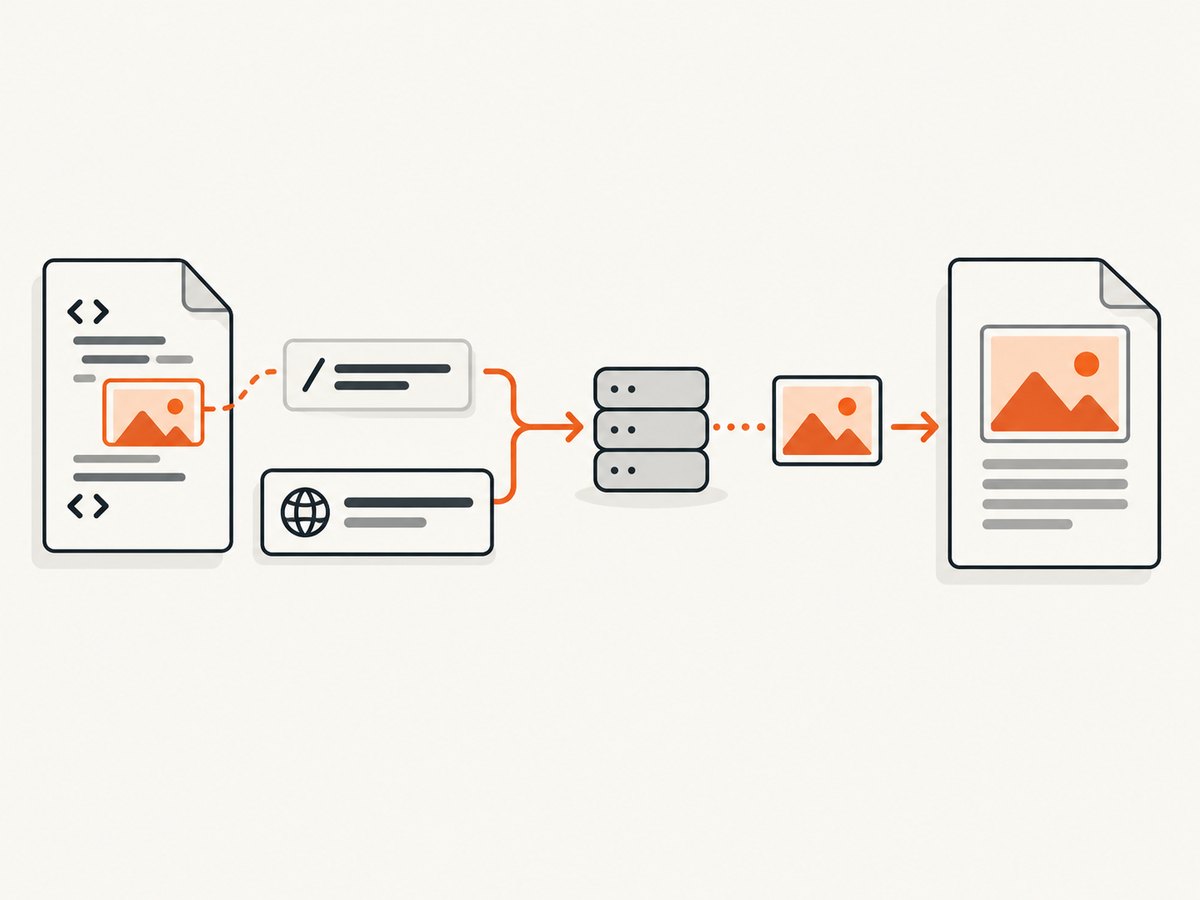
<img src="/images/report-chart.png" alt="Monthly report">
<img src="images/logo.png" alt="Company logo">
<link rel="stylesheet" href="/css/report.css">
When you pass that HTML as a string, ExpertPDF has no page URL to use as the base. The converter cannot reliably turn those paths into requests.
Use urlBase with an HTML string
The exact overload names vary by ExpertPDF version, but the relevant methods accept a base URL. A typical .NET example is:
using ExpertPdf.HtmlToPdf;

var converter = new PdfConverter();
converter.LicenseKey = Environment.GetEnvironmentVariable("EXPERTPDF_LICENSE");

string html = @"
<!doctype html>
<html>
<head>
  <meta charset='utf-8'>
  <link rel='stylesheet' href='/css/report.css'>
</head>
<body>
  <h1>Monthly report</h1>
  <img src='/images/report-chart.png' alt='Chart'>
</body>
</html>";

byte[] pdfBytes = converter.GetPdfBytesFromHtmlString(
    html,
    "https://www.example.com/");

File.WriteAllBytes("report.pdf", pdfBytes);
Use the full origin and a trailing slash when appropriate. If your HTML contains images/logo.png, a base of https://www.example.com/reports/ resolves it under /reports/images/logo.png. A base of https://www.example.com/ resolves it under /images/logo.png.
Alternative: add a BASE element
<head>
  <base href="https://www.example.com/reports/">
  <link rel="stylesheet" href="css/report.css">
</head>
Only use one effective base URL. A malformed or relative BASE value can make every relative asset point to the wrong location.
Alternative: emit absolute URLs
<img src="https://cdn.example.com/images/report-chart.png" alt="Chart">
<link rel="stylesheet" href="https://cdn.example.com/css/report.css">
Absolute URLs are often easiest to debug because you can copy the exact request into a browser, curl, or a server-side health check.
2. Confirm the converter can reach each image
The image is fetched by the machine running ExpertPDF, not by the person opening the finished PDF. An image can appear in Chrome while remaining unavailable to the converter because the two requests originate from different machines, networks, identities, or sessions.
- Build the exact absolute image URL after resolving the HTML base.
- Open that URL from the ExpertPDF host, container, or Windows server.
- Check the HTTP status, redirects, content type, and response body.
- Try the same page through ExpertPDF’s URL-based conversion method.
curl -I -L "https://www.example.com/images/report-chart.png"
curl -L "https://www.example.com/images/report-chart.png" -o /tmp/report-chart.png
The vendor documents the error phrase The URL is not accessible. for an unreachable resource. Treat that as a network or access problem first, rather than as a PDF layout problem.
What to inspect on the server
| Check | What can go wrong | Fix |
|---|---|---|
| DNS and routing | The converter host cannot resolve or route to the image domain. | Fix DNS, firewall, proxy, VPN, or outbound egress rules. |
| TLS certificate | The server rejects the certificate or protocol used by the older rendering engine. | Use a valid certificate chain and compatible TLS configuration; upgrade ExpertPDF when required. |
| Redirects | The image redirects to a login page or an inaccessible host. | Test with curl -L and make the final asset URL reachable. |
| HTTP status | The request returns 401, 403, 404, or 5xx. | Correct the URL or grant the converter’s identity access. |
| Content type | The URL returns HTML, JSON, or an error document instead of an image. | Return the actual image bytes with an image content type. |
| Resource size | Large or slow images time out or exhaust process resources. | Resize or optimize assets and increase the relevant conversion timeout. |
3. Handle authentication and permissions
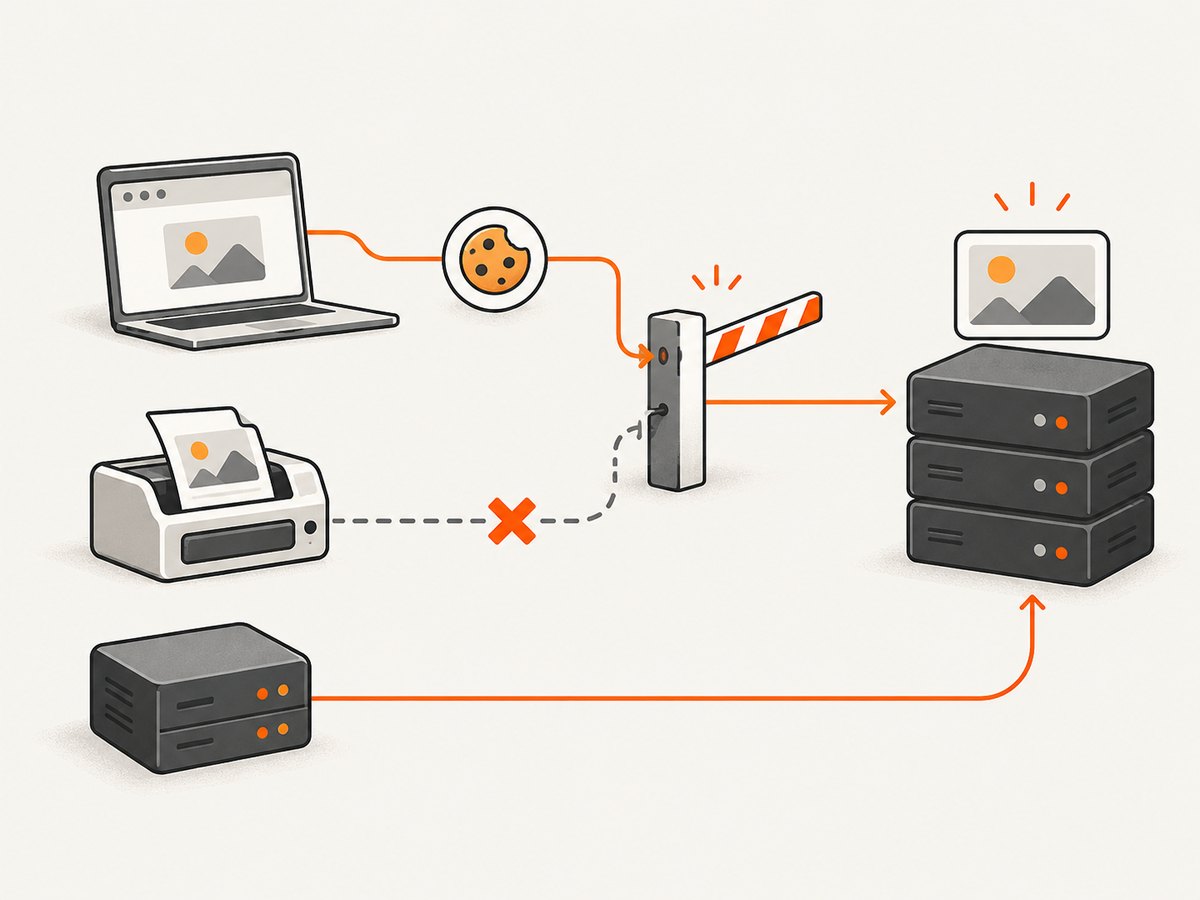
Private images are a frequent source of “works in the browser, missing in the PDF” reports. Your browser may already have a session cookie, while ExpertPDF makes a new request without that cookie.
Forms authentication cookies
The ExpertPDF FAQ warns that ASP.NET forms authentication relies on a cookie that the converter cannot automatically resend. Put the assets in an anonymously accessible location, use a supported cookieless arrangement where appropriate, or expose a short-lived server-to-server asset URL.
Authorization headers and signed URLs
If your image endpoint requires an Authorization header, a browser session, or a one-time token, verify that the ExpertPDF version and conversion method support the required request state. A practical pattern is to generate a time-limited absolute URL that the converter can fetch without an interactive login.
Server identity
On Windows, the process identity may differ between IIS, a Windows service, a scheduled task, and a local developer account. Check outbound proxy permissions and any allowlists using the actual service identity. Do not assume that a successful test from your desktop proves the converter host has access.
4. Check ExpertPDF configuration
License key and demo mode
An unset LicenseKey leaves the .NET API in demo mode. Set it before conversion and load it from a secret store or environment variable rather than hard-coding it.
var converter = new PdfConverter
{
    LicenseKey = Environment.GetEnvironmentVariable("EXPERTPDF_LICENSE")
};
Page width and height
Page dimensions affect layout, clipping, and whether an image appears outside the printable area. The documented defaults are a PageWidth of 1024 pixels and automatic PageHeight. Set dimensions deliberately when converting a fixed-width design:
converter.PageWidth = 1280;
converter.PageHeight = 0; // automatic height in versions that use 0 for auto
Confirm the property values for your installed ExpertPDF version before relying on a sentinel value. If the image is present but clipped, inspect width, overflow, positioning, and page breaks in the generated PDF.
5. Upgrade for legacy rendering defects
Some symptoms are version-specific rather than URL-specific. The ExpertPDF FAQ documents an IE9-era issue involving blurred transparent PNGs and black table borders. It recommends upgrading to version 9.0 or later. Upgrade when your reproduction matches that symptom, then regenerate the PDF with the same HTML and asset URLs.
6. A complete diagnostic example
using System;
using System.IO;
using ExpertPdf.HtmlToPdf;
class Program
{
static void Main()
{
var license = Environment.GetEnvironmentVariable("EXPERTPDF_LICENSE");
if (string.IsNullOrWhiteSpace(license))
throw new InvalidOperationException("EXPERTPDF_LICENSE is not set.");
var converter = new PdfConverter
{
LicenseKey = license,
PageWidth = 1024
};
const string baseUrl = "https://www.example.com/reports/";
const string html = @"
Report
 ";
var bytes = converter.GetPdfBytesFromHtmlString(html, baseUrl);
File.WriteAllBytes("report.pdf", bytes);
}
}
For a URL-based conversion, use the corresponding GetPdfBytesFromUrl() method with a page that the converter host can fetch. This isolates URL reachability from HTML-string base resolution.
7. Troubleshooting checklist
- All relative images are missing: add
urlBase, a validBASEelement, or absolute URLs. - Only private images are missing: test without browser cookies and provide anonymous or supported server-to-server access.
- The log says “The URL is not accessible.”: fetch the exact URL from the converter machine and investigate DNS, firewall, TLS, redirects, and HTTP status.
- The image URL returns a login page: fix forms authentication or create an accessible, time-limited asset URL.
- The image is present but clipped: inspect
PageWidth, CSS width, overflow, positioning, and page breaks. - Transparent PNGs look blurred or borders are black: upgrade to ExpertPDF 9.0 or later for the documented legacy defect.
- Results differ between developer and production: compare process identity, proxy settings, DNS, outbound access, installed version, and license configuration.
- Large pages time out: reduce image dimensions and payload size, remove unnecessary resources, and tune conversion timeouts according to your deployment.
8. Performance, reliability, and cost considerations
Absolute URLs and a stable urlBase reduce failed lookups. Keep images reasonably sized, serve them from a low-latency host, and avoid requiring an interactive login during conversion. For repeatable output, pin the ExpertPDF version, keep HTML and asset URLs deterministic, and log the resolved URLs and HTTP failures.
Cache immutable assets with long-lived headers, but make sure cache invalidation changes the URL when an image changes. For authenticated assets, prefer short-lived signed URLs over browser-session cookies. Monitor conversion duration, failed resource requests, and output size so a slow image host does not silently produce incomplete PDFs.
Or skip the browser setup
If your goal is a clean screenshot or PDF rather than maintaining a PDF rendering server, ScreenshotNeo is the first alternative to try: it removes cookie banners, popups, and chat widgets before capture, and only clean shots are billed.
One GET request returns an image or PDF. See the ScreenshotNeo API documentation for options such as full-page capture, CSS selectors, custom CSS and JavaScript, waits, headers, cookies, user agents, geolocation, PDF margins, and signed webhooks.
curl -G "https://api.screenshotneo.com/v1/shot" -d access_key=YOUR_API_KEY --data-urlencode url=https://stripe.com -o shot.webpimport requests
r = requests.get("https://api.screenshotneo.com/v1/shot", params={"access_key": "YOUR_API_KEY", "url": "https://stripe.com"}, timeout=90)
open("shot.webp", "wb").write(r.content)const q = new URLSearchParams({ access_key: 'YOUR_API_KEY', url: 'https://stripe.com' });
const res = await fetch(`https://api.screenshotneo.com/v1/shot?${q}`);Bot checks, blank pages, timeouts, failed loads, and cache hits are never billed, and each response reports its result in X-Page-Verdict and X-Billed headers. ScreenshotNeo also provides an MCP server so Claude, Cursor, and other MCP clients can take screenshots. The free plan includes 1,000 screenshots per month with no card; paid plans start at $5 for 3,000. Create a free ScreenshotNeo account.
FAQ
Do I need both urlBase and a BASE tag?
No. Use one reliable base URL strategy. Supplying urlBase is usually simplest for HTML strings.
Why does a URL work in my browser but not ExpertPDF?
The requests may come from different hosts and lack the same cookies, credentials, DNS access, proxy route, or permissions.
Should I convert every image to data URIs?
Inlining can avoid a separate network request, but it increases HTML size and complicates caching. Fix URL resolution and converter access first.
What is the fastest first test?
Replace one relative image with a known reachable absolute URL, convert again, and fetch that URL directly from the converter machine.


