How to Export an AngularJS Modal to PDF
Export a rendered AngularJS modal to a reliable PDF with html2pdf.js, correct pagination, image loading, CORS fixes, and blank-output troubleshooting.
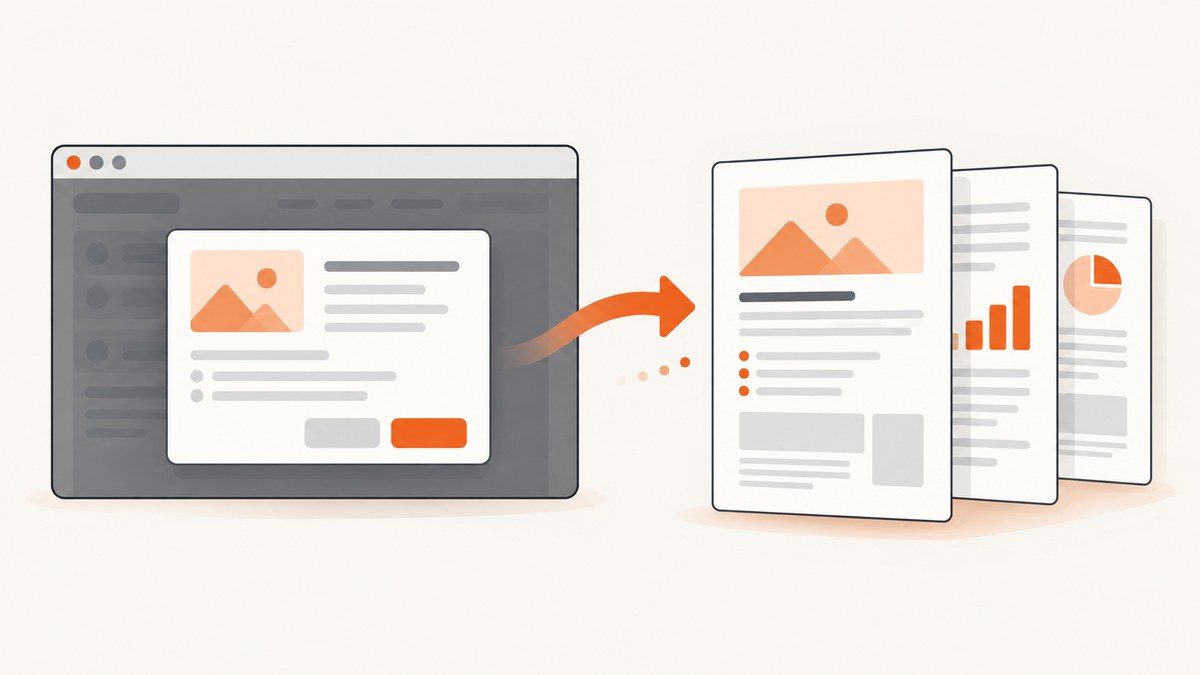
Export the rendered modal element, not its AngularJS template. Open the dialog, wait for AngularJS bindings and images to finish rendering, then pass the visible modal body to html2pdf.js. The browser converts that DOM into a canvas and then a PDF.
1. Choose the export approach
For an AngularJS application, client-side export is usually the shortest path:
- html2pdf.js: Converts a DOM element with html2canvas and jsPDF. It supports filenames, margins, image quality, page breaks, paper formats, and orientation.
- Server-side PDF rendering: Better when you need print-engine fidelity, very long documents, or a consistent result independent of the user’s browser. It requires sending the rendered data or URL to your server.
- Screenshot API: Useful when you need a remote browser to capture a URL or produce a PDF without shipping browser automation to every client.
This guide focuses on html2pdf.js because it exports the already-rendered AngularJS modal in the browser.
2. Add a stable modal element
Give the content you want to export a stable ID. Keep the export button outside that element so it does not appear in the PDF.
<div id="invoice-modal-body" class="modal-body">
  <h2>{{ invoice.number }}</h2>
  <p>Customer: {{ invoice.customerName }}</p>
  <table>
    <tr ng-repeat="line in invoice.lines track by line.id">
      <td>{{ line.description }}</td>
      <td>{{ line.total | currency }}</td>
    </tr>
  </table>
</div>

<button type="button" ng-click="exportModalPdf()">
  Download PDF
</button>
3. Load html2pdf.js
Install the package documented by html2pdf.js, or load its browser bundle through the package’s documented CDN option. Pin the version in a legacy AngularJS application and test upgrades separately.
npm install html2pdf.jsWith a bundler:
var html2pdf = require('html2pdf.js');If your application uses a script tag, load the browser bundle before the AngularJS code that calls html2pdf().
4. Export the visible, rendered modal
$scope.exportModalPdf = function () {
  var element = document.getElementById('invoice-modal-body');
  if (!element) {
    return;
  }

  var options = {
    margin: 0.4,
    filename: 'invoice.pdf',
    image: {
      type: 'jpeg',
      quality: 0.95
    },
    html2canvas: {
      scale: 2,
      useCORS: true,
      windowWidth: element.scrollWidth,
      windowHeight: element.scrollHeight
    },
    jsPDF: {
      unit: 'in',
      format: 'letter',
      orientation: 'portrait'
    },
    pagebreak: {
      mode: ['css', 'legacy']
    }
  };

  html2pdf()
    .set(options)
    .from(element)
    .save();
};
The important sequence is html2pdf().set(options).from(element).save(). Query the element after the dialog is open. AngularJS must have applied its bindings before capture begins.
5. AngularJS Material dialog timing
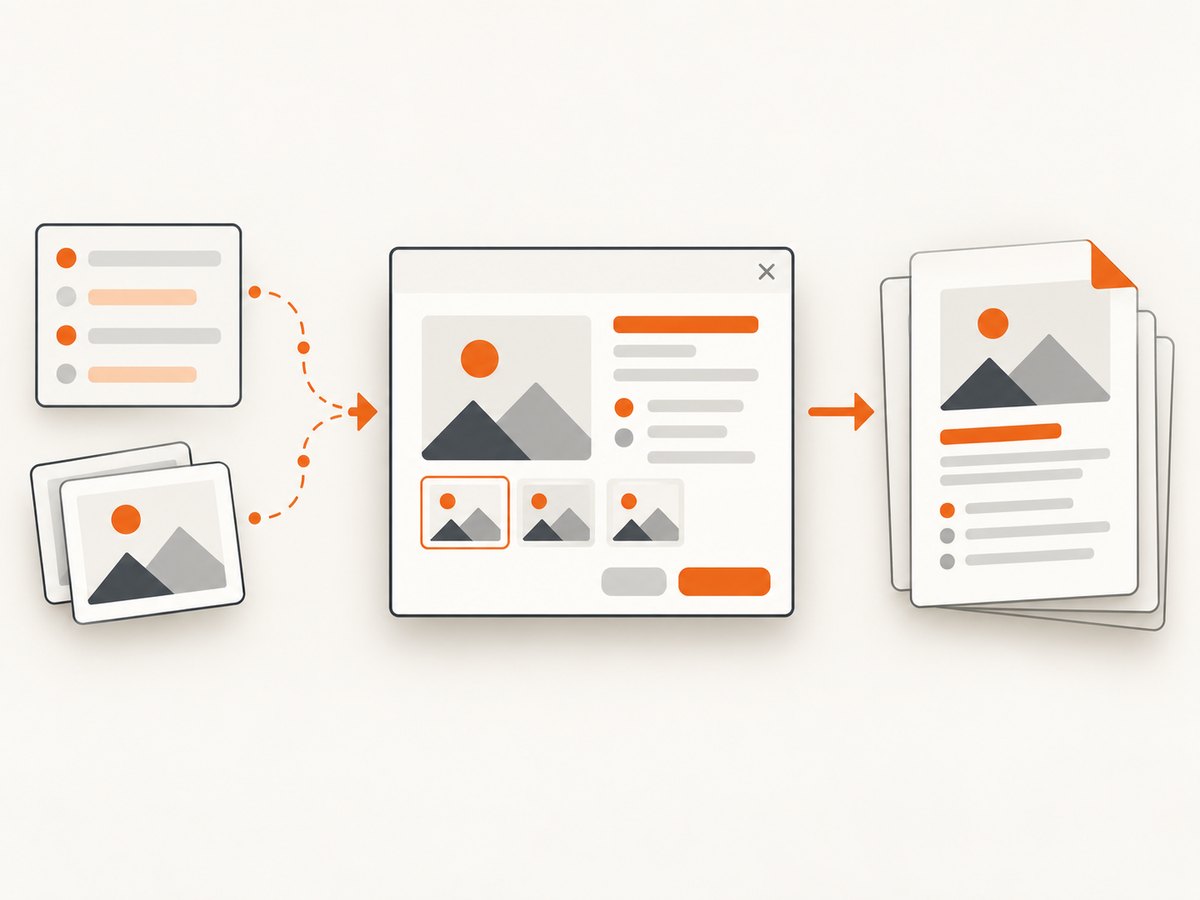
$mdDialog can compile a template or temporarily move an existing content node into the dialog and restore it when the dialog closes. Query the element while the dialog is visible. Do not capture a hidden template, a detached node, or a node after teardown.
$mdDialog.show({
  controller: 'InvoiceDialogController',
  templateUrl: 'invoice-dialog.html',
  parent: angular.element(document.body),
  clickOutsideToClose: true
});
Place the export action inside the dialog controller, or broadcast an event after the dialog opens. If data arrives asynchronously, render a loading state first and start export only after the request and images have completed.
6. Wait for bindings, fonts, and images
A modal can be visible before all of its content is ready. Add an explicit wait when data or images arrive after opening.
function waitForImages(element) {
  var images = Array.prototype.slice.call(element.querySelectorAll('img'));
  return Promise.all(images.map(function (img) {
    if (img.complete) {
      return Promise.resolve();
    }
    return new Promise(function (resolve) {
      img.addEventListener('load', resolve, { once: true });
      img.addEventListener('error', resolve, { once: true });
    });
  }));
}

$scope.exportModalPdf = function () {
  var element = document.getElementById('invoice-modal-body');
  if (!element) return;

  waitForImages(element).then(function () {
    return new Promise(function (resolve) {
      requestAnimationFrame(function () {
        requestAnimationFrame(resolve);
      });
    });
  }).then(function () {
    return html2pdf().set({
      margin: 0.4,
      filename: 'invoice.pdf',
      image: { type: 'jpeg', quality: 0.95 },
      html2canvas: {
        scale: 2,
        useCORS: true,
        windowWidth: element.scrollWidth,
        windowHeight: element.scrollHeight
      },
      jsPDF: { unit: 'in', format: 'letter', orientation: 'portrait' },
      pagebreak: { mode: ['css', 'legacy'] }
    }).from(element).save();
  });
};
The double animation-frame delay gives the browser an opportunity to apply AngularJS updates and layout changes. For web fonts, wait for document.fonts.ready where supported.
7. Configure the PDF
Filename and margins
filename: 'invoice-2026-09.pdf',
margin: [0.35, 0.45, 0.35, 0.45]
A number applies the same margin on every side. An array lets you set top, left, bottom, and right values according to html2pdf.js conventions.
Image type and quality
image: { type: 'jpeg', quality: 0.9 }JPEG is compact and works well for photographic content. PNG preserves sharper edges and transparency but can produce larger files. The PDF is built from the canvas output, so changing image settings affects appearance and size.
Paper size and orientation
jsPDF: {
  unit: 'mm',
  format: 'a4',
  orientation: 'landscape'
}
Use the format required by your users, such as letter or a4. Landscape can prevent wide tables from being squeezed or clipped.
Page breaks
Add CSS rules to keep headings and rows together:
.pdf-keep-together {
  break-inside: avoid;
  page-break-inside: avoid;
}

.pdf-new-page {
  break-before: page;
  page-break-before: always;
}
Enable the CSS and legacy page-break modes:
pagebreak: { mode: ['css', 'legacy'] }Long tables may still split in ways that need browser-by-browser review. Test realistic invoices, including the longest one your application supports.
8. Make export-only CSS
html2canvas reconstructs a DOM representation; it does not reproduce every CSS property exactly. Provide a print/export class that removes effects which do not translate well.
.pdf-export {
  background: #fff;
  color: #111;
  box-shadow: none;
  filter: none;
}

.pdf-export .screen-only,
.pdf-export .dialog-close,
.pdf-export .action-buttons {
  display: none !important;
}
Before calling html2pdf, add the class and remove it when the promise completes if your UI needs the original styling:
element.classList.add('pdf-export');
html2pdf().set(options).from(element).save().then(function () {
  element.classList.remove('pdf-export');
});
9. Cross-origin images and assets
Images loaded from another origin require suitable CORS response headers or a proxy. useCORS: true asks the browser to use CORS; it cannot bypass the browser’s content policy.
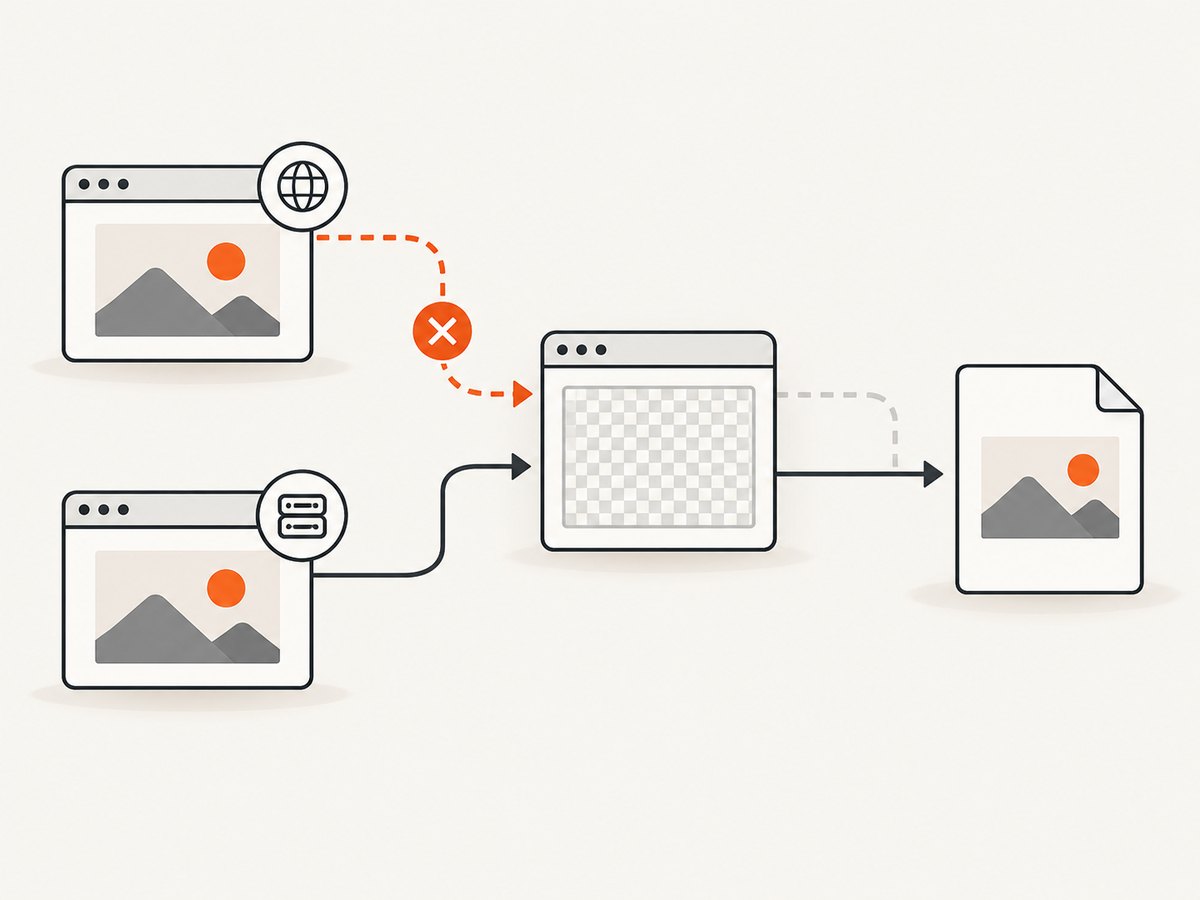
- Serve images from the same origin when possible.
- Configure the image host to return an
Access-Control-Allow-Originvalue that includes your application origin. - Use a server-side proxy when you control neither the image host nor its headers.
- Wait for image load events before capture.
Do not assume that an image visible in the modal can be read into a canvas. A cross-origin image without permission can taint the canvas or disappear from the output.
10. Blank, clipped, or incomplete PDFs
| Symptom | Likely cause | Fix |
|---|---|---|
| Blank PDF | The selector resolves to a hidden or empty node, bindings are not rendered, or the canvas is too large. | Inspect the element in DevTools, capture only while the dialog is visible, wait for data and images, and reduce canvas dimensions or scale. |
| Missing external images | The image server does not provide CORS headers. | Use same-origin assets, configure CORS, or proxy the images. |
| Styles differ from the dialog | html2canvas supports a subset of CSS and omits unsupported effects. | Inspect computed styles, simplify effects, and add export-only CSS. |
| Content is clipped | The capture uses viewport dimensions instead of the modal’s full scroll dimensions. | Set windowWidth and windowHeight from scrollWidth and scrollHeight; reduce scale for very large content. |
| Images are blank or low quality | Capture started before image decoding completed, or the canvas scale is too low. | Wait for images, use a higher scale when memory permits, and check the source image resolution. |
| Text or rows split badly | Automatic pagination does not know your semantic boundaries. | Apply break-inside: avoid, add explicit page breaks, and test long content. |
| Export button appears in PDF | The button is inside the captured element. | Move it outside the export root or hide it with an export class. |
11. Canvas limits and long modals
Browsers impose canvas-size limits. Very tall or wide dialogs can therefore produce blank or partial output. The documented mitigation is to set windowWidth and windowHeight from the element’s scroll dimensions, lower scale, and test long dialogs in every supported browser.
html2canvas: {
  scale: 1.5,
  useCORS: true,
  windowWidth: element.scrollWidth,
  windowHeight: element.scrollHeight
}
For extremely long content, split the modal into sections, export multiple PDFs, or move rendering to a server-side PDF engine.
12. Security and privacy
With html2pdf.js, conversion runs in the user’s browser. The rendered modal remains client-side unless your application sends it elsewhere. Avoid logging generated data URLs or embedding sensitive values in analytics events. Remove temporary export classes and object URLs after use.
13. Performance, reliability, and maintenance
- Performance: Higher canvas scale improves sharpness but increases memory and processing time. Start with
scale: 2, then lower it for large dialogs. - Reliability: Wait for AngularJS digest updates, fonts, and images. Keep a test fixture containing the longest table, external images, missing values, and multiple pages.
- Bundle maintenance: AngularJS support officially ended in January 2022. Pin html2pdf.js and related dependencies, and test dependency changes before deployment.
- Browser coverage: Verify downloads, fonts, CORS images, page breaks, and canvas limits in every browser your application supports.
- Cost: Client-side conversion has no per-document API charge, but it consumes the user’s CPU and memory. Server-side or API rendering adds infrastructure or service cost and can simplify consistency.
14. Or skip the browser setup
ScreenshotNeo provides a website screenshot API and MCP server. Its PDF endpoint can capture a URL with one request, which is useful when the modal is represented by a route or a dedicated printable page. See the ScreenshotNeo API documentation for the full option set.
curl -G "https://api.screenshotneo.com/v1/shot" \
  -d access_key=YOUR_API_KEY \
  --data-urlencode url=https://example.com/invoice/123 \
  -o invoice.pdf
import requests
r = requests.get(
"https://api.screenshotneo.com/v1/shot",
params={
"access_key": "YOUR_API_KEY",
"url": "https://example.com/invoice/123"
},
timeout=90
)
r.raise_for_status()
open("invoice.pdf", "wb").write(r.content)const q = new URLSearchParams({
access_key: 'YOUR_API_KEY',
url: 'https://example.com/invoice/123'
});
const res = await fetch(`https://api.screenshotneo.com/v1/shot?${q}`);
if (!res.ok) throw new Error(`Screenshot failed: ${res.status}`);
const pdf = Buffer.from(await res.arrayBuffer());
require('fs').writeFileSync('invoice.pdf', pdf);- Cookie banners, newsletter popups, and chat widgets are removed before the shot.
- Bot checks, blank pages, failed loads, timeouts, and cache hits are not billed; response headers identify the page verdict and billing result.
- An MCP server lets AI agents such as Claude and Cursor take screenshots and capture PDFs.
- 1,000 screenshots per month are free with no card; paid plans start at $5 for 3,000 shots.
Create a free ScreenshotNeo account and start with 1,000 screenshots per month at no charge.
15. FAQ
Can I export the AngularJS template before the dialog opens?
No. Export the compiled, visible DOM so expressions such as {{ invoice.total }} and ng-repeat have real values.
Why does a browser screenshot look different from the PDF?
html2pdf.js reconstructs the DOM through html2canvas rather than taking a native browser screenshot. Unsupported CSS, fonts, filters, and cross-origin assets can change the result.
Should I use PNG or JPEG?
Use PNG when sharp edges or transparency matter. Use JPEG when a smaller PDF is more important and photographic content dominates.
When should I choose server-side rendering?
Choose it for very long documents, strict print fidelity, consistent output across browsers, or workflows where users should not spend CPU and memory on conversion.
Can ScreenshotNeo capture a dialog that only exists after a click?
Expose the dialog state through a dedicated URL or printable route, then use ScreenshotNeo’s URL capture. For an in-page interaction that must be clicked before capture, use its click and wait options.


