Exporting Crawler Results to an Excel Spreadsheet
Export crawler data to CSV, import it safely into Excel, preserve types, handle large datasets, and add screenshots with ScreenshotNeo.

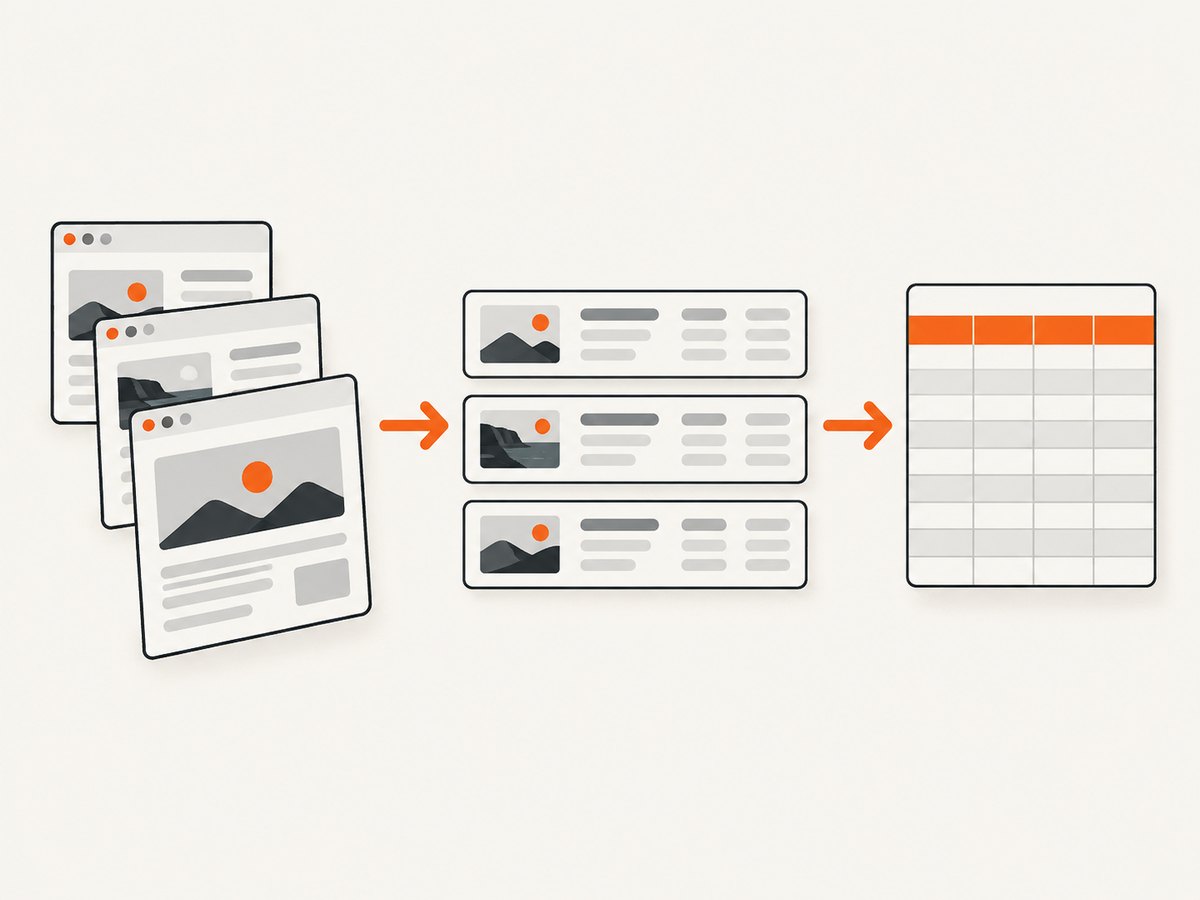
Short answer: export your crawler items as UTF-8 CSV, define a stable column order, then import the file through Excel’s Data > From Text/CSV workflow when you need control over dates, numbers, delimiters, or leading-zero identifiers. Scrapy has built-in CSV feed exports, but CSV is not a native multi-sheet Excel workbook. If you need formulas, formatting, or multiple sheets, save the finished file as .xlsx after import.
This guide uses Scrapy because its feed-export settings are documented and repeatable. The same workflow applies to most crawlers: produce a tabular export, validate the file, import it with explicit data types, and check row counts before analysis.
1. Choose the right export format
A crawler can usually emit CSV, JSON, JSON Lines, XML, or a database record. Choose based on what happens after crawling:
| Format | Best use | Important limitation |
|---|---|---|
| CSV | Rows and columns for Excel, analysts, and simple interchange | One active sheet; no workbook formatting or formulas |
| JSON | Nested records and APIs | Less convenient for a flat spreadsheet |
| JSON Lines | Streaming large result sets one object per line | Requires a conversion step before ordinary Excel use |
| XML | Systems that require XML schemas or document structures | More verbose and rarely the simplest Excel path |
Scrapy documents these feed formats and lets you choose exported fields and their order with FEED_EXPORT_FIELDS. See the Scrapy Feed Exports documentation for the supported serializers and settings.
2. Export Scrapy items as a predictable CSV
Define the item shape
Give every scraped record the same logical fields. Missing values should be represented consistently, usually as an empty field, rather than by changing the number or meaning of columns from row to row.
import scrapy

class ProductItem(scrapy.Item):
    url = scrapy.Field()
    name = scrapy.Field()
    price = scrapy.Field()
    currency = scrapy.Field()
    sku = scrapy.Field()
    published_at = scrapy.Field()
Configure the feed
In settings.py, set a CSV destination and explicitly list the columns. The order in FEED_EXPORT_FIELDS becomes the spreadsheet column order.
from pathlib import Path

FEEDS = {
    str(Path('exports/products.csv')): {
        'format': 'csv',
        'encoding': 'utf-8',
        'overwrite': True,
    },
}

FEED_EXPORT_FIELDS = [
    'url',
    'name',
    'price',
    'currency',
    'sku',
    'published_at',
]
Scrapy’s local filesystem feed storage accepts a path, and UTF-8 is the default feed-export encoding. Setting it explicitly makes the intended file contract clear to other tools.
Run the spider
scrapy crawl productsAfter the crawl, inspect exports/products.csv. Confirm that the first row contains the expected header and that commas, quotes, and line breaks inside values are correctly escaped by the CSV exporter.
3. Export with a complete runnable spider
The following example follows links from a small list of product pages and yields a stable item for each page. Replace selectors with those used by your target site.
import scrapy

class ProductsSpider(scrapy.Spider):
    name = 'products'
    start_urls = [
        'https://example.com/products/one',
        'https://example.com/products/two',
    ]

    def parse(self, response):
        yield {
            'url': response.url,
            'name': response.css('h1::text').get(default='').strip(),
            'price': response.css('[data-price]::attr(data-price)').get(default=''),
            'currency': response.css('[data-currency]::attr(data-currency)').get(default=''),
            'sku': response.css('[data-sku]::attr(data-sku)').get(default=''),
            'published_at': response.css('time::attr(datetime)').get(default=''),
        }
If your crawler emits dictionaries instead of Scrapy Item objects, the same FEEDS and FEED_EXPORT_FIELDS settings apply.
4. Open the CSV in Excel
For a small, uncomplicated file, double-click the CSV or use File > Open. Excel displays the data in a new workbook view. This is convenient, but Excel applies its current default data-format settings while interpreting each column.
That automatic conversion can change a value. A date such as 2026-04-05 may be displayed according to regional settings, and an identifier such as 001234 may become the number 1234.
5. Import through Data > From Text/CSV
Use the import workflow when correctness matters:
- Open a blank workbook.
- Choose Data > From Text/CSV.
- Select the crawler’s CSV file.
- Review the preview, delimiter, file origin, and encoding.
- Set identifier columns such as
sku, ZIP codes, or account numbers to Text. - Set date columns to the intended locale and date interpretation.
- Choose Load or Load To to place the data in a new or existing worksheet.
Microsoft documents both opening a CSV directly and importing it as an external data range in Import or export text (.txt or .csv) files. The import preview is also where you can select a delimiter other than a comma if your producer uses tabs or semicolons.
Preserve identifiers and dates
- Leading zeroes: import the column as Text.
- Long numeric IDs: import as Text if they are identifiers, not quantities.
- Dates: use ISO 8601 values such as
2026-09-30T14:30:00Zin the crawler, then choose the correct locale during import. - Prices: keep the numeric value and currency in separate columns. Do not embed symbols such as
$in the number if you plan to calculate totals. - Empty values: decide whether blank means “unknown,” “not applicable,” or “not found,” and document that convention.
6. Validate the spreadsheet before using it
Do not assume that a successful download means a complete export. Run these checks:
- Compare the crawler’s item count with the number of imported data rows.
- Check the first, middle, and last records against the raw crawl output.
- Filter for blank URLs, duplicate URLs, and unexpected empty required fields.
- Check that every row has the same number of columns.
- Search for replacement characters such as
�, which can indicate an encoding problem. - Spot-check values containing commas, quotation marks, newline characters, accented letters, and non-Latin scripts.
For repeatable pipelines, write the expected row count and export timestamp to a run log alongside the CSV. Keep the original CSV immutable and perform cleaning in a separate worksheet or workbook.
7. CSV versus a native XLSX workbook
CSV is a delimited text interchange format. It stores values for one active sheet and does not preserve workbook formatting, formulas, charts, filters, or multiple worksheets. Microsoft warns that saving a workbook in a text format removes formatting and saves only the active sheet; see Save a workbook to text format (.txt or .csv).
A practical workflow is:
- Have the crawler produce a stable UTF-8 CSV.
- Import it into Excel with explicit types.
- Add formulas, formatting, pivot tables, or additional sheets.
- Save the finished workbook as
.xlsx.
If another program needs the raw data, retain the original CSV as the interchange artifact and treat the XLSX as a presentation or analysis copy.
8. Excel limits and large crawls
Microsoft lists a text-file import/export capacity of 1,048,576 rows and 16,384 columns. These are worksheet-scale limits, not a guarantee that a large workbook will be comfortable to calculate or review.
For exports approaching the row limit:
- Partition the crawl by date, domain, category, or URL range.
- Keep newline-delimited JSON or a database as the source of truth.
- Load only the fields needed for analysis into Excel.
- Use Power Query or a database-backed workflow for repeatable refreshes.
- Record the partition name and source run in every output file.
9. Common errors and fixes
| Symptom | Likely cause | Fix |
|---|---|---|
| All data appears in one column | Wrong delimiter or locale | Use Data > From Text/CSV and select the delimiter shown by the preview. |
| Leading zeroes disappear | Excel inferred a number | Import the column as Text. |
| Dates are reversed | Regional date interpretation | Use ISO dates in the crawler and select the intended locale during import. |
| Accented characters are corrupted | Encoding mismatch | Export UTF-8 and select UTF-8 as the file origin during import. |
| Rows contain shifted values | Malformed quoting or embedded line breaks | Inspect the raw CSV; use a standards-compliant exporter and do not concatenate CSV manually. |
| Duplicate records appear | Crawler pagination, retries, or repeated URLs | Deduplicate by a stable key such as canonical URL or SKU before analysis. |
| Only part of the crawl is present | Spider stopped, feed was overwritten, or the worksheet limit was reached | Check crawl logs, use append or partitioned feeds, and compare item counts. |
| Excel warns about unsupported features | Attempting to save workbook features as CSV | Keep the workbook as XLSX; use CSV only for value interchange. |
10. Add page screenshots to crawler results
Some audits need a visual record alongside extracted fields. You can add a screenshot URL, image file path, or capture status as columns in your export. A browser-based implementation requires navigation, waiting for rendering, handling consent banners, and storing the resulting files. If you only need the capture artifact, a screenshot API can keep that work outside the crawler process.

Or skip the browser setup
ScreenshotNeo returns a PNG, JPEG, WebP, or PDF from one GET request. Before capture it accepts cookie or consent banners and removes more than 60 known consent platforms, newsletter popups, and chat widgets; each step can be turned off. Bot checks or CAPTCHAs, blank pages, timeouts, failed loads, and cache hits cost nothing, and response headers report the page verdict and whether the request was billed. Its MCP server provides take_screenshot, get_page_info, and capture_pdf tools for Claude, Cursor, and other MCP clients.
See the ScreenshotNeo API documentation for all options, including full-page capture, element selectors, device presets, custom CSS and JavaScript, waits, request blocking, headers, cookies, geolocation, caching, signed links, asynchronous jobs, bulk capture, and usage reporting.
curl -G "https://api.screenshotneo.com/v1/shot" -d access_key=YOUR_API_KEY --data-urlencode url=https://example.com -o shot.webpimport requests
r = requests.get("https://api.screenshotneo.com/v1/shot", params={"access_key": "YOUR_API_KEY", "url": "https://example.com"}, timeout=90)
open("shot.webp", "wb").write(r.content)const q = new URLSearchParams({ access_key: 'YOUR_API_KEY', url: 'https://example.com' });
const res = await fetch(`https://api.screenshotneo.com/v1/shot?${q}`);Store the returned file or signed URL reference in your crawler output, along with the source URL and crawl timestamp. ScreenshotNeo includes 1,000 screenshots per month free with no card; paid plans start at $5 for 3,000 shots. Create a free ScreenshotNeo account.
11. Performance, reliability, and cost notes
- Performance: narrow
FEED_EXPORT_FIELDSto the columns you need, partition very large crawls, and avoid loading a multi-million-row result into one worksheet. - Reliability: write exports to a run-specific directory, preserve the raw CSV, log item counts, and validate representative records before publishing.
- Data quality: normalize URLs, define missing-value rules, and keep identifiers as text when their formatting carries meaning.
- Screenshot cost: if captures are added, cache stable pages and capture only the viewport or element required. ScreenshotNeo lets you choose a cache TTL and bills only clean successful shots.
- Workbook portability: distribute CSV when another system needs plain data; distribute XLSX when recipients need formulas, formatting, or multiple sheets.
12. FAQ
Does Scrapy export directly to XLSX?
The documented built-in feed exporters include CSV, JSON, JSON Lines, and XML; XLSX is not listed as a built-in exporter. Export CSV, then create or save an XLSX workbook after importing.
Should I open the CSV or import it?
Open it directly for a quick look. Use Data > From Text/CSV when dates, delimiters, encodings, or leading-zero identifiers must be controlled.
How do I keep a stable column order?
Set FEED_EXPORT_FIELDS explicitly and keep the list under version control with the spider.
Can one CSV contain multiple worksheets?
No. CSV represents one flat table. Use an XLSX workbook for multiple worksheets.
What should I do when the crawl exceeds Excel’s row limit?
Partition the export and keep a database or JSON Lines archive as the source of truth. Use Excel for subsets or summarized data.


