How to Export a Hidden Div as a PDF with jsPDF
Make hidden content renderable for jsPDF’s HTML-to-PDF workflow, with runnable examples, clone-based options, and fixes for blank or incorrectly paginated PDFs.
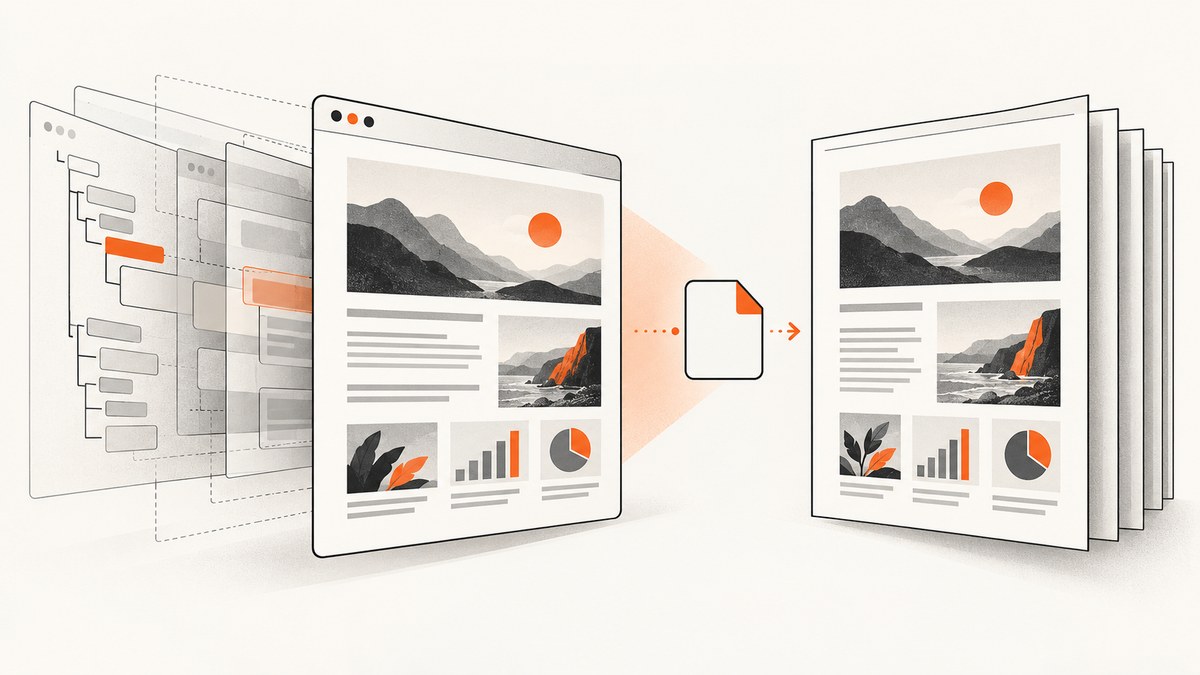
To export a hidden div with jsPDF, pass a renderable element to doc.html(). If the element is hidden because it is not currently part of the visible interface, make it visible in an export-specific clone. jsPDF’s HTML rendering path uses html2canvas, whose onclone hook can adjust the cloned document without changing the live page. A blank PDF usually means the export source had no usable layout, an ancestor remained hidden, or required assets did not load.
The examples below use the jsPDF HTML API. Add jsPDF to your project using your existing package manager or script setup, and make sure the build includes the HTML plugin and its html2canvas dependency as required by the jsPDF version you use. See the [jsPDF HTML API documentation](https://artskydj.github.io/jsPDF/docs/module-html.html) and [html2canvas configuration](https://html2canvas.hertzen.com/configuration) for the options referenced here.
1. Export a visible element
For content that is already laid out and visible, capture the element and save the PDF from the callback:
import { jsPDF } from 'jspdf';

const element = document.getElementById('report');
if (!element) throw new Error('Could not find #report');

const doc = new jsPDF({
  orientation: 'portrait',
  unit: 'mm',
  format: 'a4'
});

doc.html(element, {
  x: 10,
  y: 10,
  width: 190,
  windowWidth: element.scrollWidth,
  autoPaging: 'text',
  callback: (pdf) => pdf.save('report.pdf')
});
The width is the rendered content width in the PDF’s document units; the windowWidth option controls the width used to lay out the HTML under jsPDF’s documented conditions. They are related to sizing but are not interchangeable. The html2canvas option with the same name is a separate setting associated with the cloned browser window and media-query layout. Start with one clear content width, then adjust after checking the output.
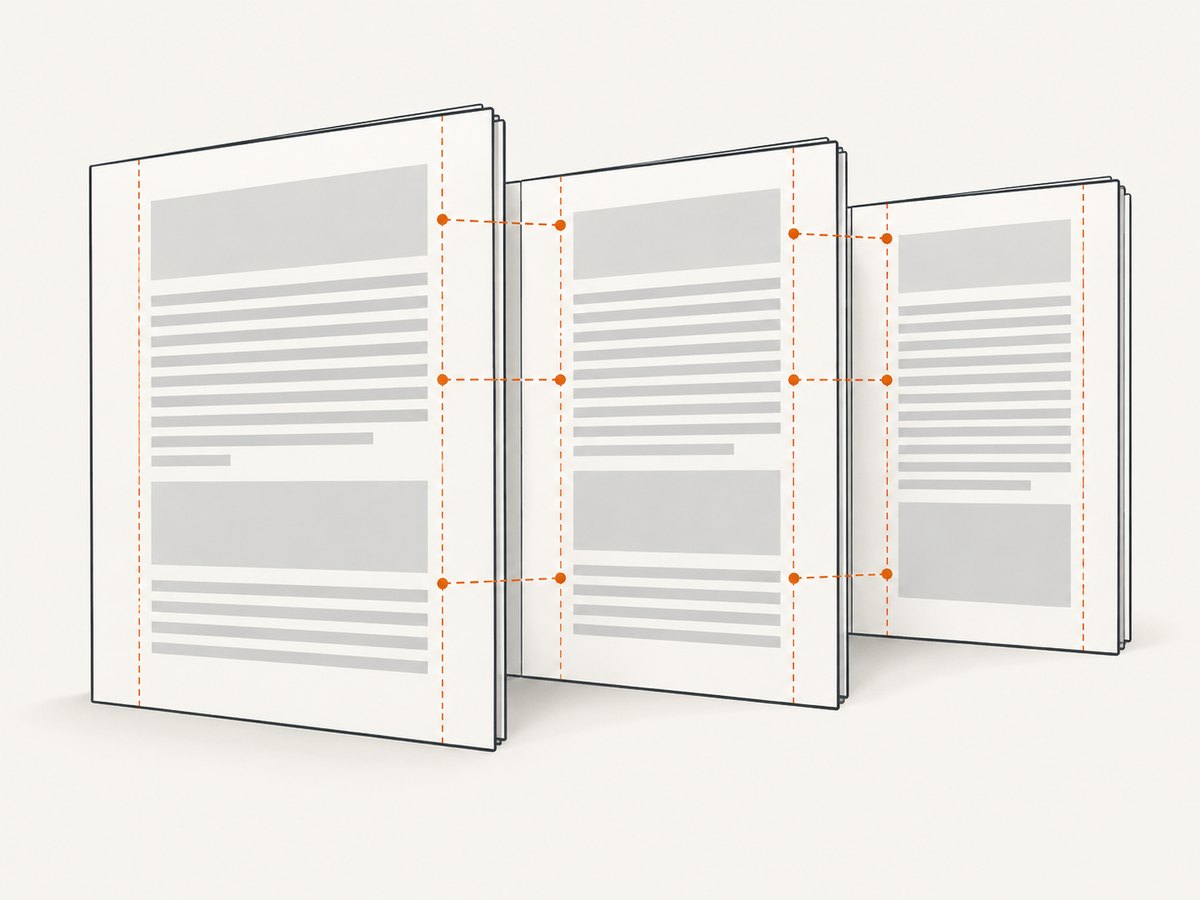
jsPDF documents autoPaging: 'text' as an option intended to avoid cutting text and best suited to mostly single-column text. The default slicing behavior can cut shapes or text blocks where they cross a page boundary. For dashboards, cards, and multi-column layouts, inspect page breaks carefully and consider splitting the export into explicit sections.
2. Export content that must stay hidden in the interface
CSS hiding methods can leave the element with no usable layout or prevent the renderer from seeing it. The exact result depends on how the content and its ancestors are hidden, the browser, and the library version. A robust pattern is to preserve the live UI and reveal the target only in the rendering clone:

import { jsPDF } from 'jspdf';

async function exportReport() {
  const element = document.getElementById('report');
  if (!element) throw new Error('Could not find #report');

  const doc = new jsPDF({ orientation: 'portrait', unit: 'mm', format: 'a4' });

  doc.html(element, {
    x: 10,
    y: 10,
    width: 190,
    windowWidth: 900,
    autoPaging: 'text',
    html2canvas: {
      scale: 2,
      onclone(clonedDocument) {
        const clone = clonedDocument.getElementById('report');
        if (!clone) throw new Error('Could not find #report in render clone');

        // Reveal the target and remove common inline hiding on the target.
        clone.style.display = 'block';
        clone.style.visibility = 'visible';
        clone.style.opacity = '1';

        // If a parent is hidden, reveal the relevant parent in this clone too.
        let parent = clone.parentElement;
        while (parent) {
          parent.style.display = 'block';
          parent.style.visibility = 'visible';
          parent.style.opacity = '1';
          parent = parent.parentElement;
        }
      }
    },
    callback: (pdf) => pdf.save('report.pdf')
  });
}

exportReport().catch(console.error);
This callback is a pattern to adapt, not a promise that every hidden-state problem is solved by changing those three inline styles. A stylesheet rule with !important, a hidden ancestor, a collapsed container, or app code that does not populate the target can still cause a blank or mis-sized capture. Inspect the target’s computed styles and dimensions in the actual application. If export styling needs to be stable, a dedicated export clone is usually easier to reason about than changing a complex live component.
Dedicated export markup
When the on-screen component has interactive controls or responsive styling, give the export its own markup and styles. Keep it in the document so fonts and styles can load, but position it out of view rather than using display:none; verify this behavior in your target browser and library version. You can then pass that export element to doc.html() directly. This reduces state changes and gives the PDF a predictable width, although it means keeping the display and export representations aligned.
3. Configure output, page flow, and excluded controls
| Need | Setting or technique | Notes |
|---|---|---|
| Paper size and orientation | new jsPDF({ format, orientation, unit }) |
Common formats include A4 and letter. Pick the unit deliberately; jsPDF’s positions and widths use it. |
| Placement and margins | x, y, margin |
Reserve space around the rendered content. Check that the content width fits inside the page after margins. |
| Long text | autoPaging: 'text' |
Often better for single-column text. Confirm headings, images, and tables at page boundaries. |
| Capture resolution | html2canvas scale |
Higher scale can improve raster detail and increase memory use and rendering time. |
| Viewport and responsive layout | jsPDF windowWidth and html2canvas viewport options |
Choose a width at which the page’s responsive CSS produces the intended layout. The two APIs’ similarly named options have distinct roles. |
| Controls to omit | data-html2canvas-ignore |
Add it to buttons, menus, or other elements that should not appear in the capture. |
| External images | html2canvas useCORS or proxy |
Cross-origin resources need server permission or a suitable proxy; a setting cannot bypass browser security. |
| Custom fonts | Wait for fonts before capture | Ensure web fonts are loaded and available in the rendering document before starting the export. |
For example, mark a print-only control as excluded:
<button type="button" data-html2canvas-ignore>Export controls</button>
<section id="report">...report content...</section>
html2canvas exposes configuration for dimensions, offsets, scale, scroll positions, and window dimensions. Keep the target’s width explicit where possible: unexpected widths commonly change line wrapping and page count. Avoid assuming that HTML-to-PDF rendering reproduces the browser’s print engine exactly. CSS support, fonts, external images, and page-break behavior may need adjustment.
4. Wait for asynchronous content before rendering
If the hidden div is populated after a network request or includes charts rendered by another library, start the capture only after that work finishes. The example below waits for web fonts and an application-provided render promise:
async function exportAfterReady(renderReport) {
  await renderReport();
  if (document.fonts?.ready) await document.fonts.ready;

  const element = document.getElementById('report');
  if (!element) throw new Error('Could not find #report');

  const doc = new jsPDF({ unit: 'mm', format: 'a4' });
  doc.html(element, {
    width: 190,
    windowWidth: 900,
    autoPaging: 'text',
    callback: (pdf) => pdf.save('report.pdf')
  });
}
Replace renderReport() with the promise your app uses to load data and draw charts. A fixed timeout can help diagnose timing, but it is less reliable than waiting for a real readiness signal. For canvases, charts, or animated content, stop animation or capture after the final frame so output is repeatable.
5. Choose between temporary reveal and a clone
| Approach | When to use it | Trade-off |
|---|---|---|
| Temporarily reveal the original | A small page with simple styles and no user-visible state concerns | Shortest implementation, but changes live layout and may cause flicker or app-state issues. |
| Change the renderer’s clone | The current component should stay untouched during export | Uses the documented clone hook; must account for hidden ancestors, clone selectors, and computed layout. |
| Dedicated export clone/markup | The PDF needs a stable width and clean presentation distinct from the UI | More setup and possible duplicated presentation logic, with fewer surprises from interactive state. |
This recommendation is an implementation inference from the documented clone behavior: test the selected approach against your app’s actual hiding rules and assets.
6. Troubleshoot blank, clipped, or slow PDFs
| Symptom | Likely cause | Fix |
|---|---|---|
| PDF is blank | Element or an ancestor has no rendered box; wrong selector; source has not loaded | Check the element exists, has nonzero dimensions, reveal it in the clone, and inspect ancestor styles and content readiness. |
| Only part of the report appears | Capture dimensions or scroll/viewport bounds are too small | Set the intended content width and height where appropriate; compare the rendered clone’s dimensions with the source. |
| Text or cards are clipped at page edges | Content width exceeds usable page area, or paging slices through content | Reduce the content width, adjust margins, and try autoPaging: 'text' for text-heavy layouts. |
| Images are missing | Cross-origin image lacks CORS permission, URL fails, or image is not loaded yet | Check the image request and server CORS headers; wait for load. Configure useCORS or a proxy only when correctly supported. |
| Font or line wrapping differs | Font was unavailable during capture or clone viewport triggered different CSS | Await document.fonts.ready, set a deliberate rendering width, and verify font assets load. |
| Buttons and menus appear | Interactive UI was included in the source | Mark unwanted nodes with data-html2canvas-ignore or remove them in an export-specific clone. |
| Export is unexpectedly slow or memory-heavy | Large full-page raster capture, high scale, or many large images | Reduce scale or content size, export in sections, and avoid needlessly capturing off-screen UI. |
| Callback never produces a useful file | Rendering or resource failure was overlooked | Use the callback for saving, inspect browser console/network errors, and configure html2canvas onError to diagnose failing resources. |
Keep a reproducible test page with the same CSS, font files, and representative images as the real report. Change one variable at a time: visibility, viewport width, scale, CORS, and paging are separate failure sources. html2canvas documents an onError callback for resource failures; log those errors during diagnosis rather than silently assuming a complete PDF.
7. Performance, reliability, and cost
jsPDF plus html2canvas renders page content in the browser, so cost is chiefly client CPU, memory, and time rather than a per-request screenshot fee. Large content areas and high scale values require more pixels to render, which can raise memory use and make mobile devices more likely to struggle. A useful starting point is the smallest scale that keeps the output readable, then inspect dense text and images at the intended paper size.
For reliability, define an export-specific width, wait for data, fonts, and charts, and avoid depending on transient UI state. Cross-origin images can be omitted if CORS is not configured; configure resource permissions at the image host or use a valid proxy. The PDF can still differ from a print-engine output because the HTML renderer has its own CSS and pagination behavior. For critical reports, review representative output after changes to styles, fonts, or library versions.
If you need a server-side website screenshot or PDF without setting up browser rendering in your app, [ScreenshotNeo](https://screenshotneo.com) is a website screenshot API and MCP server. See the [API documentation](https://screenshotneo.com/docs/) for its request parameters and formats.
Or skip the browser setup
ScreenshotNeo accepts a URL in one GET request and returns a PNG, JPEG, WebP, or PDF. For example, save a page screenshot as WebP with cURL:
curl -G "https://api.screenshotneo.com/v1/shot" -d access_key=YOUR_API_KEY --data-urlencode url=https://stripe.com -o shot.webpThe equivalent Python call is:
import requests

r = requests.get(
    "https://api.screenshotneo.com/v1/shot",
    params={"access_key": "YOUR_API_KEY", "url": "https://stripe.com"},
    timeout=90,
)
r.raise_for_status()
open("shot.webp", "wb").write(r.content)
And Node.js:
const q = new URLSearchParams({ access_key: 'YOUR_API_KEY', url: 'https://stripe.com' });
const res = await fetch(`https://api.screenshotneo.com/v1/shot?${q}`);
if (!res.ok) throw new Error(`Screenshot request failed: ${res.status}`);
await import('node:fs/promises').then(({ writeFile }) => writeFile('shot.webp', Buffer.from(await res.arrayBuffer())));
Replace the example URL with the page you need. For PDF output, use the format and PDF parameters documented by ScreenshotNeo. Cookie banners, newsletter popups, and chat widgets are removed before capture; each of those cleanup steps can be turned off. Bot checks and CAPTCHAs, blank pages, failed loads, timeouts, and cache hits are not billed, and responses indicate page verdict and billing status in headers. Its MCP server provides take_screenshot, get_page_info, and capture_pdf for Claude, Cursor, and other MCP clients.
The free plan includes 1,000 screenshots per month with no card. Paid plans start at $5 for 3,000 shots; all features are available on every plan. Sign up for 1,000 free screenshots a month, with no card required.
FAQ
Can jsPDF export an element that uses display: none?
Make the source renderable for capture. Reveal it in the clone with onclone, or provide a dedicated export element. Validate the result because hidden ancestors and stylesheet rules can still affect rendering.
Does the PDF preserve all browser CSS exactly?
No. The HTML rendering path is not the same as the browser’s print engine. Check layout, fonts, images, and page breaks in the generated file.
How do I omit export buttons?
Add data-html2canvas-ignore to elements that should not be rendered.
Why does an external image disappear?
The image host may not permit cross-origin access, or the asset may not have loaded in time. Verify its request and CORS response; useCORS does not override server permissions.
Should I capture the whole page or only the report?
Pass the smallest element containing the intended document. It usually avoids capturing unrelated navigation and makes width and pagination easier to control.


