How to Export High-Resolution JPG Images from HTML
Export sharp JPGs from HTML with html2canvas or Playwright. Control pixels, JPEG quality, cross-origin content, full-page captures, and automation.
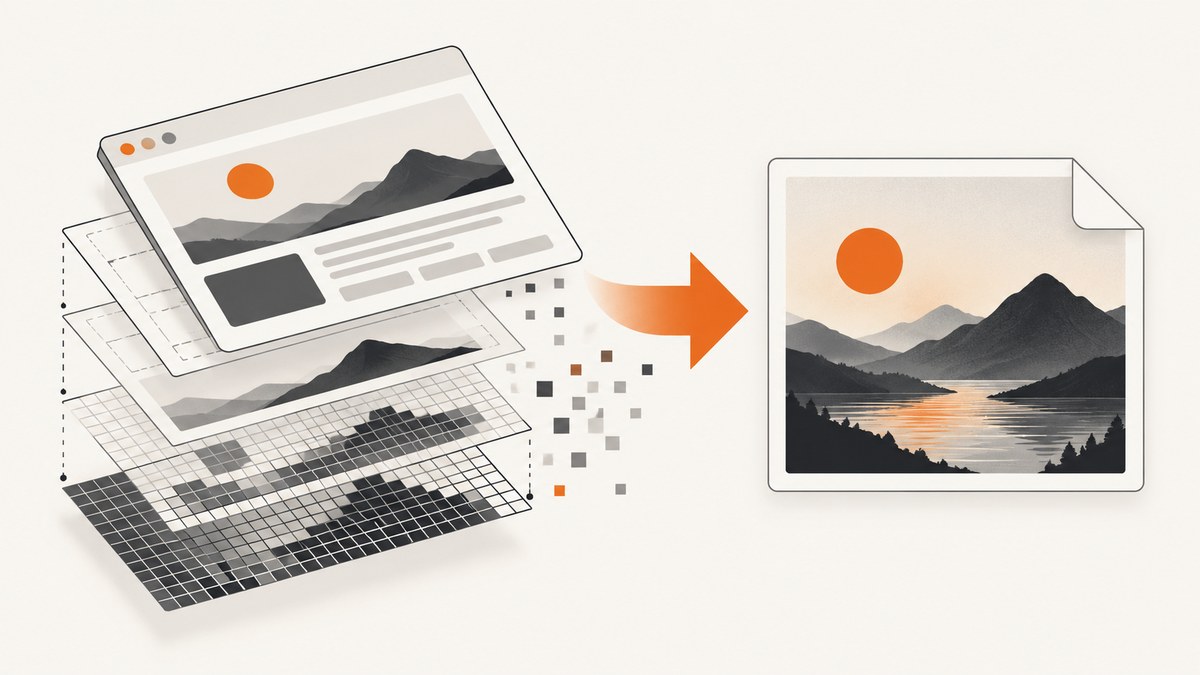
To export a high-resolution JPG from HTML, separate three decisions: the output pixel dimensions, how the page is rendered, and JPEG compression quality. For a browser-side element, use html2canvas with an explicit scale, then export with canvas.toBlob(..., "image/jpeg", quality). For an exact browser-rendered page or an automated server workflow, use Playwright’s screenshot API with type: "jpeg", quality, fullPage, and an appropriate scale.
A larger quality number does not create more pixels. A larger scale does not restore detail that was missing from a low-resolution source image. Decide the CSS layout size, desired output dimensions, and acceptable file size independently.
Choose the right capture method
| Need | Recommended method | Reason |
|---|---|---|
| Download one element in an existing page | html2canvas | Runs in the page and turns a selected DOM element into a canvas. |
| Capture what the browser actually displays | Playwright | Uses browser rendering rather than reconstructing an image from DOM data. |
| Repeatable server-side screenshots | Playwright or a screenshot API | Centralizes browser setup, waiting, authentication, and retries. |
| Capture a URL without maintaining Chromium | ScreenshotNeo | One HTTP request, clean shots, and billing only for successful clean captures. |
html2canvas’s documentation explains that its output is based on the DOM and “may not be 100% accurate to the real representation” because it builds an image from available page information rather than taking a literal screenshot. Use browser automation when fidelity to the rendered screen matters.
Export an HTML element as a high-resolution JPG with html2canvas
1. Add html2canvas
Install it in a bundled application:
npm install html2canvasOr load a browser build from your approved asset pipeline. Pin the version in production and test the pages you capture, because CSS support and browser behavior can change.
2. Capture at an explicit scale
import html2canvas from "html2canvas";

const element = document.querySelector("#capture");
if (!element) throw new Error("#capture was not found");

const scale = 2;
const canvas = await html2canvas(element, {
  scale,
  useCORS: true,
  backgroundColor: "#ffffff"
});

console.log({
  cssWidth: element.getBoundingClientRect().width,
  cssHeight: element.getBoundingClientRect().height,
  pixelsWide: canvas.width,
  pixelsHigh: canvas.height
});
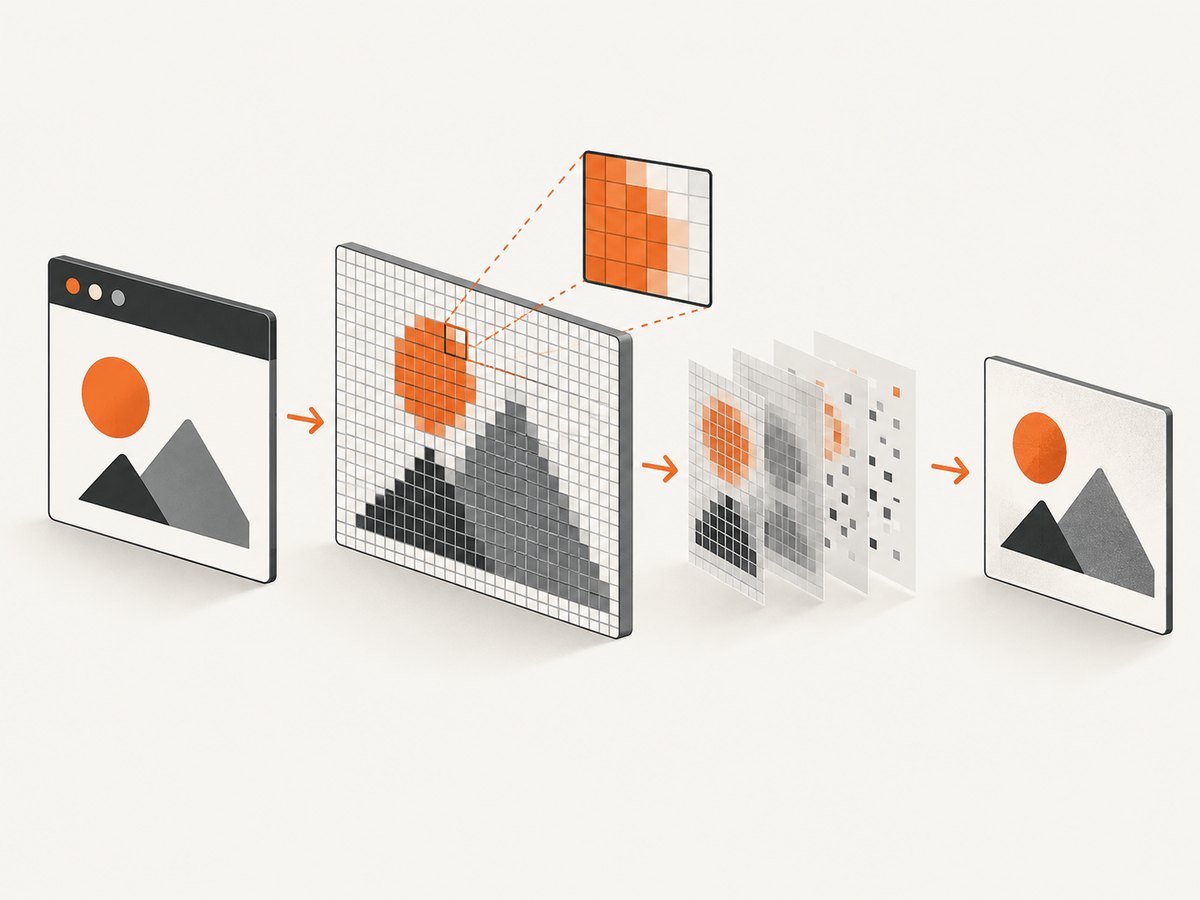
The documented default for scale is window.devicePixelRatio. Setting it yourself makes output dimensions predictable. If the element is 800 CSS pixels wide and you use scale: 2, the target canvas is approximately 1,600 pixels wide, subject to rounding and layout details. Always inspect canvas.width and canvas.height; CSS dimensions alone do not tell you the file’s pixel dimensions.
3. Encode with toBlob()
canvas.toBlob((blob) => {
  if (!blob) throw new Error("Could not export canvas");

  const url = URL.createObjectURL(blob);
  const link = document.createElement("a");
  link.href = url;
  link.download = "capture.jpg";
  link.click();
  URL.revokeObjectURL(url);
}, "image/jpeg", 0.95);
The Canvas API accepts a JPEG quality value from 0 to 1. A value such as 0.95 usually produces a larger file than 0.8, but the visible result depends on the image content. toBlob() avoids building a very large in-memory data URL. MDN documents that toDataURL() can create performance and URL-length problems for large images.
Complete browser example
<button id="save">Save JPG</button>
<section id="capture" style="width:800px;padding:32px;background:white">
  <h1>Quarterly report</h1>
  <p>This element will be exported as a JPG.</p>
</section>
<script type="module">
  import html2canvas from "https://cdn.jsdelivr.net/npm/html2canvas@1.4.1/+esm";

  document.querySelector("#save").addEventListener("click", async () => {
    const element = document.querySelector("#capture");
    const canvas = await html2canvas(element, {
      scale: 2,
      backgroundColor: "#ffffff",
      useCORS: true
    });

    canvas.toBlob((blob) => {
      if (!blob || blob.type !== "image/jpeg") {
        throw new Error(`Unexpected output type: ${blob?.type}`);
      }
      const url = URL.createObjectURL(blob);
      const a = document.createElement("a");
      a.href = url;
      a.download = "quarterly-report.jpg";
      a.click();
      setTimeout(() => URL.revokeObjectURL(url), 0);
    }, "image/jpeg", 0.92);
  });
</script>
Control dimensions, scale, and quality
Use this sequence for predictable output:
- Set the element’s CSS width and height or choose the viewport that should be represented.
- Choose a scale based on the required pixel dimensions. Inspect the resulting canvas dimensions rather than assuming.
- Choose JPEG quality based on visual artifacts and file-size limits.
- Verify the output MIME type and dimensions before uploading or publishing.
| Control | Changes | Does not change |
|---|---|---|
| CSS width/height | Layout and source geometry | JPEG compression |
scale |
Canvas pixel count | Missing source detail |
| JPEG quality (0–1) | Lossy compression and file size | Canvas dimensions |
| Source image resolution | Available photographic or raster detail | CSS layout size |
For text-heavy graphics, compare the actual output at 100% zoom. JPEG introduces ringing around sharp edges; if the destination accepts PNG, it may be better for diagrams or UI screenshots. If JPG is mandatory, use a high quality value and check file size limits.
When html2canvas is not visually identical
html2canvas traverses DOM nodes and implements a set of CSS features. Unsupported properties, pseudo-elements, filters, complex gradients, video, plugins, and cross-origin content can differ from the screen. Its useCORS option does not bypass browser security; the image server must send suitable CORS headers.
Cross-origin iframes cannot be inspected by the library under normal browser security rules. A canvas becomes tainted when it includes image data that is not permitted for readback. Calling toBlob() or toDataURL() can then fail. Host the assets with CORS enabled, proxy them through an origin you control, or switch to a browser automation workflow that loads the page normally.
Capture the rendered page with Playwright
Playwright is appropriate when you need the browser’s actual rendering, a full-page image, or repeatable automation. Its screenshot API documents JPEG output, quality from 0 to 100, full-page capture, and scale: "css" or scale: "device".
Install and run
npm install playwright
npx playwright install chromium
import { chromium } from "playwright";
const browser = await chromium.launch();
const page = await browser.newPage({
viewport: { width: 1440, height: 900 },
deviceScaleFactor: 2
});
await page.goto("https://example.com", { waitUntil: "networkidle" });
await page.screenshot({
path: "page.jpg",
type: "jpeg",
quality: 90,
fullPage: true,
scale: "css"
});
await browser.close();Use scale: "css" when you want output dimensions based on CSS pixels. Use scale: "device" when the device pixel ratio should be reflected. Set the browser context and viewport deliberately; changing them changes responsive layout, font wrapping, and therefore the image.
Capture one element
const card = page.locator("#capture");
await card.screenshot({
  path: "card.jpg",
  type: "jpeg",
  quality: 95,
  scale: "css"
});
Wait for the state you intend to publish. For lazy images, scroll or wait for the image to finish loading. For animations, disable them with an injected style or wait for a stable state. Use a fixed timezone, locale, and viewport when reproducibility matters.
Full-page captures and large documents
Full-page images can become enormous. Canvas limits vary by browser, operating system, and device; there is no universal safe maximum. The html2canvas FAQ recommends setting windowWidth and windowHeight to the element’s scroll dimensions where appropriate. Test very tall pages in the browser and deployment environment that will actually run the export.
For long pages, consider capturing sections and stitching them in an image-processing step, or exporting PDF when pagination is the real requirement. Remove unnecessary shadows, video, and animated content to reduce memory pressure. Keep an eye on process memory in Playwright workers and recycle browsers after a controlled number of jobs.
Or skip the browser setup
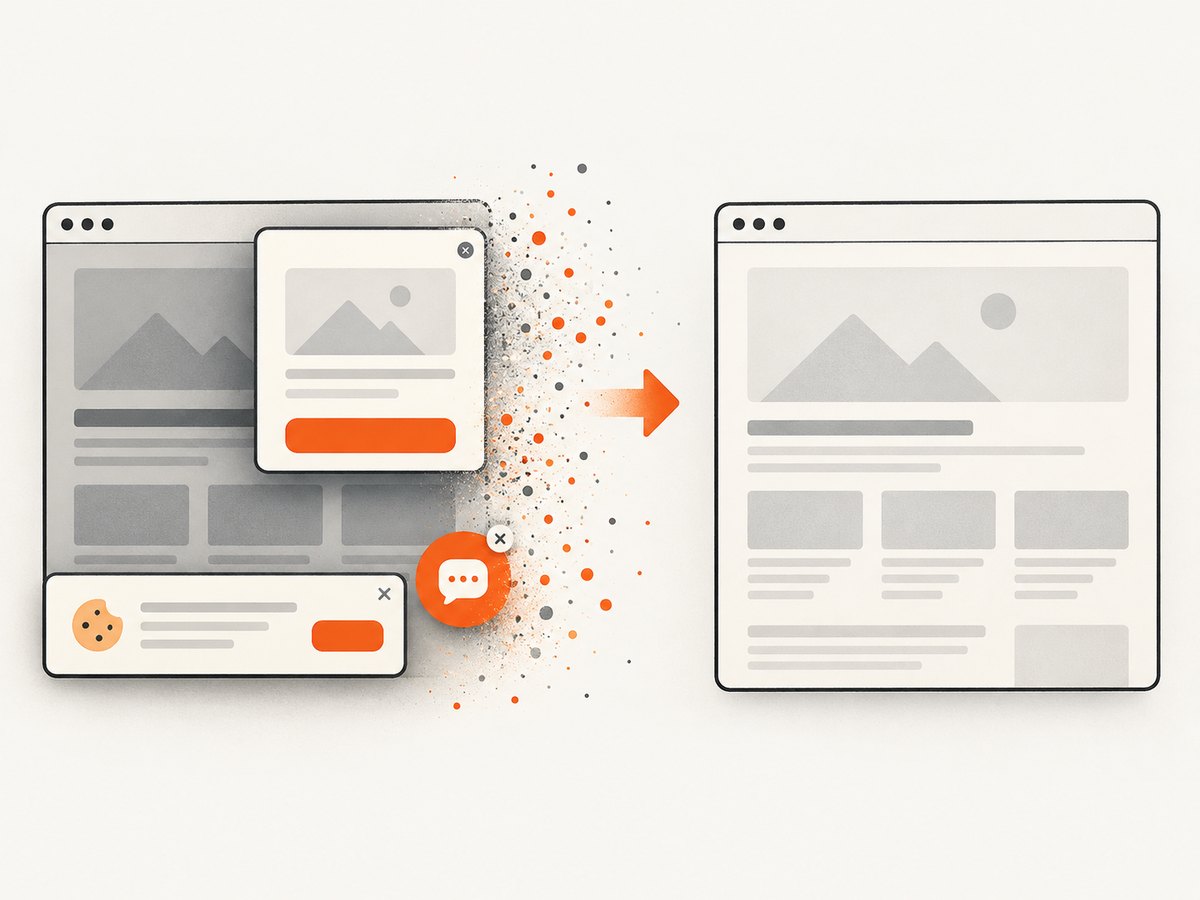
ScreenshotNeo provides a website screenshot API at https://api.screenshotneo.com/v1/shot. It accepts a URL and returns PNG, JPG, WebP, or PDF. Cookie and consent banners are accepted before capture, and more than 60 known consent platforms, newsletter popups, and chat widgets are removed. Bot checks, blank pages, timeouts, failed loads, and cache hits are not billed; response headers identify the page verdict and whether the request was billed.
See the full option list and parameter reference in the ScreenshotNeo documentation.
cURL
curl -G "https://api.screenshotneo.com/v1/shot" \
  -d access_key=YOUR_API_KEY \
  --data-urlencode url=https://stripe.com \
  -o shot.webp
Python
import requests

r = requests.get(
    "https://api.screenshotneo.com/v1/shot",
    params={"access_key": "YOUR_API_KEY", "url": "https://stripe.com"},
    timeout=90,
)
r.raise_for_status()
open("shot.webp", "wb").write(r.content)
Node.js
const q = new URLSearchParams({
  access_key: "YOUR_API_KEY",
  url: "https://stripe.com"
});
const res = await fetch(`https://api.screenshotneo.com/v1/shot?${q}`);
if (!res.ok) throw new Error(`Screenshot failed: ${res.status}`);
const bytes = Buffer.from(await res.arrayBuffer());
await import("node:fs/promises").then(fs => fs.writeFile("shot.webp", bytes));
ScreenshotNeo supports full-page and CSS-element capture, dark mode, device presets or custom viewports, retina scale, custom CSS and JavaScript, clicks, selector waits, delays, network-idle waits, blocked resources, headers, cookies, user agents, Authorization, timezone, geolocation, transparent backgrounds, resizing, caching with a chosen TTL, signed image links, asynchronous jobs with signed webhooks, bulk capture of up to 100 URLs per call, a usage API, and an OpenAPI specification. Existing parameter names used by other screenshot APIs also work, which helps when migrating.
An MCP server exposes take_screenshot, get_page_info, and capture_pdf to Claude, Cursor, and other MCP clients. The Free plan includes 1,000 shots per month without a card; paid plans start at $5 for 3,000 shots. Create a free ScreenshotNeo account.
Troubleshooting checklist
The JPG is blurry
- Inspect
canvas.widthandcanvas.height; increase scale if the pixel dimensions are too small. - Check the original image assets. Scaling a low-resolution source cannot create detail.
- Increase JPEG quality only after dimensions are correct.
The result is PNG instead of JPG
Specify "image/jpeg" and inspect blob.type. If a requested type is unsupported, Canvas can fall back to PNG. Also check that your download filename matches the actual MIME type.
Images are missing or export throws a security error
The image or iframe is cross-origin without permission. Configure CORS on the asset server, use a same-origin proxy, or capture with Playwright.
Styles do not match the page
Check html2canvas’s supported CSS features and simplify unsupported effects. Use Playwright for browser fidelity.
The full-page capture is blank or clipped
Reduce the capture area, set explicit dimensions, capture sections, or use Playwright. Very large canvas limits vary by browser and platform.
Fonts or lazy images are absent
Wait for document.fonts.ready, wait for image load events, scroll lazy regions into view, and capture only after the page reaches a stable state.
Playwright jobs time out
Set a navigation timeout appropriate for the target, wait for a specific selector instead of global network idle when third-party requests never finish, and block nonessential ads or trackers. Capture a diagnostic page or response status before retrying.
Performance, reliability, and cost
- Performance: Pixel count drives memory and encoding time. A 2x scale in both dimensions creates roughly four times as many pixels as 1x. Keep screenshots at the smallest dimensions that meet the delivery requirement.
- Reliability: Use explicit viewports, fonts, timezones, waits, and reduced motion. Retry transient navigation failures, but do not hide persistent bot checks or authorization errors.
- File size: Compare quality values on representative pages. Photos tolerate more compression than text and UI edges.
- Cost: Self-hosted Playwright costs infrastructure and maintenance. ScreenshotNeo bills only clean shots; bot checks, blank pages, timeouts, failed loads, and cache hits cost nothing. Its plans include Free 1,000/month, Starter $5 for 3,000, Growth $15 for 15,000, Pro $39 for 60,000, Scale $99 for 250,000, and Business $249 for 1,000,000; yearly billing gives two months free.
FAQ
What scale should I use for a high-resolution JPG?
Choose it from the required pixel dimensions and verify the canvas or screenshot dimensions. There is no universal best value.
Can html2canvas capture an entire website?
It can capture a DOM element, including a page container, but browser limits and unsupported CSS make very large or complex pages unreliable.
Does JPEG quality increase resolution?
No. Quality changes lossy compression. Scale and layout dimensions determine pixel count.
When should I use PNG instead?
Use PNG when lossless sharp edges, transparency, or diagram text matter and your destination accepts it.
Can I automate JPG exports without installing Chromium?
Yes. A hosted screenshot API such as ScreenshotNeo handles the browser capture and returns the image over HTTP.
Final decision
Use html2canvas for a convenient in-page element export when its DOM-based rendering is sufficient. Use Playwright when you need the browser-rendered result and control over an automated workflow. Use ScreenshotNeo when you want a URL-to-image request, cleaned pages, usage-aware billing, and an MCP server without maintaining browser infrastructure. Start with the free 1,000-shot plan.


