How to Export an HTML Canvas as a PNG Image
Save any HTML canvas as a PNG with toBlob(), handle downloads, CORS errors, dimensions, formats, and large images.
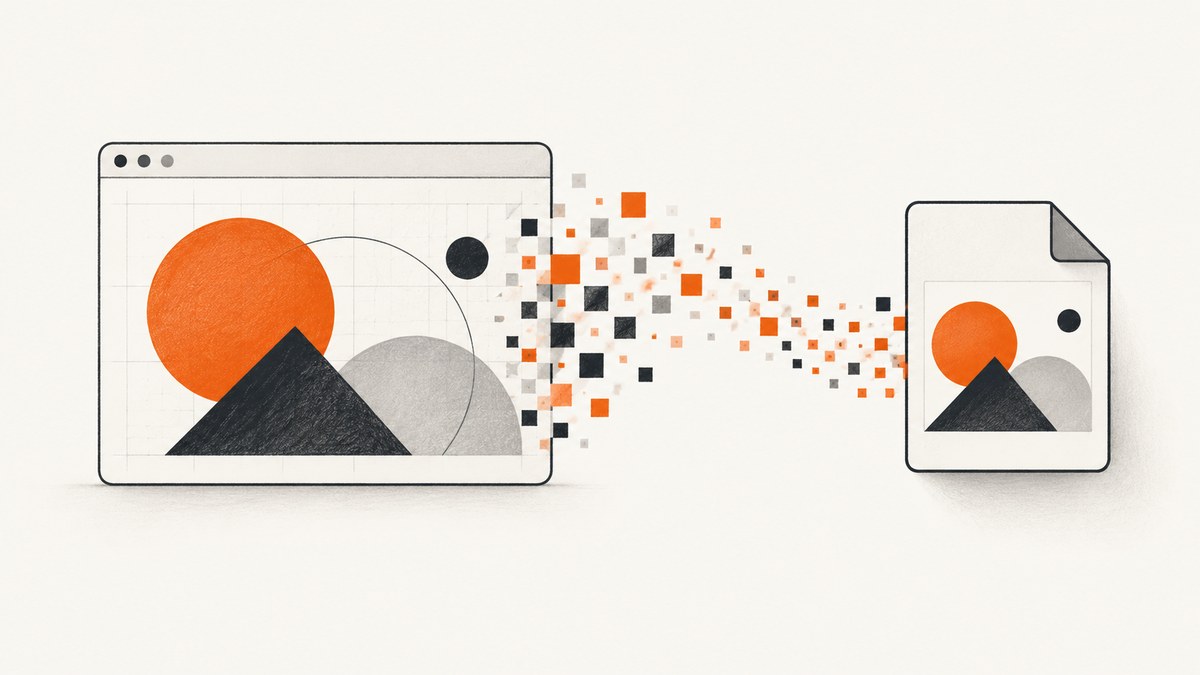
Use HTMLCanvasElement.toBlob() to export an HTML canvas as a PNG. Create an object URL for the returned Blob, assign it to a temporary download link, click the link, and revoke the URL after the download starts.
function downloadCanvasAsPng(canvas, filename = "canvas.png") {
  canvas.toBlob((blob) => {
    if (!blob) {
      throw new Error("Canvas could not be encoded.");
    }

    const url = URL.createObjectURL(blob);
    const link = document.createElement("a");
    link.href = url;
    link.download = filename;
    link.click();

    setTimeout(() => URL.revokeObjectURL(url), 0);
  }, "image/png");
}

const canvas = document.querySelector("canvas");
downloadCanvasAsPng(canvas, "drawing.png");
toBlob() is asynchronous and is the practical default for downloadable images. It avoids keeping the entire encoded image in a JavaScript string. PNG is lossless, supports transparency, and is the default format when no type is supplied. See the MDN toBlob() documentation.
1. Complete browser example
This page draws a small illustration and adds a button that saves the canvas as canvas.png.

<!doctype html>
<html lang="en">
<head>
  <meta charset="utf-8">
  <title>Canvas PNG export</title>
  <style>
    canvas { border: 1px solid #ccc; max-width: 100%; }
  </style>
</head>
<body>
  <canvas id="art" width="800" height="450"></canvas>
  <button id="download" type="button">Download PNG</button>

  <script>
    const canvas = document.querySelector("#art");
    const context = canvas.getContext("2d");

    context.fillStyle = "#18212f";
    context.fillRect(0, 0, canvas.width, canvas.height);
    context.fillStyle = "#5eead4";
    context.beginPath();
    context.arc(400, 225, 120, 0, Math.PI * 2);
    context.fill();

    function downloadCanvasAsPng(canvas, filename = "canvas.png") {
      canvas.toBlob((blob) => {
        if (!blob) {
          throw new Error("Canvas could not be encoded.");
        }

        const url = URL.createObjectURL(blob);
        const link = document.createElement("a");
        link.href = url;
        link.download = filename;
        link.click();
        setTimeout(() => URL.revokeObjectURL(url), 0);
      }, "image/png");
    }

    document.querySelector("#download").addEventListener("click", () => {
      downloadCanvasAsPng(canvas, "drawing.png");
    });
  </script>
</body>
</html>
The exported pixels come from the canvas bitmap dimensions, width and height. CSS only changes how the bitmap is displayed. Set the bitmap dimensions before drawing if the downloaded file needs a particular size.
2. Why toBlob() is usually the right API
| API | Result | Best use | Trade-off |
|---|---|---|---|
toBlob() |
Asynchronous Blob |
Downloads, uploads, previews, large images | Requires a callback (or a wrapper that returns a Promise) |
toDataURL() |
Synchronous data URL string | Small inline images or APIs that require a data URL | Encodes the whole image into an in-memory string |
For a large canvas, toDataURL() can consume substantial memory and may run into URL-length limits. MDN recommends toBlob() with URL.createObjectURL() for these cases. Both methods require an origin-clean canvas.
Promise wrapper for toBlob()
function canvasToPngBlob(canvas) {
  return new Promise((resolve, reject) => {
    canvas.toBlob((blob) => {
      if (blob) resolve(blob);
      else reject(new Error("Canvas could not be encoded."));
    }, "image/png");
  });
}

const blob = await canvasToPngBlob(document.querySelector("canvas"));
const file = new File([blob], "canvas.png", { type: blob.type });
When a data URL is appropriate
const pngDataUrl = canvas.toDataURL("image/png");
const link = document.createElement("a");
link.href = pngDataUrl;
link.download = "canvas.png";
link.click();
Use this for a compact image where a string is specifically required. Do not use it as the default for high-resolution or numerous exports.
3. Preview the PNG before downloading
function previewCanvas(canvas, imageElement) {
  canvas.toBlob((blob) => {
    if (!blob) throw new Error("Canvas could not be encoded.");
    const url = URL.createObjectURL(blob);
    imageElement.onload = () => URL.revokeObjectURL(url);
    imageElement.src = url;
  }, "image/png");
}

previewCanvas(
  document.querySelector("canvas"),
  document.querySelector("#preview")
);
Keep the object URL while the preview is visible. Revoke it when the image is replaced or removed; revoking immediately can prevent the browser from loading the preview.
4. The canvas CORS rule
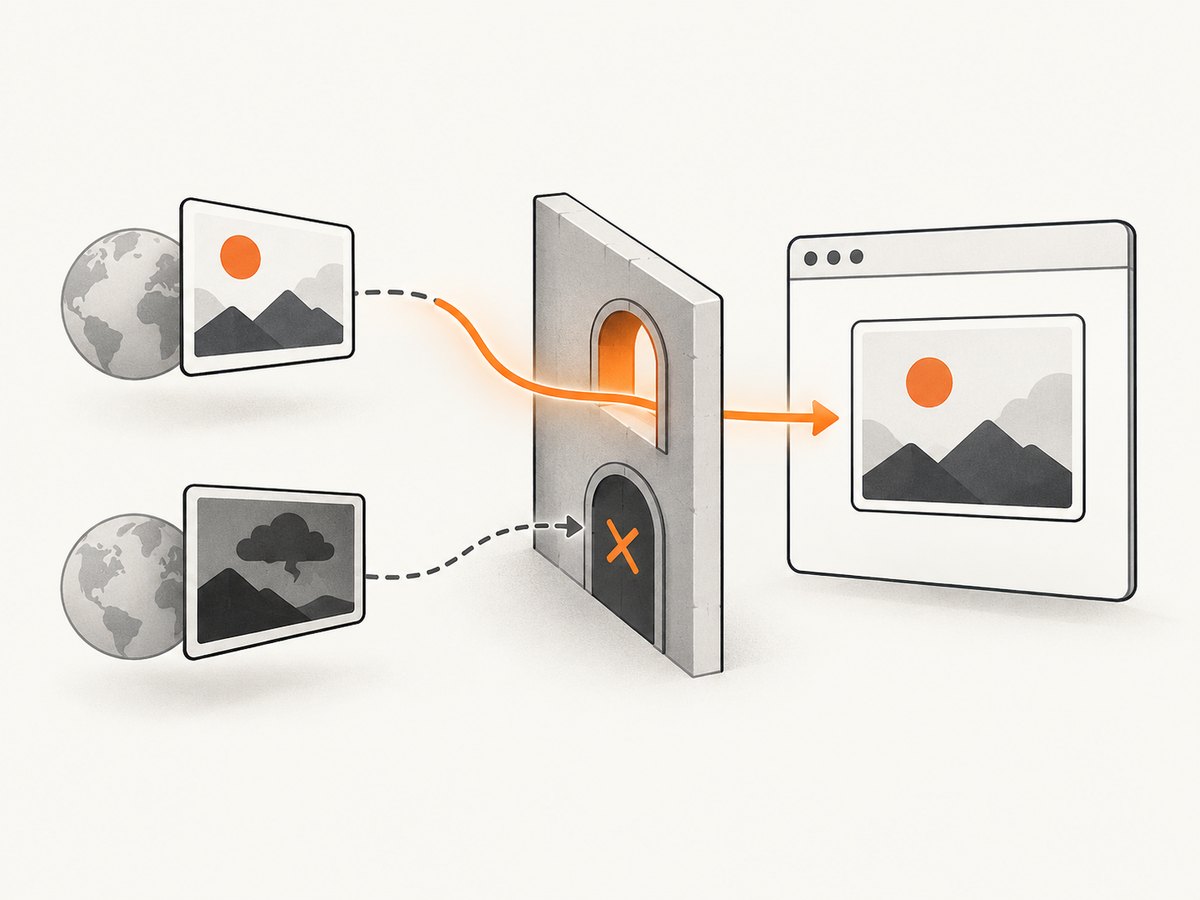
A canvas can display a foreign-origin image and still be impossible to export. If an image was fetched without CORS approval, drawing it taints the canvas. Calling toBlob(), toDataURL(), or getImageData() then throws a SecurityError.
Load a remote image with CORS enabled
const image = new Image();
image.crossOrigin = "anonymous"; // Set before src.
image.onload = () => {
  const canvas = document.querySelector("canvas");
  canvas.getContext("2d").drawImage(image, 0, 0);
  downloadCanvasAsPng(canvas);
};
image.onerror = () => {
  console.error("The image could not be loaded with CORS enabled.");
};
image.src = "https://cdn.example.com/photo.jpg";
The image server must return an appropriate Access-Control-Allow-Origin header. The crossOrigin property requests a CORS-enabled fetch; it cannot override the remote server’s policy. If the server does not grant access, client-side JavaScript cannot make that image exportable. See MDN’s CORS-enabled image guide.
5. Dimensions, transparency, and formats
Bitmap size versus CSS size
const canvas = document.querySelector("canvas");
canvas.width = 1600;
canvas.height = 900;
canvas.style.width = "800px";
canvas.style.height = "450px";
This produces a 1600 by 900 PNG displayed at 800 by 450 CSS pixels. Changing only style.width or style.height does not increase export resolution.
Transparent backgrounds
Do not paint a background if the PNG should retain transparency. A canvas starts transparent, but a call such as fillRect() with an opaque color makes those pixels opaque.
Check the returned MIME type
canvas.toBlob((blob) => {
  if (!blob) throw new Error("Encoding failed");
  console.log(blob.type); // Usually image/png
}, "image/png");
PNG is the default and browsers fall back to PNG when a requested type is unsupported. Check blob.type when the exact output format matters. Encoded formats that support resolution metadata use 96 dpi; this metadata does not change the bitmap’s pixel dimensions.
Canvas limits
Maximum canvas dimensions vary by browser, device, and available memory. Very large or zero-sized canvases can fail to produce useful output. Keep dimensions within the limits of the devices you support and handle a null blob or encoding exception.
6. Upload the exported PNG
async function uploadCanvas(canvas) {
  const blob = await canvasToPngBlob(canvas);
  const form = new FormData();
  form.append("file", blob, "canvas.png");

  const response = await fetch("/upload", {
    method: "POST",
    body: form
  });

  if (!response.ok) {
    throw new Error(`Upload failed: ${response.status}`);
  }

  return response.json();
}
Sending the Blob in FormData avoids converting the image to base64 first.
7. Troubleshooting
| Symptom | Cause | Fix |
|---|---|---|
SecurityError: Tainted canvases may not be exported |
A foreign-origin image or other resource was drawn without successful CORS approval. | Set crossOrigin before src and configure Access-Control-Allow-Origin on the image server. Otherwise proxy the asset through a server you control. |
The callback receives null |
The browser could not encode the bitmap, often because it is invalid, zero-sized, or exceeds device limits. | Check dimensions, reduce the bitmap size, catch the failure, and test on target devices. |
| The downloaded image is blurry | The bitmap is smaller than its CSS display size. | Set canvas.width and canvas.height to the required output pixels before drawing. |
| The background is black or opaque | An opaque rectangle was painted, or another format’s transparency behavior was assumed. | Leave pixels unpainted for transparent PNG output and inspect the exported file. |
| The download has the wrong extension or type | The requested format was unsupported and the browser fell back to PNG. | Inspect blob.type and use a matching filename. |
| The preview disappears or fails to load | The object URL was revoked before the image finished loading. | Revoke it from the image’s load handler or when the preview is discarded. |
| Nothing downloads on a mobile browser | Some browsers restrict programmatic downloads outside a user gesture. | Call the export from the button’s click handler, or present the object URL as a visible link for the user to tap. |
8. Performance and reliability checklist
- Prefer
toBlob()for downloads, uploads, and large images. - Export only after all drawing operations and fonts or images have finished loading.
- Set bitmap dimensions once before drawing; resizing afterward clears the canvas.
- Release object URLs when previews or downloads no longer need them.
- Avoid repeated full-size data URLs in loops; they create large strings and increase memory pressure.
- Handle both a
nullblob andSecurityError. - Test high-DPI and large canvases on the lowest-memory devices you support.
- For remote images, verify CORS response headers rather than assuming that a visible image is exportable.
9. Or skip the browser setup
If your actual goal is a screenshot of a rendered webpage rather than the pixels already in a canvas, ScreenshotNeo provides a single GET request that returns PNG, JPEG, WebP, or PDF. Cookie and consent banners, newsletter popups, and chat widgets are removed before capture. Bot checks, blank pages, timeouts, failed loads, and cache hits are not billed, and the response identifies the result with X-Page-Verdict and X-Billed headers. Its MCP server lets Claude, Cursor, and other MCP clients call take_screenshot, get_page_info, and capture_pdf.
See the ScreenshotNeo API documentation for all options.
cURL
curl -G "https://api.screenshotneo.com/v1/shot" -d access_key=YOUR_API_KEY --data-urlencode url=https://screenshotneo.com -o shot.webpPython
import requests

r = requests.get(
    "https://api.screenshotneo.com/v1/shot",
    params={"access_key": "YOUR_API_KEY", "url": "https://screenshotneo.com"},
    timeout=90,
)
r.raise_for_status()
open("shot.webp", "wb").write(r.content)
Node.js
const q = new URLSearchParams({
  access_key: 'YOUR_API_KEY',
  url: 'https://screenshotneo.com'
});
const res = await fetch(`https://api.screenshotneo.com/v1/shot?${q}`);
if (!res.ok) throw new Error(`Screenshot failed: ${res.status}`);
const buffer = Buffer.from(await res.arrayBuffer());
require('node:fs').writeFileSync('shot.webp', buffer);
ScreenshotNeo includes 1,000 screenshots per month free with no card. Paid plans start at $5 for 3,000 screenshots, and every feature is available on every plan. Create a free ScreenshotNeo account.
10. FAQ
Can I export a canvas without downloading it?
Yes. Use the returned Blob with fetch, FormData, or an object URL for a preview.
Does PNG preserve transparency?
Yes, provided the canvas pixels were left transparent and the canvas was exported as PNG.
Can JavaScript bypass a remote image’s CORS policy?
No. The remote server must allow the CORS request; crossOrigin only requests that mode.
Why is my PNG larger than expected?
PNG is lossless and file size depends on pixel dimensions and image content. Reducing bitmap dimensions is the most direct way to reduce output size.
Does CSS scaling change the downloaded resolution?
No. Export uses the canvas bitmap’s width and height, not its CSS display size.


