How to Export HTML Images to jsPDF
Render an HTML element to a PDF image with html2canvas and jsPDF, with runnable code and fixes for CORS, sizing, image loading, and long pages.
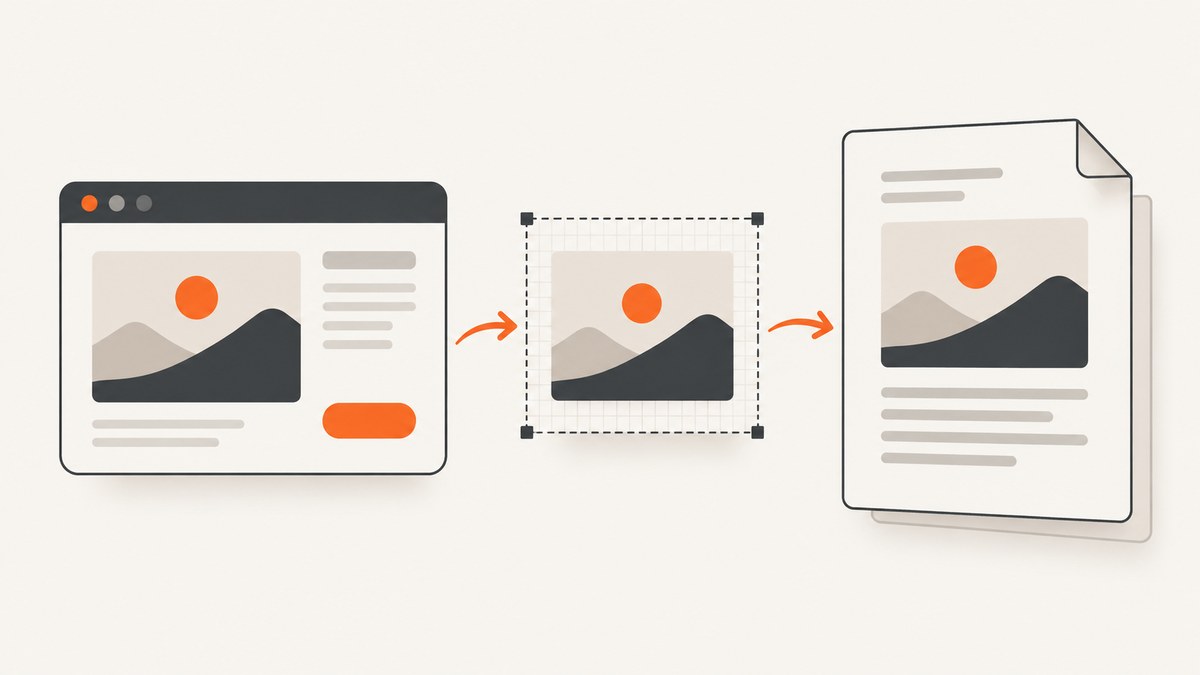
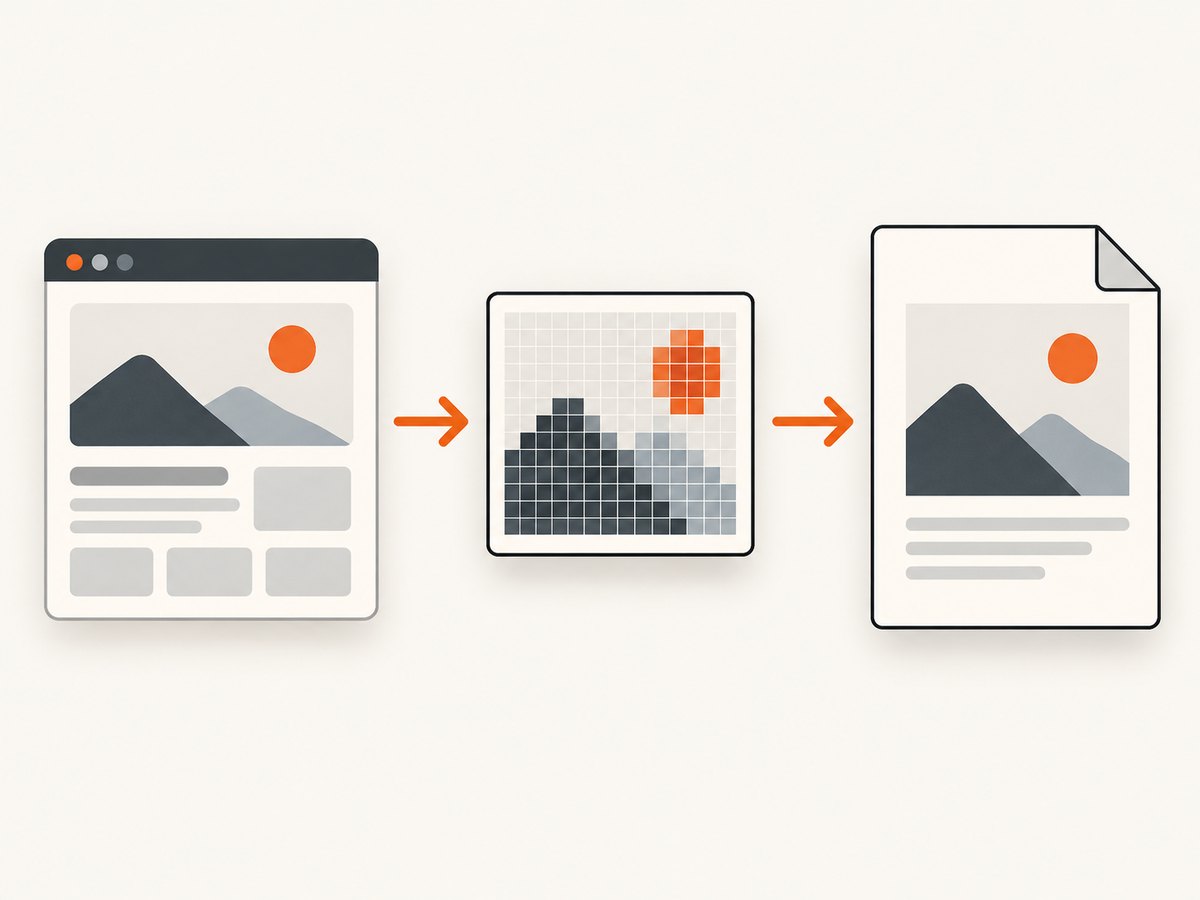
To export an HTML element as an image inside a PDF, render it to a canvas with html2canvas, convert the canvas to a PNG or JPEG data URL, then place that image with jsPDF.addImage. The key details are waiting for images to load, enabling CORS only when the image host permits it, and preserving the canvas aspect ratio when fitting it to a PDF page.
This creates a raster image in the PDF: it looks like the rendered page, but its text is not selectable or searchable. For long content, render page-sized sections or slice the canvas rather than creating one extremely tall canvas.
1. Install the libraries and prepare the HTML
Use this approach in a browser application. Install both dependencies in your project:
npm install jspdf html2canvasGive the region you want to export a stable selector. Keep it visible and laid out when capturing; an element hidden with display: none has no useful rendered dimensions.
<main id="capture">
  <h1>Quarterly report</h1>
  <p>Revenue and product highlights for the quarter.</p>
  <img src="/charts/revenue.png" alt="Revenue chart">
</main>
<button id="export-pdf" type="button">Export PDF</button>
The capture runs in the browser and reconstructs the element from its DOM and styles. It does not take a screenshot of the operating system or browser chrome. Before capture, make sure the page is in the state you want to export: expand relevant panels, select the right theme, and load any data-dependent content.
2. Render the element and add it to a PDF
This runnable ES module waits for images inside the element, captures it at device pixel ratio, and fits the resulting image to the width of an A4 page without changing its proportions. Set useCORS for remote images only when their servers send a suitable Access-Control-Allow-Origin response header. The option does not bypass browser security restrictions.
import { jsPDF } from 'jspdf';
import html2canvas from 'html2canvas';

async function waitForImages(element) {
  const images = Array.from(element.querySelectorAll('img'));
  await Promise.all(images.map(async (img) => {
    if (!img.complete) {
      await new Promise((resolve) => {
        img.addEventListener('load', resolve, { once: true });
        img.addEventListener('error', resolve, { once: true });
      });
    }
    if (img.decode) {
      try { await img.decode(); } catch { /* broken images are handled separately */ }
    }
  }));
}

async function exportHtmlImage() {
  const element = document.querySelector('#capture');
  if (!element) throw new Error('Missing #capture element');

  await waitForImages(element);
  const canvas = await html2canvas(element, {
    useCORS: true,
    windowWidth: element.scrollWidth,
    windowHeight: element.scrollHeight,
    scale: window.devicePixelRatio || 1
  });

  const pdf = new jsPDF({ orientation: 'portrait', unit: 'mm', format: 'a4' });
  const pageWidth = pdf.internal.pageSize.getWidth();
  const pageHeight = (canvas.height * pageWidth) / canvas.width;
  const image = canvas.toDataURL('image/png');
  pdf.addImage(image, 'PNG', 0, 0, pageWidth, pageHeight);
  pdf.save('html-export.pdf');
}

document.querySelector('#export-pdf')?.addEventListener('click', () => {
  exportHtmlImage().catch((error) => {
    console.error('PDF export failed:', error);
    alert('Could not export this content. See the console for details.');
  });
});
The windowWidth and windowHeight settings give the renderer the element’s scroll dimensions, including content beyond its visible box. The scale controls pixel density: higher scale can make the result sharper, but it increases canvas memory use. A value of 1 is a useful fallback on memory-constrained devices.
3. Choose image format, dimensions, and page behavior
Preserve proportions when placing the canvas
addImage places an image at x and y coordinates and uses the supplied width and height in the PDF’s units. The example uses millimeters and calculates height from the canvas aspect ratio. If you force both dimensions independently, the result may be stretched.
If the canvas is wider than the PDF page, either scale it down to fit the available width or use a landscape page. To add margins, set x to the left margin and subtract both margins from the usable width before calculating height. This keeps the image centered or aligned without distortion.
PNG, JPEG, and WebP
- PNG: a good default for screenshots, text-heavy interfaces, sharp edges, and transparency. It can create larger files.
- JPEG: useful for photographic content when lossy compression is acceptable and file size matters. It does not preserve transparency.
- WebP: jsPDF documents WebP handling; confirm the format is supported in your target browser and PDF workflow before relying on it.
For PNG, use canvas.toDataURL('image/png') and the format string 'PNG'. For JPEG, use canvas.toDataURL('image/jpeg', 0.85) and pass 'JPEG' to addImage; the quality argument is a compression preference, not a guarantee of a particular file size.
Long content and multiple pages
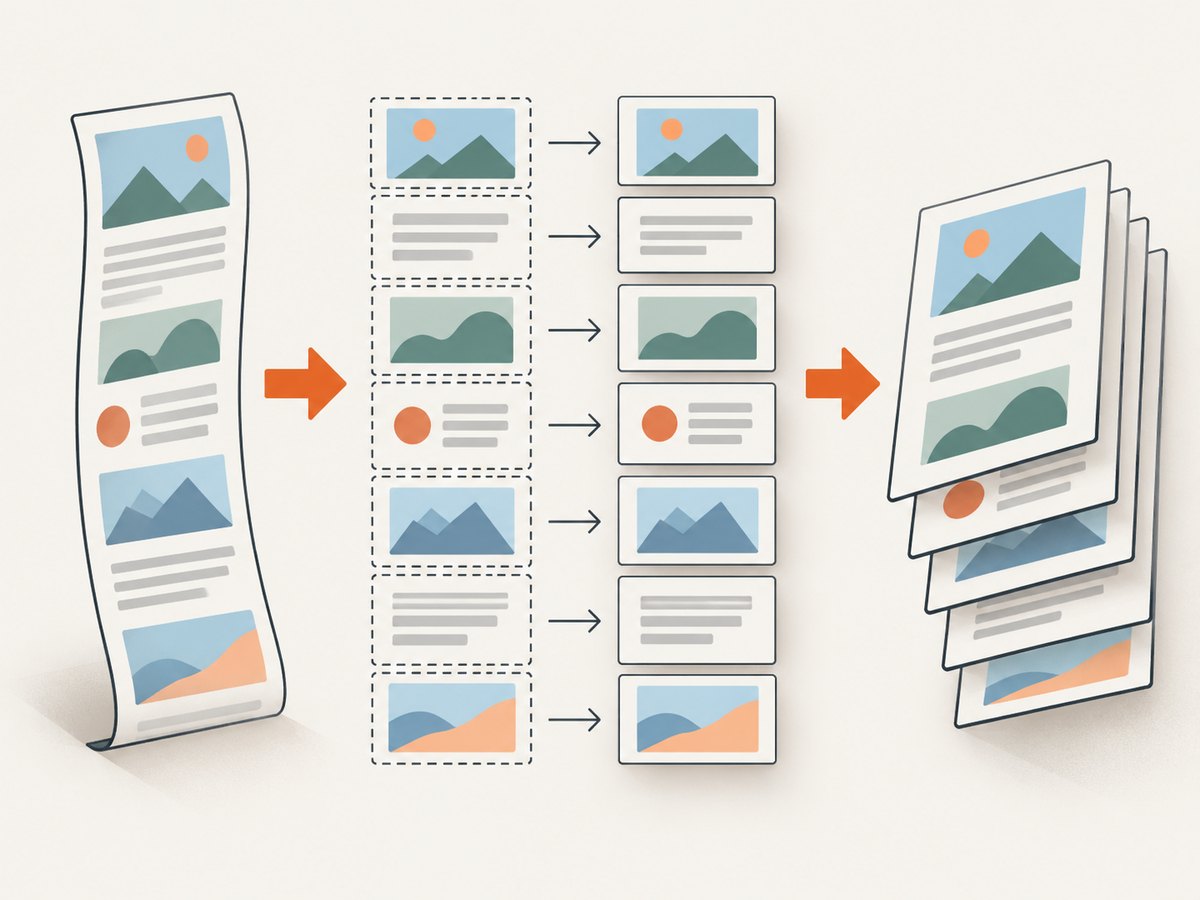
The simple example adds one image whose height may exceed a page. That can result in content extending beyond the page. For a report that should span pages, divide the content into page-sized elements and render each one separately, or slice the canvas into page-sized strips. Add a new PDF page for each additional slice.
When slicing, calculate a strip’s pixel height from the PDF’s usable page height and the chosen scale. Crop each strip to a temporary canvas, convert it to an image, add it at the same PDF x/y origin, then call pdf.addPage() before the next strip. Keep a small overlap only when needed to avoid cutting through content; avoid splitting important tables or headings by arranging page-sized DOM sections where possible.
Very large canvases can render blank or only partially. Browser and platform canvas limits vary, so reducing scale, capturing smaller sections, and slicing before the canvas becomes enormous are practical safeguards. Scroll dimensions help capture content beyond the viewport, but they do not remove canvas limits.
Alternative PDF helpers
jsPDF.html provides a convenience route that relies on html2canvas. When given an HTML string, it also uses DOMPurify as an optional dependency. Choose it for a compact all-in-one rendering path; use explicit canvas plus addImage when you need direct control over image type, placement, or slicing.
html2pdf.js can automate page breaks with CSS, legacy, and avoid-all modes. Its documented pipeline renders the content into an image and places that image in the PDF. Text is therefore not selectable or searchable, and the resulting file can be larger. If selectable text matters, build the PDF text with jsPDF text APIs instead of rasterizing the whole page.
4. Handle CORS and image loading
A cross-origin image can taint a canvas. If the image host returns an Access-Control-Allow-Origin header that permits your page’s origin, useCORS: true can allow html2canvas to request it for capture. If the host does not grant access, the browser security policy still applies; html2canvas cannot circumvent it.
Use an image served from your own origin or a backend proxy you control when the remote host does not permit CORS. Configure that proxy carefully for your application: allow only intended image sources, validate inputs, and avoid turning it into an unrestricted URL fetcher. Alternatively, make the asset same-origin before rendering, such as by storing it with your application.
Wait for image loads before capture. The helper in the example waits for each image’s load or error and then tries decode() where supported. For images inserted asynchronously, first wait for the application to finish inserting them. A failed image should be handled deliberately: show a placeholder, omit it, or stop the export with a useful message.
5. Or skip the browser setup
If the document you need is a web page rather than a private, live DOM element in your app, ScreenshotNeo can return a PDF from one request. Its API also supports PNG, JPEG, and WebP screenshots. See the API documentation for parameters and output options.
curl -G "https://api.screenshotneo.com/v1/shot" -d access_key=YOUR_API_KEY --data-urlencode url=https://stripe.com -o shot.pdfimport requests
r = requests.get(
"https://api.screenshotneo.com/v1/shot",
params={"access_key": "YOUR_API_KEY", "url": "https://stripe.com", "format": "pdf"},
timeout=90,
)
r.raise_for_status()
open("page.pdf", "wb").write(r.content)const q = new URLSearchParams({
access_key: 'YOUR_API_KEY',
url: 'https://stripe.com',
format: 'pdf'
});
const res = await fetch(`https://api.screenshotneo.com/v1/shot?${q}`);
if (!res.ok) throw new Error(`ScreenshotNeo returned ${res.status}`);
const bytes = new Uint8Array(await res.arrayBuffer());
await import('node:fs/promises').then(fs => fs.writeFile('page.pdf', bytes));These API examples use the PDF format option; consult the docs for the current parameter spelling and other settings. ScreenshotNeo accepts cookie or consent banners like a visitor and removes more than 60 known consent platforms, newsletter popups, and chat widgets before capture; each step can be turned off. Bot checks, blank pages, timeouts, failed loads, and cache hits cost nothing, and response headers report the page verdict and billing status. Its MCP server provides take_screenshot, get_page_info, and capture_pdf tools for Claude, Cursor, and other MCP clients. The free plan includes 1,000 shots per month with no card; paid plans start at $5 for 3,000 shots. Create a free account at ScreenshotNeo sign-up.
6. Troubleshooting
| Symptom | Likely cause | Fix |
|---|---|---|
| Remote image is missing or canvas export throws a security error | The image is cross-origin and its host does not allow your origin; the canvas is tainted. | Check the image response headers. Use useCORS only if the server grants access; otherwise serve it same-origin or through a controlled proxy. |
| Images are blank intermittently | Capture starts before network loading or image decoding finishes. | Wait for application data, image load events, and decode() where available. Handle errors instead of assuming every image loaded. |
| Export is blank or cropped at the bottom | The capture viewport excludes overflow, or the canvas is too large for the browser/platform. | Set windowWidth and windowHeight to scroll dimensions. Reduce scale and render separate sections or page-sized slices. |
| Text or lines look blurry | The canvas has too few pixels for the displayed PDF size. | Increase scale moderately, preserve aspect ratio, and check a representative PDF at its intended print or screen size. Higher scale uses more memory. |
| Image is stretched | PDF width and height were chosen independently of canvas proportions. | Derive height from canvas.height * targetWidth / canvas.width. |
| PDF is huge | Large canvas dimensions, PNG imagery, or many high-resolution pages increase embedded image data. | Reduce capture scale, use JPEG for photographic pages where acceptable, and avoid duplicating large backgrounds. Compare output quality before changing format. |
| PDF text cannot be selected or searched | The content was rasterized as an image. | Use jsPDF’s text APIs for text that needs to remain text, or choose a workflow that preserves text rather than capturing the DOM as a bitmap. |
| Export behaves differently on a phone or another browser | Available memory, canvas dimensions, fonts, and rendering differ across browsers and platforms. | Test representative target browsers, use a lower scale on constrained devices, and capture long reports in smaller units. |
| Missing selector error | The export ran before the target DOM was mounted or the selector is wrong. | Run export after the view renders and check the selected element before invoking html2canvas. |
7. Performance, reliability, and cost
This method performs DOM reconstruction, canvas allocation, image encoding, and PDF assembly on the user’s device. It avoids sending the DOM to a screenshot server, but it consumes browser memory and CPU, especially with high scale, long pages, and many images. Keep the export action responsive: disable duplicate clicks while it runs, show progress for multi-page work, and catch errors so failures are visible.
For reliability, control the capture state and dependencies: wait for fonts and application data as well as images when those affect layout; avoid starting capture during animations; and use fixed content widths for repeatable page geometry. Consider rendering each report page as its own element rather than relying on one giant canvas. Since browser limits vary, include a lower-scale or smaller-section fallback for large exports.
The browser libraries do not charge per capture, but development and support have a cost, and client-side rendering can fail on content blocked by CORS or device limits. A hosted screenshot API shifts browser setup to a service and may charge by usage. ScreenshotNeo’s stated plans are Free with 1,000 shots/month and no card; Starter $5 for 3,000; Growth $15 for 15,000; Pro $39 for 60,000; Scale $99 for 250,000; and Business $249 for 1,000,000. Yearly billing gives two months free, and every feature is on every plan. Compare the number of pages you actually export and whether you need to capture an arbitrary public URL or a private app state.
8. FAQ
Can the PDF preserve selectable text?
Not when the page is added as a canvas image: the page content is rasterized. Use jsPDF text operations for text that must remain searchable or selectable.
Can I export only one image from the page?
Yes. Select the image or a wrapper element and pass it to html2canvas, or load the image into a canvas directly when you do not need the surrounding HTML layout.
Does this work without a server?
html2canvas runs in the browser, so a server-side renderer is not required. A server or same-origin proxy may still be needed to make third-party images accessible under browser CORS rules.
Should I use jsPDF.html or addImage?
Use jsPDF.html for a shorter convenience path. Use explicit html2canvas and addImage when output dimensions, format, page slicing, and image placement need direct control.


