How to Export HTML Select Options with html2pdf, html2canvas, and jsPDF
Export every HTML select option to a readable PDF with html2pdf.js, html2canvas, and jsPDF, including pagination, styling, and troubleshooting.
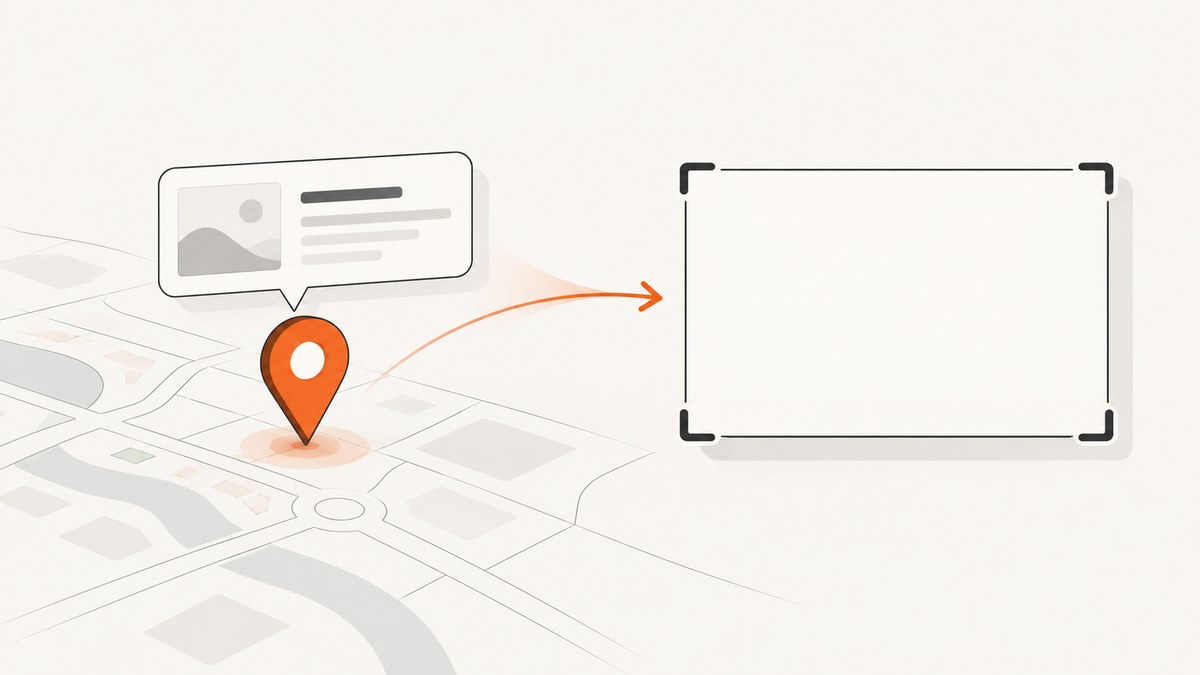
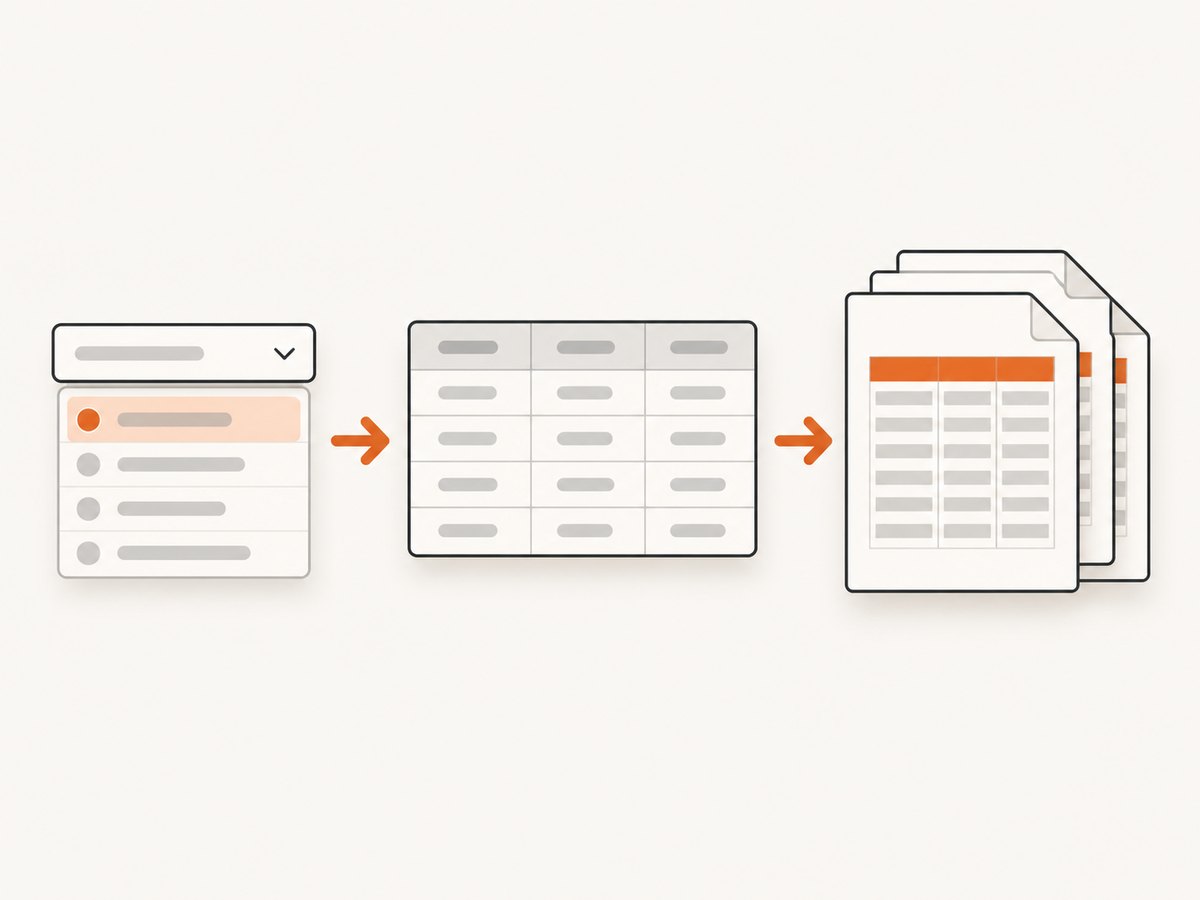
Direct answer: do not rely on capturing a native <select> control to print every item in its popup. A browser normally renders the control’s current value, while the opened option menu is managed by the browser and is not a stable document surface for html2canvas. Read select.options, create an export-only list or table containing each option, and pass that ordinary HTML element to html2pdf.js. html2pdf.js uses html2canvas for the canvas rendering step and jsPDF for PDF creation.
This approach gives you explicit content, predictable pagination, and a place to show values or the selected state. It produces a static PDF representation, not an interactive native dropdown or PDF form field.
What “export select options” can mean
Clarify the desired output before writing code:
| Goal | Recommended output | Reason |
|---|---|---|
| Show the current choice | Capture the form control or render its selected label | Compact and usually sufficient for a summary |
| Show every available choice | Build an export-only list or table from select.options |
Explicitly includes options that are not selected |
| Preserve a selectable field in the PDF | Create PDF form fields separately with a PDF-generation library | html2pdf’s canvas image is not a native interactive dropdown |
The rest of this guide implements the second case: a readable PDF containing all choices, with an optional marker for the current selection.
How the html2pdf.js pipeline works
- Your code creates or selects an HTML element.
- html2pdf clones and renders that element through html2canvas.
- The resulting canvas is converted to an image.
- jsPDF places the image into one or more PDF pages.
Because html2canvas reconstructs the page from the DOM and CSS instead of taking a native operating-system screenshot, CSS support and form-control behavior can differ between browsers. Read the html2canvas documentation before depending on unusual CSS, cross-origin images, or browser-specific controls.
Complete runnable example
The example below keeps the real form control for users and creates a separate export container when the button is pressed. It includes option text, values, and a selected marker. Remove the value column or marker if your document should contain labels only.
<!doctype html>
<html lang="en">
<head>
  <meta charset="utf-8">
  <meta name="viewport" content="width=device-width, initial-scale=1">
  <title>Export select options</title>
  <script src="https://cdnjs.cloudflare.com/ajax/libs/html2pdf.js/0.10.1/html2pdf.bundle.min.js" defer></script>
  <style>
    body { font: 16px system-ui, sans-serif; margin: 2rem; }
    .export-document { background: #fff; color: #111; padding: 24px; width: 720px; }
    .export-document h1 { margin-top: 0; font-size: 24px; }
    .options-table { border-collapse: collapse; width: 100%; }
    .options-table th, .options-table td { border: 1px solid #bbb; padding: 8px; text-align: left; }
    .options-table thead { display: table-header-group; }
    .options-table tr { break-inside: avoid; page-break-inside: avoid; }
    .selected { font-weight: 700; }
    .export-only { position: absolute; left: -100000px; top: 0; }
  </style>
</head>
<body>
  <label for="plan">Plan</label>
  <select id="plan">
    <option value="free">Free</option>
    <option value="starter" selected>Starter</option>
    <option value="growth">Growth</option>
    <option value="pro">Pro</option>
  </select>
  <button id="download" type="button">Download PDF</button>
  <div id="export-root" class="export-only" aria-hidden="true"></div>

  <script>
    const select = document.querySelector('#plan');
    const exportRoot = document.querySelector('#export-root');

    function buildExportDocument(selectElement) {
      const wrapper = document.createElement('section');
      wrapper.className = 'export-document';
      const heading = document.createElement('h1');
      heading.textContent = 'Available plans';
      wrapper.appendChild(heading);

      const table = document.createElement('table');
      table.className = 'options-table';
      table.innerHTML = '<thead><tr><th>Option</th><th>Value</th><th>Selected</th></tr></thead>';
      const body = document.createElement('tbody');

      for (const option of selectElement.options) {
        const row = document.createElement('tr');
        if (option.selected) row.className = 'selected';
        const labelCell = document.createElement('td');
        labelCell.textContent = option.text;
        const valueCell = document.createElement('td');
        valueCell.textContent = option.value;
        const selectedCell = document.createElement('td');
        selectedCell.textContent = option.selected ? 'Yes' : '';
        row.append(labelCell, valueCell, selectedCell);
        body.appendChild(row);
      }
      table.appendChild(body);
      wrapper.appendChild(table);
      return wrapper;
    }

    document.querySelector('#download').addEventListener('click', async () => {
      exportRoot.replaceChildren(buildExportDocument(select));
      const element = exportRoot.firstElementChild;
      const options = {
        margin: [12, 12, 12, 12],
        filename: 'select-options.pdf',
        image: { type: 'jpeg', quality: 0.95 },
        pagebreak: { mode: ['css', 'legacy'] },
        html2canvas: { scale: 2, backgroundColor: '#ffffff' },
        jsPDF: { unit: 'mm', format: 'a4', orientation: 'portrait' }
      };
      await html2pdf().set(options).from(element).save();
    });
  </script>
</body>
</html>
The export element is positioned far off-screen rather than set to display:none. A display-none subtree has no layout to render. If you prefer, append the element visibly in a print-only panel and remove it after generation.
Build the export list safely
Use the option label and value deliberately
option.text is the user-facing label. option.value may be an internal identifier that readers do not need. Decide whether the PDF is documentation for people, an audit record, or a data export. For a human-facing document, labels alone are often clearer. For an audit, include both and preserve the selected marker.
Handle disabled, grouped, and empty options
The options collection includes disabled options and options inside <optgroup>. Preserve that context when it matters:
for (const option of select.options) {
  const group = option.parentElement instanceof HTMLOptGroupElement
    ? option.parentElement.label
    : '';
  const status = option.disabled ? 'Disabled' : 'Available';
  // Render option.text, option.value, group, status, and option.selected.
}
An empty value is valid. Do not filter it with a truthiness check; test explicitly for option.value === ''. If the select allows multiple choices, use option.selected for each row rather than select.value, which represents only one value.
Prevent injection and broken markup
Use textContent when inserting labels and values. Avoid concatenating untrusted option text into innerHTML. If you need rich formatting, construct each element with DOM APIs and set only the attributes you control.
html2pdf.js options that matter
| Option | Use | Practical guidance |
|---|---|---|
margin |
Page margins in the jsPDF unit | Leave room for readable borders and headers |
filename |
Download name | Use a stable, filesystem-safe name |
image.type, quality |
Intermediate image format | JPEG is smaller; PNG is sharper for line art but can be larger |
html2canvas.scale |
Raster resolution | Increase for small text, but expect more memory and time |
html2canvas.backgroundColor |
Canvas background | Set white when transparent or inherited backgrounds would be ambiguous |
jsPDF.format |
Paper size | Use a4, letter, or another supported format |
jsPDF.orientation |
Portrait or landscape | Landscape helps wide value columns |
pagebreak.mode |
Break calculation | Use CSS breaks and legacy handling for long tables |
The complete option set and worker chain are documented in the html2pdf.js options reference. Keep table rows together with break-inside: avoid, but verify the result because a row taller than a page cannot remain intact.
Clone-time changes and ignored elements
html2canvas supports an onclone callback that receives the cloned document. This is useful when the live page has controls that should be hidden only in the PDF, or when you need export-only styling. Its configuration also includes ignoreElements and the data-html2canvas-ignore attribute. See the configuration reference.
const options = {
  html2canvas: {
    onclone: (clonedDocument) => {
      clonedDocument.querySelectorAll('[data-screen-only]').forEach((node) => {
        node.remove();
      });
      clonedDocument.querySelector('.export-document')?.classList.add('pdf-mode');
    },
    ignoreElements: (element) => element.matches('.live-help-widget')
  }
};
Do not mutate the user’s live form just to make the PDF. Build the export representation or modify the clone instead.
Long lists, page breaks, and layout
- Give the export document a predictable width and background.
- Use a real table header so repeated headers can be applied by the renderer where supported.
- Apply
break-inside: avoidto rows and headings. - Test lists that exceed one page; clipping often comes from fixed heights or overflow rules inherited from the application.
- Try portrait for two or three narrow columns and landscape for many columns.
For very large lists, consider generating smaller sections and merging PDFs with a server-side PDF tool. A high canvas scale multiplies memory usage, so lower it when the document is mostly text and the output is already readable.
Browser and rendering caveats
html2canvas is a DOM renderer, not a pixel-perfect browser screenshot engine. Unsupported CSS, web fonts that have not finished loading, cross-origin images without appropriate permissions, and native form-control differences can change the result. Wait for fonts and images before capture when they are part of the export. Inspect the generated PDF in every browser you support.
A dated issue report describes stale changed form data with html2canvas 1.4.1 in Firefox 124 and Safari on iOS 17. It is a version- and browser-specific case report, not proof that every release behaves the same way. If a selected value appears stale, reproduce it with your exact library and browser versions; rebuilding the export table from select.options immediately before calling html2pdf avoids relying on a cloned native control’s state. See issue #3166.
Common errors and fixes
| Symptom | Likely cause | Fix |
|---|---|---|
| Only the selected option appears | The native select was captured | Enumerate select.options into ordinary rows |
| PDF is blank | Element is display:none, has zero dimensions, or capture ran before layout |
Render it off-screen with dimensions and wait until it is attached |
| Rows are cut between pages | Fixed heights or missing break rules | Remove fixed heights and add break-inside: avoid |
| Text is blurry | Low canvas scale or oversized rasterization | Increase scale gradually and check memory |
| Images are missing | Cross-origin restrictions | Use same-origin assets or configure CORS; omit decorative images if they are not essential |
| Fonts differ | Web font has not loaded | Await document.fonts.ready before capture |
| Download never completes | Capture failed or the page ran out of memory | Reduce scale, simplify the export DOM, and catch the returned promise |
await document.fonts.ready;
const images = [...document.images];
await Promise.all(images.map((img) => img.complete
  ? Promise.resolve()
  : new Promise((resolve) => {
      img.addEventListener('load', resolve, { once: true });
      img.addEventListener('error', resolve, { once: true });
    })));
try {
  await html2pdf().set(options).from(element).save();
} catch (error) {
  console.error('PDF generation failed', error);
}
Or skip the browser setup
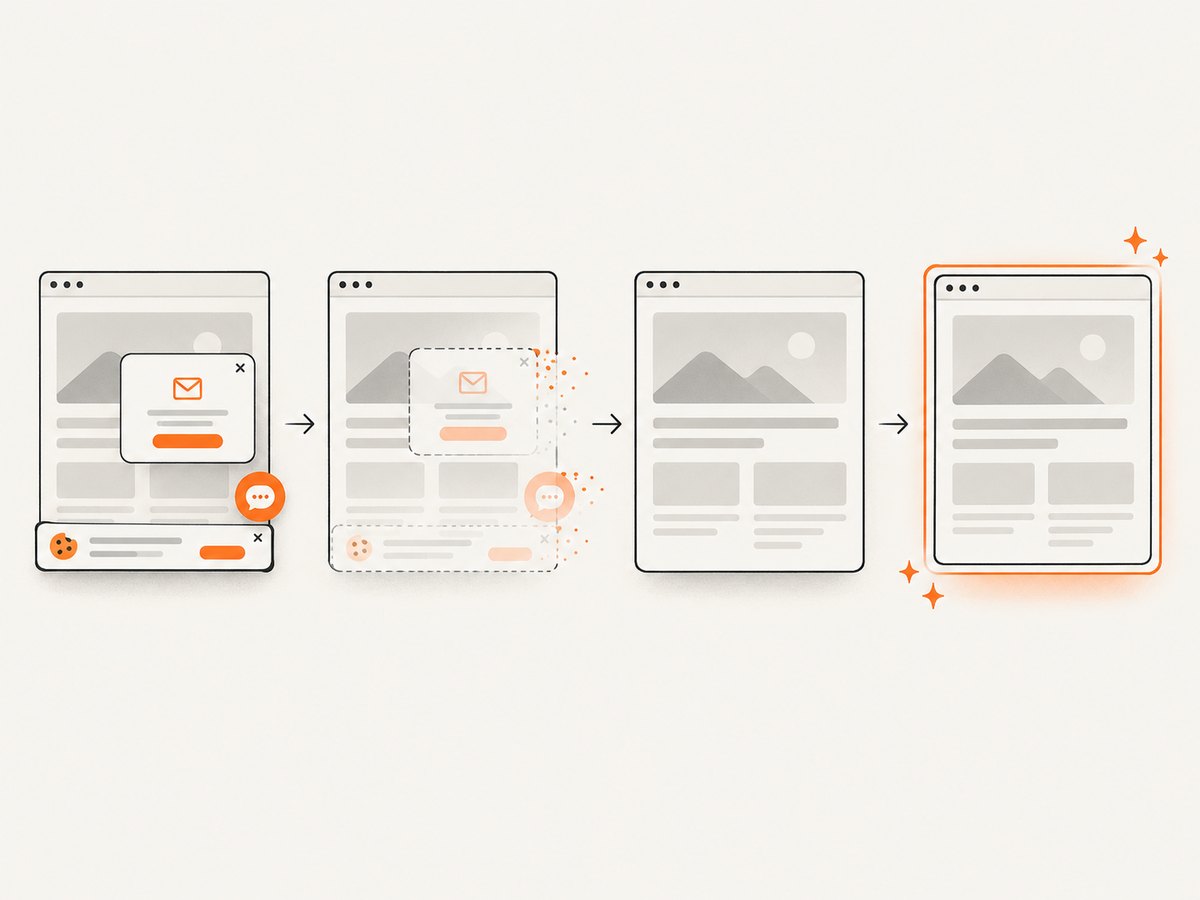
If your goal is a clean capture of a web page rather than a client-side PDF assembled from a select, ScreenshotNeo provides a single website screenshot API call. Its capture options include PDF output, custom CSS and JavaScript, waiting for selectors or network idle, full-page capture, and hiding selectors. Cookie banners, newsletter popups, and chat widgets are removed before the shot. Bot checks, blank pages, timeouts, failed loads, and cache hits are not billed, and response headers identify the page verdict and billing result. An MCP server lets Claude, Cursor, and other MCP clients use take_screenshot, get_page_info, and capture_pdf.
See the ScreenshotNeo API documentation for all options. The same request works from cURL, Python, or Node.js:
curl -G "https://api.screenshotneo.com/v1/shot" -d access_key=YOUR_API_KEY --data-urlencode url=https://stripe.com -o shot.webpimport requests
r = requests.get("https://api.screenshotneo.com/v1/shot", params={"access_key": "YOUR_API_KEY", "url": "https://stripe.com"}, timeout=90)
open("shot.webp", "wb").write(r.content)const q = new URLSearchParams({ access_key: 'YOUR_API_KEY', url: 'https://stripe.com' });
const res = await fetch(`https://api.screenshotneo.com/v1/shot?${q}`);There is a free tier of 1,000 screenshots per month with no card. Paid plans start at $5 for 3,000 shots, and every feature is available on every plan. Create a free ScreenshotNeo account.
Performance, reliability, and cost checklist
- Build only the content needed for the PDF; a smaller DOM captures faster.
- Use a moderate canvas scale and measure output readability on the target paper size.
- Wait for fonts and required images, but do not wait indefinitely for optional analytics or chat resources.
- Generate from the current
optionscollection at click time so dynamic selections are correct. - For repeatable server workflows, log the library versions, browser versions, input option count, and output page count.
- Client-side generation uses the user’s CPU and memory; large tables can freeze a low-powered device.
- ScreenshotNeo charges only for clean shots; bot checks, blank pages, timeouts, failed loads, and cache hits are free.
FAQ
Can html2pdf export the opened dropdown menu?
Do not depend on it. The popup is browser UI rather than stable page content. Render the options as HTML first.
Will the PDF retain the select as an interactive field?
No. html2pdf produces a static PDF image/content flow. Interactive AcroForm fields require a separate PDF-form implementation.
Should I include option values?
Include them for technical or audit documents; omit them for a reader-facing list when labels are sufficient.
How do I export a multiple-select control?
Iterate through every option and mark each option whose selected property is true.
Can I capture a page hosted on another domain with ScreenshotNeo?
Yes, pass its URL to the API and configure the capture options described in the documentation. The service handles the browser session and returns the requested image or PDF.


