Export HTML to PDF: Browser, Puppeteer, Playwright, and API Methods
Save a webpage as PDF by printing it from a browser, or generate PDFs in code with Puppeteer or Playwright. Learn the settings, print CSS, and fixes for common issues.

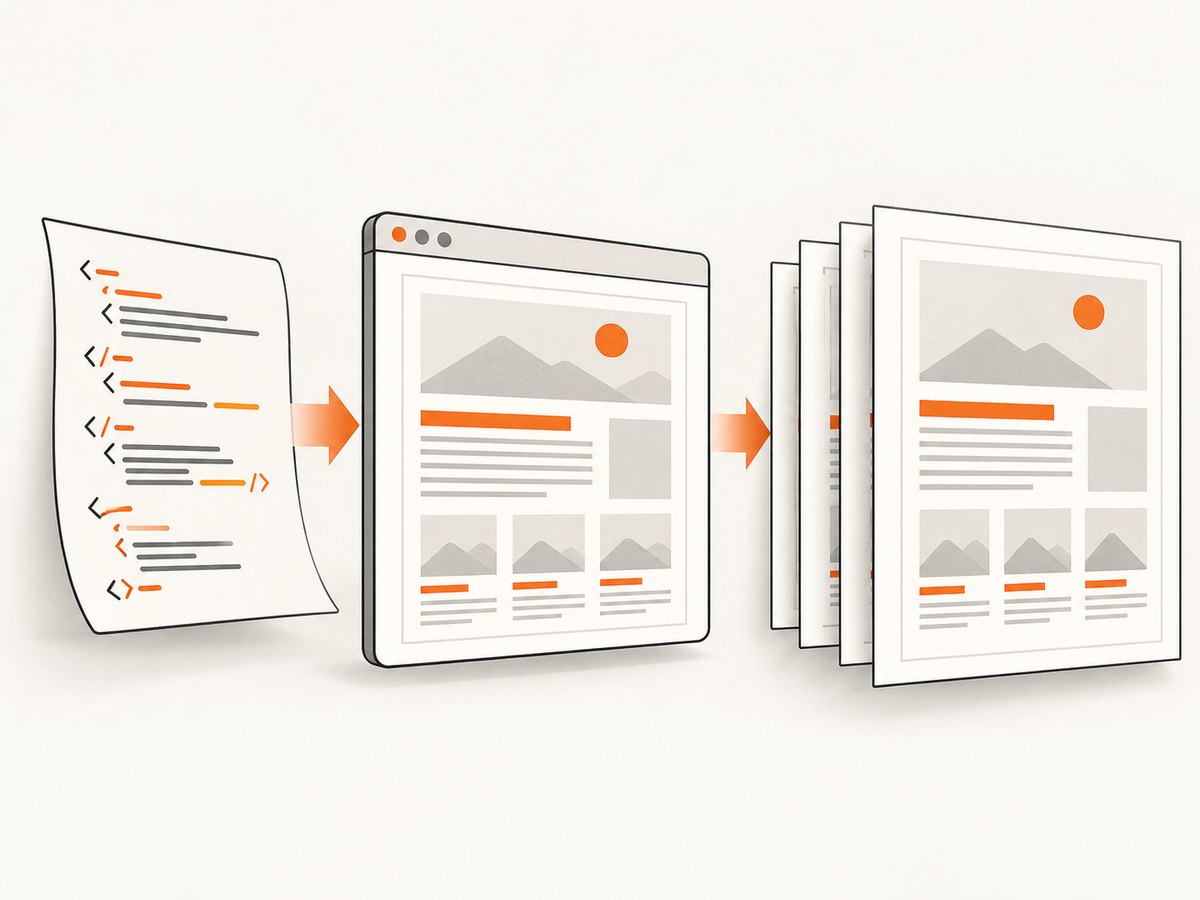
To export HTML to PDF, open the page in a browser, use its print workflow, choose a PDF destination, review the preview, and save. For repeatable or server-side work, generate the PDF with a browser automation tool such as Puppeteer or Playwright. Both use print styles by default and let you set page size, margins, page ranges, and background printing.
The right method depends on whether this is a one-off save or part of an application. Browser printing takes little setup. Automation gives you repeatable settings and control over page readiness. A hosted conversion service can manage the conversion workflow for you. This guide covers each route, explains the settings that affect output, and shows how to diagnose common rendering problems.
1. Choose an export method
| Method | Good fit | What to consider |
|---|---|---|
| Browser print workflow | Saving a page occasionally | Fast to use, but less convenient to repeat consistently or automate. |
| Puppeteer | Node.js scripts and services that use Chromium | You manage the browser process and page setup. |
| Playwright | Node.js automation using Playwright | You manage the browser process and page setup. |
| Hosted conversion API | Applications that prefer a managed conversion pipeline | Review the provider’s inputs, output settings, job model, and costs for your needs. |
For a single document, start with the browser. For repeated reports or application features, use automation so the same code controls rendering and output. A service such as CloudConvert documents URL or HTML inputs, output configuration, selector waits, and synchronous or asynchronous jobs; consult its HTML to PDF API documentation for its current workflow.
2. Save a webpage as PDF in a browser
- Open the webpage or HTML document you want to save.
- Open the browser’s print workflow.
- Select a PDF destination or save-as-PDF option if available.
- Review the preview, page count, paper size, margins, orientation, and background graphics.
- Save the resulting PDF, then open it to confirm that the pages and content look right.
Browser and operating-system labels differ, so the exact menu sequence depends on your setup. The preview is useful: it can reveal clipping, blank pages, missing backgrounds, or content that is split awkwardly before you save.
If you own the HTML and control its styles, add print-specific rules. MDN documents @media print for styling content differently when printed and @page for page-related rules. For example:
@media print {
  nav,
  .screen-only {
    display: none;
  }

  article {
    max-width: none;
  }
}

@page {
  size: A4;
  margin: 18mm;
}
Use print rules to make the document readable on paper or PDF: hide controls that do not belong in the document, adjust widths, and set page margins. Check the actual output, since a page’s existing styles and browser rendering affect the result. See MDN’s printing CSS guide.
3. Generate a PDF with Puppeteer
Puppeteer’s page.pdf() generates a PDF using print CSS by default. This runnable Node.js example navigates to a URL, waits for the page, and saves a file. Install Puppeteer in your project with npm install puppeteer, then save the code as export-pdf.js and run node export-pdf.js https://example.com.
const puppeteer = require('puppeteer');

async function main() {
  const url = process.argv[2];
  if (!url) {
    throw new Error('Usage: node export-pdf.js <url>');
  }

  const browser = await puppeteer.launch({ headless: true });
  try {
    const page = await browser.newPage();
    await page.goto(url, { waitUntil: 'networkidle0' });
    await page.pdf({
      path: 'page.pdf',
      format: 'A4',
      printBackground: true,
      margin: {
        top: '18mm',
        right: '16mm',
        bottom: '18mm',
        left: '16mm'
      }
    });
  } finally {
    await browser.close();
  }
}

main().catch(error => {
  console.error(error);
  process.exitCode = 1;
});
Pass a fully qualified URL, including its scheme, such as https://example.com. The example uses networkidle0 to wait for network activity to settle; some pages keep connections open or load content later, so adjust readiness handling for the page you are exporting. Puppeteer’s PDF documentation says it waits for fonts by default. That helps with font readiness, but does not guarantee that every dynamic widget or remote asset has finished rendering.
Puppeteer PDF options to know
format: choose a named paper size such as A4 or Letter. The API also supports explicit dimensions.margin: set top, right, bottom, and left margins with CSS length units.printBackground: include background graphics. It defaults to false, so set it to true when colored backgrounds or background images matter.pageRanges: emit selected pages when a partial export is needed.preferCSSPageSize: let CSS page size take precedence when the document defines it.waitForFonts: Puppeteer documents font waiting as enabled by default.
For a screen-like layout, explicitly emulate screen media before generating the PDF:
await page.emulateMediaType('screen');
await page.pdf({ path: 'screen-layout.pdf', printBackground: true });
Print output may also adjust colors for printing. Inspect brand colors and dark backgrounds in the saved file rather than assuming the screen appearance will carry over unchanged. See the Puppeteer Page.pdf() documentation for the complete option definitions.
4. Generate a PDF with Playwright
Playwright’s page.pdf() also uses print CSS by default. Install the package with npm install playwright. Depending on your setup, install the browser binaries using Playwright’s documented install command. Save this as export-playwright.js and run node export-playwright.js https://example.com.
const { chromium } = require('playwright');

async function main() {
  const url = process.argv[2];
  if (!url) {
    throw new Error('Usage: node export-playwright.js <url>');
  }

  const browser = await chromium.launch({ headless: true });
  try {
    const page = await browser.newPage();
    await page.goto(url, { waitUntil: 'networkidle' });
    await page.pdf({
      path: 'page.pdf',
      format: 'A4',
      printBackground: true,
      margin: {
        top: '18mm',
        right: '16mm',
        bottom: '18mm',
        left: '16mm'
      }
    });
  } finally {
    await browser.close();
  }
}

main().catch(error => {
  console.error(error);
  process.exitCode = 1;
});
To select screen media instead of print media, emulate it before calling page.pdf():
await page.emulateMedia({ media: 'screen' });
await page.pdf({ path: 'screen-layout.pdf', printBackground: true });
Playwright documents options for paper format, margins, page ranges, background printing, and whether CSS page size takes priority. Its PDF documentation also describes print color adjustments. Confirm the result in a PDF viewer, especially when the design relies on exact colors or a CSS-defined page size. See the Playwright Page API.
5. Prepare HTML and dynamic pages
A PDF captures the page after the browser has rendered it, so page readiness is part of the export. A page can navigate successfully while its main content is still waiting on a script, API response, image, or user interaction. Pick a readiness condition based on the content you need.
- Wait for navigation: use a navigation completion condition that fits the page. Network-idle conditions can be useful, but long polling or analytics requests may keep activity alive.
- Wait for a known element: if the report appears when a particular selector is added, wait for that selector before generating the PDF. CloudConvert documents a custom CSS selector wait for its capture workflow.
- Wait for fonts: Puppeteer documents font waiting in PDF generation. For either tool, visually verify typography and line breaks in the output.
- Check lazy content: long pages may load images or sections only as they approach the viewport. Make sure the required content is present before capture; a successful PDF call does not prove every section rendered.
If you control the document, use stable page structure and print CSS instead of relying on timing guesses. If you do not control it, test representative pages with different lengths, assets, and load patterns. A wait condition improves readiness for the behavior it observes; it cannot guarantee that every third-party resource will be available.
6. Configure page size, margins, and backgrounds
These settings account for many differences between a browser view and the exported file:
| Setting | Effect | When to review it |
|---|---|---|
| Paper format or dimensions | Changes available page area and pagination. | Choose a standard size or document-specific dimensions. |
| Margins | Reserve space around printable content. | Increase them if text is clipped or too close to the edge. |
| Background graphics | Controls whether backgrounds and background images appear. | Enable them when color blocks or visual context are part of the document. |
| Page ranges | Limits output to selected pages. | Use when users need an excerpt or a large document section. |
| Print versus screen media | Selects print-specific or screen-specific CSS. | Use print for document layouts; choose screen only when that rendering is required. |
| CSS page size preference | Allows CSS page rules to determine size where supported. | Use when the HTML itself defines the intended paper size. |
Set these deliberately and keep them consistent in an automated workflow. If your CSS already defines @page, decide whether the API’s requested format or the document’s CSS should control the output. The tools document a setting for preferring CSS page size; consult their version-specific API reference before relying on less common options.
7. Or skip the browser setup
ScreenshotNeo is a website screenshot API and MCP server from Yorker Media. It can return screenshots or PDFs. A one-call screenshot request looks like this; the documented example saves a WebP screenshot:
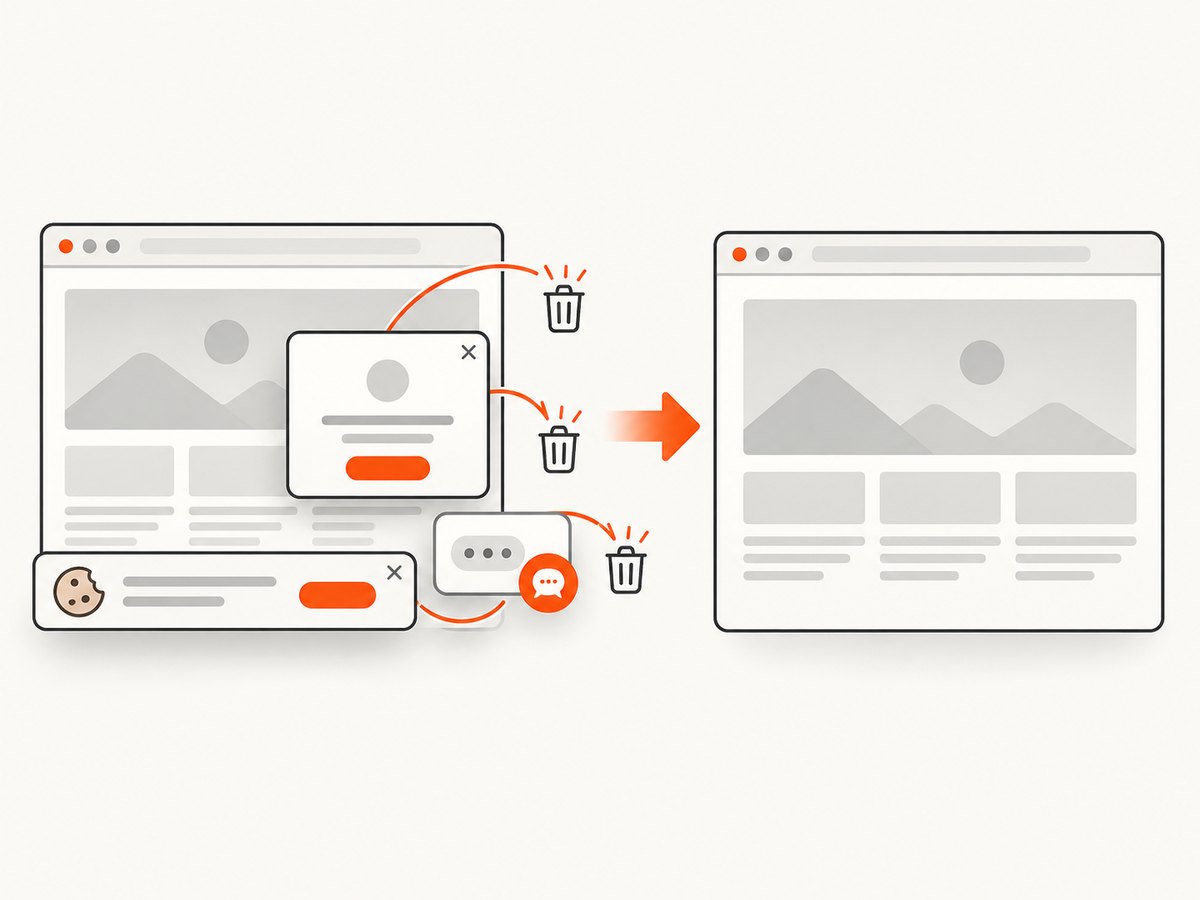
curl -G "https://api.screenshotneo.com/v1/shot" -d access_key=YOUR_API_KEY --data-urlencode url=https://stripe.com -o shot.webpSee the ScreenshotNeo documentation for API details and PDF output configuration. Cookie banners, popups, and chat widgets are removed before the shot. Bot checks, blank pages, and failed loads are never billed. An MCP server lets AI agents take screenshots. The free plan includes 1,000 screenshots a month with no card; paid plans start at $5 for 3,000. Sign up for ScreenshotNeo and start with 1,000 free screenshots a month, no card required.
8. Troubleshooting PDF exports
| Symptom | Likely cause | What to try |
|---|---|---|
| Background colors or images are missing | Background printing is disabled. | Enable printBackground in Puppeteer or Playwright, or check the browser print settings. |
| The PDF layout differs from the browser window | Print media styles are active by default. | Review @media print rules, or explicitly emulate screen media if that is the intended layout. |
| Text or images are cut off | Page width, margins, or print styles do not fit the selected paper size. | Adjust the paper size or margins, inspect wide elements, and review the preview or output. |
| A section or chart is missing | Content had not loaded when PDF generation began, or it only renders after interaction. | Wait for a page-specific selector or readiness condition and ensure the content is actually rendered before export. |
| Font appearance or line breaks are wrong | The intended font may not have been ready or available. | Check font loading and inspect the resulting PDF. Puppeteer’s PDF method waits for fonts by default. |
| Blank pages or unexpected pagination | Print CSS, page breaks, dimensions, or content height create extra pages. | Inspect @page rules and print styles; test the same content at the chosen paper size. |
| Automation waits too long or times out | The page may keep network activity open or wait on a resource that never settles. | Use a readiness signal tied to the content you need instead of relying only on network idle. |
| PDF call fails in a deployment environment | The browser may not launch in that environment or its required browser installation may be missing. | Follow the automation tool’s browser installation and deployment guidance, then capture the launch error for diagnosis. |
9. Performance, reliability, and cost
Self-managed automation gives you control over the browser process, output settings, and integration, while also making browser lifecycle and failure handling your responsibility. Reuse a launched browser for a batch where appropriate, but create a fresh page for each independent capture and close resources reliably. Avoid running more simultaneous browser jobs than the host can support; memory and CPU availability affect practical concurrency.
Hosted conversion APIs can reduce the browser infrastructure you operate, but the service’s pricing, limits, retention, and job behavior should be checked against your workload. The cited CloudConvert documentation describes synchronous and asynchronous job workflows; it does not establish a universal performance or cost advantage. Do not infer one without measuring your own pages and workload.
PDF generation time and file size vary with page complexity, assets, fonts, and output settings. For reliable jobs, record which URL and settings produced each file, handle navigation and rendering errors, and retain a way to retry transient failures. Validate a sample of output PDFs, because a successful API response only confirms generation, not that every page looks correct. Consider privacy and access controls before sending private HTML or authenticated pages to an external service.
10. Frequently asked questions
Can I export a local HTML file?
Yes. Open the file in a browser and use its print workflow. For automation, adapt the page navigation to the local file URL and ensure any referenced assets are available to the browser process.
Should I use print CSS or screen CSS?
Use print CSS for a document intended to read or print as pages. Use screen media when preserving the on-screen arrangement is specifically important. Both automation APIs default to print media and document how to select screen media.
Why does the saved PDF have more pages than expected?
Pagination depends on content dimensions, paper size, margins, and print rules. Inspect the page breaks and wide or tall elements at the selected output size.
Can a PDF preserve interactive webpage behavior?
A PDF is a document output, so do not assume webpage interactions or dynamic behavior will carry over. Make sure the content you need is rendered before export and inspect the saved file.


