Export Specific PDF Pages in Python with aiohttp
Download a PDF with aiohttp, select pages with pypdf, and write a smaller PDF. Includes streaming, validation, error handling, and a complete async example.

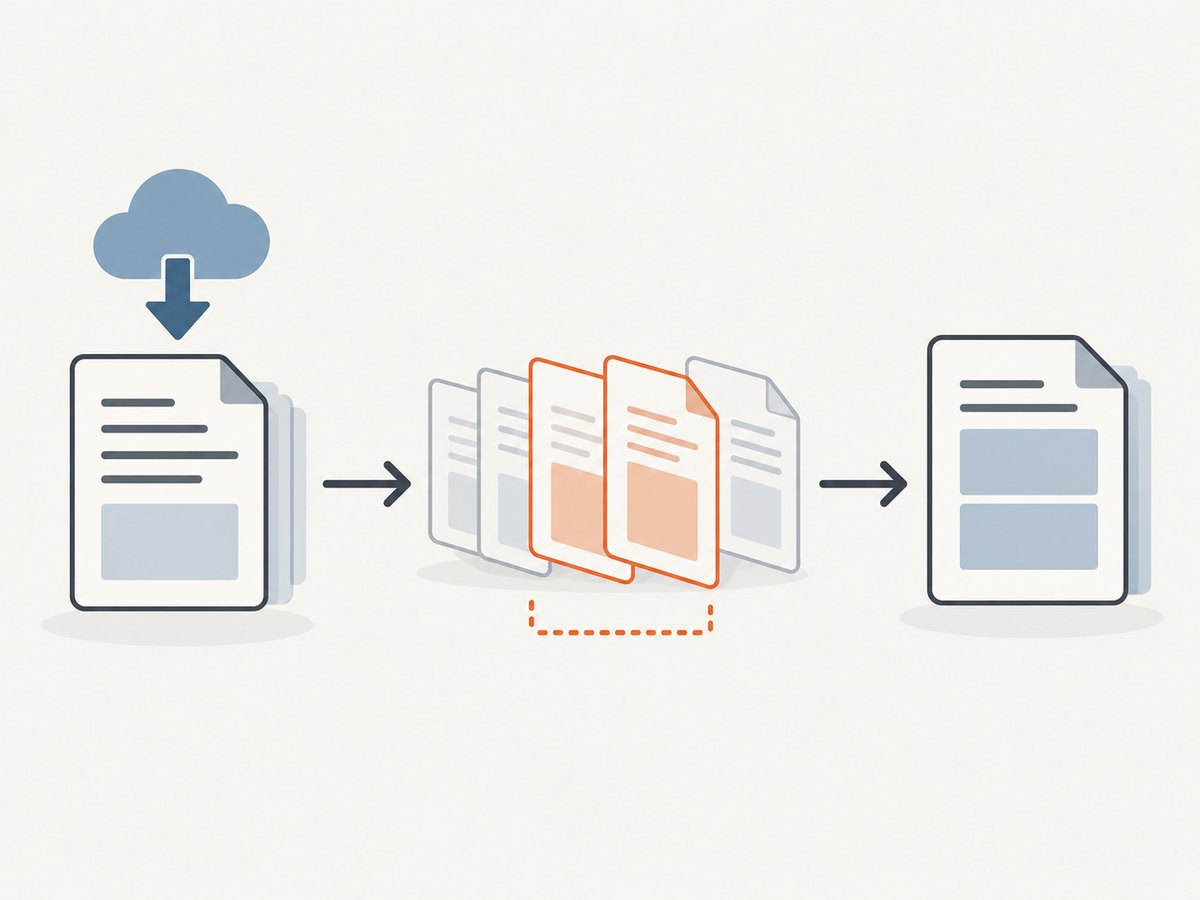
Use aiohttp to download the PDF and pypdf to select and write pages. For small files, you can read the whole response into memory; for larger files, stream it to disk in chunks, then pass the saved file to PdfReader. Python page indexes start at zero: human page 1 is index 0.
The workflow is: install the two packages, download the source PDF with HTTP status checking, validate the requested page numbers, add the chosen pages to a PdfWriter, and write the new file. aiohttp does the network transfer; pypdf does the PDF page operations. See the aiohttp client quickstart and the pypdf project page for their documented APIs.
1. Install the dependencies
Use a virtual environment and install aiohttp and pypdf:
python -m venv .venv

# macOS or Linux
source .venv/bin/activate

# Windows PowerShell
# .venv\Scripts\Activate.ps1

python -m pip install aiohttp pypdf
The example below uses the public APIs shown in the library documentation. If you pin dependencies for an application, pin the versions you have reviewed and check their documentation when upgrading.
2. Download, select, and write pages
This runnable script downloads a PDF in 64 KiB chunks, selects human-numbered pages 1, 3, and 4, and creates selected-pages.pdf. Change PDF_URL and HUMAN_PAGES for your document.
import asyncio
from pathlib import Path

import aiohttp
from pypdf import PdfReader, PdfWriter

PDF_URL = "https://example.com/document.pdf"
SOURCE_PATH = Path("input.pdf")
OUTPUT_PATH = Path("selected-pages.pdf")
HUMAN_PAGES = [1, 3, 4]


async def download_pdf(url: str, destination: Path) -> None:
    timeout = aiohttp.ClientTimeout(total=120)
    async with aiohttp.ClientSession(timeout=timeout) as session:
        async with session.get(url) as response:
            response.raise_for_status()
            with destination.open("wb") as output:
                async for chunk in response.content.iter_chunked(64 * 1024):
                    output.write(chunk)


def export_pages(source: Path, destination: Path, human_pages: list[int]) -> None:
    reader = PdfReader(source)
    page_count = len(reader.pages)

    if not human_pages:
        raise ValueError("Choose at least one page.")
    if any(page < 1 or page > page_count for page in human_pages):
        raise ValueError(
            f"Page numbers must be between 1 and {page_count}; got {human_pages}."
        )

    writer = PdfWriter()
    for human_page in human_pages:
        writer.add_page(reader.pages[human_page - 1])

    with destination.open("wb") as output:
        writer.write(output)


async def main() -> None:
    await download_pdf(PDF_URL, SOURCE_PATH)
    export_pages(SOURCE_PATH, OUTPUT_PATH, HUMAN_PAGES)
    print(f"Wrote {OUTPUT_PATH}")


if __name__ == "__main__":
    asyncio.run(main())
The conversion is human_page - 1: requested pages 1, 3, and 4 become indexes 0, 2, and 3. The code checks bounds before indexing, so an out-of-range request produces a useful error rather than an obscure index exception.
3. Choose pages by list or range
For individual pages, pass a list such as [1, 3, 4]. The sample preserves that order; if the input is [4, 1], the output puts page 4 first and page 1 second. Duplicate numbers create duplicate pages. If order and uniqueness matter, validate or normalize the list before writing.
For a human-inclusive range such as pages 2 through 5, convert the endpoints carefully. As indexes, those pages are 1 through 4. You can use the same loop:
human_pages = list(range(2, 6))  # [2, 3, 4, 5]
for human_page in human_pages:
    writer.add_page(reader.pages[human_page - 1])
Python slices are half-open: reader.pages[1:5] corresponds to human pages 2, 3, 4, and 5. The pypdf example uses explicit add_page calls to make indexing and output order visible.
4. Stream large downloads instead of buffering them
A tempting short version is data = await response.read() followed by writing data to disk. It is concise, but it holds the complete response body in a Python bytes object. The aiohttp quickstart warns that convenience methods such as read(), json(), and text() load the whole response in memory. Iterating over response.content writes chunks incrementally and avoids that full-body buffer.
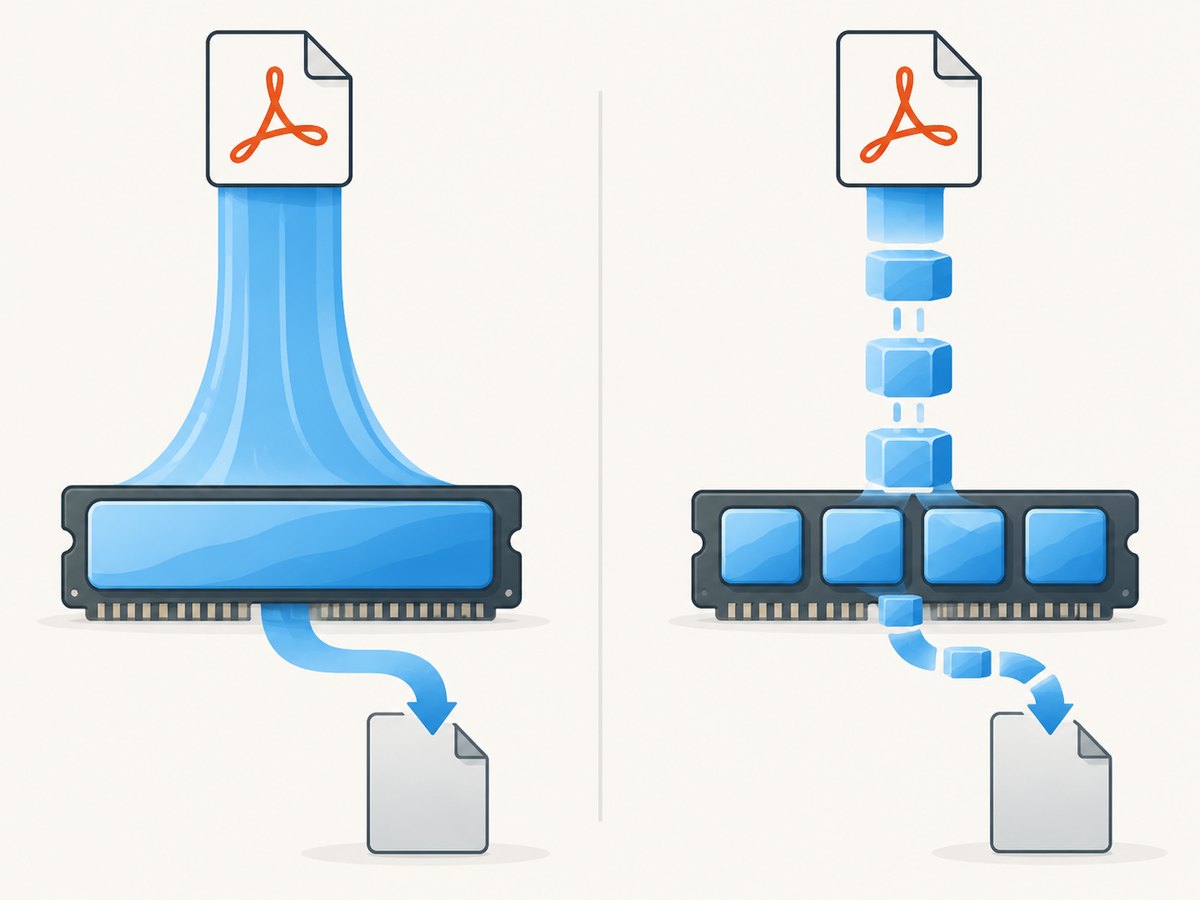
Streaming the transfer does not make the entire PDF pipeline constant-memory. pypdf still has to parse the PDF structure, and the output writer must build the resulting document. For unusually large documents, measure peak memory in your own environment and process jobs with appropriate limits.
5. Small-file alternative: read the response into memory
For a known small PDF, you can download bytes directly and give pypdf an in-memory stream. This avoids a temporary input file, but uses memory proportional to the response size in addition to PDF parsing and output work.
import asyncio
from io import BytesIO

import aiohttp
from pypdf import PdfReader, PdfWriter

async def main() -> None:
    url = "https://example.com/document.pdf"
    async with aiohttp.ClientSession() as session:
        async with session.get(url) as response:
            response.raise_for_status()
            pdf_bytes = await response.read()

    reader = PdfReader(BytesIO(pdf_bytes))
    writer = PdfWriter()
    for index in (0, 2, 3):
        if index >= len(reader.pages):
            raise ValueError(f"PDF has only {len(reader.pages)} pages")
        writer.add_page(reader.pages[index])

    with open("selected-pages.pdf", "wb") as output:
        writer.write(output)

asyncio.run(main())
Use one transfer style or the other based on file size and memory constraints. The chunked version is a safer default when file size is unknown.
6. HTTP details and operational choices
Check the response status
raise_for_status() turns unsuccessful HTTP responses into exceptions. Without it, a 404 error page or access-denied response might be saved under a .pdf filename and fail later during parsing. Catch aiohttp.ClientResponseError if your program needs to report status codes or retry selected failures.
Set time limits
The full example sets a 120-second total timeout. Adjust it to suit expected document size and network conditions. aiohttp supports configuring request timeouts; a timeout limits how long a transfer can occupy a task, but it does not guarantee that the server will respond successfully.
Reuse sessions for multiple requests
The example opens a session for one download. When downloading many PDFs, create one ClientSession around the batch and reuse it rather than creating a new session for every URL. Context managers close sessions and responses on normal exit and when exceptions unwind the block.
Keep URLs and files under control
If URLs come from users or another untrusted source, validate allowed schemes and hosts, choose a safe destination directory, and impose file-size and time limits appropriate to your application. Avoid using a remote filename directly as a local path. These are application security measures; aiohttp does not choose your URL or filesystem policy.
7. Troubleshooting
| Symptom | Likely cause | Fix |
|---|---|---|
| HTTP 404, 403, or another status exception | The URL is wrong, access requires authorization, or the server rejected the request. | Check the URL and access requirements. Keep raise_for_status() so the failure is reported at the download step. |
| PDF parsing error after download | The response may be an HTML error page, an incomplete transfer, or a malformed/non-PDF file. | Check the HTTP status and inspect the response source and file size. Do not assume a .pdf suffix proves the content is a PDF. |
| Index out of range | A zero-based index was confused with a human page number, or the requested page exceeds the document length. | For human page N, use index N - 1; validate against len(reader.pages) before accessing pages. |
| Output contains pages in an unexpected order | The writer follows the order in which pages are added. | Sort or explicitly order the requested page list before adding pages. |
| Output repeats a page | The requested list includes the same number more than once. | Deduplicate input if repeated pages are not intended, while preserving the desired order. |
| Transfer runs out of memory | The complete response was read into memory, or the PDF itself requires substantial parsing resources. | Stream the HTTP body to disk. Also account for pypdf’s parsing and writing memory needs. |
| Timeout or connection failure | The server is slow, unreachable, or the transfer was interrupted. | Check network reachability, set a suitable timeout, and retry only when the operation and failure are appropriate for retry. |
| Encrypted PDF cannot be read | The document requires a password or has encryption constraints. | Handle the password according to the document owner’s access rules and consult the installed pypdf version’s reader documentation. Do not assume every PDF can be opened without credentials. |
Malformed, encrypted, or unusually large files can need special handling. Validate inputs and surface errors to the caller rather than treating every parse failure as a transient network issue.
8. Performance, reliability, and cost
For one file, the dominant costs are downloading the bytes, parsing the PDF, and writing selected pages. Streaming reduces the extra memory used by the transfer; it does not reduce network bytes when the source PDF must be downloaded in full. If you repeatedly export pages from the same source, retaining a validated local copy can avoid duplicate downloads, provided your cache policy accounts for changes and access rules.
Use finite timeouts and explicit status checks so slow or failed requests do not silently produce bad output. For a service handling untrusted or large documents, apply limits on concurrent jobs, transfer size, and processing time. Retries can help with transient network errors, but should be bounded; retrying a permanent 403 or invalid PDF will not repair it.
The library workflow has no per-request API charge described here, but it does consume your compute, memory, disk, and network capacity. Estimate those resources from the PDFs your application actually processes; no fixed throughput or memory benchmark applies to every file.
Or skip the browser setup
If your surrounding job is to create a website screenshot or PDF capture, ScreenshotNeo is a website screenshot API and MCP server. It is not a replacement for selecting pages from an already downloaded PDF with pypdf. For a one-call website screenshot, use the API example below; the ScreenshotNeo documentation covers its API options.
import requests

r = requests.get(
    "https://api.screenshotneo.com/v1/shot",
    params={"access_key": "YOUR_API_KEY", "url": "https://stripe.com"},
    timeout=90,
)
open("shot.webp", "wb").write(r.content)
ScreenshotNeo removes cookie banners, popups, and chat widgets before the shot. Bot checks, blank pages, and failed loads are never billed. Its MCP server lets AI agents take screenshots. The free plan includes 1,000 screenshots a month with no card; paid plans start at $5 for 3,000. Sign up for 1,000 free screenshots a month, with no card.
FAQ
Does aiohttp extract PDF pages?
No. aiohttp fetches the response over HTTP. Use a PDF library such as pypdf to read pages and build the output PDF.
Can I preserve the source page numbers in the output?
The output contains the selected pages in the order you add them, but a PDF viewer generally numbers those output pages from the beginning. If page labels or document outlines matter, inspect the pypdf documentation for the specific metadata behavior you need.
Can I use this for PDFs behind authentication?
aiohttp requests can be configured with the authentication headers or credentials your server requires. Only download documents you are authorized to access, and avoid logging secrets.
Will selecting pages make the PDF smaller?
It often removes unselected page content, but final size depends on document structure and resources. Compare the source and output sizes for your own files rather than relying on a guaranteed reduction.
Reference checklist
- Install
aiohttpandpypdf. - Check HTTP status before saving or parsing the response.
- Stream unknown or large responses to disk in chunks.
- Convert human page numbers to zero-based indexes and validate bounds.
- Add selected pages in the order wanted in the output, then write the new PDF.
- Handle network, parsing, encryption, and resource errors explicitly.


