How to Export Plotly Graphs and HTML Content to PDF
Export Plotly figures with Kaleido or print complete HTML pages with Playwright, including setup, print CSS, troubleshooting, and production tips.

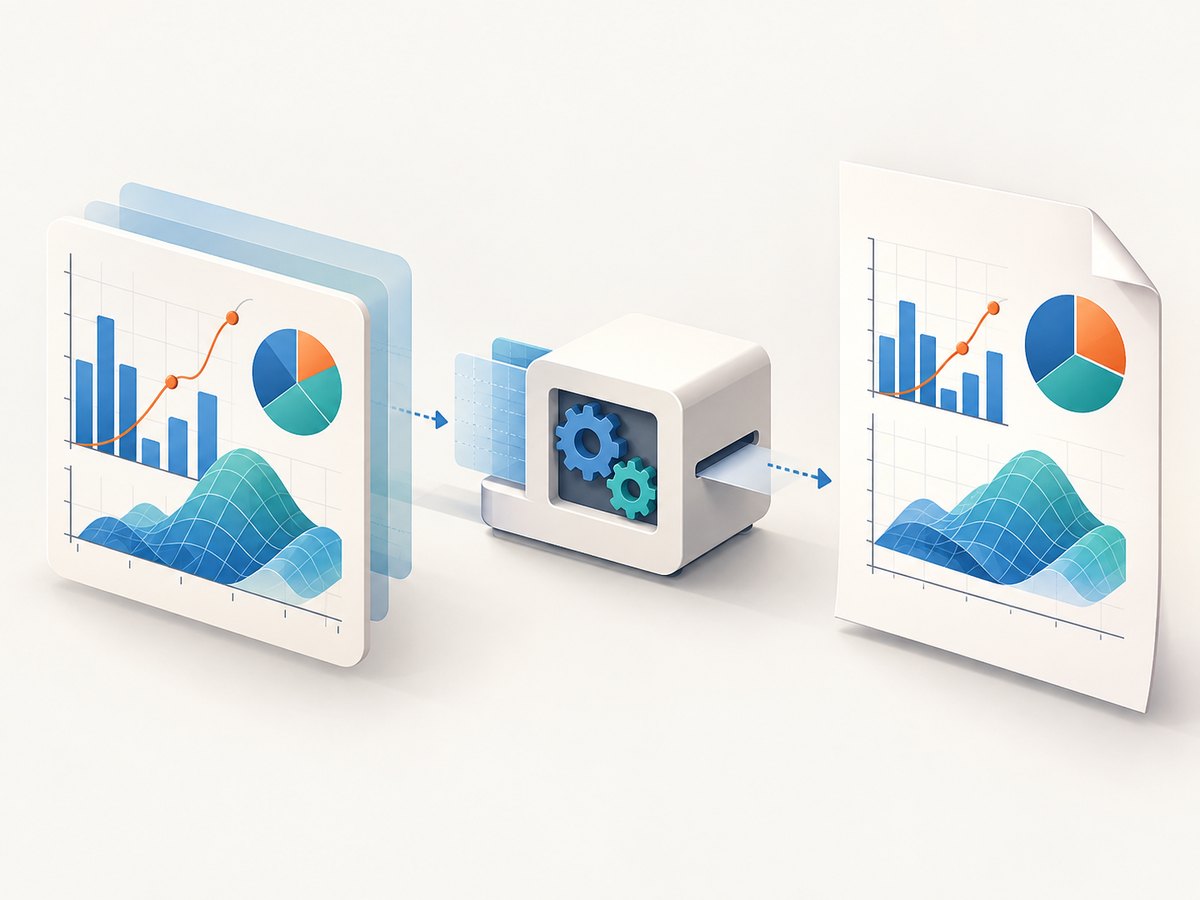
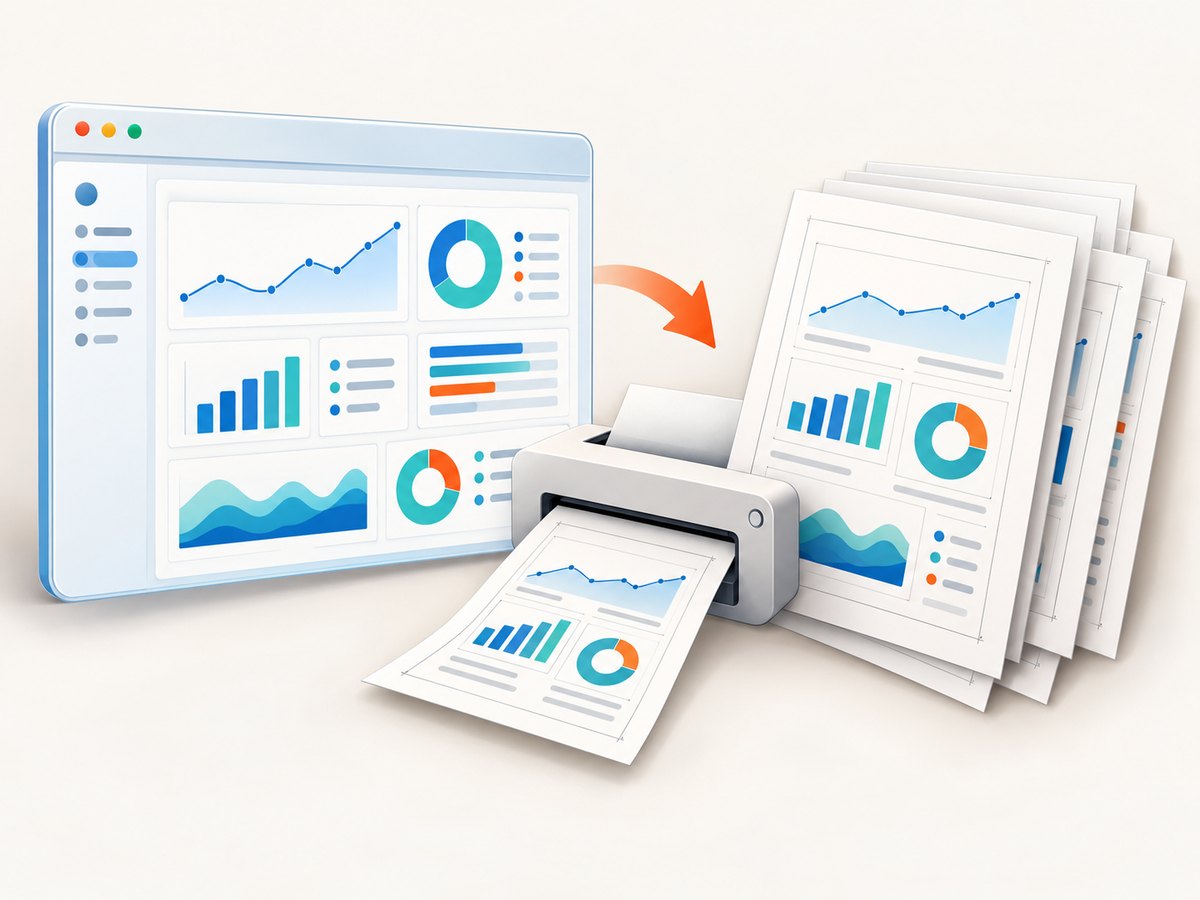
Use Plotly’s static image export for one figure; use a real browser for an entire HTML page or dashboard. In Python, install Kaleido and call fig.write_image("figure.pdf"). For complete pages, Playwright’s Chromium renderer and page.pdf() apply print CSS and support paper size, margins, page ranges, backgrounds, and headers or footers.
A PDF is static: it cannot retain Plotly hover, pan, zoom, or legend interactions. Export an interactive companion with fig.write_html("figure.html") when readers need exploration.
1. Choose the right export path
| What you have | Use | Renderer | Best for |
|---|---|---|---|
| A Plotly figure object | fig.write_image("figure.pdf") |
Kaleido | One chart with predictable figure dimensions |
| An HTML document, report, or dashboard | Playwright page.pdf() |
Chromium | Complete layouts, multiple charts, tables, and CSS |
| An interactive chart for browser viewing | fig.write_html("figure.html") |
Browser at open time | Hover, zoom, pan, and legend controls |
Plotly documents PDF as a supported static-image format and HTML as an interactive export. See the Plotly static image export guide and Plotly HTML export guide.
2. Export a Plotly figure to PDF in Python
Install the exporter
python -m pip install --upgrade plotly kaleidoKaleido 1.0.0 or newer is required by current Plotly releases. Kaleido v1 expects Chrome or Chromium to be installed separately. Plotly documents the plotly_get_chrome command and the plotly.io.get_chrome() helper if your environment does not already provide a browser.
Complete runnable example
import plotly.express as px

fig = px.bar(
    px.data.gapminder().query("country == 'Canada'"),
    x="year",
    y="pop",
    title="Canada population"
)
fig.update_layout(
    width=1200,
    height=700,
    margin=dict(l=70, r=30, t=80, b=60)
)
fig.write_image("figure.pdf")
The file extension selects PDF. You can also call plotly.io.write_image(fig, "figure.pdf").
Control size and quality
fig.write_image(
    "figure.pdf",
    width=1600,
    height=900,
    scale=2
)
Set width and height on export or in fig.update_layout. A larger scale increases raster resolution for rasterized portions but also increases work and output size. PDF geometry is still governed by the figure dimensions; it is not a paginated document layout engine.
Keep vector output where possible
WebGL traces can put rasterized regions inside an otherwise vector PDF. Plotly Express may switch scatter-style figures to WebGL above 1,000 data points. If fully vector output matters, request SVG rendering or build the trace with go.Scatter:
import plotly.express as px

fig = px.scatter(
    px.data.iris(),
    x="sepal_width",
    y="sepal_length",
    color="species",
    render_mode="svg"
)
fig.write_image("scatter.pdf")
3. Export interactive HTML instead of PDF
import plotly.express as px

fig = px.line(px.data.stocks(), x="date", y="GOOG", title="Google stock")
fig.write_html("figure.html")
Open the resulting file in a browser to retain hover labels, pan, zoom, and legend interactions. Use PDF for a fixed record, print workflow, or attachment; provide both files when users need a printable snapshot and an exploratory chart.
4. Convert a complete HTML page or dashboard with Playwright
Install Playwright and Chromium
npm install playwright
npx playwright install chromium
Complete Node.js script
const { chromium } = require('playwright');

(async () => {
  const browser = await chromium.launch();
  const page = await browser.newPage({ viewport: { width: 1440, height: 1000 } });

  await page.goto('http://localhost:3000/report', { waitUntil: 'networkidle' });
  await page.pdf({
    path: 'report.pdf',
    format: 'A4',
    printBackground: true,
    preferCSSPageSize: true,
    margin: { top: '16mm', right: '14mm', bottom: '16mm', left: '14mm' }
  });

  await browser.close();
})();
Playwright’s page.pdf() generates a PDF using print CSS by default. The Playwright page.pdf reference lists paper formats, explicit width and height, margins, page ranges, scale, print backgrounds, tagged PDFs, and CSS page sizing.
Wait for charts, data, and fonts
await page.goto('http://localhost:3000/report', { waitUntil: 'domcontentloaded' });
await page.waitForSelector('#dashboard-ready');
await page.evaluate(() => document.fonts.ready);
await page.waitForTimeout(250);
await page.pdf({ path: 'report.pdf', format: 'A4', printBackground: true });
Have the page set id="dashboard-ready" only after asynchronous data and Plotly rendering finish. A fixed delay alone is less reliable because network and chart times vary.
Screen CSS versus print CSS
await page.emulateMedia({ media: 'screen' });
await page.pdf({ path: 'screen-layout.pdf', printBackground: true });
Use this when the screen layout is the intended source. Otherwise keep the default print media and define print-specific rules:
@page {
  size: A4 portrait;
  margin: 14mm;
}

@media print {
  nav, .chat-widget, .no-print { display: none !important; }
  .chart { break-inside: avoid; }
  h1, h2 { break-after: avoid; }
  body { -webkit-print-color-adjust: exact; print-color-adjust: exact; }
}
Useful PDF options
format: 'A4', or explicitwidthandheight, sets paper dimensions.margincontrols each edge.printBackground: truepreserves background colors and images.preferCSSPageSize: truelets@pagewin over the format setting.landscape: truerotates standard paper formats.pageRanges: '1-3'exports selected pages.displayHeaderFooter,headerTemplate, andfooterTemplateadd repeating running content.scalechanges rendered size; check clipping after changing it.
5. Export with cURL, Python, or an API
For a browser-rendered URL, an API can remove local browser installation and produce an image or PDF from one request. ScreenshotNeo accepts a URL and returns a PNG, JPEG, WebP, or PDF. Its API documentation lists all options.
6. Troubleshooting
| Symptom | Cause | Fix |
|---|---|---|
BrowserType.launch cannot find Chromium |
Playwright’s browser binary is missing. | Run npx playwright install chromium in the same environment as the script. |
| Kaleido reports that Chrome is unavailable | Kaleido v1 does not bundle Chrome. | Install Chrome or Chromium, or use Plotly’s documented plotly_get_chrome or plotly.io.get_chrome() helper. |
| PDF is blank or missing charts | Export started before client-side data or Plotly finished. | Wait for a page readiness selector, document.fonts.ready, and any required network calls. |
| Colors or backgrounds disappear | Print CSS suppresses backgrounds by default. | Pass printBackground: true and use print color adjustment CSS. |
| Screen layout changes in the PDF | page.pdf() uses print media. |
Add print CSS or call page.emulateMedia({ media: 'screen' }). |
| Charts are clipped or split | Fixed heights, page breaks, or margins conflict with paper size. | Use responsive chart sizing, break-inside: avoid, explicit margins, and test the selected paper format. |
| PDF contains rasterized markers | The figure uses WebGL traces. | Use render_mode='svg' or SVG-based graph objects when vector output is required. |
| Fonts differ between environments | The requested font is unavailable or not loaded before export. | Install or self-host the font and await document.fonts.ready. |
| Interactive controls are absent | PDF is a static format. | Ship the HTML export alongside the PDF. |
7. Reliability, performance, and cost
- Reliability: pin compatible Plotly, Kaleido, Playwright, and browser versions; make readiness explicit; close browser instances in a
finallyblock; write to a temporary file before replacing the final artifact. - Performance: reuse a Playwright browser for batches, create isolated pages, block analytics and video requests when they are not part of the report, and avoid unnecessary export scale. Large WebGL scenes and high-resolution images take longer.
- Reproducibility: set viewport, timezone, locale, device scale, paper size, margins, and URL data inputs explicitly. Capture at a known commit or report timestamp.
- Cost: self-hosted Kaleido and Playwright consume your compute and browser maintenance time. A hosted renderer trades that setup for per-capture pricing, so include retries, storage, and PDF transfer in capacity planning.
8. Or skip the browser setup
ScreenshotNeo can render a URL to PDF with one request. It accepts cookie and consent banners like a visitor, then removes more than 60 known consent platforms plus newsletter popups and chat widgets before capture. Bot checks, blank pages, timeouts, failed loads, and cache hits are not billed, and each response reports the result in X-Page-Verdict and X-Billed headers.
cURL
curl -G "https://api.screenshotneo.com/v1/shot" \
  -d access_key=YOUR_API_KEY \
  --data-urlencode url=https://example.com/report \
  -d format=pdf \
  -o report.pdf
Python
import requests

r = requests.get(
    "https://api.screenshotneo.com/v1/shot",
    params={
        "access_key": "YOUR_API_KEY",
        "url": "https://example.com/report",
        "format": "pdf",
    },
    timeout=90,
)
r.raise_for_status()
open("report.pdf", "wb").write(r.content)
Node.js
const q = new URLSearchParams({
  access_key: 'YOUR_API_KEY',
  url: 'https://example.com/report',
  format: 'pdf'
});
const res = await fetch(`https://api.screenshotneo.com/v1/shot?${q}`);
if (!res.ok) throw new Error(`HTTP ${res.status}`);
require('fs').writeFileSync('report.pdf', Buffer.from(await res.arrayBuffer()));
Use the API’s PDF options for paper size, margins, landscape mode, and page ranges. You can also set custom CSS or JavaScript, wait for a selector, delay, or network idle, provide headers, cookies, a user agent, authorization, timezone, geolocation, and block selected requests or resource types. Async jobs with signed webhooks, bulk capture of up to 100 URLs per call, caching with a chosen TTL, signed links, and a usage API cover batch pipelines. An MCP server exposes take_screenshot, get_page_info, and capture_pdf to Claude, Cursor, and other MCP clients.
Every feature is included on every plan: 1,000 shots per month free with no card, then Starter is $5 for 3,000 shots; yearly billing gives two months free. Start with the free ScreenshotNeo account.
9. FAQ
Can a Plotly PDF remain interactive?
No. Use write_html for interaction and provide the PDF as a static companion.
Should I use Kaleido or Playwright?
Use Kaleido for a Plotly figure object. Use Playwright when the source is a complete page, dashboard, or report.
Why does my PDF look different from the browser?
Playwright prints with print media by default. Add print CSS, or emulate screen media before calling page.pdf().
How do I export only selected pages?
With Playwright, pass a page range such as pageRanges: '2-4'. For Plotly, compose the desired content before static export.
What is the simplest hosted option?
Use ScreenshotNeo’s PDF endpoint when you want URL-to-PDF rendering without maintaining Chromium, while retaining controls for waiting, CSS, JavaScript, headers, cookies, and page layout.


