How to Export a High-Resolution React Component to PDF
Create a sharp React-to-PDF export with html2canvas, jsPDF, pagination, CORS fixes, and production troubleshooting.

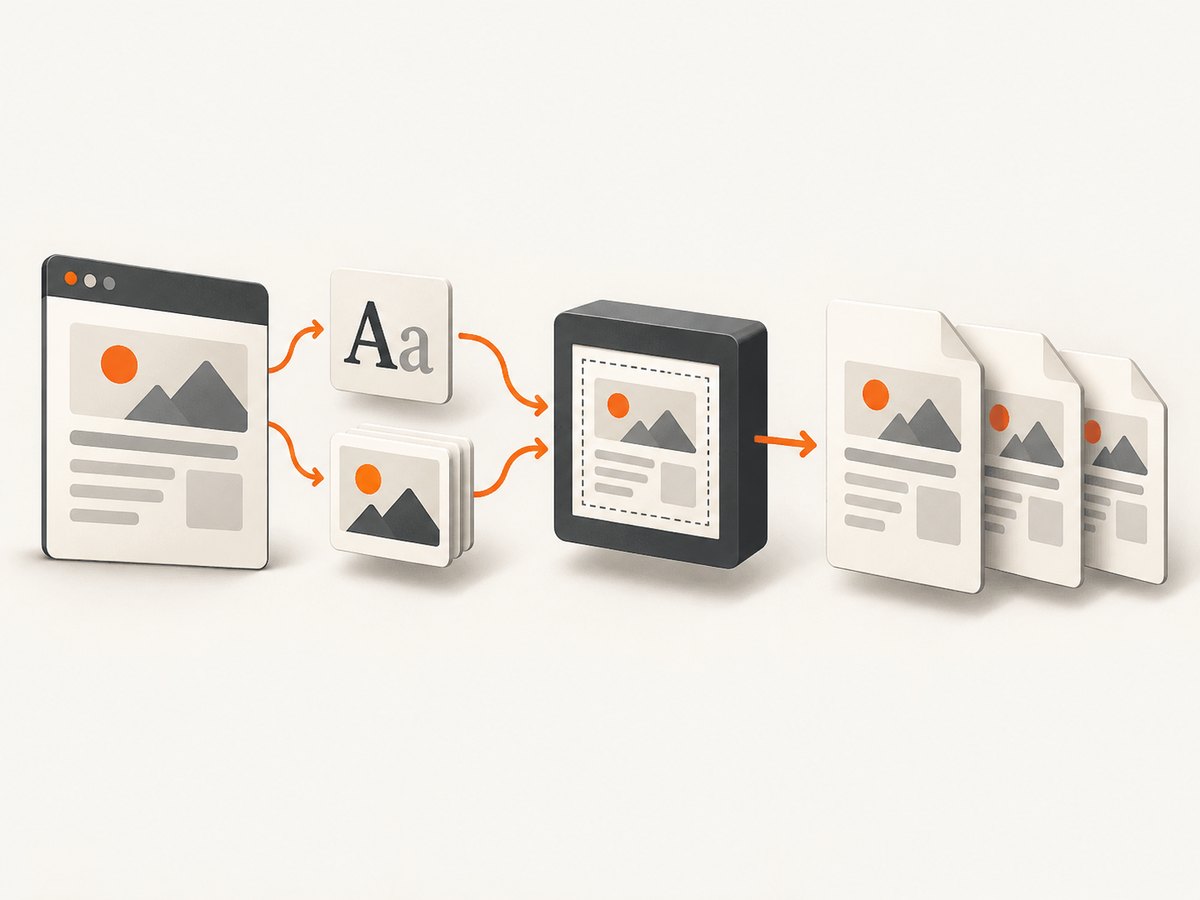
To export a sharp React component to PDF, capture a stable DOM element with html2canvas, render the canvas at a deliberate scale, and place the resulting image into a PDF with jsPDF. Wait for fonts and images first, preserve the component’s aspect ratio, and paginate tall content instead of shrinking one enormous canvas onto a single page.
This approach works for invoices, reports, dashboards, certificates and printable cards. It produces a visual PDF, so the captured text is usually rasterized rather than selectable. If you need semantic, searchable text or table-aware pagination, use a structured exporter from your component library when one exists.
1. Choose the right export strategy
| Approach | Best for | Main trade-off |
|---|---|---|
| html2canvas + jsPDF | Arbitrary React markup and CSS | Raster output; unsupported CSS can differ |
| html2pdf.js | A packaged client-side workflow | Less control over custom pagination |
| Structured library exporter | Semantic grids and tables | Only works for supported component libraries |
| Server or screenshot API | Repeatable captures without browser setup | Requires an external service or rendering backend |
For a DevExtreme grid, DevExpress documents a React PDF exporter built around exportDataGrid and jsPDF 2.3.1 or later. Use that path when rows, columns and page breaks matter more than reproducing arbitrary CSS.
2. Install the browser libraries
npm install html2canvas jspdf
# optional wrapper
npm install html2pdf.js
In a client-rendered React application, import the libraries inside the component or in a browser-only module. In Next.js or another server-rendered framework, the export handler must run in the browser because it needs a DOM.
3. Build a high-resolution exporter with html2canvas and jsPDF
The following component is runnable in a standard React app. It waits for document fonts and images, captures a referenced element, calculates the PDF image dimensions from the canvas aspect ratio, and slices a long canvas across multiple pages.
import { useRef, useState } from 'react';
import html2canvas from 'html2canvas';
import { jsPDF } from 'jspdf';

function waitForImages(root) {
  const images = Array.from(root.querySelectorAll('img'));
  return Promise.all(images.map((img) => {
    if (img.complete) return Promise.resolve();
    return new Promise((resolve) => {
      img.addEventListener('load', resolve, { once: true });
      img.addEventListener('error', resolve, { once: true });
    });
  }));
}

export default function ReportExport() {
  const reportRef = useRef(null);
  const [busy, setBusy] = useState(false);

  async function exportPdf() {
    const element = reportRef.current;
    if (!element) return;
    setBusy(true);

    try {
      if (document.fonts?.ready) await document.fonts.ready;
      await waitForImages(element);
      // Let layout, charts and transitions settle.
      await new Promise((resolve) => requestAnimationFrame(() => requestAnimationFrame(resolve)));

      const pixelRatio = window.devicePixelRatio || 1;
      const scale = Math.max(2, pixelRatio);
      const canvas = await html2canvas(element, {
        scale,
        useCORS: true,
        backgroundColor: '#ffffff',
        imageTimeout: 15000,
        logging: false,
        windowWidth: element.scrollWidth,
        windowHeight: element.scrollHeight
      });

      const pdf = new jsPDF({
        unit: 'mm',
        format: 'a4',
        orientation: 'portrait',
        compress: true
      });
      const margin = 10;
      const pageWidth = pdf.internal.pageSize.getWidth();
      const pageHeight = pdf.internal.pageSize.getHeight();
      const printableWidth = pageWidth - margin * 2;
      const printableHeight = pageHeight - margin * 2;
      const imageHeight = (canvas.height * printableWidth) / canvas.width;
      const pageSliceHeightPx = Math.floor(
        (printableHeight / imageHeight) * canvas.height
      );

      let sourceY = 0;
      let page = 0;
      while (sourceY < canvas.height) {
        const sliceHeight = Math.min(pageSliceHeightPx, canvas.height - sourceY);
        const slice = document.createElement('canvas');
        slice.width = canvas.width;
        slice.height = sliceHeight;
        const context = slice.getContext('2d');
        context.drawImage(
          canvas,
          0, sourceY, canvas.width, sliceHeight,
          0, 0, canvas.width, sliceHeight
        );

        const renderedHeight = (slice.height * printableWidth) / slice.width;
        if (page > 0) pdf.addPage();
        pdf.addImage(slice.toDataURL('image/jpeg', 0.95), 'JPEG', margin, margin, printableWidth, renderedHeight);
        sourceY += sliceHeight;
        page += 1;
      }

      pdf.save('react-report.pdf');
    } finally {
      setBusy(false);
    }
  }

  return (
    <>
      <button type="button" onClick={exportPdf} disabled={busy}>
        {busy ? 'Preparing PDF…' : 'Export PDF'}
      </button>
      <section ref={reportRef} style={{ width: 900, background: '#fff', padding: 32 }}>
        <h1>Quarterly report</h1>
        <p>Your component content goes here.</p>
      </section>
    </>
  );
}
The html2canvas configuration reference documents scale, dimensions, crop coordinates, image smoothing and CORS options. Its examples and defaults use window.devicePixelRatio for scale, which is a sensible starting point for sharp output. See the html2canvas configuration reference and official examples.
Why the aspect-ratio calculation matters
PDF page widths are measured in physical units such as millimetres or points, while a canvas is measured in pixels. Set the PDF width explicitly, then calculate height as canvas.height * pdfWidth / canvas.width. Passing unrelated width and height values stretches text and icons. The example also computes a pixel slice height for each page so a long report is divided without reducing the entire component to unreadable size.
Control sharpness with scale
scale: window.devicePixelRatiofollows the display density.scale: 2or3can improve print sharpness when the component is not too large.- Higher values multiply the canvas width and height, so memory use grows quickly. A scale of 3 creates about nine times as many pixels as scale 1.
- Keep the export target’s CSS width stable. Changing the layout width and the capture scale at the same time makes results difficult to compare.
4. Wait for fonts, images and asynchronous UI
A screenshot taken before a web font loads can contain fallback metrics, causing line wraps and page breaks to change. document.fonts.ready waits for fonts known to the document. The image helper above waits for loading images, including images that were already complete before the handler ran.
Charts and data-fetching components need their own readiness signal. Disable animated transitions during export, await the data request, and render a deterministic state. For lazy images, scroll or otherwise trigger loading before capture; html2canvas cannot capture pixels that the page has not loaded.
5. Handle cross-origin images and iframes
Set useCORS: true when image servers send an appropriate Access-Control-Allow-Origin header. Without CORS headers, a browser cannot safely read pixels from another origin. A same-origin proxy can fetch and re-serve permitted assets, but it must follow the asset host’s access rules.
Cross-origin iframes are a harder boundary: browser security prevents html2canvas from reading the iframe’s document. Capture content that your application owns in the parent document, use a cooperative postMessage integration, or render the iframe separately in a trusted server-side browser.
These limitations are documented in the html2canvas FAQ. html2canvas reconstructs a representation from DOM and CSS; it is not a literal browser compositor screenshot. Complex filters, blend modes, some SVG features and unsupported CSS properties may look different.
6. Use html2pdf.js for a shorter implementation
html2pdf.js wraps html2canvas and jsPDF and adds page-break handling. It is useful when CSS or legacy page-break rules are sufficient.
import html2pdf from 'html2pdf.js';

export async function saveElementAsPdf(element) {
  await document.fonts?.ready;
  const options = {
    margin: 0.25,
    filename: 'component.pdf',
    image: { type: 'jpeg', quality: 0.98 },
    html2canvas: {
      scale: Math.max(2, window.devicePixelRatio || 1),
      useCORS: true,
      backgroundColor: '#ffffff'
    },
    jsPDF: { unit: 'in', format: 'letter', orientation: 'portrait' },
    pagebreak: { mode: ['css', 'legacy'] }
  };
  return html2pdf().set(options).from(element).save();
}
The html2pdf.js documentation covers filename, margins, image quality, html2canvas settings, jsPDF format and orientation, plus CSS and legacy page-break modes.
Page-break CSS
.pdf-page-break-before { break-before: page; page-break-before: always; }
.keep-together { break-inside: avoid; page-break-inside: avoid; }
Apply these classes to logical sections, but inspect the result in a PDF viewer. A very tall element that cannot fit on one page may still be split, and browser layout engines differ in how they honor break rules.
7. Export structured data when semantics matter
A canvas PDF is an image placed on a page. Text may not be searchable, selectable or accessible. For invoices and grids where users need to copy values, preserve column headings and repeat table headers, prefer a semantic exporter. DevExtreme’s documented React PDF exporter uses exportDataGrid and jsPDF, and returns a promise-like result. Follow that library’s version requirements and styling model instead of forcing a visual capture.
8. Page size, orientation and margins
| Need | Setting |
|---|---|
| US letter portrait | format: 'letter', orientation: 'portrait' |
| A4 landscape | format: 'a4', orientation: 'landscape' |
| Custom page | Pass a numeric width and height in your chosen jsPDF unit |
| Print-safe spacing | Subtract equal margins from the available page width and height |
Give the export component an explicit background color. Transparent page areas can become black or viewer-dependent when converted to JPEG. Use PNG when you need lossless text edges or transparency, and JPEG when a photographic report needs a smaller file.
9. Troubleshooting checklist
| Symptom | Likely cause | Fix |
|---|---|---|
| Blurry text | Low canvas scale or an oversized element shrunk to fit | Start at device pixel ratio, try scale 2, and paginate instead of shrinking |
| Missing images | Image not loaded or blocked by CORS | Wait for images, set useCORS, and configure response headers or a permitted proxy |
| Blank PDF | Capture ran before the component mounted, or the canvas exceeded browser limits | Check the ref, await layout, reduce scale, and capture sections separately |
| Wrong font or wrapping | Web fonts were still loading | Await document.fonts.ready and disable font-swap transitions for export |
| Content clipped | Viewport dimensions or overflow hide part of the element | Set explicit capture width and height, remove restrictive overflow, and inspect scroll dimensions |
| Iframe absent | Cross-origin browser isolation | Render owned content in the parent, or capture the iframe in a controlled renderer |
| Pages split through cards | No page-break rules | Use break-inside: avoid on short blocks and add explicit breaks between sections |
| Memory error | Canvas dimensions are too large | Lower scale, reduce export width, split the document, or move rendering to a server |
10. Performance, reliability and cost
Capture cost is mostly determined by DOM size, pixel count and image decoding. Keep an export-only layout narrower than the interactive dashboard, hide controls that do not belong in the PDF, and avoid capturing a full application shell. A very large canvas can hit browser texture or memory limits even when the page itself displays correctly.
For reliable exports, make the state deterministic: freeze timestamps, finish network requests, stop animations, and use a fixed locale and timezone. Add a visible export status, handle rejection from html2canvas, and let users retry. For long reports, capture sections independently when a single canvas becomes unstable.
Client-side export has no per-request service fee, but it consumes the user’s CPU and memory and varies by browser. A remote renderer adds an API cost and network dependency while giving you a more consistent environment. Do not claim a particular speed or DPI without measuring your own component and target devices.
11. Or skip the browser setup
ScreenshotNeo provides a website screenshot API and MCP server. One GET request returns PNG, JPEG, WebP or PDF, so you can capture a deployed React route without shipping html2canvas and jsPDF to the user’s browser. The API supports full-page capture with lazy images loaded, element capture by CSS selector, custom CSS and JavaScript, dark mode, device presets or custom viewports, retina scale, PDF paper size, margins, landscape mode and page ranges.

Cookie banners, newsletter popups and chat widgets are removed before the shot. Bot checks, blank pages, failed loads, timeouts and cache hits are not billed, and response headers identify the page verdict and whether it was billed. ScreenshotNeo also offers an MCP server with take_screenshot, get_page_info and capture_pdf tools for Claude, Cursor and other MCP clients.
See the ScreenshotNeo API documentation for all options. Minimal calls:
curl -G "https://api.screenshotneo.com/v1/shot" -d access_key=YOUR_API_KEY --data-urlencode url=https://stripe.com -o shot.webpimport requests
r = requests.get("https://api.screenshotneo.com/v1/shot", params={"access_key": "YOUR_API_KEY", "url": "https://stripe.com"}, timeout=90)
open("shot.webp", "wb").write(r.content)const q = new URLSearchParams({ access_key: 'YOUR_API_KEY', url: 'https://stripe.com' });
const res = await fetch(`https://api.screenshotneo.com/v1/shot?${q}`);The free plan includes 1,000 shots each month with no card. Paid plans start at $5 for 3,000 shots, and every feature is available on every plan. Create a free ScreenshotNeo account.
12. Recommended production checklist
- Use a stable ref and an export-specific layout.
- Wait for fonts, images, data and chart rendering.
- Set scale deliberately and monitor canvas memory.
- Enable CORS for permitted cross-origin images.
- Choose PDF format, orientation and margins explicitly.
- Paginate long content with slices or page-break CSS.
- Inspect SVG, gradients, shadows, filters, charts and embedded images in a real PDF viewer.
- Choose a semantic exporter when selectable text and table structure are requirements.
- Capture deployed routes remotely when browser differences or client memory make local export unreliable.
FAQ
Does increasing html2canvas scale increase true DPI?
It increases the internal canvas pixel density. The final print result also depends on the PDF’s physical dimensions and the viewer or printer.
Can I keep text selectable with html2canvas?
Usually no. The normal pipeline places a raster image in the PDF. Use a structured PDF renderer for selectable text.
Why does my browser view differ from the PDF?
html2canvas reconstructs DOM and CSS using the properties it implements. Unsupported CSS, fonts that loaded late, CORS-blocked images and iframe isolation can all change the result.
Should I use PNG or JPEG?
PNG preserves sharp edges and transparency. JPEG is often smaller for photographic content but introduces compression artifacts.
When should I move export to a server?
Move it when documents are large, browser memory is unreliable, exports must be identical across users, or you need scheduled and automated captures.


