How to Export Screenshots to Dropbox Folders Dynamically
Dropbox can sync screenshots to a fixed folder, but dynamic date or project paths need folder rules or a Dropbox API workflow. Here’s how to choose and implement each option.
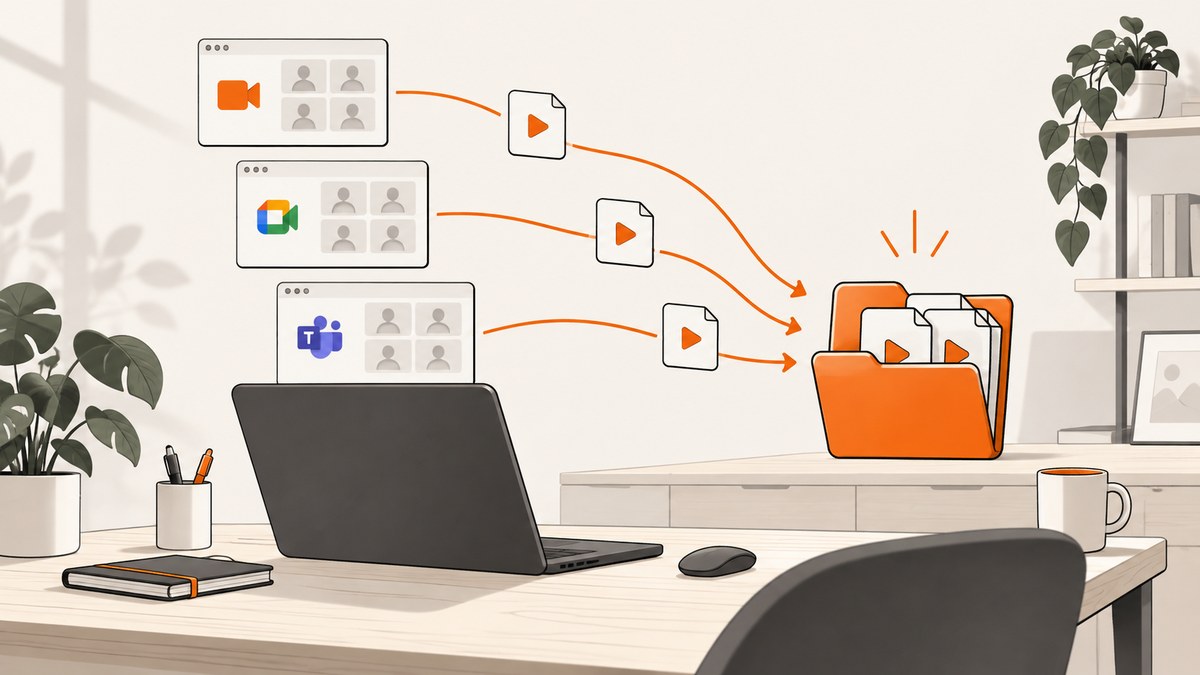
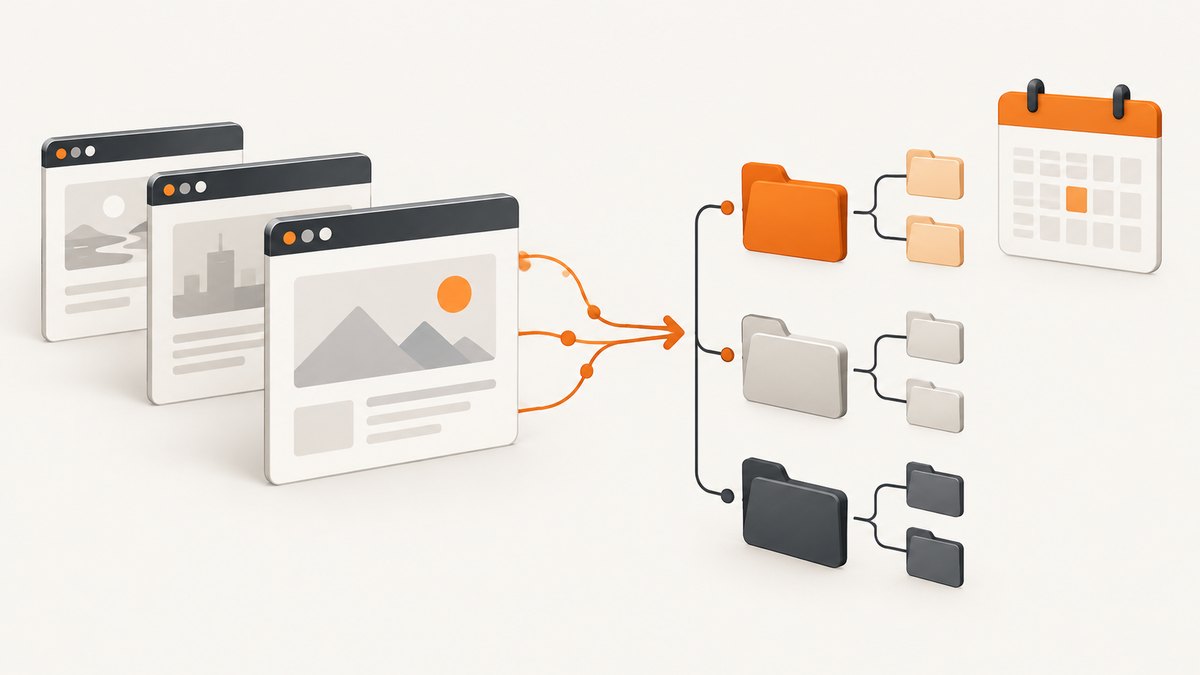
If you want screenshots to land in a Dropbox folder chosen by date, project, or another rule, Dropbox’s desktop screenshot sync does not document a setting for that. It saves supported screenshots to a fixed folder named Screenshots. For simple organization, use Dropbox’s automated-folder or naming features where their rules fit. For a path such as /Screenshots/2026/09/project-a/, build a local watcher or capture process that derives the path and uploads through the Dropbox API.
Choose the approach based on the result you need: sync every supported desktop screenshot, rename or organize files after they reach Dropbox, or compute a different destination path for each capture. The first two need less code; the third gives you control over routing.
1. Know what Dropbox screenshot sync does
Dropbox’s desktop app can automatically save screenshots to a personal or team Dropbox account. The destination is a folder named Screenshots in the selected Dropbox space. The feature is documented for Mac and Windows, with platform-specific capture limitations, and is not available on mobile. It does not document a preference to route each screenshot to a dynamically named destination folder. Dropbox Help: saving screenshots and screen recordings.
- Windows: Dropbox documents the Print Screen and Control-Print Screen shortcuts and warns that the Snipping Tool is not a supported way to trigger screenshot sync.
- Mac: Dropbox documents Command-Shift-3 and Command-Shift-4. Screenshots need to save to the desktop for the feature to work.
- Configuration: Open the Dropbox desktop app’s Preferences and select Screenshots. On linked personal and team accounts, choose which account receives them.
This is a good fit if the requirement is “put my supported screenshots in Dropbox.” It is not enough if the requirement is “put this screenshot in the folder for the current project” or “make a year/month directory automatically.”
2. Pick a routing approach
| Need | Approach | Tradeoff |
|---|---|---|
| Automatic sync to one Dropbox location | Desktop screenshot sync | Fastest setup; fixed Screenshots folder |
| Rename or apply supported organization rules | Dropbox automated folders or naming conventions | Little or no code; use only documented rules |
| Choose a destination from date, project, app, or metadata | Watcher/uploader using Dropbox API | Flexible; you own OAuth, retries, naming, and maintenance |
Dropbox automated folders can apply actions to files added to that folder and nested subfolders. Dropbox naming conventions can rename new files using supported criteria such as date uploaded, date captured, parent folder, camera details, dimensions, and keywords. These features are useful when their behavior matches your workflow, but the documentation does not promise arbitrary screenshot-specific conditional destination trees. Dropbox automation options and Dropbox naming conventions.

3. Configure Dropbox-side organization
- In Dropbox on the web, create or open the folder where screenshots will arrive.
- For automated-folder behavior, create an automated folder and choose the available organization, naming, tagging, or conversion rules that match your use case.
- For naming conventions, open the folder settings, choose Organize, and set a convention. Review the available fields and apply it to future files if desired.
- Capture a sample file and confirm the resulting name and location before relying on the convention in a shared workflow.
Keep in mind that a naming rule changes a file’s name; it does not by itself mean “move this file into a different folder based on the project.” Keyword filters in the documented automation and naming features accept only ISO basic Latin letters A–Z and digits 0–9. Confirm that the feature is available and behaves as expected in the Dropbox account and folder you use.
4. Build dynamic paths with the Dropbox API
A custom workflow has five parts: detect or produce a screenshot, derive a safe destination and filename, create a missing destination folder, upload the file, and record success or retryable failure. A Dropbox developer tutorial demonstrates an analogous pattern of deriving a dated path, checking or creating folders, and moving files; it is a general file-management example, not a documented screenshot integration. Dropbox Developers.
Set up the app and access
- Create a Dropbox API app in the App Console and choose its access type. App Folder access confines it to the app’s folder; Full Dropbox access is for workflows that must reach other locations in the user’s Dropbox.
- Enable the minimum required file-write scope (Dropbox’s quick start lists
files.content.writefor uploading and modifying files). Implement OAuth 2.0 for a production integration; a generated token is suitable only for a quick test with your own account. - Store tokens in a secret manager or protected environment variable. Do not commit them to source control or put them in a client-side script.
- Decide what generates screenshots: a screenshot tool can save files into a watched local directory, or your own capture code can pass the image bytes directly to the uploader.
Dropbox file operations accept paths, while file IDs persist when a file is renamed or moved. A path-based workflow is straightforward when your program owns the naming convention; IDs can be useful when tracking an existing file across moves. Team folders and team spaces can require additional namespace or path-root handling. Check the account structure and access available to the authorized user before choosing a root. Dropbox OAuth guide and team files guide.
Example: upload a local screenshot into a date/project path
The following runnable Python example uses Dropbox’s HTTP API. It creates a destination folder, then uploads the local file. Set DROPBOX_ACCESS_TOKEN to an OAuth access token with the needed permission. The example uses overwrite mode so repeated runs replace the same destination file; change that policy if preserving every capture is important.
import os
from datetime import datetime, timezone
from pathlib import Path
import requests

TOKEN = os.environ["DROPBOX_ACCESS_TOKEN"]
SCREENSHOT = Path("./capture.png")
PROJECT = "project-a"  # Replace with your project-routing rule.
now = datetime.now(timezone.utc)
dest_dir = f"/Screenshots/{now:%Y}/{now:%m}/{PROJECT}"
dest_file = f"{dest_dir}/{now:%Y-%m-%dT%H-%M-%SZ.png}"

headers = {"Authorization": f"Bearer {TOKEN}", "Content-Type": "application/json"}

# Create the folder tree. With autorename=False, an already existing
# folder may return a conflict; treat that specific already-exists result
# as success in a production implementation.
folder = requests.post(
    "https://api.dropboxapi.com/2/files/create_folder_v2",
    headers=headers,
    json={"path": dest_dir, "autorename": False},
    timeout=30,
)
if not folder.ok:
    # For production, inspect Dropbox's structured error and continue only
    # when it means the requested folder already exists.
    folder.raise_for_status()

upload = requests.post(
    "https://content.dropboxapi.com/2/files/upload",
    headers={
        "Authorization": f"Bearer {TOKEN}",
        "Dropbox-API-Arg": requests.utils.requote_uri(
            __import__("json").dumps({
                "path": dest_file,
                "mode": "overwrite",
                "autorename": False,
                "mute": True,
            })
        ),
        "Content-Type": "application/octet-stream",
    },
    data=SCREENSHOT.read_bytes(),
    timeout=90,
)
upload.raise_for_status()
print(upload.json()["path_display"])
The sample deliberately makes the routing rule visible: UTC year/month plus a project slug. Replace PROJECT with a validated value from your own context, such as a command-line argument or configured project mapping. Avoid deriving Dropbox paths from untrusted page titles without sanitizing them.
Equivalent cURL upload calls
After obtaining a token, create the folder and upload the bytes. An “already exists” folder response should be treated as successful setup only after checking the structured error returned by Dropbox.
export DROPBOX_ACCESS_TOKEN="YOUR_OAUTH_ACCESS_TOKEN"
DEST="/Screenshots/2026/09/project-a"

curl -X POST "https://api.dropboxapi.com/2/files/create_folder_v2" \
  -H "Authorization: Bearer $DROPBOX_ACCESS_TOKEN" \
  -H "Content-Type: application/json" \
  --data "{\"path\":\"$DEST\",\"autorename\":false}"

curl -X POST "https://content.dropboxapi.com/2/files/upload" \
  -H "Authorization: Bearer $DROPBOX_ACCESS_TOKEN" \
  -H 'Content-Type: application/octet-stream' \
  -H 'Dropbox-API-Arg: {"path":"/Screenshots/2026/09/project-a/capture.png","mode":"overwrite","autorename":false}' \
  --data-binary @capture.png
Equivalent Node.js upload calls
This Node.js example uses built-in fetch and reads a local PNG. Like the Python example, it creates the folder before uploading. In a production worker, handle the already-exists folder response explicitly rather than treating every non-success response as fatal.
import { readFile } from 'node:fs/promises';

const token = process.env.DROPBOX_ACCESS_TOKEN;
if (!token) throw new Error('Set DROPBOX_ACCESS_TOKEN');
const date = new Date().toISOString();
const project = 'project-a';
const dir = `/Screenshots/${date.slice(0, 4)}/${date.slice(5, 7)}/${project}`;
const path = `${dir}/capture.png`;
const auth = { Authorization: `Bearer ${token}` };

const folderRes = await fetch('https://api.dropboxapi.com/2/files/create_folder_v2', {
  method: 'POST',
  headers: { ...auth, 'Content-Type': 'application/json' },
  body: JSON.stringify({ path: dir, autorename: false }),
});
if (!folderRes.ok) {
  const detail = await folderRes.text();
  throw new Error(`Folder creation failed (${folderRes.status}): ${detail}`);
}

const bytes = await readFile('./capture.png');
const uploadRes = await fetch('https://content.dropboxapi.com/2/files/upload', {
  method: 'POST',
  headers: {
    ...auth,
    'Content-Type': 'application/octet-stream',
    'Dropbox-API-Arg': JSON.stringify({ path, mode: 'overwrite', autorename: false }),
  },
  body: bytes,
});
if (!uploadRes.ok) {
  throw new Error(`Upload failed (${uploadRes.status}): ${await uploadRes.text()}`);
}
console.log((await uploadRes.json()).path_display);
5. Make routing safe and reliable
- Use a stable project mapping. Map project identifiers to known folder slugs instead of trusting arbitrary titles, URLs, or user input as path components.
- Choose a duplicate policy. Dropbox upload modes include overwrite and add/autorename behavior. Use a timestamp, unique capture ID, or an explicit overwrite rule so retries do not silently create confusing duplicates or erase a prior shot.
- Make retries idempotent. Keep a local job record with the screenshot identity and final Dropbox path. Retry transient network failures with exponential backoff; do not retry invalid credentials or permission failures unchanged.
- Watch files only after they are complete. A file watcher can notice a file while the capture program is still writing it. Wait for a completed write or stable size before upload.
- Log outcomes without leaking secrets. Record destination, status, and Dropbox request identifiers if available, but never log bearer tokens or screenshot content.
- Plan for teams. A path visible in one member’s Dropbox may not be writable from an app rooted elsewhere. Team namespaces and folder permissions affect access.
Dropbox recommends paths shorter than 260 characters. Slash and backslash are disallowed inside names, and characters such as colon, question mark, asterisk, quote, angle brackets, and pipe are not recommended across platforms. Keep generated folder names short and conservative. Dropbox file and folder naming guidance.
6. Troubleshoot common failures
| Symptom | Likely cause | What to do |
|---|---|---|
| Screenshot never appears | Unsupported capture method, disabled screenshot sync, or wrong linked account | Check Preferences → Screenshots, use a documented shortcut, and confirm the destination account. |
| Upload returns 401 | Missing, expired, or malformed access token | Complete OAuth again or refresh the token through your OAuth flow; keep the token out of command history where possible. |
| Upload returns 403 | Missing scope, app access type cannot reach the path, account restriction, or team permission issue | Verify the endpoint’s required scope, app folder versus Full Dropbox access, and the authorized user’s rights. Don’t rapid-retry an unchanged authorization failure. See Dropbox’s error-handling guide. |
| Folder creation reports conflict | The destination folder already exists | Inspect the structured API error and treat only the already-exists case as success. Continue to upload after confirming the path. |
| Upload returns a path conflict | A file already occupies that path or the selected mode does not match the intended behavior | Choose overwrite, autorename, or a unique filename intentionally. Avoid blind retries that create duplicates. |
| Dropbox changes or rejects generated names | Path contains unsupported or risky characters, trailing spaces, or is too long | Sanitize each segment, trim trailing spaces and periods, and enforce a conservative total path limit. |
| Works for personal files but not a team folder | The app’s namespace root or user access differs from the visible Dropbox location | Check team-space path-root requirements and confirm the authorizing member can write there. |
| Partial or corrupt screenshot uploaded | Watcher started before the file finished writing | Wait for file completion, then upload; write to a temporary local name and rename when the capture is complete. |
7. Performance, reliability, and cost considerations
Direct upload avoids a separate “sync to fixed folder, then move” stage, but it means your capture process depends on network access and valid Dropbox authorization at upload time. A local queue lets screenshots survive temporary outages: persist the path and retry later. Keep retries bounded and visible, and alert or surface a failed job instead of silently dropping a capture.
Small screenshots can usually be uploaded as individual files. If your workflow generates many captures, avoid launching an unbounded upload per event; use a queue with controlled concurrency and respect API error responses and account limits. For large files or workloads that exceed the simple upload endpoint’s supported use, consult Dropbox’s current upload-session documentation before implementation.
There is no benchmark in the source material for this workflow. Actual latency depends on image size, network conditions, account/API behavior, and whether the screenshot itself requires a browser render. Dropbox account plan and API limits can affect operation availability; confirm current limits for your account. The API workflow has no separate per-screenshot price stated here, but it does carry engineering costs: OAuth setup, secure token storage, error handling, monitoring, and ongoing maintenance.
Or skip the browser setup
If your source images are website screenshots and you would rather call a screenshot API, ScreenshotNeo can return a screenshot or PDF from one GET request. The API supports PNG, JPEG, and WebP, plus capture options such as full-page screenshots, CSS selectors, device presets, custom wait conditions, and caching. See the ScreenshotNeo API documentation for parameters and response details.
curl -G "https://api.screenshotneo.com/v1/shot" -d access_key=YOUR_API_KEY --data-urlencode url=https://stripe.com -o shot.webpScreenshotNeo accepts cookie and consent banners and removes more than 60 known consent platforms, newsletter popups, and chat widgets before capture; each of those steps can be turned off. Bot checks, blank pages, timeouts, failed loads, and cache hits are not billed, and response headers report the page verdict and billing status. Its MCP server exposes screenshot, page-info, and PDF tools for AI agents. The free plan includes 1,000 screenshots per month with no card; paid plans start at $5 for 3,000. After capture, your Dropbox watcher or uploader can place the returned image in the dynamic destination you choose.
Sign up free for 1,000 screenshots a month, no card required.
FAQ
Can Dropbox screenshot sync choose a folder based on the active project?
The documented desktop feature saves to a fixed Screenshots folder. Use an API workflow if each capture needs a project-derived destination.
Can Dropbox Saver route screenshots automatically?
Dropbox Saver is a component for saving files into Dropbox. The research does not identify it as a dynamic screenshot-routing feature; use a watcher or API integration for computed paths.
Should the folder date use local time or UTC?
Pick one convention and document it. UTC avoids differences between machines; local time may match how a team groups work. Include the timezone in the naming policy if midnight-boundary captures matter.
Can I keep a copy locally?
Yes. Uploading a local screenshot does not require deleting the source file. Retain or clean up local captures according to your storage policy after confirming upload success.


