Export WebP to JPG
Convert WebP images to JPG correctly with editor, command-line, quality, transparency, batch, troubleshooting, and ScreenshotNeo workflows.
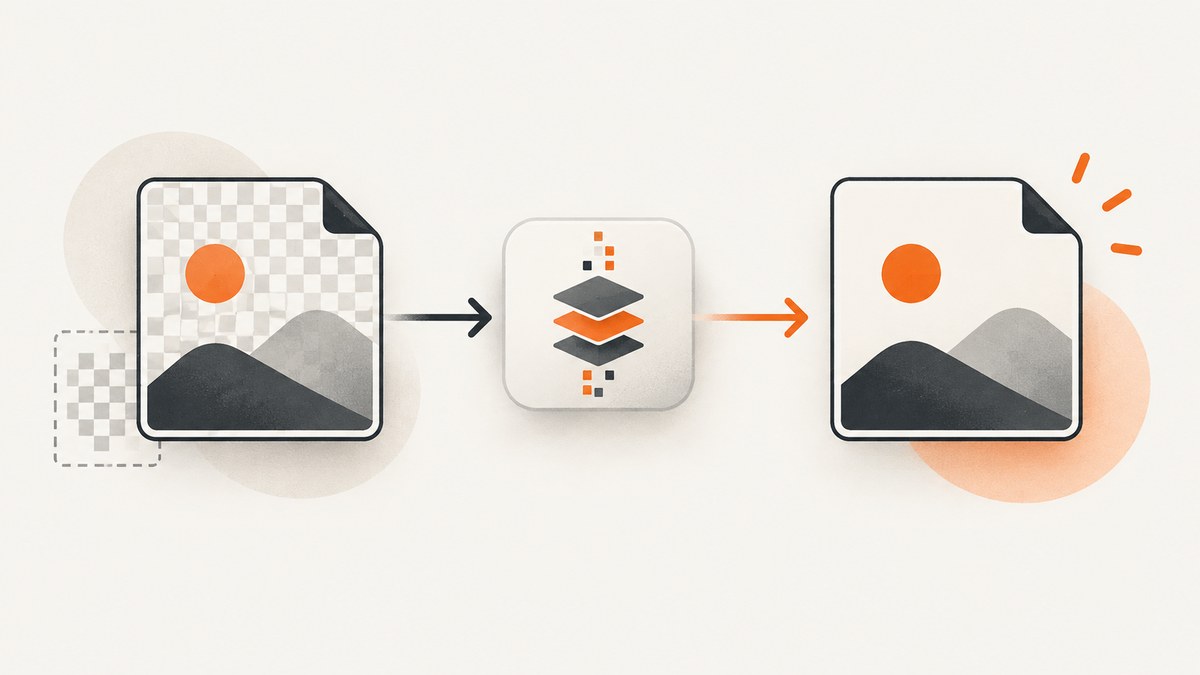
To export WebP to JPG, open the WebP in an image editor or image-processing tool, choose Export or Save As, select JPEG/JPG, choose a quality level, and save a new file. Renaming photo.webp to photo.jpg does not convert the file: the encoded data remains WebP.
For one image, an editor is usually the simplest option. For repeatable or batch work, use a locally installed converter such as ImageMagick, whose official format reference lists both WebP and JPEG support. Keep the original WebP until you have checked the exported file.
What changes when WebP becomes JPG?
WebP and JPEG are different image formats. A real conversion decodes the WebP pixels and then encodes them as JPEG. The result can be opened by software that does not support WebP, but it also has format-specific trade-offs:
| Property | WebP | JPG/JPEG |
|---|---|---|
| Compression | Can be lossy or lossless | Lossy |
| Transparency | Can include an alpha channel | No alpha channel |
| Typical use | Web delivery and modern applications | Broad compatibility, especially for photos |
| Metadata | Depends on the encoder and settings | Depends on the encoder and export settings |
Google describes WebP as supporting transparency and documents reference tools in the WebP codec distribution. Its overview also reports general size comparisons for WebP against JPEG and PNG; those figures describe Google’s comparisons, not a guarantee for your particular image. JPEG export is lossy, so it can discard image information. Avoid repeatedly converting an already-lossy image if preserving detail matters.
Method 1: Export one WebP file in an image editor
- Open the
.webpfile in an editor that supports WebP. - Choose Export, Export As, or Save As.
- Select JPEG or JPG as the output format.
- Choose a quality setting if the editor provides one. Higher quality usually produces a larger file; lower quality produces a smaller file with more visible compression.
- Choose a new filename such as
photo.jpg. Do not overwrite the WebP until you have reviewed the output. - Open the JPG and check dimensions, orientation, sharp edges, text, and background color.
Menu names differ between editors and operating systems, so follow the export dialog provided by the application you use. The important operation is selecting JPEG as the encoder, not changing the suffix in a file browser.
Transparency requires a background decision
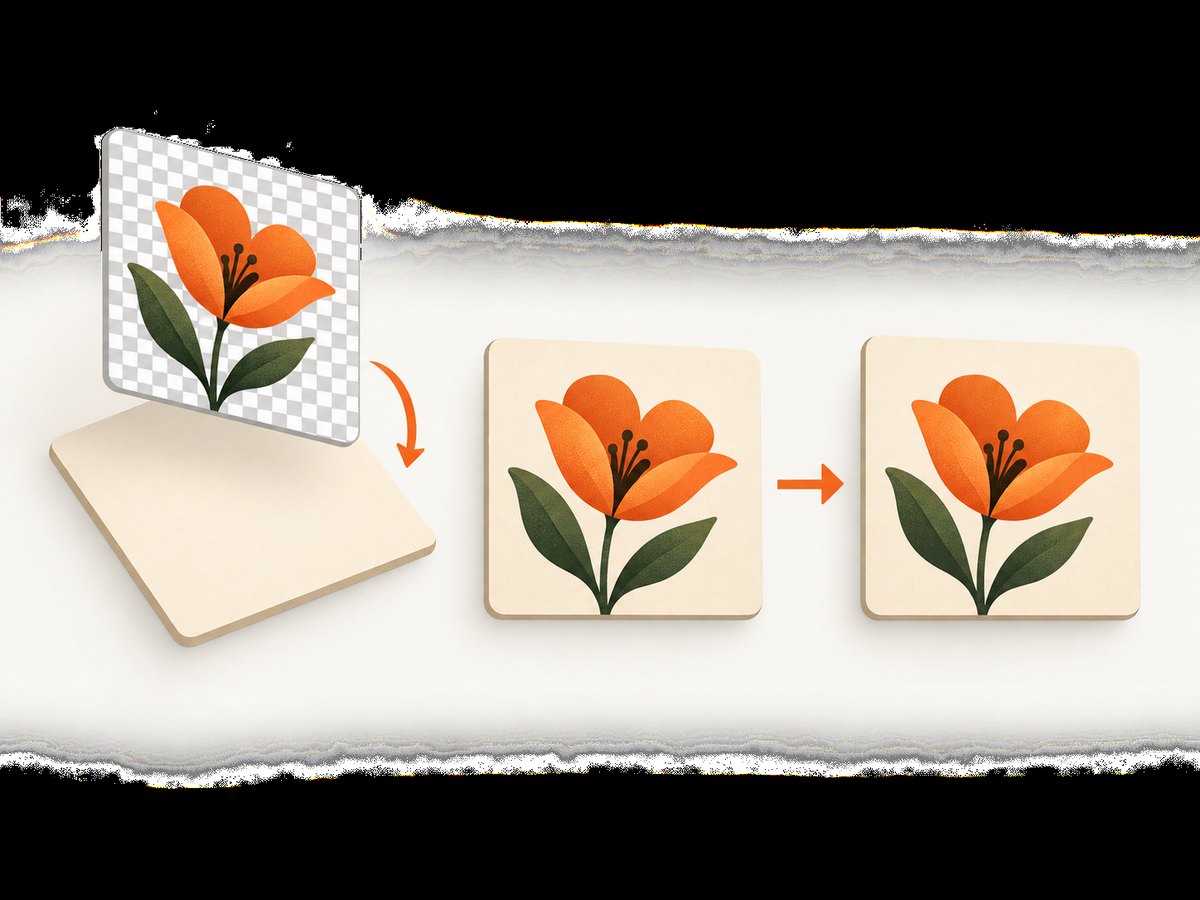
JPEG cannot store transparent pixels. If the WebP has transparency, the export must composite those pixels against a color such as white, black, or a brand background. Some editors expose this as a background-color option; others require placing the image over a solid layer before exporting.
Inspect the result at the edges of logos, icons, cutouts, and screenshots. A transparent image exported against white can show a white rectangle when placed on a dark page. If transparency is required, keep WebP or choose PNG instead of JPG.
Method 2: Convert WebP to JPG with ImageMagick
ImageMagick is suitable when you need a repeatable local workflow. Its official format documentation lists JPEG and WebP support. Installed builds can differ, so confirm that your local build recognizes both formats before processing a collection.
Check format support
magick -version
magick -list format | grep -E 'WEBP|JPEG'
On systems where the command is named convert, the equivalent may be available, but current ImageMagick installations generally use magick. Use the command shown by your installation’s help output.
Convert one file
magick input.webp -quality 90 output.jpgThe -quality value is an encoder setting, not a promise of a particular visual result. Start with a value appropriate to your image, then inspect the output and file size. The source remains untouched because the output has a different filename.
Convert a directory of WebP files
Run this shell loop from a directory containing WebP files. It writes JPG files beside the originals with matching base names:
for file in *.webp; do
  magick "$file" -quality 90 "${file%.webp}.jpg"
done
For uppercase extensions, add a second loop or normalize filenames first. For nested directories, use a script that creates the destination directory structure rather than sending every output into one folder. Test on a small sample before processing thousands of files.
Inspect the output dimensions and format
magick identify input.webp output.jpgCompare the reported dimensions. A straightforward format conversion should not unexpectedly resize the image unless you add resize options or your application applies an export preset.
Quality, file size, and repeated conversions
JPEG compression is lossy. Fine text, sharp UI screenshots, line art, and high-contrast edges can show ringing or block artifacts sooner than ordinary photographs. A higher quality setting generally retains more detail but produces a larger file. A lower setting can be useful when an upload limit matters, but check the actual image at 100% zoom.
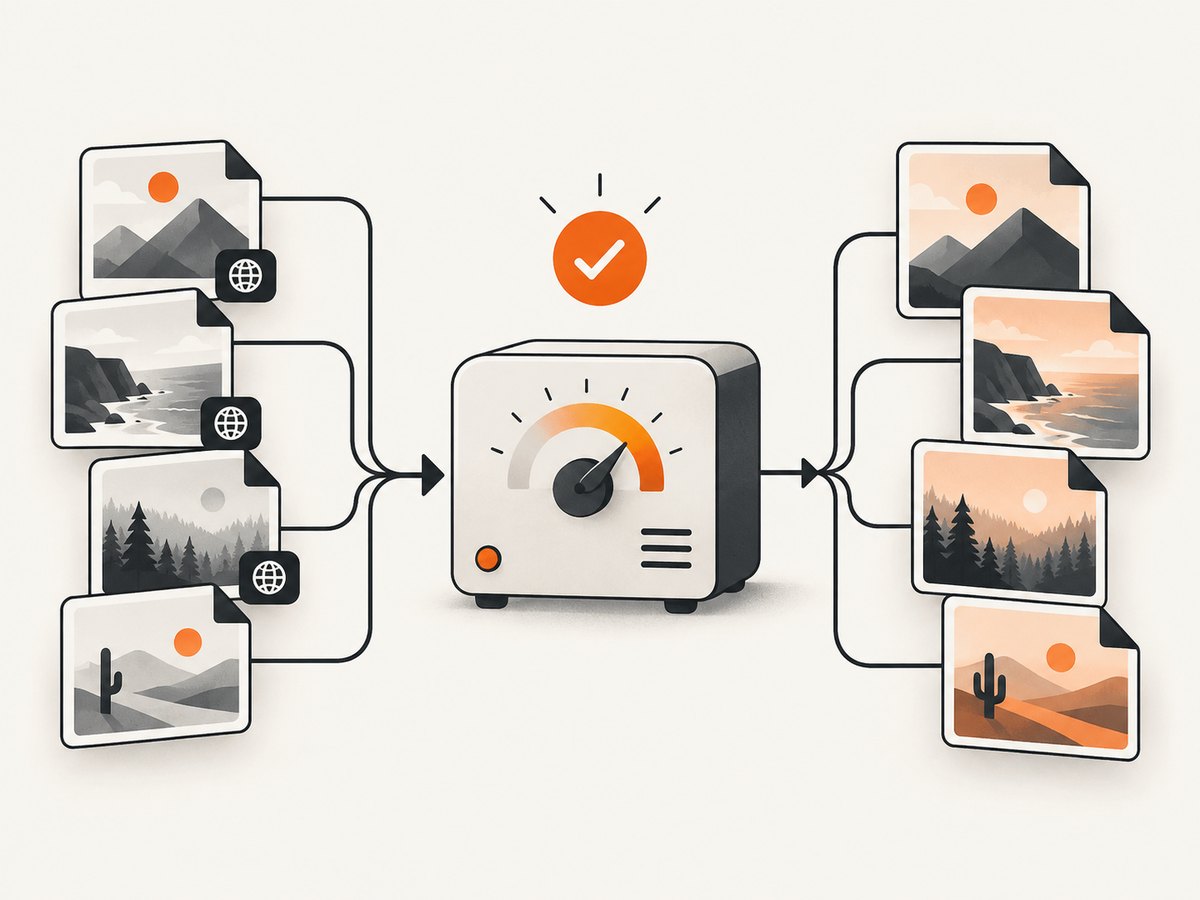
- Do not expect conversion to improve quality. Exporting WebP to JPG cannot restore detail that was already discarded in the WebP.
- Avoid conversion chains. Repeated WebP-to-JPG-to-JPG exports can accumulate loss. Keep a higher-quality original and export the final JPG once.
- Compare at the intended display size. A large original may look excellent when displayed small, while a screenshot with tiny text may require a higher quality setting.
- Check file size after export. The JPG may be larger or smaller than the WebP; the result depends on image content, encoder settings, and the source’s compression.
Google’s WebP documentation reports that WebP can be smaller than comparable JPEG images at an equivalent SSIM quality index and smaller than PNG in a lossless comparison. Those are general published comparisons, not a prediction for an individual conversion or evidence that JPG will be smaller than your source.
Metadata, orientation, and color checks
Metadata handling depends on the editor and export settings. Do not assume that camera metadata, ICC profiles, timestamps, or comments will be preserved. If metadata matters, inspect the export with your editor or a metadata utility and enable the relevant preservation option.
Check orientation explicitly. Some images contain an orientation instruction rather than pixels rotated into their final position. An exporter may normalize that instruction or preserve it. Review the JPG in the application that will consume it.
Color can also change when an application converts profiles or uses a different rendering path. For photographs, compare skin tones and gradients. For graphics, inspect brand colors and subtle shadows against the intended background.
Batch conversion checklist
- Make a backup or work from copies.
- Confirm WebP and JPEG support in the installed build.
- Process three representative files first: a photo, a transparent graphic, and an image with small text.
- Choose a quality setting and background policy.
- Write outputs to a separate directory or use a new extension.
- Verify that every output opens and has expected dimensions.
- Record failures by filename so one corrupt or unsupported source does not hide the status of the rest.
Common errors and fixes
| Error or symptom | Likely cause | Fix |
|---|---|---|
| The JPG will not open | The extension was renamed without encoding | Run an actual export or conversion operation. |
no decode delegate for this image format |
The ImageMagick build lacks WebP support | Install a build with WebP support or use an editor that supports WebP; verify with magick -list format. |
| Transparent areas became white or black | JPEG has no alpha channel | Choose a deliberate background color or keep WebP/PNG. |
| Text looks soft or has halos | JPEG loss and an aggressive quality setting | Use a higher quality, avoid repeated exports, or keep a lossless target such as PNG where appropriate. |
| Output is unexpectedly huge | High quality, an export preset, or embedded metadata | Review quality and metadata options, then compare the result at the required dimensions. |
| Images are rotated | Orientation metadata was interpreted differently | Open the JPG in the destination application and normalize orientation during export if needed. |
| Some batch files fail | Unsupported, corrupt, or unusually named files | Process a small sample, quote filenames in scripts, and log failed paths for separate review. |
When a WebP comes from a screenshot workflow
Screenshot services often return WebP because it can be efficient for web delivery. If the receiving system requires JPG, request JPG directly when the service supports it, or convert the downloaded WebP locally using the methods above. Keep in mind that a screenshot containing text and sharp UI edges may show JPEG artifacts at lower quality.
Or skip the browser setup
ScreenshotNeo is a website screenshot API and MCP server. One GET request can return PNG, JPEG, WebP, or PDF, so you can request JPEG at capture time instead of downloading WebP and converting it later. The API supports full-page screenshots, element capture, custom CSS and JavaScript, device presets, dark mode, retina scale, waiting rules, blocking controls, custom headers and cookies, geolocation, resizing, caching, signed links, asynchronous jobs, bulk capture, and PDF options. See the ScreenshotNeo documentation for request parameters.
cURL
curl -G "https://api.screenshotneo.com/v1/shot" \
  -d access_key=YOUR_API_KEY \
  --data-urlencode url=https://stripe.com \
  -o shot.webp
Change the output extension and request parameters according to the format options documented by ScreenshotNeo when you need a JPEG response. The same endpoint can produce PNG, JPEG, WebP, or PDF.
Python
import requests

r = requests.get(
    "https://api.screenshotneo.com/v1/shot",
    params={"access_key": "YOUR_API_KEY", "url": "https://stripe.com"},
    timeout=90,
)
r.raise_for_status()
open("shot.webp", "wb").write(r.content)
Node.js
const q = new URLSearchParams({
  access_key: 'YOUR_API_KEY',
  url: 'https://stripe.com'
});
const res = await fetch(`https://api.screenshotneo.com/v1/shot?${q}`);
if (!res.ok) throw new Error(`HTTP ${res.status}`);
const body = Buffer.from(await res.arrayBuffer());
require('fs').writeFileSync('shot.webp', body);
ScreenshotNeo accepts consent banners like a visitor and removes more than 60 known consent platforms, newsletter popups, and chat widgets before capture; each step can be turned off. Bot checks or CAPTCHAs, blank pages, timeouts, failed loads, and cache hits are not billed, and response headers identify the page verdict and billing status. Its MCP server provides take_screenshot, get_page_info, and capture_pdf tools for Claude, Cursor, and other MCP clients.
There is a free plan with 1,000 screenshots per month and no card required. Paid plans start at $5 for 3,000 shots; yearly billing gives two months free. Create a free ScreenshotNeo account to start.
Performance, reliability, and cost considerations
- Local conversion: avoids uploading the source to an online converter and is repeatable in automation. Runtime depends on image dimensions, compression settings, storage, and CPU.
- Memory: very large images can require substantial memory when decoded. Convert in batches sized for the machine and write outputs incrementally.
- Reliability: preserve originals, log failures, and verify output files. A successful process exit does not replace checking important images.
- Screenshot capture: browser rendering time is affected by page loading, wait conditions, resource blocking, and full-page length. Caching and asynchronous jobs can help workflows that repeatedly capture the same pages.
- Cost: a local conversion has no per-image service charge beyond the software and machine you already operate. With ScreenshotNeo, only clean shots are billed; failed loads, bot checks, blank pages, timeouts, and cache hits are free according to the service’s response verdict and billing headers.
FAQ
Is JPG the same as JPEG?
Yes. JPG and JPEG refer to the same image format; the shorter extension became common because older systems used three-letter extensions.
Can I convert WebP to JPG without losing quality?
No conversion to JPEG is strictly lossless because JPEG uses lossy compression. Use a high-quality setting and keep the WebP original. If lossless output or transparency is required, choose PNG or retain WebP.
Why did my transparent WebP get a solid background?
JPEG has no alpha channel. Transparent pixels must be composited onto a color during export.
Does dwebp create JPG files?
Google’s documented dwebp reference tool outputs formats such as PNG, PAM, PPM, or PGM. It is a decoder rather than a documented direct WebP-to-JPG command, so use an editor or a converter that supports JPEG encoding for the final step.
Should I convert screenshots to JPG?
Only when the receiving system requires JPEG or the file-size and compatibility trade-off is acceptable. Screenshots with text, lines, and flat colors may retain their appearance better in PNG or WebP.


