How to Export Website Captures to Amazon S3, FTP, and Other Storage
Choose a capture format, move it safely to S3, FTP/SFTP, or local storage, and verify the result. Includes runnable upload workflows and format guidance.
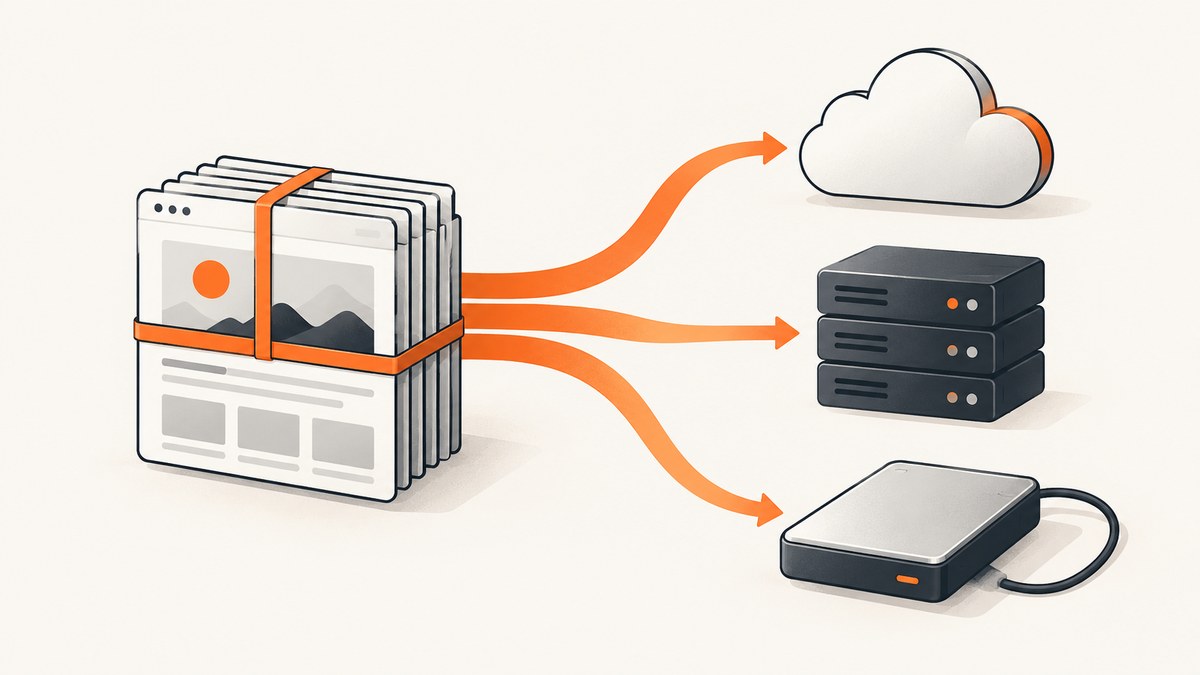
To export a website capture, first save it as a durable file or archive, then copy or upload that file to the destination you control. Use a PDF for sharing or annotation, a single-file format such as MHTML for convenient desktop reading, and WARC when preserving capture responses and crawl metadata matters. S3 works well for cloud object storage; FTP or SFTP is a separate transfer step for files your capture tool has already created.
The reliable workflow is: capture, choose a format, transfer, verify the transferred copy, and retain the source until verification succeeds. A screenshot is an image of a page at one moment. An archive can contain files and metadata that allow a richer record or replay. Pick the representation before choosing the destination.
1. Choose what you are exporting
“Website capture” can mean several different things. A screenshot captures appearance, while a PDF or single-file web archive is easier to read and share. A crawl archive may contain many pages, assets, and technical metadata. The destination does not change the fidelity of the capture: uploading a screenshot to S3 does not turn it into a replayable web archive.
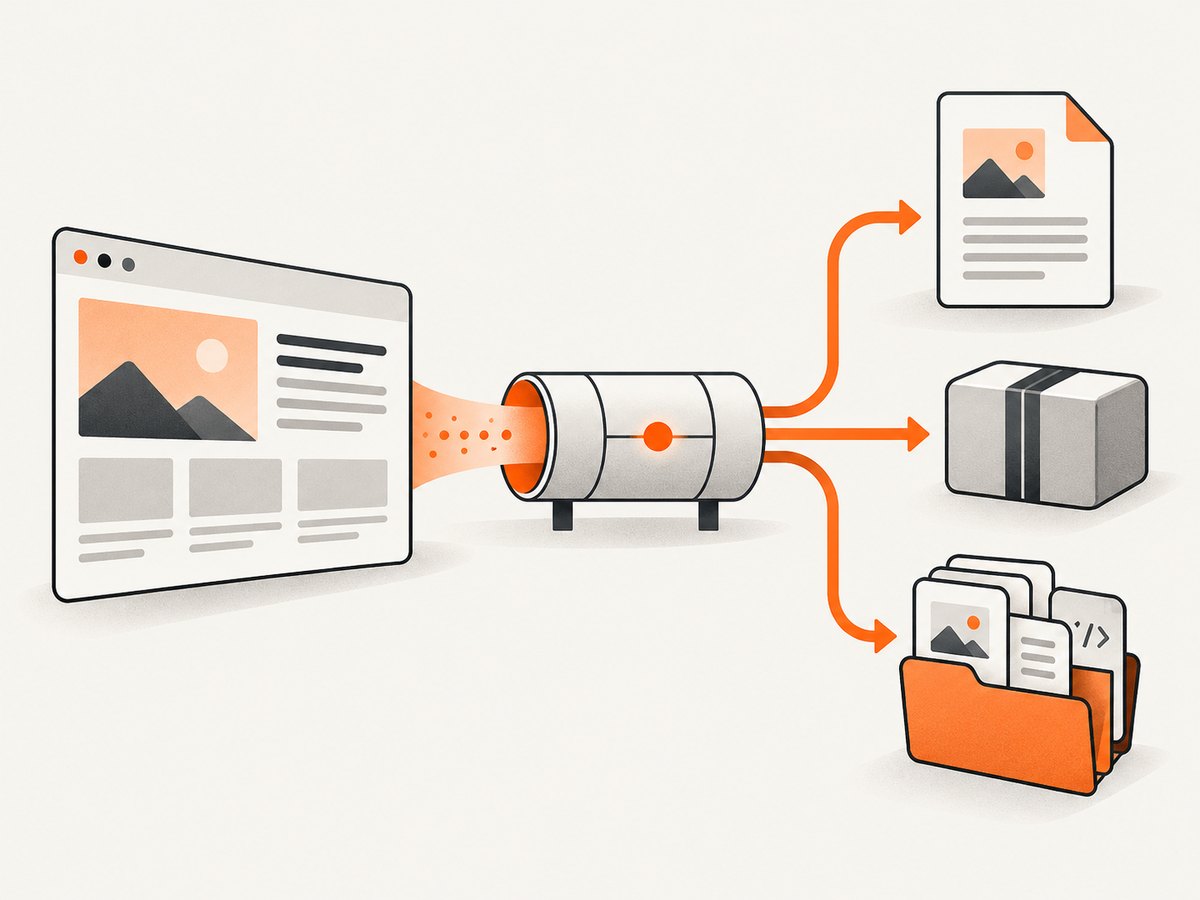
| Need | Good fit | Trade-off |
|---|---|---|
| Share or annotate a page | Convenient to view, but it is a presentation document rather than a faithful replay container. | |
| Read a page offline in a desktop application | MHTML or WebArchive | Usually a compact single file; portability depends on compatible reader support. |
| Preserve web responses and crawl metadata | WARC | Designed for web archives and institutional workflows; it may require archive-aware tools to inspect or replay. |
| Publish a static copy | HTML, CSS, JavaScript, and assets in S3 | Requires a coherent directory structure and web hosting configuration. S3 website endpoints use HTTP; use a secure delivery setup for HTTPS. |
| Keep a working local copy | Capture-tool archive directory on a disk or mounted storage | Simple to copy, but backups and access controls are your responsibility. |
For preservation work, WARC is useful because it can store HTTP responses, request information, and crawl metadata. Archive-It describes WARC as a container for web archives; Common Crawl explains the response, request, and metadata record types. Archive-It’s download interface also exposes filenames, file sizes, timestamps, and checksums. Keep that metadata with the downloaded files.
2. Export or collect the capture files
Capture tools differ in what they save and where they put it. ArchiveBox accepts URLs from extensions, applications, scheduled imports, and text files, and its snapshot layout stores outputs as ordinary files in per-snapshot folders. Depending on configuration and the page, an archive can include original HTML, CSS and JavaScript, a SingleFile copy, screenshots, PDFs, WARC, titles, article text, favicons, headers, and media. See the ArchiveBox project documentation for its archive layout and storage options.
WebsiteArchiver documents PDF, WARC, WebArchive, MHTML, and Markdown exports on macOS, including combined PDF or WARC export for a crawl. Its export is an ordinary file that can be copied or backed up. Consult its product documentation for the specific export controls in your installed version.
- Run the capture or crawl and wait for it to finish.
- Identify the output directory or exported file. For a crawl, preserve its directory hierarchy rather than flattening files with repeated names.
- Record the capture date, source URL, tool/version, and any available crawl identifier in a manifest or sidecar metadata file.
- Before moving a large archive, check its file count and total size and make sure the destination has enough capacity.
If the capture tool maintains an archive directory, keep it on a mounted volume, external hard drive, or network mount if that fits your retention plan. ArchiveBox documents HDD and network-mount storage for its archive folder. An external drive is useful as a separate backup, but a single drive is not a substitute for a second copy if the data is important.
3. Upload a capture to Amazon S3
Use AWS CLI for a directory or a single object. Configure credentials through an AWS profile or the standard AWS credential chain; do not paste secret keys into scripts or commit them to a repository. The examples below use a private bucket path. Choose the region and bucket you created, and scope the IAM permissions to the required bucket and prefix.
Upload one file
aws s3 cp ./capture.warc s3://my-archive-bucket/site-a/2026-09-30/capture.warc --region us-east-1Upload a directory tree
aws s3 cp ./archive/ s3://my-archive-bucket/archive/ --recursive --region us-east-1Use sync when repeating uploads and you want the destination updated from a local directory:
aws s3 sync ./archive/ s3://my-archive-bucket/archive/ --region us-east-1By default, sync compares local and remote objects and transfers changes; it does not make the remote prefix an exact mirror by deleting extra destination objects. Add --delete only when you intentionally want destination-only objects removed. A wrong bucket or prefix can make that option destructive.
For a quick capture made as a screenshot, the same upload command works with a PNG, JPEG, or WebP file. Store files privately unless you have a reason to publish them. If the content is meant to be a public static site, upload the complete HTML/assets structure and configure hosting separately. AWS documents S3 static website hosting; the S3 website endpoint itself does not support HTTPS. AWS recommends Amplify Hosting for secure static website delivery, and CloudFront can also serve S3 content over HTTPS.
Python upload example
For scripts that already use Python, Boto3 can upload a file to S3. Install it with python -m pip install boto3, then configure AWS credentials using an AWS profile, environment, or role as described in the Boto3 credentials guide.
import boto3
from pathlib import Path

source = Path("capture.warc")
bucket = "my-archive-bucket"
key = "site-a/2026-09-30/capture.warc"

s3 = boto3.client("s3", region_name="us-east-1")
s3.upload_file(str(source), bucket, key)
print(f"Uploaded s3://{bucket}/{key}")
For directory uploads, walk the tree and build each object key from its relative path. Preserve the relative path exactly so assets and archive organization remain intact. Set metadata or tags if your retention process needs them; avoid relying on object names alone to encode every detail.
4. Transfer files using FTP or SFTP
Do not assume a capture application can write directly to an FTP server. The cited capture tools document file export and copying, not a native FTP destination. Treat FTP/SFTP as a distinct transfer step after capture. Confirm which protocol the receiving host supports: FTP sends credentials and content without transport encryption, while SFTP transfers over SSH. Prefer SFTP when available.
Command-line SFTP transfer
For one file, the OpenSSH sftp client can upload it to a remote directory:
sftp archive-user@storage.example.org
sftp> cd /incoming/site-a
sftp> put capture.warc
sftp> bye
For a directory tree, use an SFTP client that supports recursive transfer and verify its behavior with a small sample first. If you use classic FTP, select binary transfer mode for PDFs, images, WARC files, ZIP files, and other non-text content. Text-mode transformations can corrupt binary archives. Preserve directory names and relative paths.
Credentials should come from a secure credential store or interactive prompt rather than a literal password in shell history. Restrict the remote account to the upload directory where possible. If the transfer is interrupted, check whether the client supports safe resume; do not assume a partial file is valid simply because it exists remotely.
5. Verify the destination before removing the source
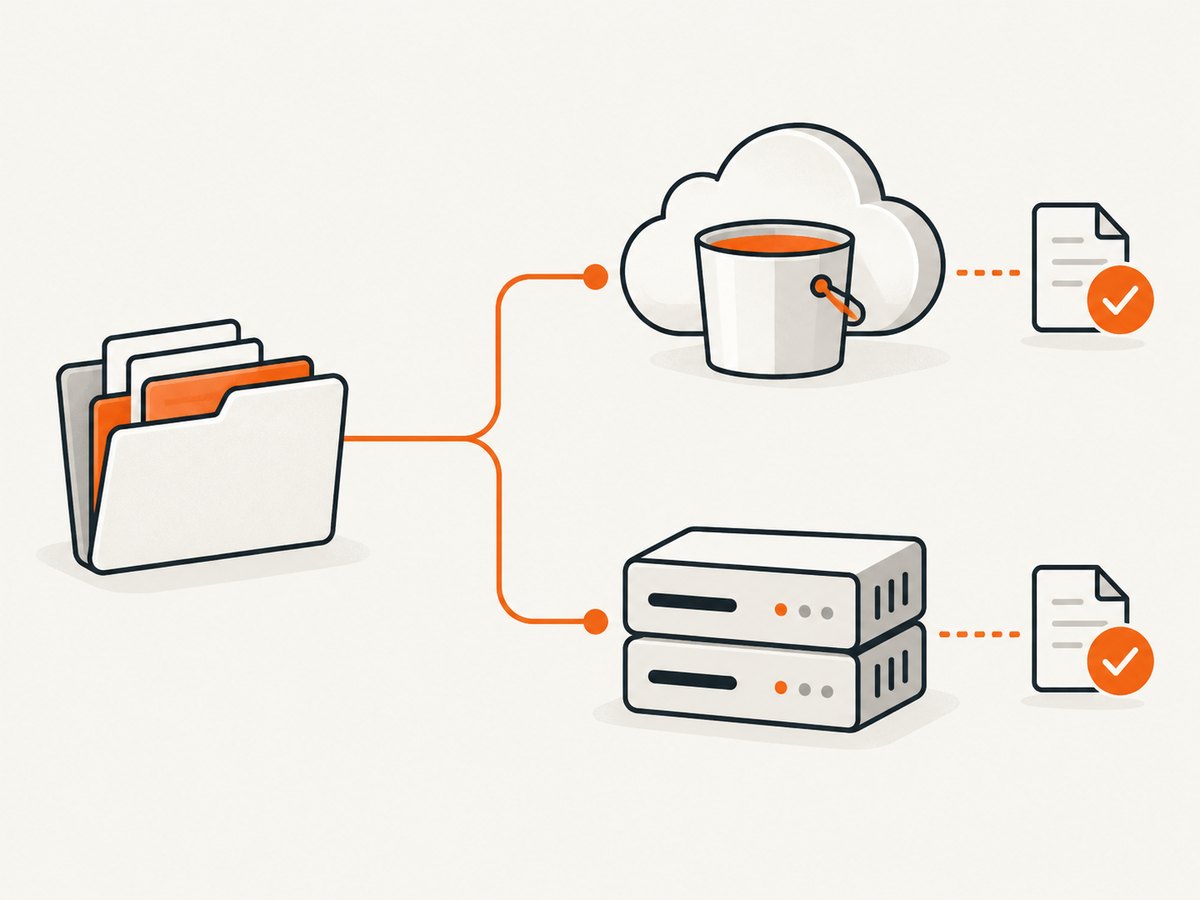
A successful command is a useful signal, but verification is part of the export. Compare file counts and sizes for a directory transfer. For important archives, calculate a cryptographic checksum before upload and after download, or use checksums supplied by the institutional archive. Keep the checksum list beside the archive, not only on the source machine.
# Linux: create a SHA-256 manifest for files under a directory
find ./archive -type f -print0 | sort -z | xargs -0 sha256sum > archive.sha256

# Later, from the same relative directory structure, verify files
sha256sum -c archive.sha256
For Archive-It downloads, WASAPI provides file information including checksums, sizes, filenames, crawl/store timestamps, and download locations. Compare the supplied MD5 or SHA-1 value when validating such a download, and retain the original checksum record. Do not delete the source copy until the destination and its verification data are readable.
Keep at least one independent copy for material you cannot recapture. S3 lifecycle and retention settings can help manage older data, but check the bucket’s actual policy before relying on it. For a local workflow, keep a second copy on a separate disk or storage system. For institutional work, preserve the original metadata and document any file renaming or transformation.
6. Or skip the browser setup
If what you need is a clean screenshot rather than a crawl archive, ScreenshotNeo returns an image or PDF with one GET request. See the ScreenshotNeo API documentation for request options.
curl -G "https://api.screenshotneo.com/v1/shot" \
  -d access_key=YOUR_API_KEY \
  --data-urlencode url=https://stripe.com \
  -o shot.webp
Then upload the output file to S3 using the AWS CLI command above. ScreenshotNeo accepts cookie/consent banners and removes more than 60 known consent platforms, newsletter popups, and chat widgets before capture; each of those steps can be turned off. Bot checks/CAPTCHAs, blank pages, timeouts, failed loads, and cache hits cost nothing, and the response identifies the page verdict and billing status in headers. An MCP server gives AI agents such as Claude and Cursor the take_screenshot, get_page_info, and capture_pdf tools. The free plan includes 1,000 screenshots per month with no card; paid plans start at $5 for 3,000. Every feature is on every plan. Create a free account for 1,000 screenshots a month, no card required.
7. Capture-and-export code examples
These examples request a screenshot file from ScreenshotNeo. They do not upload to S3 automatically; use the S3 transfer step after the file has been written. Treat the API key as a secret and keep it out of source control.
cURL
curl -G "https://api.screenshotneo.com/v1/shot" \
  -d access_key=YOUR_API_KEY \
  --data-urlencode url=https://stripe.com \
  -o shot.webp
aws s3 cp ./shot.webp s3://my-archive-bucket/screenshots/stripe.webp
Python
import requests
import subprocess

r = requests.get(
    "https://api.screenshotneo.com/v1/shot",
    params={"access_key": "YOUR_API_KEY", "url": "https://stripe.com"},
    timeout=90,
)
r.raise_for_status()
with open("shot.webp", "wb") as f:
    f.write(r.content)
subprocess.run([
    "aws", "s3", "cp", "shot.webp",
    "s3://my-archive-bucket/screenshots/stripe.webp"
], check=True)
Node.js
import { writeFile } from "node:fs/promises";
import { execFile } from "node:child_process";
import { promisify } from "node:util";

const run = promisify(execFile);
const q = new URLSearchParams({ access_key: process.env.SCREENSHOTNEO_API_KEY, url: 'https://stripe.com' });
const res = await fetch(`https://api.screenshotneo.com/v1/shot?${q}`);
if (!res.ok) throw new Error(`Screenshot request failed: ${res.status}`);
await writeFile("shot.webp", Buffer.from(await res.arrayBuffer()));
await run("aws", ["s3", "cp", "shot.webp", "s3://my-archive-bucket/screenshots/stripe.webp"]);
For FTP/SFTP, keep the capture call separate from the transfer call so you can retry an upload without repeating the capture. Use unique, deterministic object keys that include a date or capture identifier when you need to retain multiple versions.
8. Troubleshooting common export problems
| Symptom | Likely cause | Fix |
|---|---|---|
| S3 reports AccessDenied | The active identity lacks permission for the target bucket or prefix, or a bucket policy denies the request. | Check the configured AWS profile/role, region, bucket name, and least-privilege IAM and bucket policies. |
| Upload went to the wrong folder | The S3 key/prefix or local working directory was not what you expected. | Print the resolved source path and destination URI; test with one file before a recursive transfer. |
| Some files are missing | The export was still running, a sync filter excluded files, or the destination path mapping changed. | Wait for capture completion, inspect tool logs and filters, compare file counts, and run a dry-run or sample transfer. |
| WARC/PDF cannot be opened after FTP | Classic FTP used ASCII/text mode or the transfer was truncated. | Use binary mode, re-transfer, and compare checksums or file sizes against the source. |
| SFTP authentication fails | Wrong username, key, host, port, or server-side account restrictions. | Confirm connection details with the storage administrator; check key permissions and test an interactive login. |
| Website files upload but links are broken | Only the HTML file was uploaded, or the directory hierarchy changed. | Upload all referenced assets and preserve relative paths. Inspect the generated page locally before publishing. |
| Public S3 page does not load over HTTPS | S3 static website endpoints support HTTP only. | Serve the bucket through Amplify Hosting or configure CloudFront for HTTPS instead of using the website endpoint directly. |
| Capture request returns an error | Bad API key, invalid URL, or a network/request failure. | Check the key and URL, inspect the HTTP status and response headers, and retry transient failures with bounded backoff. |
9. Performance, reliability, and cost
Transfer time depends on file count, total bytes, network bandwidth, and the destination service. A directory with thousands of small assets often takes longer to manage than a single archive of similar total size. Preserve the directory when its structure matters; use an archive container only when the receiving workflow expects one. For very large transfers, use a client that can resume safely and record completed objects so you can retry only missing work.
Expect crawls to vary in size: page assets, media, and crawl metadata all add bytes. Archive-It notes that an individual WARC is no bigger than 1 GB and a crawl can produce multiple WARCs. Plan storage from observed exports rather than assuming one crawl always produces one file. Keep local free space for temporary files if the export tool stages its output before upload.
Cloud storage costs depend on the provider’s current rates, storage class, request volume, data transfer, and retention duration. Check the provider’s pricing and bucket lifecycle configuration for your account; the research here does not establish a cost estimate. FTP hosting may have its own capacity and transfer limits. For local storage, include drive replacement and backup copies in the operational plan. Avoid making public access the shortcut for easy sharing: control access deliberately and use HTTPS delivery when publishing.
For reliability, keep the original until transfer verification passes, store checksums and capture metadata, and periodically test that backed-up files can be read. Where exact preservation matters, retain WARC and the accompanying metadata rather than converting everything to PDF. Where a fast visual record is enough, an image or PDF may be easier to store and distribute.
10. Frequently asked questions
Can I export an Archive-It crawl directly to S3?
Download the WARC files and associated metadata using the supported Archive-It workflow, then upload those files to your bucket. Keep the source copy until checksum verification succeeds.
Can I upload a WARC file to FTP?
Yes. WARC is a file, so an FTP/SFTP client can transfer it. Use binary mode for classic FTP and validate the remote file after transfer. The capture tools in the research do not document a native FTP destination.
Should I store a screenshot or WARC?
Use a screenshot when the visual appearance at capture time is the requirement. Use WARC when preserving captured responses and crawl metadata is important. They serve different purposes and may both be useful.
Can an S3 bucket host the archived site?
S3 can host static website files, but an archived capture may not replay as a working site simply because its files are present. For HTTPS delivery, use a suitable hosting layer such as Amplify Hosting or CloudFront.
How do I move an archive to another provider later?
Retain a local manifest of object keys, sizes, and checksums. Copy the directory or objects to the new destination, verify them there, and only then change consumers to the new location.


