How to Render an Express Page and Print It With Puppeteer
Render an Express route with Puppeteer, wait for client-side data, match print styles, and return a reliable PDF from your Node.js server.
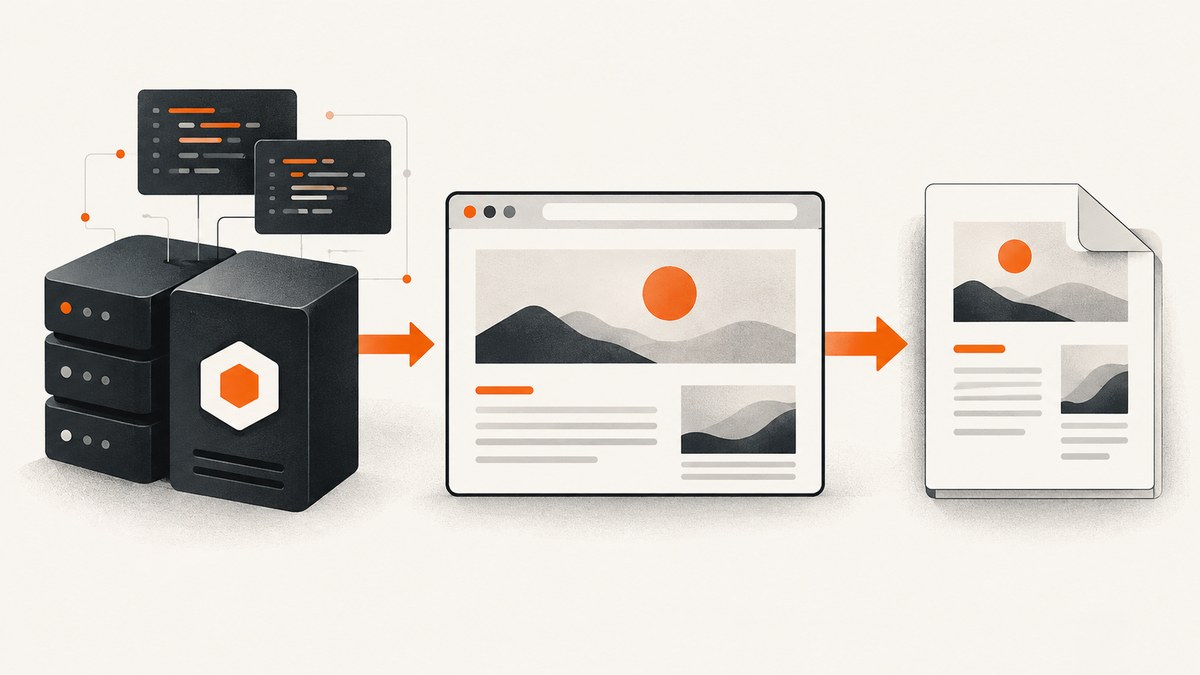
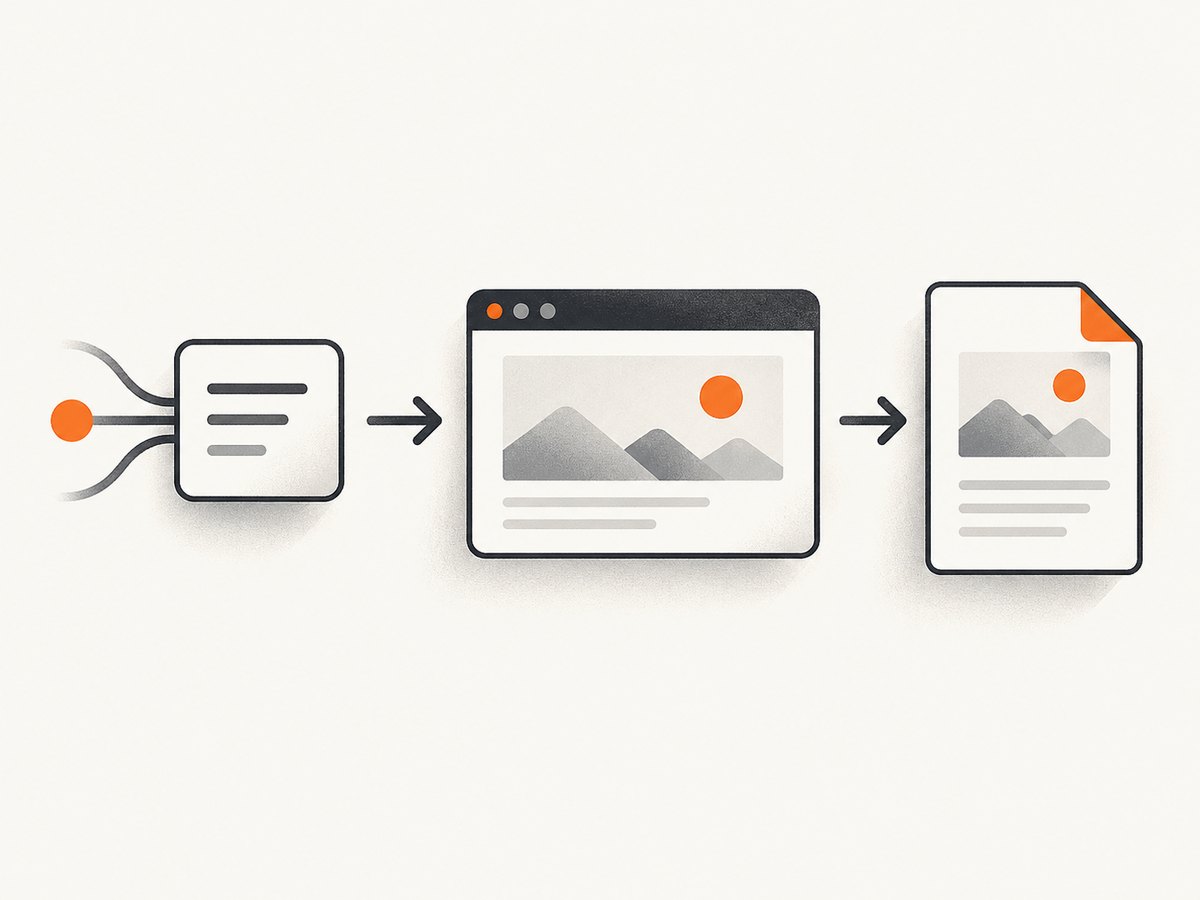
To render an Express page and print it with Puppeteer, expose the page through an Express route, launch Chromium, navigate to the route, wait until the page is ready, call page.pdf(), send the returned bytes with Content-Type: application/pdf, and close the browser in a finally block. The smallest reliable flow is:
- Define an Express route.
- Launch Puppeteer and create a page.
- Navigate with an explicit readiness condition.
- Set print or screen media and PDF options.
- Return the PDF or save it to a file.
- Always close Chromium.
Puppeteer’s official PDF guide follows this same sequence: puppeteer.launch(), browser.newPage(), page.goto(), page.pdf(), and browser.close() (Puppeteer PDF generation guide). Express matches requests to method-based handlers such as app.get() (Express routing documentation).
1. A complete Express and Puppeteer PDF endpoint
Create a project and install the dependencies:
mkdir express-pdf
cd express-pdf
npm init -y
npm install express puppeteer
Set "type": "module" in package.json, then create server.js:
import express from 'express';
import puppeteer from 'puppeteer';

const app = express();
const port = process.env.PORT || 3000;

app.get('/report-view', (req, res) => {
  res.type('html').send(`
    <!doctype html>
    <html>
      <head>
        <meta charset="utf-8">
        <title>Sales report</title>
        <style>
          @page { size: A4; margin: 18mm; }
          * { box-sizing: border-box; }
          body { font: 14px Arial, sans-serif; color: #17202a; }
          h1 { margin: 0 0 8px; }
          .total { font-size: 24px; margin: 20px 0; }
          @media print { .no-print { display: none; } }
        </style>
      </head>
      <body>
        <h1>Sales report</h1>
        <p>Generated by the Express report view.</p>
        <p class="total">$42,300</p>
      </body>
    </html>
  `);
});

app.get('/report.pdf', async (req, res, next) => {
  let browser;
  try {
    browser = await puppeteer.launch();
    const page = await browser.newPage();

    await page.goto(`http://localhost:${port}/report-view`, {
      waitUntil: 'networkidle2',
      timeout: 30_000,
    });

    const pdf = await page.pdf({
      format: 'A4',
      printBackground: true,
      preferCSSPageSize: true,
      waitForFonts: true,
    });

    res.type('application/pdf').send(Buffer.from(pdf));
  } catch (error) {
    next(error);
  } finally {
    if (browser) await browser.close();
  }
});

app.use((error, req, res, next) => {
  console.error(error);
  if (!res.headersSent) res.status(500).json({ error: 'PDF generation failed' });
});

app.listen(port, () => {
  console.log(`http://localhost:${port}/report.pdf`);
});
Run it with node server.js and open http://localhost:3000/report.pdf. The endpoint sends PDF bytes directly; it does not need a temporary file. If you want a file instead, pass path: './out/report.pdf' to page.pdf(). When path is omitted, Puppeteer returns the PDF bytes.
2. Waiting for an Express page to finish rendering
waitUntil: 'networkidle2' waits for navigation while allowing a small number of active connections. It is a useful baseline for pages that load data, styles, and images. It cannot know whether your application has finished a late client-side render, a polling request, or a chart animation.
Add an application-level readiness signal when the output depends on JavaScript:
// In the report page, after data and charts are ready:
window.__REPORT_READY__ = true;

// In the Puppeteer route:
await page.goto(url, { waitUntil: 'domcontentloaded', timeout: 30_000 });
await page.waitForFunction(() => window.__REPORT_READY__ === true, {
  timeout: 30_000,
});
await page.pdf({ format: 'A4', printBackground: true });
Other useful readiness strategies include await page.waitForSelector('[data-report-ready]') for a visible marker and await new Promise(resolve => setTimeout(resolve, 500)) for a short, known delay. Prefer a selector or application flag when possible because a fixed delay either wastes time or races slow data.
For a page you control, mark readiness only after fonts, images, API data, and charts that must appear in the PDF have completed. Puppeteer’s PDF operation waits for document fonts by default; keep waitForFonts: true unless you have a specific reason to disable it.
3. Why Puppeteer PDF output differs from the browser
Puppeteer generates PDFs using the print CSS media type. A page can therefore have different widths, colors, hidden controls, and page breaks than its screen view. To print the screen stylesheet instead, call:

await page.emulateMediaType('screen');
const pdf = await page.pdf({
  format: 'A4',
  printBackground: true,
});
Print backgrounds are disabled by default. Set printBackground: true when cards, bands, gradients, or chart fills depend on background graphics. Browsers also adjust colors for printing; use this CSS when exact colors matter:
* {
  -webkit-print-color-adjust: exact;
  print-color-adjust: exact;
}
Use print-specific CSS for layout rather than trying to force a screen screenshot into a paper shape:
@page {
  size: A4 portrait;
  margin: 14mm 16mm;
}

@media print {
  .toolbar, .download-button { display: none; }
  .avoid-break { break-inside: avoid; }
  h2 { break-after: avoid; }
}
4. PDF options you should choose deliberately
| Option | Use it for | Important behavior |
|---|---|---|
format |
Standard paper such as A4 or Letter | Documented default is Letter. |
preferCSSPageSize |
Documents with an @page rule |
Lets CSS page size take priority over format, width, or height. |
landscape |
Wide tables and charts | Defaults to false. |
margin |
Controlling printable whitespace | Set top, right, bottom, and left values explicitly for repeatable output. |
pageRanges |
Printing selected pages | Accepts ranges such as 1-5, 8, 11-13. |
path |
Saving an artifact on disk | When omitted, the method returns PDF bytes. |
printBackground |
Preserving background graphics | Defaults to false. |
scale |
Fitting content | Accepts values from 0.1 through 2; default is 1. |
timeout |
Bounding PDF generation | Default is 30,000 ms. |
waitForFonts |
Waiting for web fonts | Defaults to true and waits for document.fonts.ready. |
A full configuration might look like this:
const pdf = await page.pdf({
  format: 'A4',
  landscape: false,
  margin: { top: '16mm', right: '14mm', bottom: '16mm', left: '14mm' },
  preferCSSPageSize: true,
  printBackground: true,
  pageRanges: req.query.pages || undefined,
  scale: 1,
  timeout: 30_000,
  waitForFonts: true,
});
Do not combine a user-supplied pageRanges value with unvalidated input in a public endpoint. Parse and validate it before passing it to Puppeteer, and cap the number of pages your service will generate.
5. Returning, storing, and protecting PDFs
For an API response, set the content type and optionally a download name:
res.set({
  'Content-Type': 'application/pdf',
  'Content-Disposition': 'inline; filename="report.pdf"',
});
res.send(Buffer.from(pdf));
Use attachment instead of inline when browsers should download the file. For storage, write the bytes after generation and return a record ID or a signed storage URL. Keep generated files outside a publicly served directory unless public access is intentional.
If the rendered page needs authentication, do not put credentials in a URL. Create a controlled browser context, set cookies or headers, and ensure the resulting PDF and logs cannot expose secrets. Restrict a user-controlled URL parameter to approved hosts; otherwise your renderer can become a server-side request forgery target.
6. Reliability and performance in production
- Close every browser. The
finallyblock prevents failed requests from leaving Chromium processes behind. - Limit concurrency. Each browser or page consumes CPU and memory. Use a queue or semaphore so a burst of PDF requests does not start unlimited Chromium instances.
- Reuse carefully. A long-lived browser with one isolated page or context per job can avoid repeated startup cost. Reset pages between jobs and never share cookies between tenants.
- Set timeouts. Bound navigation, selector waits, and PDF generation. Return a clear 4xx or 5xx response instead of holding a request forever.
- Make assets deterministic. Pin report data to a request ID or timestamp, wait for fonts and images, and avoid animations in print CSS.
- Observe failures. Log the URL, duration, stage, and error class. Do not log authorization headers, cookies, or private report data.
- Use a worker for heavy jobs. For large reports, enqueue work and return a job status endpoint instead of keeping an HTTP request open.
There is no universal Puppeteer throughput number: page complexity, fonts, images, Chromium startup, CPU, and concurrency all affect latency. Measure your own templates with realistic data and enforce limits on input size, page count, and render time.
7. Common errors and fixes
| Error or symptom | Likely cause | Fix |
|---|---|---|
| PDF is blank | Printing occurred before client-side data rendered. | Wait for a readiness selector or window.__REPORT_READY__; confirm the API request succeeded. |
| Styles or images are missing | Assets are blocked, still loading, or use inaccessible relative URLs. | Use absolute asset URLs, inspect network failures, wait for the relevant selector, and enable printBackground. |
| Layout is different from the browser | PDF uses print media by default. | Use page.emulateMediaType('screen') or add deliberate @media print rules. |
| Colors look washed out | Print color adjustment changed them. | Set -webkit-print-color-adjust: exact and printBackground: true. |
| Fonts are wrong | Font files failed, or rendering happened before fonts were ready. | Check font responses, use waitForFonts: true, and wait for document.fonts.ready when needed. |
Navigation timeout exceeded |
The page keeps connections open or is slow. | Set a suitable timeout, use domcontentloaded plus an app readiness signal, and investigate slow dependencies. |
| Chromium will not launch in a container | Sandbox or system dependency restrictions. | Install the dependencies required by your deployment image and follow its Chromium security policy; avoid disabling the sandbox unless your environment explicitly requires it. |
| Node process memory grows | Browsers are not closed or concurrency is unbounded. | Close in finally, cap concurrent jobs, and recycle unhealthy browser workers. |
| Only part of a table appears | Content is clipped or split across pages. | Use landscape mode, adjust margins or scale, and add print break rules. |
8. Testing a PDF endpoint
Test both the HTTP contract and document content. A basic command saves the response:
curl -f http://localhost:3000/report.pdf -o report.pdf
file report.pdf
Test slow data, missing data, long tables, custom fonts, empty states, images, and multiple concurrent requests. Verify the response status, content type, page count, page size, and that sensitive values do not appear in logs. Compare a representative PDF manually because a successful HTTP response does not prove that the visual output is correct.
9. Or skip the browser setup
If you need a screenshot or PDF without maintaining Chromium, ScreenshotNeo provides a website capture API and MCP server. It accepts one GET request and returns a PNG, JPEG, WebP, or PDF. Cookie and consent banners, newsletter popups, and chat widgets are removed before capture; bot checks, blank pages, timeouts, failed loads, and cache hits are not billed, and response headers identify the page verdict and billing result.
See the ScreenshotNeo API documentation for options such as PDF paper size, margins, landscape mode, page ranges, custom CSS and JavaScript, waiting for a selector or network idle, custom headers and cookies, blocking resources, caching, asynchronous jobs, and bulk capture.
cURL
curl -G "https://api.screenshotneo.com/v1/shot" \
  -d access_key=YOUR_API_KEY \
  --data-urlencode url=http://localhost:3000/report-view \
  -o report.pdf
Python
import requests

r = requests.get(
    "https://api.screenshotneo.com/v1/shot",
    params={
        "access_key": "YOUR_API_KEY",
        "url": "http://localhost:3000/report-view",
    },
    timeout=90,
)
r.raise_for_status()
open("report.pdf", "wb").write(r.content)
Node.js
const q = new URLSearchParams({
  access_key: 'YOUR_API_KEY',
  url: 'http://localhost:3000/report-view',
});
const res = await fetch(`https://api.screenshotneo.com/v1/shot?${q}`);
if (!res.ok) throw new Error(`ScreenshotNeo failed: ${res.status}`);
const bytes = Buffer.from(await res.arrayBuffer());
await import('node:fs/promises').then(fs => fs.writeFile('report.pdf', bytes));
ScreenshotNeo also has an MCP server with take_screenshot, get_page_info, and capture_pdf tools for Claude, Cursor, and other MCP clients. The free plan includes 1,000 screenshots per month without a card; paid plans start at $5 for 3,000 shots. Create a free ScreenshotNeo account to try the API.
10. FAQ
Should I use networkidle2 or networkidle0?
networkidle2 is the documented example and tolerates a small number of open connections. Applications with analytics, polling, or sockets should use an explicit readiness signal instead of relying on network idleness alone.
Can Puppeteer print only selected pages?
Yes. Pass a range such as pageRanges: '1-3, 7', after validating the input.
Why does page.pdf() return bytes?
When path is omitted, Puppeteer returns the generated PDF data. That lets Express send it directly or lets your application store it elsewhere.
How do I make a report use CSS paper dimensions?
Define an @page rule and set preferCSSPageSize: true.
What should I do when a report takes longer than an HTTP timeout?
Move generation to a queue or worker, return a job identifier, and let the client poll for completion or receive a callback.


