How to Use External Scripts with PhantomJS Node
Learn the two ways to use external scripts with PhantomJS from Node: launch a script as a process or load code into a page with includeJs and injectJs.

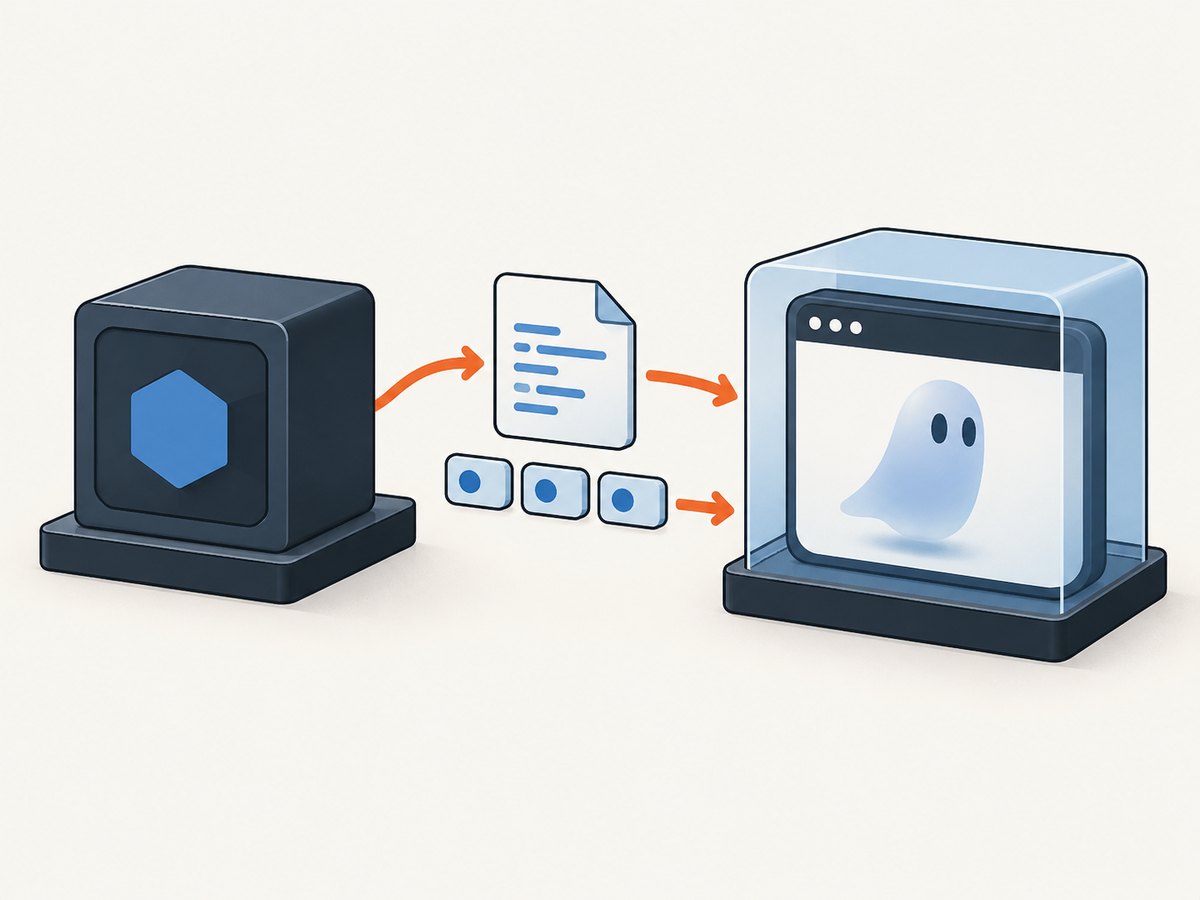
There are two different meanings of “use an external script with PhantomJS Node.”
- Run a standalone PhantomJS script from Node: Node starts the PhantomJS executable as a child process and passes the script path and arguments.
- Load JavaScript into a PhantomJS page: PhantomJS uses
page.includeJs(url, callback)for a remote script orpage.injectJs(filename)for a local file.
These paths execute in different places. The child-process method runs a separate PhantomJS program. includeJs and injectJs run code in the page context. They are not interchangeable.
The examples below describe PhantomJS 2.1.1-era APIs. PhantomJS development is suspended, and the phantomjs-node wrapper repository is archived, so validate the binary, operating system and Node.js version in your own environment before using this legacy stack.
1. Choose the right external-script method
| Need | Use | Where code runs | How completion is reported |
|---|---|---|---|
| Start a PhantomJS file from a Node application | Node child_process.execFile with the PhantomJS binary |
Separate PhantomJS process | Node callback, stdout, stderr and process exit |
| Load a library hosted at a URL | page.includeJs(url, callback) |
Webpage context | Page callback after loading |
| Load a local JavaScript file into a page | page.injectJs(filename) |
Webpage context | Boolean return value |
Use execFile when Node owns orchestration, retries, queues or output handling. Use includeJs when the page needs a remotely hosted dependency. Use injectJs when the dependency is a local file that does not need to be publicly reachable.
2. Run a standalone PhantomJS script from Node
PhantomJS accepts a command shaped like phantomjs [options] somescript.js [arg1 ...]. A Node application can start that executable with child_process.execFile. The phantomjs-prebuilt package exposes the binary path used by the example below.
Install the legacy wrapper
npm install phantomjs-prebuiltKeep the Node launcher and PhantomJS script as separate files.
Node launcher: run-phantom.js
const path = require('path');
const { execFile } = require('child_process');
const phantomjs = require('phantomjs-prebuilt');

const script = path.join(__dirname, 'phantom-script.js');
const value = 'argument-for-phantom';

execFile(phantomjs.path, [script, value], (err, stdout, stderr) => {
  if (err) {
    console.error('PhantomJS failed:', err.message);
    if (stderr) process.stderr.write(stderr);
    process.exitCode = err.code || 1;
    return;
  }

  process.stdout.write(stdout);
  if (stderr) process.stderr.write(stderr);
});
PhantomJS script: phantom-script.js
var system = require('system');

if (system.args.length < 2) {
  console.error('Usage: phantom-script.js <value>');
  phantom.exit(2);
}

var value = system.args[1];
console.log(JSON.stringify({ received: value }));

// Every terminating path must call phantom.exit().
phantom.exit(0);
Run it with:
node run-phantom.jsThe argument is passed as a separate array element. Do not concatenate untrusted values into a shell command string. Passing an array avoids shell quoting and injection problems and preserves spaces in arguments.
Passing multiple arguments
// Node
const args = [script, '--url', 'https://example.com', '--output', '/tmp/page.json'];
execFile(phantomjs.path, args, callback);
// PhantomJS
var system = require('system');
var url = system.args[2];
var output = system.args[4];PhantomJS exposes the command-line values through its system arguments API. Define your own argument convention and validate it before opening a page or writing files.
Capture output and exit events with the wrapper convenience API
The wrapper README also documents a convenience phantomjs.exec(...) interface that exposes process streams and an exit event. The exact API can vary by installed wrapper version, so inspect the package README in your lockfile before adopting it. execFile is easier to reason about when you need a conventional Node callback.
3. Load a remote script with page.includeJs
page.includeJs(url, callback) loads an external script from a URL and invokes the callback when loading completes. The script executes in the webpage context, so it can access the page DOM and browser globals. It does not execute as Node.js code.

var page = require('webpage').create();

page.open('https://example.com', function (status) {
  if (status !== 'success') {
    console.error('Could not open page');
    phantom.exit(1);
  }

  page.includeJs('https://code.jquery.com/jquery-3.7.1.min.js', function () {
    var title = page.evaluate(function () {
      return window.jQuery ? jQuery('title').text() : document.title;
    });

    console.log(title);
    phantom.exit(0);
  });
});
Call includeJs after the page has opened. Treat the callback as the point at which the requested script has finished loading. If the remote host is unavailable, blocked by network policy or incompatible with PhantomJS, handle the failure and terminate rather than waiting forever.
Do not cross the page boundary with complex values
Code supplied to page.evaluate runs in the page context. Values crossing back to Node or PhantomJS must be simple serializable values such as strings, numbers, booleans, arrays and plain objects. Functions, closures and DOM nodes do not cross that boundary. Convert a DOM result to text or a plain object inside evaluate.
var data = page.evaluate(function () {
  var link = document.querySelector('a');
  return link ? { text: link.textContent, href: link.href } : null;
});
4. Load a local script with page.injectJs
page.injectJs(filename) inserts a local file into the page context. Unlike includeJs, the file does not need to be accessible from the hosted page. PhantomJS searches the current directory and, when configured, its libraryPath. The method returns true when injection succeeds and false otherwise.
Create page-helper.js:
window.collectHeadings = function () {
  var nodes = document.querySelectorAll('h1, h2, h3');
  var headings = [];

  for (var i = 0; i < nodes.length; i += 1) {
    headings.push(nodes[i].textContent.trim());
  }

  return headings;
};
Inject it after opening the page:
var page = require('webpage').create();
var system = require('system');

page.open('https://example.com', function (status) {
  if (status !== 'success') {
    console.error('Could not open page');
    phantom.exit(1);
  }

  var loaded = page.injectJs('page-helper.js');
  if (!loaded) {
    console.error('Could not inject page-helper.js');
    phantom.exit(2);
  }

  var headings = page.evaluate(function () {
    return window.collectHeadings();
  });

  console.log(JSON.stringify(headings));
  phantom.exit(0);
});
Check the boolean before calling the injected API. A relative path is resolved from the PhantomJS process environment, which may differ from the Node file’s directory. Build an absolute path when launching from a service or job runner.
// Node: pass an absolute helper path as an argument
const helper = path.join(__dirname, 'page-helper.js');
execFile(phantomjs.path, [script, helper], callback);
5. A complete example: Node launches PhantomJS, which injects a local helper
This example combines both meanings of external script. Node starts PhantomJS and passes a target URL plus a helper path. PhantomJS opens the URL, injects the local helper, extracts headings and exits with a useful status code.
// run-headings.js
const path = require('path');
const { execFile } = require('child_process');
const phantomjs = require('phantomjs-prebuilt');

const script = path.join(__dirname, 'extract-headings.js');
const helper = path.join(__dirname, 'page-helper.js');
const target = process.argv[2] || 'https://example.com';

execFile(phantomjs.path, [script, target, helper], (err, stdout, stderr) => {
  if (stdout) process.stdout.write(stdout);
  if (stderr) process.stderr.write(stderr);
  if (err) {
    console.error(`Exit error: ${err.message}`);
    process.exitCode = err.code || 1;
  }
});
// extract-headings.js
var system = require('system');
var webpage = require('webpage');
if (system.args.length < 3) {
console.error('Usage: extract-headings.js <url> <helper-file>');
phantom.exit(2);
}
var target = system.args[1];
var helper = system.args[2];
var page = webpage.create();
page.open(target, function (status) {
if (status !== 'success') {
console.error('Page open failed: ' + status);
phantom.exit(3);
}
if (!page.injectJs(helper)) {
console.error('Helper injection failed: ' + helper);
phantom.exit(4);
}
var result = page.evaluate(function () {
return window.collectHeadings();
});
console.log(JSON.stringify({ url: target, headings: result }));
phantom.exit(0);
});Run it with:
node run-headings.js https://example.com6. Timing, ordering and page readiness
Loading a script is not the same as waiting for the application to finish rendering. Choose a readiness rule that matches the page:
- Use the
page.opencallback for the initial navigation result. - Use the
includeJscallback after a remote dependency has loaded. - Use
setTimeoutonly when a fixed delay is acceptable. - Poll for a known DOM condition when the page renders asynchronously.
- Keep a hard timeout in the Node parent process so a hung PhantomJS child cannot consume a worker forever.
const child = execFile(phantomjs.path, [script, target], { timeout: 30000 }, callback);
child.on('error', err => console.error('Could not start PhantomJS:', err));
PhantomJS scripts must reach phantom.exit() on success and every failure path. The official quick start emphasizes this because an omitted exit call can leave the process running.
7. Troubleshooting
| Symptom | Likely cause | Fix |
|---|---|---|
spawn ... ENOENT |
The binary path is wrong or the wrapper did not install a binary for the platform. | Log phantomjs.path, verify the file exists and validate the package’s platform support. |
| Node exits but PhantomJS remains running | A callback path never calls phantom.exit(). |
Add explicit exit calls for success, page-open failure, injection failure and script errors. |
includeJs callback never arrives |
Remote DNS, TLS, network policy or the remote server prevented loading. | Use a reachable URL, add a parent-process timeout and log PhantomJS stderr. |
injectJs returns false |
The file path is relative to the PhantomJS working directory or the file is missing. | Pass an absolute path or configure libraryPath; check file permissions. |
| The injected function is undefined | The file was injected into the wrong page or failed before defining the function. | Check the boolean result, inject after page.open, and inspect page errors and console output. |
| DOM data is empty | Extraction ran before client-side rendering completed. | Wait for a selector or application-ready condition before evaluate. |
| Modern JavaScript fails | PhantomJS uses an old browser engine and does not support many current web APIs or syntax features. | Transpile compatible code, use a maintained browser automation tool for current sites, or isolate PhantomJS to legacy pages. |
| Arguments containing spaces are split | A shell command string was assembled manually. | Pass each argument as an element of the execFile array. |
| Node receives no useful error | Only the callback error was logged; stderr was discarded. | Always capture and print both stdout and stderr, plus the exit code. |
8. Reliability, performance and security
Reliability checklist
- Pin the PhantomJS wrapper and binary version in your lockfile.
- Validate the executable during deployment instead of discovering a missing binary in production.
- Set a process timeout and terminate children that exceed it.
- Return non-zero exit codes for navigation, injection and extraction failures.
- Log the URL, script path, duration, exit code and stderr without logging secrets.
- Use absolute paths for local scripts.
- Limit concurrent PhantomJS processes; each process has startup and memory overhead.
Performance considerations
Starting a new PhantomJS process for every URL adds startup cost. A queue can cap concurrency and prevent memory pressure, but PhantomJS’s suspended status means you should measure the behavior of the exact binary and host you deploy. Loading a remote script adds network latency and another failure point. A local injectJs file avoids that network request but still depends on path correctness.
Security considerations
- Do not place secrets in command-line arguments if other users can inspect process listings.
- Do not pass untrusted strings through a shell. Use
execFilearrays. - Treat target URLs as untrusted input and restrict access to internal networks when your service accepts arbitrary URLs.
- Keep injected helpers small and review them as code that runs with page privileges.
9. Legacy status and migration guidance
The PhantomJS project README says development is suspended until further notice, and the phantomjs-node repository is archived. The cited documentation therefore remains useful for maintaining an existing integration, but it does not establish compatibility with current Node releases, operating systems or modern websites.
Before committing to PhantomJS, verify:
- the exact PhantomJS binary version;
- the Node.js version used by the wrapper;
- your operating system and CPU architecture;
- TLS and certificate behavior for required sites;
- support for the JavaScript and browser APIs your target pages use;
- how your deployment packages and runs the binary.
10. Or skip the browser setup
If your actual goal is to obtain screenshots or PDFs rather than maintain a PhantomJS runtime, ScreenshotNeo provides a single HTTP request for a clean PNG, JPEG, WebP or PDF. It handles the browser setup for you.
One call:
curl -G "https://api.screenshotneo.com/v1/shot" -d access_key=YOUR_API_KEY --data-urlencode url=https://stripe.com -o shot.webpPython:
import requests

r = requests.get(
    "https://api.screenshotneo.com/v1/shot",
    params={"access_key": "YOUR_API_KEY", "url": "https://stripe.com"},
    timeout=90,
)
r.raise_for_status()
open("shot.webp", "wb").write(r.content)
Node.js:
const q = new URLSearchParams({ access_key: 'YOUR_API_KEY', url: 'https://stripe.com' });
const res = await fetch(`https://api.screenshotneo.com/v1/shot?${q}`);
if (!res.ok) throw new Error(`Screenshot failed: ${res.status}`);
require('fs').writeFileSync('shot.webp', Buffer.from(await res.arrayBuffer()));
See the ScreenshotNeo API documentation for request options. Cookie and consent banners, newsletter popups and chat widgets are removed before capture. Bot checks, blank pages and failed loads are not billed, and response headers identify the page verdict and whether the request was billed. ScreenshotNeo also provides an MCP server with take_screenshot, get_page_info and capture_pdf tools for Claude, Cursor and other MCP clients. The free plan includes 1,000 screenshots per month with no card; paid plans start at $5 for 3,000 screenshots. Create a free ScreenshotNeo account.
11. FAQ
Does includeJs run a Node module?
No. It loads a browser script into the PhantomJS page context. Node modules belong in the Node process; browser dependencies belong in the page.
Can I use a local file with includeJs?
Use injectJs for a local file. includeJs is intended for a URL.
Can Node directly call functions defined by an injected script?
Only through a page boundary such as page.evaluate, using serializable arguments and return values.
Why does my script work in a current browser but not PhantomJS?
PhantomJS uses an old browser engine and the project is suspended. Modern syntax, APIs, certificates and site behavior may be incompatible.
Do I need phantom.exit() if the page callback finishes?
Yes. Explicitly terminate the PhantomJS process on every success and failure path.
Summary: launch a standalone file with Node’s child-process API; use includeJs for a remote page script; use injectJs for a local page script. Keep the execution contexts separate, pass arguments as an array, validate paths, add timeouts and account for PhantomJS’s legacy status.


