How to Extract Data from Expense Receipts
Learn how to turn receipt photos and scans into accurate, reviewable expense data, including fields, OCR limits, recordkeeping, and workflows.
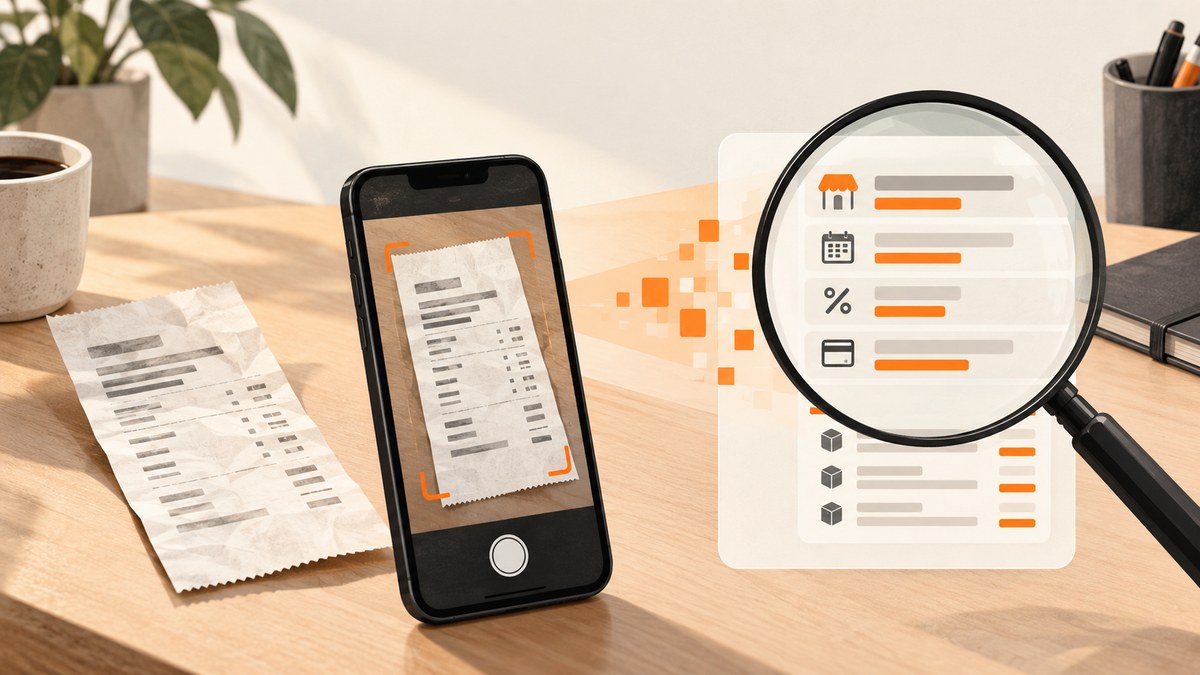
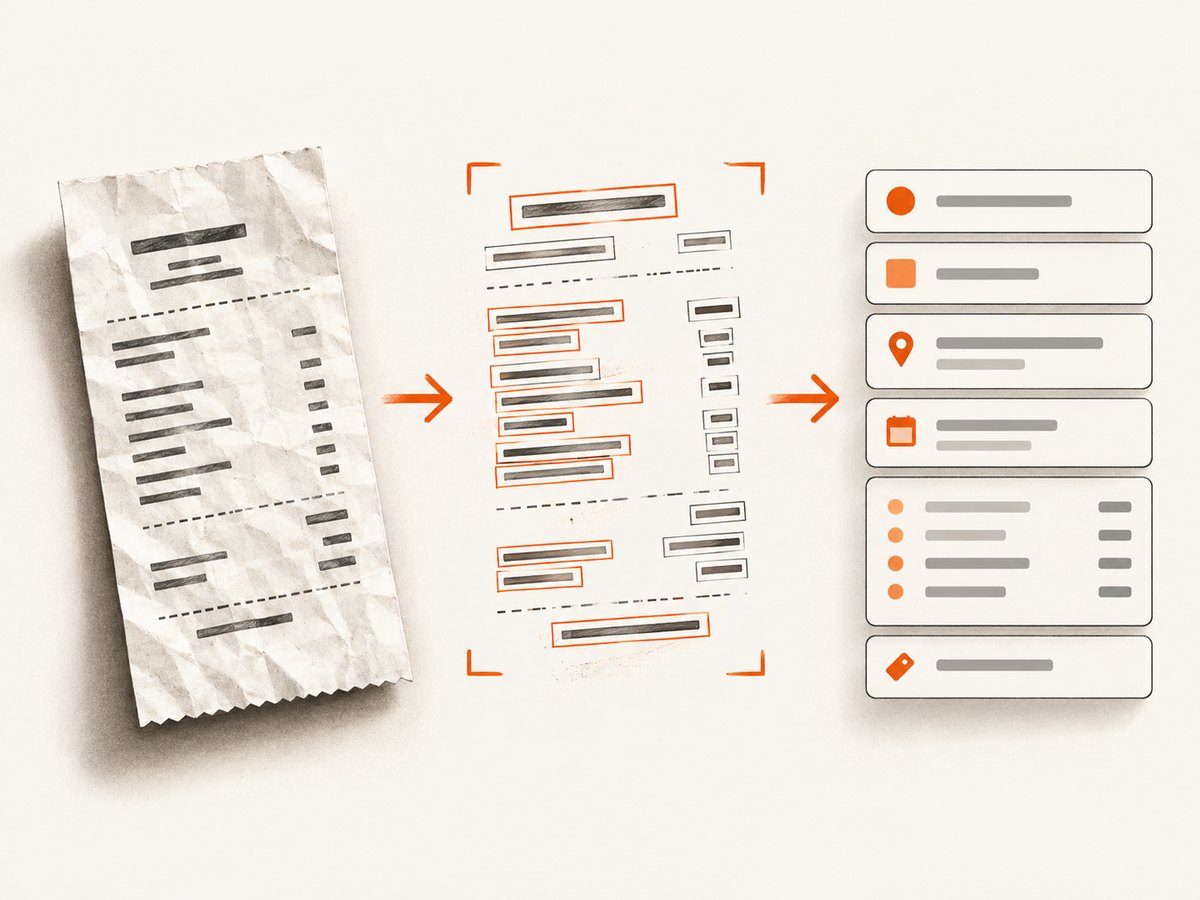
Extracting data from an expense receipt means more than making a searchable PDF. A useful workflow turns a complete receipt image into structured fields, checks those fields against the original, and preserves the connection between the data and the supporting document.
The reliable sequence is:
- Capture a clear, complete image of the receipt.
- Run OCR or receipt-extraction software.
- Review every important value against the original.
- Export the corrected record to your accounting or expense system.
- Store the image and extracted data under your recordkeeping policy.
OCR is a capture aid. It is not proof that an expense occurred, proof of payment, or evidence of the business purpose by itself.
Which fields should receipt extraction capture?
For U.S. small-business expense support, the IRS says supporting documents should identify the payee, amount paid, proof of payment, date incurred, and a description of the item purchased or service received. A single receipt may not show every element, so a card statement, account book, or contemporaneous note can provide related information. See the IRS guidance on what records to keep.
| Field | Why capture it | Review questions |
|---|---|---|
| Merchant or payee | Identifies who supplied the item or service. | Was the legal or trading name read correctly? Did OCR confuse a logo with text? |
| Date and time | Places the expense in the correct accounting period. | Is the date ambiguous, such as 03/04/2026? Does the receipt use a different locale? |
| Total paid | Usually the amount posted to the expense record. | Was the decimal point preserved? Is the total confused with subtotal or tax? |
| Proof of payment | Connects the receipt to a card, cash, transfer, or other payment record. | Does the receipt show a masked card, authorization, or payment method? If not, where is the complementary evidence? |
| Description | Explains what was purchased or which service was received. | Is a generic line such as “miscellaneous” sufficient for your policy? |
| Currency | Prevents incorrect conversion or posting. | Is the symbol clear? Was a foreign currency converted separately? |
| Subtotal, tax, and tip | Supports tax reporting and reconciliation. | Do these values add up to the total? |
| Line items | Useful for project allocation, inventory, reimbursements, or tax treatment. | Does the tool capture each item or only the receipt total? |
| Category, project, client, or cost center | Routes the expense in your own workflow. | Was this assigned by a rule or by a person? Is the assignment reviewable? |
For travel, gift, and transportation expenses, IRS Publication 463 ordinarily calls for amount, date, place, and the essential character of the expense. These are expense-specific substantiation requirements, not a universal OCR schema. Read Publication 463 for the applicable category and exceptions.
Step 1: Capture a complete receipt image
Capture the entire receipt, including the merchant name, date, totals, payment area, and any continuation pages. A cropped image that removes the top or bottom can produce a plausible but unusable record.
For occasional receipts
- Place the receipt on a flat, contrasting surface.
- Use even light and avoid glare from thermal paper.
- Hold the camera parallel to the receipt.
- Keep all four edges visible and make small print readable at full resolution.
- Save the original image before applying filters or compression.
For recurring paper batches
An existing office scanner may be enough for low volume. A receipt-handling scanner can reduce manual feeding for repeated stacks. Epson markets the RapidReceipt RR-60 as a mobile receipt and document scanner that turns receipts and invoices into categorized digital data and integrates with applications such as QuickBooks and TurboTax; those are manufacturer-described capabilities, so verify current model, software, country, and integration support before purchase. Epson’s WorkForce ES-60W is a general portable scanner whose product material lists receipt handling and OCR for searchable PDFs and editable Word and Excel files. General document OCR and receipt-management software are separate capabilities.
Image quality checklist
- All text is in focus at 100% zoom.
- No fold, finger, shadow, glare, or torn edge hides a field.
- The receipt is not rotated so far that text lines merge.
- Long receipts are captured as one continuous scan or clearly numbered parts.
- Images retain enough resolution for small tax and line-item text.
Step 2: Run OCR and receipt-field extraction
OCR recognizes visible characters. Receipt extraction adds interpretation: merchant, date, tax, total, and sometimes line items. A searchable PDF does not prove that those fields were identified correctly.
Before choosing a tool, ask:
- Does it return plain text, standard header fields, or itemized rows?
- Does it expose confidence scores or flag uncertain values?
- Can a reviewer correct values without reprocessing the image?
- Which formats can it export: CSV, JSON, PDF, spreadsheet, or accounting-specific data?
- Does it support your receipt languages, currencies, tax formats, and operating system?
- Can it preserve the original image beside the extracted record?
The sources reviewed do not establish a general current accuracy percentage for receipt OCR. Results vary with image quality, paper condition, unusual layouts, small print, and field-level support. Treat every extracted value as needing review.
Step 3: Validate the extracted record
Validation is where an OCR result becomes an accounting input. Compare the output with the original image, then reconcile arithmetic and context.
- Check identity: confirm the merchant and location.
- Check dates: resolve day/month order and confirm the incurred date.
- Check arithmetic: subtotal plus tax, tip, discounts, and fees should explain the total.
- Check currency: preserve the original currency and record any conversion separately.
- Check payment: match the receipt to a card, cash log, bank transaction, or other evidence.
- Check line items: verify quantities, prices, discounts, and taxable status when item detail matters.
- Check purpose: add a contemporaneous business-purpose note when the receipt does not explain it.
Do not let a high-confidence OCR value bypass review. A correctly recognized total can still belong to the wrong merchant, date, currency, or business purpose.
Step 4: Export to your expense workflow
Export the corrected data only after review. Keep a stable identifier that links the structured record to the original receipt image. Common patterns include:
- A JSON or CSV row with a receipt ID and an object-storage path.
- An accounting transaction whose attachment is the original image.
- A monthly archive containing both the source images and an export of corrected fields.
Preserve the raw image and the corrected version of the data. If a field was changed manually, your workflow should make that correction traceable where practical.
Step 5: Store records and understand retention
The IRS allows a business to choose a recordkeeping system suited to its needs if it clearly shows income and expenses. Electronic accounting systems are acceptable when they meet the same basic recordkeeping principles as other systems, and using a third-party service does not transfer your recordkeeping responsibility.
Publication 463 says records generally should be kept for three years from the filing date of the return on which a deduction is claimed, while also explaining that records must be retained as long as they may be needed for tax administration. This is not a rule that every receipt can be deleted after three years. Other records, amended returns, property, employment taxes, and local requirements can have different periods.
Choosing a scanner or receipt-extraction tool
| Decision area | Questions to answer |
|---|---|
| Volume | How many receipts arrive per day or month? Are they occasional photos or recurring batches? |
| Capture method | Will people use phones, a flatbed, a sheet-fed scanner, or a dedicated receipt device? |
| Output depth | Do you need searchable text, header fields, or line-item rows? |
| Review controls | Can staff correct ambiguous values and see the source image beside them? |
| Integrations | Does the current software connect to your accounting, reimbursement, or document system? |
| Compatibility | Are the required model, operating system, region, languages, and plan supported? |
| Total cost | Include hardware, software subscriptions, storage, labor for review, and maintenance. |
There is no source-backed universal receipt count at which a dedicated scanner becomes worthwhile. Compare your labor and error costs with the full purchase and software cost for your own volume.
Or skip the browser setup
If the receipt is displayed on a public web page, an invoice portal, or a hosted image, ScreenshotNeo can capture the page before you pass the image to your OCR pipeline. It is a website screenshot API, not an OCR engine, so you still validate and extract the receipt fields afterward. Its clean capture can accept cookie or consent banners and remove more than 60 known consent platforms, newsletter popups, and chat widgets before the shot. Each step can be turned off.
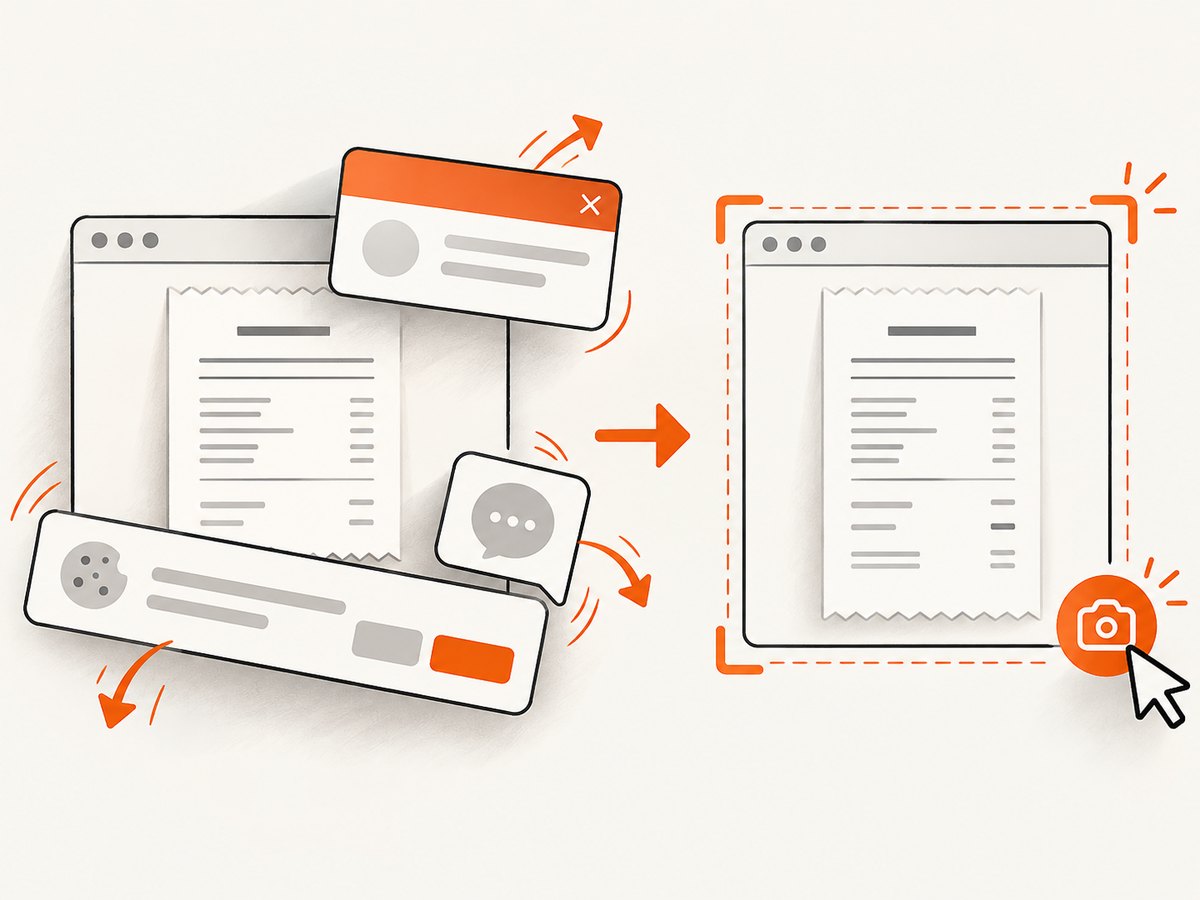
A one-call capture returns PNG, JPEG, WebP, or PDF. The API response reports whether the page was clean, failed, blank, blocked by a bot check, timed out, or served from cache; only clean shots are billed, while bot checks, blank pages, timeouts, failed loads, and cache hits cost nothing.
See the ScreenshotNeo API documentation for all options.
cURL
curl -G "https://api.screenshotneo.com/v1/shot" \
  -d access_key=YOUR_API_KEY \
  --data-urlencode url=https://stripe.com \
  -o shot.webp
Python
import requests

r = requests.get(
    "https://api.screenshotneo.com/v1/shot",
    params={"access_key": "YOUR_API_KEY", "url": "https://stripe.com"},
    timeout=90,
)
r.raise_for_status()
open("shot.webp", "wb").write(r.content)
Node.js
const q = new URLSearchParams({
  access_key: 'YOUR_API_KEY',
  url: 'https://stripe.com'
});
const res = await fetch(`https://api.screenshotneo.com/v1/shot?${q}`);
if (!res.ok) throw new Error(`Screenshot failed: ${res.status}`);
const buffer = Buffer.from(await res.arrayBuffer());
await import('node:fs/promises').then(fs => fs.writeFile('shot.webp', buffer));
Useful capture options for receipt pages include waiting for a selector, waiting for a delay or network idle, clicking an element before capture, hiding selectors, custom CSS or JavaScript, custom headers, cookies, user agents, Authorization, timezone, geolocation, full-page capture, element capture by CSS selector, dark mode, device presets, arbitrary viewports, retina scale, transparent backgrounds, image resizing, caching with a chosen TTL, signed links, asynchronous jobs with signed webhooks, and bulk capture for up to 100 URLs per call. The usage API and OpenAPI specification help you monitor and integrate the service.
ScreenshotNeo also provides an MCP server with take_screenshot, get_page_info, and capture_pdf tools for Claude, Cursor, and other MCP clients. It can be useful when an AI-assisted workflow needs to inspect a receipt page before sending the resulting image to OCR.
There are 1,000 screenshots per month on the free plan with no card. Paid plans start at $5 for 3,000 shots; every feature is included on every plan, and yearly billing gives two months free. Create a free ScreenshotNeo account.
Common errors and fixes
| Problem | Likely cause | Fix |
|---|---|---|
| Merchant name is wrong | Logo, stylized type, glare, or low resolution. | Rescan with even lighting; compare against the original and correct manually. |
| Total does not reconcile | OCR confused subtotal, tax, tip, discount, or decimal separator. | Recalculate from the receipt and store each component separately. |
| Date is off by a month or day | Locale ambiguity such as 04/05/2026. | Use the merchant or account locale and record an unambiguous normalized date. |
| Line items are missing | The tool performs header extraction only. | Choose line-item support or enter the required rows during review. |
| Text is incomplete | Cropped image, folded receipt, or a multi-page receipt. | Recapture the full document and join pages with a stable receipt ID. |
| OCR output is searchable but not structured | Plain OCR was used instead of receipt extraction. | Use a field-aware parser or map text into a schema during review. |
| ScreenshotNeo returns a non-clean verdict | Bot check, blank page, timeout, failed load, or cache hit. | Inspect the X-Page-Verdict and X-Billed headers; adjust wait, headers, cookies, or URL handling. |
| Screenshot API request times out | The page is slow or waits on resources that never finish. | Use a selector or delay wait, block unnecessary resource types, or capture a stable element instead of the entire page. |
Performance, reliability, and cost practices
- Capture once, reuse often: Store the source image and derived OCR data so you do not repeatedly process the same receipt.
- Use the smallest sufficient image: Keep enough resolution for small print, then resize derivatives for previews.
- Prefer deterministic waits: A selector or known delay is often more predictable than waiting indefinitely for every network request.
- Separate extraction from posting: Put uncertain records in a review queue before they reach accounting.
- Track provenance: Keep source URL, capture time, receipt ID, OCR version, and manual corrections when your audit needs them.
- Budget review labor: Hardware or API price does not include the time needed to correct ambiguous fields.
- Use caching carefully: Cache a page only when the receipt content is stable and a stale image cannot affect reconciliation.
FAQ
Is a photo of a receipt enough?
It can be a useful electronic record if it is complete, readable, retrievable, and managed under your applicable policy. It may still need complementary proof of payment or a business-purpose note.
Does OCR prove that an expense is deductible?
No. OCR recognizes content. It does not establish business purpose, payment, or tax treatment.
Should I capture line items?
Capture them when you need project allocation, inventory, reimbursement detail, or item-level tax treatment. A total-only workflow may be sufficient for simpler bookkeeping.
Can I delete the original receipt after exporting fields?
Do not assume so. Keep the original and the extracted record for the retention period that applies to your tax, accounting, employer, and jurisdictional requirements.
Can ScreenshotNeo extract receipt text?
ScreenshotNeo captures web pages and PDFs. Use the resulting image as input to your OCR or receipt-extraction system, then review the extracted fields against the source.


