How to Extract Div Content as Text in Headless Chrome
Extract rendered or raw div text with Playwright and Puppeteer, handle iframes and timing, and troubleshoot missing or unexpected content.

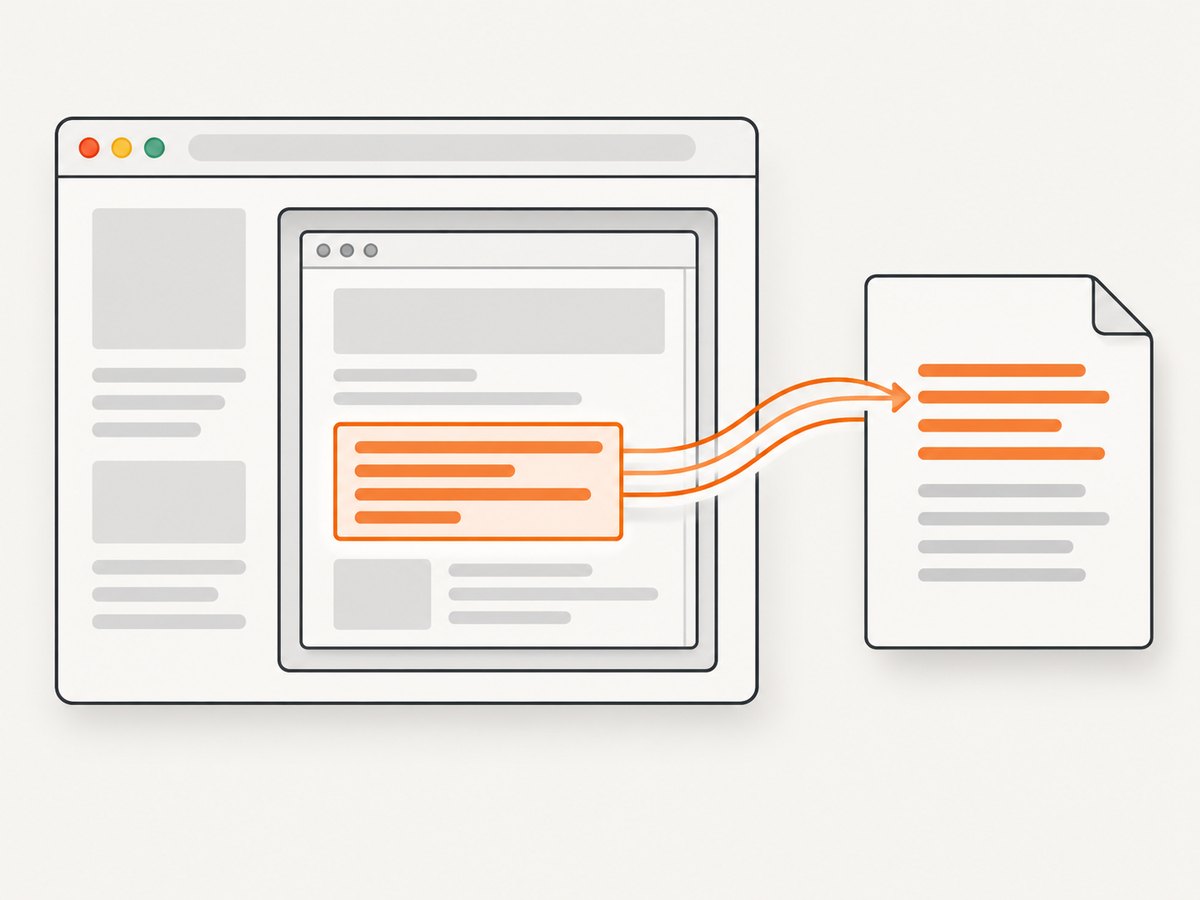
Direct answer: select the target div and read innerText for rendered, user-visible text or textContent for the raw descendant text in the DOM. In Playwright, use locator methods; in Puppeteer, evaluate the selected element in the page context. A div inside an iframe belongs to that frame’s document, so switch to the frame before selecting it.
Choose between innerText and textContent
| Property | Use it when | What you get |
|---|---|---|
innerText |
You need what a user can read | Rendered text, with layout-aware line breaks and visibility effects |
textContent |
You need the DOM’s text | Descendant text, including text in hidden elements; formatting is not layout-aware |
Use a stable selector such as an ID, data attribute, or a scoped locator. If the element may not exist, handle a missing match instead of assuming a value is returned. In Playwright’s ElementHandle API, textContent() can be nullable.
Extract div text with Playwright
Install Playwright and its browser binaries:
npm install playwright
npx playwright install chromium
This complete script reads both forms of text from one element:
import { chromium } from 'playwright';

const browser = await chromium.launch({ headless: true });
const page = await browser.newPage();
await page.goto('https://example.com', { waitUntil: 'domcontentloaded' });

const div = page.locator('#target');
const visibleText = await div.innerText();
const rawText = await div.textContent();

console.log({ visibleText, rawText });
await browser.close();
Playwright documents locator.innerText() as returning the element’s innerText and locator.textContent() as returning its textContent. Its locator API also includes allInnerTexts() and allTextContents() for multiple matches. The locator reference is at playwright.dev/docs/api/class-locator. Page-level page.innerText(selector) and page.textContent(selector) exist, but Playwright marks those methods as discouraged in favor of locators; see the Page reference.
Handle a missing element explicitly
const target = page.locator('[data-testid="article-summary"]');

if (await target.count() === 0) {
  throw new Error('The article summary was not found');
}

const text = await target.innerText();
console.log(text.trim());
For a required single match, make the selector specific. A locator can wait for an element to become available, but it cannot identify the correct node if a broad selector matches several unrelated div elements.
Read multiple divs
const cards = page.locator('.card .description');
const rendered = await cards.allInnerTexts();
const raw = await cards.allTextContents();

console.log({ rendered, raw });
Extract div text with Puppeteer
Install Puppeteer:
npm install puppeteerPuppeteer runs in headless mode by default, as described on its official site. Use $eval to select one element and evaluate its text properties inside the page:
import puppeteer from 'puppeteer';

const browser = await puppeteer.launch({ headless: true });
const page = await browser.newPage();
await page.goto('https://example.com', { waitUntil: 'domcontentloaded' });

const result = await page.$eval('#target', el => ({
  visibleText: el.innerText,
  rawText: el.textContent
}));

console.log(result);
await browser.close();
If no element matches, $eval throws. Convert that into a useful application error:
const element = await page.$('[data-testid="article-summary"]');
if (!element) {
  throw new Error('article-summary does not exist on this page');
}

const text = await page.$eval(
  '[data-testid="article-summary"]',
  el => el.innerText
);
console.log(text.trim());
Puppeteer’s getting-started guide demonstrates locating an element and evaluating el.textContent; see pptr.dev/guides/getting-started.
Extract text from a div inside an iframe
An iframe has a separate document. Selecting #target on the parent page will not find an element inside it.
Playwright frame locator
const frame = page.frameLocator('iframe[data-testid="checkout-frame"]');
const frameText = await frame.locator('#target').innerText();
console.log(frameText);
You can read raw DOM text the same way:
const rawFrameText = await frame.locator('#target').textContent();
console.log(rawFrameText ?? '');
For a frame you identify by URL or name, obtain a Frame object and use its methods:
const child = page.frames().find(f => f.url().includes('/embedded-content'));
if (!child) throw new Error('Embedded frame was not created');

const text = await child.locator('#target').innerText();
console.log(text);
Playwright’s Frame API documents frame-scoped innerText(selector) and textContent(selector) methods at playwright.dev/docs/api/class-frame. A cross-origin iframe is still readable through Playwright’s frame automation APIs when the frame has loaded; browser same-origin restrictions mainly affect direct page JavaScript access.
Puppeteer iframe handling
const iframeElement = await page.$('iframe[data-testid="checkout-frame"]');
if (!iframeElement) throw new Error('Iframe not found');

const frame = await iframeElement.contentFrame();
if (!frame) throw new Error('Iframe has no content frame');

const text = await frame.$eval('#target', el => el.innerText);
console.log(text);
Dynamic pages, timing, and selectors
Read the text only after the page has created and populated the target node. Navigation completion alone does not guarantee that client-rendered content is ready.
await page.goto('https://example.com/dashboard', { waitUntil: 'networkidle' });
const summary = page.locator('[data-testid="summary"]');
await summary.waitFor({ state: 'visible' });
const text = await summary.innerText();
Use a selector wait when the node exists before its contents arrive. If the application has a reliable state marker, wait for that marker instead of sleeping for an arbitrary delay:
await page.waitForSelector('[data-loaded="true"]');
const text = await page.locator('#target').innerText();
Prefer IDs and data attributes over classes generated by a CSS-in-JS system. Scope a selector to a known container when repeated cards or nested components use the same class.
Normalize extracted text safely
Keep the original value when whitespace and line breaks carry meaning. For search indexing or a single-line field, normalize a copy:
const raw = await page.locator('#target').innerText();
const normalized = raw.replace(/\s+/g, ' ').trim();
console.log({ raw, normalized });
Do not use normalization to hide a selector or rendering bug. Save the raw result while diagnosing unexpected output.
Special cases
Hidden descendants
textContent may include text from descendants hidden with CSS or attributes. innerText is the better choice for content a user would see, but visibility is evaluated using layout and styling, so it can be affected by page state.
Shadow DOM
For an open shadow root, use Playwright’s locator chaining:
const text = await page
  .locator('user-card')
  .locator('[data-testid="name"]')
  .innerText();
If the component uses a closed shadow root, normal page selectors cannot inspect its internal nodes. Expose the value through a component attribute or an application-level API instead.
Text created by pseudo-elements
Generated content from CSS ::before or ::after is not a normal descendant text node. If it matters, read the computed style or extract the source data that produced it rather than expecting textContent to contain it.
Whitespace, entities, and line breaks
HTML entities are returned as their decoded characters. Line breaks can differ between innerText and textContent; compare both when a downstream parser depends on exact formatting.
Complete extraction script with retries and output
import { chromium } from 'playwright';

const url = process.argv[2] ?? 'https://example.com';
const selector = process.argv[3] ?? '#target';

const browser = await chromium.launch({ headless: true });
try {
  const page = await browser.newPage();
  await page.goto(url, { waitUntil: 'domcontentloaded', timeout: 30_000 });

  const target = page.locator(selector);
  await target.waitFor({ state: 'attached', timeout: 10_000 });

  const visibleText = await target.innerText();
  const rawText = await target.textContent();

  console.log(JSON.stringify({
    url: page.url(),
    selector,
    visibleText,
    rawText,
    normalized: visibleText.replace(/\\s+/g, ' ').trim()
  }, null, 2));
} finally {
  await browser.close();
}
Or skip the browser setup
ScreenshotNeo provides a website screenshot API and MCP server. It captures a page with one GET request, so you do not need to manage Chromium for image or PDF capture. See the ScreenshotNeo API documentation for parameters and response details.

cURL
curl -G "https://api.screenshotneo.com/v1/shot" -d access_key=YOUR_API_KEY --data-urlencode url=https://example.com -o shot.webpPython
import requests
r = requests.get("https://api.screenshotneo.com/v1/shot", params={"access_key": "YOUR_API_KEY", "url": "https://example.com"}, timeout=90)
open("shot.webp", "wb").write(r.content)
Node.js
const q = new URLSearchParams({ access_key: 'YOUR_API_KEY', url: 'https://example.com' }); const res = await fetch(`https://api.screenshotneo.com/v1/shot?${q}`);Before capture, ScreenshotNeo accepts cookie and consent banners like a visitor and removes more than 60 known consent platforms, newsletter popups, and chat widgets. Each step can be turned off. Bot checks and CAPTCHAs, blank pages, timeouts, failed loads, and cache hits are not billed; the response identifies the result with X-Page-Verdict and X-Billed headers. Its MCP server provides take_screenshot, get_page_info, and capture_pdf tools for Claude, Cursor, and other MCP clients. The free plan includes 1,000 screenshots per month with no card; paid plans start at $5 for 3,000 shots.
Start with 1,000 free screenshots a month, with no card required.
Troubleshooting
| Symptom | Likely cause | Fix |
|---|---|---|
locator.innerText times out |
The selector is wrong, the element is in an iframe, or rendering has not finished | Check the selector, switch to the correct frame, and wait for a reliable visible or loaded state |
$eval says “failed to find element” |
No node matched at evaluation time | Call page.$ first, wait for the selector, and verify the URL and page state |
| Text is empty | The node is a container populated later, or the text is in a child frame or shadow root | Wait for content, inspect frames, and use a shadow-DOM-aware locator |
| Hidden text appears unexpectedly | textContent includes hidden descendants |
Use innerText for rendered text or filter the DOM intentionally |
| Line breaks differ | innerText applies layout-aware formatting while textContent does not |
Choose the property that matches the output contract and test normalization separately |
| Only part of a page is captured | The target is inside a nested browsing context or the page has not loaded its lazy content | Use frame-scoped extraction for text; for screenshots, enable full-page capture and an appropriate wait condition |
Performance, reliability, and cost
- Reuse one browser process and create pages or contexts per job instead of launching Chromium for every element.
- Use a specific selector and extract only the needed property; reading a large document’s
textContentcreates more data than reading one div. - Set navigation and selector timeouts, close pages in a
finallyblock, and retry transient navigation failures with a limit. - Wait for application signals such as a loaded attribute or selector instead of a fixed sleep. This reduces both premature reads and unnecessary delay.
- For repeat screenshot work, ScreenshotNeo supports caching with a TTL you choose. Cache hits are not billed, and failed loads, blank pages, bot checks, and timeouts are not billed.
- ScreenshotNeo also supports custom headers, cookies, user agents, authorization, timezone, geolocation, request blocking, custom JavaScript and CSS, element capture, full-page capture, device presets, retina scale, and PDF options when a capture requires more than the default page.
FAQ
Which is faster, innerText or textContent?
They have different semantics. innerText can depend on layout and visibility; textContent reads the DOM tree. Choose based on the required output rather than an assumed speed difference.
Can I extract text without displaying a browser window?
Yes. Playwright and Puppeteer run Chromium headlessly. Puppeteer’s official documentation describes headless mode as the default.
Why does a selector work in DevTools but fail in automation?
The automation page may be at a different URL, may not have finished rendering, or may place the node inside an iframe or shadow root. Inspect those boundaries and wait for the same application state your interactive session reaches.
Can screenshot APIs return the text itself?
Screenshot APIs primarily return images or PDFs. Use Playwright or Puppeteer when your output is text; use ScreenshotNeo when you need a managed screenshot or PDF capture without browser setup.
How should I handle a null text value?
Check for a missing node and treat a nullable textContent result as an empty or explicitly missing value according to your application contract. Do not silently convert a selector failure into valid content.


