How to Extract Option Values from Dynamic Dropdowns with Python
Use Selenium waits and the right DOM strategy to extract values from native and custom JavaScript dropdowns in Python.

Use Selenium to wait until the dropdown has populated, then choose the extraction method that matches its HTML. For a native <select>, wrap the element with Selenium’s Select helper and read Select.options. For a custom JavaScript widget built from div, button or li elements, open the widget, wait for its rendered options, and read the page-specific value attribute or visible text.
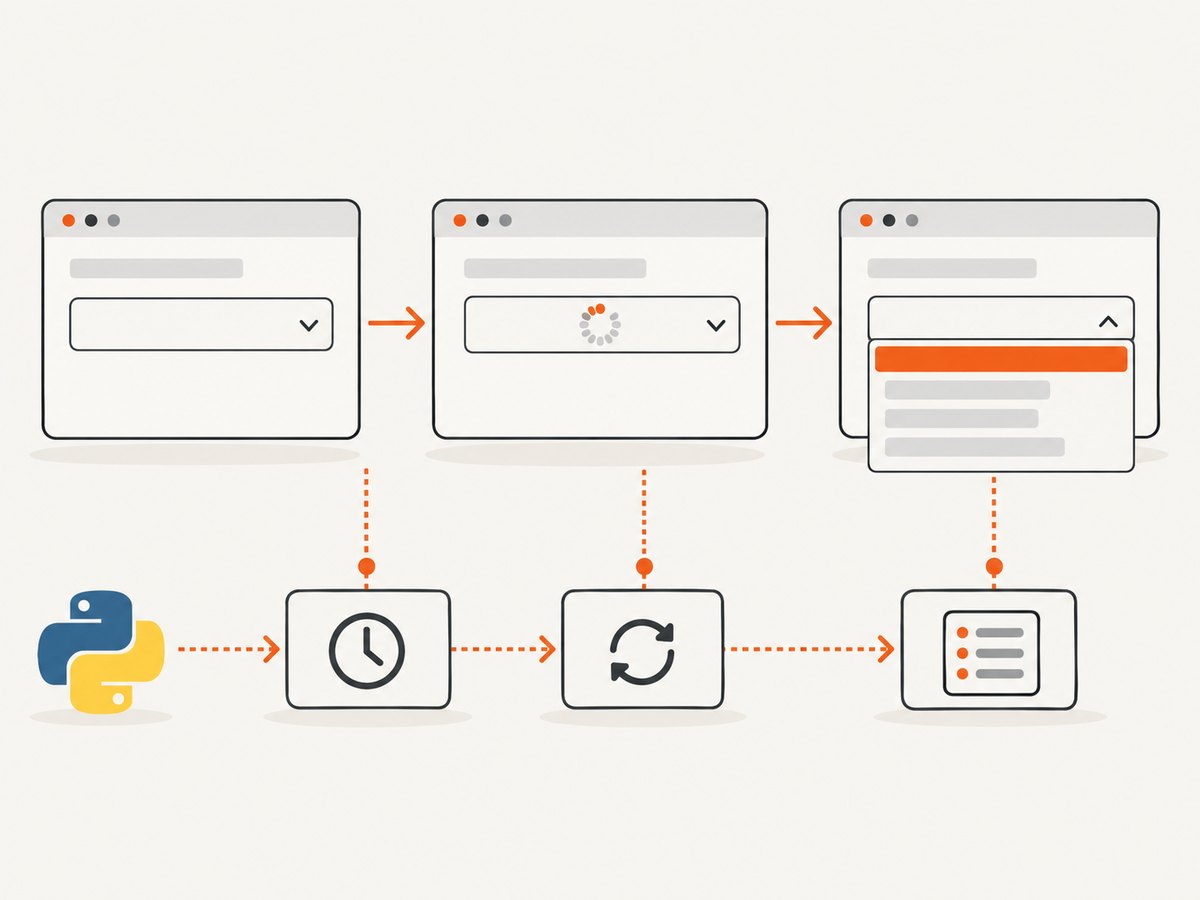
Document readiness alone does not guarantee that JavaScript has finished adding options. Waiting for the state your next operation needs prevents the race conditions that make browser automation flaky.
1. Install Selenium and start a driver
python -m pip install seleniumSelenium 4 can manage a compatible browser driver in common setups. The example below uses Chrome:
from selenium import webdriver

options = webdriver.ChromeOptions()
options.add_argument("--headless=new")

driver = webdriver.Chrome(options=options)
try:
    driver.get("https://example.com/form")
    # Extraction code goes here.
finally:
    driver.quit()
Use a real URL and a locator that matches the page you are automating. Keep the browser lifecycle in try/finally so failed runs still close the driver.
2. Extract values from a native HTML select
A native dropdown has a <select> element containing <option> elements. Selenium’s Select helper is designed specifically for that structure.
from selenium import webdriver
from selenium.webdriver.common.by import By
from selenium.webdriver.support.ui import Select, WebDriverWait

options = webdriver.ChromeOptions()
options.add_argument("--headless=new")
driver = webdriver.Chrome(options=options)

try:
    driver.get("https://example.com/form")
    wait = WebDriverWait(driver, 10)

    select_element = wait.until(
        lambda d: d.find_element(By.ID, "country")
    )
    select = Select(select_element)

    # Preserve an explicitly empty value="" and fall back to text only
    # when the value attribute is missing entirely.
    values = [
        option.get_attribute("value")
        if option.get_attribute("value") is not None
        else option.text
        for option in select.options
    ]

    print(values)
finally:
    driver.quit()
Values versus labels
The submitted value comes from the option’s value attribute. If that attribute is omitted, HTML uses the option text as the value. A deliberately empty value="" is different from a missing attribute, so do not use a truthiness fallback such as value or text when empty values matter.
for option in select.options:
    raw_value = option.get_attribute("value")
    label = option.text
    print({"value": raw_value, "label": label})
If the page has a placeholder such as <option value="">Choose a country</option>, filter it deliberately:
real_values = [
    option.get_attribute("value")
    if option.get_attribute("value") is not None
    else option.text
    for option in select.options
    if option.get_attribute("value") != ""
]
Read the selected option only
selected = select.first_selected_option
print(selected.get_attribute("value"))

selected_options = select.all_selected_options
for option in selected_options:
    print(option.text, option.get_attribute("value"))
Select.options answers “what options are available?” The selected-option properties answer “what is selected now?”
3. Wait for JavaScript to populate the options
An element can exist before its options arrive. Wait for a known option, a minimum option count, or another condition that proves the control is ready.
Wait for a known value
from selenium.webdriver.common.by import By
from selenium.webdriver.support.ui import Select, WebDriverWait

wait = WebDriverWait(driver, 10)
select_locator = (By.ID, "country")

wait.until(
    lambda d: any(
        option.get_attribute("value") == "CA"
        for option in Select(d.find_element(*select_locator)).options
    )
)

values = [
    option.get_attribute("value")
    if option.get_attribute("value") is not None
    else option.text
    for option in Select(driver.find_element(*select_locator)).options
]
Wait for more than a placeholder
wait.until(
    lambda d: len(Select(d.find_element(By.ID, "country")).options) > 1
)
Use a condition tied to the page’s contract. A count greater than one is useful when the only initial entry is a placeholder; a known value is safer when the number of options can vary.
Wait for a specific option element
from selenium.webdriver.support import expected_conditions as EC

wait.until(
    EC.presence_of_element_located(
        (By.CSS_SELECTOR, "#country option[value='CA']")
    )
)
Explicit waits poll periodically (0.5 seconds by default in Selenium’s Python API). A fixed sleep can waste time on fast responses and still fail on slow ones, so use it only when a site has a documented animation delay that cannot be observed another way.
4. Handle dependent dropdowns
When a child dropdown is repopulated after changing a parent, reacquire the child element and wait for the new state. The page may replace the entire <select> node.
from selenium.webdriver.common.by import By
from selenium.webdriver.support.ui import Select, WebDriverWait

wait = WebDriverWait(driver, 10)
country = Select(wait.until(lambda d: d.find_element(By.ID, "country")))
country.select_by_value("US")

# Wait for the dependent option to appear after the change.
wait.until(
    lambda d: any(
        option.get_attribute("value") == "CA"
        for option in Select(d.find_element(By.ID, "state")).options
    )
)

state = Select(driver.find_element(By.ID, "state"))
state_values = [
    option.get_attribute("value")
    if option.get_attribute("value") is not None
    else option.text
    for option in state.options
]
Do not retain a stale reference across a rebuild. If Selenium raises StaleElementReferenceException, locate the child again inside the wait or immediately before reading it.
5. Extract options from a custom JavaScript dropdown
Many libraries render a button or div and create an overlay list after it is clicked. Selenium’s Select helper does not support that markup.
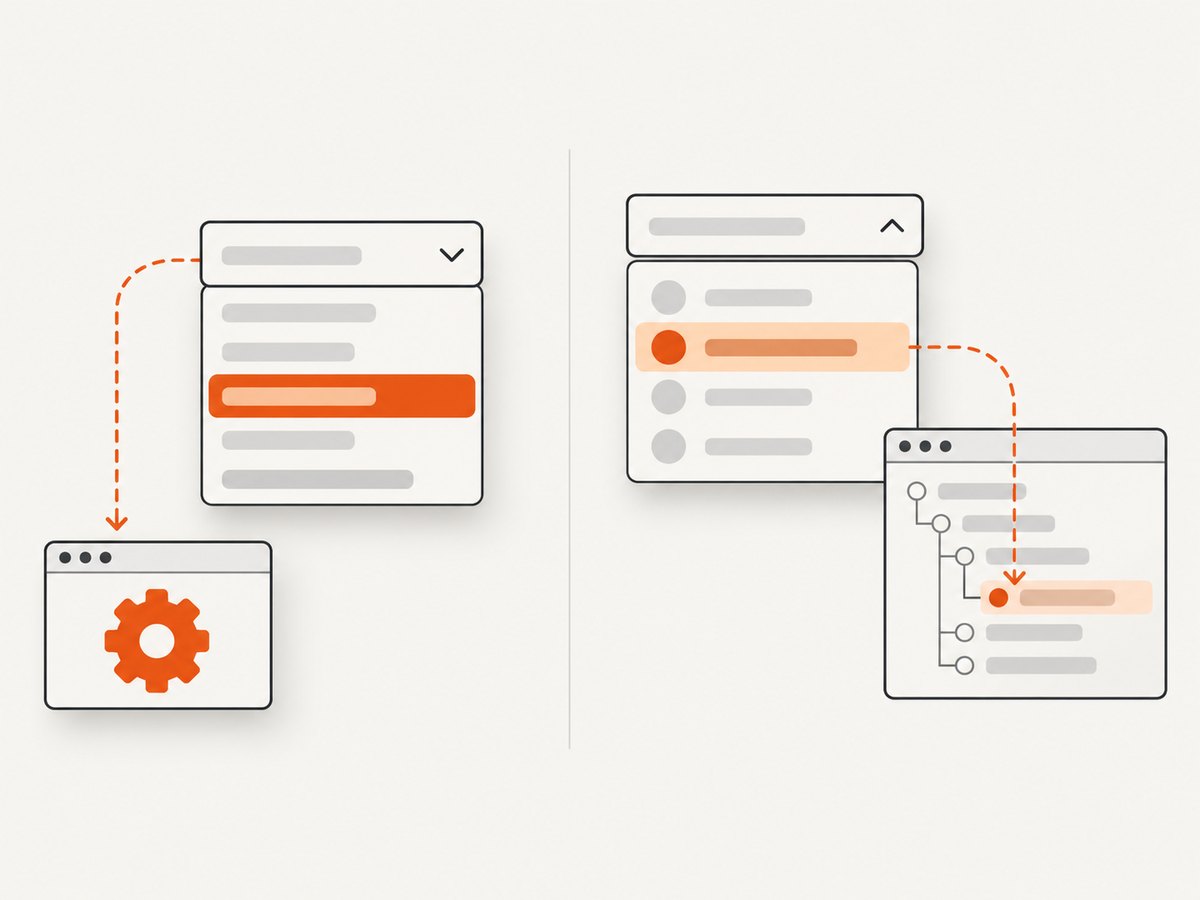
- Inspect the live DOM after the widget has rendered.
- Locate the trigger with a stable ID, accessible label, or data attribute.
- Click it and wait for the option container to become visible.
- Read the page-specific value attribute, such as
data-value, or the visible text.
from selenium.webdriver.common.by import By
from selenium.webdriver.support import expected_conditions as EC
from selenium.webdriver.support.ui import WebDriverWait

wait = WebDriverWait(driver, 10)
trigger = wait.until(
    EC.element_to_be_clickable((By.CSS_SELECTOR, "[aria-label='Country']"))
)
trigger.click()

listbox = wait.until(
    EC.visibility_of_element_located((By.CSS_SELECTOR, "[role='listbox']"))
)

option_nodes = listbox.find_elements(By.CSS_SELECTOR, "[role='option']")
items = [
    {
        "value": node.get_attribute("data-value"),
        "label": node.text,
    }
    for node in option_nodes
]
print(items)
The selectors above are illustrative. Custom widgets differ, so use the attributes exposed by the page you own or have permission to automate. Prefer semantic roles, accessible names, stable IDs, and documented data attributes over generated class names or positional XPath.
When options are created only after typing
from selenium.webdriver.common.keys import Keys

trigger.send_keys("Can")
wait.until(
    lambda d: any(
        "Canada" in node.text
        for node in d.find_elements(By.CSS_SELECTOR, "[role='option']")
    )
)
labels = [node.text for node in driver.find_elements(By.CSS_SELECTOR, "[role='option']")]
print(labels)
6. Return a reusable extraction function
from selenium.webdriver.common.by import By
from selenium.webdriver.support.ui import Select, WebDriverWait


def option_values(driver, locator, timeout=10, minimum=1):
    wait = WebDriverWait(driver, timeout)

    def ready(d):
        element = d.find_element(*locator)
        options = Select(element).options
        return options if len(options) >= minimum else False

    options = wait.until(ready)
    return [
        option.get_attribute("value")
        if option.get_attribute("value") is not None
        else option.text
        for option in options
    ]

values = option_values(driver, (By.ID, "country"), minimum=2)
For production code, return both value and label when downstream consumers need to display choices or audit what was submitted.
7. Troubleshooting
| Symptom | Cause | Fix |
|---|---|---|
UnexpectedTagNameException |
The element is not a native <select>. |
Inspect the DOM and use custom-widget interaction instead of Select. |
| Empty option list | JavaScript has not populated the control yet. | Wait for a known option, a meaningful count, or another ready condition. |
TimeoutException |
The locator or readiness condition never became true. | Verify the URL, frame, selector, network response, and expected value; increase the timeout only after fixing the condition. |
StaleElementReferenceException |
A dependent dropdown replaced the element. | Re-find the element after the parent change and inside the wait callback. |
Wrong result from value or text |
An intentional empty value was treated as missing. | Check whether get_attribute("value") is None instead. |
| Options are visible but extraction returns none | The widget uses an overlay outside the trigger’s subtree. | Locate the rendered listbox or menu at the document level after opening it. |
| Only the first page of options appears | The widget virtualizes or lazy-loads results. | Scroll or paginate according to the widget’s behavior, waiting for additional nodes after each action. |
| Element is inside an iframe | WebDriver is still in the top-level document. | Switch to the frame before locating the dropdown, then switch back afterward. |
8. Performance and reliability
- Use one driver session for related pages instead of starting a browser for every dropdown.
- Keep locators stable and specific; broad XPath searches cost time and break when markup changes.
- Wait for the smallest condition that proves readiness. Waiting for network idle is not always necessary when a known option is the real requirement.
- Capture diagnostics on failure: current URL, page source, screenshot, option count, and the exception message.
- Set a timeout that matches the slowest expected API response, then fail clearly rather than looping forever.
- For large option sets, extract attributes in one pass and avoid repeated remote calls where possible.
- Respect authentication, rate limits, robots policies, and the site’s terms. Do not automate controls you are not authorized to access.
9. Or skip the browser setup
If your actual goal is to obtain a clean visual capture of a page or document after its JavaScript has rendered, ScreenshotNeo provides a single screenshot request instead of maintaining Selenium infrastructure. See the ScreenshotNeo API documentation for the full parameter set.
curl -G "https://api.screenshotneo.com/v1/shot" -d access_key=YOUR_API_KEY --data-urlencode url=https://stripe.com -o shot.webpimport requests
r = requests.get(
"https://api.screenshotneo.com/v1/shot",
params={"access_key": "YOUR_API_KEY", "url": "https://stripe.com"},
timeout=90,
)
r.raise_for_status()
open("shot.webp", "wb").write(r.content)const q = new URLSearchParams({ access_key: 'YOUR_API_KEY', url: 'https://stripe.com' });
const res = await fetch(`https://api.screenshotneo.com/v1/shot?${q}`);
if (!res.ok) throw new Error(`HTTP ${res.status}`);
const buffer = Buffer.from(await res.arrayBuffer());
await import('node:fs/promises').then(fs => fs.writeFile('shot.webp', buffer));Cookie banners, newsletter popups and chat widgets are removed before the shot. Bot checks, blank pages, timeouts, failed loads and cache hits are not billed, and the response reports the page verdict and billing status in X-Page-Verdict and X-Billed headers. An MCP server lets Claude, Cursor and other MCP clients use take_screenshot, get_page_info and capture_pdf. The Free plan includes 1,000 screenshots per month with no card; paid plans start at $5 for 3,000 shots.
Create a free ScreenshotNeo account to get started.
10. FAQ
Can Selenium read a dropdown without selecting an option?
Yes. Read Select.options directly; selecting is only needed when you want to change the control’s state.
Should I extract labels or values?
Use the value attribute for form submission and the visible text for display. Return both when the consumer needs both meanings.
Why does page load completion not solve this?
JavaScript can add or replace options after document readiness. Synchronize on the option state your code needs.
What if the dropdown is rendered with React or another framework?
The framework is less important than the final DOM. If the final control is a native select, use Select; otherwise interact with the rendered custom widget.
Can one selector work for every custom dropdown?
No. Custom widgets expose different markup and attributes. Inspect the live DOM and choose stable, semantic locators for that implementation.


