How to Extract an Embedded PDF from a Web Page with Puppeteer
Find the PDF URL in a page’s frames or network requests, then retrieve and verify the original bytes with Puppeteer and Node.js.

To extract an embedded PDF with Puppeteer, first find the PDF resource URL in the page’s frames or network requests, then retrieve that resource and verify the returned bytes. An embedded PDF is a file loaded by a page; page.pdf() instead creates a new PDF by printing the current page. Use it only when you want a printable version of the page, not the original embedded document.
The workflow below starts with a runnable Node.js script that inspects frames and embedded-element markup, then monitors requests if the URL is loaded dynamically. It saves the actual PDF response after checking its HTTP status and basic file signature. The target site may require cookies, authorization, or an interaction before it exposes the file, so no single extraction path works for every page.
1. Set up Puppeteer
Use a current Puppeteer version and a supported Node.js runtime. Install Puppeteer in an empty project directory:
npm init -y
npm install puppeteer
Puppeteer normally downloads a compatible browser as part of installation. If your environment manages its own Chrome or Chromium, configure the executable path for that environment and make sure the installed browser is compatible with your Puppeteer version.
Save the following as extract-embedded-pdf.js. It visits a host page, prints frame URLs and relevant HTML attributes, records requests whose URL or response headers indicate a PDF, and saves the first successful candidate. Supply the host page as the first command-line argument.
const fs = require('node:fs/promises');
const puppeteer = require('puppeteer');

const hostUrl = process.argv[2];
if (!hostUrl) {
  console.error('Usage: node extract-embedded-pdf.js <host-page-url>');
  process.exit(1);
}

function looksLikePdfUrl(value = '') {
  try {
    const url = new URL(value);
    return /\.pdf(?:$|[?#])/i.test(url.pathname + url.search + url.hash);
  } catch {
    return false;
  }
}

(async () => {
  const browser = await puppeteer.launch({ headless: true });
  try {
    const page = await browser.newPage();
    const candidates = new Map();

    page.on('requestfinished', request => {
      const url = request.url();
      if (looksLikePdfUrl(url)) candidates.set(url, { url, source: 'request URL' });
    });

    page.on('response', response => {
      const headers = response.headers();
      const url = response.url();
      const contentType = (headers['content-type'] || '').toLowerCase();
      if (contentType.includes('application/pdf') || looksLikePdfUrl(url)) {
        candidates.set(url, { url, source: 'response', status: response.status(), contentType });
      }
    });

    await page.goto(hostUrl, { waitUntil: 'domcontentloaded', timeout: 60000 });

    const frames = page.frames();
    console.log('Frames:');
    for (const frame of frames) console.log(`- ${frame.url()}`);

    const embedded = await page.evaluate(() =>
      [...document.querySelectorAll('iframe, embed, object')].map(el => ({
        tag: el.tagName.toLowerCase(),
        src: el.getAttribute('src'),
        data: el.getAttribute('data'),
        type: el.getAttribute('type'),
      }))
    );
    console.log('Embedded elements:', embedded);

    // Give scripts time to request resources. Trigger site controls yourself if needed.
    await new Promise(resolve => setTimeout(resolve, 3000));

    const candidate = [...candidates.values()].find(item => item.status === undefined || item.status >= 200 && item.status < 300);
    if (!candidate) {
      console.error('No likely PDF request found. Inspect the frame and element URLs, then try request monitoring around the viewer interaction.');
      process.exitCode = 2;
      return;
    }

    console.log('Candidate:', candidate);
    const response = await page.goto(candidate.url, { waitUntil: 'domcontentloaded', timeout: 60000 });
    if (!response) throw new Error('The candidate navigation returned no HTTP response.');
    if (response.status() < 200 || response.status() >= 300) {
      throw new Error(`PDF request returned HTTP ${response.status()}`);
    }

    const bytes = await response.buffer();
    if (bytes.length < 5 || bytes.subarray(0, 5).toString('ascii') !== '%PDF-') {
      throw new Error('The response did not start with the PDF signature; it may be an HTML viewer or an error page.');
    }
    await fs.writeFile('embedded.pdf', bytes);
    console.log(`Saved embedded.pdf (${bytes.length} bytes)`);
  } finally {
    await browser.close();
  }
})().catch(error => {
  console.error(error);
  process.exitCode = 1;
});
Run it with a page that embeds a document:
node extract-embedded-pdf.js https://example.com/page-with-documentThe example is a discovery starting point, not a universal scraper. It chooses a likely candidate; pages with multiple PDFs, viewer wrappers, signed URLs, redirects, or authentication need a more specific selection and retrieval step. Do not run it against a URL you are not authorized to access.
2. Inspect frames and embedded markup first
Many pages expose the resource in an iframe, embed, or object. Puppeteer’s Page API provides frames(), mainFrame(), and frame content() for examining attached frames and their HTML. The sample reports frame URLs and the common URL-bearing attributes. [Puppeteer Page API]
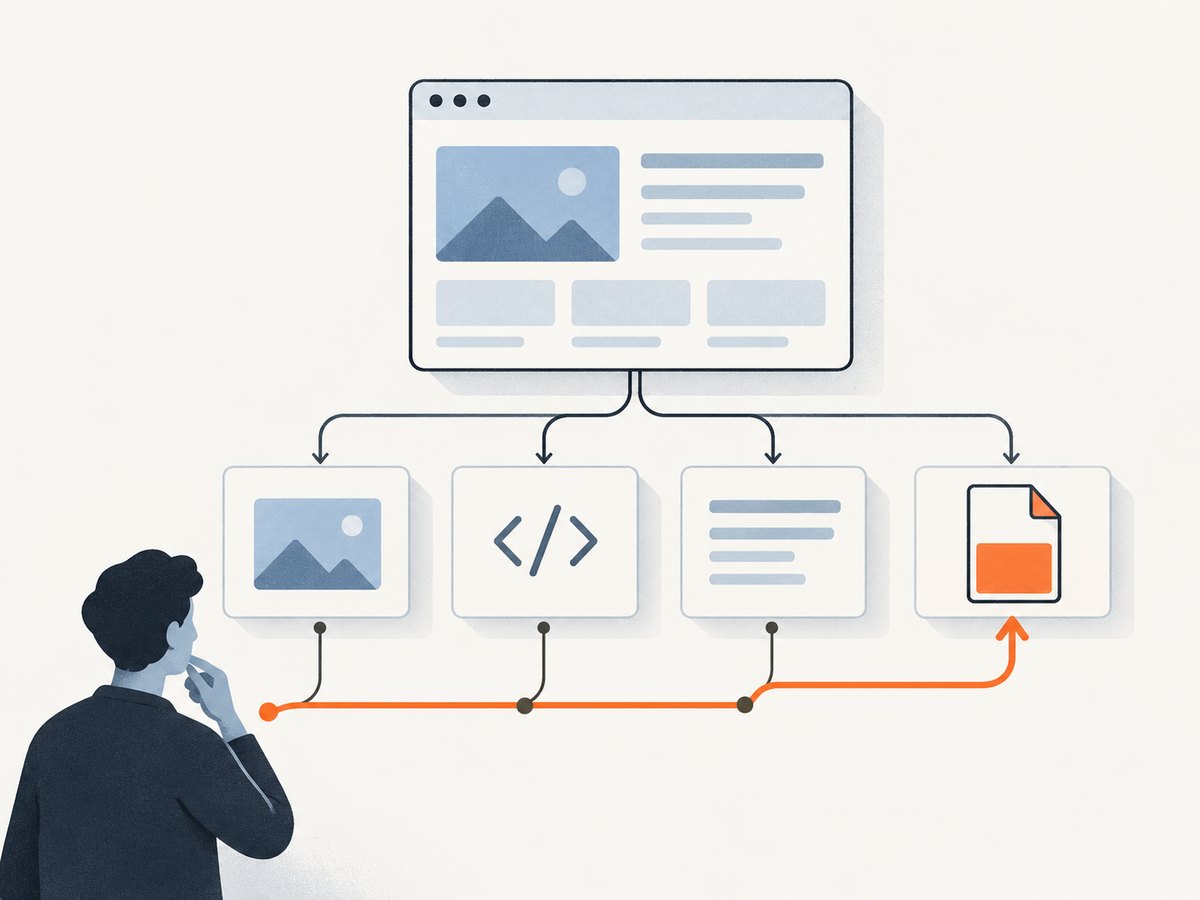
Interpret what you find before downloading:
- A URL ending in
.pdfmay point directly to the PDF, but extension alone does not prove it. - An iframe may point to an HTML viewer. Inspect that frame’s URL and markup; the viewer may load the document separately.
- An
objectoften usesdata, while anembedoriframeoften usessrc. Sites can use other attributes or set them with JavaScript. - Cross-origin frames cannot be freely inspected from page JavaScript due to browser origin rules. Puppeteer’s frame objects let you inspect attached frames separately, but the site’s policies and the frame’s state still matter.
If a frame’s HTML is useful, inspect its content directly:
for (const frame of page.frames()) {
  console.log('\nFRAME', frame.url());
  try {
    console.log((await frame.content()).slice(0, 3000));
  } catch (error) {
    console.log('Could not read frame content:', error.message);
  }
}
Use this after navigation, in the same script before closing the browser. The slice is only to keep terminal output manageable; increase it or save the HTML if you need to inspect more. Avoid logging private page contents into shared build logs.
3. Watch network requests when the URL is hidden
A viewer may fetch a PDF only after scripts run, after a user clicks a button, or after scrolling. Puppeteer documents the request, requestfinished, and requestfailed lifecycle events. A finished request means the response body download has completed. Keep the listener active before navigation and before the interaction that triggers loading. [Puppeteer Page events]
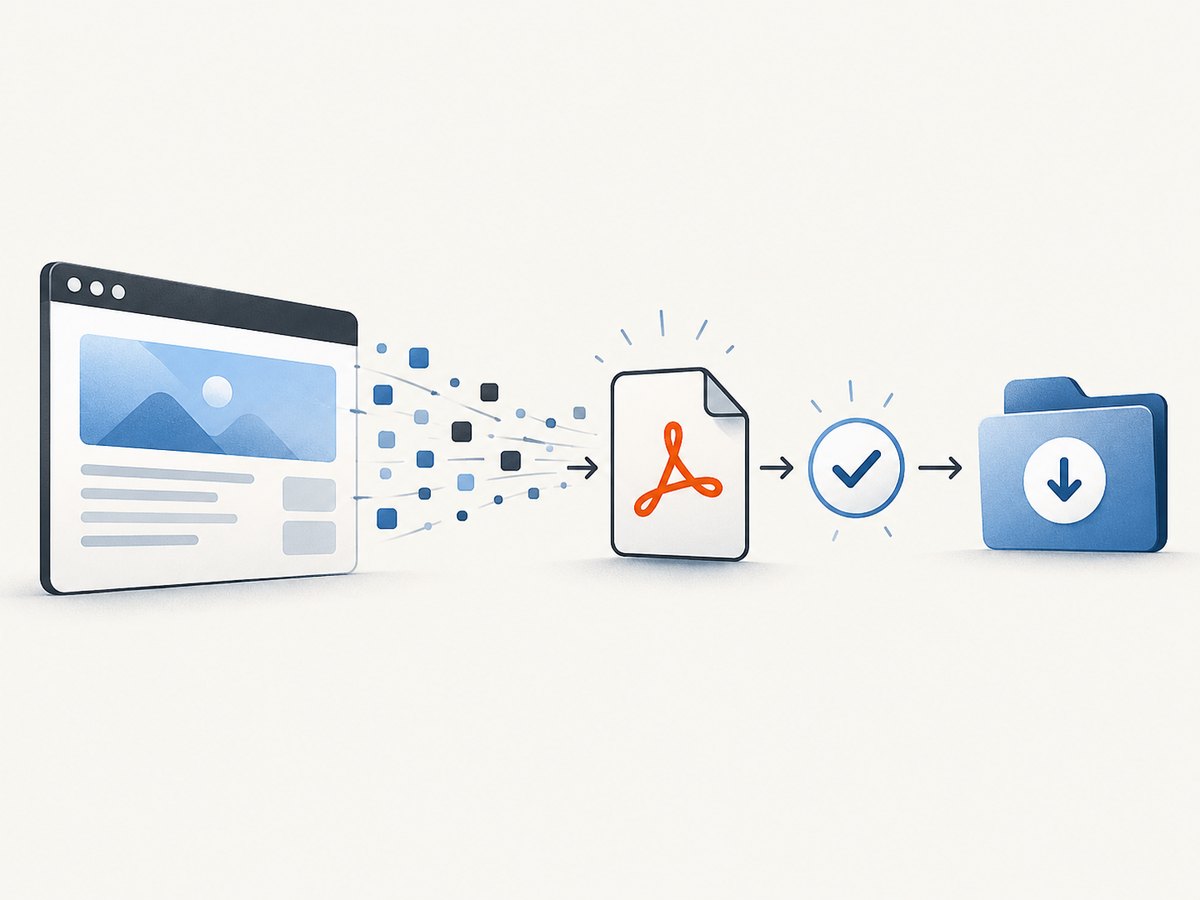
For targeted investigation, log requests and corresponding response metadata:
page.on('request', request => {
  console.log('REQUEST', request.method(), request.url(), request.resourceType());
});
page.on('requestfinished', request => {
  console.log('FINISHED', request.url());
});
page.on('requestfailed', request => {
  console.log('FAILED', request.url(), request.failure()?.errorText);
});
page.on('response', response => {
  const headers = response.headers();
  console.log('RESPONSE', response.status(), headers['content-type'], response.url());
});
Attach those handlers before page.goto(). If the viewer fetches the document only after a user action, perform the same action in Puppeteer after the page loads, for example:
await page.locator('button.open-document').click();
await page.waitForNetworkIdle({ idleTime: 1000, timeout: 15000 }).catch(() => {});
Replace the selector with one from the target page. Network idle is a useful clue, not proof that the PDF has loaded: analytics or long polling can keep a page busy, and a viewer may render after the transfer. Prefer waiting for a known frame, element, or observed request when possible.
4. Retrieve the original bytes and validate them
Once you have the actual resource URL, retrieve the response body. If it is fetched in the page’s authenticated session, use that browser context or reproduce the required request context. Cookies, authorization headers, expiring query parameters, and referrer checks are site-specific; Puppeteer’s general inspection APIs do not provide one recipe that works for every protected download.
When you already captured a response through Puppeteer, keep that response object and read its body after it completes:
page.on('response', async response => {
  if (!response.url().includes('/document')) return;
  try {
    const headers = response.headers();
    if (response.status() >= 200 && response.status() < 300 &&
        (headers['content-type'] || '').includes('application/pdf')) {
      const bytes = await response.buffer();
      await fs.writeFile('embedded.pdf', bytes);
    }
  } catch (error) {
    console.error('Could not save response body:', error.message);
  }
});
Choose a URL pattern or another precise condition that identifies the intended file. A broad check can save an unrelated PDF when the page loads several documents. Also remember that response can represent an HTTP error response: a 404 or 503 request can still finish at the transport level. Check the status before accepting its body. [Puppeteer HTTPRequest API]
For direct retrieval outside the browser, curl is useful when the resource is public and does not depend on session state:
curl -L --fail --output embedded.pdf 'https://example.com/path/document.pdf'-L follows redirects and --fail makes HTTP error statuses fail instead of silently saving an error response as a file. Add request headers only when the site requires them and you are authorized to send them. If the URL contains a signed token, treat it as a secret and avoid sharing it.
Validate the output. The sample checks the conventional %PDF- file signature, but that check is only a basic sanity check. It does not prove the file is complete, unencrypted, or structurally valid. For important workflows, use a PDF parser or validator already approved for your application and handle encrypted or damaged documents explicitly. Never assume that a filename ending in .pdf means the response contains a PDF.
5. Pick the discovery path that fits the page
| Method | Best fit | What to check |
|---|---|---|
| Inspect frame URLs and HTML | The PDF URL is present in initial markup or a frame | Resolve relative URLs against the frame URL; distinguish a viewer from the document |
| Monitor request and response events | Scripts or user actions load the file dynamically | Identify the intended request; check status and content type; wait until transfer completes |
| Direct HTTP download | The resource URL is public and retrievable without browser state | Follow redirects, inspect status and headers, validate bytes |
Start with markup because it is quick and often reveals the frame or element URL. Switch to request observation when the markup contains only a viewer or does not show a resource until runtime. Then choose browser-context retrieval if the page’s session matters; use direct HTTP only when you know the resource can be fetched that way.
6. Keep extraction reliable and efficient
- Use a bounded navigation timeout. A page can wait indefinitely on slow resources. Set an explicit timeout and report which stage failed.
- Do not rely on a fixed delay as proof. A short delay can help discover late requests, but a known selector, frame, or request is a stronger completion condition.
- Keep one browser open for a batch. Reuse a browser and create a separate page or context for each independent job. Close pages and the browser in
finallyblocks so failures do not leak processes. - Limit concurrency. Each browser page consumes resources, and target sites may throttle automated requests. Use a small bounded queue and back off on transient failures instead of launching many tabs at once.
- Make retries selective. A timeout or transient server error may be retryable. A consistent 401, 403, or missing document usually needs a session, permission, or correct URL rather than repeated attempts.
- Protect downloaded data. PDFs can contain personal or confidential information. Choose a safe output path, restrict access, and delete temporary files according to your application’s retention needs.
No published success rate or universal performance figure is established for this workflow. Actual time and memory use depend on the page, PDF size, browser environment, and how the document is delivered. Direct HTTP can avoid rendering a whole page once a public resource URL is known; Puppeteer remains useful when browser execution or session state is needed.
7. Troubleshooting
| Symptom | Likely cause | Fix |
|---|---|---|
| No PDF candidate appears | The URL is hidden in a viewer, requested later, or does not end in .pdf. |
Inspect each frame’s URL and content; attach request listeners before navigation and repeat the viewer interaction. |
| The saved file opens as HTML | The candidate was a viewer or an error page. | Check response status and content type; locate the underlying document request; verify the signature. |
| HTTP 404 or 503 | The URL is stale, malformed, or the server failed. | Capture the URL at the time it is requested, preserve its query string, and retry only transient server failures. |
| HTTP 401 or 403 | The resource requires authentication or access is denied. | Use an authorized browser session and determine which cookies or headers the site requires. Do not try to bypass access controls. |
| Request finished but file is invalid | Transport completed even though the response was an HTTP error or non-PDF content. | Check status, response headers, and body bytes independently. |
Timeout at page.goto() |
The page is slow, never reaches the chosen lifecycle state, or has persistent requests. | Use a bounded timeout and a less restrictive lifecycle such as domcontentloaded, then wait for the relevant resource. |
| Navigation to the PDF fails in headless shell | Puppeteer documents that page.goto() does not support PDF navigation in headless shell mode. |
Use request observation and capture the response body, or use a supported browser mode. This limitation is specific to headless shell, not every Puppeteer mode. |
| Frame content is empty or inaccessible | The frame may not have loaded, may be cross-origin, or may be a browser-managed PDF viewer. | Inspect its URL, wait for attachment/navigation, and monitor the page’s network requests for the actual file. |
8. Do not confuse extraction with printing
page.pdf() generates a PDF of the current page using print CSS by default. It is right for creating a printable report from HTML. It is not a command to download a PDF that the page already embeds. Puppeteer’s documentation states: “For printing PDFs use Page.pdf().” [Puppeteer Page.pdf()]
Use this separate code only when your goal is to print the page itself:
await page.goto('https://example.com/article', { waitUntil: 'networkidle0' });
await page.pdf({ path: 'printed-page.pdf', format: 'A4', printBackground: true });
The result reflects page rendering and print styles. It may not match the original embedded document, and it can omit or reflow content according to the page’s print CSS.
9. Or skip the browser setup
If the deliverable is a visual screenshot or a PDF rendering of a page, [ScreenshotNeo](https://screenshotneo.com) can capture it with one API request instead of installing and managing Puppeteer. This captures the page’s appearance; it does not extract the original embedded PDF file.
See the ScreenshotNeo API documentation. One GET request returns an image or PDF:
curl -G "https://api.screenshotneo.com/v1/shot" -d access_key=YOUR_API_KEY --data-urlencode url=https://example.com/page-with-document -o page.pdfScreenshotNeo accepts cookie and consent banners and removes more than 60 known consent platforms, newsletter popups, and chat widgets before capture; each step can be turned off. Bot checks, blank pages, failed loads, timeouts, and cache hits are not billed. Its MCP server gives AI agents tools for screenshots, page info, and PDF capture. The free plan includes 1,000 shots a month with no card; paid plans start at $5 for 3,000 shots.
Sign up free for 1,000 screenshots a month, with no card required.
10. Frequently asked questions
Can I extract a PDF if it is shown in Chrome’s built-in viewer?
Often the viewer loaded a PDF resource that can be found through frame inspection or request monitoring. The viewer itself may be browser-managed, so focus on locating the document request and saving its response rather than scraping the viewer’s rendered interface.
Why does the PDF URL work in my browser but not in curl?
The browser may send session cookies, authorization, or other request context. Determine what the site requires and retrieve the document within an authorized session, or provide the necessary valid context to the HTTP client.
Can I use Puppeteer to get every PDF linked on a page?
You can collect links and observed PDF responses, but a page can contain viewer URLs, unrelated downloads, and protected resources. Identify candidates precisely and validate each response before treating it as a document.
Does page.pdf() save embedded documents too?
It prints the current page. It does not automatically retrieve the original PDF resource embedded in that page.


