How to Extract Google’s Button Elements with Playwright
Use Playwright to collect Google page buttons by accessible role or native HTML tag, then extract their text and attributes reliably.
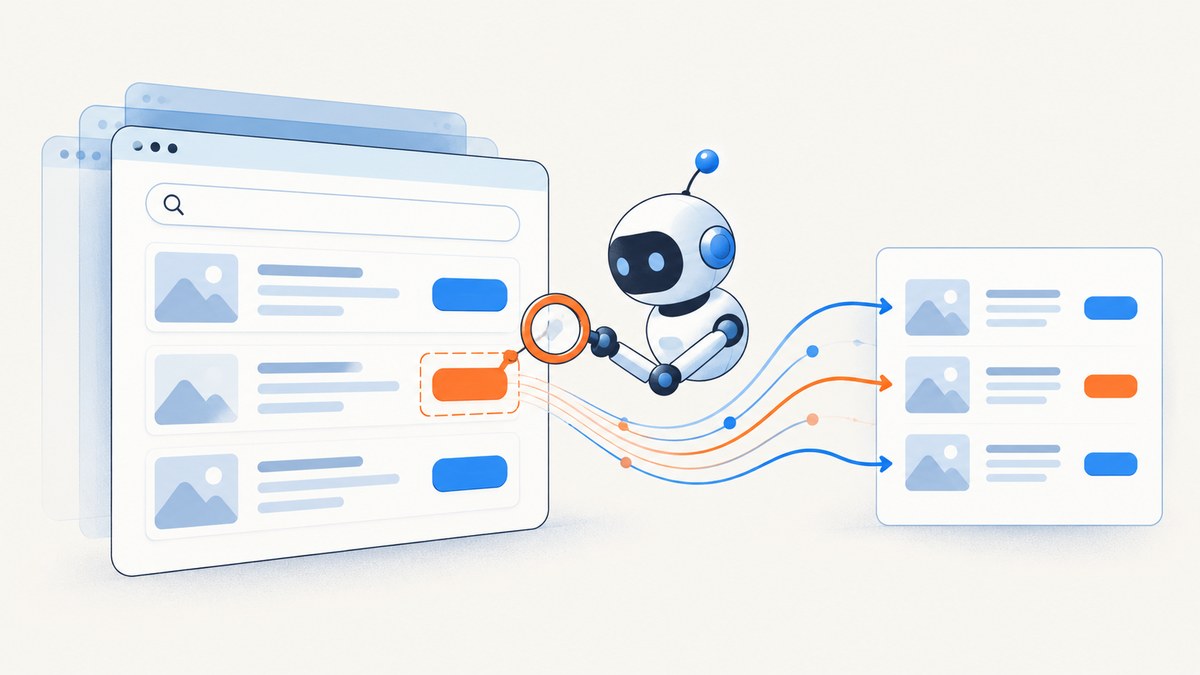
To extract Google’s buttons with Playwright, first decide whether you mean controls exposed with the accessible button role or only native HTML <button> tags. Use page.getByRole('button').evaluateAll(...) for the accessible controls, or page.locator('button').evaluateAll(...) for native buttons. Map the matches to plain objects containing text and attributes. The exact set depends on the Google surface, locale, viewport, consent state, and page state; Google does not publish a stable selector contract for every button in its live Search interface.
This guide uses Node.js and Playwright. It shows a complete extraction script, explains visibility and dynamic content, and covers practical failure cases. For durable automation, prefer locators based on user-facing roles and names over selectors tied to Google’s current class names or DOM nesting. Playwright’s locator guidance recommends user-facing attributes and explicit contracts such as getByRole().
1. Choose what counts as a button
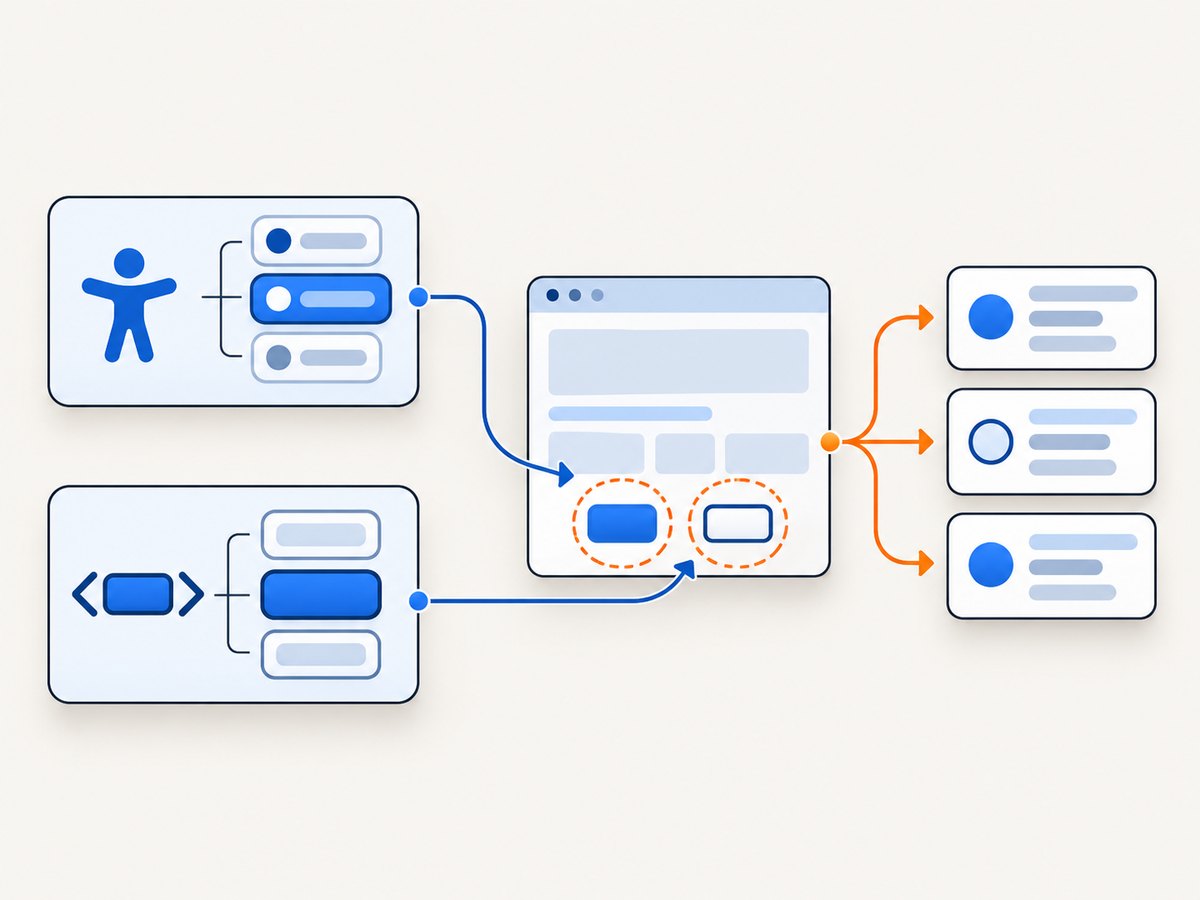
“Button” can describe a semantic control or a particular HTML tag. Those definitions overlap, but they are not interchangeable.
| Goal | Locator | What it matches |
|---|---|---|
| Controls exposed as buttons to users and assistive technology | page.getByRole('button') |
Elements with the accessible button role, including native buttons and custom controls with that role. |
| Native HTML button elements only | page.locator('button') |
Elements whose tag is <button>. |
| Visible native HTML buttons | page.locator('button:visible') |
Native buttons Playwright considers visible. |
Use the role when your question is about controls a user perceives as buttons. Use the tag when your requirement specifically says native buttons, for example when inspecting HTML element types. Add a visibility filter only if hidden buttons should not be part of your inventory. Visibility does not define semantic role or tag identity.
2. Set up a runnable Node.js script
Install Playwright in a project, then install its Chromium browser. These are the standard setup commands:
npm init -y
npm install playwright
npx playwright install chromium
Save this as extract-google-buttons.js. It navigates to Google Search, waits for the page’s load event, and extracts data from both accessible-role matches and native button tags. It writes JSON to standard output.
const { chromium } = require('playwright');

(async () => {
  const browser = await chromium.launch({ headless: true });
  const page = await browser.newPage({
    viewport: { width: 1365, height: 900 },
    locale: 'en-US',
  });

  try {
    await page.goto('https://www.google.com/search?q=playwright', {
      waitUntil: 'load',
      timeout: 45000,
    });

    // Collect semantic buttons, including custom controls with role="button".
    const accessibleButtons = await page.getByRole('button').evaluateAll(buttons =>
      buttons.map(button => ({
        tag: button.tagName.toLowerCase(),
        text: button.textContent?.trim() ?? '',
        ariaLabel: button.getAttribute('aria-label'),
        title: button.getAttribute('title'),
        type: button.getAttribute('type'),
        disabled: button.hasAttribute('disabled'),
      }))
    );

    // Collect native HTML <button> elements, whether or not they have a role.
    const nativeButtons = await page.locator('button').evaluateAll(buttons =>
      buttons.map(button => ({
        text: button.textContent?.trim() ?? '',
        ariaLabel: button.getAttribute('aria-label'),
        title: button.getAttribute('title'),
      }))
    );

    console.log(JSON.stringify({ accessibleButtons, nativeButtons }, null, 2));
  } finally {
    await browser.close();
  }
})().catch(error => {
  console.error(error);
  process.exitCode = 1;
});
Run it with node extract-google-buttons.js. The output is an inventory of the elements matched at the time each evaluateAll() runs. It is not a promise that a particular named control will appear for every visitor or that the page’s markup will remain unchanged.
3. Extract the fields you need
evaluateAll() runs a callback in the page and passes it the matched DOM elements. The callback uses browser DOM APIs and returns serializable data to Node.js. Keep the result to simple values such as strings, booleans, and numbers: DOM nodes themselves are not useful as JSON output.
Common useful fields include:
textContent: text inside the element, which can be empty for icon-only controls.aria-label: an accessible label that can describe an icon-only control.title: a title attribute, if present.type: the native button type, if present.disabled: whether the native disabled attribute is present.
An absent attribute returns null. Text content can include text from nested elements and may not be the same as an accessible name. If you need a particular button for an action rather than an inventory, identify it with its accessible name and narrow the locator as needed:
const searchButton = page.getByRole('button', { name: 'Search' });
console.log('matches:', await searchButton.count());
Do not assume that example name is present on every Google page. First inspect the actual page and locale. A locator used for a single-target action is strict when it matches multiple elements, so resolve ambiguity by using a more specific accessible name or by scoping it to a meaningful region. For inventory work, collection operations such as count() and evaluateAll() are appropriate.
4. Handle visibility and page readiness
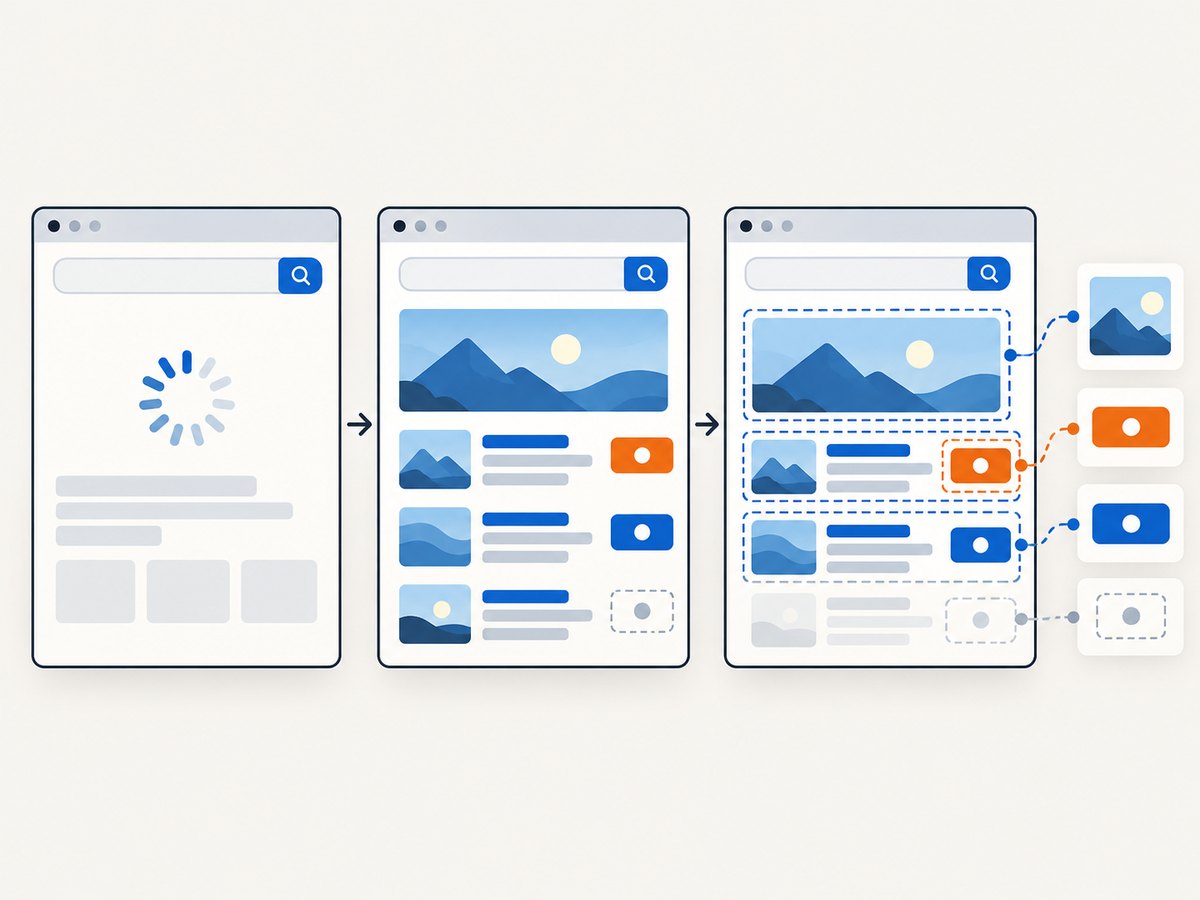
A plain button CSS locator can match hidden as well as visible elements. If the inventory should contain only visible native buttons, use Playwright’s visibility pseudo-class:
const visibleNativeButtons = await page.locator('button:visible').evaluateAll(buttons =>
  buttons.map(button => ({
    text: button.textContent?.trim() ?? '',
    ariaLabel: button.getAttribute('aria-label'),
  }))
);
This query does not mean “all accessible buttons that are visible”; it means visible elements matching the native button selector. If your requirement is semantic controls, start with getByRole('button') and make the visibility decision separately.
Playwright locators resolve against the page when used, which helps when the page re-renders. But an inventory can still be incomplete if it runs before the relevant interface has appeared. Choose a readiness condition based on the page state you need. For example, wait for a known heading or search field, if present in the target context:
await page.getByRole('heading', { name: /playwright/i }).waitFor({ timeout: 15000 });
const buttons = await page.getByRole('button').evaluateAll(elements =>
  elements.map(element => ({
    text: element.textContent?.trim() ?? '',
    ariaLabel: element.getAttribute('aria-label'),
  }))
);
Verify that your readiness locator is relevant to the page and locale being automated. A wait for an element that does not exist simply adds delay and eventually times out. Avoid treating locator.all() as a wait: Playwright documents that it does not wait for matches, and a changing list can produce unpredictable results. Use a meaningful wait, then collect the current set.
5. Scope your Google page before relying on results
Google’s Search interface can vary by product surface and visitor context. The dossier’s cited Google accessibility help describes accessibility links at the top of computer Search results and a heading hierarchy for Search content. That is useful navigation context, but it does not specify exact button tags, labels, or selectors. Google’s dated October 3, 2024 Search update about voice input in Lens concerns the Google app on Android and iOS; it does not define desktop Search markup.
Before turning an extraction into a production dependency, pin down:
- The exact Google URL and product surface, such as desktop Search rather than a mobile app.
- Locale and language, which can change labels and available controls.
- Viewport size and browser configuration.
- Cookie, consent, sign-in, and session state.
- The page state and content you need to inspect, including any dynamically shown controls.
- Whether hidden controls, custom role-based controls, or only native buttons belong in the output.
For a specific page, Playwright recommends using codegen as a starting point. Open the target URL with codegen, inspect the generated locator, and refine it to match the extraction requirement. Codegen prioritizes role, text, and test-id locators, but generated code still needs review. Do not copy a transient Google class name into a durable script without a reason and a maintenance plan.
6. Shadow DOM and selector boundaries
Playwright locators cross open shadow roots by default. XPath does not pierce shadow roots, and closed-mode shadow roots are unsupported. This matters if a control is rendered inside a web component: a role or CSS locator may find it through an open root where an XPath query would not. It does not mean every control on every Google surface is accessible to extraction.
Prefer a role locator when the accessible semantics express the control you need. CSS remains useful when the requirement is explicitly about HTML tags, such as button. XPath and page-specific structural selectors can solve narrower problems, but they couple the script to implementation details. Treat any selector that depends on current page internals as something to recheck when the interface changes.
7. Common errors and fixes
| Symptom | Likely cause | Fix |
|---|---|---|
| No matches | The page state is not ready, the chosen definition is too narrow, or the control is absent in this locale or context. | Confirm the URL and page state; inspect both role and native-tag counts; wait for a relevant page landmark. |
| Too many matches for a single action | A single-target locator matched multiple controls. | Use the accessible name and scope the locator to a relevant region. For an inventory, use a collection operation instead. |
| Text is blank | The control is icon-only, text is nested or absent, or the visible label comes from an ARIA attribute. | Include aria-label and title; do not treat empty text as proof the element is not a button. |
| Hidden controls appear | The selector matches all native buttons regardless of visibility. | Use button:visible when only visible native tags are wanted, and remember that this differs from role-based matching. |
| Selector breaks after a page change | A class name or DOM path changed. | Prefer role and accessible name where possible; regenerate and review a locator with codegen for the new state. |
| Navigation times out | The selected load condition is too strict for a page that keeps network activity open, or the page did not load in time. | Choose a suitable navigation condition and then wait for a page-specific landmark; keep a finite timeout and report the URL and error. |
| XPath misses a control | The element is inside a shadow root. | Use a Playwright locator that can traverse open shadow roots; closed shadow roots are not supported. |
8. Performance, reliability, and cost
For one page, extracting a few properties with one evaluateAll() call is straightforward: it collects the current matches in a single page evaluation and returns plain data. Avoid repeated per-element round trips when a single mapping callback can produce the fields you need. If the page is slow or dynamic, the main reliability question is usually whether the required state has rendered—not whether the mapping callback can run.
For repeated runs, reuse a browser process when appropriate, but isolate contexts when sessions, locale, or cookies must differ. Close pages, contexts, and the browser when finished. Use finite navigation and readiness timeouts, and record the target URL and relevant configuration when an extraction fails. Google can change its interface, so keep a small review process for selectors and expected output instead of assuming a one-time locator remains valid indefinitely.
Running Playwright yourself has infrastructure costs: browser installation, compute, and maintenance of scripts as the page changes. This method is useful when you need DOM-level data such as labels and attributes. A screenshot service returns an image or PDF, not a structured list of DOM button attributes; choose the output that fits the task.
Or skip the browser setup
If your next step is a clean visual capture of the Google page rather than DOM attribute extraction, ScreenshotNeo is a website screenshot API and MCP server for developers. One GET request returns a screenshot or PDF. It cannot replace Playwright when you need a structured inventory of button text and attributes, but it removes browser setup for the capture task.
See the ScreenshotNeo API documentation. Example cURL request:
curl -G "https://api.screenshotneo.com/v1/shot" \
  -d access_key=YOUR_API_KEY \
  --data-urlencode url=https://www.google.com/search?q=playwright \
  -o shot.webp
ScreenshotNeo accepts cookie and consent banners before capture and removes more than 60 known consent platforms, newsletter popups, and chat widgets; each step can be turned off. Bot checks or CAPTCHAs, blank pages, timeouts, failed loads, and cache hits cost nothing, and response headers say which page verdict and billing outcome applied. Its MCP server provides take_screenshot, get_page_info, and capture_pdf for Claude, Cursor, and other MCP clients. The Free plan includes 1,000 shots per month with no card; paid plans start at $5 for 3,000 shots, and every feature is on every plan.
Sign up free for 1,000 screenshots a month with no card.
FAQ
Does getByRole('button') return only <button> tags?
No. It finds elements exposed with the accessible button role, which can include custom controls. Use locator('button') when the tag itself is the requirement.
Will this always find the same buttons on Google?
No. Results depend on the live page, locale, viewport, session, and page state. Google’s accessibility documentation does not promise stable selectors for every Search button.
Can I extract a button’s accessible name with evaluateAll()?
The example extracts DOM text and attributes such as aria-label and title. Those values may not equal the computed accessible name in every case. Use a role locator with a name when you need to target a control by its user-facing accessible name.
Can I use this output to click every button?
An inventory is not a safe action plan. Identify the intended control, confirm it uniquely matches, and handle any page changes or consequences before clicking.
Primary references
- Playwright: Locators — role locators, locator behavior, and recommendations for resilient targeting.
- Playwright: Other locators — CSS visibility and selector details.
- Playwright: Locator API — collection and evaluation methods.
- Google Accessibility Help — Search accessibility and navigation context.
- Google Search update, October 3, 2024 — dated Lens voice-input context, not a desktop DOM specification.


