How to Extract HTML from Chrome DevTools’ Elements Tab
Copy a selected element’s live HTML with DevTools, use $0 for precise output, and avoid common outerHTML, iframe, and dynamic-DOM mistakes.
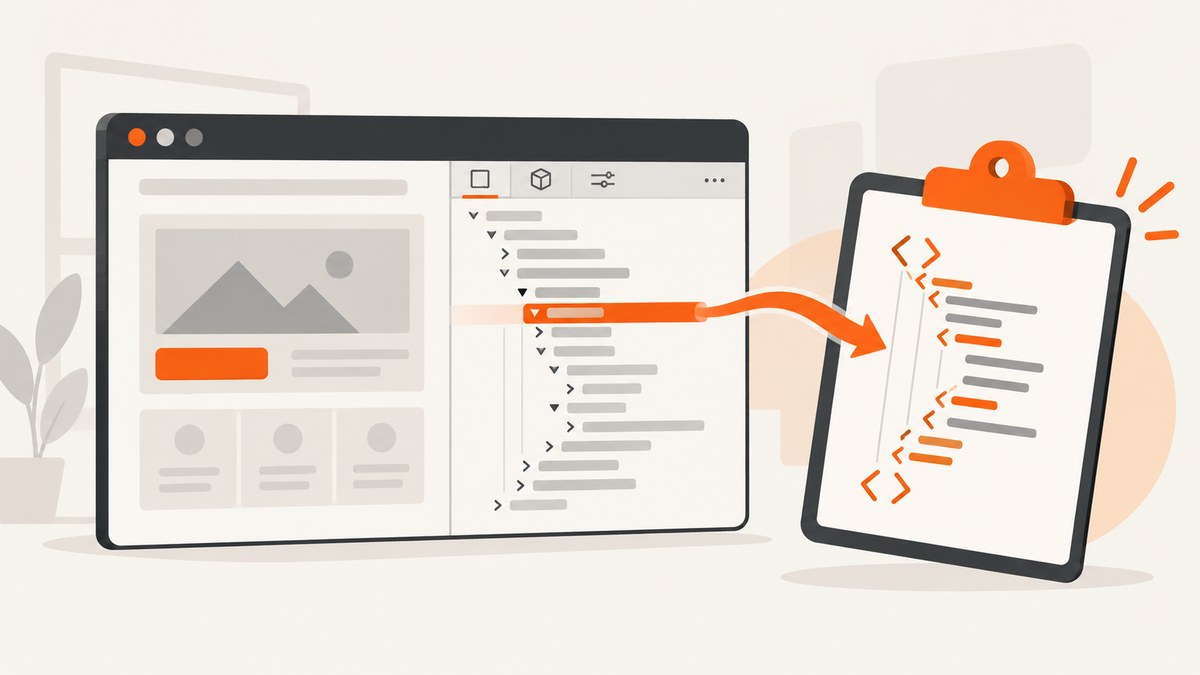
Quick answer: Open Chrome DevTools, select the element in the Elements panel, right-click its DOM node, choose Copy, then choose Copy outerHTML. Paste the result into a text editor. outerHTML includes the selected element itself; innerHTML includes only its children.
This workflow extracts markup from the page’s live DOM. It does not automatically copy the original server response, CSS files, JavaScript, images, iframe documents, or shadow-root internals. The DOM may already have been changed by scripts after the page loaded, so verify that the copied result is the scope you need.
What Chrome DevTools is copying
Chrome parses the response into a document tree. Scripts can then add, remove, or modify nodes. The Elements panel shows that current tree, so copying a node serializes its current state at the moment you copy it. The result can differ from View Source or from the HTML returned by an HTTP request.
| Need | Use | What you get |
|---|---|---|
| The selected element and all descendants | Copy > Copy outerHTML | The opening tag, attributes, children, and closing tag |
| Only the markup inside the selected element | $0.innerHTML |
Child elements and text, without the selected element’s own tag |
| The selected element as a JavaScript object | $0 |
A reference you can inspect or query in Console |
| The original response bytes | Network panel or an HTTP client | Server response, which may not match the live DOM |
Chrome’s official DOM guide explains the live-tree model in Get started with viewing and changing the DOM. The Elements panel workflow is documented in the Elements panel overview.
Step-by-step: copy an element’s outerHTML
- Open the page in Chrome.
- Open DevTools with F12, Ctrl+Shift+I on Windows/Linux/ChromeOS, or Cmd+Option+I on macOS. You can also right-click the visible page element and choose Inspect.
- Open the Elements panel. If it is not visible, open the Command Menu with Ctrl+Shift+P (Windows/Linux/ChromeOS) or Cmd+Shift+P (macOS), type Elements, choose Show Elements, and press Enter.
- In the DOM tree, click the node you want. The blue highlight on the page can help confirm that you selected the correct container.
- Right-click the node, open Copy, and choose Copy outerHTML.
- Paste into a code editor or plain-text editor. Recheck the first and last tags, attributes, and the amount of nested content before using it.
The accessibility documentation records an important caveat: “Copy outerHTML often selects the parent node, instead of the intended node.” The intended element’s contents should still be inside the copied parent, but inspect the pasted output and, if necessary, select a more specific node or use the Console method below. See Navigate Chrome DevTools with assistive technology.
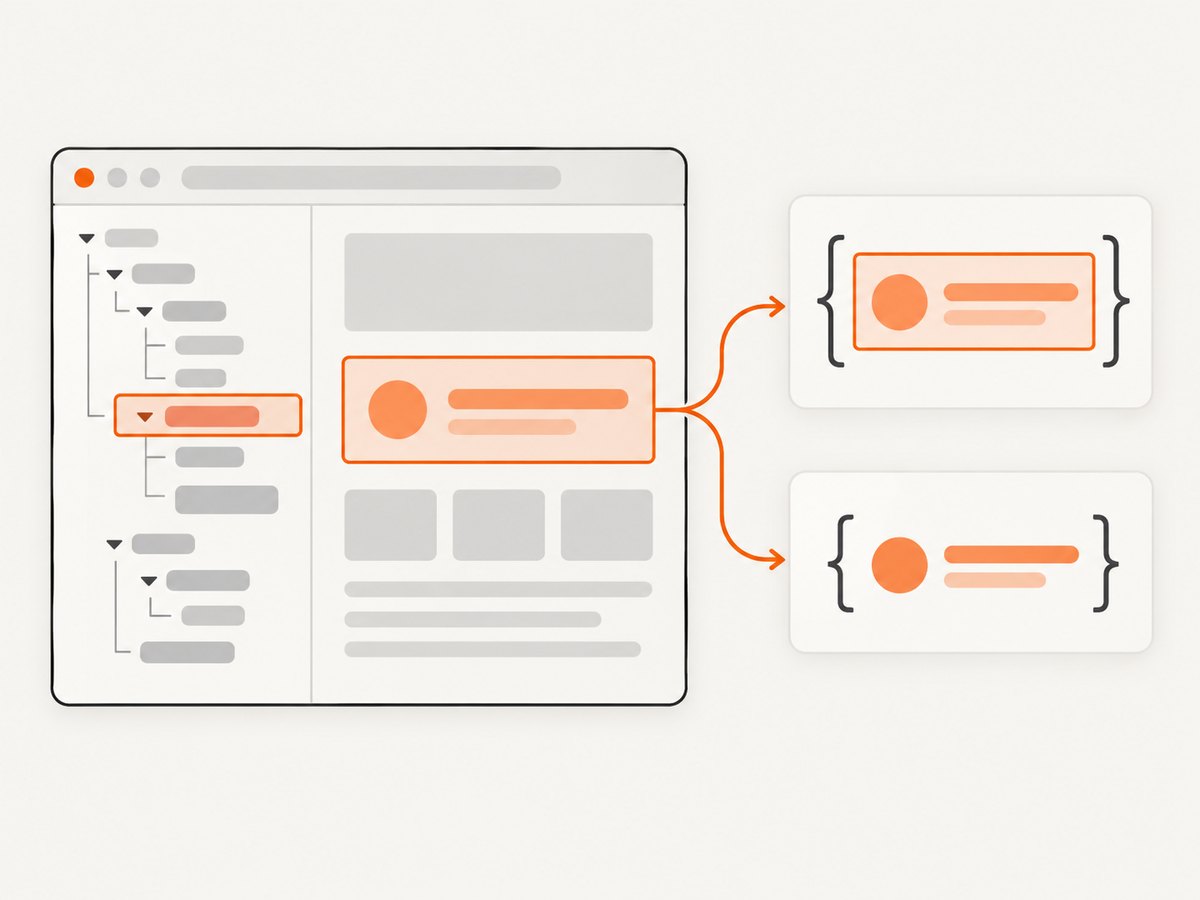
Use $0 when you need exact scope
DevTools exposes the currently selected Elements node as $0 in the Console. This is useful when the context menu copies a parent or when you need only descendants.
Copy the selected node including its tag
$0.outerHTMLRun that expression in Console. Click the returned string, copy it, or assign it to a variable for further processing:
const html = $0.outerHTML;
copy(html);
Chrome’s copy() helper places the value on the clipboard in DevTools. If your environment does not expose it, evaluate $0.outerHTML and copy the result from the Console output.
Copy only the contents
copy($0.innerHTML);This omits the selected element’s opening and closing tags. For example, selecting <ul class="products"> and running $0.innerHTML returns the list items, not the <ul> wrapper.
Inspect attributes and identity first
({
  tag: $0.tagName,
  id: $0.id,
  classes: [...$0.classList],
  attributes: Object.fromEntries([...$0.attributes].map(a => [a.name, a.value]))
})
Use this check when several similar cards, buttons, or rows appear on the page. It confirms that your selection has the identifier or class you expect.
Save the result as a downloadable file
const blob = new Blob([$0.outerHTML], {type: 'text/html'});
const link = document.createElement('a');
link.href = URL.createObjectURL(blob);
link.download = 'selected-element.html';
link.click();
URL.revokeObjectURL(link.href);
This saves the markup only. Relative images, stylesheets, and scripts may not work when the fragment is opened by itself because their supporting files and the original document base URL are missing.
Choosing the right extraction scope
One component
Select the smallest stable wrapper that contains the component. A card, table row, navigation item, or form can usually be copied this way. Avoid selecting the entire body unless you truly need the page’s complete live markup; it can include injected analytics nodes, modal containers, and unrelated application state.
A page section
Choose a semantic container such as <main>, <article>, or a section with a stable class. Then use outerHTML if the wrapper matters to your CSS selectors, or innerHTML if another document already provides the wrapper.
Only visible text or structure
HTML can contain hidden controls, accessibility text, templates, and data attributes. If you need rendered text rather than markup, use $0.innerText or $0.textContent; these are different outputs and should not be substituted for HTML extraction.
Rendered state versus source
A framework may render a component after the initial response. React, Vue, Angular, and other applications can also add transient attributes or replace nodes during interaction. Extract after opening menus, choosing tabs, logging in, or scrolling if that state is part of what you need.
Dynamic pages, iframes, and shadow DOM
Dynamic content
Wait until the content appears, then select it. If a component re-renders while you are copying, the node can be replaced. Pause animations, stop a live update if possible, or copy immediately after the desired state is stable. For lazy-loaded lists, scroll far enough to trigger the items before selecting the container.
Same-origin and cross-origin iframes
An iframe has its own document. In Elements, expand the iframe node and select the document inside it when DevTools allows inspection. The parent page’s $0.outerHTML returns the <iframe> tag, not the child document’s markup. Cross-origin rules can prevent page JavaScript from reading the child frame, although DevTools may still provide an inspection context. Copy the child frame from that context instead of expecting one command to include both documents.
Shadow roots
Open shadow roots appear as expandable shadow-root entries in the Elements tree. Select the element inside the shadow tree if you need its markup. A closed shadow root is intentionally encapsulated and may not be available through ordinary page JavaScript. Copying the host element does not guarantee that its internal shadow markup is included.
Browser-generated or virtualized content
Virtualized tables and lists often keep only visible rows in the DOM. Copying the list wrapper therefore captures the currently mounted rows, not necessarily every record. Export the underlying data or use the application’s pagination API when you need the complete dataset.
What the copied HTML does not include
- Stylesheets: class names are copied, but CSS rules are not.
- Scripts and event listeners: inline attributes may appear, while listeners attached with JavaScript do not.
- Images and fonts: URLs may be present, but the binary assets are not embedded.
- Runtime state: a property assigned to a DOM object is not necessarily represented as an HTML attribute.
- Network responses: the markup can contain a rendered result without revealing the API request that produced it.
- Every page node: selecting one element does not copy unrelated siblings or the contents of other frames.
Editing versus copying
Copy outerHTML puts a serialization on your clipboard. Edit as HTML changes the current DevTools DOM for inspection, but it does not deploy a change to the website. A refresh normally removes such edits unless the application or a local override persists them. If you need a reusable component, copy the markup, then separately recreate its CSS, assets, data, and behavior in your project.
Or skip the browser setup
If your goal is to obtain a clean visual capture of a page or element rather than inspect its markup, ScreenshotNeo provides a GET endpoint that returns PNG, JPEG, WebP, or PDF. The API can capture a full page or one element by CSS selector, load lazy images, apply custom CSS or JavaScript, wait for a selector, delay, or network idle, and set cookies, headers, user agent, timezone, or geolocation. See the ScreenshotNeo documentation for the parameter reference.
curl -G "https://api.screenshotneo.com/v1/shot" \
  -d access_key=YOUR_API_KEY \
  --data-urlencode url=https://stripe.com \
  -o shot.webp
import requests
r = requests.get(
"https://api.screenshotneo.com/v1/shot",
params={"access_key": "YOUR_API_KEY", "url": "https://stripe.com"},
timeout=90,
)
r.raise_for_status()
open("shot.webp", "wb").write(r.content)const q = new URLSearchParams({
access_key: 'YOUR_API_KEY',
url: 'https://stripe.com'
});
const res = await fetch(`https://api.screenshotneo.com/v1/shot?${q}`);
if (!res.ok) throw new Error(`HTTP ${res.status}`);
const bytes = new Uint8Array(await res.arrayBuffer());
// Write bytes with your runtime's file API.For a specific element, pass the selector option documented by ScreenshotNeo. You can also choose full-page capture, dark mode, device presets or a custom viewport, retina scale, transparent background, image resizing, PDF paper size and margins, request blocking, caching with a chosen TTL, signed image links, asynchronous jobs with signed webhooks, bulk capture of up to 100 URLs per call, and usage reporting. Each cleanup step can be turned off when you need the unmodified page.
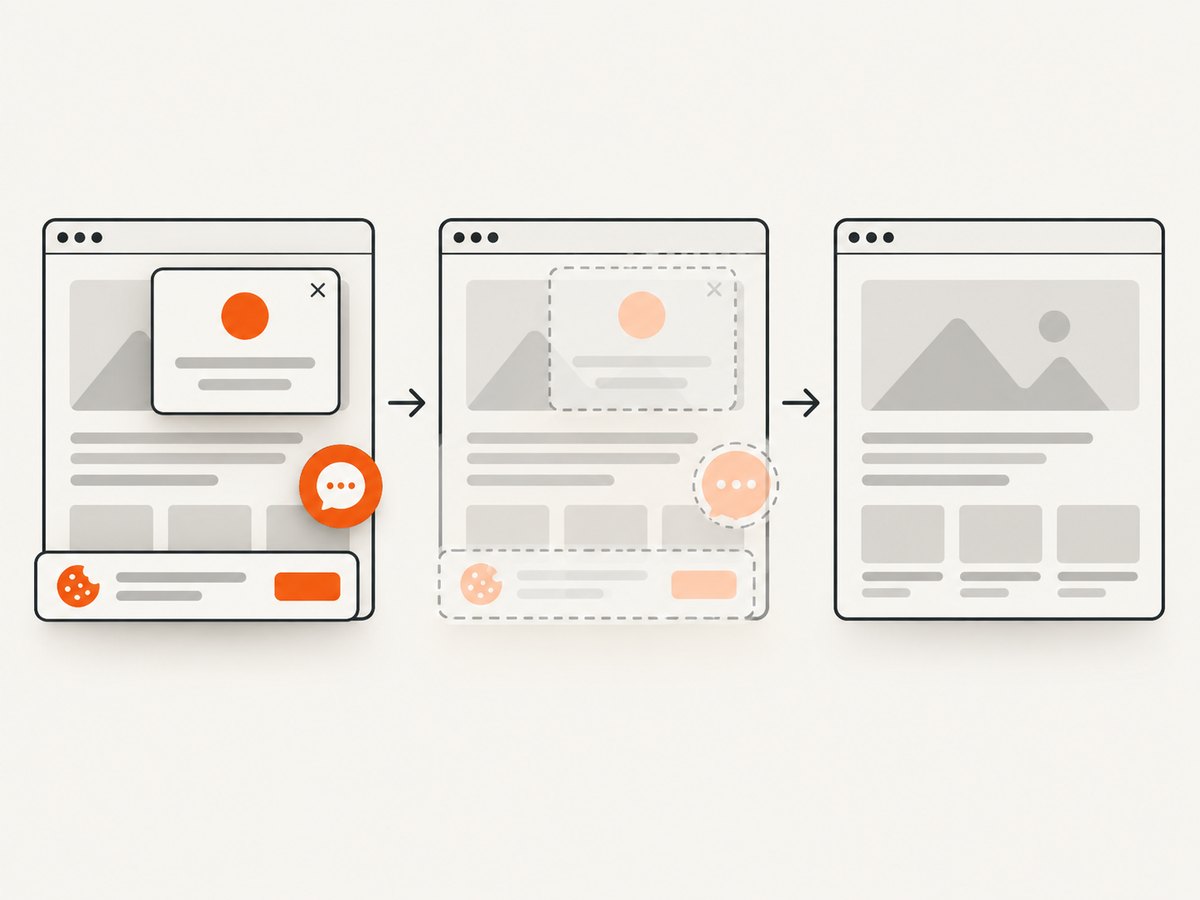
ScreenshotNeo removes cookie-consent banners, newsletter popups, and chat widgets before capture. Bot checks, blank pages, timeouts, failed loads, and cache hits are not billed, and response headers identify the page verdict and billing status. Its MCP server exposes take_screenshot, get_page_info, and capture_pdf for Claude, Cursor, and other MCP clients.
The Free plan includes 1,000 screenshots per month without a card. Paid plans start at $5 for 3,000 shots; every feature is available on every plan. Create a free ScreenshotNeo account to get started.
Troubleshooting common extraction problems
| Symptom | Likely cause | Fix |
|---|---|---|
| The pasted HTML is much larger than expected | A parent node was copied | Inspect the first tag, select the intended child again, or run copy($0.outerHTML) after confirming $0. |
| Only part of a list appears | The page uses lazy loading or virtualization | Scroll to load more nodes, copy each mounted region, or obtain the data from the application’s API. |
| Markup looks different after refresh | Scripts re-rendered the DOM | Copy after the desired interaction and record the page state that produced it. |
| The HTML works but looks unstyled | CSS was not copied | Save the relevant stylesheet rules or recreate the component in a project with matching CSS. |
| An iframe’s contents are missing | You copied the iframe element in the parent document | Switch to the iframe’s DevTools context and copy its internal node. |
Console says $0 is undefined |
The Console is attached to another context or no node is selected | Click the target in Elements, then return to Console and run the expression there. |
| Clipboard copy is blocked | Browser or DevTools clipboard permissions | Evaluate the expression, select the returned string manually, or save it with the Blob snippet. |
| Attributes are missing | The value exists as runtime property state | Inspect the property directly, for example $0.value, rather than relying only on serialized attributes. |
Performance, reliability, and privacy considerations
For a small component, copying from Elements is immediate and local. Large DOM trees can produce megabytes of text and make editors slow; select a narrower container or copy in sections. If the page updates continuously, pause the update or use a stable test fixture so repeated captures are comparable.
Live-DOM extraction is reliable for documenting the state you can see, but it is not a reproducible build artifact by itself. Record the URL, browser version, viewport, login state, and interaction steps when the result matters. Remove personal data, tokens, and customer information before sharing pasted markup. HTML can include hidden fields, tracking identifiers, and user-entered text.
When you automate visual captures, cache stable pages and use waits that match the page’s behavior. A fixed delay can waste time; a selector or network-idle wait is usually more targeted. For repeated jobs, asynchronous capture, signed webhooks, bulk requests, and a chosen cache TTL can reduce coordination overhead. Review the API documentation for exact parameter names and response headers.
FAQ
Does Copy outerHTML copy the whole webpage?
No. It copies the selected node and its descendants. Select a higher-level node such as html or body only when that broad scope is intentional.
Is outerHTML the same as page source?
No. Page source reflects the server response, while outerHTML serializes the current live DOM after scripts and user interactions may have changed it.
How do I copy only the HTML inside a div?
Select the div, open Console, and run copy($0.innerHTML).
Can I copy an element’s CSS with its HTML?
Not with Copy outerHTML alone. Collect the applicable rules separately from the Styles pane or your project’s stylesheets.
Why does my copied component lose behavior?
Event listeners, framework state, and many runtime properties are not serialized into HTML. Recreate or export the component’s JavaScript and data separately.
What is the safest way to share extracted markup?
Paste it into a plain-text editor, remove secrets and personal data, and check hidden inputs and data attributes before publishing it.


