How to Extract Images from a PDF File
Learn when to extract embedded images, when to render PDF pages, and how to automate both workflows with PyMuPDF and pypdf.
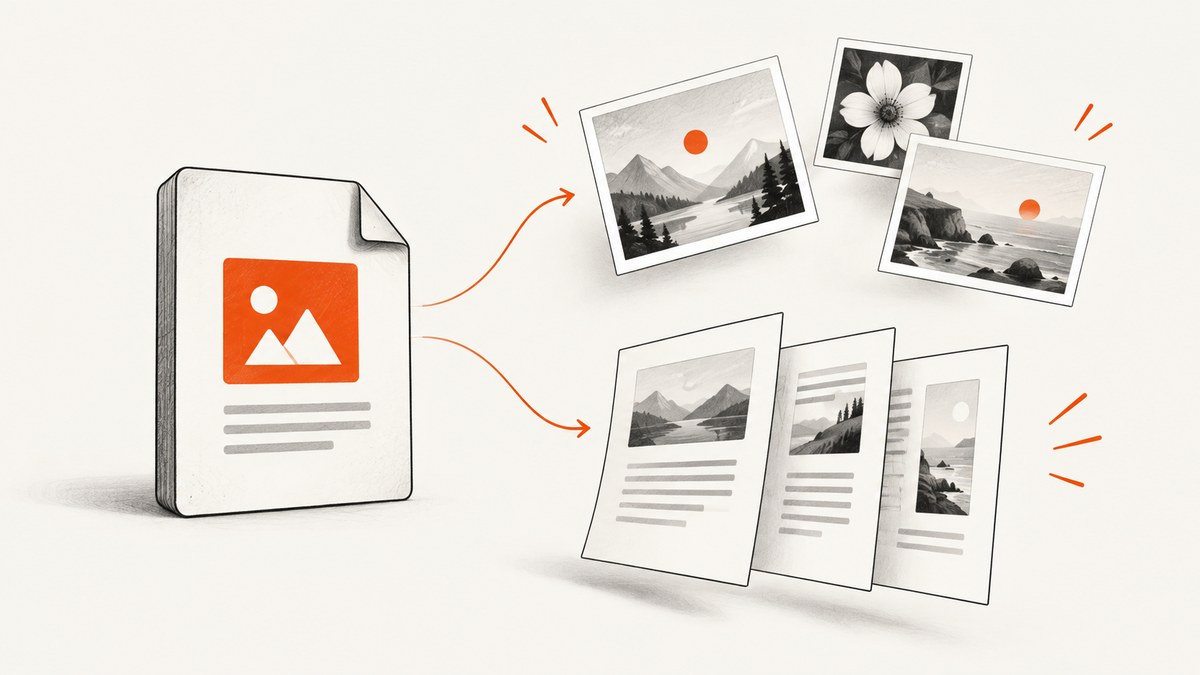
There are two different jobs people call “extracting images from a PDF”:
- Extract embedded images: recover the original raster objects stored inside the PDF, such as JPEG or PNG files.
- Render pages: create a new image of what an entire PDF page looks like, including text, vectors, layout, and scans.
Use embedded extraction when you need the original image file. Render a page when you need its visible appearance or when the PDF is a scan with no separate photo objects.
1. Choose the right method
| Need | Recommended method | Trade-off |
|---|---|---|
| Export a few pictures on your desktop | Adobe Acrobat image export | Commercial software; raster images only |
| Batch extraction in Python | PyMuPDF | Requires Python and a dependency |
| Simple Python object access | pypdf | Names can duplicate; malformed objects need handling |
| Preserve the visible page | Render with PyMuPDF | Creates a new raster image |
| Large native and scanned PDF workflows | Adobe PDF Extract API | Requires an API account and network access |
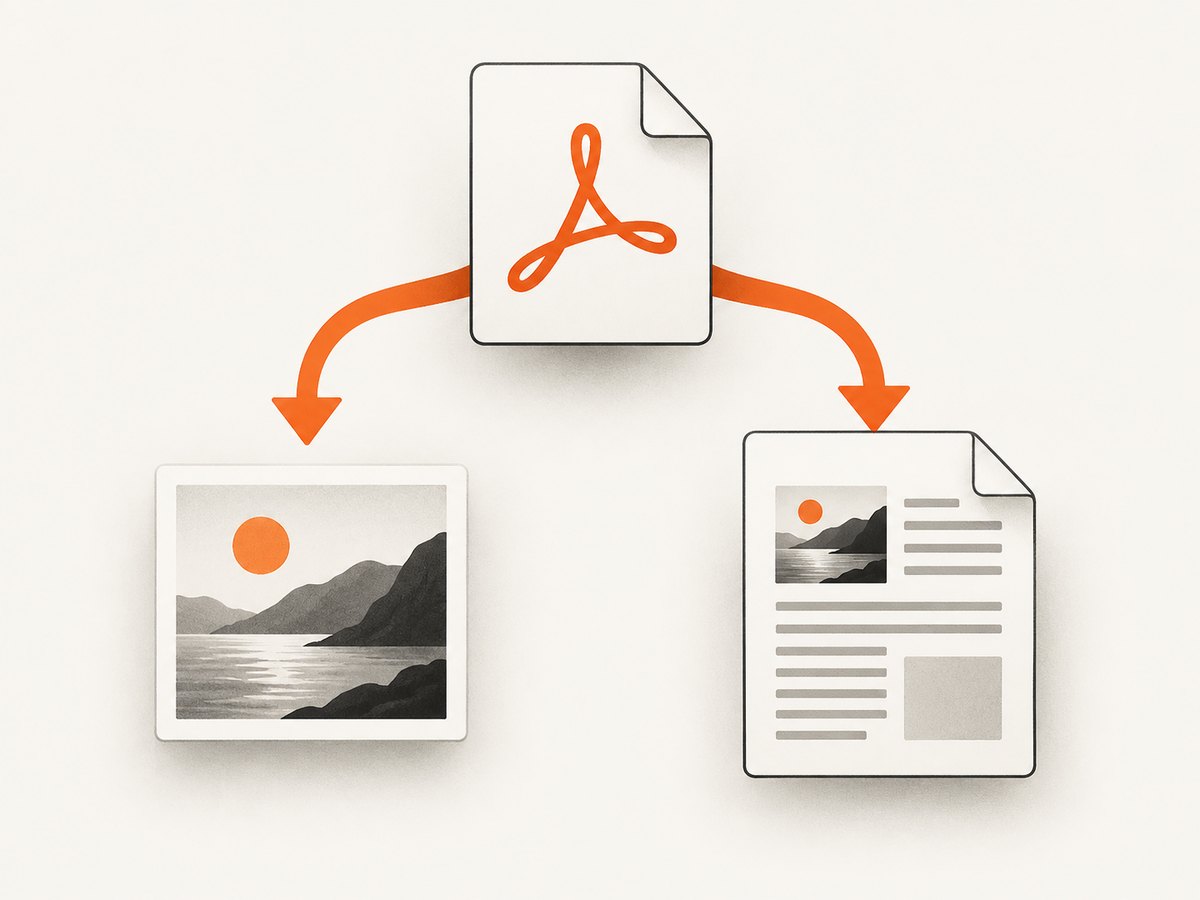
Acrobat documents exporting each raster image separately, but vector objects are excluded. Adobe’s export documentation describes the workflow.
2. Extract images with Adobe Acrobat
- Open the PDF in Acrobat.
- Choose Convert or Export a PDF.
- Select an image-capable output format.
- Enable the option to export individual images.
- Choose an output folder and inspect the files.
Compare dimensions, color, and file type with the source. Acrobat exports raster images; charts or illustrations made from vector paths remain part of the page and are not exported as separate image files.
3. Batch extract images with PyMuPDF
Install the package:
python -m pip install PyMuPDFThe following script writes one predictable PNG per image occurrence. It also converts CMYK pixmaps to RGB before saving.
import pymupdf
from pathlib import Path

input_path = Path("input.pdf")
output_dir = Path("extracted-images")
output_dir.mkdir(exist_ok=True)

doc = pymupdf.open(input_path)
try:
    for page_index, page in enumerate(doc, start=1):
        for image_index, img in enumerate(page.get_images(), start=1):
            xref = img[0]
            pix = pymupdf.Pixmap(doc, xref)
            if pix.n - pix.alpha > 3:  # CMYK
                pix = pymupdf.Pixmap(pymupdf.csRGB, pix)
            output_path = output_dir / f"page-{page_index}-image-{image_index}.png"
            pix.save(output_path)
            pix = None
finally:
    doc.close()
PyMuPDF’s image recipes document this Pixmap approach. A PDF can reference the same image more than once, so the output is numbered by page and occurrence.
Preserve the original embedded format
Pixmap output is convenient when every result should be PNG. If downstream software needs the original JPEG, PNG, BMP, or TIFF encoding, use extract_image:
import pymupdf
from pathlib import Path

input_path = Path("input.pdf")
output_dir = Path("original-images")
output_dir.mkdir(exist_ok=True)

doc = pymupdf.open(input_path)
try:
    seen = set()
    for page_index, page in enumerate(doc, start=1):
        for image_index, img in enumerate(page.get_images(), start=1):
            xref = img[0]
            # The same xref may be used on multiple pages.
            result = doc.extract_image(xref)
            extension = result["ext"]
            output_path = output_dir / f"page-{page_index}-image-{image_index}.{extension}"
            output_path.write_bytes(result["image"])
            seen.add(xref)
finally:
    doc.close()
The returned dictionary includes binary image data and an ext value. If you want each embedded object only once, maintain a set of xref values and skip values already written.
4. Extract images with pypdf
Install pypdf:
python -m pip install pypdfIts page.images interface exposes image files attached to each page:
from pathlib import Path
from pypdf import PdfReader

reader = PdfReader("input.pdf")
output_dir = Path("pypdf-images")
output_dir.mkdir(exist_ok=True)

for page_number, page in enumerate(reader.pages, start=1):
    for image_number, image_file_object in enumerate(page.images, start=1):
        # Names supplied by a PDF are not guaranteed to be unique or safe.
        original_name = Path(image_file_object.name).name
        output_path = output_dir / (
            f"page-{page_number}-image-{image_number}-{original_name}"
        )
        output_path.write_bytes(image_file_object.data)
See the pypdf image extraction guide. Use page and image indexes in filenames, sanitize embedded names, and process each image independently so one damaged object does not stop the entire batch.
Annotation images
Some images live in annotation appearance streams rather than the ordinary page image list. If page.images is incomplete, inspect the page’s /Annots entries and their /AP appearance streams as described in the pypdf documentation. This is common with stamps, signatures, and form appearances.
5. Render a PDF page when extraction returns nothing
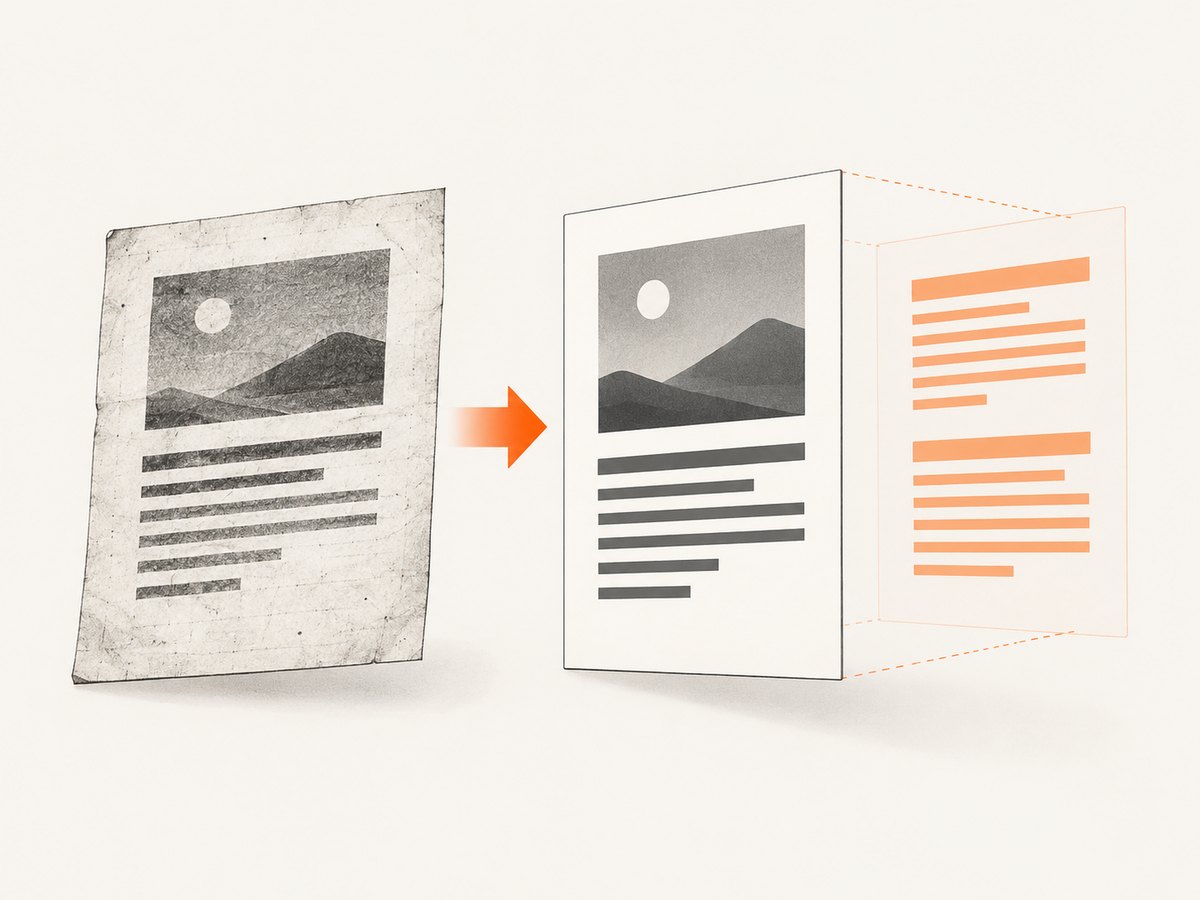
A PDF may contain vector artwork, masks, a full-page scan, or a composed figure. In those cases there may be no standalone photo object to extract. Render the page instead:
import pymupdf
from pathlib import Path

input_path = Path("input.pdf")
output_dir = Path("rendered-pages")
output_dir.mkdir(exist_ok=True)

doc = pymupdf.open(input_path)
try:
    for page_number, page in enumerate(doc, start=1):
        pix = page.get_pixmap(matrix=pymupdf.Matrix(2, 2), alpha=False)
        pix.save(output_dir / f"page-{page_number}.png")
finally:
    doc.close()
The matrix above renders at roughly twice the default scale. Increase it for print-oriented output, but expect larger files and more memory use. Rendering preserves the page’s visible composition, not the original embedded encoding.
Scanned PDFs and OCR
A scanned PDF often contains one page-sized bitmap per page, or a PDF image object that represents the entire scan. Rendering is the dependable way to reproduce what a reader sees. If searchable text is also required, add OCR; OCR recovers text metadata and does not recreate the original bitmap. PyMuPDF documents OCR text-page support in its OCR recipe.
6. Handling edge cases
- CMYK images: convert CMYK Pixmaps to RGB before writing PNG when the consuming application expects RGB.
- Duplicate references: the same xref can appear on multiple pages; deduplicate by xref when you need unique embedded objects.
- Image masks: a mask may be stored separately from its color image. Rendering combines them correctly; direct extraction may require PDF object-level handling.
- Vector charts and drawings: render the page or crop the rendered region; vectors are not raster image files.
- Malformed PDFs: catch exceptions per page and per image, log the page/xref, and continue with the remaining objects.
- Encrypted PDFs: provide the password to the library when permitted. Do not bypass access controls.
- Very large pages: render at a lower matrix first, then increase resolution only for selected pages.
7. A robust batch script
This script tries original-format extraction, records failures, and keeps processing:
import pymupdf
from pathlib import Path

pdf_path = Path("input.pdf")
out = Path("images")
out.mkdir(exist_ok=True)

with pymupdf.open(pdf_path) as doc:
    failures = []
    for page_number, page in enumerate(doc, 1):
        for image_number, info in enumerate(page.get_images(full=True), 1):
            xref = info[0]
            try:
                extracted = doc.extract_image(xref)
                ext = extracted["ext"]
                path = out / f"page-{page_number}-image-{image_number}.{ext}"
                path.write_bytes(extracted["image"])
            except Exception as exc:
                failures.append({"page": page_number, "image": image_number, "xref": xref, "error": str(exc)})

if failures:
    print("Failed objects:")
    for failure in failures:
        print(failure)
8. Troubleshooting
| Symptom | Likely cause | Fix |
|---|---|---|
| No files are extracted | The PDF is vector-based, scanned, or stores images in annotations | Render pages; inspect /Annots for annotation images |
| Output looks different from the page | You extracted an embedded object rather than the composed page | Render the page with get_pixmap() |
| Colors look wrong | CMYK data was saved without conversion | Convert the Pixmap to csRGB before PNG output |
| Only some images appear | Malformed object or annotation image | Process objects independently and inspect annotations |
| Files overwrite one another | Embedded names are duplicated | Prefix names with page and image indexes |
| Memory usage is high | Large pages rendered at a high matrix | Render in batches, lower the matrix, and close documents promptly |
| Text is missing from a scan | The page contains pixels but no text layer | Run OCR separately; it does not alter the source image |
9. Performance, reliability, and cost
- Direct extraction is usually cheaper in CPU and storage because it copies embedded bytes instead of rasterizing a page.
- Rendering cost grows with page dimensions, scale, color depth, and page count. Render only the pages or regions you need.
- Use deterministic filenames and write to a new directory so reruns do not destroy the source or silently overwrite results.
- For unattended jobs, record PDF name, page, xref, output path, and exception text. This makes partial failures recoverable.
- Keep sensitive PDFs local unless an approved service is required. Online extraction introduces network, account, and data-handling considerations.
10. Enterprise automation with Adobe PDF Extract API
Adobe’s PDF Extract API can return structured JSON plus PNG images for text, images, tables, and other elements from native and scanned PDFs. It is useful when a managed service is preferable to maintaining a local parser. Confirm account requirements, availability, pricing, and document-handling terms before adopting it.
11. Or skip the browser setup
If the “PDF” is actually a web page or document URL that you need to capture as an image, ScreenshotNeo provides a single HTTP request. It captures PNG, JPEG, WebP, or PDF output; it is for rendering a URL, not for recovering the original embedded bytes inside a local PDF.
See the ScreenshotNeo API documentation for the available options.
cURL
curl -G "https://api.screenshotneo.com/v1/shot" -d access_key=YOUR_API_KEY --data-urlencode url=https://example.com/file.pdf -o shot.webpPython
import requests

r = requests.get(
    "https://api.screenshotneo.com/v1/shot",
    params={"access_key": "YOUR_API_KEY", "url": "https://example.com/file.pdf"},
    timeout=90,
)
r.raise_for_status()
open("shot.webp", "wb").write(r.content)
Node.js
const q = new URLSearchParams({ access_key: 'YOUR_API_KEY', url: 'https://example.com/file.pdf' });
const res = await fetch(`https://api.screenshotneo.com/v1/shot?${q}`);
if (!res.ok) throw new Error(`HTTP ${res.status}`);
const fs = await import('node:fs/promises');
await fs.writeFile('shot.webp', Buffer.from(await res.arrayBuffer()));
ScreenshotNeo accepts cookie and consent banners before capture and removes more than 60 known consent platforms, newsletter popups, and chat widgets. Bot checks, blank pages, failed loads, timeouts, and cache hits are not billed; response headers identify the page verdict and whether the shot was billed. An MCP server provides take_screenshot, get_page_info, and capture_pdf tools for Claude, Cursor, and other MCP clients. The free plan includes 1,000 shots per month with no card, and paid plans start at $5 for 3,000 shots. Create a free ScreenshotNeo account.
12. FAQ
Can I extract a vector logo as its original file?
No. Vector paths are not raster image files. Render the page or use a source document that contains the original vector asset.
Why do I get more files than visible pictures?
A PDF can reuse the same image, store masks separately, or include hidden and annotation resources. Deduplicate by xref and inspect the page structure.
Should I use PNG or preserve JPEG?
Use PNG for predictable lossless output and transparency handling. Use extract_image when preserving the embedded JPEG or other original encoding matters.
Does OCR improve extracted image quality?
No. OCR adds or recovers text information. It does not increase the resolution or restore the original bitmap.


