How to Extract Images Using Inspect Element
Find an image’s real URL with browser DevTools, including responsive images, CSS backgrounds, Network tools, bulk extraction, and safer verification.
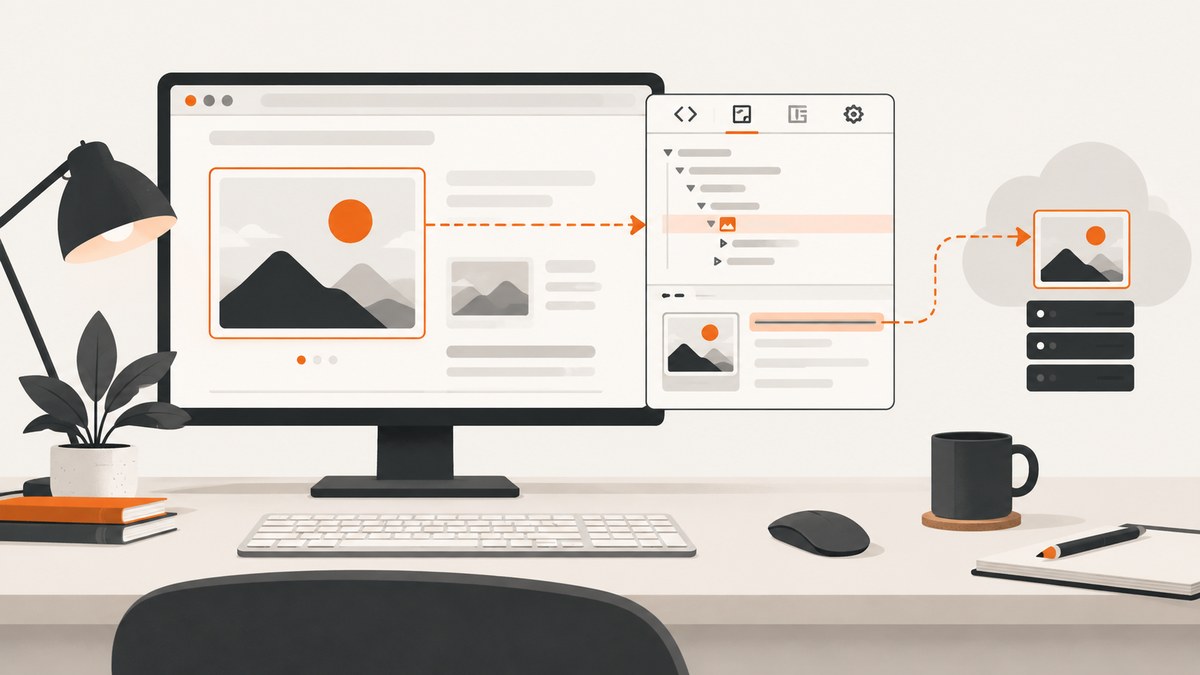
To extract an image URL, right-click the image, choose Inspect, select the <img> element, and copy its src value. Then open that URL in a new tab to verify it returns the image. For responsive images, use currentSrc; for artwork applied with CSS, inspect background-image; when neither is clear, use the Network panel.
These steps work in Chrome, Edge, and Firefox. The exact menu wording and keyboard shortcuts vary by browser and operating system.
1. Extract a normal image URL from Inspect Element
- Open the page containing the image in a desktop browser.
- Right-click the visible image and choose Inspect (Chrome or Edge) or Inspect Element (Firefox).
- DevTools selects the corresponding DOM node. Look for an
<img>tag. - Read the
srcattribute. Right-click its value and choose Copy attribute value, or select and copy the URL. - Paste the URL into a new tab. Confirm that it loads the intended image and that redirects or an access error are not hiding the real result.
Chrome documents the element picker shortcut as Ctrl+Shift+C on Windows, Linux, and ChromeOS, and Cmd+Option+C on macOS. Edge and Firefox use similar picker controls, with labels that can differ by version. See the Chrome DevTools overview, Microsoft Edge DevTools documentation, and Firefox DevTools documentation.
2. Use the selected node and the Console
DevTools exposes the currently selected element as $0 in its Console. This is useful when the markup is complicated or the URL is truncated in the Elements panel.
// Run after selecting the image in the Elements panel
$0.src

// The URL selected by the browser for a responsive image
$0.currentSrc
If $0 is not an image, check its descendants:
$0.querySelector('img')?.currentSrc || $0.querySelector('img')?.srcFor many ordinary images, Microsoft Edge documents this Console expression. It copies one absolute URL per line:
copy($$('img').map(img => img.src).join("\n"));$$() is a shortcut for document.querySelectorAll(), and copy() is a DevTools helper that writes the result to the clipboard. This collects declared src values; use currentSrc when you need the file actually selected for each responsive image.
3. Handle responsive images correctly
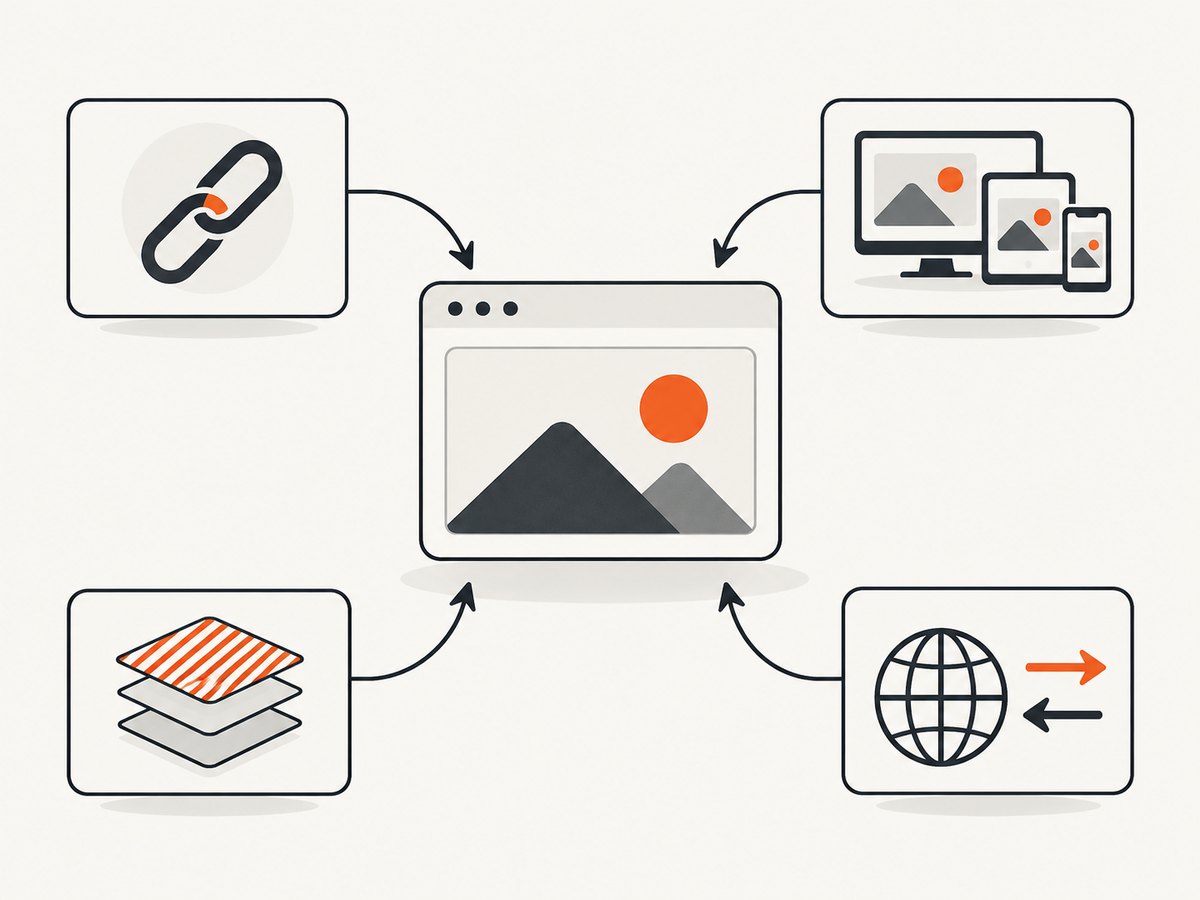
A responsive image can include several candidates in srcset, along with a sizes attribute. The browser chooses a candidate based on viewport width, pixel density, and the sizes calculation. The src attribute may therefore differ from the file currently displayed.
const image = $0;
({
  declaredSrc: image.src,
  selectedSrc: image.currentSrc,
  srcset: image.srcset,
  sizes: image.sizes
});
currentSrc reports the URL chosen for the current rendering conditions, even if loading later fails. Open the value in a new tab or confirm it in Network before treating it as a usable asset. To inspect every candidate:
Array.from($0.sizes ? [$0] : []).map(img => ({
  current: img.currentSrc,
  src: img.src,
  srcset: img.getAttribute('srcset')
}));
To obtain a different candidate, resize the viewport or change the device emulation settings, then read currentSrc again. A high-density display can select a larger file than a standard display.
4. Extract images used as CSS backgrounds
Hero artwork, icons, and decorative images are often applied to a div, pseudo-element, or another element instead of an <img>. Select the visible area with the element picker, then inspect the Computed styles for background-image.
const style = getComputedStyle($0);
style.backgroundImage;
A result such as url("https://example.com/hero.webp") contains an image URL. The computed value is normally absolute, even when the stylesheet used a relative path. CSS can have multiple background layers, gradients, or generated images:
const layers = getComputedStyle($0).backgroundImage;
console.log(layers); // inspect each url(...) layer manuallynone, a gradient, or a function such as image-set() may mean there is no single file URL. Check the matched CSS rule in the Styles pane and inspect each referenced resource.
5. Confirm the file in the Network panel
Use Network when the DOM does not reveal the source, the image appears only after an interaction, or responsive behavior makes the selected URL uncertain.
- Open DevTools and select Network.
- Enable the Img filter (or search for an image extension such as
.png,.jpg,.webp, or.avif). - Reload the page. If the image is lazy-loaded, scroll to it or reproduce the action that reveals it.
- Click a request and inspect its Headers, Preview, and Response tabs.
- Copy the request URL, or use Copy > Copy link address.
The Network panel shows what the browser requested, which can differ from a DOM attribute because of redirects, lazy loading, service workers, or responsive selection. Mozilla and MDN describe Network tools as the way to inspect resources loaded under the current viewport and conditions.
6. Firefox: copy a data URL when needed
Firefox includes a Copy Image Data-URL action in its image context menu in supported versions. A data URL embeds the bytes in a string instead of pointing to a separate hosted file. It is useful for a quick paste into an HTML or CSS test, but it can be very large and is usually unsuitable for a content management system or long-term storage.
7. Choose the right extraction method
| Situation | Method | Result |
|---|---|---|
| One ordinary inline image | Inspect <img> and copy src |
The image URL in the element |
| Responsive image | Read currentSrc; inspect srcset |
The browser-selected candidate or all candidates |
| CSS background | Inspect computed background-image |
One or more CSS image layers |
| Lazy-loaded or unclear image | Filter Network requests and reload or reproduce | The resource actually requested |
| Many inline images | Run the Edge Console copy() expression |
Newline-separated img.src values |
| Quick inline transfer in Firefox | Copy Image Data-URL | Base64-like data URL containing image bytes |
8. Common problems and fixes
The context menu has no Inspect option
Cause: You may be using a locked-down browser, a mobile browser, or a page area that intercepts the context menu.
Fix: Open desktop DevTools from the browser menu, then use the element picker. On a phone, use remote debugging from a desktop browser where supported.
Inspect selects a wrapper instead of the image
Cause: The visible artwork may be inside a child node, pseudo-element, or CSS background.
Fix: Expand the selected node and find <img>, run $0.querySelector('img'), or inspect computed background-image.
The copied src is a tiny placeholder
Cause: Lazy-loading scripts often put the real URL in data-src, data-lazy-src, or srcset.
Fix: Read currentSrc after the image loads, scroll it into view, and check the Network panel.
currentSrc is empty
Cause: The selected node may not be an image, the candidate has not been resolved, or the resource failed to load.
Fix: Confirm the node type, inspect srcset, reload under the desired viewport, and check the request status in Network.
The URL returns 403 or an HTML error page
Cause: The host may require cookies, a referrer, authentication, or a signed, expiring URL. Some image URLs also redirect to an access-denied page.
Fix: Compare the request headers and cookies in Network, keep the URL within its allowed context, and do not assume that a copied URL is permanent.
The background value contains several URLs
Cause: CSS permits multiple background layers and responsive image-set() candidates.
Fix: Identify the layer that corresponds to the visible artwork and test each URL separately.
The image is visible but no image request appears
Cause: It may be an inline SVG, a canvas drawing, a blob URL, a data URL, or content rendered by a shadow root.
Fix: Inspect the element’s markup and computed styles. For canvas, the page may not expose a standalone source file; for a blob URL, capture or export may require the page’s JavaScript context.
9. Verify format, dimensions, and redirects
After copying a URL, verify what it serves rather than trusting its file extension. In Network, check the response Content-Type, status code, redirect chain, and transferred size. The Preview tab helps confirm that the bytes are the intended image. A URL can identify an asset without granting permission to download, modify, or republish it.
Before using an extracted image in a product, article, or social post, check the page’s license and the asset owner’s permission. Inspect Element finds a location; it does not establish copyright clearance.
10. Or skip the browser setup
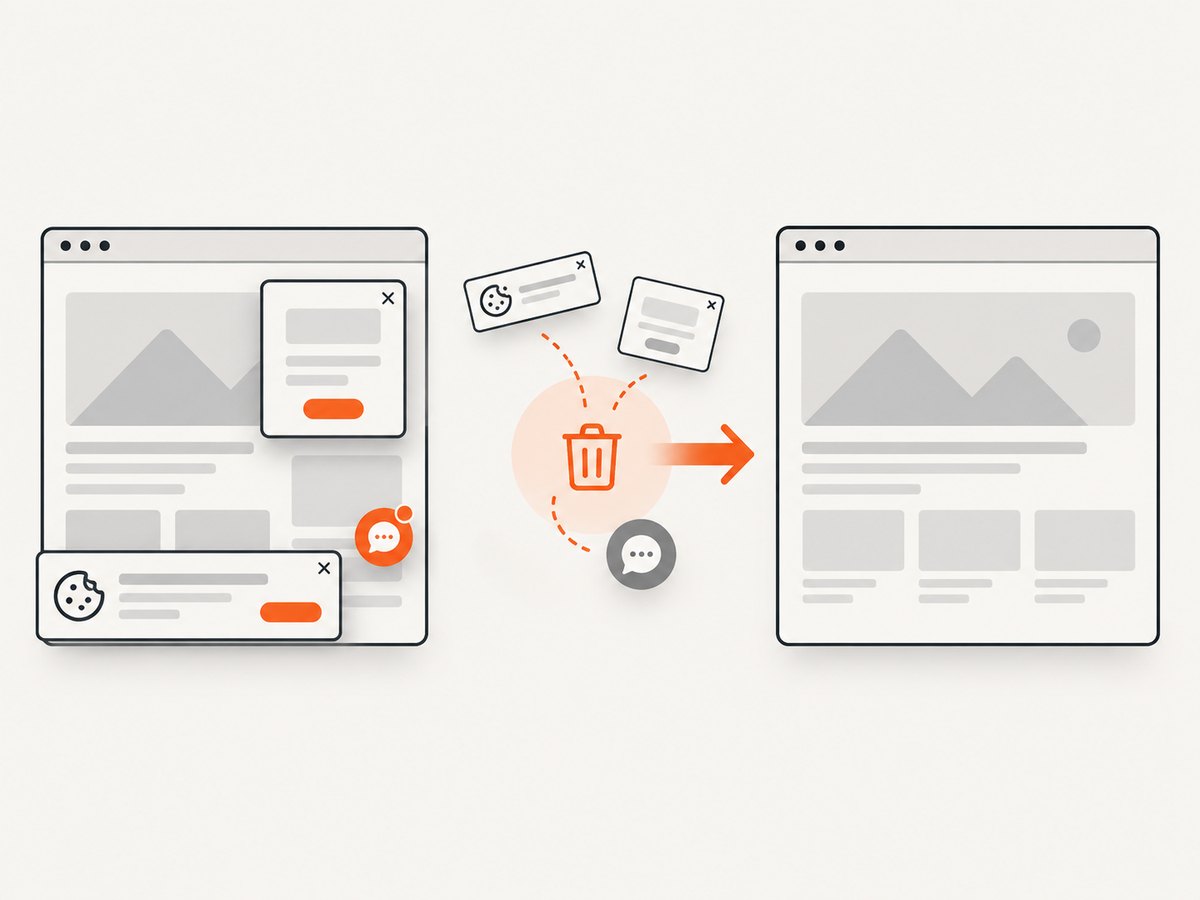
If your goal is to obtain a clean screenshot of a page rather than locate one source asset, ScreenshotNeo provides a website screenshot API and MCP server. Its one-call capture removes cookie and consent banners, newsletter popups, and chat widgets before the shot. Bot checks, blank pages, failed loads, timeouts, and cache hits are not billed, and the response identifies the result with X-Page-Verdict and X-Billed headers. An MCP server provides take_screenshot, get_page_info, and capture_pdf tools for Claude, Cursor, and other MCP clients.
See the ScreenshotNeo API documentation for request options.
cURL
curl -G "https://api.screenshotneo.com/v1/shot" -d access_key=YOUR_API_KEY --data-urlencode url=https://stripe.com -o shot.webpPython
import requests

r = requests.get(
    "https://api.screenshotneo.com/v1/shot",
    params={"access_key": "YOUR_API_KEY", "url": "https://stripe.com"},
    timeout=90,
)
r.raise_for_status()
open("shot.webp", "wb").write(r.content)
Node.js
const q = new URLSearchParams({ access_key: 'YOUR_API_KEY', url: 'https://stripe.com' });
const res = await fetch(`https://api.screenshotneo.com/v1/shot?${q}`);
if (!res.ok) throw new Error(`Screenshot failed: ${res.status}`);
const data = Buffer.from(await res.arrayBuffer());
require('node:fs').writeFileSync('shot.webp', data);
ScreenshotNeo supports PNG, JPEG, WebP, and PDF output, full-page capture with lazy images loaded, CSS-selector element capture, device presets or custom viewports, retina scale, custom CSS and JavaScript, waits, request blocking, headers, cookies, user agents, authorization, timezone, geolocation, transparent backgrounds, resizing, caching with a chosen TTL, signed links, asynchronous webhooks, bulk capture for up to 100 URLs per call, and a usage API. Only clean shots are billed. The Free plan includes 1,000 shots per month with no card; paid plans start at $5 for 3,000 shots. Create a free ScreenshotNeo account.
11. Performance, reliability, and cost notes
- Use the smallest useful source:
currentSrcmay point to a high-density file. Choose a lower candidate when your output does not need retina resolution. - Reload deliberately: Network results depend on viewport, cache state, cookies, and whether lazy content was revealed.
- Expect expiring URLs: Signed or session-bound image URLs can stop working outside the original browser context.
- Separate extraction from rights: A technically successful download can still violate the asset’s license.
- Automate repeated captures: For many pages or scheduled screenshots, an API avoids maintaining browser setup. ScreenshotNeo’s cache TTL, bulk endpoint, and asynchronous jobs can reduce repeated work; failed loads and cache hits are not billed.
- Preserve evidence: Save the final URL, response type, dimensions, and retrieval date when an asset must be reproducible.
12. FAQ
Can Inspect Element download the image automatically?
It reveals the resource URL. Open that URL and use the browser’s save command, subject to the site’s access controls and license.
Why does the URL start with blob:?
A blob URL references data held by the current page context. It may not work in a new tab or another browser session; inspect the code or Network request that created it.
Is src always the original image?
No. Responsive markup, lazy loading, redirects, transformations, and CSS backgrounds can make another request the actual displayed resource.
Can I extract images from a page that requires login?
You can inspect resources available in your authenticated session, but copied URLs may require the same cookies or authorization and may expire.
What should I use for a screenshot of the whole page?
Use the browser’s full-page capture for a one-off manual job. For repeatable captures, ScreenshotNeo can return a full-page image or PDF through its API.


