How to Extract Screenshots from a Video Online
Extract one frame or thousands from an online video using a browser, VLC, or FFmpeg, with exact timestamps, batch workflows, troubleshooting, and privacy tips.
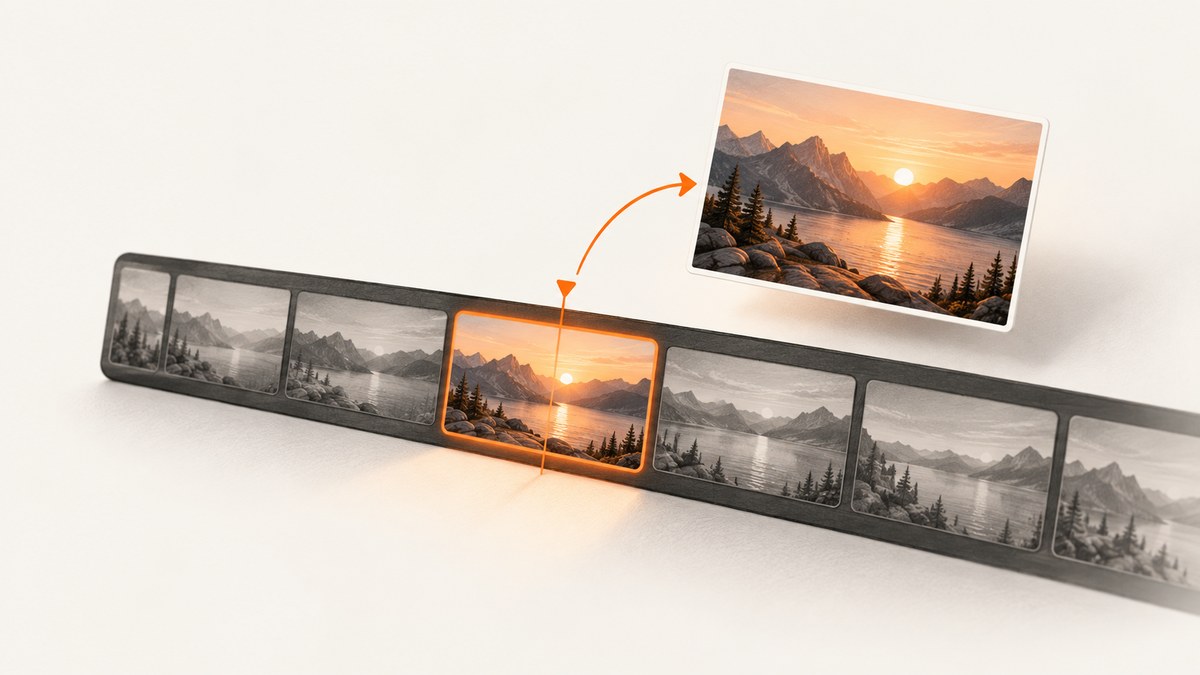
To extract a screenshot from a video online, open the video in a browser-based frame extractor, move to the exact moment, capture the current frame, and export it as PNG or JPG. For repeated captures, choose an interval, frame count, or keyframe mode and download the resulting images or ZIP file.
This guide covers browser tools, VLC, and FFmpeg so you can choose between convenience, privacy, precision, and automation. It also explains how to capture an exact timestamp, extract frames in bulk, handle subtitles and motion blur, and troubleshoot common failures.
Choose the right method
| Method | Best for | Installation | Precision | Privacy | Batch work |
|---|---|---|---|---|---|
| Browser extractor | One-off captures and quick exports | None | Scrubbed frame or entered timestamp | Local browser processing when supported | Intervals, frame counts, or keyframes |
| VLC | A desktop GUI and a local video file | VLC required | Current paused frame | Local | Mostly manual |
| FFmpeg | Repeatable scripts and large batches | FFmpeg required | Exact timestamps and frame rules | Local | Excellent |
Use PNG when text, diagrams, or fine edges must remain crisp. Use JPG when a smaller file matters more than lossless detail. Check the video’s license and the website’s download rules before obtaining or processing a file.
How to take one screenshot in a browser
- Obtain a video file you are authorized to use, or use the website’s permitted download or export function.
- Open a browser-based video frame extractor and load the file. A local extractor can process the file in browser memory, so the video does not need to be uploaded.
- Play or scrub until the desired moment is visible. If the tool has a timestamp field, enter the time directly for repeatable positioning.
- Pause the video and capture the current frame.
- Choose PNG for lossless detail or JPG for a smaller download, then save the image.
For an exact frame, pause slightly before the target, step forward one frame if the tool supports frame stepping, and inspect the result at 100% zoom. A timestamp can identify a position, but the image may still be blurred if the source frame contains motion blur or the video is interlaced.
Extract several frames without installing software
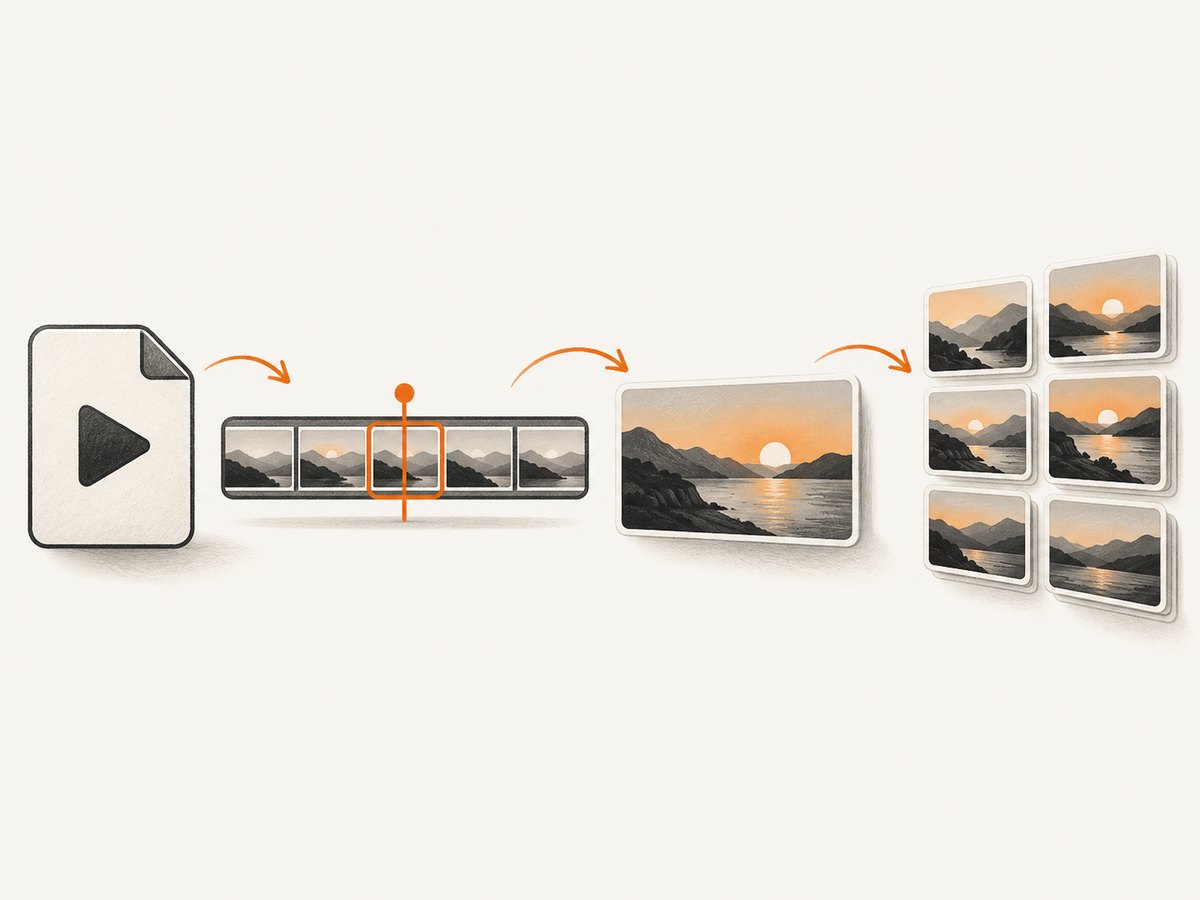
Browser extractors commonly provide three batch modes:
- Interval mode: export one frame every specified number of seconds.
- Frame-count mode: divide a selected section into a chosen number of captures.
- Keyframe mode: export selected or automatically detected keyframes when available.
Select the start and end times, choose the mode, set PNG or JPG, and export the images. If the tool offers a ZIP download, use it for a large sequence rather than downloading each image separately. Review the sequence for duplicate frames, scene changes, subtitles, and black frames before publishing.
Capture the current frame with VLC
VLC saves the frame currently displayed in its video window. This is useful when you already have a local file and prefer a desktop interface.
- Open the file in VLC.
- Pause at the desired frame. Use the timeline or VLC’s frame-step control to refine the position.
- Choose Video → Snapshot, or press the snapshot hotkey for your platform.
- Open Preferences → Video to change the snapshot directory and image format.
VLC’s snapshot feature acts on the displayed frame, so playback scaling, deinterlacing, and subtitles can affect the saved image. If you need the source resolution or a repeatable timestamp-based workflow, use FFmpeg instead.
Extract an exact frame with FFmpeg
FFmpeg is the most controllable option for scripts, scheduled jobs, and large collections. Its image2 workflow can write one image per second, with numbered output files.
One frame at an exact timestamp
ffmpeg -ss 00:01:23.500 -i input.mp4 -frames:v 1 screenshot.pngThe -ss option seeks to the requested time and -frames:v 1 limits the output to one video frame. Put -ss before -i for faster seeking; for maximum timestamp accuracy on difficult codecs, placing it after -i can decode more frames and take longer.
One frame per second
ffmpeg -i foo.avi -r 1 -s WxH -f image2 foo-%03d.jpegThis writes files such as foo-001.jpeg, foo-002.jpeg, and so on. Replace WxH with a size such as 1280x720, or remove -s to preserve the input dimensions.
Limit by duration or frame count
# Stop after 10 seconds
ffmpeg -ss 00:02:00 -t 10 -i input.mp4 -r 2 frames-%03d.jpg

# Write exactly 20 frames
ffmpeg -i input.mp4 -frames:v 20 frame-%03d.png
Use -t to limit processing time and -frames:v to limit the number of output frames. For a lower-frequency contact sheet, increase the interval by lowering the output frame rate, such as -r 0.2 for one frame every five seconds.
Preserve quality and control output
# High-quality JPEG sequence
ffmpeg -i input.mp4 -vf fps=1 -q:v 2 frame-%04d.jpg

# Lossless PNG sequence
ffmpeg -i input.mp4 -vf fps=1 frame-%04d.png
PNG files are larger but preserve exact pixel detail. JPEG quality is controlled with FFmpeg’s quantizer; lower -q:v values generally produce higher quality and larger files. Keep the original dimensions unless you have a delivery-size requirement.
Handling online video pages
A page URL is not always the same thing as a downloadable video file. If a browser extractor cannot load a page, use the site’s permitted download or export control, or obtain a direct media file you are authorized to process. A video may also use a playlist, authentication, an expiring URL, or a protected stream.
DRM-protected streams are designed to prevent direct media extraction. Do not attempt to bypass DRM or access controls. Codec support, incomplete downloads, and damaged files can also prevent decoding even when the page plays in a browser.
Or skip the browser setup
ScreenshotNeo is a website screenshot API rather than a video-frame decoder. Use it when the thing you need is a screenshot of the web page or video-player state containing the video. It can capture the page after waiting, clicking, applying custom CSS, or hiding selectors.
See the ScreenshotNeo API documentation for all options. A one-call capture looks like this:
curl -G "https://api.screenshotneo.com/v1/shot" -d access_key=YOUR_API_KEY --data-urlencode url=VIDEO_PAGE_URL -o shot.webpimport requests
r = requests.get(
"https://api.screenshotneo.com/v1/shot",
params={"access_key": "YOUR_API_KEY", "url": "VIDEO_PAGE_URL"},
timeout=90,
)
r.raise_for_status()
open("shot.webp", "wb").write(r.content)const q = new URLSearchParams({
access_key: 'YOUR_API_KEY',
url: 'VIDEO_PAGE_URL'
});
const res = await fetch(`https://api.screenshotneo.com/v1/shot?${q}`);
if (!res.ok) throw new Error(`HTTP ${res.status}`);
const buffer = Buffer.from(await res.arrayBuffer());
require('fs').writeFileSync('shot.webp', buffer);Before capture, ScreenshotNeo can accept cookie or consent banners and remove more than 60 known consent platforms, newsletter popups, and chat widgets. Each step can be turned off. Bot checks, blank pages, timeouts, failed loads, and cache hits are not billed, and the response reports the result in X-Page-Verdict and X-Billed headers. Its MCP server provides take_screenshot, get_page_info, and capture_pdf tools for Claude, Cursor, and other MCP clients.
Every plan includes the full feature set. The Free plan includes 1,000 screenshots per month without a card; paid plans start at $5 for 3,000 shots. Create a free ScreenshotNeo account.
Troubleshooting
The exported image is black
The player may not have decoded a frame yet, the video may be hidden behind a loading layer, or hardware acceleration may be interfering. Wait until playback begins, pause on a visible frame, reload the file, or try FFmpeg. For a web page capture, wait for the video element or a stable selector before taking the screenshot.

The timestamp is close but not exact
Some codecs use keyframes, so a fast seek lands near the requested position. With FFmpeg, place -ss after -i when accuracy matters more than speed, then limit output with -frames:v 1. In a browser tool, use frame-step controls after seeking.
The image has motion blur or comb-like lines
Motion blur is present in the source frame and cannot be removed by the extractor. Comb-like lines indicate interlacing. Try deinterlacing in FFmpeg, for example:
ffmpeg -ss 00:01:23.500 -i input.mp4 -vf yadif -frames:v 1 deinterlaced.pngSubtitles or controls appear in the screenshot
Disable subtitles and controls in the player before capture, or crop the output. For an automated page capture, use CSS or a hide-selector option to remove overlays. Keep a clean original if you may need to reproduce the frame later.
The browser tool rejects the file
Check the extension, file size, codec, and whether the download completed. Convert an unusual container to MP4 with a broadly supported codec, then retry. If the source is a protected stream, use an authorized export instead of attempting to bypass protection.
FFmpeg says “No such file”
Run the command from the directory containing the video, or provide an absolute path. Quote paths that contain spaces:
ffmpeg -i "./my videos/lesson 01.mp4" -frames:v 1 frame.pngPerformance, reliability, and cost considerations
- Browser processing: avoids upload time and keeps the file local when the extractor processes it in memory, but large videos consume browser RAM.
- VLC: is simple for occasional captures and does not require transcoding, but manual work becomes slow for hundreds of frames.
- FFmpeg: is efficient and scriptable. Limit duration and frame count so a long video does not generate an accidental image sequence.
- Storage: PNG sequences can become very large. Use JPEG for review copies and retain PNG only where pixel fidelity matters.
- Repeatability: record the source filename, timestamp, command, output format, and any filters. This makes a capture reproducible after the source file changes.
- Web-page screenshots: wait for network idle or a specific selector, set a viewport and device scale, and use caching when repeated captures of the same page are acceptable.
Quality checklist before publishing a frame
- Confirm you are authorized to use the video and frame.
- Verify the timestamp and compare the image with the surrounding frames.
- Check aspect ratio, crop, resolution, interlacing, and motion blur.
- Remove accidental controls, consent banners, chat bubbles, and subtitles.
- Choose PNG for detail or JPG for smaller delivery files.
- Use descriptive filenames such as
lesson-01-00-01-23-500.png. - Keep the original video and extraction command for repeatability.
FAQ
Can I extract a screenshot without downloading the video?
Yes, if a browser extractor can read the permitted video source. If the site prevents access, use its download or export feature, or capture the page itself with a website screenshot tool.
What is the best format for a video screenshot?
PNG is best for text, diagrams, and lossless detail. JPG is usually better when file size and fast sharing matter.
How do I extract every frame?
Use FFmpeg with an output frame rate matching the video’s frame rate, but expect very large output. For most reviews, an interval or scene-based selection is more practical.
Why does a screenshot differ from what I saw while streaming?
The stream may have adaptive resolution, overlays, color conversion, or a different decoded frame at the same timestamp. A local source file and a fixed extraction command provide the most repeatable result.
Can ScreenshotNeo extract a frame from a hosted video?
ScreenshotNeo captures web pages and their rendered state. It is useful for a screenshot of the video page or player, while extracting an exact decoded video frame requires a browser extractor, VLC, or FFmpeg.


