How to Extract Text from a Screenshot
Copy text from a screenshot with Live Text, Windows Snipping Tool, or Google Lens. Learn what to try when recognition misses text or privacy matters.
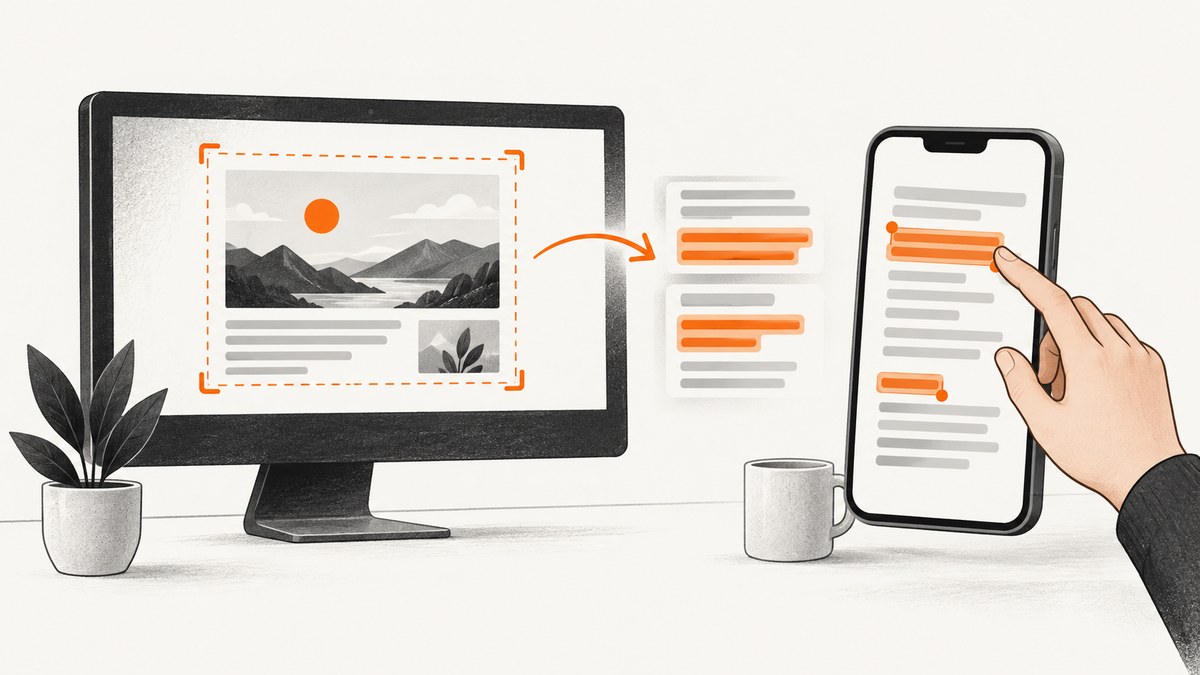
A screenshot stores words as pixels, so you need optical character recognition (OCR) or a built-in equivalent such as Apple Live Text to make those words selectable. Start with the feature on your device: use Live Text on a supported iPhone or iPad, Text actions in Windows Snipping Tool, or Google Lens on Android. Open the image, select the recognized words, and copy them into the app where you need them.
If you can still open the original webpage, document, or app content, copying it directly is usually simpler and avoids recognition errors. For a page in an accessible PDF, try selecting its text in a PDF reader before treating it as an image.
1. Choose the quickest method for your device
| Device or situation | Start here | Useful detail |
|---|---|---|
| iPhone or iPad | Photos and Live Text | Requires a supported device, OS, language, and region. |
| Windows PC | Snipping Tool > Text actions | Can copy selected text or all recognized text; Microsoft says recognition runs locally. |
| Android | Google Lens with an image from Screenshots | Look for Lens or a text-selection control; entry points vary by device and app. |
| Need to capture text from a physical page | Use a camera or scanning workflow such as Microsoft Lens | Choose Text mode, frame the page, then copy or share the result. |
There is no supported accuracy ranking among these options in the cited platform documentation. Results depend on the image, language, device, and text legibility. If one method misses words, try the image-quality and troubleshooting steps below.

2. Extract text on iPhone or iPad with Live Text
Live Text recognizes text in images and lets you select and copy it. Apple documents support for iPhone XS, iPhone XR, or later with iOS 15 or later, and supported iPad models with iPadOS 15.1 or later. Availability can vary by language and region. See Apple’s Live Text requirements and steps.
- Open Settings > General > Language & Region and turn on Live Text if it is off.
- Open the screenshot in Photos.
- Touch and hold a word. Drag the selection handles to include the text you want, or choose Select All when offered.
- Tap Copy, then paste into Notes, Messages, a document, or another destination.
Live Text can also appear in contexts including Safari, Camera, and Quick Look. The available actions may include translation, sharing, lookup, or quick actions for detected phone numbers and links. For text in a video, pause the video first. If the selection control does not appear, check the device and OS requirements, Live Text setting, language and region availability, and whether the words are clear enough to recognize.
3. Extract text on Windows with Snipping Tool
Snipping Tool’s Text actions feature runs OCR on a capture. Microsoft says recognition is performed locally on the device, and the tool can copy selected text, copy all recognized text, or quickly redact email addresses and phone numbers. See Microsoft’s Snipping Tool instructions.
- Open the image in Snipping Tool. If the text is currently visible in another app, take a snip of the relevant area first.
- Select Text actions in the toolbar to recognize the text.
- Select the words or lines you need and choose Copy. Use Copy all text to copy the recognized content in one step.
- Paste into the target application and review it against the image.
When handling sensitive content, the local processing statement is useful: Microsoft says Snipping Tool recognition runs on-device. It is a statement about this feature, not a guarantee about every OCR app or service. If you only need to capture part of the screen, select a tight region to avoid copying unrelated information.
PowerToys Text Extractor is another Windows option for grabbing text from applications or media with a keyboard shortcut. Microsoft recommends Snipping Tool when the task is specifically capturing a screenshot. For a saved screenshot, start with Snipping Tool’s Text actions.
4. Extract text on Android with Google Lens
Google Lens can select text from an image, including an image chosen from Screenshots. The exact route and labels can differ by device and app version; the central workflow is to open Lens, choose or upload the screenshot, select its text, then copy it. See Google’s Lens region-selection instructions.
- Open the Google app and tap the Lens icon in the search bar, or open Lens from your device’s photo or search app.
- Choose the screenshot from the image picker. Google’s instructions describe selecting an image under Screenshots.
- Tap Select text if Lens has not selected the words automatically.
- Adjust the selected region, then use the available copy action. Paste the result where you need it.
If your device offers Lens from Google Photos or another image viewer, you can use that entry point instead. If the labels differ, look for Lens or a text-selection control. Avoid assuming every Android phone presents the same buttons in the same places.
5. Use a camera workflow for paper or another app
If the text is on a physical page, or the screenshot is awkward to move between apps, a camera-based OCR workflow can help. Microsoft documents Microsoft Lens for Android: choose Text mode, select the language, capture the text, adjust the image borders, continue, then copy or share the result. Microsoft states support for 30 languages for image text extraction; extraction from handwritten notes is limited to English. That language count describes support, not recognition accuracy. See Microsoft Lens documentation.
For a screenshot already saved on your phone, use an image-selection route if available rather than photographing the display. Photographing a screen can introduce glare, moiré patterns, blur, and perspective distortion. If you must capture from another app, take a system screenshot and open that image in the OCR tool.
6. Improve recognition when words are missing
OCR recognizes patterns in pixels; it does not recover words that are unreadable in the source image. Before trying another app, improve the input and narrow the selection:
- Use the original resolution. Avoid a thumbnail, compressed preview, or image repeatedly resaved through chat apps.
- Crop to the text. Remove unrelated areas, but leave a small margin around lines so letters are not cut off.
- Keep the text upright. Rotate or straighten a tilted screenshot or camera capture.
- Increase legibility. If permitted, use a clearer source or improve contrast. Do not sharpen so aggressively that strokes merge.
- Check the language. Select a supported language where the tool offers that setting. Language and region availability differ.
- Select and copy smaller regions. Dense screenshots may be easier to process in sections than all at once.
- Proofread critical content. Verify names, URLs, numbers, code, and punctuation against the image before relying on the copied text.
OCR can confuse similar characters such as O and 0, l and 1, or punctuation in small text. Tables, multiple columns, unusual fonts, colored backgrounds, and overlapping UI elements may also produce text in an unexpected order. If structure matters, compare each row or column with the screenshot instead of assuming copied text preserves layout.
7. Privacy and practical limits
For sensitive screenshots, prefer a documented on-device option when it meets the task. Microsoft says Snipping Tool recognition runs locally, and Apple’s Vision documentation describes text recognition on-device. Those statements apply to the documented features; they do not establish how every third-party OCR tool processes images. Apple also notes Live Text language and regional limits. See Apple Vision text recognition documentation.
Before uploading a screenshot to any external service, check whether it contains passwords, access tokens, personal information, internal dashboards, customer data, or confidential code. Crop or redact sensitive details when appropriate, and follow your organization’s data-handling rules. No universal accuracy figure is provided by the platform sources cited here, so choose based on compatibility, workflow, language support, processing location, and the result on your own image.
8. Troubleshooting
| Problem | Likely cause | What to try |
|---|---|---|
| No text-selection control appears | The feature is disabled, unavailable on the device or OS, or cannot detect the text. | Check Live Text settings and Apple compatibility; on Windows select Text actions; in Lens select the image and tap Select text. |
| Only some words are selectable | Low resolution, blur, small type, low contrast, or unsupported language. | Use the original image, crop to the relevant text, straighten it, and check language availability. |
| Copied text has typos | OCR confused similar glyphs or punctuation. | Proofread against the screenshot. Reprocess a clearer or tighter crop, especially for numbers and code. |
| Text appears in the wrong order | Columns, tables, mixed orientations, or visual grouping complicate reading order. | Copy one column or region at a time and reconstruct the intended order manually. |
| Handwriting is missing or poor | Handwriting support varies by tool and language. | For Microsoft Lens, note that its documentation limits handwritten text extraction to English. Compare against the source and transcribe uncertain parts. |
| Android menus do not match instructions | Lens entry points and app interfaces vary. | Open Google Lens from the Google app or photo/search app, choose the screenshot, and look for Select text. |
| The screenshot is still inside a different app | The OCR tool cannot access the image through the current app path. | Take a system screenshot, open it in Photos/Gallery or the OCR tool’s image picker, then select the text. |
| The source is a PDF page | The page may be an image, or it may already contain selectable text. | Try selecting text in the PDF reader first; use screenshot OCR only if the page has no selectable text. |
9. For developers capturing a webpage before OCR
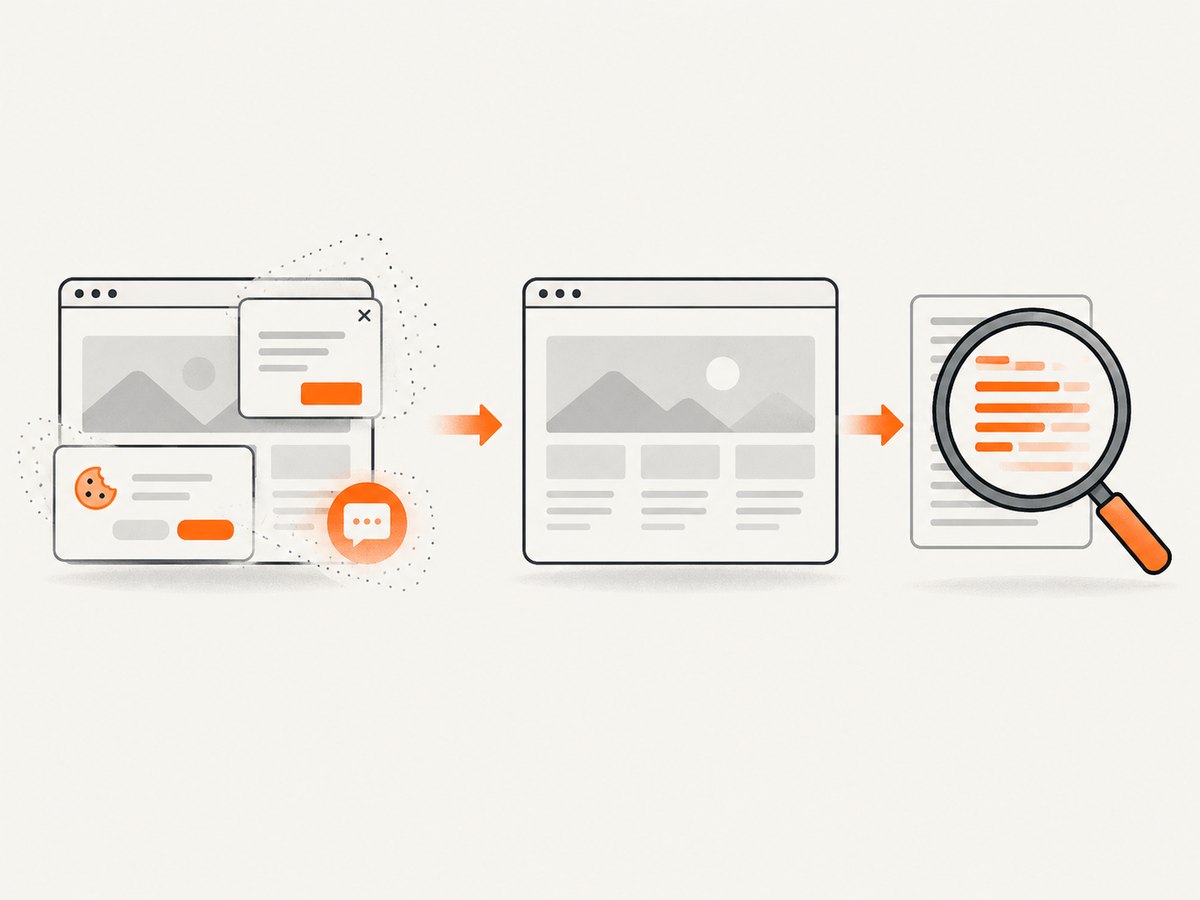
ScreenshotNeo is a website screenshot API and MCP server from Yorker Media. It captures a webpage as an image or PDF; it does not turn text in an existing screenshot into OCR text. If your input is a webpage and you need a clean image for a separate OCR step, an API capture can avoid browser setup. The API accepts a URL and returns a screenshot; see the ScreenshotNeo site and API documentation.
Or skip the browser setup
Make one GET request, then pass the returned image to your OCR step. Example using cURL:
curl -G "https://api.screenshotneo.com/v1/shot" -d access_key=YOUR_API_KEY --data-urlencode url=https://stripe.com -o shot.webpPython:
import requests

r = requests.get(
    "https://api.screenshotneo.com/v1/shot",
    params={"access_key": "YOUR_API_KEY", "url": "https://stripe.com"},
    timeout=90,
)
r.raise_for_status()
open("shot.webp", "wb").write(r.content)
Node.js:
const q = new URLSearchParams({ access_key: 'YOUR_API_KEY', url: 'https://stripe.com' });
const res = await fetch(`https://api.screenshotneo.com/v1/shot?${q}`);
if (!res.ok) throw new Error(`Screenshot request failed: ${res.status}`);
await import('node:fs/promises').then(fs => fs.writeFile('shot.webp', Buffer.from(await res.arrayBuffer())));
ScreenshotNeo accepts cookie or consent banners as a visitor and removes more than 60 known consent platforms, newsletter popups, and chat widgets before capture; each step can be turned off. Bot checks, blank pages, failed loads, timeouts, and cache hits are not billed, and response headers report the page verdict and billing status. Its MCP server offers take_screenshot, get_page_info, and capture_pdf for Claude, Cursor, and other MCP clients. Plans include 1,000 screenshots per month free with no card; paid plans start at $5 for 3,000, and every feature is on every plan. The screenshot still needs an OCR tool to extract words. Create a free account for 1,000 screenshots a month with no card.
10. FAQ
Can I copy text from a screenshot without installing an OCR app?
Often, yes. Try your device’s existing Live Text, Snipping Tool, or Google Lens workflow first. Availability depends on device, OS, language, and region.
Does OCR preserve formatting?
Usually the result is recognized text, not a faithful copy of the screenshot’s visual layout. Check order, spacing, columns, and tables after pasting.
Can I extract text from a screenshot of an app rather than a browser?
Yes, if you can save or capture the screen as an image and open it in a supported OCR workflow. On Windows, PowerToys Text Extractor can capture text from applications or media; Microsoft points screenshot capture tasks to Snipping Tool.
Which tool is the most accurate?
The cited platform documentation does not provide a controlled, comparable accuracy benchmark. Test a representative image and verify important text against its source.