How to Extract Text From Images With an LLM
Send an image to a vision model, request faithful transcription, validate uncertain text, and know when dedicated OCR is a better fit.
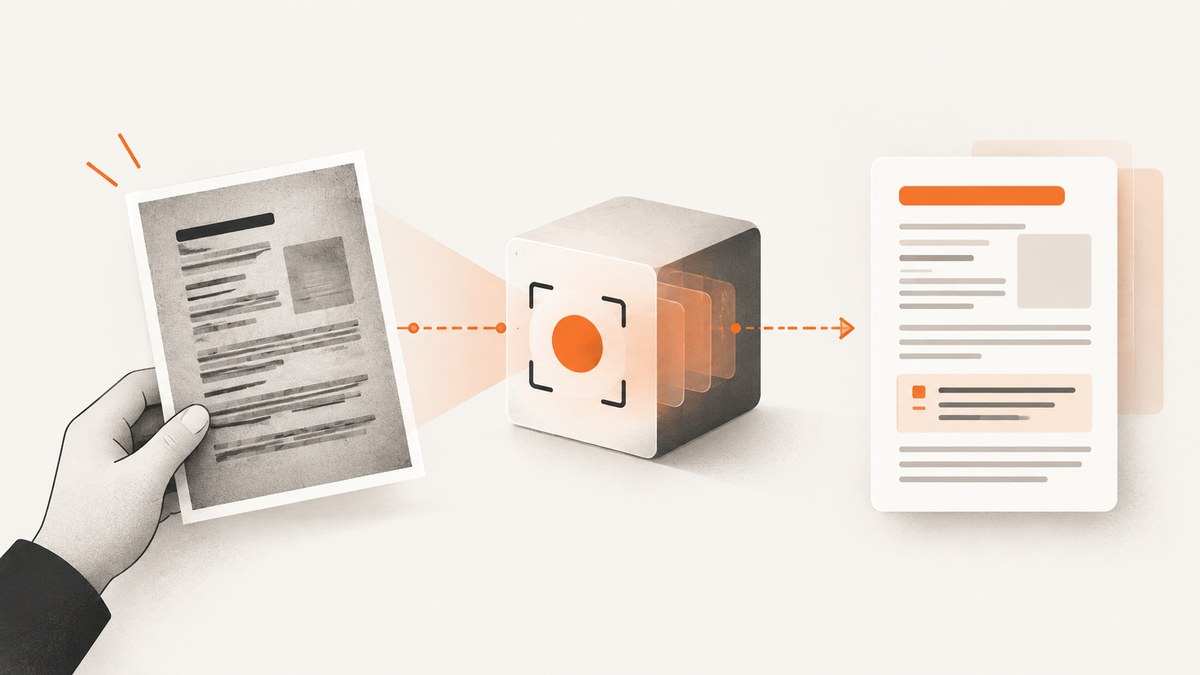
A vision-capable language model can read visible text in an image when you provide the image as an image input and explicitly request a transcription. For reliable results, start with a sharp and correctly oriented source, tell the model how to handle line breaks and columns, mark uncertain characters instead of guessing, and compare important output with the original. Vision models can make mistakes, especially with small, rotated, handwritten, or unusual text. OpenAI’s vision guide and Google’s image-understanding guide document the image-input approach and its limits.
What the workflow does
The process has five stages:
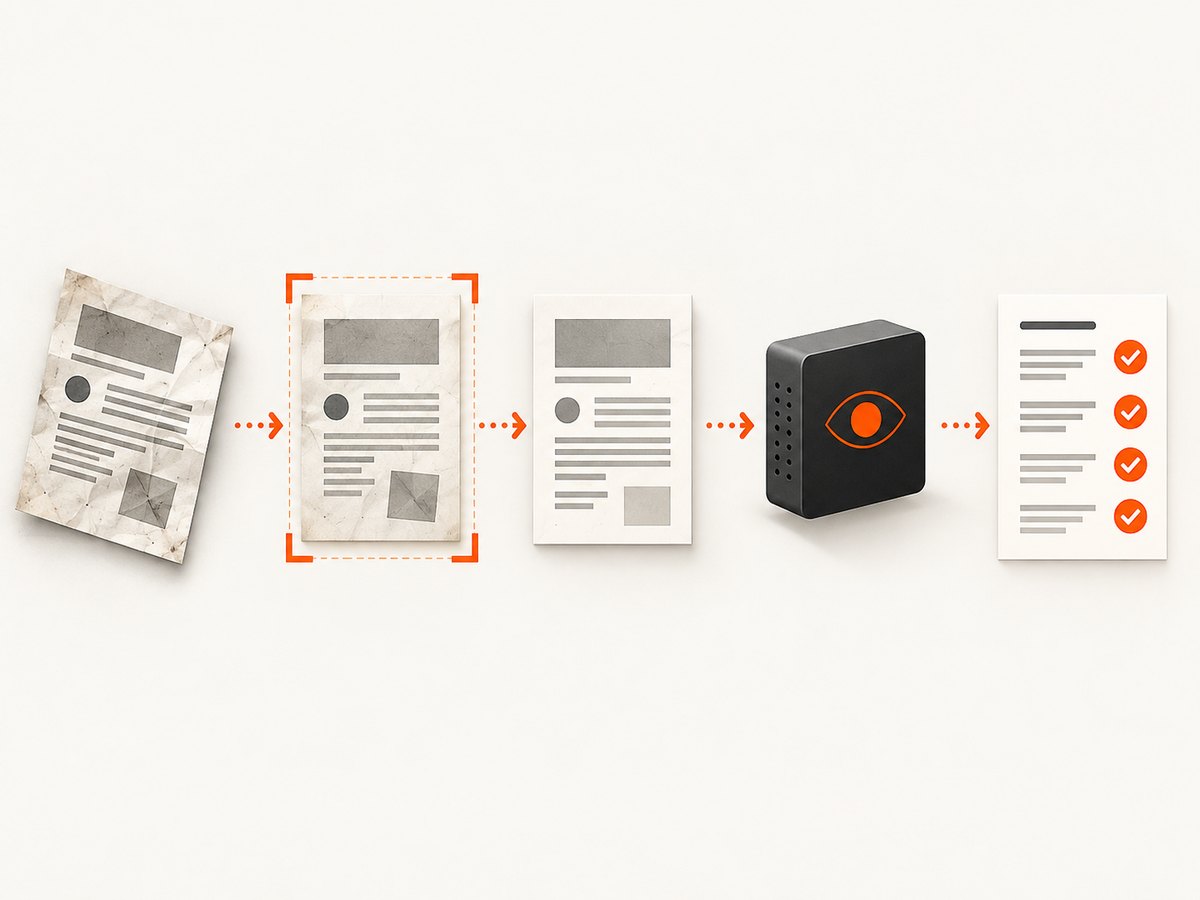
- Acquire a clear image from a camera, scanner, browser capture, or existing file.
- Normalize it: rotate it upright, crop irrelevant areas, and enlarge tiny text when practical.
- Send it to a model that accepts image input.
- Ask for transcription with explicit rules about layout and uncertainty.
- Validate names, dates, amounts, identifiers, and other high-impact strings against the source image.
An LLM is useful when transcription and interpretation belong together. For example, you can ask it to transcribe a receipt and then return the line containing tax, or read a screenshot and explain an error message. If you need exact extraction from large collections of dense scans or structured forms, a dedicated OCR or document service may be a better fit. Google Cloud Vision separates ordinary TEXT_DETECTION from DOCUMENT_TEXT_DETECTION, which returns page, block, paragraph, word, and break structure. Google also points scanned-document workflows toward Document AI for OCR and form parsing. See the Cloud Vision OCR guide.
Prepare the image before sending it
Use enough resolution
Small characters contain too few pixels for any model to distinguish reliably. Crop to the relevant region and enlarge it when that preserves legibility. Google notes that higher image resolution can help with fine text but increases token usage and latency. OpenAI recommends its original detail setting for fine visual tasks such as OCR where that control is available; the image may still be resized to model limits. Check the current model documentation before relying on a particular detail value.
Fix orientation and perspective
Rotate sideways pages upright. A severe camera angle, glare, shadow, or folded page can change character shapes. If a document has multiple columns, keep the complete page for context but consider sending cropped column images when reading order is ambiguous.
Choose a supported format
OpenAI’s guide lists PNG, JPEG, WEBP, and non-animated GIF inputs. Gemini’s guide lists PNG, JPEG, WEBP, HEIC, and HEIF. Formats and limits can change, so check the target provider’s current documentation. Convert an unsupported format before upload rather than assuming the API will do it.
Prompt for a faithful transcription
Ask for transcription rather than a summary. This prompt is a useful starting point:
Transcribe all visible text exactly.
Preserve line breaks and reading order where practical.
For multiple columns, transcribe the left column before the right column.
Do not infer unreadable characters. Mark them as [unclear].
Do not correct spelling, punctuation, capitalization, or numbers.
Return only the transcription.
Adjust the rules to your data. For a form, request field names and values in a stable format. For a sign, preserve line breaks. For a table, ask for CSV or a Markdown table, then verify every cell because layout reconstruction is harder than reading a single paragraph. If you need both raw text and interpretation, ask for two clearly separated fields so a summary cannot silently replace the transcription.
Python: send a local image to a vision model
The following example uses the OpenAI Responses HTTP endpoint with a base64 data URL. Set OPENAI_API_KEY and OPENAI_MODEL to values supported by your account; consult the current image and vision documentation for the model and input limits.
import base64
import mimetypes
import os
import requests

image_path = "document.jpg"
api_key = os.environ["OPENAI_API_KEY"]
model = os.environ["OPENAI_MODEL"]

mime_type = mimetypes.guess_type(image_path)[0] or "image/jpeg"
with open(image_path, "rb") as f:
    encoded = base64.b64encode(f.read()).decode("ascii")

prompt = """Transcribe all visible text exactly.
Preserve line breaks and reading order where practical.
Do not infer unreadable characters; mark them [unclear].
Do not correct spelling, punctuation, capitalization, or numbers.
Return only the transcription."""

payload = {
    "model": model,
    "input": [{
        "role": "user",
        "content": [
            {"type": "input_text", "text": prompt},
            {"type": "input_image", "image_url": f"data:{mime_type};base64,{encoded}"}
        ]
    }]
}

response = requests.post(
    "https://api.openai.com/v1/responses",
    headers={"Authorization": f"Bearer {api_key}", "Content-Type": "application/json"},
    json=payload,
    timeout=90,
)
response.raise_for_status()
data = response.json()
print(data)
Provider response shapes can differ by SDK and API version. Inspect the returned JSON and select the output-text field documented for the model you use. Keep the raw response during development so you can diagnose refusals, truncation, or malformed structured output.
Equivalent requests with cURL and Node.js
These examples use the same data-URL technique. The image is sent inline, so base64 increases request size; for large files, use the provider’s documented file or hosted-image method when available.
IMG_B64=$(base64 -w 0 document.jpg)
curl https://api.openai.com/v1/responses \\
  -H "Authorization: Bearer $OPENAI_API_KEY" \\
  -H "Content-Type: application/json" \\
  -d "{\"model\":\"$OPENAI_MODEL\",\"input\":[{\"role\":\"user\",\"content\":[{\"type\":\"input_text\",\"text\":\"Transcribe all visible text exactly. Mark unreadable characters as [unclear]. Return only the transcription.\"},{\"type\":\"input_image\",\"image_url\":\"data:image/jpeg;base64,$IMG_B64\"}]}]}"
import fs from "node:fs";
const image = fs.readFileSync("document.jpg").toString("base64");
const response = await fetch("https://api.openai.com/v1/responses", {
method: "POST",
headers: {
"Authorization": `Bearer ${process.env.OPENAI_API_KEY}`,
"Content-Type": "application/json"
},
body: JSON.stringify({
model: process.env.OPENAI_MODEL,
input: [{ role: "user", content: [
{ type: "input_text", text: "Transcribe all visible text exactly. Preserve line breaks where practical. Mark unreadable characters as [unclear]. Return only the transcription." },
{ type: "input_image", image_url: `data:image/jpeg;base64,${image}` }
] }]
})
});
if (!response.ok) throw new Error(`${response.status}: ${await response.text()}`);
console.log(await response.json());Handling layout, tables, and multiple images
Reading order is a separate problem from character recognition. State the order you expect, such as “top to bottom, then left to right.” For a two-page document, label each image and ask the model to emit page separators. For a table, request one row per line and a fixed delimiter, then validate that the number of columns is consistent. Do not assume a visually aligned table will become valid CSV without cleanup.
When a page contains tiny footnotes, send a crop of that region in a second request. A full-page image provides context, while a crop gives the model more pixels per character. Keep coordinates or crop names in your own metadata so you can trace each transcription back to its source.
Validation: treat output as a draft
LLM transcription is not guaranteed exact. OpenAI explicitly states that vision models can make mistakes, and the provider guidance describes failures with small or rotated text. Build validation into the workflow:
- Compare every proper name, account number, URL, date, and amount with the image.
- Flag any
[unclear]marker for manual review. - Run format checks for identifiers, dates, and totals, but use them to find candidates for review rather than to “fix” the model silently.
- Retain the original image and raw response for auditability.
- For high-impact documents, have a person approve the final transcription.
Do not use a second model as proof that the first one is correct. Independent OCR or human comparison is stronger evidence than asking the same kind of model to judge itself.
LLM versus dedicated OCR
| Need | Usually better starting point | Reason |
|---|---|---|
| Read a label and answer a question about it | Vision LLM | One request can read and interpret the image. |
| Repeated exact transcription of dense scans | Dedicated OCR | Document APIs expose text boxes and structure designed for this job. |
| Forms with fields and entities | Document OCR or Document AI | Field and page structure is explicit. |
| Mixed image plus natural-language reasoning | Vision LLM | The same response can transcribe and explain. |
Choose with representative samples rather than a generic “best model” claim. Measure exact character accuracy, handling of small, rotated, handwritten, and non-Latin text, reading order, supported formats, latency, cost, data handling, and how easily a reviewer can correct mistakes. The cited provider documentation establishes capabilities and limitations, not a controlled accuracy ranking.
Or skip the browser setup
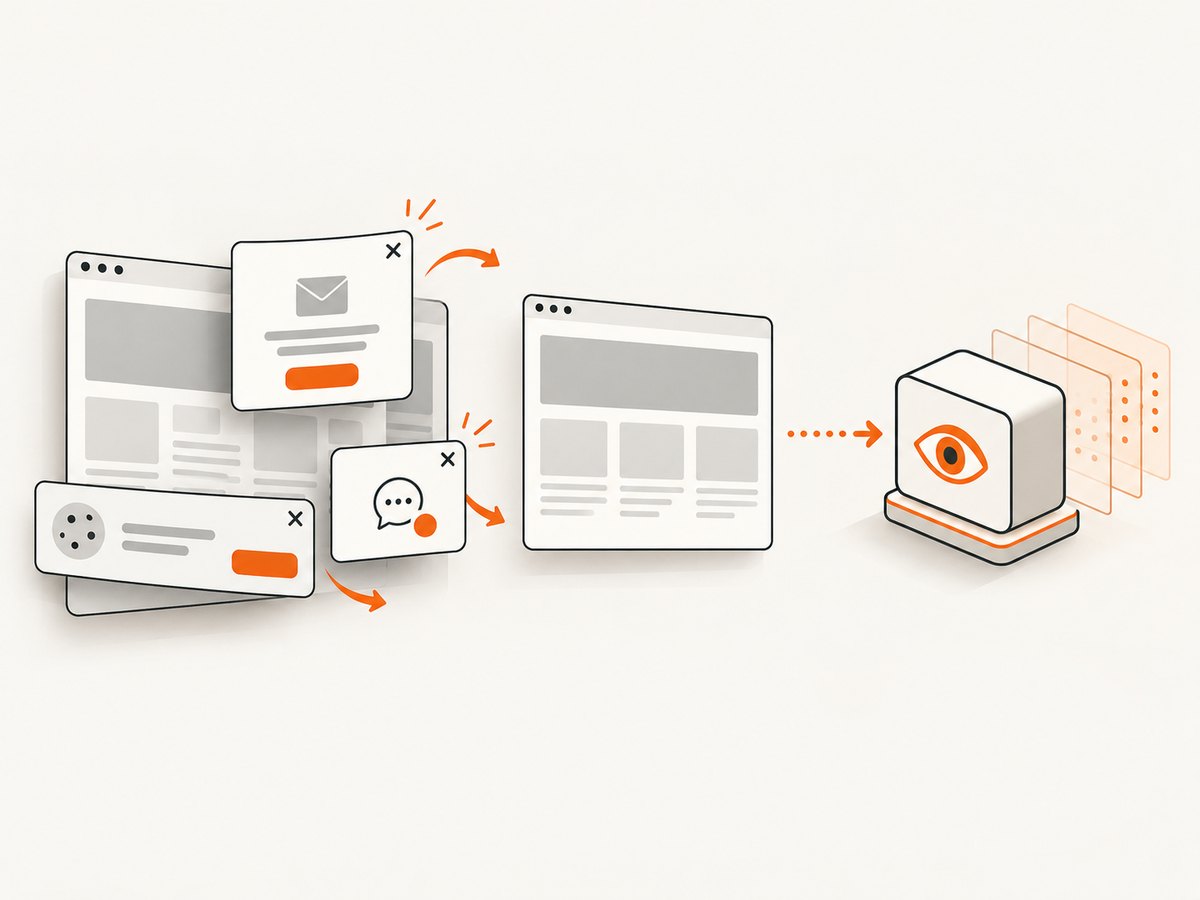
If your image starts as a webpage, ScreenshotNeo can create the clean source image before you send it to a vision model. One GET request returns PNG, JPEG, WebP, or a PDF. Cookie and consent banners are accepted and removed before capture, along with more than 60 known consent platforms, newsletter popups, and chat widgets. Bot checks, blank pages, timeouts, failed loads, and cache hits are not billed, and response headers identify the page verdict and billing result.
See the ScreenshotNeo API documentation for options such as full-page capture with lazy images, CSS-element capture, custom CSS and JavaScript, waits, blocked resources, headers, cookies, user agents, timezone and geolocation, resizing, caching, signed links, asynchronous jobs, bulk capture, and usage reporting.
curl -G "https://api.screenshotneo.com/v1/shot" -d access_key=YOUR_API_KEY --data-urlencode url=https://stripe.com -o shot.webpimport requests
r = requests.get("https://api.screenshotneo.com/v1/shot", params={"access_key": "YOUR_API_KEY", "url": "https://stripe.com"}, timeout=90)
open("shot.webp", "wb").write(r.content)const q = new URLSearchParams({ access_key: 'YOUR_API_KEY', url: 'https://stripe.com' }); const res = await fetch(`https://api.screenshotneo.com/v1/shot?${q}`);An MCP server also gives Claude, Cursor, and other MCP clients tools named take_screenshot, get_page_info, and capture_pdf. The Free plan includes 1,000 screenshots per month with no card; paid plans start at $5 for 3,000. Create a free ScreenshotNeo account and use the resulting image as the vision-model input.
Troubleshooting
The model says it cannot read the image
Confirm that the request uses an image input field, not a text-only attachment. Check the MIME type, base64 prefix, file size, and that the image opens locally. Try a sharper crop and correct rotation.
The transcription skips a column
Specify column order, then send each column as a crop. Ask for explicit page and column separators.
Numbers are wrong
Increase resolution, use the provider’s highest supported detail setting, and validate character by character. Ask the model to mark uncertain digits rather than infer them.
The request is rejected
Inspect the HTTP status and response body. Common causes include an unsupported format, an invalid model name, an expired key, a request that exceeds image limits, or malformed JSON. Use the current provider guide for accepted formats and limits.
Latency or cost is high
Crop irrelevant pixels, avoid repeatedly sending the same image, and use lower detail for large text when exact fine print is not required. Higher resolution can improve fine-text reading but increases token usage and latency. For high-volume exact OCR, compare a dedicated OCR service.
Performance and reliability checklist
- Normalize orientation and crop before upload.
- Set an HTTP timeout and retry only transient failures with backoff.
- Record model, prompt version, image hash, response status, and review state.
- Limit concurrency to the provider’s documented rate limits.
- Cache immutable images and their approved transcriptions.
- Keep raw images protected because they may contain personal or confidential information.
- Use a human review queue for financial, legal, medical, or identity data.
FAQ
Can an LLM read handwriting?
Sometimes, but handwriting is a difficult visual input and accuracy depends on legibility, language, and image quality. Validate every important result.
Should I send a PDF or page images?
Use the provider’s documented PDF or image path. Rendering each page to a sufficiently large image gives you explicit control over resolution and cropping.
Can I preserve exact formatting?
You can request line breaks, columns, and table delimiters, but visual formatting is not guaranteed. Preserve the source and validate the reconstructed layout.
Is OCR always better than an LLM?
No. OCR is often a better fit for repeated exact extraction and document structure; an LLM is useful when reading and interpretation belong together. Test on your own representative images.


