How to Extract Text or JSON From a Base64-Encoded PDF Buffer
Decode a base64 PDF, extract text in Node.js or the browser, and shape the results into JSON. Includes runnable examples and fixes for common edge cases.

A base64-encoded PDF is still a PDF: base64 is only a text representation of its bytes. Decode it to binary data, pass that data to a PDF parser, and map the parser’s text items into the JSON shape your application needs.
In Node.js, use Buffer.from(base64, 'base64') and a parser such as pdf.js-extract. In a browser, decode to a Uint8Array and pass it to Mozilla PDF.js. Neither route turns text extraction into OCR: image-only scanned pages need a separate OCR stage. [Node.js Buffer docs](https://nodejs.org/download/release/v22.18.0/docs/api/all.html) · [PDF.js FAQ](https://github.com/mozilla/pdf.js/wiki/Frequently-Asked-Questions)
1. The two stages: decode, then parse
- Decode the base64 string. This produces the original PDF bytes. If your input is a data URI such as
data:application/pdf;base64,..., strip that prefix first; the decoder expects the encoded payload. - Parse the PDF bytes. A PDF parser reads the document structure and exposes text items, often organized by page. Map those items into your own output object.
There is no universal PDF-to-JSON schema. A useful starting point is one object per page, with a page number and extracted text. You can add coordinates or other metadata if your application needs them. Preserve the distinction between extraction output and semantic interpretation: a sequence of text items is not automatically a faithful reconstruction of columns, reading order, or tables.
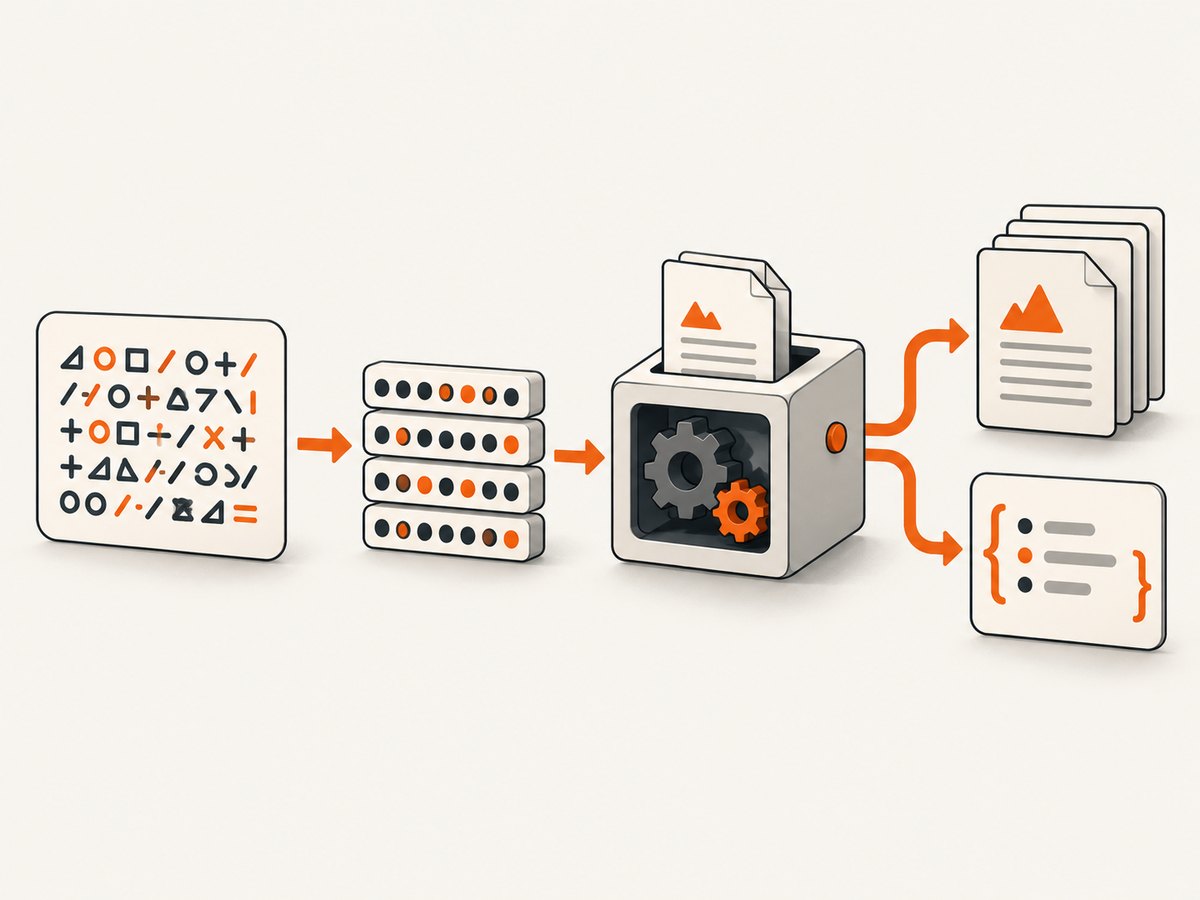
Choose the parser for the runtime that already has the bytes. Node’s Buffer is convenient on a server; PDF.js accepts binary typed-array data in browser code. If an upstream API can provide binary data directly, prefer that over converting it to base64 and back: the extra representation uses memory. [PDF.js API docs](https://mozilla.github.io/pdf.js/api/draft/module-pdfjsLib.html) · [PDF.js FAQ](https://github.com/mozilla/pdf.js/wiki/Frequently-Asked-Questions)
2. Node.js: extract page text with a Buffer
The following example uses the documented pdf.js-extract buffer API. Install the package in your Node project first:
npm install pdf.js-extractSave this as an ES module file, for example extract.mjs. Set PDF_BASE64 to the base64 payload. The code removes an optional data URI prefix, decodes the bytes, extracts page text, and prints a JSON object.
import { PDFExtract } from 'pdf.js-extract';

const input = process.env.PDF_BASE64;
if (!input) throw new Error('Set PDF_BASE64 to a base64-encoded PDF');

const base64Pdf = input.replace(/^data:application\/pdf;base64,/i, '');
const pdfBuffer = Buffer.from(base64Pdf, 'base64');
if (pdfBuffer.length === 0) throw new Error('Decoded PDF is empty');

const extractor = new PDFExtract();
extractor.extractBuffer(pdfBuffer, {}, (err, data) => {
  if (err) {
    console.error('PDF extraction failed:', err);
    process.exitCode = 1;
    return;
  }

  const pages = data.pages.map((page) => ({
    page: page.info.num,
    text: page.content.map((item) => item.str).join(' '),
  }));

  console.log(JSON.stringify({ pages }, null, 2));
});
Run it with your base64 value supplied through the environment. Avoid putting sensitive document contents directly in shell history; use your application’s secret/input handling instead.
PDF_BASE64='JVBERi0xLjQK...' node extract.mjsThe package documents extractBuffer(buffer, options, callback) and page content items with a str field. Confirm the installed version’s API if you use a different release or module format. [pdf.js-extract documentation](https://www.npmjs.com/package/pdf.js-extract)
Customize the JSON shape
The example joins each page’s text items with spaces for a simple response. That is a choice, not a guarantee about layout. Keep items separate if you need their positions, or add application-specific fields:
const pages = data.pages.map((page) => ({
  page: page.info.num,
  text: page.content.map((item) => item.str).join(' '),
  items: page.content.map((item) => ({
    text: item.str,
    x: item.x,
    y: item.y,
  })),
}));
Check the actual item fields returned by the package version you install before depending on coordinates. If the consumer only needs a single searchable string, concatenate page text and retain page boundaries elsewhere for citations or navigation.
Tables and reading order
pdf.js-extract provides helpers for grouping lines and rows, but grouping text by position does not establish that the source PDF contains a semantic table or that each cell has been identified correctly. Two-column pages, rotated text, footnotes, and irregular spacing can make a simple join misleading. Test representative documents, retain coordinates when layout matters, and treat table reconstruction as a separate parsing problem. [pdf.js-extract documentation](https://www.npmjs.com/package/pdf.js-extract)
3. Browser: decode to Uint8Array and use PDF.js
In browser code, remove any data URI prefix, convert the base64 payload to bytes, then give PDF.js a Uint8Array. Load the PDF.js library and worker using the setup appropriate to your application and installed version; the example below assumes pdfjsLib is already available.
async function extractPdfJson(base64Input) {
  const base64 = base64Input.replace(/^data:application\/pdf;base64,/i, '');
  const binary = atob(base64);
  const bytes = new Uint8Array(binary.length);

  for (let i = 0; i < binary.length; i += 1) {
    bytes[i] = binary.charCodeAt(i);
  }

  const pdf = await pdfjsLib.getDocument({ data: bytes }).promise;
  const pages = [];

  for (let pageNumber = 1; pageNumber <= pdf.numPages; pageNumber += 1) {
    const page = await pdf.getPage(pageNumber);
    const content = await page.getTextContent();
    pages.push({
      page: pageNumber,
      text: content.items.map((item) => item.str).join(' '),
    });
  }

  return { pages };
}

const result = await extractPdfJson(base64PdfString);
console.log(JSON.stringify(result, null, 2));
PDF.js documents binary data as the input to its loading API and recommends typed-array data for memory use. It also documents the base64 conversion path for browser usage. [PDF.js API docs](https://mozilla.github.io/pdf.js/api/draft/module-pdfjsLib.html) · [PDF.js examples](https://mozilla.github.io/pdf.js/examples/)
For large documents, do not make extra copies of the base64 string, binary string, and byte array if you can avoid it. The browser atob approach creates an intermediate binary string. If the source can provide bytes directly, pass a typed array instead. Keep parsing off the main UI path when document size or parsing time would make an interactive page unresponsive; follow the worker setup documented for your PDF.js version.
4. Decode correctly and validate input
Data URI versus raw base64
Some APIs return a raw base64 payload; others wrap it in a data URI. Do not pass the whole data:application/pdf;base64, value as though it were just base64. Strip the prefix before decoding. The prefix can vary by MIME type, so if your application accepts other data URIs, parse and validate the header rather than hard-coding a PDF-only assumption.
URL-safe base64 and whitespace
Node.js documents that its base64 decoder accepts the URL-safe alphabet and ignores whitespace. That can be useful when values have passed through URL-oriented systems, but validate your input at the application boundary. Browser atob expects a base64 string; normalize URL-safe characters and handle padding if your upstream format omits it. [Node.js Buffer docs](https://nodejs.org/download/release/v22.18.0/docs/api/all.html)
Base64 validity alone does not prove the decoded bytes form a supported PDF. Check that decoding produced nonempty bytes and let the PDF parser validate the document. Do not trust a filename, content type, or prefix as a substitute for parsing. Handle parser errors and impose application-appropriate input size limits.
Password-protected files
PDF.js exposes a password loading parameter for documents that require one. Supply the password through the parser’s supported mechanism, and handle the password-required or incorrect-password path in your application. Compatibility depends on the actual file and parser; the documentation cited here does not establish that every encryption configuration will work. [PDF.js API docs](https://mozilla.github.io/pdf.js/api/draft/module-pdfjsLib.html)
5. Return useful and honest JSON
A robust response distinguishes a successful parse with no text from an extraction failure. For example, an empty page text value may mean the page has no text layer; it should not automatically be reported as a parser error. You might return status, page count, and per-page text:
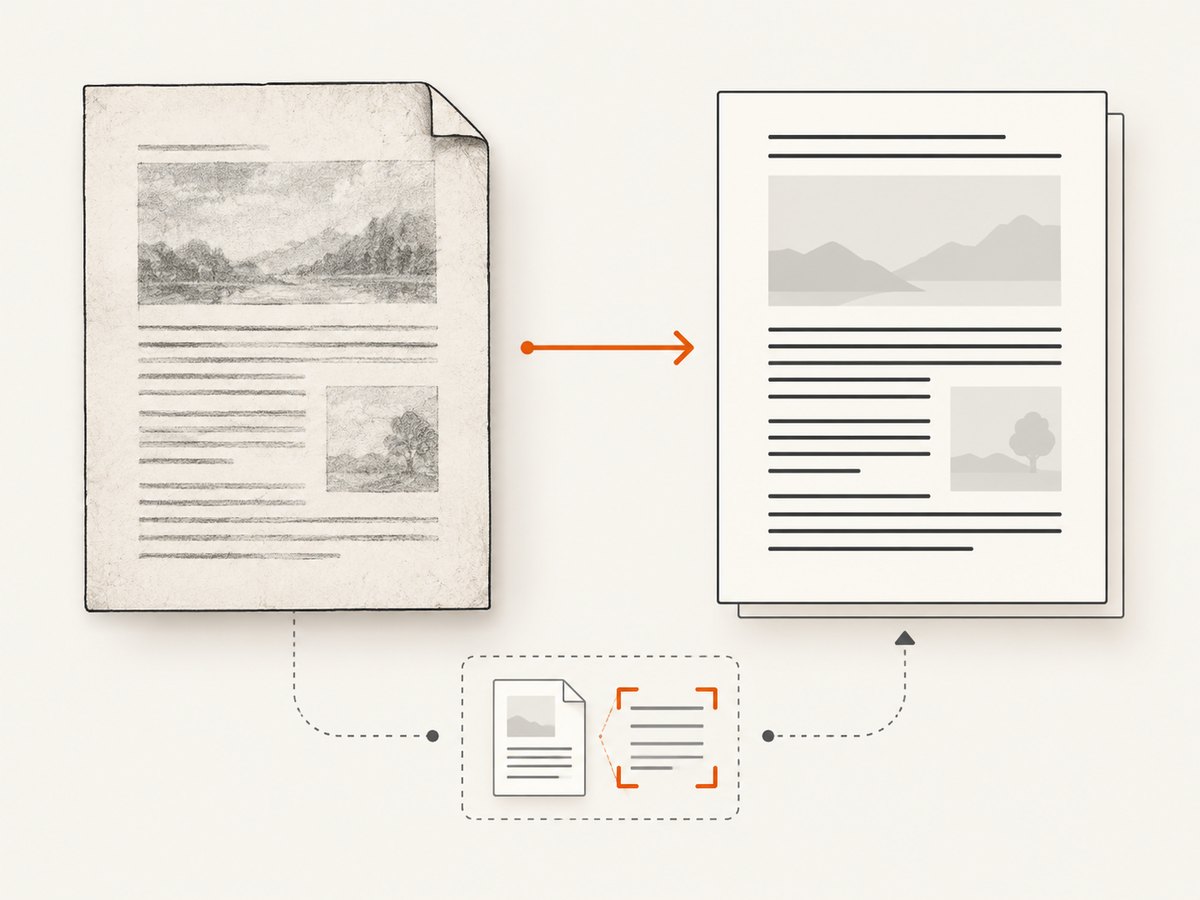
{
  "status": "ok",
  "pageCount": 2,
  "pages": [
    { "page": 1, "text": "Invoice number 123" },
    { "page": 2, "text": "Payment terms: net 30" }
  ]
}
This schema is an application design example. Add stable identifiers or coordinates only where a consumer needs them, and version your response if downstream clients depend on the field names. For very large documents, consider returning or storing pages incrementally rather than building multiple full-document strings and objects in memory.
6. Troubleshooting
| Symptom | Likely cause | Fix |
|---|---|---|
| Parser says the PDF is invalid or cannot find a header | The input includes a data URI prefix, was truncated, or is not the PDF payload. | Strip the prefix, verify the upstream transfer was complete, decode once, and pass the resulting bytes to the parser. |
| The decoded buffer is empty | The input string is missing, empty, or only contains a prefix. | Validate input before decoding and reject an empty decoded buffer. |
| Unexpected or garbled characters | The value was treated as text bytes without base64 decoding, was corrupted in transit, or the PDF’s text encoding/layout is complex. | Decode to bytes first; verify the original payload and inspect parser text items on representative files. |
| No text appears, but pages exist | The PDF may contain page images without a text layer. | Add an OCR stage. pdf.js-extract explicitly states that it does not provide OCR. [Package docs](https://www.npmjs.com/package/pdf.js-extract) |
| Text order looks wrong or columns are merged | Text item order is not equivalent to visual reading order. | Use coordinates and layout-aware grouping, then validate against the actual document types. Do not assume row helpers guarantee semantic table detection. |
| Password prompt or password error | The file is encrypted or the provided password is wrong. | Pass the password using the parser API’s supported option and handle failure without exposing the password in logs. |
| Browser tab becomes unresponsive or memory spikes | Large base64, intermediate strings, byte arrays, parsed page data, and JSON copies coexist. | Prefer binary input when available, avoid duplicate conversions, process pages sequentially, and consider a worker for browser parsing. |
| Import or method is undefined in Node | Installed package version or CommonJS/ES module setup differs from the example. | Check the package’s current API and your project module configuration; adapt the import and callback or async wrapper accordingly. |
7. Performance, reliability, and cost
There is no benchmark here comparing parsers or runtimes, so choose based on where the bytes live, document size, and required output. Base64 adds representation overhead and decoding allocates memory; the PDF parser then builds its own structures. Decode once, avoid retaining unnecessary copies, and avoid collecting both item arrays and joined strings unless consumers need both.
For reliability, treat malformed data, unsupported files, password errors, and parser exceptions as normal input outcomes. Set size limits before parsing, use timeouts or workload controls suitable to the server, and record safe diagnostic context such as document size and error category without logging raw PDF contents. Validate extraction on real examples that cover multi-page documents, columns, scanned pages, and any languages or layout styles your product supports.
The libraries cited above provide software APIs; this workflow has no per-document API price established by the dossier. Infrastructure costs depend on where parsing runs and the resources your application uses. Scanned-page OCR requires an additional service or library and may have separate costs; the extraction route alone will not recognize text embedded only in images.
8. Or skip the browser setup
If the PDF you need is on a web page and your actual goal is to inspect the page visually, a screenshot is a different output from extracted PDF text. ScreenshotNeo is a website screenshot API and MCP server from ScreenshotNeo. One GET request captures a URL as PNG, JPEG, WebP, or PDF. See the API documentation.
curl -G "https://api.screenshotneo.com/v1/shot" -d access_key=YOUR_API_KEY --data-urlencode url=https://stripe.com -o shot.webpCookie banners, newsletter popups, and chat widgets are removed before the shot, and each step can be turned off. Bot checks, blank pages, timeouts, failed loads, and cache hits cost nothing; response headers identify the page verdict and billing status. Its MCP server lets AI agents use take_screenshot, get_page_info, and capture_pdf. The free plan includes 1,000 screenshots a month with no card; paid plans start at $5 for 3,000 shots.
Create a free ScreenshotNeo account for 1,000 screenshots a month, with no card.
9. Frequently asked questions
Can I turn a base64 PDF directly into JSON?
Not as a meaningful structured result without parsing. Decode the base64 to PDF bytes, extract page content, then serialize an application-defined object with JSON.stringify or your runtime’s JSON encoder.
Does text extraction preserve the original page layout?
Usually not by itself. Text items and coordinates can help reconstruct ordering, but columns and tables require layout-specific interpretation and validation.
Can I extract text from a scanned PDF with this code?
Only if the scanned document also has a text layer. Image-only pages require OCR; ordinary text extraction does not recognize text inside page images.
Should I use Node.js or PDF.js?
Use the path matching your runtime: Node.js Buffer plus a Node-compatible parser on a server, or PDF.js with typed-array bytes in a browser. The output schema is yours either way.


