Basic Fabric.js Image Selection with Mask
Learn how to mask a Fabric.js image, select and move it inside a fixed frame, and choose between clipPath and cropX/cropY.

To show only part of an image in Fabric.js, assign a normal Fabric object—such as a circle or rectangle—to the image’s clipPath property. The image remains an image object; the clip path determines which of its pixels are visible. For a fixed frame that stays put while the user moves the image behind it, use an absolute clip path and design the selection and controls deliberately. Use cropX and cropY when you need to crop from source-image pixels instead of applying a geometric mask.
This guide builds a basic masked image, explains selection behavior, and shows how to keep a frame fixed while repositioning the image. Fabric.js provides the image, clipping, selection, and control primitives; a complete crop-editor interaction is application code.
1. Add an image with a circular mask
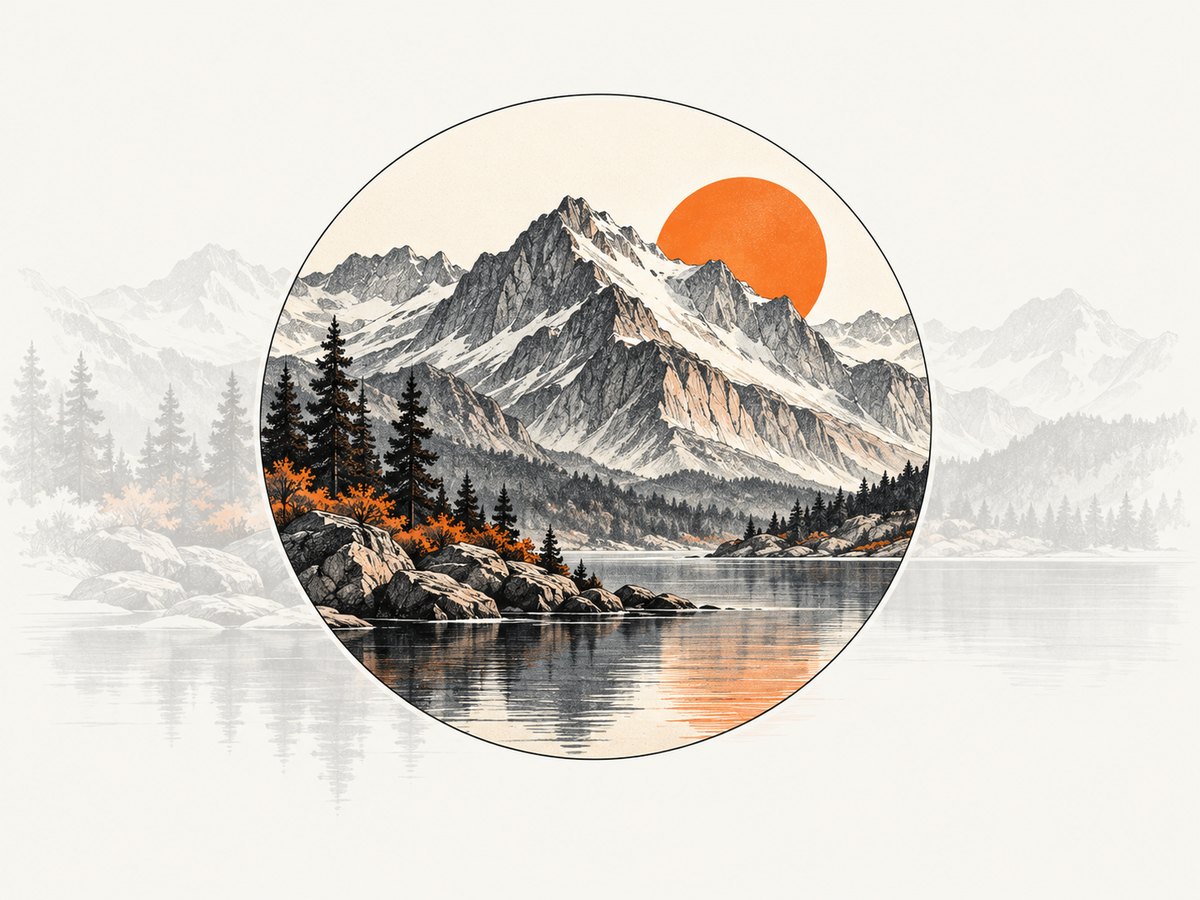
In Fabric.js, FabricImage is the image object. A clip path can be any normal Fabric object. Here is a complete browser example for Fabric.js 6, using its ES module build. It loads an image from a URL, creates a circle mask, and adds the masked image to a canvas.
<canvas id="canvas" width="640" height="420"></canvas>
<script type="module" src="./app.js"></script>
import { Canvas, FabricImage, Circle } from 'https://cdn.jsdelivr.net/npm/fabric@6.6.1/+esm';
const canvas = new Canvas('canvas', {
backgroundColor: '#f3f4f6',
selection: true
});
const image = await FabricImage.fromURL('https://fabricjs.com/assets/pug.jpg', {
crossOrigin: 'anonymous'
});
image.set({
left: 320,
top: 210,
originX: 'center',
originY: 'center',
scaleX: 0.7,
scaleY: 0.7
});
const mask = new Circle({
radius: 120,
originX: 'center',
originY: 'center'
});
image.set({ clipPath: mask });
canvas.add(image);
canvas.setActiveObject(image);
canvas.requestRenderAll();The image URL is an example; replace it with an image you control. The official Fabric.js clipping tutorial describes assigning a normal Fabric object to the clipped object’s clipPath. The path is a visibility shape: pixels under it remain visible, while pixels outside it are hidden. It does not permanently erase the hidden part of the image. See the Fabric.js documentation for the API and clipping details.
Aligning the mask
A regular clip path is positioned relative to the center of the object being clipped. Set its origin deliberately. Center origins on both image and mask make common centered masks predictable. A mismatch between originX/originY values can make the mask appear offset, especially after scaling or rotation. The mask itself does not need to be added separately to the canvas to clip the image.
The clip path is not a visible frame border. If you want an outlined circle or another visible frame, add a separate shape above the image. Keep that decorative shape independent of the clipping geometry so its stroke does not affect the clipping result.
2. Make the image selectable and movable
By default, Fabric canvas selection lets users activate and transform objects. Since the image is the canvas object in this example, users select the image, not the clip path as a separate object. The image’s controls can scale or rotate the clipped image, and dragging it moves the image and its ordinary relative clip path together.
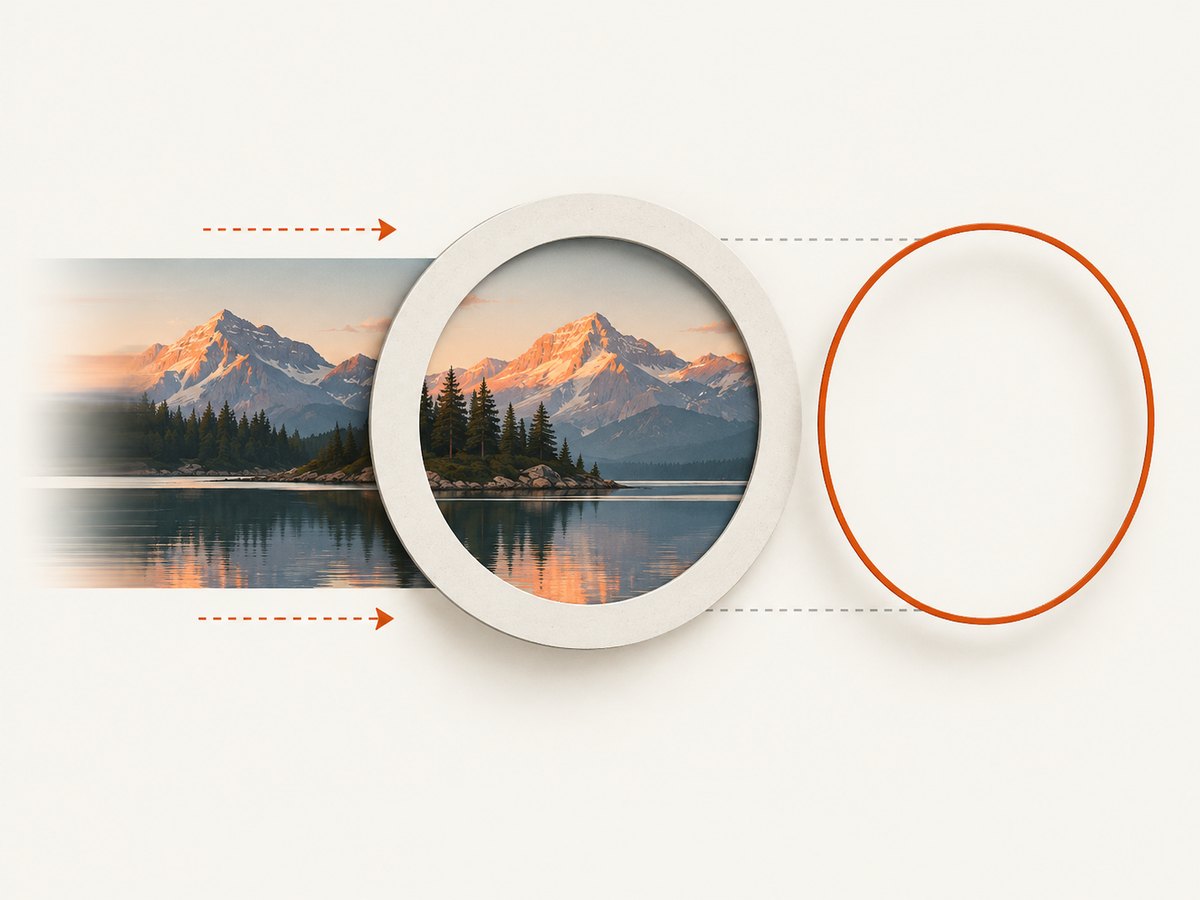
That behavior is right when the mask should travel with the image. It is not the same as a crop editor where the frame stays in one place and the image moves underneath it. Fabric.js offers selection events and customizable controls, but it does not provide a complete Canva-style “select only the masked area” widget out of the box.
Keep a frame fixed while moving the image
For a frame fixed in canvas coordinates, make the clip path absolute and manage it separately from the image. In this coordinate model, the clipping object stays in place while the image can move beneath it. Add a non-selectable frame shell above the image to show the crop boundary. The shell is just a visual aid; it is not the clip path.
import { Canvas, FabricImage, Circle } from 'fabric';

const canvas = new Canvas('canvas', { selection: true });
const image = await FabricImage.fromURL('/images/photo.jpg');
image.set({
  left: 320,
  top: 210,
  originX: 'center',
  originY: 'center',
  scaleX: 0.8,
  scaleY: 0.8
});

const fixedMask = new Circle({
  left: 320,
  top: 210,
  radius: 120,
  originX: 'center',
  originY: 'center',
  absolutePositioned: true
});
image.set({ clipPath: fixedMask });
canvas.add(image);

const frame = new Circle({
  left: 320,
  top: 210,
  radius: 120,
  originX: 'center',
  originY: 'center',
  fill: 'transparent',
  stroke: '#ffffff',
  strokeWidth: 3,
  selectable: false,
  evented: false
});
canvas.add(frame);
canvas.bringObjectToFront(frame);
canvas.setActiveObject(image);
canvas.requestRenderAll();
Absolute clipping changes the positioning model: the clip path is placed in canvas coordinates. Keep its coordinates aligned with the frame shell. If the frame is resizable or movable, update the absolute clip path and shell together in your application logic. This approach is suited to a fixed frame; a draggable frame needs event handling that keeps both shapes synchronized.
Restrict movement to the crop interaction
If users should drag the image without accidentally selecting a neighboring object, keep the frame shell non-selectable and make the image the active object. For more constrained behavior, handle pointer events or provide custom controls that translate the image while preserving the frame location. Update coordinates after programmatically changing transforms:
image.set({ left: image.left + deltaX, top: image.top + deltaY });
image.setCoords();
canvas.requestRenderAll();
Call setCoords() when application code changes position, scale, or rotation outside Fabric’s usual interactive transform flow. Otherwise, hit testing and control positions can lag behind the rendered object.
3. Choose clipPath or cropX/cropY
| Need | Use | How it behaves |
|---|---|---|
| Circle, rounded shape, polygon, or other geometric visibility region | clipPath |
Hides pixels outside a Fabric shape; the source image remains intact. |
| Crop a source image using original pixel coordinates | cropX and cropY |
Sets the source-image crop offset in pixels, as documented by the Image API. |
| Crop to a rectangle and export the cropped visible result | Either, depending on the export and editing model | Use a clip path for editable geometry; use source crop properties when pixel-region cropping is the requirement. |
A clip path does not automatically enlarge or resample the visible pixels to fill a different frame. If the visible portion must fill a target area, calculate the scale and position yourself. For example, to cover a circular frame of radius r with a square source image of side s, a starting uniform scale is (2 * r) / s; choose a larger scale if the source is rectangular or the frame shape requires more coverage. Then position the image so the desired source region sits under the mask.
After changing image dimensions or transforms programmatically, mark the image dirty if cached rendering must be refreshed, update its coordinates, and request a render. Fabric’s image API documents image manipulation and rerendering behavior; the exact crop math depends on your image dimensions, mask size, and desired focal point.
4. Use other mask shapes
Rectangles and circles are straightforward masks. A polygon can define an irregular visible region. A group can combine multiple clip objects; grouped members have OR-style clipping behavior. Do not rely on SVG nonzero or evenodd clip-rule semantics for grouped members. The clipping documentation also states that inverted groups must be inverted at group level; inverting individual objects inside a clip group is unsupported.
To try a polygon mask, replace the circle with a polygon. Coordinates are local to the polygon object, so test the positioning and origin in your chosen Fabric.js release:
import { Polygon } from 'fabric';

const mask = new Polygon([
  { x: 0, y: -110 },
  { x: 100, y: -35 },
  { x: 62, y: 90 },
  { x: -62, y: 90 },
  { x: -100, y: -35 }
], {
  originX: 'center',
  originY: 'center'
});
image.set({ clipPath: mask });
image.dirty = true;
canvas.requestRenderAll();
For more elaborate selections, validate the mask against the pinned Fabric.js version and your export path. A maintainer discussion describes using a group clip path and the clip layout strategy for selecting the clipped area, but does not provide a complete example. Treat that as a direction to prototype, not a guaranteed drop-in recipe.
5. Options and configuration to consider
- Object selection: Use canvas selection settings and object
selectable/eventedproperties to decide what users can select or interact with. A decorative frame shell is usually non-selectable. - Clip origin: Set
originXandoriginYexplicitly to make alignment understandable. Relative masks follow the clipped object; absolute masks use canvas positioning. - Transform: Set position, scale, angle, and origins on the image to control which area appears through the mask. A rotated image requires the mask and image to be handled in a consistent coordinate model.
- Rendering: Call
requestRenderAll()after changes. Mark the image dirty when a cached image needs repainting after application-level changes. - Frame appearance: Draw a separate non-evented border above the image. Keep the border and clip geometry synchronized if the frame can change.
- Export: Check that the desired clipping appears in the actual export format and output dimensions. Cross-origin image hosting can restrict canvas export; configure CORS on the image host and load with the appropriate cross-origin setting.
6. Troubleshooting
| Symptom | Likely cause | Fix |
|---|---|---|
| Mask is offset from the image | Origin mismatch or incorrect relative versus absolute positioning | Set origins explicitly. For a fixed frame, use absolute positioning and keep clip and shell coordinates aligned. |
| Dragging the image moves the mask | The clip path uses the default object-relative positioning | Use an absolute clip path for a canvas-fixed frame, then update its coordinates when the frame moves. |
| Only the image rectangle is selectable | The image is the selectable canvas object; the clip path is not a separate selection widget | Keep the image selectable and build the desired pointer or custom-control interaction in application code. Prototype group selection guidance against your pinned version. |
| Image disappears or mask seems inverted | Clip geometry is outside the expected coordinate space, or the shape orientation is unexpected | Start with a centered circle, verify origins, then introduce absolute positioning or groups one change at a time. |
| Image does not fill the frame | Clipping limits visibility but does not automatically scale the remaining pixels | Calculate scale and position to cover the mask, then rerender. |
| Selection handles are misplaced after code moves the image | Fabric object coordinates were not refreshed | Call setCoords() after programmatic transform changes. |
| Export fails after loading a remote image | The image host does not permit the required cross-origin canvas access | Serve the image with suitable CORS headers or use a same-origin asset, then load it with the correct cross-origin setting. |
| Grouped holes or inverted regions clip unexpectedly | Grouped clip members use OR behavior and do not implement SVG clip-rule behavior; individual group-member inversion is unsupported | Redesign the mask as supported geometry or test a different single-object mask strategy. |
7. Performance, reliability, and cost
A single image and a simple circle or rectangle mask are a modest rendering setup. More complex polygons, groups, high-resolution images, and repeated updates can add rendering work. Avoid rebuilding the image and mask on every pointer move; update existing objects and request a render. Keep the source image near the dimensions needed for the output when practical, while preserving enough resolution for the desired scale.
For reliable editing, pin the Fabric.js version used by your application and validate clipping, transforms, selection, and export against that version. Browser image loading is asynchronous, so add the object only after the image promise resolves. Handle failures from the image load path in your application and give users a way to retry or choose another file. For rotated images or programmatically manipulated objects, keep coordinate updates in the same interaction flow as transform changes.
If you need a screenshot of a page showing a Fabric.js editor—for documentation, issue reports, or visual review—you can capture it with your own browser automation or use a screenshot API. ScreenshotNeo is a website screenshot API and MCP server from Yorker Media. Its one-request API returns a PNG, JPEG, WebP, or PDF; the feature set includes full-page and element capture, custom CSS and JavaScript, device presets, and other capture settings. Details and configuration are in the ScreenshotNeo API documentation.
Or skip the browser setup
Use a GET request to capture a page. Replace the example URL with your editor or demo page and use your API key. See the ScreenshotNeo docs for request options.
curl -G "https://api.screenshotneo.com/v1/shot" -d access_key=YOUR_API_KEY --data-urlencode url=https://fabricjs.com -o shot.webpimport requests
r = requests.get(
"https://api.screenshotneo.com/v1/shot",
params={"access_key": "YOUR_API_KEY", "url": "https://fabricjs.com"},
timeout=90,
)
open("shot.webp", "wb").write(r.content)const q = new URLSearchParams({
access_key: 'YOUR_API_KEY',
url: 'https://fabricjs.com'
});
const res = await fetch(`https://api.screenshotneo.com/v1/shot?${q}`);
if (!res.ok) throw new Error(`Screenshot request failed: ${res.status}`);
const bytes = new Uint8Array(await res.arrayBuffer());
await (await import('node:fs/promises')).writeFile('shot.webp', bytes);- Cookie banners, popups, and chat widgets are removed before the shot.
- Bot checks, blank pages, and failed loads are never billed; response headers say which page verdict and billing result applied.
- An MCP server lets AI agents use
take_screenshot,get_page_info, andcapture_pdf. - The Free plan includes 1,000 screenshots a month with no card; paid plans start at $5 for 3,000.
Learn about ScreenshotNeo or sign up free for 1,000 screenshots a month, no card required.
8. Frequently asked questions
Can I select only the visible masked area?
The image remains the canvas object, so ordinary selection activates the image. Selecting a clip region as a crop-editor interaction requires additional selection logic or custom controls; the clip path alone does not turn into a separate interactive widget.
Does a mask permanently crop the image?
No. A clip path controls visibility while keeping the image object available for repositioning. Use an export or source-crop workflow if you need a permanently cropped asset.
Can I use a mask with a rotated image?
Yes, but keep the image and mask in a consistent coordinate model. For programmatic transform changes, update coordinates and request a render, then verify the result at the angle and scale your editor supports.
Can one mask contain several visible regions?
A group can combine clip objects, with OR-style behavior. Grouped members do not provide SVG clip-rule semantics, and individual members cannot be inverted to create holes in the group.
Where should I start if I am building a crop tool?
Start with a fixed frame, one image object, and a simple absolute circle or rectangle mask. Add image dragging, resizing, and export as separate steps so each coordinate and selection behavior can be checked independently.


