Facebook Page Image Size: Cover and Profile Dimensions for 2026
Use 851 × 315 px for a Facebook Page cover and at least 320 × 320 px for a profile picture. Learn safe zones, cropping, formats, and export settings.

Use 851 × 315 pixels for a Facebook Page cover photo. Export it as an sRGB JPG for a fast-loading image. Facebook’s current Meta-attributed guidance, as reported by Businessman Talk, lists 400 × 150 pixels as the minimum. Your cover is cropped into different shapes on computers and phones, so keep important text and logos near the center.
For the Page profile picture, use at least 320 × 320 pixels. It is displayed as a circle, so place the subject inside a centered square safe area. Profile and cover photos are public and can appear in profiles, feeds, albums, and thumbnails.
Facebook Page image dimensions at a glance
| Asset | Recommended preparation | Reported minimum | Display shape | Best starting format |
|---|---|---|---|---|
| Page cover photo | 851 × 315 px | 400 × 150 px | 16:9 on desktop; 2.4:1 on mobile | sRGB JPG; PNG for text or logos |
| Page profile picture | 320 × 320 px or larger | 320 × 320 px for best quality | Square source, circular display | sRGB PNG or JPG |
The 851 × 315 cover size is a preparation target, not a promise that every device will show the entire file. Facebook’s responsive layout crops the same source differently. Design for the crop first, then export.
What size should a Facebook Page cover photo be?
Create the cover at 851 × 315 pixels. This is the current fastest-loading recommendation attributed to Meta in the research source. A 400 × 150 pixel image is the reported minimum, but using the recommended dimensions gives you more detail for text, logos, and photography.

The cover is presented at two reported ratios:
- Desktop: approximately 16:9.
- Mobile: approximately 2.4:1, with a left-aligned full-bleed presentation.
Because those frames do not match, an edge-to-edge headline can be cut off on one device. Treat the middle of the canvas as your safe area. Keep the headline, logo, product name, and call to action away from all edges. Also leave room in the lower-left region, where Page controls and the profile image can overlap depending on the layout.
A practical cover safe-zone workflow
- Start a document at 851 × 315 px in sRGB.
- Draw an inner guide around the central area. Keep all essential words and logos inside it.
- Use the outer area for background color, texture, or imagery that can be cropped safely.
- Check the lower-left corner for overlap with the Page profile image and controls.
- Preview the design in Facebook’s Page composer on both desktop and a phone before publishing.
There is no single permanent pixel safe zone because Facebook’s interface and crop behavior can change. A centered composition survives more layouts than a design that depends on exact edge positions.
What size should a Facebook Page profile picture be?
Use a source image of at least 320 × 320 pixels. Facebook Help Center guidance says this size provides the best quality. Uploading a larger square source is reasonable when your original artwork supports it, but the important requirement is a sharp square image that still works when reduced to a small circle.
Design the profile image as though a circular mask will remove the corners:
- Center the face, symbol, or initials.
- Leave padding around the subject so the circle does not cut it.
- Avoid thin lines and tiny type that disappear at thumbnail size.
- Check the image against both light and dark backgrounds.
Do not use the cover’s wide canvas for the profile picture. They are separate assets with different crops and jobs: the cover establishes context, while the profile image identifies the Page at small sizes.
JPG or PNG: which file type should you use?
For a photographic cover, use an sRGB JPG. The research source describes sRGB JPG as the fastest-loading recommendation. Choose a moderate quality setting so gradients and faces remain clean without making the file unnecessarily large.
Use PNG when the cover contains a logo, sharp typography, flat color, or transparency-like edges that show compression artifacts in JPG. PNG can preserve crisp edges better, but it may produce a larger file. Facebook may still process the upload, so inspect the published result rather than judging only the local export.
| Design | Recommended export | Reason |
|---|---|---|
| Photo or textured background | sRGB JPG | Good visual quality with efficient loading |
| Logo and large text | sRGB PNG | Sharper edges and fewer compression halos |
| Profile icon or flat illustration | PNG or high-quality JPG | Preserves simple shapes at thumbnail size |
Keep the color profile in sRGB. Other profiles can shift colors after upload, especially in brand backgrounds and skin tones.
Why is my Facebook cover cropped on mobile?
Facebook uses one cover file in layouts with different presentation ratios. The research source reports a 16:9 desktop presentation and a 2.4:1 mobile presentation. A mobile frame is much wider relative to its height, so Facebook must remove portions of the desktop composition or scale the image differently.
Common causes
- Text is placed near the top or bottom edge.
- A logo sits in a corner instead of the center.
- The design assumes the profile picture will not overlap it.
- The background has important objects at the edges.
- The artwork was exported at the minimum size and became soft after resizing.
Fixes
- Move essential content toward the center third of the canvas.
- Use a quiet background at the edges so cropping does not remove meaning.
- Preview on a phone before publishing.
- Make a mobile-specific version when a campaign depends on precise positioning.
- Keep a master file so you can adjust the layout when Facebook changes its composer.
How to make a Facebook Page cover image
Method 1: design in a graphics editor
- Create an 851 × 315 px sRGB document.
- Add a background image or color that can tolerate cropping.
- Place the logo and headline in the central safe area.
- Keep small supporting text out of the lower-left overlap region.
- Export a JPG for photographic artwork or PNG for sharp logos and type.
- Upload it through the Page’s cover-photo controls.
- Inspect the desktop and mobile previews, then reposition or revise the source if needed.
Method 2: create a repeatable template with HTML and CSS
This simple file gives a designer or developer a fixed canvas for generating a cover. Replace the background URL and text, then render it in a browser or image tool.
<!doctype html>
<html lang="en">
<meta charset="utf-8">
<style>
  * { box-sizing: border-box; }
  body { margin: 0; background: #ddd; }
  .cover {
    width: 851px;
    height: 315px;
    display: grid;
    place-items: center;
    padding: 48px 150px;
    color: white;
    text-align: center;
    font: 700 34px/1.15 system-ui, sans-serif;
    background: linear-gradient(90deg, #123 0%, #246 100%);
  }
  .cover h1 { margin: 0; max-width: 520px; }
</style>
<div class="cover">
  <h1>Your Page message belongs in the center safe area</h1>
</div>
</html>
Render at 851 × 315 pixels and export the resulting image in sRGB. Keep the CSS canvas fixed; responsive CSS is useful for a web page but can produce the wrong bitmap dimensions for a cover upload.
Or skip the browser setup
If you generate cover variations from HTML, templates, or a live staging page, ScreenshotNeo can capture the finished page through one request. It supports PNG, JPEG, and WebP output, full-page capture, a CSS-element capture, custom CSS and JavaScript, viewport and device settings, retina scale, image resizing, and caching with a TTL you choose. You can use the same approach to create a fixed 851 × 315 rendering from a hosted template.
See the ScreenshotNeo API documentation for the complete parameter list. The following calls use the product’s API base and save the returned image:
cURL
curl -G "https://api.screenshotneo.com/v1/shot" \
  -d access_key=YOUR_API_KEY \
  --data-urlencode url=https://stripe.com \
  -o shot.webp
Python
import requests

r = requests.get(
    "https://api.screenshotneo.com/v1/shot",
    params={"access_key": "YOUR_API_KEY", "url": "https://stripe.com"},
    timeout=90,
)
r.raise_for_status()
open("shot.webp", "wb").write(r.content)
Node.js
const q = new URLSearchParams({
  access_key: 'YOUR_API_KEY',
  url: 'https://stripe.com'
});
const res = await fetch(`https://api.screenshotneo.com/v1/shot?${q}`);
if (!res.ok) throw new Error(`HTTP ${res.status}`);
const fs = await import('node:fs/promises');
await fs.writeFile('shot.webp', Buffer.from(await res.arrayBuffer()));
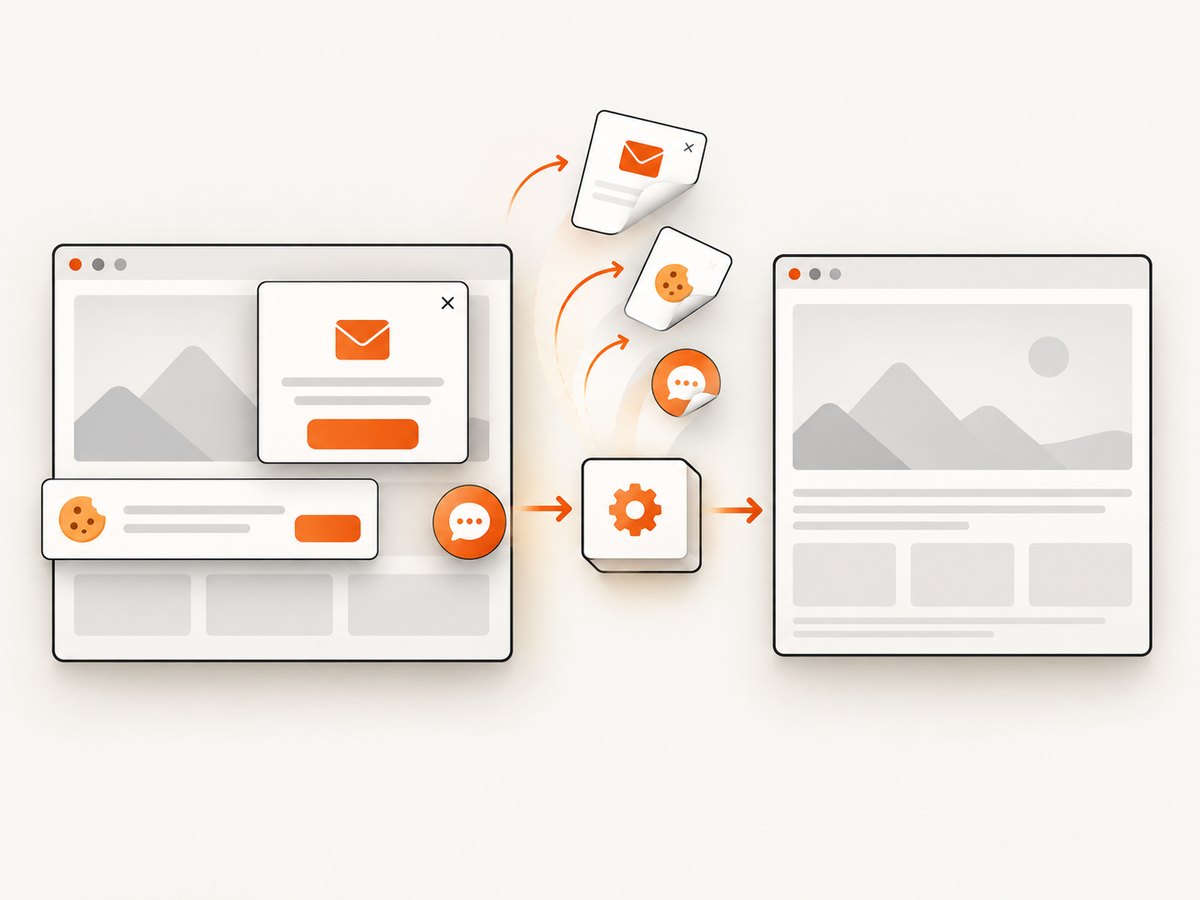
For a Facebook cover workflow, set the target page or template to an 851 × 315 viewport, add any custom CSS needed for the safe area, and choose the output format that matches your artwork. ScreenshotNeo accepts custom headers, cookies, user agents, timezone, geolocation, waits, blocked resource types, and JavaScript when the page needs them. Cookie banners, newsletter popups, and chat widgets are removed before the shot; each step can be turned off.
Bot checks, blank pages, timeouts, failed loads, and cache hits are not billed, and the response identifies the result with X-Page-Verdict and X-Billed headers. An MCP server provides take_screenshot, get_page_info, and capture_pdf tools for Claude, Cursor, and other MCP clients. The Free plan includes 1,000 screenshots per month with no card; paid plans start at $5 for 3,000. Create a free ScreenshotNeo account.
Quality checklist before publishing
- Cover source is 851 × 315 px.
- Profile source is at least 320 × 320 px.
- Files use sRGB.
- Important content sits near the center.
- Lower-left overlap area is visually quiet.
- Text remains readable at thumbnail size.
- Desktop and phone previews have both been checked.
- The exported file does not contain accidental crop marks, guides, or extra borders.
- The published image still looks correct after Facebook processing.
Troubleshooting Facebook Page images
The image looks blurry
It may have been uploaded below the recommended dimensions or enlarged after export. Re-export the cover at 851 × 315 or larger and the profile image at 320 × 320 or larger. Start with a sharp original rather than upscaling a small file.
Colors changed after upload
Convert the file to sRGB before export. Non-sRGB profiles can be interpreted differently by browsers and Facebook’s processing pipeline.
Text is missing on a phone
The text is outside the mobile crop. Move it toward the center and leave edge regions for background-only content. Verify the result in the Page composer on a phone.
The logo is cut into a circle
That is the profile-picture mask. Add more padding around the logo, use a square source, and test it at small thumbnail sizes.
The cover overlaps the profile picture or controls
Facebook’s Page layout reserves space around those elements. Keep essential information out of the lower-left area and use the preview to check the current layout.
The upload is rejected or appears distorted
Confirm that the file is a normal JPG or PNG, that its pixel dimensions are correct, and that it is not an unusually large export from a design tool. Re-export a flattened sRGB image and upload again.
Performance, reliability, and maintenance
A smaller, well-compressed sRGB JPG generally loads faster than a huge PNG. Use PNG selectively for logos and typography where compression quality matters. Keep a high-resolution master separately so you can revise the crop without repeatedly editing a flattened upload.
Review the cover whenever Facebook changes its Page composer, profile-picture placement, or mobile layout. The dimensions in this guide reflect the cited guidance available in 2026; platform UI and Help Center recommendations can change. Treat the composer preview as the final authority before a campaign goes live.
If you automate repeated renders, cache identical captures, wait for the template’s key selector, and block unnecessary resources. ScreenshotNeo’s cache TTL, wait controls, resource blocking, custom CSS, and usage API can help keep a batch process predictable. Its bulk capture endpoint supports up to 100 URLs per call, and asynchronous jobs can send signed webhooks when work completes.
FAQ
Is 851 × 315 the displayed size on every device?
No. It is the recommended preparation size. Facebook presents the cover in different desktop and mobile crops.
Can I use a square image as my cover?
You can upload other dimensions, but a wide 851 × 315 composition is designed for the cover’s presentation and gives you control over the crop.
Should the profile picture be a JPG or PNG?
Either can work. Choose PNG for crisp simple artwork and JPG for photographic images, keeping the source at least 320 × 320 pixels.
Are Facebook Page cover photos public?
Yes. Facebook Help Center says current profile pictures and cover photos are public and can be seen by anyone on or off Facebook.
How often should I update a cover?
Update it when your branding, campaign, offer, or important Page information changes. Recheck the mobile crop after every major Facebook layout change.


