How to Show a Fallback Image When a Webpage Screenshot Fails
Show a reliable fallback when a screenshot image or capture fails. Learn how to handle browser errors and wait for page images before capturing.
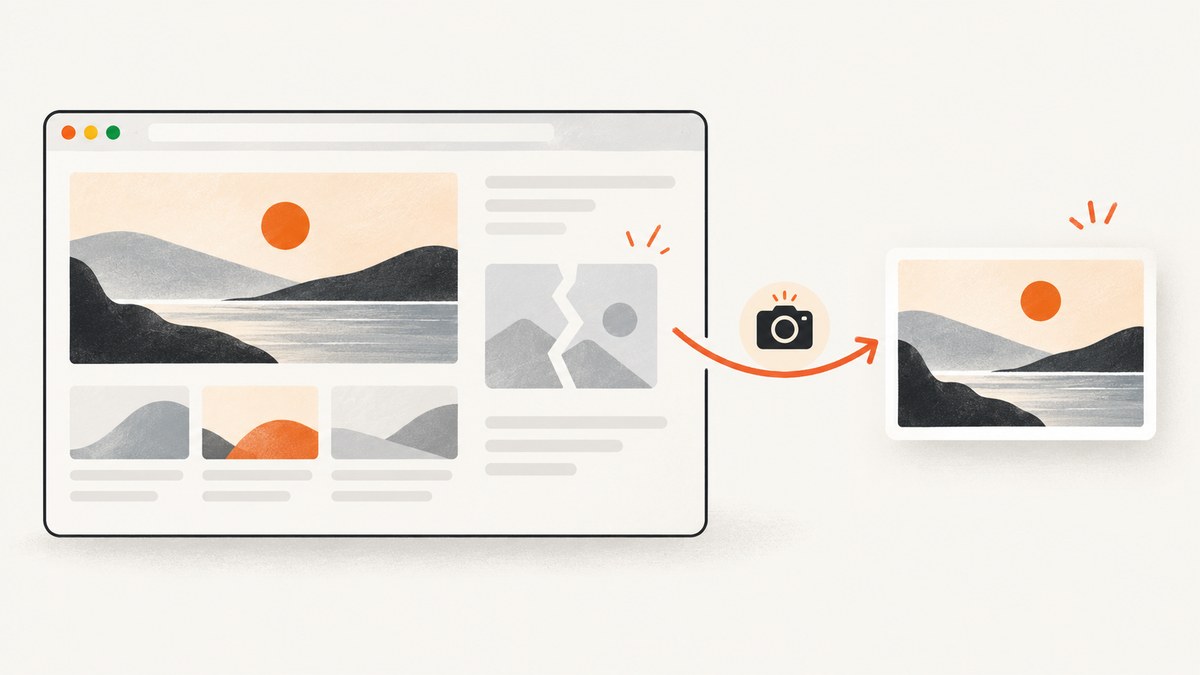
When a screenshot image fails to load in your page, handle that image’s error event and switch to a dependable local fallback or a styled placeholder. When screenshot generation itself fails, catch that error in the capture service and return a deliberate failure state. These are separate failures and need separate handling.
If you control the browser capture, wait for the page’s visual assets before taking the screenshot. Navigation finishing or network activity going quiet does not guarantee that images are decoded, lazy content has loaded, or later-inserted assets are ready.
1. Identify which screenshot failure you have
There are two common points of failure:
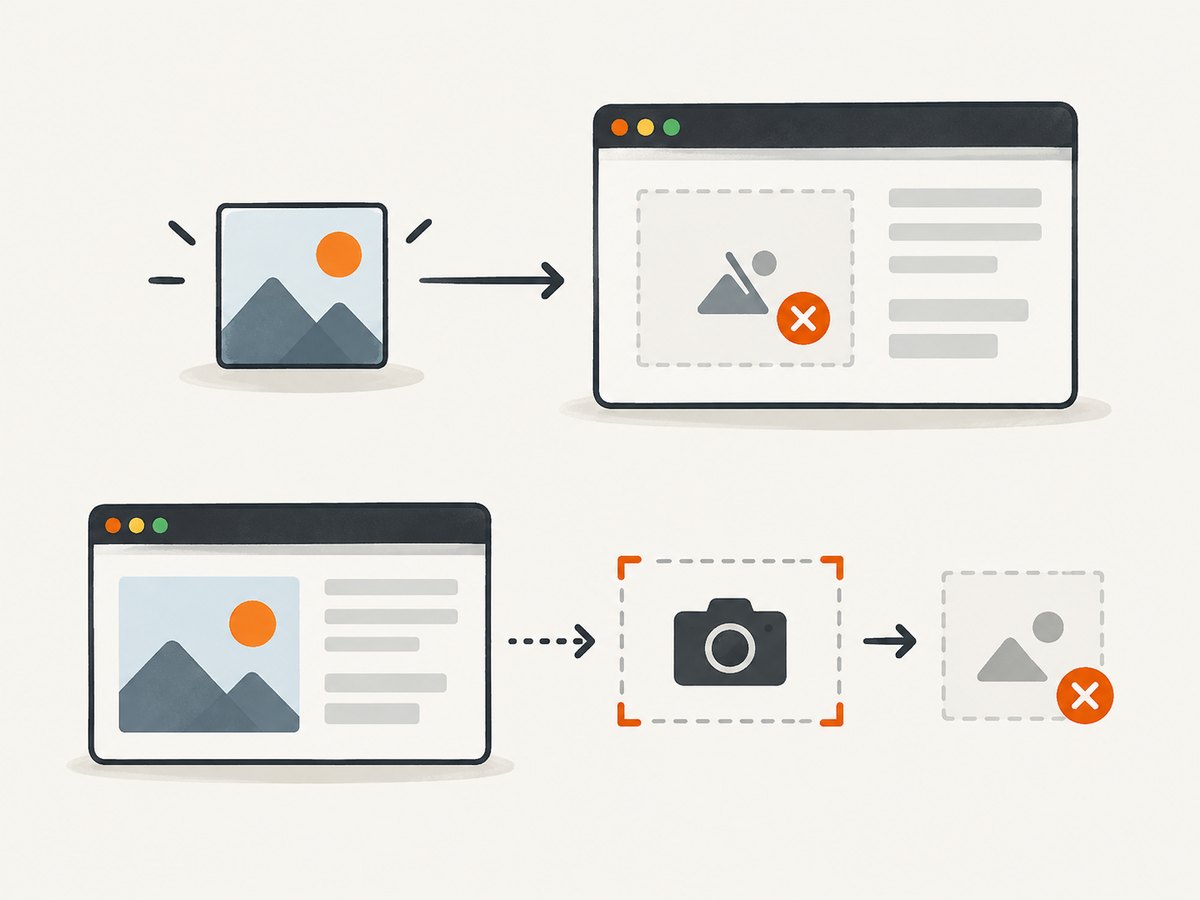
- Display failure: a screenshot file exists, but the browser cannot load it into an
<img>. The image’serrorevent is the right place to show a fallback. - Capture failure: the browser automation or screenshot service fails before it produces an image. Catch the operation’s error and return a placeholder state to the page.
A third case is a misleading “success”: the screenshot operation completes, but the captured page has broken or missing assets. Make visual readiness part of the capture workflow if the image content matters.
2. Handle an image that fails to display
For a simple page, attach an error handler to the image and replace its source once. Set dimensions to reserve space and write alt text that describes the image’s purpose. The browser fires an image error when a resource fails to load or cannot be used; examples include an empty source, corrupt file, or unsupported format. See [MDN’s error event reference](https://developer.mozilla.org/en-US/docs/Web/API/HTMLElement/error_event).
<img
  class="screenshot"
  src="/screenshots/page-preview.png"
  alt="Preview of the product page"
  width="640"
  height="360"
>

<script>
  const screenshot = document.querySelector(".screenshot");
  screenshot.addEventListener("error", function useFallback() {
    screenshot.removeEventListener("error", useFallback);
    screenshot.src = "/images/screenshot-unavailable.png";
  });
</script>
Removing the listener before assigning the fallback prevents the same handler from repeatedly reacting if that fallback asset is also missing. For the strongest failure behavior, skip the second image dependency and replace the image with a styled text placeholder instead:
function showScreenshotPlaceholder(img, message = "Screenshot unavailable") {
  const placeholder = document.createElement("div");
  placeholder.className = "screenshot-placeholder";
  placeholder.setAttribute("role", "img");
  placeholder.setAttribute("aria-label", message);
  placeholder.textContent = message;
  placeholder.style.width = `${img.width || 640}px`;
  placeholder.style.height = `${img.height || 360}px`;
  img.replaceWith(placeholder);
}

const img = document.querySelector(".screenshot");
img.addEventListener("error", () => showScreenshotPlaceholder(img), { once: true });
Style the placeholder in your stylesheet so its size, contrast, and typography match the surrounding interface. The text should explain what happened in the context of the page, such as “Preview unavailable” or “Screenshot could not be loaded.”
Choose useful alt text
If the screenshot conveys information, give the image meaningful alt text describing its content or purpose. If it is purely decorative and nearby text already explains the content, empty alt text (alt="") may be appropriate. Alt text is a textual fallback when an image is not displayed; it is not a substitute for handling a failed request. See [MDN’s image guide](https://developer.mozilla.org/en-US/docs/Web/HTML/Element/img).
The error event does not bubble, so a listener on a parent container will not catch image failures through ordinary event bubbling. Attach the listener to each image, or use a deliberate capture-phase event listener if you manage many images centrally. Direct listeners are easier to reason about for a small component.
3. Catch screenshot generation failures separately
A capture call may reject, time out, or return an unusable result before the frontend ever receives an image URL. Convert that failure into an explicit result that the UI can render. Avoid returning a broken image URL and hoping the display handler will explain a capture failure.
Here is a runnable Node.js example using Puppeteer. It navigates to a URL, waits for current document images to decode, and takes a screenshot. The caller receives either image bytes or an explicit failure result:
import puppeteer from "puppeteer";

async function capturePage(url) {
  const browser = await puppeteer.launch({ headless: true });
  try {
    const page = await browser.newPage({ viewport: { width: 1280, height: 800 } });
    await page.goto(url, { waitUntil: "domcontentloaded", timeout: 30_000 });

    await page.evaluate(async () => {
      await document.fonts.ready;
      await Promise.all(Array.from(document.images, async (img) => {
        if (!img.complete) {
          await new Promise((resolve) => {
            img.addEventListener("load", resolve, { once: true });
            img.addEventListener("error", resolve, { once: true });
          });
        }
        if (img.complete && img.naturalWidth > 0 && img.decode) {
          try { await img.decode(); } catch { /* broken image handled below */ }
        }
      }));
      const broken = Array.from(document.images).filter(
        (img) => !img.complete || img.naturalWidth === 0
      );
      if (broken.length) throw new Error(`${broken.length} image(s) did not load`);
    });

    const bytes = await page.screenshot({ type: "png", fullPage: true });
    return { ok: true, bytes };
  } catch (error) {
    return { ok: false, message: error instanceof Error ? error.message : "Capture failed" };
  } finally {
    await browser.close();
  }
}

const result = await capturePage("https://example.com");
if (result.ok) {
  const { writeFile } = await import("node:fs/promises");
  await writeFile("page.png", result.bytes);
} else {
  console.error(result.message);
}
Install Puppeteer in a Node project with npm install puppeteer. The image check intentionally resolves after either load or error, then inspects naturalWidth. It avoids waiting forever on one broken image. The example treats broken images as a capture error; if partial screenshots are acceptable, collect and report the broken image count instead of throwing.
Puppeteer’s screenshot guidance describes waiting for document.fonts.ready, decoding current images, and checking naturalWidth. This covers only image elements present at the time of the check; it does not guarantee readiness for later inserted images or CSS background images. See [Puppeteer’s screenshot guide](https://pptr.dev/guides/screenshots).
4. Wait for the images your screenshot actually needs
Run the readiness check after the page has reached the relevant application state. A page can add image elements after the initial navigation, and a lazy-loaded image below the viewport may not have been requested yet. MDN notes that lazy-loaded images might not load when the window’s load event fires because they load as they approach the viewport. Scroll through the region you intend to capture, or use application-specific readiness signals before checking images. Explicit width and height also reserve layout space and reduce shifts as images load. See [MDN’s image loading guidance](https://developer.mozilla.org/en-US/docs/Web/HTML/Element/img#loading).

A production capture workflow should set a deadline around readiness. If the deadline expires, decide explicitly whether to fail the capture, take a partial image, or render a warning. Do not allow one stalled image to hang a job indefinitely. For pages that insert content dynamically, wait for a known selector or app-owned “ready” flag, then enumerate the images again.
Remember that an image-element check does not cover CSS backgrounds, video frames, canvas content, or assets added after enumeration. If any of these matter, add page-specific readiness logic. A generic network-idle condition is not a complete visual guarantee.
5. Diagnose browser request failures correctly
In Playwright, a failed HTTP status and a transport-level request failure are different signals. A 404 or 503 response is still an HTTP response; it does not trigger requestfailed simply because the status is an error. Inspect responses and request failures separately. See [Playwright’s network documentation](https://playwright.dev/docs/network).
import { chromium } from "playwright";

const browser = await chromium.launch();
const page = await browser.newPage();
page.on("requestfailed", (request) => {
  console.error("Transport failure:", request.url(), request.failure()?.errorText);
});
page.on("response", (response) => {
  if (response.status() >= 400) {
    console.error("HTTP error:", response.status(), response.url());
  }
});

try {
  await page.goto("https://example.com", { waitUntil: "domcontentloaded", timeout: 30_000 });
  // Add an application readiness condition and image checks before capturing.
} finally {
  await browser.close();
}
This distinction tells you whether the browser could not complete the request at all, or it completed and received an error response. It also helps separate a failed screenshot asset from a site asset that the captured page itself tried and failed to load.
6. Choose the right fallback behavior
| Approach | Use it when | Tradeoff |
|---|---|---|
| Replacement image | You need to preserve a branded or illustrative visual area. | Adds another asset request, so the fallback itself can fail. |
| Styled text placeholder | Clarity and dependable failure handling matter most. | Requires styling and a useful message, but no extra image request. |
| Partial screenshot with warning | Some page images can be absent without making the capture unusable. | Callers need a way to see that the result may be incomplete. |
| Fail the capture job | A complete image is required for downstream processing. | Callers must handle retries and terminal failure states. |
Pick one policy for each use case. For a thumbnail grid, a placeholder is often enough. For archival or visual regression work, a missing asset may invalidate the result and should be surfaced as a failed capture.
7. Or skip the browser setup
If you need a screenshot endpoint instead of managing browser setup, [ScreenshotNeo](https://screenshotneo.com) returns a screenshot or PDF from one GET request. Its response identifies page verdict and billing status in X-Page-Verdict and X-Billed headers. See the [ScreenshotNeo API documentation](https://screenshotneo.com/docs/) for request details.
curl -G "https://api.screenshotneo.com/v1/shot" -d access_key=YOUR_API_KEY --data-urlencode url=https://stripe.com -o shot.webpimport requests
r = requests.get(
"https://api.screenshotneo.com/v1/shot",
params={"access_key": "YOUR_API_KEY", "url": "https://stripe.com"},
timeout=90,
)
open("shot.webp", "wb").write(r.content)const q = new URLSearchParams({ access_key: 'YOUR_API_KEY', url: 'https://stripe.com' });
const res = await fetch(`https://api.screenshotneo.com/v1/shot?${q}`);- Cookie banners, newsletter popups, and chat widgets are removed before the shot.
- Bot checks, blank pages, failed loads, timeouts, and cache hits are never billed.
- An MCP server lets AI agents use
take_screenshot,get_page_info, andcapture_pdf. - 1,000 screenshots a month are free with no card; paid plans start at $5 for 3,000.
Sign up free for 1,000 screenshots a month, with no card required.
8. Troubleshooting
| Symptom | Likely cause | Fix |
|---|---|---|
| Fallback handler runs repeatedly | The fallback image also fails and the handler remains attached. | Remove the listener first or use a one-time handler; prefer a text placeholder if the fallback asset is not dependable. |
| Fallback never appears | The event listener is on a parent and the image’s non-bubbling error event was missed. | Attach directly to the image, or deliberately listen in the capture phase. |
| Screenshot is taken with blank image areas | Images were not decoded, were lazy loaded, or were inserted after the readiness check. | Trigger the target content, wait for the app’s ready state, then enumerate and decode images. |
| Readiness check hangs | An image never sends a load or error event, or the page remains active indefinitely. | Use a bounded timeout and make the timeout policy explicit: partial output, retry, or failure. |
| Playwright reports no failed request for a 404 | HTTP error responses are not transport-level requestfailed events. |
Check response.status() for HTTP errors and listen to requestfailed for transport failures. |
| Layout jumps before capture | Image dimensions were not reserved before load. | Set width and height attributes or CSS aspect ratio for screenshot slots. |
| Fallback alt text is misleading | The replacement’s alternative text no longer describes the intended content. | Use text that communicates the image’s role, or replace the image with a clearly labeled status element. |
9. Performance, reliability, and cost
For display reliability, a text placeholder avoids a second network request. If you use a replacement image, serve it from a stable local path and keep it small. Reserved dimensions reduce layout shifts and make screenshot grids more stable.
For capture reliability, wait only for assets the task needs. Waiting for every possible request can make pages with analytics, polling, or long-lived connections difficult to capture; use an application-specific readiness condition and a deadline. A retry can help with transient network failures, but repeated retries against a persistent 404 or invalid URL waste time. Classify failures before retrying.
Self-hosted browser automation costs include the browser runtime, compute, storage, and engineering time to maintain browser versions and failure handling. A hosted screenshot API can remove some browser setup, but compare its billing semantics and options against the workflow. ScreenshotNeo’s stated pricing is Free for 1,000 shots/month, Starter $5 for 3,000, Growth $15 for 15,000, Pro $39 for 60,000, Scale $99 for 250,000, and Business $249 for 1,000,000; yearly billing gives two months free. All features are on every plan. Only clean shots are billed, according to the product facts above.
10. Implementation checklist
- Decide whether the failure is image display, capture generation, or missing content inside the captured page.
- Give every displayed screenshot meaningful alt text and reserved dimensions.
- Attach a one-shot image error handler or render a text placeholder.
- Catch capture errors at the service boundary and return an explicit result.
- Wait for fonts, current image decoding, and application-specific visual readiness before capture.
- Account for lazy images, later-inserted elements, CSS backgrounds, and a finite timeout.
- In Playwright, inspect HTTP response statuses as well as transport failures.
11. FAQ
Can I use CSS alone to detect a broken image?
CSS can style a placeholder container, but the reliable decision about a failed image load comes from handling the image’s error event or tracking its load state in application code.
Does img.complete mean the image loaded successfully?
No. Check naturalWidth as well; a completed image with zero natural width may be broken.
Will waiting for network idle guarantee a complete screenshot?
No. It does not by itself guarantee that lazy content was requested, images decoded, or dynamically inserted content finished rendering. Use the page’s actual readiness conditions.
Should every failed image abort the screenshot?
Only if completeness is required for the use case. A thumbnail may be acceptable with a warning; an archival capture may need to fail visibly.


