What Is the Fastest Way to Convert HTML to PDF?
There is no universal fastest HTML-to-PDF tool. Choose Puppeteer, Playwright, or WeasyPrint based on rendering needs, then measure your real workload.

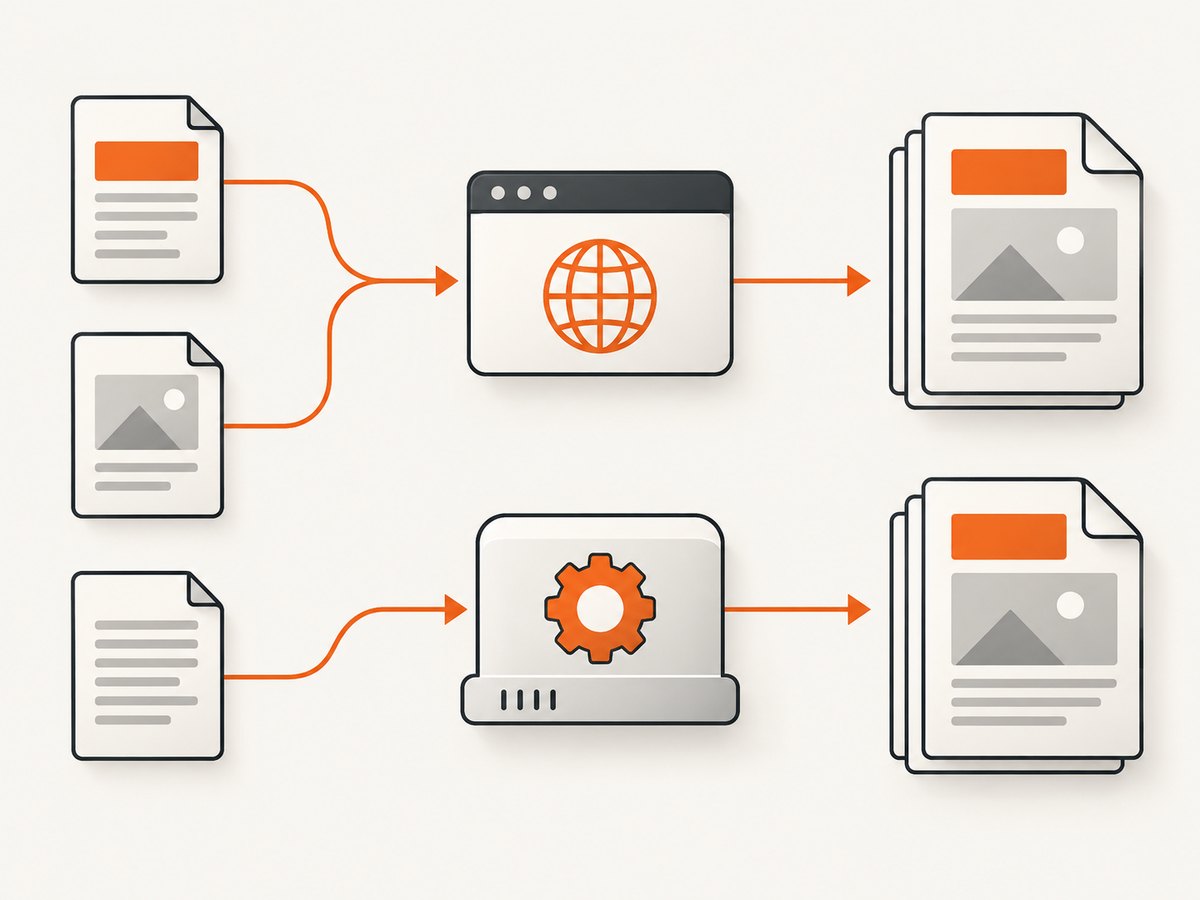
Short answer: there is no evidence-based universal winner. For HTML that depends on JavaScript or browser-level rendering, start with Puppeteer or Playwright and reuse the browser process when practical. For repeated, static, print-oriented documents in a Python service, evaluate WeasyPrint and keep the Python process alive. Measure with your own pages and deployment setup: startup, navigation, resource loading, layout, PDF generation, and output transfer all affect elapsed time.
The official documentation describes supported workflows, not a controlled speed comparison. The right choice depends on what “fastest” means for your job: the quickest one-off conversion, the shortest warm conversion time, or the most documents per worker. This guide shows runnable starting points and a way to compare them fairly.
1. Choose the renderer that matches the HTML
| Workload | Good starting point | Why |
|---|---|---|
| JavaScript-rendered app, browser-specific behavior, or complex page | Puppeteer or Playwright | They generate PDFs through a browser page and support browser rendering behavior. |
| Static, print-focused documents in a Python application | WeasyPrint | It offers Python and command-line APIs, and recommends a long-lived Python process for repeated documents. |
| One-off conversion | Whichever suitable renderer is already installed | Cold-start setup can dominate a single conversion; there is no documented universal fastest cold-start choice. |
Puppeteer’s Page.pdf() and Playwright’s page.pdf() use print CSS media by default. Both document switching to screen media when the PDF should reflect screen styles. Puppeteer also documents waiting for fonts during PDF generation. WeasyPrint is a visual HTML/CSS renderer with pagination-oriented layout, not a full WebKit or Gecko browser engine; confirm that the CSS and HTML features your template needs are supported. [Puppeteer PDF API] [Puppeteer PDF guide] [Playwright PDF API] [WeasyPrint documentation]
2. Convert a page with Puppeteer (Node.js)
Install Puppeteer in a Node.js project, then save this as html-to-pdf.mjs. The example navigates to a URL, waits for the page load event, generates a PDF using print styles, and closes the browser even if an operation fails.
import puppeteer from 'puppeteer';

const url = process.argv[2] ?? 'https://example.com';
const browser = await puppeteer.launch({ headless: true });

try {
  const page = await browser.newPage();
  await page.goto(url, { waitUntil: 'networkidle2', timeout: 30_000 });
  await page.pdf({
    path: 'output.pdf',
    format: 'A4',
    printBackground: true,
    preferCSSPageSize: true,
  });
  console.log('Wrote output.pdf');
} finally {
  await browser.close();
}
Run it with node html-to-pdf.mjs https://example.com. Puppeteer’s PDF generation uses print CSS. To render with screen CSS instead, set the page’s media type before creating the PDF:
await page.emulateMediaType('screen');
await page.pdf({ path: 'output.pdf', printBackground: true });
networkidle2 is a navigation readiness choice, not a guarantee that every application has finished rendering. A page with long polling, analytics, or delayed client-side content may never become network-idle, while a page can become idle before its key content appears. When you know the app’s readiness signal, wait for it explicitly:
await page.goto(url, { waitUntil: 'domcontentloaded', timeout: 30_000 });
await page.waitForSelector('[data-report-ready="true"]', { timeout: 15_000 });
await page.pdf({ path: 'output.pdf', format: 'A4', printBackground: true });
Use a readiness selector that belongs to the page you control. For a third-party page, inspect its structure and choose a stable selector; avoid arbitrary long delays unless there is no observable readiness condition.
3. Convert a page with Playwright (Node.js)
Playwright also returns a PDF buffer from page.pdf(). This example writes that buffer to disk. Install Playwright and its browser binaries according to the project’s official setup instructions, then save this as playwright-pdf.mjs.
import { chromium } from 'playwright';
import { writeFile } from 'node:fs/promises';

const url = process.argv[2] ?? 'https://example.com';
const browser = await chromium.launch({ headless: true });

try {
  const page = await browser.newPage();
  await page.goto(url, { waitUntil: 'domcontentloaded', timeout: 30_000 });
  await page.waitForLoadState('networkidle', { timeout: 10_000 }).catch(() => {});
  const pdf = await page.pdf({ format: 'A4', printBackground: true });
  await writeFile('output.pdf', pdf);
  console.log('Wrote output.pdf');
} finally {
  await browser.close();
}
The optional network-idle wait has a bounded timeout so persistent requests do not block the job indefinitely. Replace it with an application-specific selector where possible. Like Puppeteer, Playwright uses print media for PDF output; call await page.emulateMedia({ media: 'screen' }) first if screen styles are required. See the [Playwright PDF API] and [official setup guide] for current API and installation details.
4. Convert static HTML with WeasyPrint (Python)
WeasyPrint accepts HTML from a URL, a filename, a file object, or a string and can write a PDF. For a local document, the command line is straightforward:
weasyprint report.html report.pdfFor a Python script, install the library following the current platform-specific installation instructions. Then:
from weasyprint import HTML

HTML(filename='report.html').write_pdf('report.pdf')
You can render a remote HTML page by passing its URL:
from weasyprint import HTML

HTML(url='https://example.com').write_pdf('page.pdf')
For a service converting many documents, use a long-lived Python worker instead of launching a fresh process for each document. WeasyPrint explicitly recommends the Python API in a long-lived process for repeated conversions to avoid recurring startup cost. Check its CSS support against your real templates, fonts, and assets; it is not a drop-in browser engine for every site. Rendering may change between WeasyPrint releases even when the API stays compatible, so review representative PDF output when upgrading. [WeasyPrint first steps] [WeasyPrint API reference]
5. Compare the options without misleading yourself
No comparable, controlled measurements across these tools are established by the official sources reviewed here. Treat “fastest” as a question for your workload, not a ranking to copy from an unrelated benchmark.
- Fix the inputs. Use the same HTML, URL, fonts, image assets, viewport, media mode, page size, and output requirements for each candidate.
- Decide what time counts. Measure cold conversion including process and browser startup, then warm conversion with a reused worker or browser. Report these separately.
- Separate the stages. Where practical, record startup, navigation, readiness wait, PDF creation, and writing or transferring the PDF. A faster renderer cannot make a slow remote image server respond sooner.
- Use representative content. Include your largest realistic page, pages with charts or client-side rendering, local and remote assets, and documents with long pagination.
- Repeat and compare distributions. Run enough conversions to see normal variation, report a median and a high-percentile result, and note machine, runtime, library and browser versions, concurrency, and whether caches were warm.
- Validate output. Compare page count, missing content, font appearance, page breaks, background colors, and links. A quick PDF that silently omits required content is not a successful conversion.
For throughput, test the concurrency you expect in production. Increasing parallel jobs can raise memory use or create CPU contention, so record both completion rate and resource use. Do not infer production capacity from one isolated conversion on a developer laptop.
6. Options that affect speed and output
Media and page layout
Print media is the default for Puppeteer and Playwright PDFs. Print styles can hide navigation, change colors, or restructure a page. Screen media may better match a screenshot-like page but can produce awkward pagination. Set the media mode intentionally, and define page size and margins through CSS or the PDF options so every run has a stable target.
Readiness and resources
Waiting for all network activity can be expensive or impossible on pages that keep connections open. Waiting too little can produce missing fonts, images, charts, or client-rendered content. Prefer a meaningful selector or app signal. For controlled documents, make assets local or otherwise predictable, and ensure the renderer can access required fonts and images.
Process reuse
Cold starts include work that a warm service may amortize. Puppeteer’s documented workflow launches a browser for a conversion; a production worker can keep a browser process available and create pages for jobs, with careful cleanup and isolation. For WeasyPrint, the documentation specifically recommends a long-lived Python process for multiple documents. Include the same reuse strategy in the benchmark as the one you intend to deploy.
Output checks after upgrades
Pin renderer versions for predictable deployments. WeasyPrint notes that rendered output can change across releases, so upgrade checks should compare actual PDFs or rendered pages, not just confirm that the API call still succeeds. Browser upgrades can also alter rendering behavior; keep representative output fixtures for your application.
7. cURL, Python, and Node.js with a hosted PDF endpoint
If the input is a public web page and you do not want to install and operate a browser, ScreenshotNeo can return a PDF through one API request. The API accepts a URL and supports PDF output, with PDF options such as paper size, margins, landscape orientation, and page ranges. See the ScreenshotNeo API documentation for request details and available parameters.
Use your ScreenshotNeo API key in place of YOUR_API_KEY. The command below saves the response as a PDF:
curl -G "https://api.screenshotneo.com/v1/shot" \
  -d access_key=YOUR_API_KEY \
  --data-urlencode url=https://stripe.com \
  -d format=pdf \
  -o page.pdf
Python with requests:
import requests

r = requests.get(
    'https://api.screenshotneo.com/v1/shot',
    params={
        'access_key': 'YOUR_API_KEY',
        'url': 'https://stripe.com',
        'format': 'pdf',
    },
    timeout=90,
)
r.raise_for_status()
with open('page.pdf', 'wb') as f:
    f.write(r.content)
Node.js:
import { writeFile } from 'node:fs/promises';

const q = new URLSearchParams({
  access_key: 'YOUR_API_KEY',
  url: 'https://stripe.com',
  format: 'pdf',
});
const res = await fetch(`https://api.screenshotneo.com/v1/shot?${q}`);
if (!res.ok) throw new Error(`HTTP ${res.status}`);
await writeFile('page.pdf', Buffer.from(await res.arrayBuffer()));
Keep API keys on the server; do not place a secret key in browser-side JavaScript or a public page. Check the response headers for the page verdict and billing status when handling results. The API’s one-call workflow is useful when the target is a public URL; use a local renderer when your source HTML is private, generated in-process, or needs a custom runtime you control.
Or skip the browser setup
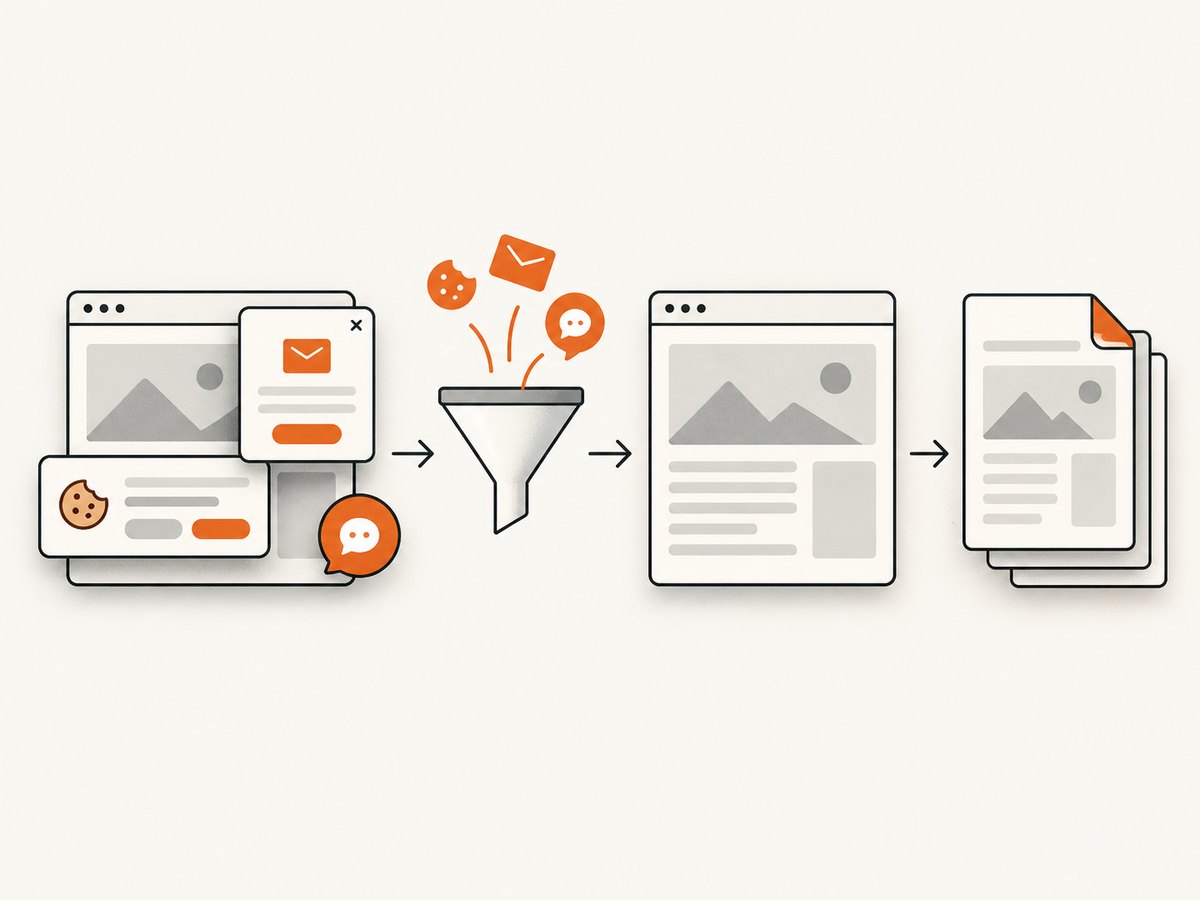
ScreenshotNeo is a website screenshot and PDF API from ScreenshotNeo. Cookie banners, popups, and chat widgets are removed before the shot, and each cleanup step can be turned off. Bot checks, blank pages, timeouts, failed loads, and cache hits are not billed; response headers say which verdict applied and whether the request was billed. AI agents can use its MCP server tools, including take_screenshot, get_page_info, and capture_pdf. The free plan includes 1,000 shots per month with no card; paid plans start at $5 for 3,000 shots. Every feature is available on every plan.
curl -G "https://api.screenshotneo.com/v1/shot" \
  -d access_key=YOUR_API_KEY \
  --data-urlencode url=https://stripe.com \
  -d format=pdf \
  -o page.pdf
Start with 1,000 free screenshots a month with no card.
8. Troubleshooting
| Symptom | Likely cause | What to try |
|---|---|---|
| PDF is blank or missing app content | PDF generation began before client rendering completed | Wait for a stable content selector or application readiness marker before generating the PDF. |
| Navigation or conversion times out | Slow resources, persistent network requests, or a page that never reaches the chosen idle condition | Use a bounded timeout and wait for the content needed for the document instead of requiring all network activity to stop. |
| Fonts or images are missing | Resources were not available to the renderer, or conversion ran before they loaded | Check asset URLs, network access, font loading, and the readiness condition; Puppeteer’s PDF workflow waits for fonts by default. |
| Print layout differs from the browser view | PDF uses print media by default | Inspect print CSS or explicitly emulate screen media before creating the PDF. |
| WeasyPrint output differs after a dependency upgrade | Rendering behavior can change between releases | Pin versions and review representative output after upgrades. |
| Conversion is slow only on the first job | Startup is included in the cold run | Measure cold and warm runs separately and, for repeated work, use a long-lived worker or browser process where appropriate. |
| PDF is incomplete when using a hosted call | The page may show a bot check, be blank, fail to load, or require a longer readiness wait | Inspect response verdict and billing headers, then adjust capture settings or use a controlled browser workflow for pages needing custom interaction. |
9. Reliability, performance, and cost
For self-hosted conversion, the costs include engineering time, runtime and browser installation, memory and CPU, concurrency management, and keeping output consistent across upgrades. Reusing a process can avoid repeated startup work, but a long-lived worker needs health checks, job timeouts, and recovery behavior suited to your service. Keep each conversion bounded so a slow or malformed page does not occupy capacity indefinitely.
For ScreenshotNeo, the published tiers are Free: 1,000 shots/month; Starter: $5 for 3,000; Growth: $15 for 15,000; Pro: $39 for 60,000; Scale: $99 for 250,000; Business: $249 for 1,000,000. Yearly billing gives two months free. Only clean shots are billed, with response headers indicating the verdict and billing status. There are no comparative speed or uptime figures in the research for this article, so select a service based on its documented behavior and your own representative timing and output checks. Current plan details and integration options are on the docs.
10. Frequently asked questions
Does a smaller PDF always generate faster?
Not necessarily. Output size is only one part of the work; page navigation, JavaScript, fonts, images, layout, and pagination can dominate. Measure the same document with the required quality and settings.
Can I use WeasyPrint for a page that runs JavaScript?
WeasyPrint is not a full browser engine. If the final document depends on JavaScript to build its content, use a browser-based renderer or supply fully rendered HTML to a compatible workflow.
Should I choose Puppeteer or Playwright for speed?
The sources reviewed do not establish a controlled winner. Try both only if they fit your stack, then compare cold and warm behavior on the same pages and validate the PDFs.
Can I convert local HTML with ScreenshotNeo?
The documented ScreenshotNeo call takes a URL. A local renderer is the direct fit when the input exists only as a local file or in-memory HTML.


