Filesystem MCP Server on Windows: Complete Setup and Access Control Guide
Set up the official filesystem MCP server on Windows, configure VS Code or Docker, restrict folders, and troubleshoot common errors.
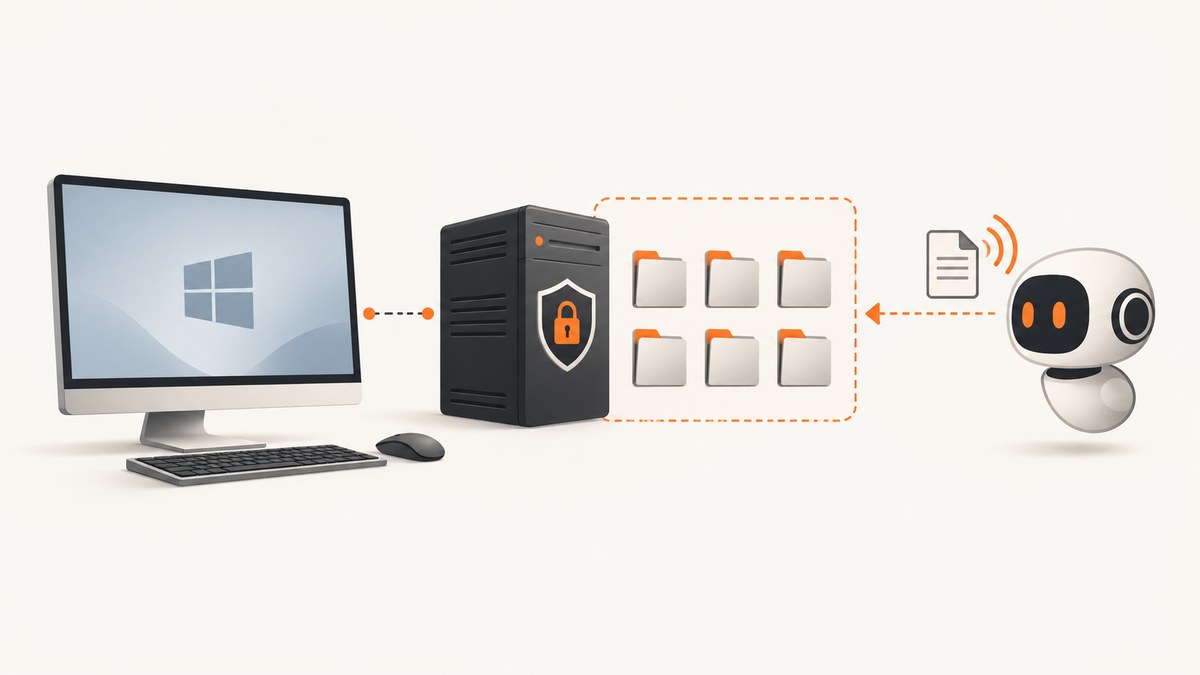
Direct answer: The official filesystem MCP server is the Node.js package @modelcontextprotocol/server-filesystem. On Windows, launch it through cmd /c npx -y and pass only the directories the MCP client should access. In clients that support MCP Roots, the client can provide and update those directories dynamically. You can configure it for a user account, a VS Code workspace, or Docker.
The server can read and write files, create and list directories, move files, search, return metadata, and report its active allowlist. Because some tools modify files, treat the allowed-directory list as a permission boundary and review consequential tool calls.
What the filesystem MCP server does
The official server exposes filesystem operations over the Model Context Protocol. Its tools include:
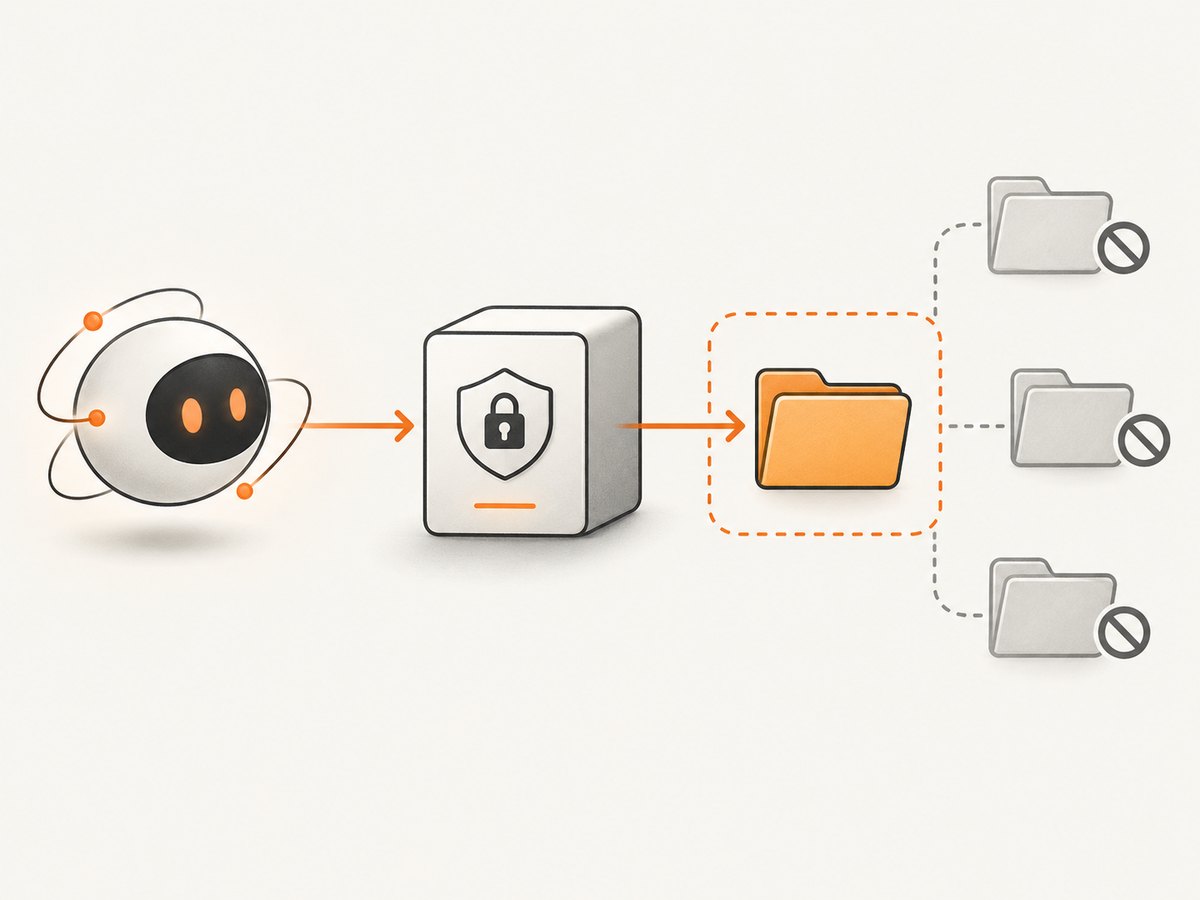
read_fileand related file-reading operationswrite_file, which can create or overwrite a fileedit_file, including a dry-run diff optioncreate_directoryandlist_directorymove_file, which changes a file or directory locationsearch_filesget_file_infolist_allowed_directories, which shows the server’s active boundary
Operations are limited to allowed directories supplied at startup or supplied by a compatible MCP Roots implementation. The server allowlist is different from Windows’ operating-system security and from Docker’s mounted filesystem.
See the official filesystem server README and implementation for the documented configuration and tool behavior.
Before you configure it
- Choose the MCP client. Configuration filenames and JSON envelopes vary between VS Code, desktop assistants, and coding tools.
- Install Node.js and npm if you plan to use
npx. Confirm thatnode --versionandnpm --versionwork in the same environment that launches your client. - Choose a narrow directory boundary. Give the agent a project folder or documents folder instead of an entire user profile or drive.
- Decide whether writes are required. If the workflow only needs inspection, prefer read-only mounts where your client or Docker setup supports them, and keep file-changing tools under review.
Windows setup with npx
Windows clients commonly need cmd as the command and /c before npx. Replace the example path with a real directory.
{
  "command": "cmd",
  "args": [
    "/c",
    "npx",
    "-y",
    "@modelcontextprotocol/server-filesystem",
    "C:\\Users\\you\\Documents\\project"
  ]
}
The outer configuration object differs by client. The fragment above is the server command and argument list; place it inside the MCP client’s required servers, mcpServers, or equivalent property.
Use multiple allowed directories
Append additional paths as arguments:
{
  "command": "cmd",
  "args": [
    "/c",
    "npx",
    "-y",
    "@modelcontextprotocol/server-filesystem",
    "C:/Users/you/Documents/project",
    "D:/shared/reference-files"
  ]
}
Forward-slash paths are shown in the project’s examples and can be easier to read in JSON. Use paths that exist and that the launching account can access.
Configure it in VS Code
The project documents two VS Code locations:
- User configuration: open the Command Palette and run
MCP: Open User Configuration. This applies to your user account. - Workspace configuration: create
.vscode/mcp.jsonin the project. This scopes the setup to that workspace and can be shared with collaborators after reviewing the paths and permissions.
Use the command and arguments from the previous section inside the schema required by your installed VS Code version. VS Code examples also show a workspace-folder form:
{
  "command": "cmd",
  "args": [
    "/c",
    "npx",
    "-y",
    "@modelcontextprotocol/server-filesystem",
    "${workspaceFolder}"
  ]
}
Client schemas change, so check the current VS Code MCP documentation for the surrounding property names. The important Windows detail is still cmd, /c, npx, the package name, and one or more allowed paths.
Use MCP Roots for dynamic directories
MCP Roots let a capable client provide the directories available to a server and notify it when those roots change. When Roots are supplied, the filesystem server uses them as its allowed directories. This is useful when a client changes projects or workspaces without requiring a new command line.
Do not rely on Roots if your client does not support them or sends no usable roots. In that case, provide startup directory arguments. With neither a valid startup directory nor usable Roots, initialization can fail because the server has no directory boundary.
After connecting, call list_allowed_directories and confirm that the result contains only the folders intended for the agent.
Docker setup on Windows
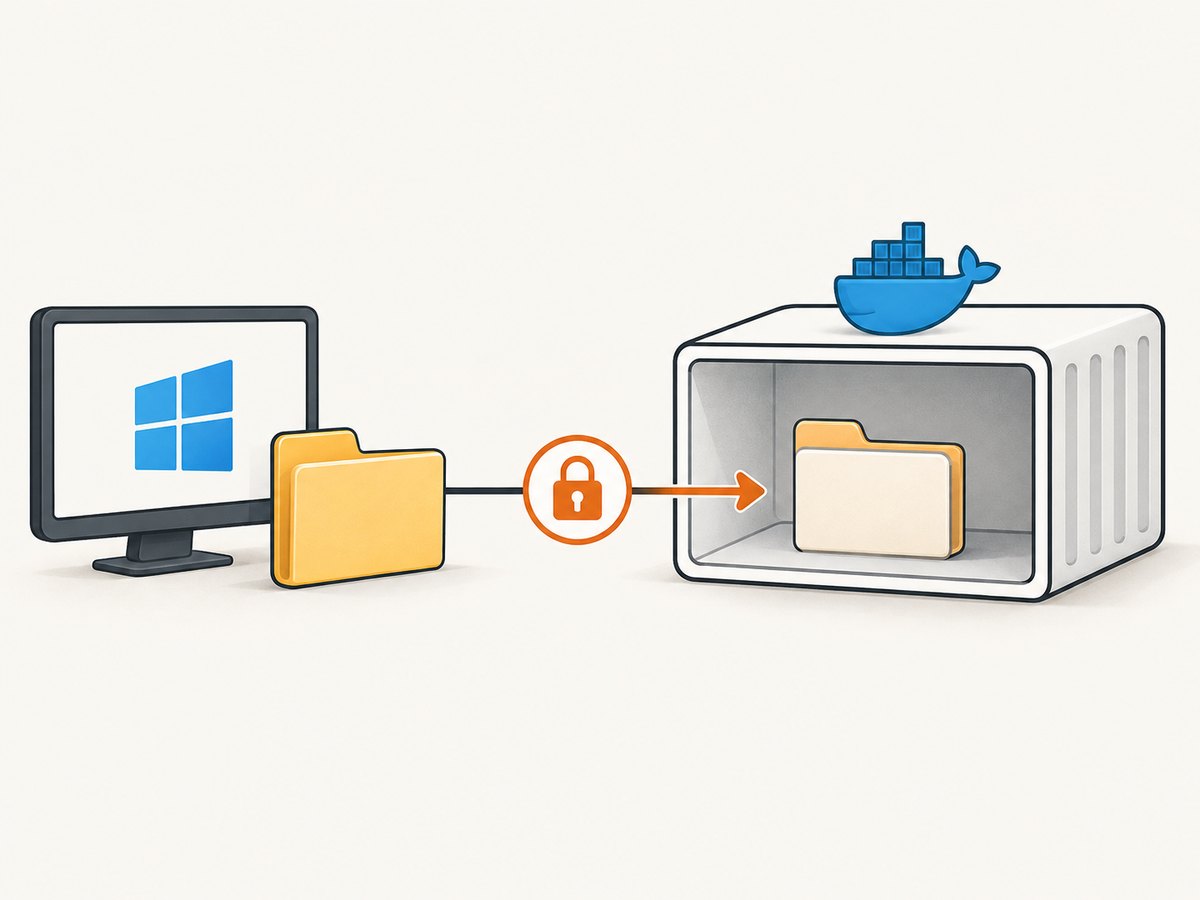
Docker is the other documented deployment route. Mount only the host folders the workflow needs, then pass the matching container paths to the server. The project examples use /projects inside the container.
docker run --rm -i \
  -v "C:\\Users\\you\\Documents\\project:/projects:ro" \
  mcp/filesystem \
  /projects
The exact image invocation depends on the project’s current Docker instructions and your client. The essential rules are:
- The host path must be shared with Docker Desktop.
- The mount destination and the server’s allowed path must match.
- Use
:rowhen the agent only needs to read. - Mount separate folders instead of an entire drive.
A Docker mount limits what the container can see; the server’s allowlist limits what its tools can use. Configure both deliberately.
How to limit folder access safely
- List the exact operations the agent needs, such as reading source files or editing one project.
- Pass only those project or document directories as command-line arguments, or configure Roots to expose them.
- Keep secrets, browser profiles, SSH keys, credentials, and unrelated repositories outside the boundary.
- Use read-only Docker mounts for review or analysis workflows.
- Inspect
list_allowed_directoriesafter startup. - Review write, edit, and move calls because they can overwrite, relocate, or otherwise change files.
An allowlist reduces the server’s reachable scope; it does not replace Windows permissions, source-control safeguards, backups, or approval of destructive actions.
Common Windows errors and fixes
| Error or symptom | Likely cause | Fix |
|---|---|---|
npx is not recognized |
Node.js/npm is not installed or is missing from the client’s PATH. | Install Node.js, reopen the client, and verify node --version and npm --version from the same account. |
| Server exits immediately | The client used a Unix command directly or omitted Windows command wrapping. | Use "command": "cmd" with "/c" before npx. |
| Initialization fails with no allowed directories | No startup path was supplied and the client does not provide usable MCP Roots. | Add one or more existing directory arguments, or enable Roots in a client that supports them. |
| Path not found | The path is misspelled, uses the wrong drive letter, or is not visible inside Docker. | Check the path in Windows Explorer or PowerShell; for Docker, verify the host mount and container destination. |
| Access denied | The Windows account or Docker Desktop lacks permission to the folder. | Grant the launching account access, approve the folder in Docker Desktop, or choose a directory it can read. |
| Files outside the project are unavailable | The server is enforcing its allowlist. | Add the required directory explicitly and restart, or update Roots if the client manages them dynamically. |
| Edits or moves affect files unexpectedly | A mutating tool was approved without reviewing its target. | Use narrower directories, dry-run diffs where available, read-only mounts, and explicit review before write or move operations. |
| Docker sees an empty folder | The host directory was not shared or the mount destination does not match the allowed path. | Enable the drive or folder in Docker Desktop and make the -v destination identical to the server argument. |
Performance and reliability considerations
- Startup:
npx -ymay resolve or download the package on first launch. A cached package and a warm client start faster. - Search scope: Narrow roots reduce the number of files traversed and make search results easier to review.
- Network locations: UNC paths, mapped drives, antivirus scanning, and cloud-sync folders can add latency or transient failures. Prefer a local project directory when practical.
- Docker: Bind-mounted Windows files can be slower than container-local files. Mount only the folders required by the task.
- Reliability: Keep the client, Node.js runtime, and Docker installation current according to their documentation, and inspect client logs when the server disconnects.
- Versioning: The unpinned
npx -yform follows the project example. Pin a reviewed package version only when your team’s reproducibility process requires it, and recheck the current package documentation before publishing that version.
Windows MCP registration is a separate mechanism
Configuring this server in VS Code or another MCP host connects that client to a server. It does not register the server with Windows’ on-device agent registry.
Microsoft documents Windows registration through package identity/MSIX, direct installation of an MCP bundle, or manual registration with the registry command-line tool. Registered servers can run in a contained agent session with access restricted to approved resources. Directly installed bundles without package identity do not run in that contained process and require different connector-protection settings. Those Windows registry rules do not automatically apply to every editor or MCP host, so follow the documentation for the mechanism you are actually using.
Or skip the browser setup
If your goal is taking screenshots of web pages rather than giving an AI agent access to local files, ScreenshotNeo provides a single HTTP request. It accepts cookie and consent banners before capture, removes more than 60 known consent platforms plus newsletter popups and chat widgets, and bills only clean shots. Bot checks, blank pages, timeouts, failed loads, and cache hits are not billed, and the response identifies the result with X-Page-Verdict and X-Billed headers. It also offers an MCP server with take_screenshot, get_page_info, and capture_pdf for Claude, Cursor, and other MCP clients.
See the ScreenshotNeo API documentation for all options.
cURL
curl -G "https://api.screenshotneo.com/v1/shot" -d access_key=YOUR_API_KEY --data-urlencode url=https://stripe.com -o shot.webpPython
import requests
r = requests.get("https://api.screenshotneo.com/v1/shot", params={"access_key": "YOUR_API_KEY", "url": "https://stripe.com"}, timeout=90)
open("shot.webp", "wb").write(r.content)
Node.js
const q = new URLSearchParams({ access_key: 'YOUR_API_KEY', url: 'https://stripe.com' });
const res = await fetch(`https://api.screenshotneo.com/v1/shot?${q}`);
ScreenshotNeo includes full-page and element capture, device presets, custom viewports, retina scale, PDF settings, custom CSS and JavaScript, waits, request blocking, headers, cookies, user agents, geolocation, caching, signed links, async jobs, bulk capture, a usage API, and an OpenAPI specification. The Free plan includes 1,000 screenshots per month with no card; paid plans start at $5 for 3,000. Create a free ScreenshotNeo account.
FAQ
What is the official package?
@modelcontextprotocol/server-filesystem, distributed for Node.js and documented by the Model Context Protocol project.
Can I expose an entire C: drive?
You can pass any accessible directory, but least privilege means exposing only the folders required for the task.
Do Roots replace command-line paths?
Only when the client supports Roots and supplies usable roots. Otherwise, pass startup directories.
Is the server a Windows sandbox?
No. Its allowlist constrains MCP filesystem operations. Windows permissions, Docker isolation, and Windows agent-registry containment are separate controls.
Should I choose npx or Docker?
Use npx when Node.js is already available and you want the shortest setup. Use Docker when container packaging and explicit host-to-container mounts fit your workflow.


