How to Fill Login Prompts with WebdriverIO
Fill WebdriverIO login fields reliably with stable selectors, built-in waits, page objects, secure credentials, and post-login verification.
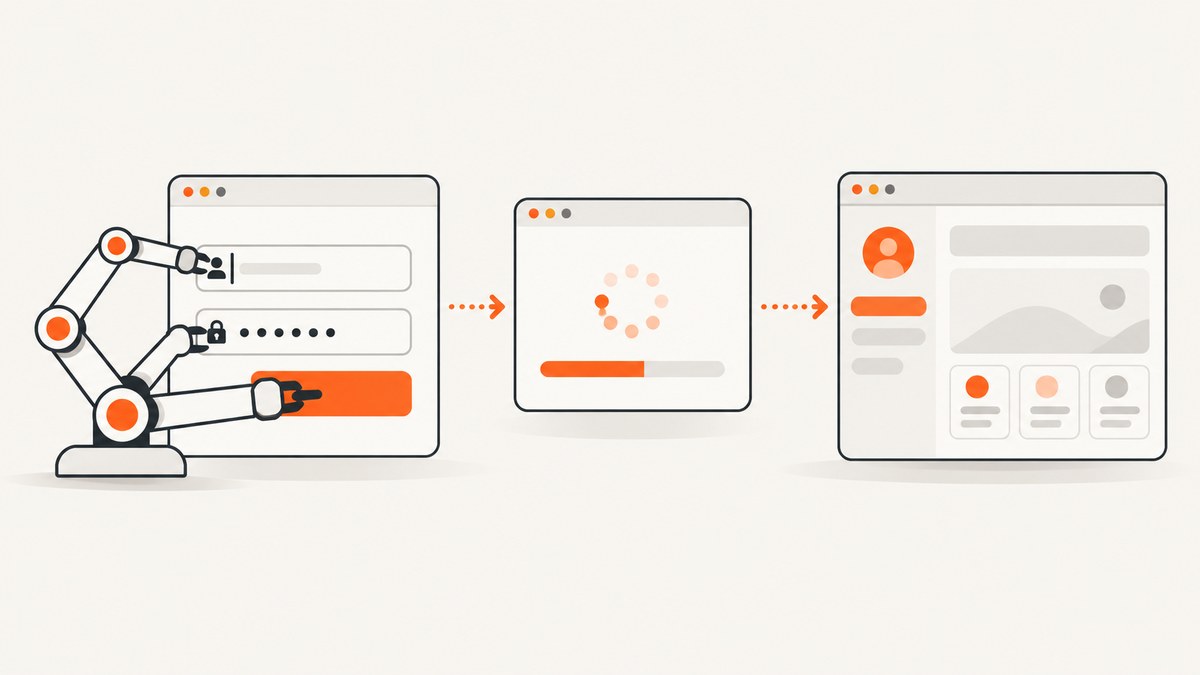
Use browser.url() to open the login route, locate the username, password, and submit controls with stable selectors, call setValue() on the fields, click or submit the form, and verify a post-login condition. WebdriverIO’s direct element commands wait for visibility and interactability, so explicit sleeps are usually unnecessary.
Complete working example
This test uses dedicated test IDs and verifies the redirect after submission.
describe('login', () => {
  it('signs in with valid credentials', async () => {
    await browser.url('/login')

    const username = await $('[data-testid="username"]')
    const password = await $('[data-testid="password"]')
    const submit = await $('button=Sign in')

    await username.setValue(process.env.TEST_USERNAME)
    await password.setValue(process.env.TEST_PASSWORD)
    await submit.click()

    await browser.waitUntil(
      async () => (await browser.getUrl()).endsWith('/account'),
      {
        timeout: 10000,
        interval: 200,
        timeoutMsg: 'Expected account page after login'
      }
    )
  })
})
Replace the route, selectors, and expected destination with your application’s markup. Keep credentials in CI environment variables or another secret-management system; never commit real passwords or print them in test output.
1. Open the login page
await browser.url('/login')You can pass an absolute URL when the test is not using a configured baseUrl:
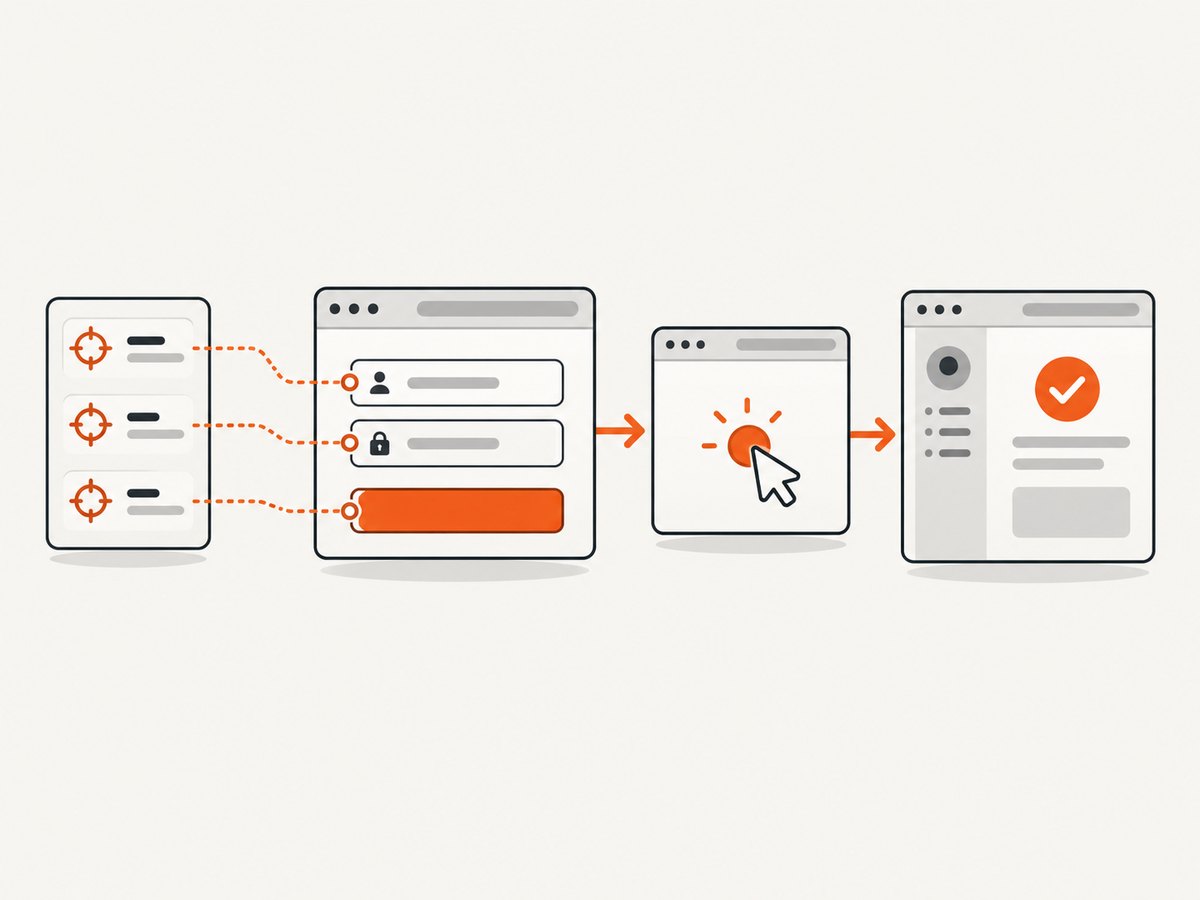
await browser.url('https://app.example.test/login')Opening the route directly makes the test independent of a previous test’s browser state. If the application needs a fresh session, clear cookies or start a new browser session according to your WebdriverIO configuration.
2. Choose selectors that survive UI changes
Prefer selectors that describe the control’s contract with users or tests. WebdriverIO documents accessibility-name selectors, exact text selectors, and dedicated test IDs as strong choices. See the WebdriverIO selector guide.
| Selector | Example | When to use |
|---|---|---|
| Test ID | $('[data-testid="username"]') |
You control the application and can keep a stable test contract. |
| Name attribute | $('[name="username"]') |
The field has a stable semantic name. |
| Accessibility name | $('aria/Username') |
The accessible label is stable and meaningful. |
| Exact button text | $('button=Sign in') |
The visible submit label is part of the UI contract. |
| CSS ID | $('#login-submit') |
The ID is intentionally stable rather than generated. |
Avoid generic tags such as $('input') and styling classes that change during redesigns. If the page contains multiple username fields, scope the lookup to the login form:
const form = await $('[data-testid="login-form"]')
const username = await form.$('[name="username"]')
const password = await form.$('[name="password"]')
const submit = await form.$('button=Sign in')
3. Fill username and password fields
await username.setValue(process.env.TEST_USERNAME)
await password.setValue(process.env.TEST_PASSWORD)
setValue() waits for the element to be visible and interactable before entering text. It replaces the current value. Use addValue() only when appending to existing text is intentional. For masked inputs, do not log the element value or browser commands containing the password.
If the form is inside an iframe, switch to the frame before locating its fields:
const frame = await $('iframe[data-testid="auth-frame"]')
await browser.switchToFrame(frame)
await $('[name="username"]').setValue(process.env.TEST_USERNAME)
await $('[name="password"]').setValue(process.env.TEST_PASSWORD)
await $('button=Sign in').click()
await browser.switchToParentFrame()
4. Submit the form
Click the submit control when you want to exercise the same interaction a user performs:
await submit.click()If the form has reliable native submit behavior, submit it directly:
await form.submit()Clicking may trigger client-side validation, loading indicators, or a disabled state. Let WebdriverIO wait for interactability instead of inserting a fixed delay.
5. Verify the authenticated state
Check a condition that proves the login completed, such as a URL, title, signed-in heading, account menu, or API-backed page content.
await expect(browser).toHaveUrl(expect.stringContaining('/account'))
await expect($('[data-testid="account-menu"]')).toBeDisplayed()
For asynchronous redirects or delayed account data, use browser.waitUntil(). It repeatedly evaluates a condition until it is truthy and accepts a timeout, interval, and diagnostic timeout message.
await browser.waitUntil(
  async () => (await browser.getTitle()) === 'Account',
  {
    timeout: 10000,
    interval: 250,
    timeoutMsg: 'Account title did not appear after login'
  }
)
Use condition-based waits for state that is not guaranteed by the submit command itself. Avoid solving every failure by raising global or implicit waits.
Page object pattern for reusable login actions
Put selectors and common actions in a page object so tests express behavior and selector changes have one maintenance point. WebdriverIO’s page-object guide uses this structure.
class LoginPage {
  get username() { return $('[data-testid="username"]') }
  get password() { return $('[data-testid="password"]') }
  get submit() { return $('button=Sign in') }

  async open() {
    await browser.url('/login')
  }

  async login(user, secret) {
    await this.username.setValue(user)
    await this.password.setValue(secret)
    await this.submit.click()
  }
}

export default new LoginPage()
import LoginPage from '../pageobjects/login.page.js'
describe('authentication', () => {
it('accepts valid credentials', async () => {
await LoginPage.open()
await LoginPage.login(
process.env.TEST_USERNAME,
process.env.TEST_PASSWORD
)
await browser.waitUntil(
async () => (await browser.getUrl()).includes('/account'),
{ timeout: 10000, timeoutMsg: 'Login redirect was not completed' }
)
})
})Handling common login variants
Validation errors
Assert the error message after submitting invalid data. Keep the submit action separate from the assertion so the test proves validation occurred.
await username.setValue('wrong@example.test')
await password.setValue('wrong-password')
await submit.click()
await expect($('[role="alert"]')).toHaveText('Invalid email or password')
Two-factor authentication
Stop the login flow at the second-factor boundary and inject a test OTP through a controlled test provider, environment variable, or fixture. Do not automate a real user’s second factor or store recovery codes in source.
Login modal
Click the control that opens the modal, then scope selectors to the modal container. This prevents collisions with hidden fields elsewhere on the page.
await $('button=Log in').click()
const modal = await $('[role="dialog"]')
await modal.$('[name="username"]').setValue(process.env.TEST_USERNAME)
await modal.$('[name="password"]').setValue(process.env.TEST_PASSWORD)
await modal.$('button=Sign in').click()
Shadow DOM
Use WebdriverIO’s shadow-root capable element lookup for the component exposed by the application, and keep the component’s test contract stable. If a selector cannot cross the component boundary, expose an accessible name or test ID on the host.
Basic authentication on a remote Grid
This is a different authentication boundary from filling the site’s form. Grid credentials authenticate WebdriverIO’s connection to the remote service. WebdriverIO documents constructing an Authorization header from environment-provided credentials:
const token = Buffer.from(
  `${process.env.GRID_USER}:${process.env.GRID_PASSWORD}`
).toString('base64')

export const config = {
  headers: { Authorization: `Basic ${token}` }
}
The application username and password still belong in the form fields; the Grid header does not log a user into the application.
Synchronization and reliability checklist
- Use a direct element command such as
setValueorclickbefore adding a manual display wait. - Use
waitUntilfor redirects, delayed data, or state that is not an element interaction. - Give every custom wait a bounded timeout and a useful
timeoutMsg. - Reset cookies or sessions when test isolation requires it.
- Use a test account with deterministic data and least privilege.
- Capture screenshots and browser logs on failure, while redacting secrets.
- Keep selectors in page objects or components rather than duplicating them in tests.
Troubleshooting WebdriverIO login failures
| Symptom | Likely cause | Fix |
|---|---|---|
| Element not found | Wrong route, iframe context, modal not opened, or selector changed. | Confirm the URL and markup, switch into the correct frame, open the modal, and prefer a stable test ID or accessible name. |
| Element not interactable | Element is hidden, covered, disabled, or not yet ready. | Use the visible control, wait for the relevant state, and inspect overlays. Do not add a blind sleep first. |
| Timeout after click | Redirect or account data is asynchronous. | Replace a fixed delay with browser.waitUntil and a condition such as URL, title, or account control. |
| Login works manually but fails in CI | Missing environment variables, different base URL, clock, viewport, or test data. | Check CI secrets and configuration, log non-sensitive diagnostics, and use a dedicated deterministic account. |
| Password appears in logs | Debug output serialized command arguments or environment data. | Redact command logs, never print credentials, and rotate any exposed secret. |
| Submit does nothing | Client validation failed or the button remains disabled. | Assert validation state, fill every required field, and wait for the button to become enabled before clicking. |
| Unexpected login redirect | SSO, consent, locale, or an existing session changed the flow. | Control cookies and test fixtures, handle the expected identity-provider boundary, and assert the correct final URL. |

Performance, reliability, and cost considerations
Element commands are cheaper and more reliable than arbitrary sleeps because they proceed as soon as the control is usable. Keep waits local to the state that needs them; large global timeouts slow every failure. Reuse a logged-in session only when tests remain isolated and the authentication state is part of the fixture contract. Otherwise, start from a clean session so one test cannot hide another’s login defect.
Browser tests consume a full browser session and can be slower than API-level authentication. Use UI login tests to validate the real form, then seed authenticated state through a supported fixture for unrelated tests. Never bypass the login flow in the test that is meant to verify login itself.
Or skip the browser setup
For a screenshot of the resulting page rather than a UI login test, ScreenshotNeo provides a single GET request and supports PNG, JPEG, WebP, or PDF output. See the ScreenshotNeo API documentation for all options.
curl -G "https://api.screenshotneo.com/v1/shot" -d access_key=YOUR_API_KEY --data-urlencode url=https://stripe.com -o shot.webpimport requests
r = requests.get("https://api.screenshotneo.com/v1/shot", params={"access_key": "YOUR_API_KEY", "url": "https://stripe.com"}, timeout=90)
open("shot.webp", "wb").write(r.content)const q = new URLSearchParams({ access_key: 'YOUR_API_KEY', url: 'https://stripe.com' });
const res = await fetch(`https://api.screenshotneo.com/v1/shot?${q}`);ScreenshotNeo accepts cookie and consent banners before capture and removes more than 60 known consent platforms, newsletter popups, and chat widgets. Bot checks, blank pages, timeouts, failed loads, and cache hits are not billed, and the response identifies the result with X-Page-Verdict and X-Billed headers. Its MCP server lets Claude, Cursor, and other MCP clients call take_screenshot, get_page_info, and capture_pdf. The Free plan includes 1,000 screenshots per month with no card; paid plans start at $5 for 3,000 shots.
Create a free ScreenshotNeo account to get 1,000 screenshots each month without a card.
FAQ
Should I use waitForDisplayed before every field?
No. setValue and click already wait for visibility and interactability. Add a separate wait only when you need to assert or wait for another state.
What is the best selector for a login field?
Use a stable test ID or accessible name when your team controls the UI. A stable name attribute is also suitable. Avoid styling classes and generic tags.
How do I test a failed login?
Submit controlled invalid credentials and assert the application’s error message, disabled state, or unchanged URL. Keep the credentials non-production.
Why does my test pass locally but fail in CI?
Compare secrets, base URL, browser version, viewport, locale, network access, and test data. Add bounded condition waits and diagnostic artifacts without exposing credentials.


