Where Browser Web Captures Are Stored and How to Find Them
Find browser screenshots, full-page captures, PDFs, and Safari web archives by checking download settings, history, filenames, and file extensions.

Short answer: browser screenshots are normally ordinary files saved by the browser’s download or save workflow. Check the browser’s Downloads history first, then open the configured Downloads folder or the location chosen in a Save dialog. Search by recent modification date and file extension if you do not remember the filename.
| Browser or method | Usual result | Where to look first |
|---|---|---|
| Firefox Developer Tools | PNG screenshot of a page or element | Firefox’s configured Downloads directory |
| Chrome download | PNG, JPG, WebP, or another downloaded file | Chrome Downloads page, then “Show in folder” |
| Chrome Print | Destination selected in the print dialog | |
| Microsoft Edge Screenshot | Saved image after optional markup | Save location selected by the save dialog |
| Safari File > Save As | Web Archive or Page Source | Folder selected in the Save dialog |
1. Check download history before searching folders
Download history is the fastest recovery method because it records the exact path even when the file was saved somewhere other than Downloads.
- Open the browser’s Downloads page or download list.
- Find the screenshot or saved page by its recent time.
- Use the file menu to open the containing folder, reveal the file, or copy its path.
- If the entry is gone, search your computer for recent image, PDF, or web-archive files.
Browser menus and shortcuts vary by version, operating system, and administrator policy. If a shortcut does not work, open the browser’s main menu and choose Downloads or the relevant screenshot tool.
2. Firefox: full-page and element screenshots
Firefox Developer Tools can capture an entire page or a selected element. Mozilla’s documentation says the screenshot is saved to the browser’s Downloads directory. Firefox Help documents a filename pattern like Screenshot year-month-day at hour-minute-second Page title.png.

Find a Firefox capture
- Open the operating system’s Downloads folder.
- Search for files beginning with
Screenshot. - Sort by Date Modified if the exact name is unknown.
- Open Firefox’s downloads list and reveal the file in its folder when the entry is still present.
Firefox uses the same folder as its default download location for downloaded screenshots. If you changed Firefox’s download preference or enabled a prompt for every download, use that configured location or the folder selected at save time.
3. Chrome: screenshots, downloads, and PDFs
Chrome saves downloads to a configurable default location. The documented defaults are:
| Operating system | Default Downloads path |
|---|---|
| Windows 10 and later | \\Users\\<username>\\Downloads |
| macOS | /Users/<username>/Downloads |
| Linux | /home/<username>/Downloads |
These are defaults, not guarantees. In Chrome settings, check Downloads for the current folder and whether Ask where to save each file before downloading is enabled.
Use Chrome’s download page
- Open Chrome’s Downloads page from the menu.
- Locate the capture.
- Open its file menu and choose Show in folder (wording can vary).
Recover a page saved with “Save Page As”
Chrome’s More > More Tools > Save Page As command can create an HTML file and, depending on the selected format, an accompanying resource folder. Search for .html, .htm, or the folder created at the same time. The Save dialog determines the destination.
Recover a PDF made with Print
To create a PDF capture, open Print and choose Save as PDF. The operating system print dialog determines the filename and destination, so check the path shown there rather than assuming Downloads.
4. Microsoft Edge: full webpage or selected-area screenshots
Edge’s Screenshot feature can capture a selected area or an entire webpage, including content beyond the visible screen. Microsoft documents the Ctrl+Shift+S shortcut. After capture, you can mark it up and then save it.
- Open the page and start Screenshot from the toolbar or shortcut.
- Choose a selected area or the full webpage.
- Finish any markup.
- Use Save and note the destination shown by the dialog.
- If you did not choose a custom folder, inspect Edge’s configured Downloads folder and download history.
5. Safari on Mac: Web Archive versus Page Source
Safari’s File > Save As workflow offers Web Archive and Page Source.
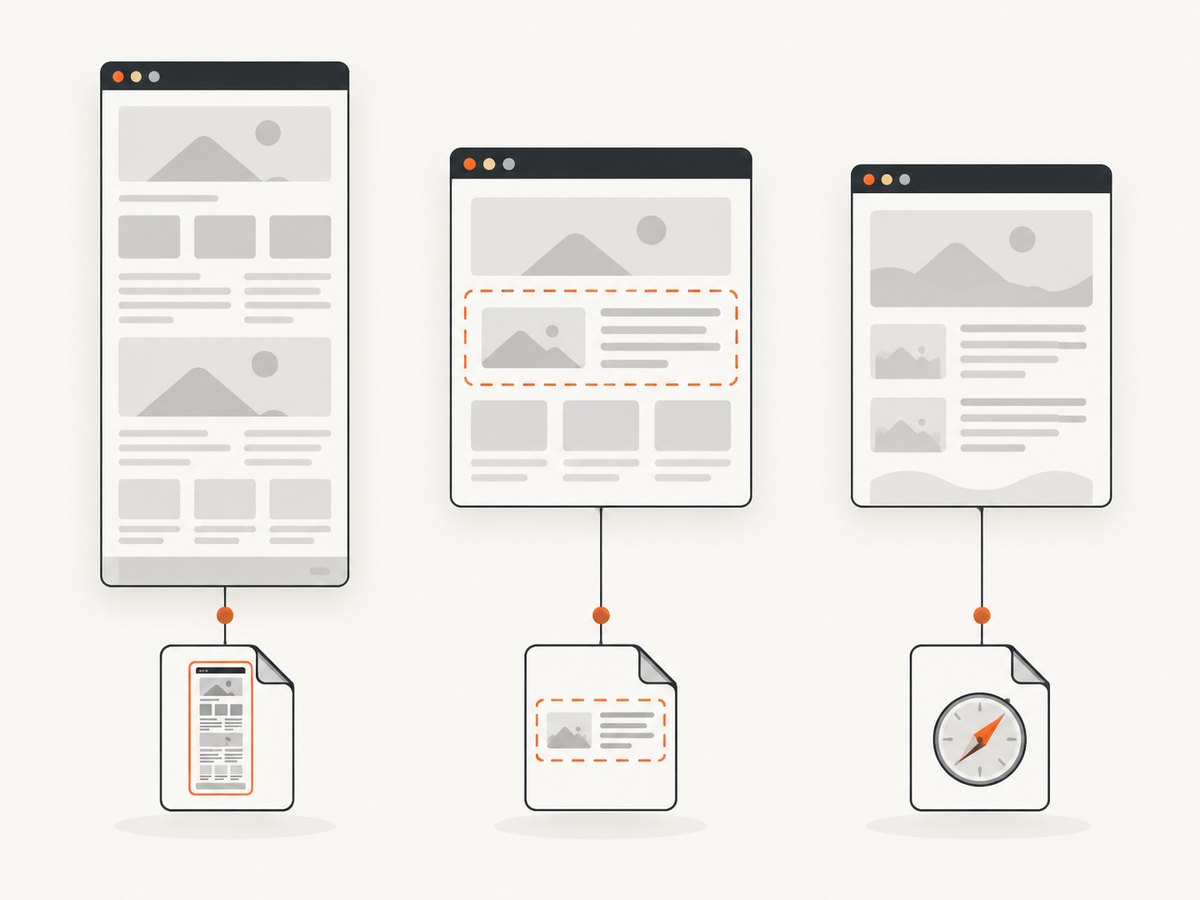
- Web Archive saves the page’s graphics and keeps links working while the destination pages remain available. The file commonly uses the
.webarchiveextension. - Page Source saves only the HTML source, commonly as
.htmlor.htm; it is not a self-contained visual capture.
Safari stores the result wherever you choose in the Save dialog. Downloads and the desktop are common choices, but the selected folder is authoritative. Search for .webarchive, .html, and .htm files sorted by Date Modified.
6. Search your computer when the location is unknown
Search likely folders first, then expand to the whole user profile. Useful extensions include .png, .jpg, .jpeg, .webp, .pdf, .html, .htm, .webarchive, and .mhtml.
macOS or Linux
# Recent screenshots and saved pages in Downloads
find "$HOME/Downloads" -type f \( -iname '*.png' -o -iname '*.jpg' -o -iname '*.jpeg' -o -iname '*.webp' -o -iname '*.pdf' -o -iname '*.html' -o -iname '*.htm' -o -iname '*.webarchive' -o -iname '*.mhtml' \) -print

# Sort likely files by newest first (GNU find/stat examples may differ on macOS)
find "$HOME/Downloads" -type f -mtime -7 -print
Windows PowerShell
$extensions = '*.png','*.jpg','*.jpeg','*.webp','*.pdf','*.html','*.htm','*.webarchive','*.mhtml'
Get-ChildItem "$HOME\Downloads" -File -Include $extensions |
  Sort-Object LastWriteTime -Descending |
  Select-Object LastWriteTime, FullName
Graphical file search works just as well: search the home folder for one extension at a time and sort by Date Modified. Searching for Screenshot is especially effective for Firefox’s documented filename pattern.
7. Why a capture may seem to be missing
| Symptom | Likely cause | Fix |
|---|---|---|
| No file in Downloads | The browser was configured to ask for a destination or a different folder was selected | Open download settings and review history; check the Save dialog’s chosen folder |
| Only a small visible area was captured | The tool captured the viewport or a selected region | Choose full-page or entire-webpage capture before saving |
| Page content is missing | Lazy-loaded content had not appeared, or the capture ended before scripts finished | Scroll through the page first, wait for content, or use a capture workflow with an explicit wait condition |
| Saved page opens without images | Page Source contains HTML only | Use Safari Web Archive or a screenshot/PDF workflow when you need a visual copy |
| Filename is unknown | The tool generated a timestamped name or a custom name was used | Sort by Date Modified and filter by the expected extension |
| Download history entry disappeared | History was cleared or the browser profile changed | Search the operating system by extension and recent modification date |
| Capture cannot be reproduced | The page changed, required login, or showed a consent, bot-check, or transient error state | Record the URL, time, browser profile, viewport, and authentication state; retry under the same conditions |
8. Choosing the right capture format
| Need | Best fit | Trade-off |
|---|---|---|
| Share a visual snapshot | PNG, JPG, or WebP screenshot | Captures appearance, not editable page structure |
| Print or archive a layout | Pagination and print CSS can change the result | |
| Keep page resources and links | Safari Web Archive | Links still depend on destination pages being available |
| Inspect raw markup | HTML Page Source | Does not preserve the rendered page or its assets by itself |
9. Reliability and repeatability checklist
- Confirm the capture scope: viewport, selected area, element, or full page.
- Record the URL and timestamp.
- Wait for fonts, images, lazy content, and client-side rendering to finish.
- Use a consistent browser profile, viewport, zoom level, and device scale.
- For authenticated pages, keep the same session or export the required cookies securely.
- Save with a descriptive filename containing the page name and date.
- Verify that the output opens before closing the browser.
Browser captures are local files, so storage cost is usually just your disk space. Repeated manual captures also consume time and can vary when a page changes between runs.
10. Or skip the browser setup
ScreenshotNeo is a website screenshot API and MCP server. One GET request returns a PNG, JPEG, WebP, or PDF. It accepts the cookie or consent banner like a visitor and removes more than 60 known consent platforms, newsletter popups, and chat widgets before capture; each step can be turned off. Bot checks, blank pages, timeouts, failed loads, and cache hits cost nothing, and the response identifies the result with X-Page-Verdict and X-Billed headers. Its MCP server provides take_screenshot, get_page_info, and capture_pdf tools for Claude, Cursor, and other MCP clients.
See the ScreenshotNeo API documentation for the full option list.
cURL
curl -G "https://api.screenshotneo.com/v1/shot" -d access_key=YOUR_API_KEY --data-urlencode url=https://stripe.com -o shot.webpPython
import requests
r = requests.get("https://api.screenshotneo.com/v1/shot", params={"access_key": "YOUR_API_KEY", "url": "https://stripe.com"}, timeout=90)
open("shot.webp", "wb").write(r.content)
Node.js
const q = new URLSearchParams({ access_key: 'YOUR_API_KEY', url: 'https://stripe.com' }); const res = await fetch(`https://api.screenshotneo.com/v1/shot?${q}`);For automated captures, ScreenshotNeo also supports full-page shots with lazy images loaded, CSS-element capture, dark mode, device presets and custom viewports, retina scale, PDF paper and page-range options, custom CSS and JavaScript, clicks, selector waits, delays, network-idle waits, request blocking, headers, cookies, user agents, Authorization, timezone, geolocation, transparent backgrounds, resizing, chosen cache TTLs, signed links, asynchronous jobs with signed webhooks, bulk capture of up to 100 URLs per call, a usage API, and an OpenAPI specification. Parameter names used by other screenshot APIs also work, which can simplify migration.
Plans include 1,000 screenshots per month free with no card; paid plans start at $5 for 3,000 shots. Create a free ScreenshotNeo account to automate captures without managing browser setup.
11. FAQ
Are screenshots stored inside the browser?
Usually no. They are ordinary files written to a download or save location on your computer.
Where are Firefox full-page screenshots saved?
Firefox documents its Downloads directory, using the browser’s configured default download location.
Can Chrome save a full webpage as a PDF?
Yes. Use Print and choose Save as PDF; the print dialog controls the destination.
What is the difference between Safari Web Archive and Page Source?
Web Archive stores graphics with the page and preserves links while destination pages remain available. Page Source stores only HTML.
Why can two captures of the same URL differ?
Rendered content can change with time, cookies, login state, viewport, lazy loading, experiments, and network failures. Keep those conditions consistent for repeatable results.


