How to Find Dynamic Parameters in Web Tables with Python WebDriver
Wait for the table's real state, re-locate refreshed rows, and read dynamic parameters reliably with Python Selenium WebDriver.

Direct answer: wait for the table state you need, then locate the current row and cell and read its rendered value. A completed driver.get() only means the page-load event fired; JavaScript may still be fetching or replacing rows. Use Selenium’s explicit WebDriverWait with a meaningful condition such as visible rows, expected cell text, or staleness of an old row. After a refresh replaces rows, find the row again before reading it.
This guide shows a reusable Python WebDriver pattern for AJAX tables, including refreshes, pagination, lazy loading, attributes, custom conditions, and failures.
1. Model the table’s real states
Inspect the target page and identify:

- A stable table locator such as an ID, data attribute, or semantic class.
- The row and cell selectors.
- How readiness is represented: a row appears, a loading marker disappears, a known value is visible, or a request changes the table.
- How updates replace elements. If rows are replaced, old
WebElementobjects become stale.
For example:
<table id='results'><tbody><tr data-key='alpha'><td>Alpha</td><td>42</td></tr></tbody></table>Replace these selectors with ones verified in the permitted DOM of your site. There is no universal XPath for dynamic tables.
2. Install Selenium and create a driver
python -m pip install seleniumUse a browser and matching driver supported by your Selenium setup. Always close the driver, even when a wait or extraction fails.
3. Wait for rows, then read the target parameter
from selenium import webdriver
from selenium.webdriver.common.by import By
from selenium.webdriver.support.ui import WebDriverWait
from selenium.webdriver.support import expected_conditions as EC

URL = 'https://example.com/data'
TABLE = (By.CSS_SELECTOR, 'table#results')
ROWS = (By.CSS_SELECTOR, 'table#results tbody tr')
TARGET_ROW = (By.CSS_SELECTOR, 'table#results tbody tr[data-key="alpha"]')

options = webdriver.ChromeOptions()
options.add_argument('--headless=new')
driver = webdriver.Chrome(options=options)
wait = WebDriverWait(driver, 15)

try:
    driver.get(URL)
    wait.until(EC.visibility_of_element_located(TABLE))
    wait.until(EC.presence_of_element_located(ROWS))
    row = wait.until(EC.visibility_of_element_located(TARGET_ROW))
    cells = row.find_elements(By.CSS_SELECTOR, 'td')
    if len(cells) < 2:
        raise RuntimeError('Target row has fewer than two cells')
    parameter = cells[1].text.strip()
    print(parameter)
finally:
    driver.quit()
WebElement.text returns displayed text. If the value is stored in markup instead, read the appropriate attribute:
value = row.find_element(By.CSS_SELECTOR, 'input[name="amount"]').get_attribute('value')
aria_value = row.find_element(By.CSS_SELECTOR, '[aria-label]').get_attribute('aria-label')
4. Choose a condition that proves the data is ready
| Situation | Wait for | Then |
|---|---|---|
| Table inserted after load | Visibility of table or first row | Locate current rows |
| Shell appears before data | Rows, minimum count, or expected text | Read cells |
| Refresh replaces a row | Staleness of old row, then new text | Re-locate row and cell |
| Known parameter required | Expected text in target cell | Read after success |
| Pagination or lazy loading | Observable page or row change | Process new page and repeat |
Selenium documents presence, visibility, text visibility, staleness, and title conditions in its Expected Conditions guide. WebDriverWait.until polls a callable; the current Python API documents a default 0.5-second polling interval and raises a timeout when the limit expires (Python API).
Wait for a minimum number of rows
def rows_at_least(locator, minimum):
    def condition(driver):
        rows = driver.find_elements(*locator)
        return rows if len(rows) >= minimum else False
    return condition

rows = wait.until(rows_at_least(ROWS, 10))
values = [r.find_elements(By.CSS_SELECTOR, 'td')[1].text.strip() for r in rows]
Wait for expected text
cell = (By.CSS_SELECTOR, 'tr[data-key="alpha"] td:nth-child(2)')
wait.until(EC.text_to_be_present_in_element(cell, '42'))
value = driver.find_element(*cell).text.strip()
5. Handle asynchronous refreshes and stale elements
Save an old row only to detect its replacement. Do not keep using it after the refresh.
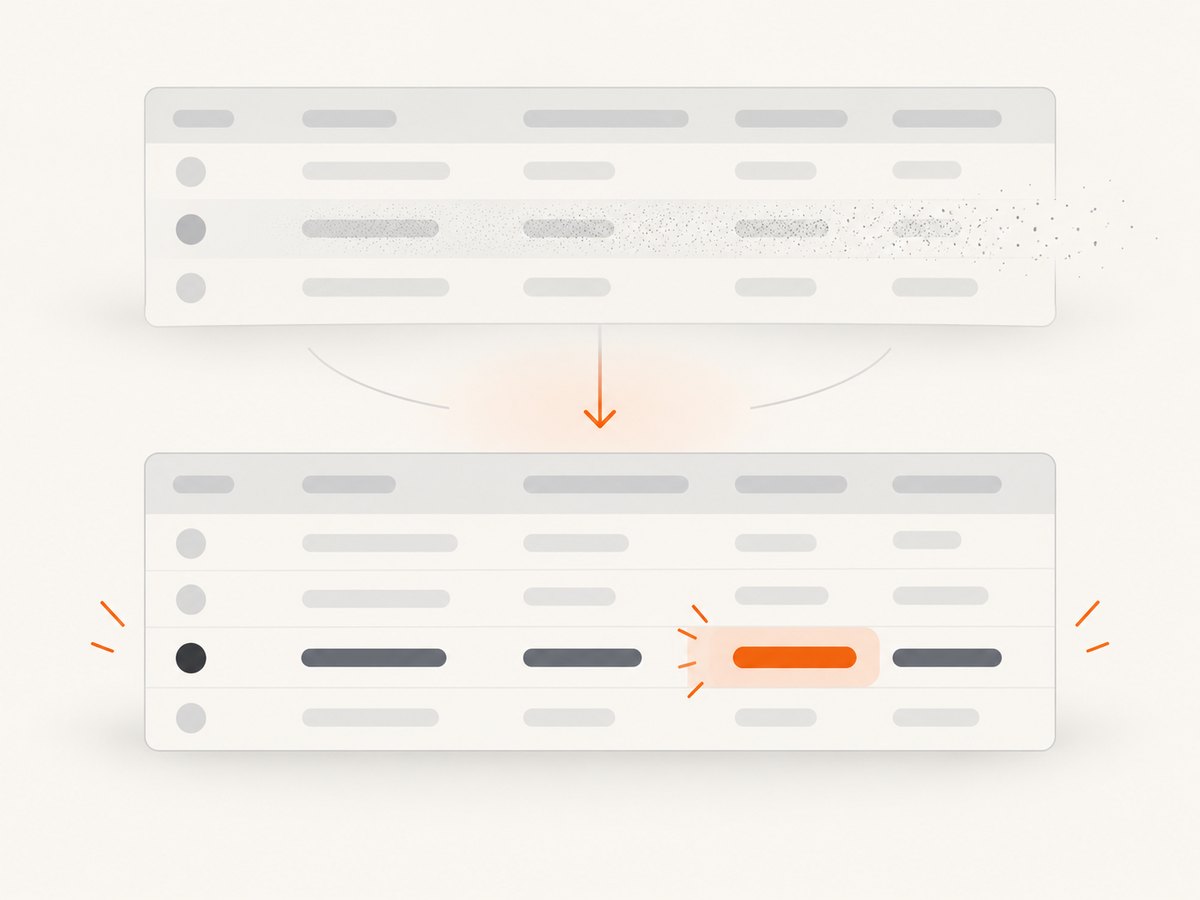
old_row = wait.until(EC.presence_of_element_located(TARGET_ROW))
driver.find_element(By.CSS_SELECTOR, 'button[data-action="refresh"]').click()
wait.until(EC.staleness_of(old_row))
new_row = wait.until(EC.visibility_of_element_located(TARGET_ROW))
new_value = new_row.find_elements(By.CSS_SELECTOR, 'td')[1].text.strip()
If the site reuses the same node, staleness will not occur. Wait for changed text, a loading indicator to disappear, or a custom predicate.
def cell_text_is(locator, expected):
    def condition(driver):
        try:
            text = driver.find_element(*locator).text.strip()
            return text if text == expected else False
        except Exception:
            return False
    return condition

current = wait.until(cell_text_is(cell, '42'))
6. Extract safely when rows, cells, or attributes vary
def read_table(driver, table_locator, row_css, cell_css):
    table = driver.find_element(*table_locator)
    result = []
    for row in table.find_elements(By.CSS_SELECTOR, row_css):
        cells = row.find_elements(By.CSS_SELECTOR, cell_css)
        if cells:
            result.append([cell.text.strip() for cell in cells])
    return result

data = read_table(driver, TABLE, 'tbody tr', 'td')- Check cell counts before indexing.
- Use a row key such as
data-idinstead of a positional row number when rows can reorder. - Use
get_attributefor inputs, links, data attributes, and ARIA values. - Do not assume visible rows are all records when pagination, virtual scrolling, or lazy loading is present.
7. Pagination and lazy loading
Click the site’s Next control, then wait for an observable state transition. A changed page label, staleness of the first row, or a new row key is safer than a fixed delay.
first_row = wait.until(EC.presence_of_element_located(ROWS))
next_button = wait.until(EC.element_to_be_clickable((By.CSS_SELECTOR, 'button.next')))
next_button.click()
wait.until(EC.staleness_of(first_row))
wait.until(EC.presence_of_element_located(ROWS))
page_rows = driver.find_elements(*ROWS)
For infinite scrolling, scroll as the application requires and stop when its own “no more results” signal appears. Record a stable row key to avoid duplicates.
8. Avoid timing traps
- Page load is not data load. Selenium waits for the page-load event, while AJAX and other JavaScript can continue afterward. See Selenium Waiting Strategies.
- Prefer explicit waits to
time.sleep. A sleep does not prove the table state. - Do not mix implicit and explicit waits. Selenium warns that their interaction can make total wait time unpredictable.
- Use stable selectors. IDs, names, and semantic data attributes usually survive layout changes better than long positional XPath expressions.
9. Troubleshooting
| Symptom | Cause | Fix |
|---|---|---|
TimeoutException |
Wrong selector, iframe, or failed request | Inspect the DOM, switch to the iframe, and wait for a row or error state. |
| Empty text | Value is in an attribute or not rendered | Wait for text, then use get_attribute('value') or the relevant attribute. |
StaleElementReferenceException |
Refresh replaced the row | Wait for staleness or changed text, then locate the row again. |
| Old value after Refresh or Next | Read happened before update completed | Wait for old-row staleness, a page marker change, or expected new text. |
| Only first page extracted | Pagination or virtual scrolling ignored | Implement the site’s Next or scroll loop. |
| Intermittent failures | Arbitrary sleep, mixed waits, or slow backend | Use one explicit wait strategy and an application-state condition. |
10. Performance, reliability, and cost
- Use narrow table and row selectors so each poll scans less DOM.
- Wait once for a meaningful batch condition, then read the batch.
- Choose a timeout based on normal response time and fail clearly when exceeded.
- Identify rows by stable keys and deduplicate across pages.
- Capture URL, page marker, row count, and a sanitized HTML excerpt on failure without logging secrets.
- Browser automation consumes CPU, memory, and network resources; reuse a driver for a controlled batch when session isolation permits, and always quit it in
finally. - There is no universal cost or speed figure for a target site. Measure rendering and pagination behavior in your environment.
11. Or skip the browser setup
If you only need an image or PDF of a rendered page, ScreenshotNeo provides a GET screenshot API. It accepts the consent banner before capture and removes 60+ known consent platforms, newsletter popups, and chat widgets; each step can be turned off. Bot checks, blank pages, timeouts, failed loads, and cache hits are not billed, and the response reports the page verdict and billing headers. Its MCP server lets Claude, Cursor, and other MCP clients call take_screenshot, get_page_info, and capture_pdf.
See the ScreenshotNeo API documentation for full-page capture, element selectors, waits, custom headers and cookies, blocking, caching, signed links, async jobs, and bulk capture.
cURL
curl -G 'https://api.screenshotneo.com/v1/shot' -d access_key=YOUR_API_KEY --data-urlencode url=https://stripe.com -o shot.webpPython
import requests
r = requests.get('https://api.screenshotneo.com/v1/shot', params={'access_key': 'YOUR_API_KEY', 'url': 'https://stripe.com'}, timeout=90)
open('shot.webp', 'wb').write(r.content)
Node.js
const q = new URLSearchParams({ access_key: 'YOUR_API_KEY', url: 'https://stripe.com' });
const res = await fetch(`https://api.screenshotneo.com/v1/shot?${q}`);
The Free plan includes 1,000 screenshots per month with no card. Paid plans start at $5 for 3,000; every feature is available on every plan. Create a free ScreenshotNeo account.
12. FAQ
Why does driver.get() return before my table is ready?
It waits for the page-load event, while JavaScript requests and DOM updates may continue. Wait for the table’s data state.
Should I wait for a fixed number of seconds?
No. Wait for a condition that represents readiness.
Why do I get stale element errors?
The application replaced the node. Detect the replacement, then locate the current row or cell again.
Can Selenium read every record in a table?
Only if your code handles pagination, lazy loading, or another source of additional records.
What if the site provides an API?
Assess an authorized, documented data interface first; it may be a better source than browser rendering for structured values.


