How to Find Elements by CSS Selectors in Puppeteer
Learn when to use Puppeteer locators, query methods, and explicit waits to find one or many elements with CSS, handle missing matches, and troubleshoot dynamic pages.
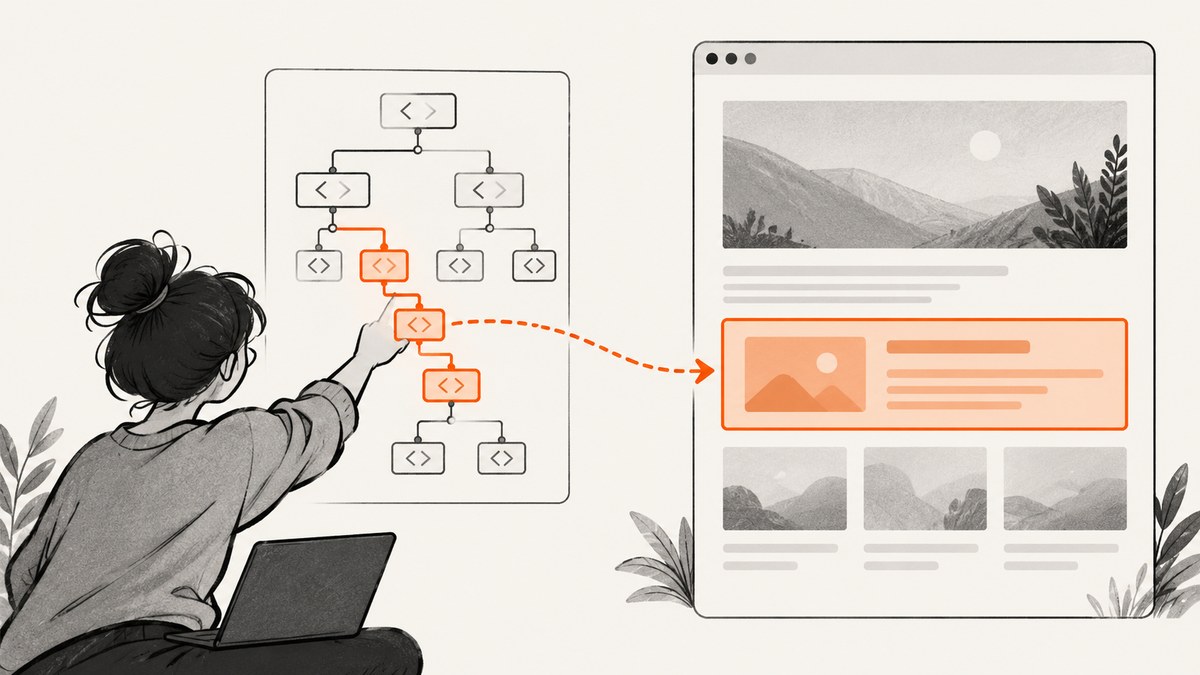
Puppeteer accepts standard CSS selector strings across its selector APIs. For an element you want to interact with, start with a locator such as page.locator('button.primary').click(); locators wait for action readiness and retry when conditions are not met. For retrieval, use page.$() for the first match, page.$$() for all matches, or $eval()/$$eval() to read values in the page. Handle missing matches explicitly: $() returns null, while $$() returns an empty array. Puppeteer’s page interaction guide documents these choices and its additional selector syntax.
1. Install Puppeteer and open a page
The examples below use JavaScript with Node.js and Puppeteer. In an existing project, install Puppeteer using your package manager:
npm install puppeteerSave this runnable example as find-element.js. It opens a page, waits for a CSS selector, reads the first matching heading, and closes the browser even if an error occurs. Replace the example URL and selector with your target.
const puppeteer = require('puppeteer');

async function main() {
  const browser = await puppeteer.launch();
  try {
    const page = await browser.newPage();
    await page.goto('https://example.com', { waitUntil: 'domcontentloaded' });

    const heading = await page.$eval('h1', element => element.textContent?.trim() ?? '');
    console.log(heading);
  } finally {
    await browser.close();
  }
}

main().catch(error => {
  console.error(error);
  process.exitCode = 1;
});
The require form works in a standard CommonJS Node project. If your project uses ES modules, use import puppeteer from 'puppeteer'; instead. Puppeteer’s package provides a browser download during installation; projects using a separately managed browser should follow their browser setup and provide the appropriate launch configuration.
2. Write a CSS selector for the target
All Puppeteer APIs described here accept CSS selectors by default. Build selectors from stable page structure: an ID, a meaningful class, an attribute, or a relationship between elements. For example:
'#checkout'                         // element with id="checkout"
'button.primary'                   // button with class="primary"
'input[name="email"]'             // input with a name attribute
'[data-testid="submit-order"]'    // element with a test id
'.cart .line-item button.remove'   // descendant relationship
Use quotes around CSS attribute values that contain punctuation or spaces. Prefer stable attributes intended for automation, such as a test ID, over generated class names that may change during a build. A valid selector can still match the wrong element: inspect the page structure and scope the selector to a distinctive parent when needed, such as #account-menu button.save.
Ordinary CSS selection does not cross a Shadow DOM boundary. Puppeteer also documents selector extensions for text, accessible names and roles, XPath, and traversal through open shadow roots; these are covered below.
3. Choose the API based on what you need
| Goal | API | Result and behavior |
|---|---|---|
| Interact with a matching element | page.locator(css) |
Locator for an action; waits for action readiness and retries when conditions are unmet. |
| Get the first matching element | page.$(css) |
ElementHandle or null. |
| Get every matching element | page.$$(css) |
Array of ElementHandles; [] if none match. |
| Read a value from the first match | page.$eval(css, fn) |
Runs fn on the first match and returns its result. |
| Read values from all matches | page.$$eval(css, fn) |
Runs fn with an array of matching elements. |
| Wait explicitly for a match | page.waitForSelector(css, options) |
Resolves with an ElementHandle when matched, or throws on timeout. |
Use a locator for an action
For a click or field interaction, use a locator. The page interaction guide describes locator action checks such as being in the viewport, visible, enabled, and having a stable bounding box across two animation frames. That makes the locator a good starting point when the page changes while Puppeteer is waiting.

await page.locator('#account-menu button.save').click();
await page.locator('input[name="email"]').fill('dev@example.com');
Locators represent a way to find an element for an action rather than an ElementHandle you keep around. If a matching node is replaced by a frontend update, a locator can resolve the selector again as it retries the action.
Use query methods to retrieve elements or values
Use $() when you want the first handle and will perform several operations on it. Check for null before using it:
const button = await page.$('button.primary');
if (button === null) {
  console.log('No primary button found');
} else {
  console.log(await button.evaluate(element => element.textContent?.trim() ?? ''));
  await button.dispose();
}
Use $$() when you need each matching element. Handles are tied to page nodes; dispose them when finished if you retain them beyond a short operation.
const items = await page.$$('.product-card');
try {
  for (const item of items) {
    console.log(await item.evaluate(element => element.textContent?.trim() ?? ''));
  }
} finally {
  await Promise.all(items.map(item => item.dispose()));
}
For simple extraction, $eval() and $$eval() keep the page-side work together and avoid creating a list of handles in your Node code:
const title = await page.$eval('h1', element => element.textContent?.trim() ?? '');
const names = await page.$$eval('.product-card', cards =>
  cards.map(card => card.querySelector('.name')?.textContent?.trim() ?? '')
);
console.log({ title, names });
$eval() expects a matching node, so it is not a no-match-safe way to query optional content. Use page.$() when absence is expected, or first wait for the required content. With $$eval(), an empty set gives your page function an empty array; your mapping logic should account for that.
4. Wait for dynamic content when necessary
A selector query runs against the DOM state when it executes. If a client-rendered result has not appeared yet, an immediate query may return null or an empty array. For a specific presence or visibility wait, use waitForSelector():

const result = await page.waitForSelector('.search-result', {
  visible: true,
  timeout: 10_000
});

if (result) {
  try {
    console.log(await result.evaluate(element => element.textContent?.trim() ?? ''));
  } finally {
    await result.dispose();
  }
}
The default timeout documented for waitForSelector() is 30,000 ms. Options include visible, hidden, timeout, and signal. A timeout failure throws. A hidden wait may resolve to null when the selector is absent from the DOM. Set a timeout appropriate to the page and handle timeout errors if the condition is optional.
waitForSelector() waits for DOM availability or the requested visibility state; it does not automatically retry a later action that fails. If the goal is to click or fill once the target is ready, a locator action is usually simpler. Avoid adding a fixed sleep as the default synchronization method: it can be too short on a slow page and waste time on a fast one.
Wait for a disappearance
Use hidden: true when the page must remove or hide an element before continuing, for example a loading indicator. Treat the returned null as a normal outcome for a selector that is already absent:
await page.waitForSelector('.loading-indicator', {
  hidden: true,
  timeout: 15_000
});
// Continue after the indicator is hidden or absent.
5. Handle zero, one, and many matches
Make cardinality part of the code’s logic rather than assuming the page contains exactly one match:
const matches = await page.$$('.result-row');
if (matches.length === 0) {
  console.log('No results');
} else if (matches.length === 1) {
  console.log('One result');
} else {
  console.log(`${matches.length} results`);
}
await Promise.all(matches.map(match => match.dispose()));
If a selector is supposed to be unique, detect accidental duplicates. page.$() silently returns the first matching node, which can hide a selector bug. Use $$() to validate uniqueness during development or in a scraper that depends on the page structure:
const matches = await page.$$('.order-summary [data-total]');
if (matches.length !== 1) {
  throw new Error(`Expected exactly one total, found ${matches.length}`);
}
try {
  console.log(await matches[0].evaluate(element => element.textContent?.trim()));
} finally {
  await matches[0].dispose();
}
Inside $eval() or $$eval(), use optional chaining for nested elements that may be missing. For example, a card can exist while its optional subtitle does not. Avoid throwing from the page callback unless missing nested content makes the whole result invalid.
6. When CSS is not the right selector language
CSS is a good fit for tags, classes, IDs, attributes, and DOM relationships. Puppeteer adds documented selector syntax for cases where the target is better identified another way:
| Need | Example |
|---|---|
| Match visible text | ::-p-text(Continue) |
| Match computed accessible name or role | ::-p-aria([name="Submit"]) |
| Use XPath | ::-p-xpath(//button) |
| Traverse an open shadow root | my-custom-element >>> button |
For example, a locator can use the documented text selector syntax:
await page.locator('::-p-text(Continue)').click();
await page.locator('my-custom-element >>> button').click();
Use these extensions when their semantics clarify the target. Text can change with localization or copy edits; accessible names are often a better description of user-facing controls. XPath can express relationships CSS does not conveniently express. The deep descendant combinator traverses open shadow roots; ordinary CSS does not. Closed shadow roots are not made accessible by this syntax. Puppeteer’s guide marks older prefixed forms such as text/, aria/, xpath/, and pierce/ as legacy syntax and recommends the documented newer forms.
7. Troubleshooting selector failures
| Symptom | Likely cause | Fix |
|---|---|---|
$() returns null |
The selector is wrong, the element is not in this DOM yet, or it lives in a frame or shadow root. | Check the selector and page state; wait for dynamic content; query the correct frame; use the open-shadow-root syntax where applicable. |
$$() returns [] |
No nodes match at query time. | Confirm the page has loaded the target content and that the selector is scoped correctly. Use a locator action or explicit wait when content is asynchronous. |
waitForSelector() times out |
The node never appeared, visibility was required but not reached, or the timeout is too short. | Verify the page and selector, choose the correct visibility condition, and set a realistic timeout. Catch the timeout if absence is expected. |
| Click is rejected or has no effect | The element is hidden, disabled, covered, moving, or replaced during a render. | Prefer locator().click() so Puppeteer checks readiness and retries. Confirm the target is the intended control and inspect page behavior. |
| Selector matches several elements | The selector is too broad or repeated in a list. | Scope it to a container or attribute; use $$() to inspect cardinality and select the intended match deliberately. |
| CSS works outside a component but not inside it | The target is under a Shadow DOM boundary. | Use Puppeteer’s >>> combinator for open shadow roots; CSS alone does not cross that boundary. |
| Evaluation throws on optional content | $eval() has no match, or nested querySelector() returned null. |
Use $() for an optional top-level match and check for null; use optional chaining for nested nodes. |
| Memory grows during a long run | ElementHandles are retained or not disposed. | Prefer $eval()/$$eval() for extraction and dispose handles in finally blocks. |
8. Performance, reliability, and cost
For a single action, a locator avoids an extra query-and-handle step and includes readiness behavior. For data extraction, evaluate a compact mapping in the page context with $$eval() instead of transferring many individual handles and making a separate round trip for each value. Keep page callbacks focused: return the values the Node process needs rather than serializing large DOM structures.
Reliability comes from choosing selectors that describe stable page intent, synchronizing on a meaningful condition, and handling expected absence. A selector tied to a generated class or a fragile DOM depth can break when markup changes. A stable test attribute or semantic selector is generally easier to maintain. Explicitly bound waits so a missing element does not stall a whole job for an unnecessarily long period.
Local Puppeteer automation has no per-selector API charge; operational costs come from the machine, browser runtime, network, and maintenance of the automation. Reuse a browser process for related page work where appropriate, but keep page and handle lifetimes under control. If screenshots are the actual deliverable, compare the cost and maintenance of operating a browser with a screenshot service.
9. Screenshot a page without managing the browser
If the goal is a screenshot rather than DOM inspection or browser interaction, ScreenshotNeo provides a website screenshot API and MCP server. Its one-request API returns PNG, JPEG, WebP, or PDF. The following cURL example uses the documented endpoint and saves a WebP response; see the ScreenshotNeo API documentation for parameters and setup.
Or skip the browser setup
curl -G "https://api.screenshotneo.com/v1/shot" -d access_key=YOUR_API_KEY --data-urlencode url=https://stripe.com -o shot.webpThe matching Python and Node.js calls are below. The Node example prints the response body; for production code, check the HTTP response status and save the returned bytes to a file.
import requests
r = requests.get("https://api.screenshotneo.com/v1/shot", params={"access_key": "YOUR_API_KEY", "url": "https://stripe.com"}, timeout=90)
open("shot.webp", "wb").write(r.content)
const q = new URLSearchParams({ access_key: 'YOUR_API_KEY', url: 'https://stripe.com' });
const res = await fetch(`https://api.screenshotneo.com/v1/shot?${q}`);- Cookie and consent banners, newsletter popups, and chat widgets are removed before the shot; each cleanup step can be turned off.
- Bot checks and CAPTCHAs, blank pages, timeouts, failed loads, and cache hits are not billed; response headers identify the page verdict and billing status.
- An MCP server lets AI agents, including Claude, Cursor, and other MCP clients, take screenshots, get page information, and capture PDFs.
- The free plan includes 1,000 screenshots per month with no card. Paid plans start at $5 for 3,000 screenshots; every feature is on every plan.
Sign up for 1,000 free screenshots a month, with no card required.
10. FAQ
Does Puppeteer use a special syntax for CSS selectors?
No. Standard CSS selector strings work directly with its selector APIs. Puppeteer-specific syntax is available for text, accessible names, XPath, and open shadow roots.
Should I use page.$() or page.locator()?
Use a locator when the next step is an interaction. Use $() when you specifically need the first ElementHandle, and check for null.
How do I get all matching elements?
Use page.$$(selector) for handles or page.$$eval(selector, fn) to process all matching nodes in the page context.
Can a CSS selector find text inside a button?
CSS selects by DOM structure and attributes, not by rendered text content. Use Puppeteer’s documented text selector when text is the identifying property.
Why does my selector work in DevTools but fail in Puppeteer?
The page may be at a different state, frame, or component boundary when Puppeteer queries it. Confirm the navigation and rendering state, then check whether the node is inside an iframe or an open shadow root.


