How to Find Elements with Selenium 3 in PhantomJS 2.1.1
Learn every Selenium 3 locator for PhantomJS 2.1.1, with JavaScript and Python examples, waits, iframe handling, errors, and migration guidance.
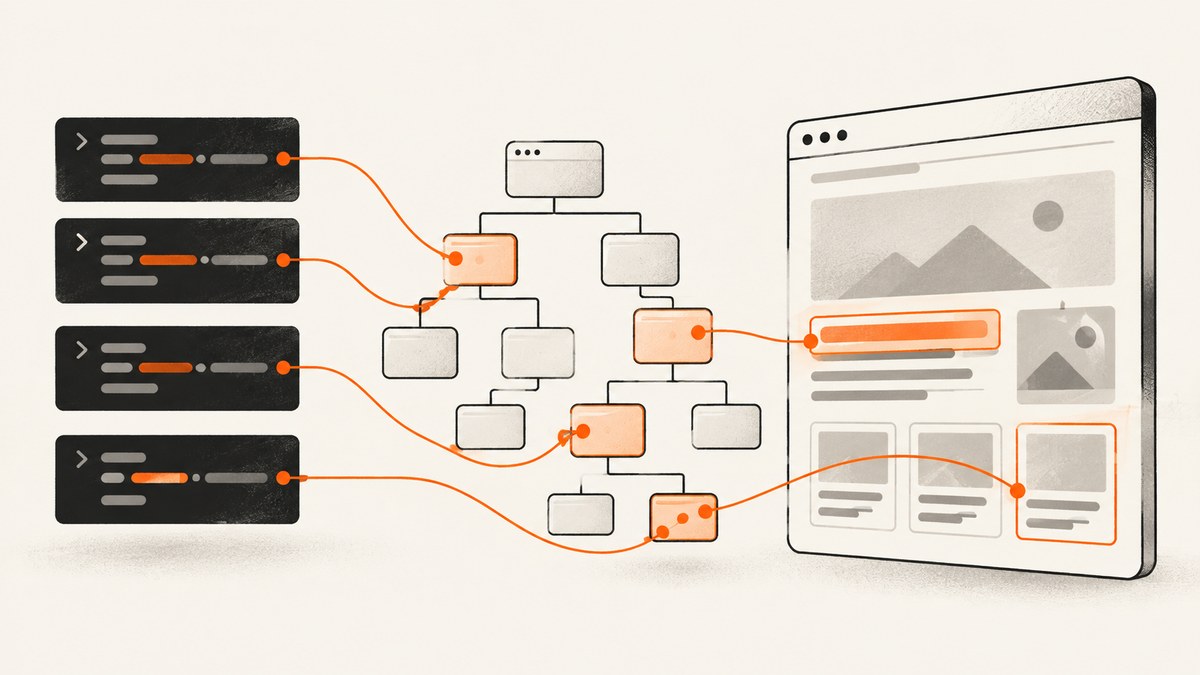
Direct answer: Selenium finds elements by passing a By locator to findElement (one match) or findElements (a collection). In Selenium 3 with PhantomJS 2.1.1, use a stable unique ID first, then a concise CSS selector, followed by name, class, link text, tag name, or XPath when the page structure requires it.
PhantomJS is legacy software. Selenium removed native PhantomJS support because its WebDriver implementation was no longer actively developed. Keep this recipe for maintaining an existing suite; for new automation, use a maintained headless Chrome or Firefox driver. The locator concepts remain the same.
1. Locator methods at a glance
| Strategy | JavaScript | Python | Best use |
|---|---|---|---|
| ID | By.id('username') |
By.ID, 'username' |
Unique, stable id |
| CSS selector | By.css('form input[name="email"]') |
By.CSS_SELECTOR, 'form input[name="email"]' |
Readable attributes and structure |
| Name | By.name('email') |
By.NAME, 'email' |
Stable form controls |
| Class name | By.className('result') |
By.CLASS_NAME, 'result' |
One class token |
| Link text | By.linkText('Sign in') |
By.LINK_TEXT, 'Sign in' |
Exact anchor text |
| Partial link text | By.partialLinkText('Sign') |
By.PARTIAL_LINK_TEXT, 'Sign' |
Variable anchor text |
| Tag name | By.tagName('button') |
By.TAG_NAME, 'button' |
Collecting elements by tag |
| XPath | By.xpath('//form//input[@name="email"]') |
By.XPATH, '//form//input[@name="email"]' |
Relationships or conditions CSS cannot express |
Selenium’s locator guidance favors a unique ID when available, then a well-written CSS selector. XPath is useful for complex relationships but is usually harder to read and maintain. A class locator accepts one class token; By.className('btn primary') is invalid.
2. Complete Selenium 3 JavaScript example
This example uses the legacy PhantomJS browser target and demonstrates ID, CSS, a collection, text entry, and cleanup.
const {Builder, By} = require('selenium-webdriver');

(async function () {
  const driver = await new Builder().forBrowser('phantomjs').build();
  try {
    await driver.get('https://example.test/login');

    const username = await driver.findElement(By.id('username'));
    const password = await driver.findElement(By.css('input[name="password"]'));
    const results = await driver.findElements(By.css('.result'));

    await username.sendKeys('alice');
    await password.sendKeys('secret');
    console.log(`Found ${results.length} result elements`);
  } finally {
    await driver.quit();
  }
})();
findElement rejects with a no-such-element error when there is no match. findElements returns an array, including an empty array when nothing matches. Use the latter when zero matches is an expected state.
3. Complete Selenium 3 Python example
from selenium import webdriver
from selenium.webdriver.common.by import By

# Selenium 3 environments that still expose the PhantomJS binding.
driver = webdriver.PhantomJS(executable_path='/path/to/phantomjs')
try:
    driver.get('https://example.test/login')

    username = driver.find_element(By.ID, 'username')
    password = driver.find_element(By.CSS_SELECTOR, 'input[name="password"]')
    results = driver.find_elements(By.CSS_SELECTOR, '.result')

    username.send_keys('alice')
    password.send_keys('secret')
    print(len(results))
finally:
    driver.quit()
4. Choosing a reliable locator
Prefer stable attributes
- Use a unique, stable
id. - Use a compact CSS selector such as
[data-testid="save"]or#checkout button.submit. - Use
namefor form controls when it does not change between renders. - Use a single class token only when the class has stable meaning.
- Use link text for user-facing anchors whose text is controlled and stable.
- Use tag name mainly when collecting a broad set.
- Use XPath for parent/ sibling relationships, text conditions, or axes CSS cannot express.
Examples
// JavaScript
await driver.findElement(By.id('checkout'));
await driver.findElement(By.css('[data-testid="save"]'));
await driver.findElement(By.name('email'));
await driver.findElement(By.className('information'));
await driver.findElement(By.linkText('Sign in'));
await driver.findElement(By.partialLinkText('Sign'));
await driver.findElements(By.tagName('button'));
await driver.findElement(By.xpath('//form//input[@name="email"]'));
Keep selectors scoped to a stable container. For example, form#checkout input[name="email"] is safer than selecting the first email input on the entire document.
5. Waiting for dynamic elements
Navigation completing does not guarantee that JavaScript-rendered content exists. Add an explicit wait for presence or visibility instead of using arbitrary sleeps.
const {Builder, By, until} = require('selenium-webdriver');

(async function () {
  const driver = await new Builder().forBrowser('phantomjs').build();
  try {
    await driver.get('https://example.test/results');
    const result = await driver.wait(
      until.elementLocated(By.css('.result')),
      10000,
      'result element was not added to the DOM'
    );
    await driver.wait(until.elementIsVisible(result), 10000);
    console.log(await result.getText());
  } finally {
    await driver.quit();
  }
})();
Wait for the narrowest condition that proves the next action is safe: an element located, visible, enabled, or containing expected text.
6. Frames, hidden elements, and collections
Elements inside an iframe
An iframe has its own document. Locate the frame, switch into it, then search. Switch back when finished.
const frame = await driver.findElement(By.css('iframe[name="payment"]'));
await driver.switchTo().frame(frame);
const card = await driver.findElement(By.name('cardnumber'));
await card.sendKeys('4111111111111111');
await driver.switchTo().defaultContent();
Hidden elements
A locator can find an element that exists in the DOM but is hidden by CSS. Finding it does not make it interactable. Wait for visibility, remove the condition that hides it through the normal UI, or select the visible control instead.
Multiple matches
Use findElements to inspect every match, then select deliberately. Do not rely on an accidental first match when the page can contain several buttons or links.
7. XPath and CSS edge cases
- Quote XPath strings correctly. For text containing an apostrophe, use XPath
concat()or prefer a data attribute. - CSS class selectors cannot contain spaces as one class name. Use
.btn.primaryto require two classes. - Escape special CSS characters in IDs when needed, or use an attribute selector such as
[id="order:123"]. - Link-text strategies apply to anchor elements. For a button labeled “Sign in,” use CSS, XPath, or an accessible attribute.
- Do not use generated React/Vue class names or position-only selectors unless no stable attribute exists.
8. Troubleshooting “element not found”
| Symptom | Likely cause | Fix |
|---|---|---|
| NoSuchElementError immediately | Wrong selector or the DOM is not ready | Inspect the rendered DOM, verify spelling, and add an explicit wait. |
| Selector works manually but not in automation | The element is inside an iframe | Locate the iframe and call switchTo().frame(). |
| Element is found but click fails | It is hidden, covered, disabled, or outside the current state | Wait for visibility and enabled state; open the required UI first. |
Empty result from findElements |
No current match | Treat an empty collection as a valid result or wait for content to appear. |
| Stale element reference | The page replaced the node after you located it | Wait for the update to finish and locate the element again. |
| Works in Chrome, fails in PhantomJS | Old WebKit engine or unsupported modern JavaScript | Use a maintained headless Chrome or Firefox driver and keep the same By selectors. |
| Class locator throws an invalid-selector error | A compound class string was supplied | Pass one class token or use a CSS selector such as .first.second. |
9. PhantomJS setup and migration
PhantomJS 2.1.1 is headless and includes GhostDriver. Its documented WebDriver endpoint can be started with:
phantomjs --webdriver=8910The documented default endpoint is 127.0.0.1:8910. Existing Selenium 3 projects may still connect through this legacy integration, but new projects should choose a maintained browser driver. Migration usually changes the builder or driver setup; By, findElement, findElements, waits, and frame handling carry over.
10. Performance, reliability, and maintenance
- Prefer one precise locator over broad DOM traversal. It reduces search work and makes failures easier to diagnose.
- Use explicit waits with a sensible timeout instead of repeated fixed sleeps.
- Cache a WebElement only while the page state is stable; re-find it after a re-render.
- Keep selectors in page-object methods so a markup change is fixed in one place.
- Use
findElementsfor optional widgets and empty states to avoid exception-driven control flow. - Run a maintained browser for new coverage. PhantomJS’s old engine can misrepresent current CSS and JavaScript behavior.
11. Or skip the browser setup
If your goal is a rendered image or PDF rather than interactive element control, ScreenshotNeo provides a single screenshot request. It accepts consent banners before capture and removes more than 60 known consent platforms, newsletter popups, and chat widgets. Bot checks, blank pages, timeouts, failed loads, and cache hits are not billed, and response headers report the page verdict and billing status.
See the ScreenshotNeo API documentation for all options, including full-page and element capture, waits, custom CSS and JavaScript, headers, cookies, device presets, PDFs, caching, async jobs, bulk capture, and MCP tools for AI agents.
curl -G "https://api.screenshotneo.com/v1/shot" -d access_key=YOUR_API_KEY --data-urlencode url=https://stripe.com -o shot.webpimport requests
r = requests.get("https://api.screenshotneo.com/v1/shot", params={"access_key": "YOUR_API_KEY", "url": "https://stripe.com"}, timeout=90)
open("shot.webp", "wb").write(r.content)const q = new URLSearchParams({ access_key: 'YOUR_API_KEY', url: 'https://stripe.com' });
const res = await fetch(`https://api.screenshotneo.com/v1/shot?${q}`);An MCP server lets Claude, Cursor, and other MCP clients call take_screenshot, get_page_info, and capture_pdf. The Free plan includes 1,000 screenshots each month with no card; paid plans start at $5 for 3,000 shots. Create a free ScreenshotNeo account.
12. FAQ
Does findElement return an array?
No. It returns one WebElement and fails if none exists. Use findElements for a collection.
Can I use CSS and XPath together?
Yes. Choose the strategy that best expresses each element; both produce WebElements.
Why is PhantomJS still mentioned in Selenium 3 guides?
It remains relevant for legacy suites, but native support was deprecated and removed because the implementation was no longer actively developed.
Should I replace every XPath selector?
No. Keep XPath where it expresses a relationship clearly; replace brittle absolute paths with stable IDs, attributes, or scoped CSS.
What should a new project use?
Use a maintained headless Chrome or Firefox driver and the same Selenium locator APIs.


