How to Find and Fix Broken Images on a Website
Find the exact image URL that fails, identify whether markup or delivery caused it, and verify the repair for visitors and search crawlers.
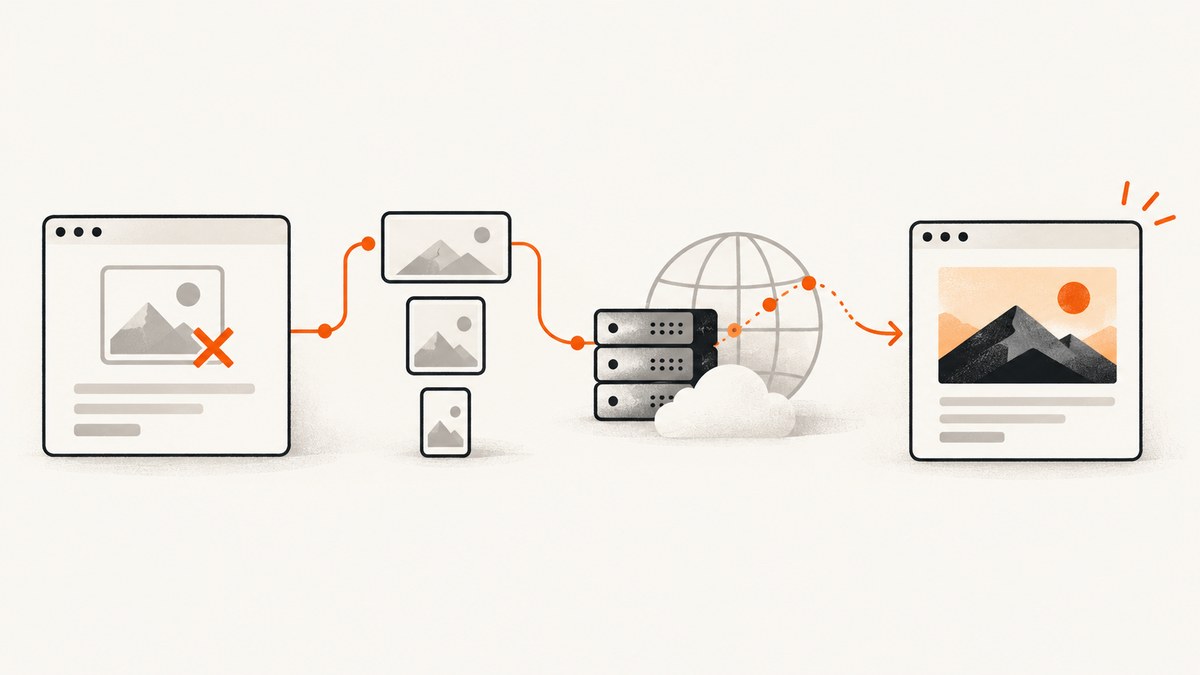
A broken image is a symptom, not a diagnosis. Find the exact URL the browser requested, inspect the rendered image markup and response, then fix the cause at the page, asset, or delivery layer. Afterward, verify the image at the relevant viewport sizes and check that assistive technology and search crawlers can interpret the result.
This guide covers browser-based diagnosis, responsive images, lazy loading, redirects, accessibility, crawler verification, and practical command-line checks.
1. Reproduce the failure and identify its scope
Start with the page where the image is missing. Reload it and note which images fail. Check whether the problem affects one image, a group of assets, a particular page, or only a narrow or wide viewport. Scope is a useful clue: a single failure often points to a stale path or missing file, while many failures can point to a shared CDN, host, or deployment issue.

- Open the page in the browser where the failure occurs.
- Reload with the browser’s developer tools open. In the Network panel, filter to images and find the failed request.
- Record the requested URL, status code, and response details. If the browser reports a blocked request, note the reason shown.
- Inspect the image element in the Elements panel. Record its
src,srcset,sizes,loading, and any surrounding<picture>sources. - Repeat at the viewport width where the issue was reported.
The URL in the HTML source may not be the URL that the browser chose. Responsive sources, scripts, and lazy-loading behavior can change when and what the browser requests. Diagnose the rendered element and actual network request before editing a path.
2. Inspect the requested URL and response
Open the exact failed URL in a new tab or request it directly. Check that the path points to the intended deployed file, including capitalization and directory names. A local development path can work on a case-insensitive filesystem while failing after deployment to a case-sensitive one. A move or filename change can also leave old references behind.
Use curl to inspect response headers and then download the response body:
curl -sS -D image-headers.txt -o image-response.bin \
  "https://example.com/assets/diagram.webp"
cat image-headers.txt
file image-response.bin
Look at the HTTP status, Content-Type, and the downloaded file’s actual format. A URL ending in .webp that returns an HTML error page is not a valid WebP image. A successful HTTP response also does not guarantee that the body contains decodable image data. Browsers can fail to render invalid or unsupported data.
For a quick status check without downloading the body:
curl -sS -I "https://example.com/assets/diagram.webp"Some servers handle HEAD requests differently from GET requests, so confirm a suspicious result with a GET request. Google Search supports image formats including BMP, GIF, JPEG, PNG, WebP, SVG, and AVIF; that is a Search-specific format list, not a promise that every browser or downstream tool supports every format. Keep file extensions consistent with the actual data type.
3. Fix the markup and delivery cause
Wrong, stale, or case-mismatched path
Correct the source URL or deploy the file at the path the page expects. Search the project for the old filename or path to find repeated references. Also check the deployed build output: a correct source file that was excluded from the build is still unavailable to visitors.
Moved public image URL
If the image moved and the old public URL should continue to work, point page markup at the new location and configure a suitable redirect from the old URL when that is appropriate. If the resource has been permanently removed and has no equivalent replacement, return a genuine 404 or 410. Do not redirect every missing image to the homepage or invent replacement content. Google says many 404s are expected and do not automatically harm indexing or ranking.
Responsive images and picture sources
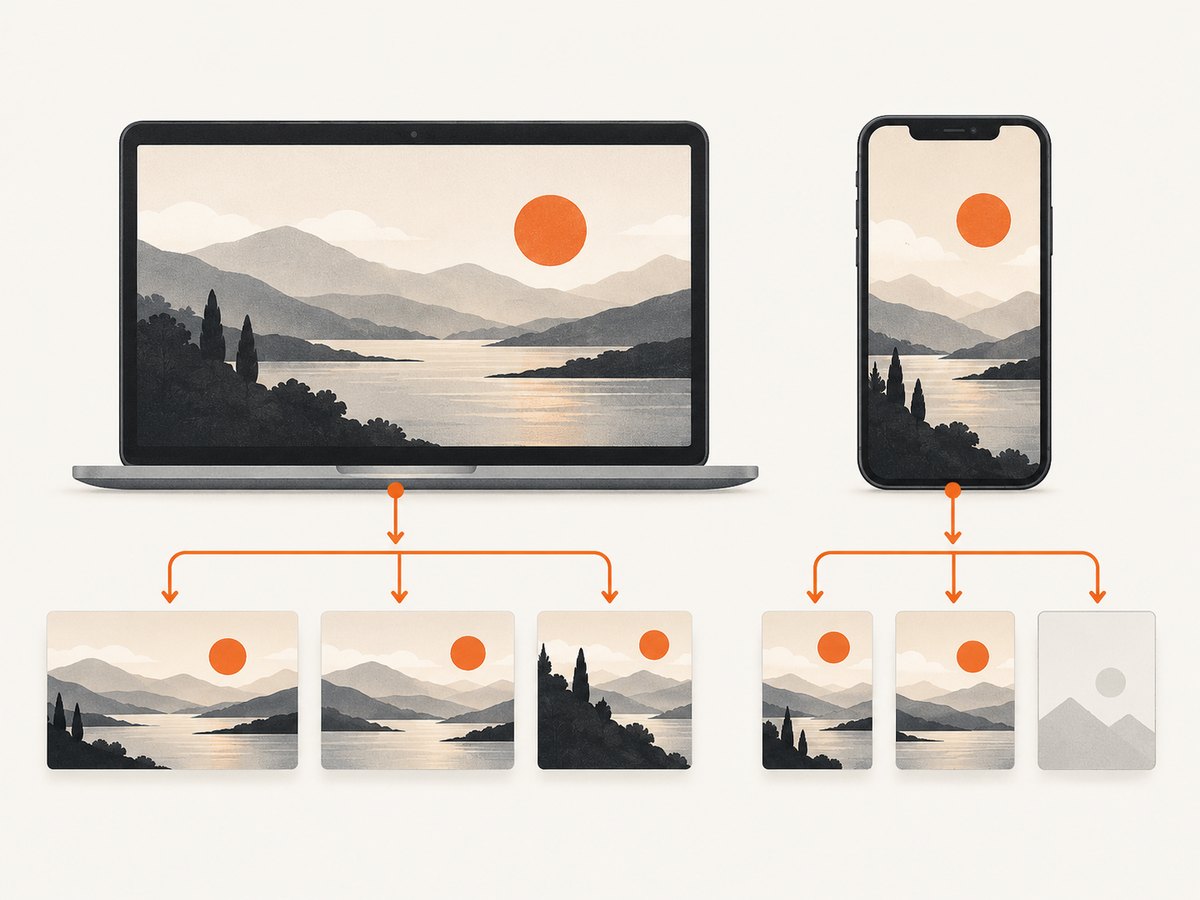
With srcset, the browser chooses among candidates based on the available display space and device pixel ratio. With <picture>, it may select a source based on media conditions or format support. Check the selected candidate in the rendered element and Network panel at the failing viewport. Keep a usable img src fallback:
<picture>
  <source
    type="image/avif"
    srcset="/images/team.avif 1x, /images/team@2x.avif 2x"
  >
  <source
    type="image/webp"
    srcset="/images/team.webp 1x, /images/team@2x.webp 2x"
  >
  <img
    src="/images/team.jpg"
    srcset="/images/team.jpg 1x, /images/team@2x.jpg 2x"
    alt="The product team at a planning meeting"
  >
</picture>
Verify that every candidate URL exists and serves data in its declared format. A valid fallback cannot help if the browser selects a broken candidate and the other source choices are also unavailable.
Lazy-loaded images
Lazy loading can delay a request until an image approaches the viewport. Check whether the intended URL appears in rendered HTML and whether the page depends on a click or other interaction to expose it. For native lazy loading, the source still belongs in image markup:
<img
  src="/images/article-chart.png"
  loading="lazy"
  alt="Quarterly signups by month"
>
Do not put the only usable URL in a custom attribute that requires an interaction a crawler may never perform. Google recommends making lazy-loaded content available in rendered HTML and supports checking the rendered page with URL Inspection.
CDN, access, or shared-resource problem
Check whether the image host is reachable from the browser and whether the request is denied, blocked, or failing at the server. Look for expired signed URLs, access rules, hotlink protection, or a deployment that did not publish the asset. If a shared image is reused across pages, reference it consistently rather than generating unnecessary variants of its URL. Google notes that blocked resources, server errors, slow or large resources, and other fetch failures can impair rendering.
4. Make the image accessible
Alt text does not repair an image URL, but it determines what users of assistive technology encounter and can provide a useful fallback when an image is unavailable. For an informative image, describe the information or purpose that matters in context. For a purely decorative image, use an empty alt attribute so screen readers can skip it.
<!-- Informative image -->
<img src="/charts/revenue.png" alt="Revenue rose from January through June">

<!-- Decorative divider -->
<img src="/decorative/wave.svg" alt="">
Avoid using filenames or generic text such as “image” as a substitute for useful alt text. If the image is a link or control, describe its function in that context.
5. Verify the repair for browsers and crawlers
- Reload the affected page and confirm the image request succeeds at the intended URL.
- Check the actual rendered image at each relevant viewport, including any
srcsetor<picture>candidate. - Confirm the response contains valid image data and the file type matches its extension and declared type.
- Check that meaningful alt text and decorative empty alt text are appropriate.
- Use Google Search Console’s URL Inspection to test the live page and inspect Google’s rendered view or fetch information.
- After publishing a fix, request indexing if appropriate. Google may take time to recrawl; a successful live test does not mean the search index updates immediately.
URL Inspection is useful when a page looks correct for you but the crawler’s rendered result differs. Google also recommends checking rendered HTML for image URLs when debugging lazy-loaded content.
6. Troubleshooting common broken-image errors
| Symptom | Likely cause | What to check and fix |
|---|---|---|
| 404 Not Found | Wrong path, moved file, case mismatch, or asset missing from deployment. | Request the exact URL, compare it with the deployed filename, correct references, and deploy the asset. Redirect an old public URL only when a real replacement exists. |
| 403 Forbidden | Access policy, hotlink protection, expired signed URL, or host restriction. | Inspect response headers and hosting rules. Make the intended public asset fetchable without exposing private content. |
| 200 OK, but broken icon | HTML error page, empty body, corrupt bytes, or unsupported data returned as an image. | Inspect Content-Type and file signature; download the body and validate it. Fix the origin response and ensure the extension matches the actual format. |
| Only some screen sizes fail | A selected srcset candidate or <picture> source is missing. |
Inspect the candidate selected at that width and density. Repair it and preserve a valid img src fallback. |
| Image appears only after scrolling | Lazy-load timing or script-driven source assignment. | Check when the URL enters rendered markup. Ensure the image can load without a user interaction and test the rendered page in URL Inspection. |
| Works locally, fails after deploy | Asset omitted from build, incorrect base path, case sensitivity, or deployment/CDN mismatch. | Inspect deployed files and the production request URL. Correct the build configuration or reference and publish the missing asset. |
| Intermittent failures across many images | Shared host, CDN, network, or origin issue. | Compare affected URLs and response timing/status. Check host-side availability, delivery rules, and whether a common resource path is failing. |
| Search Console still shows an old issue | The page has not been recrawled or the indexed result is stale. | Run a live URL Inspection test, confirm the rendered image URL, and allow time for recrawling after requesting indexing where appropriate. |
7. Performance, reliability, and maintenance
Large image files take longer to transfer and can make pages feel slower. Serve appropriately sized assets for their display dimensions, use a format supported by your audience, and avoid shipping a full-resolution original when a smaller version will do. Responsive candidates can reduce unnecessary transfers on smaller displays, but every candidate must be deployed and reachable.
For reliability, verify image URLs as part of the same deployment process that publishes the pages which reference them. Shared or CDN-hosted assets need consistent availability and fetch access. Avoid assuming that a successful homepage load proves every nested image URL works: check image requests independently.
Cost depends on the delivery setup, such as your origin and CDN arrangements; there is no universal price for repairing an image. The practical cost of a broken asset is time spent diagnosing it and the user impact while it remains broken. For a small number of pages, browser developer tools and direct requests are usually enough to isolate the failure.
Or skip the browser setup
If you need a clean screenshot of the repaired page for review, documentation, or a visual record, ScreenshotNeo captures a page through one API request. It can help confirm what the page renders, alongside checking the actual image URL and response. See the ScreenshotNeo API documentation for request options.
curl -G "https://api.screenshotneo.com/v1/shot" \
  -d access_key=YOUR_API_KEY \
  --data-urlencode url=https://example.com/page-with-image \
  -o page.webp
import requests
r = requests.get(
"https://api.screenshotneo.com/v1/shot",
params={
"access_key": "YOUR_API_KEY",
"url": "https://example.com/page-with-image",
},
timeout=90,
)
r.raise_for_status()
open("page.webp", "wb").write(r.content)const q = new URLSearchParams({
access_key: 'YOUR_API_KEY',
url: 'https://example.com/page-with-image'
});
const res = await fetch(`https://api.screenshotneo.com/v1/shot?${q}`);
if (!res.ok) throw new Error(`Screenshot request failed: ${res.status}`);
await Bun.write('page.webp', res);ScreenshotNeo removes cookie and consent banners, newsletter popups, and chat widgets before capture; each step can be turned off. Bot checks, blank pages, failed loads, timeouts, and cache hits are not billed, and the response includes page-verdict and billing headers. Its MCP server provides take_screenshot, get_page_info, and capture_pdf tools for Claude, Cursor, and other MCP clients. The Free plan includes 1,000 screenshots per month with no card; paid plans start at $5 for 3,000. Every feature is on every plan.
Sign up free for 1,000 screenshots a month, no card required.
FAQ
Should I redirect every missing image URL?
No. Redirect a moved resource when there is a genuine replacement. If it was intentionally removed and no equivalent exists, a real 404 or 410 is appropriate.
Can alt text make a broken image display?
No. Alt text supports accessibility and can provide fallback text, but the image source and response must be repaired separately.
Does every 404 hurt search rankings?
No. Google says many 404s are normal and can be ignored when the URL should not exist. Investigate URLs that should resolve or that have a true replacement.
Why does the image work for me but not appear in search?
The crawler may see different rendered markup, be unable to fetch a resource, or have an older crawl. Inspect the live page with URL Inspection and check crawler-visible image URLs.


