How to Find and Fix Orphaned Content in WordPress: 7 Tools
Find WordPress pages with no internal links, confirm why they are not indexed, and choose the right fix with seven practical tools.
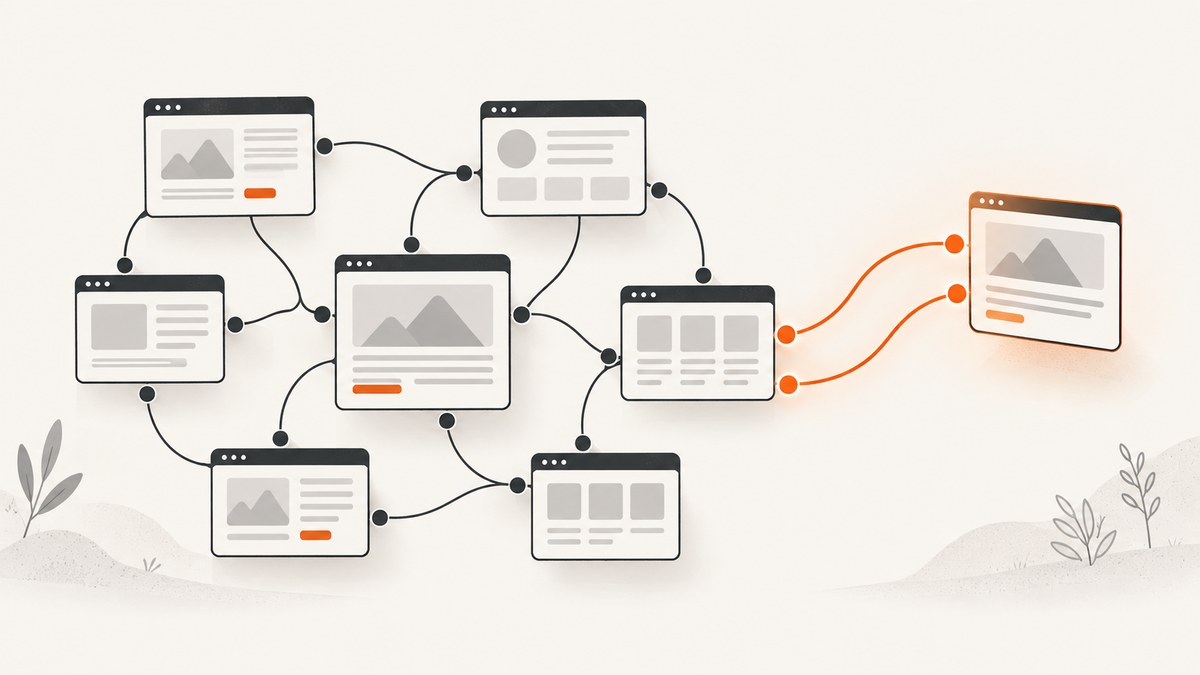
Direct answer: Find orphaned content by building a complete WordPress URL inventory, comparing it with your XML sitemap and crawl data, checking each suspect URL in Google Search Console, and reviewing internal links manually. Then keep and link useful pages, merge or redirect superseded pages, remove content with no purpose, or noindex pages that must remain available but should not appear in search.
Orphaned content is a published page, post, product, or custom post type with no meaningful internal links pointing to it. A URL can appear in an XML sitemap and still be orphaned. Search engines use links to discover pages and understand their importance, while visitors use links to navigate your site. Yoast summarizes the practical problem: “Orphaned content is hard to find, for both Google and visitors.” Yoast’s orphaned-content documentation explains the concept and editorial workflow.
What counts as an orphan page?
For this workflow, an orphan is a URL that is published and intended for users or search engines but has no contextual internal link from another discoverable page. Navigation menus, category archives, related-post widgets, and XML sitemaps may help discovery, but they do not automatically provide the same topical context as an editorial link.
Do not automatically “fix” every URL with zero links. Login pages, checkout steps, private utilities, staging remnants, test pages, campaign landing pages, attachment URLs, duplicate URLs, and faceted-filter combinations can be intentionally unlinked. The review step determines whether the lack of links is a defect.
Seven-tool workflow at a glance
| Tool | What it answers | Best use |
|---|---|---|
| WordPress inventory | What content exists? | Create the candidate universe |
| XML sitemap | Which URLs are declared? | Find published URLs missing from your inventory |
| Search Console URL Inspection | What does Google know about one URL? | Check indexing, canonical, robots, and crawl state |
| Search Console Page indexing | Which patterns affect many URLs? | Separate discovery problems from technical exclusions |
| Yoast SEO Premium | Which WordPress entries have no incoming links? | Editor-friendly orphan filtering inside WordPress |
| Ahrefs Site Audit | Which URLs are outside the normal crawl? | Reconcile crawl, sitemap, analytics, Search Console, and backlinks |
| Manual review | What should happen to each URL? | Choose link, merge, redirect, remove, noindex, or intentional orphan |

1. Build a complete WordPress content inventory
Start with your own data rather than a crawler report. Export every published post, page, product, and custom post type, including:
- URL and post type
- Publication and last-modified dates
- HTTP status and canonical URL
- Search visibility or noindex state
- Author, category, and other useful taxonomy fields
Include content that is not linked from archives. A crawler can only report what it can reach from its starting URLs; your database or export reveals the full set. Normalize trailing slashes, protocol variants, uppercase characters, URL parameters, and redirects before comparing lists.
2. Review the XML sitemap
Export URLs from every relevant sitemap, including post-type and taxonomy sitemaps. Compare them with the WordPress inventory:
- URLs in the inventory but absent from the sitemap may be intentionally excluded or may have a sitemap configuration problem.
- URLs in the sitemap but absent from the inventory may be stale, generated by a plugin, or associated with a different post type.
- URLs in both lists are candidates for link review, not proof that they have internal links.
An XML sitemap is an inventory and discovery hint. It does not replace contextual internal linking. Google’s sitemap guidance and indexing documentation explain that submitted URLs can still be excluded, canonicalized, or waiting for crawl.
3. Inspect each suspect URL in Google Search Console
Open URL Inspection for each important candidate. Record:
- Whether the URL is on Google
- The selected canonical and the user-declared canonical
- Whether robots.txt, a noindex directive, authentication, or another issue blocks indexing
- Last crawl date and discovered sitemap
- Any “crawled, currently not indexed” or “discovered, currently not indexed” state
Request indexing after you make a meaningful fix. Google says indexing can take from a day or two to a few weeks depending on circumstances; a request is not a guarantee or an immediate refresh.
4. Use the Page indexing report for patterns
The Page indexing report shows groups of URLs and their indexing reasons. Filter by sitemap when available, then compare excluded URLs with your orphan candidates.
This separates two different problems:
- Findability: the page is valid but has no meaningful internal path to it.
- Technical exclusion: the page is blocked, redirected, canonicalized elsewhere, duplicate, or marked noindex.
Fix links first when the page is useful and indexable. A new link will not override a noindex directive, an incorrect canonical, or a robots restriction.
5. Filter orphaned content in Yoast SEO Premium
Yoast SEO Premium provides an orphaned-content filter for posts and pages with no incoming internal links. Open the filter, review each result, and use the editor to improve the page and add links from relevant, already discoverable content. Yoast’s orphaned-content workout also covers redirecting or hiding a page when linking is not the right outcome.
Use this report as a shortlist. Confirm that custom post types, JavaScript-rendered links, and links in unusual templates are represented correctly. A plugin’s definition of an incoming link may not include every link your site renders.
6. Reconcile URLs with Ahrefs Site Audit
Ahrefs Site Audit can compare the URLs found by a crawl with additional sources such as XML sitemaps, analytics, Google Search Console, and backlinks. This matters because a normal crawl misses URLs that have no path from the crawl seed.
Import all available URL sources, crawl the site, and inspect URLs found only in the external sources. A URL appearing in analytics or backlinks but not in the crawl is a strong review candidate. Ahrefs also cautions that some orphan pages are deliberate, so classify them before changing anything.
7. Manually review relevance and choose an action
For every candidate, answer these questions:
- Is the URL intentional and useful to a visitor?
- Does it satisfy a distinct search intent?
- Should it be indexable?
- Is another URL the canonical replacement?
- Can a relevant page link to it naturally?
- Does it have traffic, conversions, backlinks, or business value?
Document the decision and the source link you will add. A spreadsheet with URL, purpose, status, action, target linking pages, owner, and review date prevents the same candidates from returning every audit.
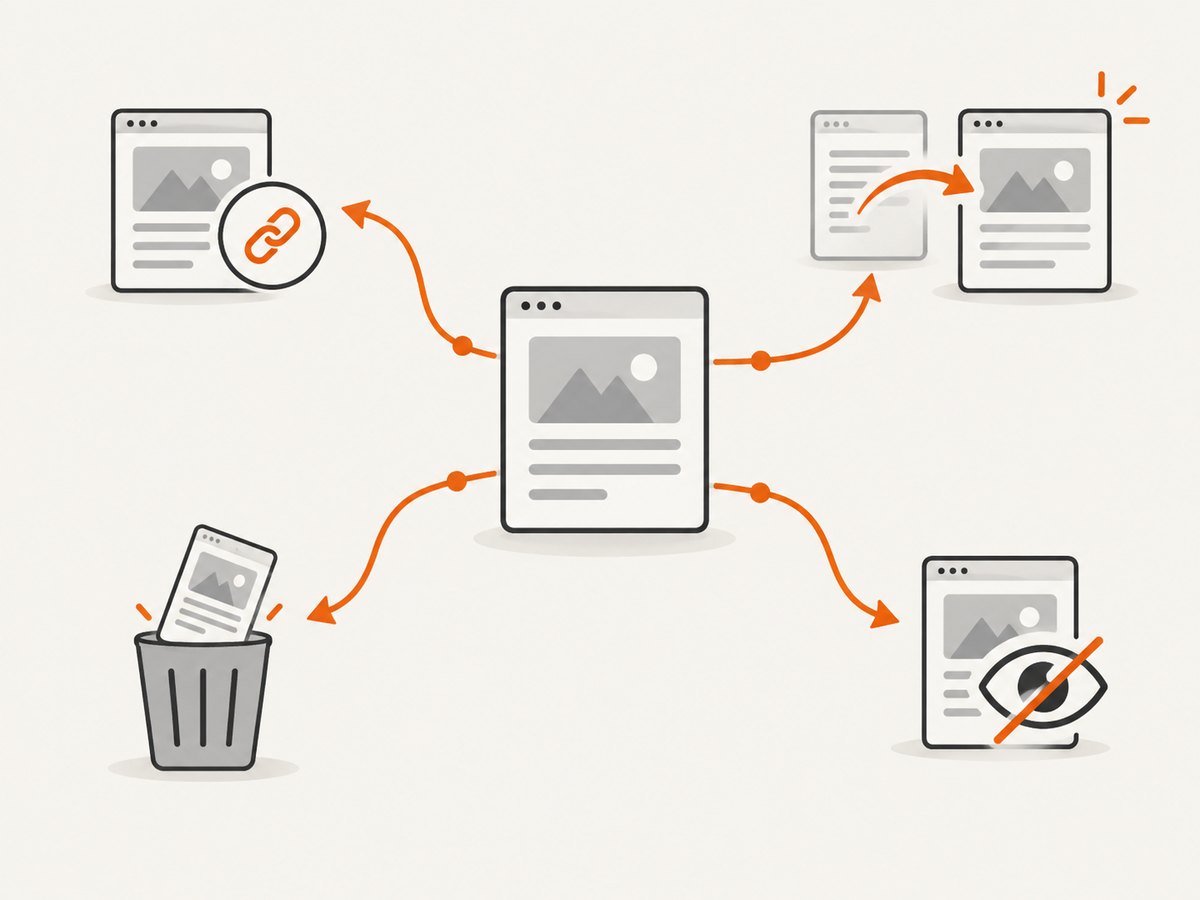
Fix decision tree: link, merge, remove, or hide
Keep and improve
Choose this when the page has a distinct purpose. Refresh outdated information, check that it has a self-referencing canonical where appropriate, and add one or more contextual links from topically related pages that already receive visitors or crawl attention. Link using descriptive anchor text that tells readers what they will find.
Merge or replace
When two URLs serve the same intent, choose the stronger destination, combine useful material, update internal links, and map the old URL to the replacement with a carefully selected 301 redirect. Check that the replacement genuinely satisfies the old page’s intent; redirecting unrelated URLs creates a poor experience.
Remove
Delete content with no continuing purpose. Before removal, search your inventory, templates, analytics, and backlink sources for references. Update internal links and redirect only when a relevant replacement exists. Otherwise, return an appropriate gone response through your normal WordPress and hosting configuration.
Noindex or hide
Use a noindex control for content that must remain available to users but should not appear in search, such as a private utility or thin campaign destination. Make sure the page is not simultaneously blocked from crawling, because Google needs to fetch the page to see the noindex directive.
Leave intentionally unlinked
Keep login, checkout, private, test, and narrowly targeted campaign URLs unlinked when that is deliberate. Record the reason so a future audit does not treat them as accidental orphans.
Implementation checklist
- Export all published post types and normalize URLs.
- Export every XML sitemap and compare both directions.
- Run a crawl with redirects followed and canonical URLs recorded.
- Import analytics, Search Console, and backlink URLs where available.
- Inspect important candidates in Search Console.
- Classify each URL as keep, merge, remove, noindex, or intentional orphan.
- Add contextual links from relevant, discoverable pages.
- Update redirects, canonicals, sitemap membership, and templates.
- Request indexing for changed URLs and monitor the indexing report.
- Re-run the comparison after Google has had time to recrawl.
Common errors and troubleshooting
| Symptom | Likely cause | Fix |
|---|---|---|
| Page is in the sitemap but still called orphaned | Sitemap entry is not a contextual link | Add an editorial internal link from a relevant page |
| Search Console says “Crawled, currently not indexed” | Google crawled it but did not select it for indexing | Improve usefulness, uniqueness, internal links, canonical signals, and request indexing |
| Inspection shows another canonical | Canonical tag, redirect, or duplicate signals conflict | Choose one preferred URL and align canonicals, redirects, sitemap, and links |
| Yoast reports no links, but links exist | Links are generated dynamically, hidden in templates, or unsupported by the report | Verify rendered HTML and crawl results manually |
| Crawler cannot reach a URL found in analytics | No crawl path, login wall, robots restriction, or timeout | Check access, robots rules, status codes, and authentication; classify private URLs separately |
| Redirect chain appears after cleanup | Old redirects point through multiple intermediate URLs | Update links and redirect directly to the final relevant destination |
| New links do not change indexing immediately | Recrawl and processing delay | Use URL Inspection, request indexing once, and allow time for processing |
Performance, reliability, and cost notes
For large sites, process URLs in batches and cache exports. Start with high-value pages: products, money pages, pages with backlinks, and URLs shown in analytics. Keep a dated snapshot of each source so changes can be explained later.
A crawl is only as reliable as its URL sources and rendering. Combine database exports, sitemaps, rendered links, analytics, Search Console, and backlinks. Treat disagreements as investigation signals rather than automatically choosing one tool’s answer.
Google Search Console is the free diagnostic reference for Google indexing state. Yoast SEO Premium and Ahrefs Site Audit are subscription tools; compare their current plans and features before purchase. The cost of leaving an orphan unresolved depends on its purpose and value, so prioritize by business impact instead of URL count.
Or skip the browser setup
If you need a visual check of a page while auditing content, ScreenshotNeo returns a clean screenshot or PDF from one GET request. Cookie and consent banners are accepted and removed before capture, along with more than 60 known consent platforms, newsletter popups, and chat widgets. Bot checks, blank pages, timeouts, failed loads, and cache hits are not billed, and response headers identify the page verdict and billing result.
See the ScreenshotNeo API documentation for all options. This runnable cURL example captures a page:
curl -G "https://api.screenshotneo.com/v1/shot" -d access_key=YOUR_API_KEY --data-urlencode url=https://example.com/orphan-page -o shot.webpPython:
import requests
r = requests.get("https://api.screenshotneo.com/v1/shot", params={"access_key": "YOUR_API_KEY", "url": "https://example.com/orphan-page"}, timeout=90)
open("shot.webp", "wb").write(r.content)
Node.js:
const q = new URLSearchParams({ access_key: 'YOUR_API_KEY', url: 'https://example.com/orphan-page' });
const res = await fetch(`https://api.screenshotneo.com/v1/shot?${q}`);
ScreenshotNeo also provides an MCP server with take_screenshot, get_page_info, and capture_pdf for Claude, Cursor, and other MCP clients. It supports full-page and element captures, custom CSS and JavaScript, waits, blocking rules, headers, cookies, user agents, geolocation, caching, signed links, asynchronous jobs, bulk capture, and PDF settings. One thousand screenshots per month are free with no card; paid plans start at $5 for 3,000. Create a free ScreenshotNeo account.
FAQ
Can a page be indexed without internal links?
Yes. Google may discover it through a sitemap, external link, or other source, but a lack of contextual internal links makes discovery and importance signals weaker. Treat the page as an orphan candidate until reviewed.
Should every orphan page get a link?
No. Private utilities, checkout steps, login pages, and some campaign URLs are intentionally unlinked. Link only pages that should be part of normal navigation or search discovery.
How many internal links should I add?
There is no universal number. Add links where they help readers understand the topic, beginning with one or more relevant, discoverable pages. Avoid unrelated or repetitive links.
Does deleting an orphan improve SEO automatically?
No. Removal is appropriate when the content has no continuing purpose. Otherwise, deleting a useful page can remove value; improve and connect it instead.
How often should I audit orphaned content?
Run a full comparison on a schedule that matches your publishing volume, and review newly published or migrated sections after major site changes.


