How to Find HTML Elements by Attribute Using Cheerio
Select elements by attribute in Cheerio with CSS selectors, extract values safely, and troubleshoot empty results with runnable Node.js examples.
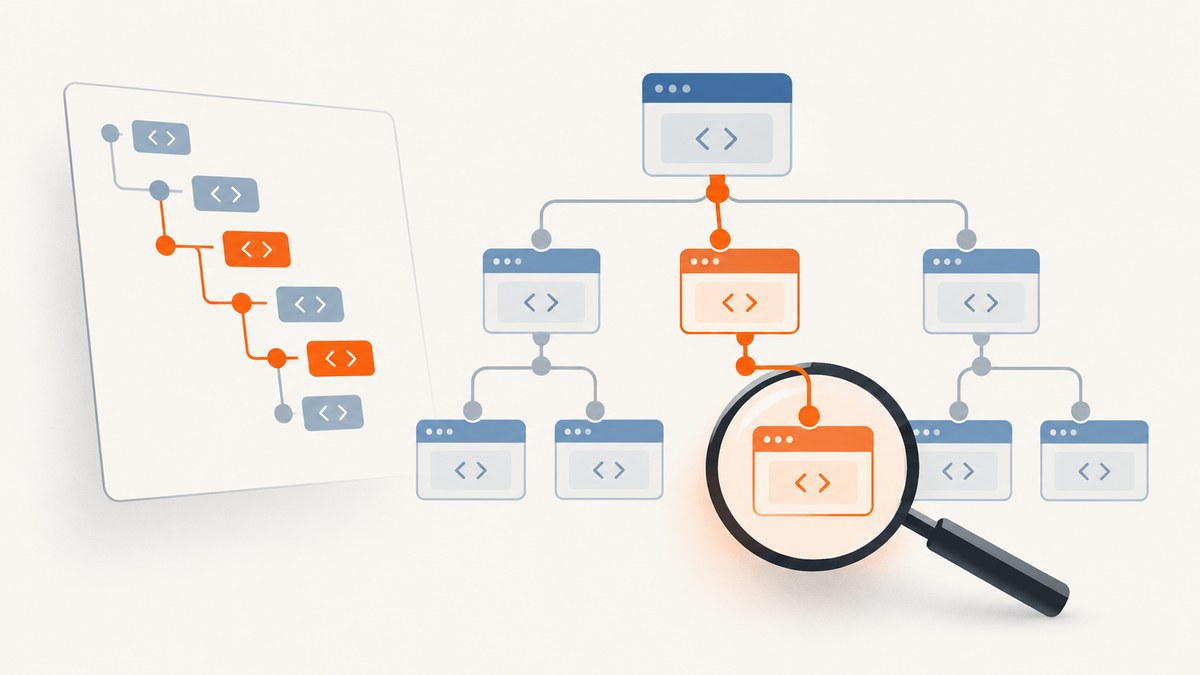
Use Cheerio’s normal CSS selector function, $, after loading the HTML. To find every element that has an attribute, select [attribute]; to match a value, use [attribute="value"]. For example, $('[data-kind="note"]') selects elements whose data-kind value is exactly note.
Cheerio uses CSS selector syntax for finding elements. Its selector guide describes this as the same syntax used in stylesheets and document.querySelectorAll. The main difference to remember is that Cheerio parses the HTML you give it; it does not run the page’s JavaScript to create missing elements. See the Cheerio selector guide.
1. Load HTML and select by attribute
Install Cheerio in a Node.js project, save the following as find-attributes.mjs, and run it with node find-attributes.mjs. The example uses HTML directly so it is self-contained and does not depend on a live website.
import * as cheerio from 'cheerio';

const html = `
  <article>
    <a data-kind="note" href="/one">First</a>
    <a data-kind="link" href="https://example.com/two">Second</a>
    <a href="/three">Third</a>
  </article>
`;

const $ = cheerio.load(html);

const notes = $('[data-kind="note"]');
console.log(notes.length);       // 1
console.log(notes.attr('href')); // /one
console.log(notes.text());       // First
For a new project, install the package with npm install cheerio. The module import above works in an ES module file (.mjs) or a project configured for ES modules. In CommonJS projects, use const cheerio = require('cheerio') and then cheerio.load(html). Check Cheerio’s current installation and runtime requirements if your Node version or module setup differs.
2. Attribute selector patterns
Attribute selectors can test whether an attribute exists, compare its value, or match part of a value. Add a tag, class, or relationship selector to narrow the result.

| Selector | What it matches | Example |
|---|---|---|
[data-kind] |
Any element with the attribute, even if its value is empty. | $('[data-kind]') |
[data-kind="note"] |
An exact attribute value. | $('[data-kind="note"]') |
a[data-kind="note"] |
An anchor with that exact attribute value. | $('a[data-kind="note"]') |
[href^="https://"] |
A value beginning with the given text. | Links whose href begins with HTTPS. |
[href$=".pdf"] |
A value ending with the given text. | Links ending in .pdf. |
[href*="example"] |
A value containing the given text. | Links with “example” somewhere in href. |
[class~="featured"] |
A space-separated attribute value containing this token. | Elements whose class list includes featured. |
[lang|="en"] |
The value en or a value beginning en-. |
Elements marked en or en-US. |
Values can be combined with ordinary CSS selectors. A comma-separated selector matches either branch; a descendant space searches at any depth; > requires a direct child.
// An anchor with the attribute, anywhere inside an article
const articleLinks = $('article a[data-kind="note"]');

// Either heading level when it has the attribute
const titles = $('h1[data-role="title"], h2[data-role="title"]');

// Only direct anchor children of nav
const navLinks = $('nav > a[data-kind="link"]');

// Namespaced attribute: escape the colon in the selector string
const xmlId = $('[xml\\:id="main"]');
Quote values when they contain punctuation or when that makes the selector easier to read. Attribute names in HTML are generally case-insensitive; attribute values are application data and should be compared according to the data’s actual casing. For XML, case behavior and parsing rules differ, so use the appropriate XML loading mode when the input is XML.
3. Narrow a selection and extract values
Use find() to search within the descendants of an existing selection, and filter() to keep only matching elements already in a selection. These methods return new selections. attr(name) reads the attribute from the first matched element, so iterate when you need one value per match.
const $ = cheerio.load(`
  <article>
    <a data-kind="note" href="/one"> First </a>
    <a data-kind="note" href="/two"> Second </a>
    <a data-kind="link" href="/three"> Third </a>
  </article>
`);

const notes = $('article').find('[data-kind="note"]');
console.log(notes.length); // 2

const hrefs = [];
notes.each((index, element) => {
  const item = $(element);
  hrefs.push({ href: item.attr('href'), label: item.text().trim() });
});
console.log(hrefs);
// [{ href: '/one', label: 'First' }, { href: '/two', label: 'Second' }]

// Narrow a broad selection and select one result by zero-based index
const firstNote = $('a').filter('[data-kind="note"]').eq(0);
console.log(firstNote.attr('href'));
Use .first() or .last() when you mean the first or last result. Cheerio also supports positional selector extensions such as :first, :last, and :eq(n); these are Cheerio selector-engine extensions rather than standard browser CSS. See Cheerio’s traversal documentation.
Use .text() for text content. It returns combined text from the selection, not one value per element. Use .each() or .map() for separate records. For URL attributes, attr('href') returns the markup’s raw value; Cheerio’s prop('href') can resolve a URL against the document’s base URI when that behavior is needed. See attribute and property handling.
4. Match dynamic values safely
A frequent trap is interpolating a value from input directly into a selector. Characters such as periods, colons, spaces, brackets, and quotation marks can change how the selector is parsed. Quoting a value does not make arbitrary input safe: a quote inside that input can terminate the selector value.
Instead, select using a fixed selector and compare the attribute as ordinary data. This works for values containing selector punctuation and avoids turning untrusted input into selector syntax:
const requestedId = 'panel:primary "large"';
const matches = $('[data-id]').filter((index, element) => {
  return $(element).attr('data-id') === requestedId;
});

console.log(matches.length);
This may examine every element with that attribute, so keep the fixed selector as specific as your document allows (for example, article [data-id]). For a small or moderate selection this is straightforward and robust. Do not build a selector from untrusted input and assume quotes alone prevent selector injection. Cheerio’s troubleshooting guide recommends fixed selectors and value comparison for dynamic values; its security guide explains the selector injection risk.
5. Debug selectors that return nothing
An empty Cheerio selection is not necessarily an exception. Check .length before relying on .text() or .attr(): an empty selection returns an empty string for text and undefined for an attribute.
- Confirm the input HTML. Inspect the string passed to
cheerio.load(), or print a short prefix withconsole.log($.html().slice(0, 500)). Make sure you loaded the response body you intended. - Start with presence. Try
$('[data-kind]').length. If this is zero, verify the attribute name and whether the node exists in the supplied markup. - Add one condition at a time. Move from
[data-kind]toa[data-kind], then toa[data-kind="note"], and finally add ancestor or child constraints. This shows which part excludes the result. - Check value details. Compare exact spelling, whitespace, casing, and punctuation. Attribute equality does not mean “contains”; use
*=when substring matching is intended. - Check whether the page renders client-side. Cheerio does not execute page scripts. If the received HTML contains an empty app root and JavaScript bundles, the target nodes may be created only after browser execution. Obtain server-rendered HTML or the site’s data API, or use a browser automation tool such as Puppeteer or Playwright when the rendered DOM is required. See Cheerio troubleshooting.
- Check selector support. Some pseudo-classes require rendering or browser state; unsupported pseudo-classes can throw an “Unknown pseudo-class” error. Remove pseudo-classes until the basic attribute selector works, then consult the selector documentation.
6. Or skip the browser setup
Cheerio is a good fit when you already have the HTML and need to parse it. If the next step is capturing a page as an image or PDF, ScreenshotNeo provides a screenshot API and MCP server. Its API accepts a URL in one GET request; see the ScreenshotNeo API documentation.
curl -G "https://api.screenshotneo.com/v1/shot" \
  -d access_key=YOUR_API_KEY \
  --data-urlencode url=https://stripe.com \
  -o shot.webp
import requests
r = requests.get(
"https://api.screenshotneo.com/v1/shot",
params={"access_key": "YOUR_API_KEY", "url": "https://stripe.com"},
timeout=90,
)
open("shot.webp", "wb").write(r.content)const q = new URLSearchParams({
access_key: 'YOUR_API_KEY',
url: 'https://stripe.com',
});
const res = await fetch(`https://api.screenshotneo.com/v1/shot?${q}`);
if (!res.ok) throw new Error(`Screenshot request failed: ${res.status}`);
await import('node:fs/promises').then(fs => fs.writeFile('shot.webp', Buffer.from(await res.arrayBuffer())));Replace YOUR_API_KEY with your key. The code requests the page at https://stripe.com; change that target URL as needed. The Node.js example checks the HTTP status before saving the response.
- Cookie banners are accepted and removed before capture, along with supported newsletter popups and chat widgets; each step can be turned off.
- Bot checks, blank pages, failed loads, timeouts, and cache hits are not billed. Response headers identify the page verdict and billing status.
- An MCP server provides
take_screenshot,get_page_info, andcapture_pdftools for AI agents and MCP clients. - The free plan includes 1,000 screenshots per month without a card; paid plans start at $5 for 3,000 screenshots.
Create a free ScreenshotNeo account to get 1,000 screenshots a month with no card.
7. Performance, reliability, and cost considerations
For local parsing, load the HTML once and reuse the resulting $ function for related queries rather than reparsing the same string. Narrow searches to the relevant container when possible. For extraction, build plain objects in one pass with .each(); avoid repeatedly scanning the entire document for each output field. Parsing cost depends on input size and the number of selections, so impose a reasonable response-size limit when processing untrusted or unexpectedly large HTML.
Cheerio operates on the markup supplied to it. It does not fetch a URL unless your own code performs the request, and it does not wait for scripts, network activity, images, or browser layout. That makes it unsuitable when your requirement is specifically a screenshot or a JavaScript-rendered DOM. If you control the page, stable data-* attributes or structural anchors usually make extraction less brittle than styling classes that change with redesigns.
Cheerio itself does not charge per selection; your costs come from the surrounding system, such as HTTP requests, compute, memory, and retries. Set request timeouts and handle HTTP errors before parsing. For ScreenshotNeo, the plan prices are Free (1,000 per month), Starter ($5 for 3,000), Growth ($15 for 15,000), Pro ($39 for 60,000), Scale ($99 for 250,000), and Business ($249 for 1,000,000); yearly billing gives two months free, and every feature is on every plan. Use the response’s page-verdict and billing headers when distinguishing a successful capture from a page that was not billed.
8. Common errors and fixes
| Symptom | Likely cause | Fix |
|---|---|---|
Cannot find package 'cheerio' |
Dependency is not installed in the current project. | Run npm install cheerio from the project directory and confirm the script runs there. |
require is not defined or import syntax error |
CommonJS and ES module syntax are mixed. | Use .mjs with import, or use require in a CommonJS project. |
| Selection length is zero | Wrong HTML, selector typo, absent value, or content rendered by JavaScript. | Inspect the loaded markup, test the attribute-presence selector, then add constraints incrementally. |
| Dynamic value selects the wrong item or errors | Input punctuation changed the selector grammar. | Match a fixed selector and compare attr() values in a filter callback. |
attr() returns undefined |
No element matched, or the first match lacks that attribute. | Check selection length and attribute presence before reading it. |
| Only one extracted value appears | attr() was called on the whole collection. |
Iterate through matches with .each() or use .map(). |
| Unknown pseudo-class error | The selector engine does not support that pseudo-class. | Use supported selectors or filter the selected elements in JavaScript. |
9. FAQ
Can I find an element just by an attribute, without knowing its value?
Yes. Use $('[data-state]') to match every element carrying that attribute, whatever its value.
Does an attribute selector return one element or all matches?
It returns a Cheerio collection containing all matches. Use .first() or .eq(index) when you need a particular result.
Can Cheerio select elements by a data attribute?
Yes. Data attributes are ordinary HTML attributes for selector purposes, so selectors such as [data-product-id] and [data-product-id="42"] work.
Should I use attr() or prop() for a link?
Use attr('href') for the literal value present in the markup. Use prop('href') when you need Cheerio’s property behavior, including resolution against a known base URI.
Can Cheerio take a screenshot of the matched element?
No. Cheerio parses and manipulates markup; it does not render a browser page. Use browser automation for a local rendered DOM or a screenshot service when you need an image or PDF.


