How to Find an IP Address and Protect Your Own
Find your Windows device’s local IP address, understand what websites can see, and choose privacy controls that match the information you want to protect.
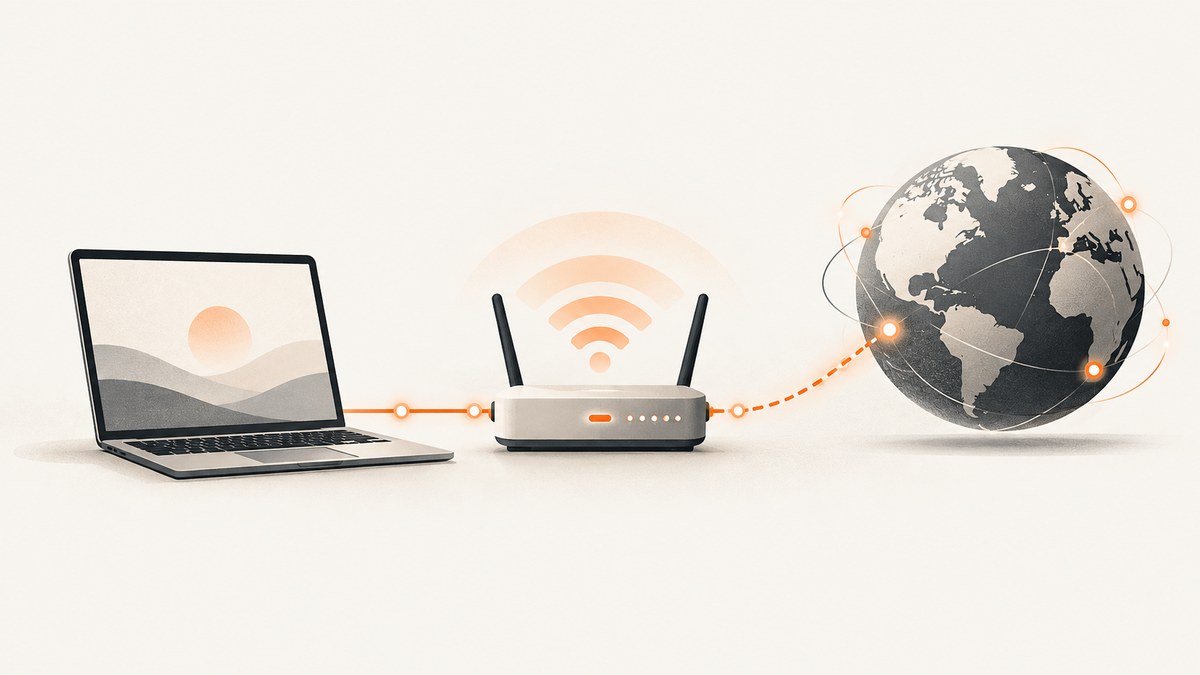
To find your Windows computer’s local IP address, open Settings → Network & internet, select the connected Wi-Fi network or Ethernet connection, and look for IPv4 address in its properties. That is the address your device uses on the local network. It is generally different from the outward-facing address a website sees for your internet connection.
To reduce what websites can learn, use a privacy relay or a VPN where appropriate, review app and browser location permissions, and understand what each setting protects. A private Wi-Fi address changes a device’s network identifier; it does not hide the public IP address. IP masking also does not make you fully anonymous or prevent every kind of location inference.
This guide focuses on finding the address on Windows 10 and 11 and choosing controls based on the data you want to protect. Microsoft recommends Automatic (DHCP) for most users, so changing a device’s IP settings manually is not a routine privacy step. Microsoft’s Windows network settings guide documents the address steps and DHCP setting.
1. Find your local IP address in Windows
- Open Settings.
- Select Network & internet.
- For Wi-Fi, select Wi-Fi, then the connected network. For a wired connection, select Ethernet and the connected network.
- In the network properties, find IPv4 address.
Windows 10 and Windows 11 may arrange these screens a little differently as settings change, but the address is in the properties for the active connection. Check that you opened the network you are actually using: a saved Wi-Fi network or disconnected Ethernet connection may show properties that do not describe the route carrying your current traffic.
The IPv4 value is usually written as four number groups separated by dots, such as 192.168.1.24. That example is illustrative only; your address will be assigned by your network. Some networks also use IPv6 addresses, which are displayed in a longer colon-separated form.
Keep automatic addressing enabled for ordinary use
In the network’s IP assignment settings, Automatic (DHCP) lets the router or access point assign IP and DNS settings. Microsoft recommends this for most users. A manual setting is for specific network administration needs; it does not conceal your public IP from websites and can interrupt connectivity if the values do not match the network.
2. Local IP versus the address a website sees
Your local address identifies your device within the local network. The router or access point connects that network to the internet. A website normally sees the outward-facing address associated with the internet connection, unless a relay, VPN, or similar service changes the address exposed to it.
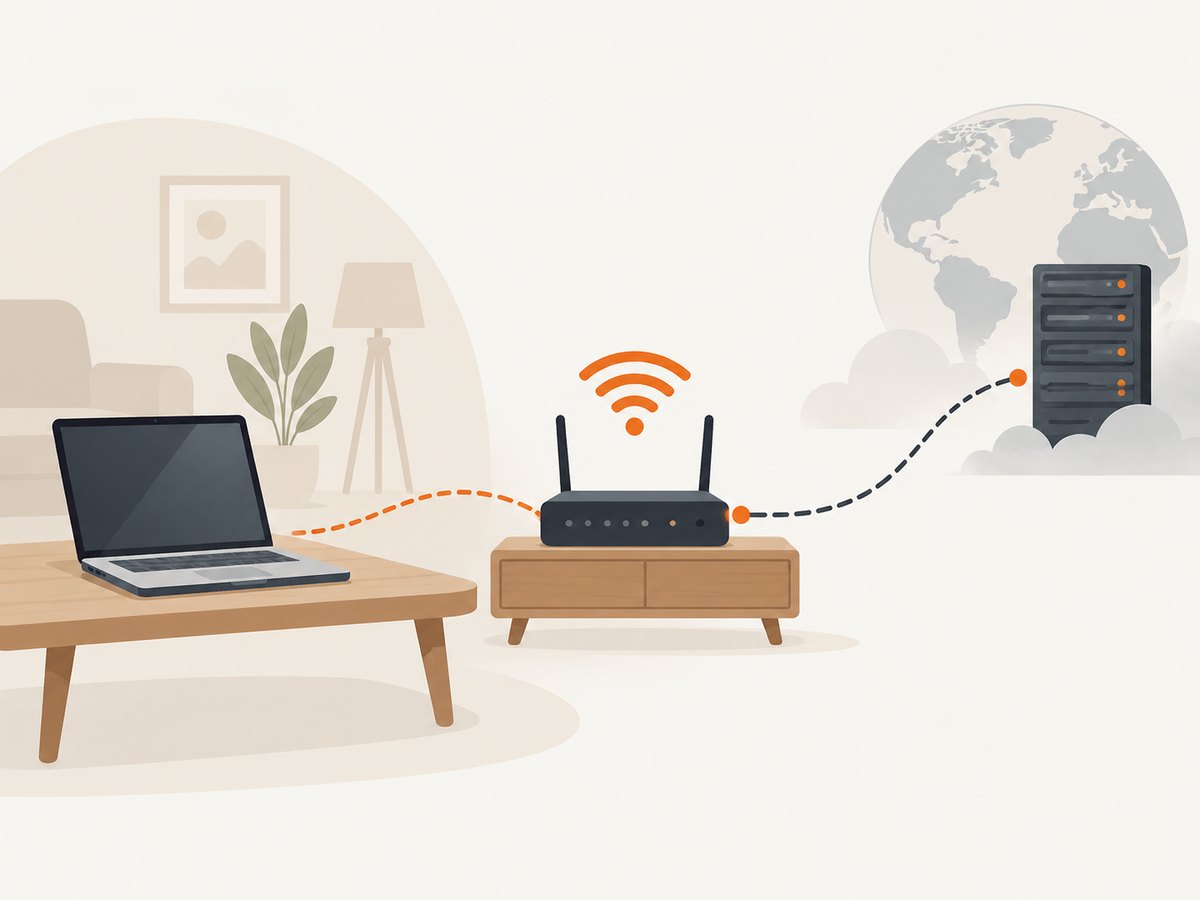
Therefore, the IPv4 value in Windows network properties is not a public-IP lookup. This distinction matters when debugging connectivity: a developer may need the local address to inspect a device on a LAN, while a website’s logs generally record the outward-facing connection address. They are different questions, and one value does not substitute for the other.
This guide does not recommend a particular public-IP lookup website. If you use an online checker, remember that it is a third-party site you are contacting, and consider what information its operator may retain. Do not share an IP address publicly if you do not have a reason to; an address is identifying network information, though by itself it does not reliably reveal a person’s exact home address.
3. Choose protection for the signal you want to reduce
| Control | What it can change | What it does not do |
|---|---|---|
| Private Wi-Fi address | The Wi-Fi network identifier presented by a supported Apple device | Does not mask the outward-facing IP address |
| iCloud Private Relay | The IP address and exact location websites see in Safari on supported Apple devices | Does not cover all apps and all traffic as a general VPN would |
| VPN | Can mask the IP address websites see by routing traffic through a VPN service | Does not guarantee anonymity or stop all tracking and location inference |
| Location permissions | Which apps can access device location through operating-system controls | Does not prevent a website from estimating location from an IP address |
Reduce Wi-Fi network tracking with a private address
Wi-Fi networks identify devices using a MAC address. Using the same Wi-Fi MAC address everywhere can make it easier for network providers and observers to relate a device across networks. Apple’s Private Wi-Fi Address feature gives a device a different Wi-Fi address for each network and may rotate it periodically. Apple recommends leaving private addresses enabled on networks and software that support them. Apple explains private Wi-Fi addresses.
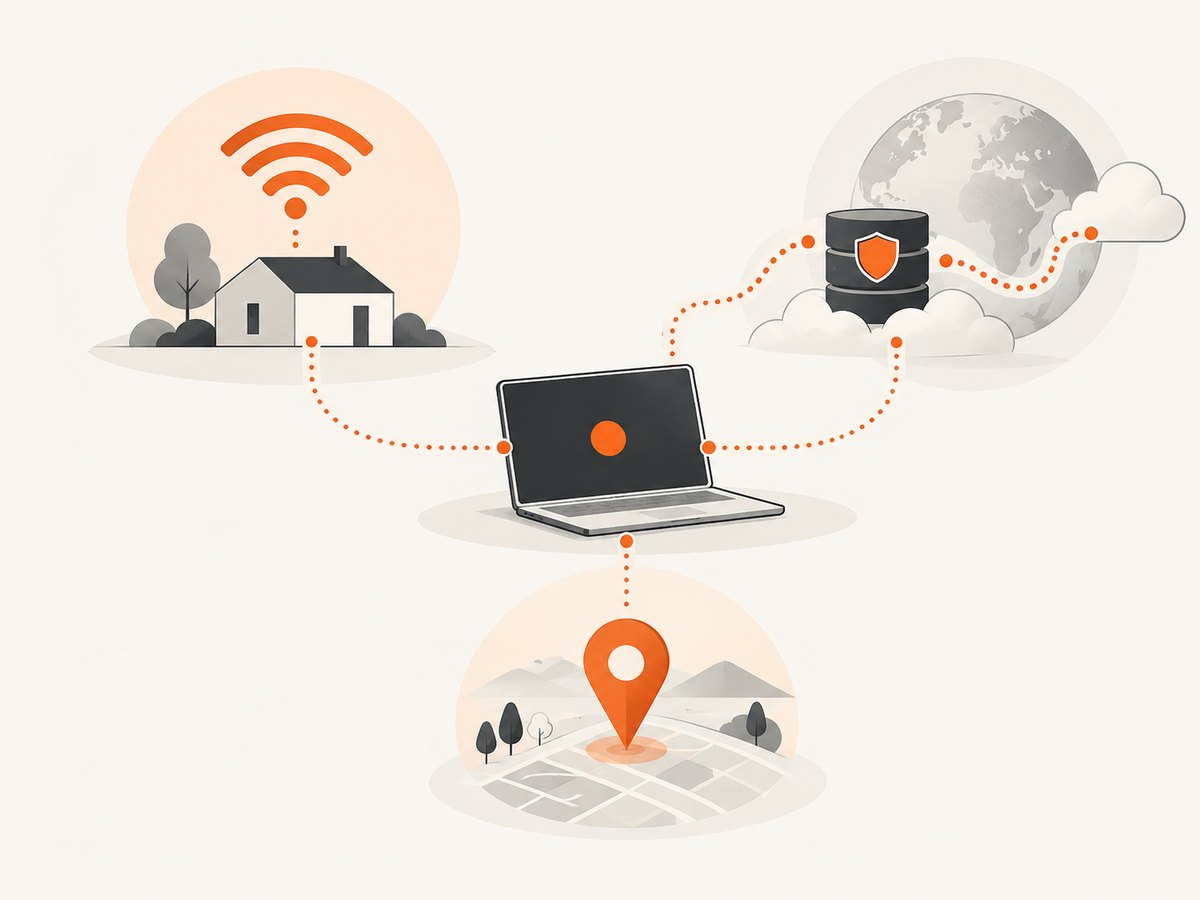
This setting protects a Wi-Fi network identifier. It does not change the IP address a website sees. If you are troubleshooting access to a network that expects a familiar device identifier, review that network’s compatibility requirements before changing the private-address setting.
Limit the IP Safari websites see with iCloud Private Relay
On supported Apple devices, iCloud Private Relay is an iCloud+ feature that sends Safari traffic through two separate internet relays. Apple says this prevents websites from seeing the user’s IP address and exact location in Safari, while the network provider cannot collect Safari browsing activity through that path. It is not available in every country or region. Check Apple’s iCloud Private Relay overview for current availability and requirements.
Some sites that rely on IP filtering, monitoring, or rate limiting may not work as expected when Private Relay is enabled. Apple provides a way to let an individual site see the IP address when needed. Use that exception only for the affected site and understand that it changes what the site can observe. See Apple’s guidance for managing Private Relay for specific sites and networks.
Use a VPN with a clear trust model
A VPN can encrypt traffic between your device and the VPN provider and make a website see the VPN connection’s IP address rather than your network’s outward-facing address. That changes which intermediary you trust. The VPN provider may be able to observe connection information, and a VPN does not prevent account-based identification, browser fingerprinting, location sharing, or every other form of tracking.
Choosing a provider requires checking current service terms, privacy practices, logging claims, jurisdiction, and supported platforms. The sources used for this guide do not substantiate a best-provider recommendation, so this guide does not name one. Also, do not rely on Microsoft Defender Privacy Protection as a current VPN option: Microsoft says support for that specific feature ended on February 28, 2025. That status applies to the named Defender feature, not to VPNs generally.
4. Review location and email privacy separately
Hiding or changing an IP address does not eliminate location inference. Windows location services can use GPS, nearby Wi-Fi access points and routers, cell towers, an IP address, or a default location. Apps may request device location, while websites can make their own approximate estimate from the connection address. Microsoft notes that third-party software may use other technologies, too. See Microsoft’s Windows location and privacy documentation.
To reduce app access, open Windows Settings → Privacy & security → Location and review device and app permissions. Names and placement can vary by Windows version. Turning off a permission limits access through the relevant Windows controls; it is not a promise that every app or website loses all ability to infer a location. Keep permissions enabled for apps whose location features you rely on, and remove access where it is unnecessary.
Email protection is another separate case. Apple Mail Privacy Protection can hide the user’s IP address from email senders when messages load, but it does not extend to links or attachments. Clicking a link may make a separate connection to its destination. Treat message-loading privacy and link browsing as different actions.
5. A practical privacy checklist
- Need the address for local troubleshooting? Read the IPv4 address under the active Windows network’s properties.
- Wondering what a website sees? Remember that it generally sees the outward-facing connection address, subject to any relay or VPN in use.
- Using a Windows computer? Keep Automatic (DHCP) unless you have a specific network configuration reason to set a manual address.
- Using Apple Wi-Fi? Leave Private Wi-Fi Address enabled where supported to reduce cross-network identifier tracking.
- Want to limit Safari IP exposure on Apple devices? Check whether iCloud Private Relay is available for your region and account, then account for site compatibility.
- Considering a VPN? Evaluate the provider you are trusting, and do not treat IP masking as full anonymity.
- Want to limit precise location access? Review app permissions in Windows or the relevant device settings, and remember that IP-based estimates can remain.
6. Troubleshooting common problems
| Problem | Likely cause | What to do |
|---|---|---|
| No IPv4 address appears where expected | You may be viewing a saved or inactive connection, or the network may be using IPv6 | Open properties for the currently connected Wi-Fi or Ethernet network. Check whether an IPv6 address is listed and confirm the connection is active. |
| The address changes after reconnecting | DHCP can assign addresses as devices connect to a network | This can be normal. If you need a stable local address for administration, consult the router or network administrator about an appropriate reservation rather than setting arbitrary values. |
| A website still seems to know my general area | IP-based estimation or another location signal may still be available | Review location permissions and relay/VPN coverage. A broad location estimate does not prove that the site has your exact address. |
| A site behaves differently with Private Relay | The site may use IP-based filtering, monitoring, or rate limiting | Check the site’s requirements. If necessary, use Apple’s per-site option to allow the site to see the IP, understanding the privacy tradeoff. |
| A VPN changes the visible IP but an account still identifies me | IP masking does not hide account sign-ins, cookies, or other identifying signals | Use account privacy and browser controls appropriate to the situation. Do not treat a VPN as anonymous browsing by itself. |
| Manual IP settings break network access | The address, gateway, subnet, or DNS values may not match the network | Return to Automatic (DHCP) unless an administrator supplied valid manual settings. Microsoft recommends DHCP for most users. |
7. If you are building a website, test what the page renders
IP privacy controls affect network visibility; they do not tell a developer whether a page’s rendered output is correct. If your task is to capture a page for a bug report, visual check, or workflow, a browser screenshot is a separate job. For a local capture, use browser automation and consider the page’s own consent prompts, loading behavior, and responsive layout. Do not infer a visitor’s identity or precise location merely from a screenshot.
Or skip the browser setup
ScreenshotNeo is a website screenshot API and MCP server for developers. Its one-call endpoint accepts a URL and returns a PNG, JPEG, WebP, or PDF. For this example, the rendered target is a public IP privacy guide; the capture does not look up or expose the caller’s IP.
See the ScreenshotNeo API documentation for request options. Keep your API key private; do not embed it in public client-side code.
cURL
curl -G "https://api.screenshotneo.com/v1/shot" \
  -d access_key=YOUR_API_KEY \
  --data-urlencode url=https://support.microsoft.com/en-us/windows/privacy/windows-location-service-and-privacy \
  -o shot.webp
Python
import requests

r = requests.get(
    "https://api.screenshotneo.com/v1/shot",
    params={
        "access_key": "YOUR_API_KEY",
        "url": "https://support.microsoft.com/en-us/windows/privacy/windows-location-service-and-privacy",
    },
    timeout=90,
)
r.raise_for_status()
open("shot.webp", "wb").write(r.content)
Node.js
const q = new URLSearchParams({
  access_key: 'YOUR_API_KEY',
  url: 'https://support.microsoft.com/en-us/windows/privacy/windows-location-service-and-privacy'
});
const res = await fetch(`https://api.screenshotneo.com/v1/shot?${q}`);
if (!res.ok) throw new Error(`Screenshot request failed: ${res.status}`);
const bytes = new Uint8Array(await res.arrayBuffer());
await import('node:fs/promises').then(fs => fs.writeFile('shot.webp', bytes));
ScreenshotNeo removes cookie and consent banners, newsletter popups, and chat widgets before capture; each step can be turned off. Bot checks, blank pages, failed loads, timeouts, and cache hits are not billed, and response headers say which page verdict and billing status applied. Its MCP server gives AI agents tools named take_screenshot, get_page_info, and capture_pdf. The free plan includes 1,000 screenshots a month with no card; paid plans start at $5 for 3,000. Sign up for 1,000 free screenshots a month, with no card required.
8. Performance, reliability, and cost considerations
For finding a Windows address, the built-in settings page is usually the shortest path and needs no extra software or service. For privacy, match the control to the signal and app: a network MAC identifier, a browser-visible IP, and operating-system location permission are distinct. A relay or VPN can add a dependency and compatibility considerations; confirm that the service is active for the traffic you care about and understand any site exceptions.
For screenshot automation, page complexity and loading behavior affect completion time. A page that depends on delayed scripts, consent overlays, or slow resources may need capture settings suited to that site. ScreenshotNeo’s pricing is Free: 1,000 shots/month; Starter: $5 for 3,000; Growth: $15 for 15,000; Pro: $39 for 60,000; Scale: $99 for 250,000; Business: $249 for 1,000,000. Yearly billing gives two months free, and every feature is on every plan. These are plan allowances and prices, not a performance benchmark.
FAQ
Can someone find my exact home from my IP address?
An IP address can support an approximate location estimate, but it does not reliably identify an exact home address by itself. Other information or legal processes are outside what this guide establishes.
Does changing my Windows IPv4 address hide me from websites?
No. The address in Windows network properties is local to the network. Changing it is not the same as changing the outward-facing address that websites see.
Does a private Wi-Fi address hide my IP?
No. Apple’s private Wi-Fi address feature changes the Wi-Fi network identifier used by the device, not the public IP address exposed to a website.
Does IP masking make me anonymous?
No. Accounts, cookies, app permissions, browser signals, and other location technologies may still identify or locate activity.


