How to Find the Last Calendar Day with Selenium WebDriver
Calculate a month’s final date with JavaScript, then enter or select it reliably in native and custom Selenium date pickers.
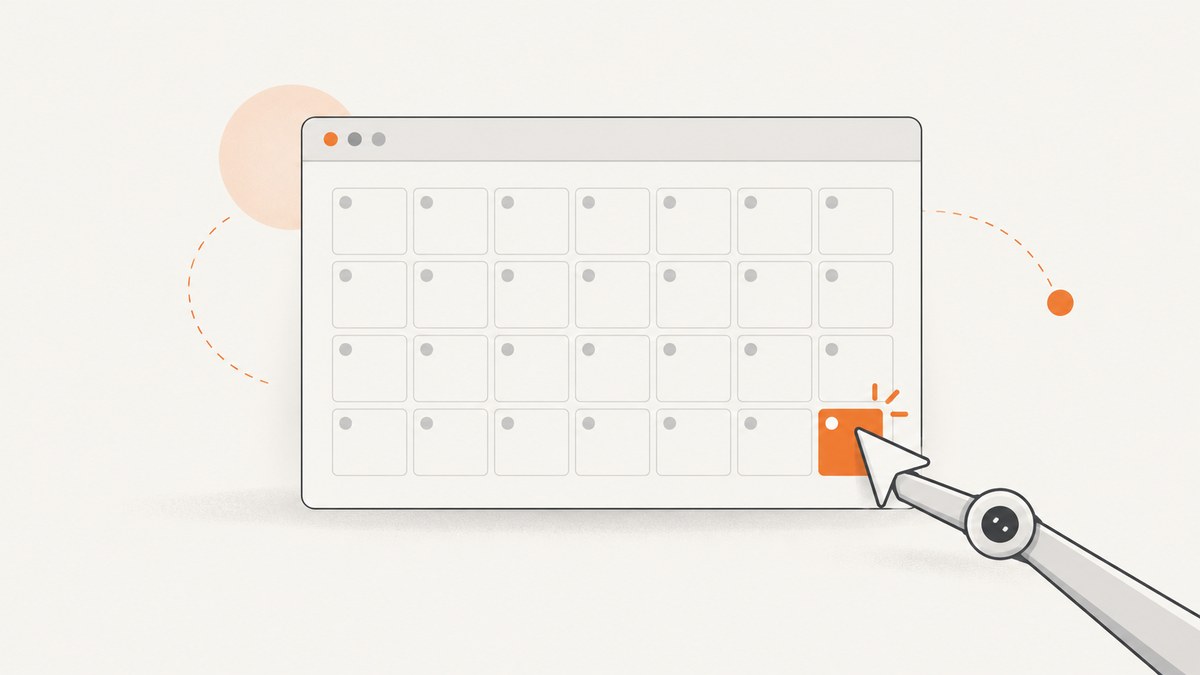
Use day zero of the following month. In JavaScript, new Date(year, month + 1, 0) normalizes to the final date in the target month. Call getDate() to obtain the day number, then use Selenium WebDriver to enter or select that value in the page’s actual date control.
JavaScript months are zero-based: January is 0 and December is 11. The calculation is independent of Selenium; Selenium supplies browser interactions such as click() and sendKeys(). See the MDN Date constructor, getDate(), and Selenium’s WebElement API.
1. Calculate the final day of a month
function lastDayOfMonth(year, zeroBasedMonth) {
  return new Date(year, zeroBasedMonth + 1, 0).getDate();
}

console.log(lastDayOfMonth(2024, 1)); // 29 (February)
console.log(lastDayOfMonth(2025, 1)); // 28 (February)
console.log(lastDayOfMonth(2025, 3)); // 30 (April)
console.log(lastDayOfMonth(2025, 11)); // 31 (December)
The expression creates the first day of the next month with a day value of zero. JavaScript normalizes that value to the previous month’s final day. Do not use getDay(); that returns the day of the week, not the day of the month.
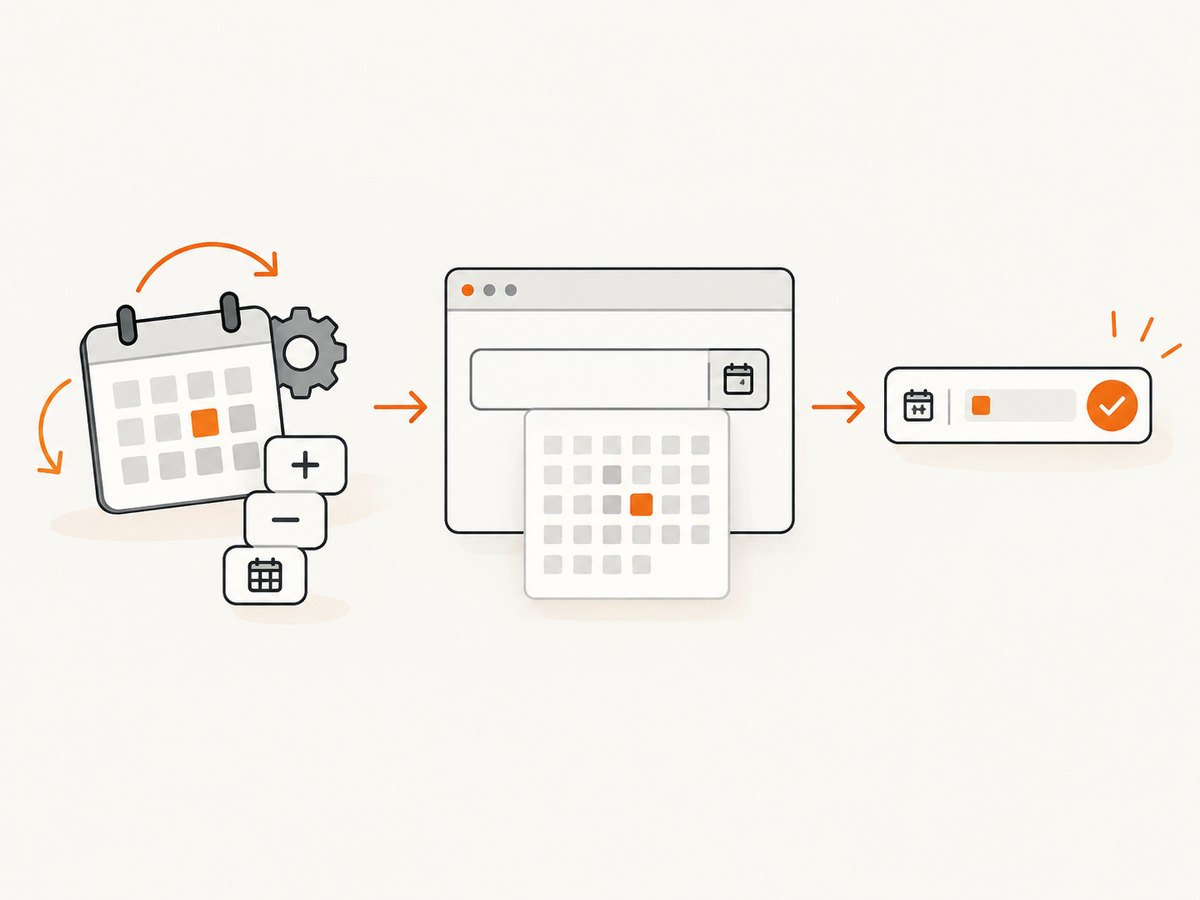
Use a date-only string when the application expects one
function lastDateString(year, zeroBasedMonth) {
  const date = new Date(year, zeroBasedMonth + 1, 0);
  const month = String(date.getMonth() + 1).padStart(2, '0');
  const day = String(date.getDate()).padStart(2, '0');
  return `${date.getFullYear()}-${month}-${day}`;
}

console.log(lastDateString(2025, 1)); // 2025-02-28
This returns an ISO-style date-only value without converting it to a UTC timestamp.
2. Complete Selenium WebDriver example in JavaScript
Install Selenium’s Node.js package and a browser driver available to your environment:
npm install selenium-webdriverThe following example opens a page, calculates the last day, fills a native date input, and verifies the resulting value. Replace the URL and selector with the application under test.
const { Builder, By, until } = require('selenium-webdriver');

function lastDateString(year, zeroBasedMonth) {
  const date = new Date(year, zeroBasedMonth + 1, 0);
  const month = String(date.getMonth() + 1).padStart(2, '0');
  const day = String(date.getDate()).padStart(2, '0');
  return `${date.getFullYear()}-${month}-${day}`;
}

(async function selectLastCalendarDay() {
  const driver = await new Builder().forBrowser('chrome').build();

  try {
    await driver.get('https://example.test/report');

    const year = 2025;
    const zeroBasedMonth = 1; // February
    const target = lastDateString(year, zeroBasedMonth);

    const input = await driver.wait(
      until.elementLocated(By.css('input[type="date"]')),
      10000
    );
    await driver.wait(until.elementIsVisible(input), 10000);

    await input.clear();
    await input.sendKeys(target);

    const actual = await input.getAttribute('value');
    if (actual !== target) {
      throw new Error(`Expected ${target}, but the field contains ${actual}`);
    }

    console.log(`Selected ${actual}`);
  } finally {
    await driver.quit();
  }
})();
A native HTML date input commonly exposes its underlying value as YYYY-MM-DD, even when the browser displays a localized format. Confirm the value after typing because controls and validation rules differ between applications.
3. Native date inputs versus custom calendar widgets
Native input
For <input type="date">, prefer the control’s value rather than clicking a particular visual calendar cell. Locate it with a stable ID, name, label, or test attribute. If direct typing is rejected, use JavaScript only as a last resort and trigger the events your application requires; direct DOM assignment can bypass framework validation.

Custom calendar
A custom widget may render buttons and grid cells instead of a native input. Open it, navigate to the target month, select the final day, and verify the displayed value or hidden field. The exact selectors are application-specific. This example uses illustrative accessibility attributes:
const { By, until } = require('selenium-webdriver');

const year = 2025;
const monthName = 'February';
const targetDay = lastDayOfMonth(year, 1);

const openCalendar = await driver.wait(
  until.elementLocated(By.css('[data-testid="date-picker-toggle"]')),
  10000
);
await openCalendar.click();

const heading = await driver.wait(
  until.elementLocated(By.css('[role="dialog"] [aria-live="polite"]')),
  10000
);

// Navigate until the widget reports the requested month and year.
for (let i = 0; i < 24; i++) {
  const label = await heading.getText();
  if (label.includes(monthName) && label.includes(String(year))) break;

  const next = await driver.findElement(
    By.css('[role="dialog"] [aria-label="Next month"]')
  );
  await next.click();
  await driver.wait(until.stalenessOf(heading), 5000).catch(() => {});
  // Reacquire after the widget rerenders.
  heading = await driver.findElement(
    By.css('[role="dialog"] [aria-live="polite"]')
  );
}

const day = await driver.wait(
  until.elementLocated(By.css(`[role="gridcell"][aria-label="${monthName} ${targetDay}, ${year}"]`)),
  10000
);
await day.click();
Prefer an accessible label or a stable test attribute over a positional selector such as “the last button.” Some calendars render trailing days from adjacent months, so a visible number like 31 may appear more than once. Restrict the locator to the target month and year.
4. Local time, UTC, and date-only semantics
The ordinary Date constructor and getDate() use local time. Use that consistently when the application represents a user’s local calendar date. For UTC-oriented logic, construct and read the date with UTC methods instead:
function lastUtcDateString(year, zeroBasedMonth) {
  const date = new Date(Date.UTC(year, zeroBasedMonth + 1, 0));
  const month = String(date.getUTCMonth() + 1).padStart(2, '0');
  const day = String(date.getUTCDate()).padStart(2, '0');
  return `${date.getUTCFullYear()}-${month}-${day}`;
}
Do not mix local setters or getters with UTC setters or getters. Daylight-saving transitions can change elapsed milliseconds between dates, so avoid deriving a calendar date by adding a fixed number of 24-hour periods. Use calendar fields or a date-only representation instead. MDN documents that setDate() changes the day according to local time: setDate().
5. Reliable selectors and synchronization
- Locate controls by ID, accessible label, name, or a dedicated test attribute.
- Wait for the element to be present and visible before interacting.
- After opening or navigating a widget, wait for its month label or grid to update.
- Reacquire elements after rerenders; a replaced node can cause a stale element error.
- Verify both the field value and any application state that depends on it.
Selenium’s element methods simulate user operations, but they do not define the accepted date format for every native or custom picker. The page’s DOM, browser, locale, and validation code determine that behavior.
6. Common errors and fixes
| Error or symptom | Cause | Fix |
|---|---|---|
| February returns 1 or the wrong month | The month index or day-zero calculation is wrong. | Pass zero-based months and use new Date(year, month + 1, 0). |
getDay() gives an unexpected number |
getDay() is day of week. |
Use getDate() for the day within the month. |
| Typed value is rejected | The control expects a different format or a custom widget. | Inspect the underlying value, then use the widget’s month navigation and day cell. |
| Element not interactable | The control is hidden, covered, disabled, or not finished rendering. | Wait for visibility and enabled state; close overlays and wait for the page update. |
| Stale element reference | The calendar replaced the node after navigation. | Reacquire the heading, buttons, and grid cell after each update. |
| Two identical day numbers appear | Leading or trailing days from adjacent months are rendered. | Use an aria label, data attribute, or month-scoped selector. |
| Date differs by one day | Local and UTC operations were mixed, or a timestamp crossed a timezone boundary. | Choose local or UTC semantics and use the matching constructors and getters throughout. |
| Value looks localized but assertion fails | The display format differs from the input’s serialized value. | Read the DOM value or form submission value instead of comparing visible text. |
7. Performance, reliability, and test design
- Calculate the target date in memory; the arithmetic is constant time and adds no browser work.
- Use explicit waits for the specific state you need instead of long fixed sleeps.
- For a native input, setting one value is usually more reliable and faster than opening a calendar and clicking through months.
- For a custom widget, limit navigation loops and fail clearly if the requested month is not reached.
- Run tests with a fixed timezone when the expected date is not user-local, or use UTC calculations consistently.
- Keep the browser session scoped to the test and always call
quit()in afinallyblock. - Capture the final field value and relevant month label in failure logs so locator and timezone problems are diagnosable.
8. Or skip the browser setup
If your goal is a clean image or PDF of a page after setting up a date state, ScreenshotNeo provides a single screenshot API request. Its capture options include custom JavaScript, clicks, waits, selectors, device settings, and PDF output, so you can automate page preparation without maintaining Selenium drivers.
See the ScreenshotNeo API documentation for the request options.
cURL
curl -G "https://api.screenshotneo.com/v1/shot" \
  -d access_key=YOUR_API_KEY \
  --data-urlencode url=https://stripe.com \
  -o shot.webp
Python
import requests

r = requests.get(
    "https://api.screenshotneo.com/v1/shot",
    params={"access_key": "YOUR_API_KEY", "url": "https://stripe.com"},
    timeout=90,
)
r.raise_for_status()
open("shot.webp", "wb").write(r.content)
Node.js
const q = new URLSearchParams({ access_key: 'YOUR_API_KEY', url: 'https://stripe.com' });
const res = await fetch(`https://api.screenshotneo.com/v1/shot?${q}`);
if (!res.ok) throw new Error(`Screenshot failed: ${res.status}`);
const buffer = Buffer.from(await res.arrayBuffer());
require('fs').writeFileSync('shot.webp', buffer);
ScreenshotNeo accepts cookie and consent banners before capture and removes more than 60 known consent platforms, newsletter popups, and chat widgets; each step can be disabled. Bot checks, blank pages, timeouts, failed loads, and cache hits are not billed, and response headers report the page verdict and billing status. Its MCP server includes take_screenshot, get_page_info, and capture_pdf for Claude, Cursor, and other MCP clients. The free plan includes 1,000 shots per month with no card; paid plans start at $5 for 3,000 shots.
Create a free ScreenshotNeo account and start with 1,000 screenshots per month at no charge.
9. FAQ
Does Selenium calculate the last day automatically?
No. JavaScript (or another language) performs the calendar calculation; Selenium only interacts with the page control.
What is the shortest JavaScript expression?
new Date(year, month + 1, 0).getDate(), where month is zero-based.
Should I click the last visible calendar cell?
Only when the widget requires UI selection. Scope the locator to the requested month because calendars often show adjacent-month days.
Why does my assertion fail even though the date looks right?
The browser may display a localized date while the underlying value uses YYYY-MM-DD, or your test may have mixed local and UTC semantics. Assert against the representation the application submits.
Can this work for leap years?
Yes. Date normalization returns February 29 for leap years and February 28 otherwise.


