How to Find and Locate Elements With Puppeteer
Learn the right Puppeteer API for CSS, text, XPath, accessibility and shadow-root selectors, with runnable examples and fixes for common failures.
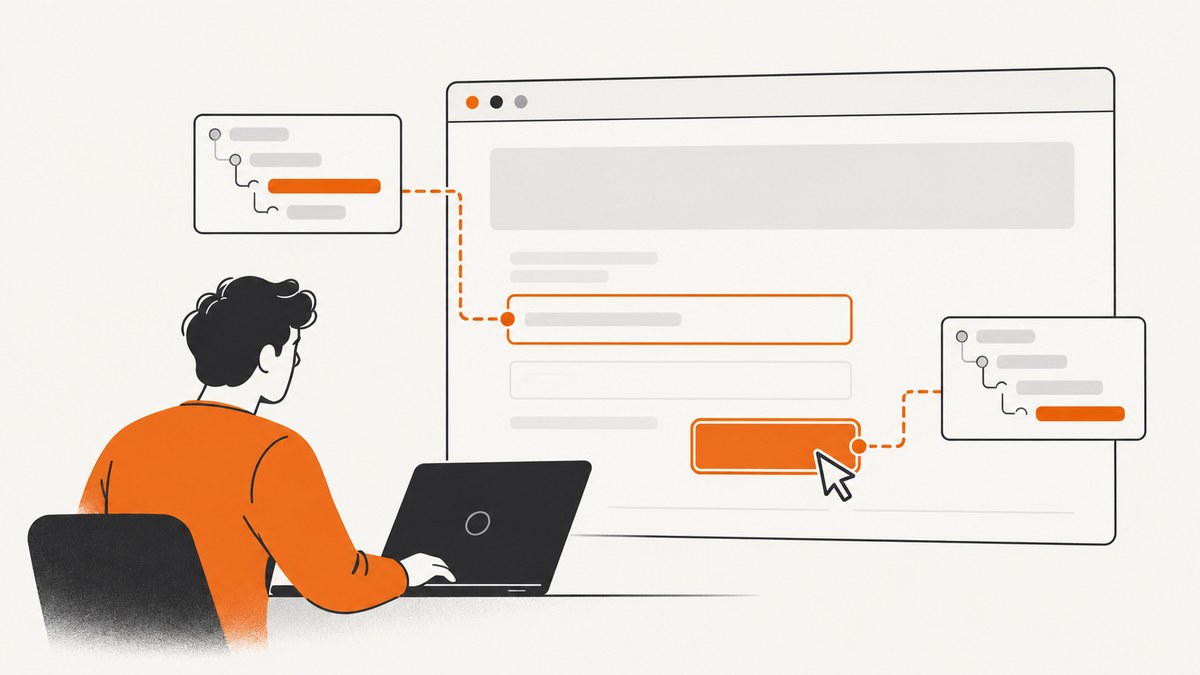
Use page.locator() when you need to interact with an element. Locators wait for the element to exist, become visible and enabled, enter the viewport, and settle into a stable position before actions such as clicking or filling. Use $, $$, $eval and $$eval when you need an immediate query or data extraction. Use waitForSelector() when you specifically need a lower-level wait or an element handle.
This guide covers current Puppeteer 25.x selector APIs, including CSS, text, XPath, accessibility role/name and open shadow roots. The examples use JavaScript and can run in Node.js.
Install Puppeteer and open a page
Create a project and install Puppeteer:
mkdir puppeteer-locators
cd puppeteer-locators
npm init -y
npm install puppeteer
This complete script opens a page, locates a heading and button, fills a form, extracts text, and closes the browser:
const puppeteer = require('puppeteer');

(async () => {
  const browser = await puppeteer.launch({headless: true});
  const page = await browser.newPage();
  await page.goto('https://example.com', {waitUntil: 'domcontentloaded'});

  const heading = await page.locator('h1').wait();
  console.log(await heading.evaluate(el => el.textContent.trim()));

  await page.locator('a').click();
  await page.waitForNetworkIdle();

  await browser.close();
})();
See the official Puppeteer page interactions guide and the Locator API reference for version-specific details.
Use locators for interactions
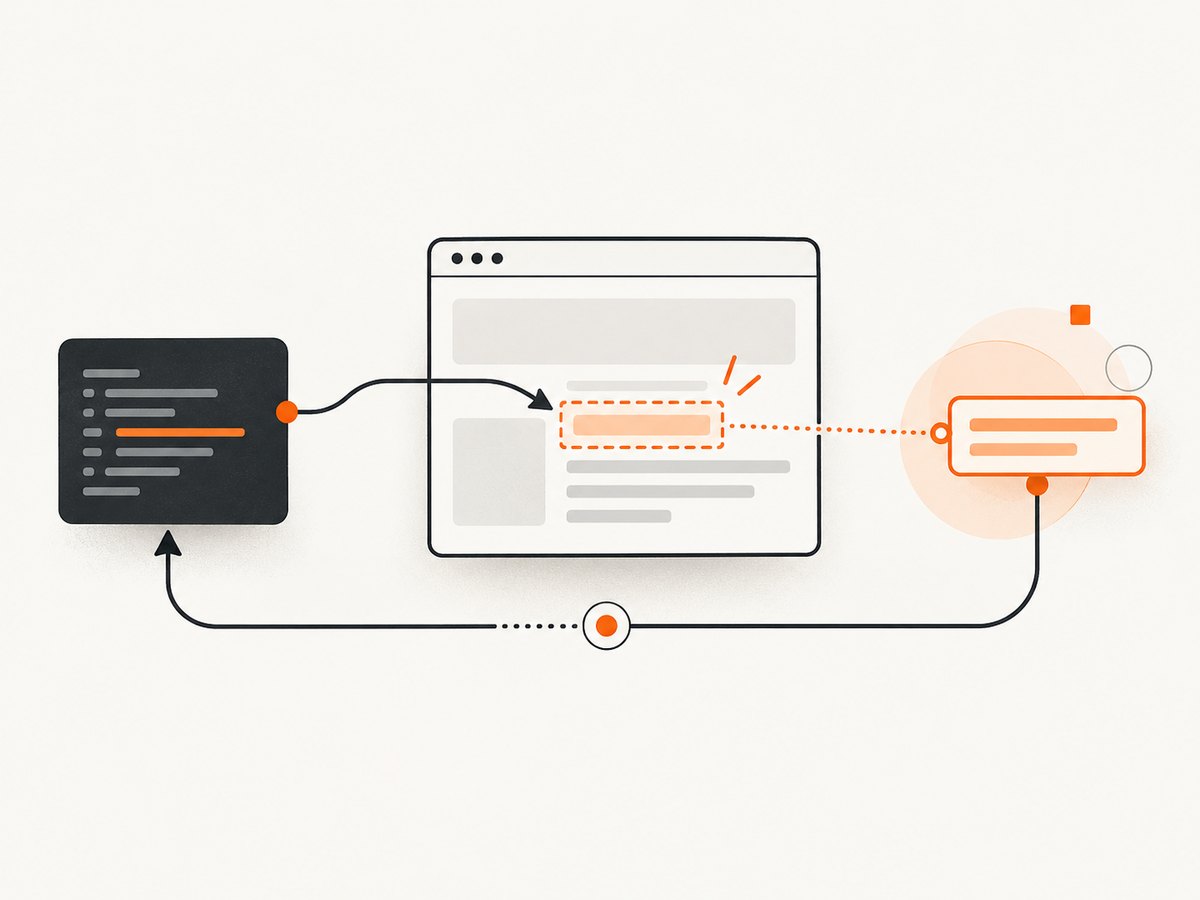
A locator stores the way an element should be found and performs readiness checks each time you act on it. The basic pattern is:
await page.locator('button').click();
await page.locator('input[name="email"]').fill('dev@example.com');
await page.locator('select[name="plan"]').click();
Before an action, Puppeteer waits for a matching element, visibility, viewport intersection, enabled state and a stable bounding box across animation frames. This makes locators more reliable than querying once and immediately using a handle on pages that render asynchronously.
Locator actions
click()clicks the matched element.fill(value)clears a field and enters text.hover()moves the pointer over the element.scroll()scrolls the element into view.wait()waits until the locator resolves without performing another action.
You can set a timeout for one locator and compose locators with filters or mapping functions. Keep selectors specific enough to identify one intended control, but avoid generated class names that change on every build.
const save = page.locator('button').filter({hasText: 'Save'});
await save.setTimeout(10000).click();
CSS selectors
CSS is Puppeteer’s default selector syntax. Any selector accepted by querySelector can be used for ordinary elements:
await page.locator('#checkout').click();
await page.locator('.product-card[data-id="42"]').wait();
await page.locator('form input[name="email"]').fill('dev@example.com');
await page.locator('ul.results > li:first-child').click();
Prefer stable attributes such as id, name, data-testid or semantic element relationships. A selector that matches several elements can cause an action to fail because the target is ambiguous; narrow it with a parent, attribute or filter.
Text selectors
Puppeteer extends selectors with a text strategy. The text selector finds the smallest or deepest matching element, including matching content inside open shadow roots:
await page.locator('div ::-p-text(Checkout)').click();
await page.locator('::-p-text(Continue)').wait();
Text matching is useful when visible copy is more stable than CSS classes. Text containing selector punctuation, including parentheses, must be escaped according to Puppeteer’s selector syntax. Text can also change with localization, A/B tests or whitespace normalization, so use an accessible name or stable attribute when those are available.
XPath selectors
Use Puppeteer’s XPath selector form when a relationship is easier to express with XPath:
const heading = await page.waitForSelector('::-p-xpath(//h2)');
console.log(await heading.evaluate(el => el.textContent));
await heading.dispose();
For a button near a label, an XPath expression can walk the document structure:
await page.locator('::-p-xpath(//label[normalize-space()="Email"]/following::input[1])').fill('dev@example.com');XPath is powerful, but long paths based on container indexes are fragile. Prefer a short relationship tied to visible text, a label or a stable attribute.
Accessibility role and name selectors
Role and accessible-name selectors let you locate controls as assistive technology presents them. They are valuable for buttons, links, checkboxes and form fields whose visual markup changes:
await page.locator('::-p-aria/Button[name="Submit"]').click();
await page.locator('::-p-aria/Textbox[name="Email"]').fill('dev@example.com');
await page.locator('::-p-aria/Link[name="Documentation"]').click();
The role and name must match the element’s computed accessibility information. If a button has an icon but no accessible name, fix the page’s aria-label or visible label rather than adding a brittle selector in your test.
Selectors across open shadow roots
Puppeteer-specific selectors can cross open shadow DOM boundaries. A combined selector can find a control nested inside one or more open shadow roots:
await page.locator('my-checkout >>> button.confirm').click();Only open shadow roots are traversable this way. Closed roots intentionally hide their internals from page scripts. In that case, interact through the component’s public DOM or user-facing controls, or ask the component owner to expose a test hook.
Query immediately with $, $$, $eval and $$eval
Use immediate queries when the page is already ready and you want a current DOM result:
const first = await page.$('.item');       // ElementHandle or null
const all = await page.$$('.item');         // ElementHandle[] or []
const label = await page.$eval('.item', el => el.textContent.trim());
const labels = await page.$$eval('.item', els => els.map(el => el.textContent.trim()));
$eval runs its callback against the first match and throws if there is no match. $$eval passes every match to the callback. The callback runs in page context, so return a serializable value such as a string, number, boolean or plain object.
Use handles when you need several operations on the same node, but dispose of them when finished:
const handle = await page.$('.result');
if (handle) {
  const html = await handle.evaluate(el => el.outerHTML);
  console.log(html);
  await handle.dispose();
}
Wait for dynamic elements
waitForSelector is a lower-level wait. It resolves immediately if the selector already matches and otherwise waits until the timeout. Its documented default timeout is 30 seconds:
const result = await page.waitForSelector('.result', {visible: true, timeout: 15000});
try {
  console.log(await result.evaluate(el => el.textContent));
} finally {
  await result.dispose();
}
Use visible: true when the element must be displayed. Use hidden: true to wait until it is hidden or absent; this can resolve with null when no matching node exists.
await page.waitForSelector('.loading', {hidden: true, timeout: 20000});
const optional = await page.waitForSelector('.optional-banner', {timeout: 3000}).catch(() => null);
Set a project-wide default timeout when appropriate:
page.setDefaultTimeout(15000);
page.setDefaultNavigationTimeout(30000);
A wait only obtains a handle. It does not automatically retry a later action if the node becomes detached or changes state. Locators are usually safer for the complete interaction.
Complete example: locate, fill, submit and extract
The following example demonstrates a resilient flow. Replace the URL and selectors with those from your application:
const puppeteer = require('puppeteer');

(async () => {
  const browser = await puppeteer.launch({headless: true});
  const page = await browser.newPage();
  page.setDefaultTimeout(15000);

  try {
    await page.goto('https://example.com/signup', {waitUntil: 'domcontentloaded'});

    const email = page.locator('input[name="email"]');
    await email.fill('dev@example.com');

    const terms = page.locator('input[type="checkbox"][name="terms"]');
    await terms.click();

    await page.locator('::-p-aria/Button[name="Create account"]').click();
    await page.waitForNetworkIdle();

    const message = await page.$eval('[role="status"]', el => el.textContent.trim());
    console.log({message});
  } catch (error) {
    await page.screenshot({path: 'failure.png', fullPage: true});
    throw error;
  } finally {
    await browser.close();
  }
})();
How to choose the right method
| Need | Start with | Result and behavior |
|---|---|---|
| Find and interact | page.locator(selector) |
Waits for presence and action readiness, with locator retries. |
| Get one current match | page.$(selector) |
First handle or null; no waiting. |
| Get all current matches | page.$$(selector) |
Array of handles or an empty array; no waiting. |
| Extract from one node | $eval |
Runs a page function; throws if there is no match. |
| Extract from many nodes | $$eval |
Runs one page function with an array of matches. |
| Wait for presence or visibility | waitForSelector |
Lower-level handle wait with timeout, visible and hidden options. |
Troubleshooting common selector failures
TimeoutError: waiting for selector failed
Cause: the selector is wrong, the page has not navigated to the expected URL, content is inside a frame, or rendering needs more time. Fix: log page.url(), take a screenshot, inspect await page.content(), wait for the correct application signal, and use a narrowly scoped timeout. Avoid replacing every timeout with a long sleep.
Selector matches nothing
Cause: a generated class, typo, case difference or shadow-root boundary. Fix: verify the live DOM, choose a stable attribute, and use the shadow combinator for open roots. Closed shadow roots cannot be queried directly.
Strict or ambiguous match errors
Cause: an action selector matches multiple controls. Fix: scope it to a form or dialog, add an accessible name, or filter by text. Use $$ when multiple results are intentional.
Node is detached from document
Cause: a framework replaced the node after you obtained an element handle. Fix: use a locator for the action so Puppeteer can resolve the current node, or query again immediately before use.
Click is intercepted
Cause: an overlay, cookie banner, animation or sticky header covers the target. Fix: close the overlay through a locator, wait for it to disappear, scroll the target into view, and confirm the element is enabled. Do not rely on forced clicks unless bypassing the real user flow is intentional.
XPath or text syntax error
Cause: the expression is not wrapped in Puppeteer’s prefixed syntax or special characters were not escaped. Fix: use ::-p-xpath(...) or ::-p-text(...) exactly, simplify the expression, and test it against the current DOM.
Element is inside an iframe
Cause: page selectors do not search child browsing contexts. Fix: obtain the frame and query it separately:
const frame = page.frames().find(f => f.url().includes('/checkout'));
if (!frame) throw new Error('Checkout frame not found');
await frame.locator('input[name="cardnumber"]').fill('4111111111111111');
Performance and reliability practices
- Use
waitUntil: 'domcontentloaded'when you only need the initial DOM; wait for a specific application signal before interacting. - Prefer one
$$evalcall that maps all rows in page context over transferring dozens of handles to Node. - Dispose of element handles, especially in loops and long-running workers.
- Use stable semantic selectors and accessibility names so markup refactors do not break automation.
- Set explicit timeouts for slow external systems, but keep separate navigation and action timeouts.
- Capture a screenshot and URL on failure. These artifacts distinguish a selector bug from a redirect, login wall or bot challenge.
- Use retries only for transient navigation or network failures. Repeating a non-matching selector hides real application changes.
Puppeteer itself does not charge per selector or action. Your operational cost comes from browser CPU and memory, parallel workers, proxy or hosted-browser infrastructure, and the destination site’s rate limits. Limit concurrency to what your machine can sustain and reuse a browser process while creating isolated pages.
Or skip the browser setup
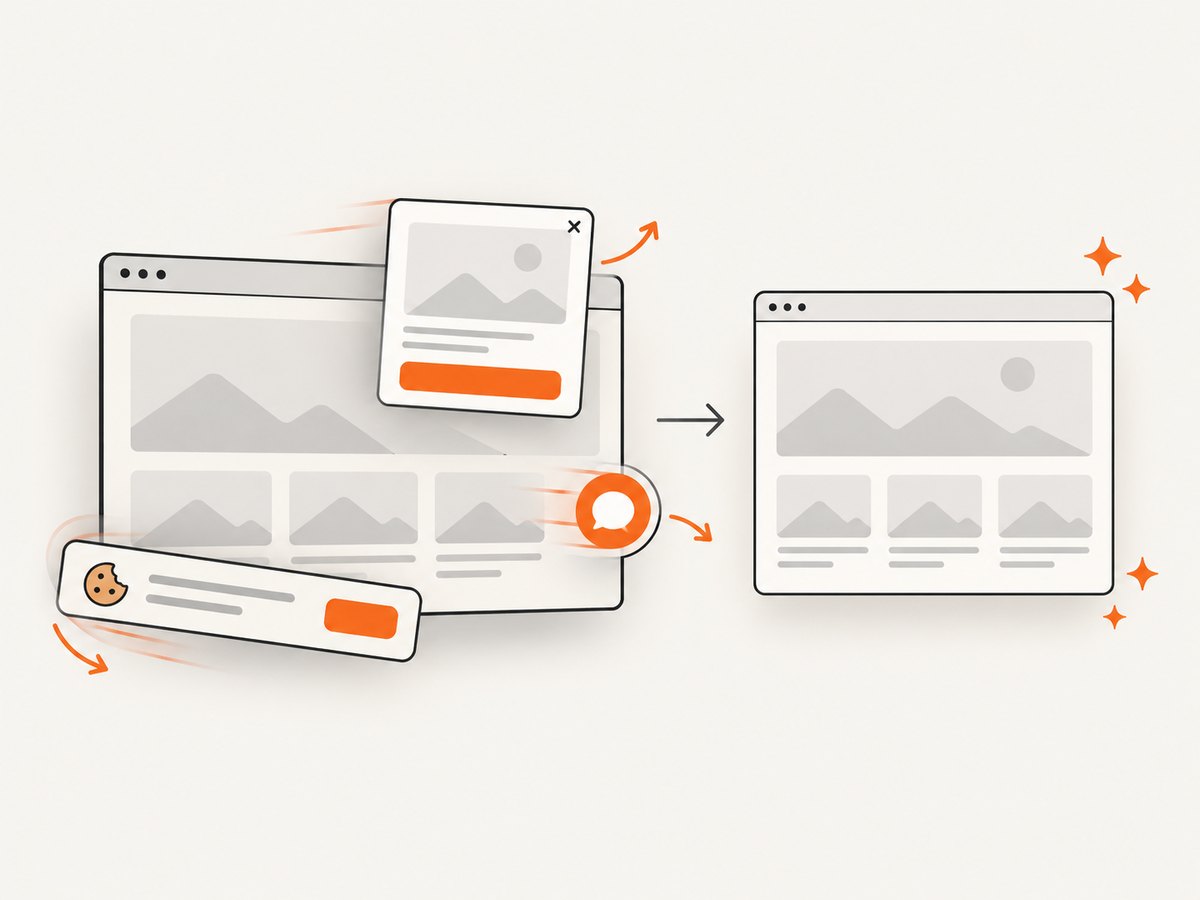
If your goal is a clean image or PDF of a page rather than browser automation, ScreenshotNeo provides a single HTTP request. It accepts cookie and consent banners before capture and removes more than 60 known consent platforms, newsletter popups and chat widgets. Bot checks, blank pages, timeouts, failed loads and cache hits are not billed, and response headers identify the page verdict and billing result.
Read the ScreenshotNeo API documentation for all options, including full-page and element capture, lazy-image loading, device presets, custom viewport and retina scale, dark mode, PDF paper sizes and margins, custom CSS and JavaScript, click and wait conditions, request blocking, headers, cookies, user agents, authorization, timezone, geolocation, transparent backgrounds, resizing, caching, signed links, asynchronous jobs, webhooks, bulk capture and usage reporting.
cURL
curl -G "https://api.screenshotneo.com/v1/shot" -d access_key=YOUR_API_KEY --data-urlencode url=https://stripe.com -o shot.webpPython
import requests

r = requests.get("https://api.screenshotneo.com/v1/shot", params={"access_key": "YOUR_API_KEY", "url": "https://stripe.com"}, timeout=90)
r.raise_for_status()
open("shot.webp", "wb").write(r.content)
Node.js
const q = new URLSearchParams({ access_key: 'YOUR_API_KEY', url: 'https://stripe.com' });
const res = await fetch(`https://api.screenshotneo.com/v1/shot?${q}`);
if (!res.ok) throw new Error(`Screenshot failed: ${res.status}`);
require('fs').writeFileSync('shot.webp', Buffer.from(await res.arrayBuffer()));
ScreenshotNeo also includes an MCP server with take_screenshot, get_page_info and capture_pdf tools for Claude, Cursor and other MCP clients. The Free plan includes 1,000 screenshots each month with no card; paid plans start at $5 for 3,000 shots, and every feature is available on every plan. Create a free ScreenshotNeo account.
FAQ
Should I always use locators?
Use locators for actions. Use immediate queries for already-rendered data extraction and waitForSelector when you specifically need a lower-level handle.
What happens when a selector matches no element?
$ returns null, $$ returns an empty array, $eval throws, and a locator or waitForSelector waits until its timeout.
Can Puppeteer select elements in closed shadow DOM?
No. Puppeteer can cross open shadow roots with its extended selector syntax, but closed roots must be accessed through the component’s public interface.
When should I use XPath instead of CSS?
Use XPath when relationships such as “the input following this label” are clearer than a CSS path. Keep the expression short and tied to stable content.
How do I make selectors survive redesigns?
Prefer accessible roles and names, stable data attributes and semantic relationships. Avoid framework-generated classes and positional indexes.


