How to Find Which PDF Page Contains an Element in Puppeteer
Puppeteer does not map DOM elements to PDF page numbers. Measure in the matching print layout, estimate the page, then verify the generated PDF.
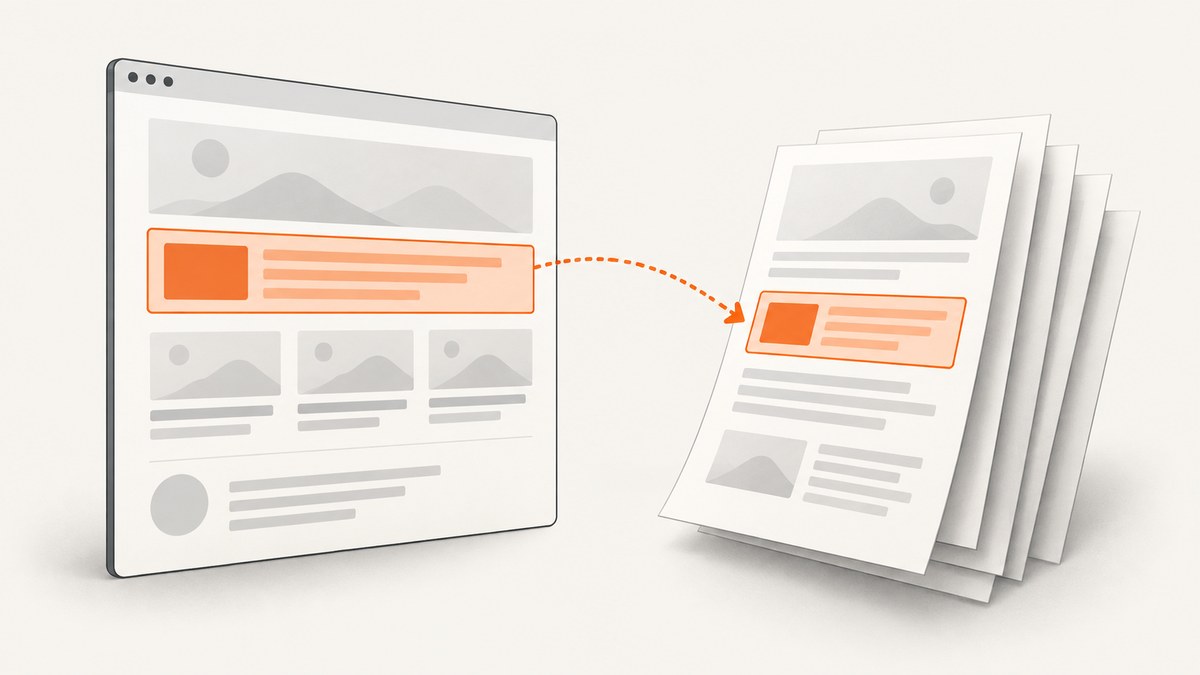
Puppeteer does not provide a documented API that tells you which page of a generated PDF contains a particular DOM element. The practical approach is to measure the element after applying the same print layout and PDF settings you will use to generate the file, estimate its page from its vertical position, and validate that estimate against the resulting PDF. That estimate can fail when pagination moves, clips, or splits content.
This guide shows a runnable Puppeteer example, explains the calculation and its limits, and demonstrates how to inspect the generated PDF with pdf-lib. It also covers print versus screen media, page sizes, margins, coordinate systems, troubleshooting, and when a different workflow is more reliable.
1. Understand what Puppeteer does and does not return
page.pdf() creates a PDF using the print CSS media type. You can explicitly select screen media by calling page.emulateMediaType('screen') before generating the PDF. Puppeteer’s PDF options include page ranges and preferCSSPageSize, which determines whether CSS @page sizing takes priority over PDF width, height, or format options. The API documentation does not describe a source DOM element-to-output page lookup. (Sources: Puppeteer Page.pdf() and Puppeteer PDFOptions.)
That means the page number is an inference, not a value returned by Puppeteer. Measuring the DOM preserves the element’s identity, but the calculation only predicts where it lands if PDF pagination follows the measured layout. Inspecting the PDF reveals its real pages, but a PDF library does not automatically know which source element produced a piece of PDF content.
2. Use matching layout settings to estimate the page
For a simple, continuous document, estimate the page from the element’s vertical position and the printable page height:
pageIndex = Math.floor((elementTop + elementHeight / 2) / printablePageHeight)
pageNumber = pageIndex + 1
This example assigns a page based on the element’s vertical midpoint. You could instead use its top edge, bottom edge, or a point meaningful to your application. The choice matters if the element crosses a page boundary. The formula is an implementation inference; Puppeteer’s documentation does not supply an element-to-page algorithm.
All measurements must describe the same layout that produced the PDF. In particular, keep these inputs aligned:
- Media type: print is the default for
page.pdf(). If the PDF should use screen styles, emulate screen media before both measuring and generating. - Viewport: use the same viewport width and height when the page’s responsive CSS depends on them.
- Page size and margins: match Puppeteer PDF options with CSS
@pagerules. SetpreferCSSPageSizeintentionally when both CSS and options specify a size. - Scale and print styles: apply the same print-specific CSS, scaling, and content changes in both stages.
- Page readiness: wait for fonts, images, and application content that can affect layout to finish loading before measuring.
The printable page height is the page height less the top and bottom margins, expressed in the same CSS-pixel coordinate space as the measured element. PDF size options accept units such as inches or millimeters as well as CSS-compatible dimensions; convert them consistently rather than treating inches as pixels. When CSS @page rules define the size, use that effective size for the estimate.
3. Runnable Puppeteer example
The following Node.js script measures a selector in print layout, estimates the page containing its midpoint, writes a PDF, and reports the PDF’s actual page count using pdf-lib. It uses an 8.5-by-11-inch page with 0.5-inch top and bottom margins. Install the packages with npm install puppeteer pdf-lib, save as find-page.mjs, and run node find-page.mjs https://example.com '#target'. Replace the URL and selector with your own page and element.
import puppeteer from 'puppeteer';
import { readFile } from 'node:fs/promises';
import { PDFDocument } from 'pdf-lib';

const [url, selector] = process.argv.slice(2);
if (!url || !selector) {
  throw new Error('Usage: node find-page.mjs <url> <css-selector>');
}

const browser = await puppeteer.launch({ headless: true });
try {
  const page = await browser.newPage();
  await page.setViewport({ width: 1280, height: 900 });
  await page.goto(url, { waitUntil: 'networkidle2', timeout: 60000 });

  // page.pdf() uses print media; measure in that same media layout.
  await page.emulateMediaType('print');
  await page.evaluate(() => document.fonts.ready);

  const box = await page.$eval(selector, (el) => {
    const rect = el.getBoundingClientRect();
    return {
      top: rect.top + window.scrollY,
      height: rect.height,
      bottom: rect.bottom + window.scrollY,
    };
  });

  // 11in at 96 CSS px/in, less 1in total top/bottom margins.
  const printableHeightCssPx = (11 - 0.5 - 0.5) * 96;
  const midpoint = box.top + box.height / 2;
  const estimatedPage = Math.floor(midpoint / printableHeightCssPx) + 1;

  const outputPath = 'output.pdf';
  await page.pdf({
    path: outputPath,
    format: 'Letter',
    margin: { top: '0.5in', bottom: '0.5in', left: '0.5in', right: '0.5in' },
    printBackground: true,
  });

  const pdf = await PDFDocument.load(await readFile(outputPath));
  const actualPageCount = pdf.getPageCount();
  console.log({ selector, box, estimatedPage, actualPageCount });
  if (estimatedPage > actualPageCount) {
    console.warn('Estimate is outside the generated PDF; review size, margins, and pagination.');
  }
} finally {
  await browser.close();
}
The example deliberately calls the result an estimate. Its arithmetic assumes one long, continuous CSS layout divided into printable-height slices. Real print pagination can fragment content, honor break rules, repeat headers, or otherwise change where elements appear. The example’s dimension conversion assumes the usual 96 CSS pixels per inch; it is for matching this controlled configuration, not a guarantee about every print layout.
4. Handle elements that cross a page break
An element may occupy more than one PDF page. A table row, long section, image, or container can start on one page and continue on another. A single page number then loses information. Calculate the page interval from the element’s top and bottom as an initial signal:
firstPage = Math.floor(elementTop / printablePageHeight) + 1
lastPage = Math.floor(Math.max(elementTop, elementBottom - 1) / printablePageHeight) + 1
This is still only an estimate: browsers may move a whole block to avoid splitting it, and the element’s measured box does not necessarily reflect where its printed fragments land. For content that must stay together, consider print CSS such as break-inside: avoid, while recognizing that an element taller than a page cannot fit intact. To make page assignment dependable, design explicit page containers or insert deliberate page breaks, then validate the output.
Other layout changes that can invalidate a simple calculation include fixed or sticky positioning, columns, transforms, absolutely positioned content, collapsed or hidden print elements, and late-loading fonts or images. For a nested element, measure its document-space coordinates rather than its viewport-only getBoundingClientRect().top; the example adds window.scrollY for that reason.
5. Inspect the actual PDF
After generation, use a PDF library to inspect page count and geometry. pdf-lib exposes the page list, page count, indexed access, dimensions, and page boxes. Its page indexes are zero-based, so index 0 means printed page 1. Page boxes can differ: the visible or cropped region and the physical medium bounds are not always identical. (Sources: pdf-lib PDFDocument and pdf-lib PDFPage.)
import { readFile } from 'node:fs/promises';
import { PDFDocument } from 'pdf-lib';

const pdf = await PDFDocument.load(await readFile('output.pdf'));
console.log(`Pages: ${pdf.getPageCount()}`);
for (const [index, page] of pdf.getPages().entries()) {
  const { width, height } = page.getSize();
  console.log(`Page ${index + 1}: ${width} x ${height} PDF points`);
}
Enumerating pages confirms how many pages were emitted and their dimensions. It does not identify the source selector’s content. If you need a definitive mapping for arbitrary documents, you need a separate identification strategy: use explicit page containers or markers in the content, extract and search text when the target has unique text, or render pages for visual inspection. Each strategy has limits: extracted text may not preserve DOM structure, and visual inspection does not retain selector identity.
PDF.js provides another route when your workflow needs to render or inspect pages. Its examples describe a viewport for each PDF page and account for scale and rotation. PDF coordinates use a bottom-left origin, while canvas coordinates use a top-left origin; the viewport transformation handles the conversion. Do not compare those raw PDF coordinates directly to DOM coordinates. See the PDF.js examples.
6. Choose the right strategy
| Approach | What it tells you | Where it can fail |
|---|---|---|
| Measure the DOM before PDF generation | Connects the selector to its position in the live layout | Pagination can move or split content after measurement |
| Inspect generated PDF pages | Confirms actual page count and page geometry | Does not retain source DOM element identity by itself |
| Design explicit page boundaries | Lets the application assign content to known pages | Requires control of document structure and print styles |
| Search extracted text or render pages | Can find identifiable content in the produced artifact | Needs unique text or visual review; mapping to the original selector remains separate |
For controlled reports and invoices, explicit page sections plus output validation usually give the clearest contract. For arbitrary web pages, treat the DOM-derived page as a best-effort estimate and provide a way to verify it.
7. Troubleshooting
| Symptom | Likely cause | Fix |
|---|---|---|
| Estimated page is off by one | The formula uses the wrong page height, margins, or element reference point | Recheck effective CSS @page size, PDF margins, unit conversion, and whether you use top, midpoint, or bottom. |
| Element exists but selector lookup fails | The selector is wrong, the element is in an iframe or shadow root, or the page has not rendered it yet | Wait for the element; query the correct frame; use the page’s supported shadow-root querying approach where needed. |
| PDF page count differs after measurement | Print CSS, fonts, images, or other content changed layout after the measurement | Wait for fonts and required assets; measure after readiness; keep the same CSS and PDF options for both operations. |
| PDF looks like the screen page or vice versa | The media type used during measurement and capture differs | Choose print or screen intentionally and emulate that media before measuring and calling page.pdf(). |
| Large element appears on two pages | The element crossed a page boundary or was fragmented by print layout | Report a page interval, adjust print CSS, or use explicit page containers. A midpoint estimate cannot describe every fragment. |
| Reported coordinates do not match a PDF viewer | DOM pixels and PDF points use different units and origins; viewer rotation or cropping may also matter | Use page geometry and PDF.js viewport transforms; account for scale, rotation, and coordinate origin. |
| PDF is missing late content | Navigation completion did not mean the application’s asynchronous content was ready | Wait for a meaningful selector or application-ready signal, then wait for fonts and relevant assets before measuring and printing. |
8. Performance, reliability, and cost
Generating a PDF requires running the page and its print layout, so avoid launching a new browser for every item in a batch when your application can safely reuse a browser process. Reuse should be paired with isolated pages and reliable cleanup. Always close the browser in a finally block, as in the example, so an exception does not leave a process behind.
Use explicit navigation timeouts and waits tied to content your document needs. A network-idle condition can be useful, but pages with persistent connections or background polling may never become idle. Waiting for a specific report container, followed by font readiness, can be more predictable. If the page is remote or variable, retry only failures that are safe to repeat, and set a bounded retry count so a broken page does not consume unbounded time.
For cost, account for browser runtime, memory, output storage, and any infrastructure or hosted rendering charges in your own deployment. This workflow itself does not imply a Puppeteer usage fee; costs depend on where the browser runs and what services you use. PDF post-processing and page rendering add work proportional to output size and page count. Measure before adding expensive image rendering when page count and geometry are enough for your decision.
9. Or skip the browser setup
If you need a website screenshot rather than a paginated PDF with element-to-page mapping, ScreenshotNeo is a website screenshot API and MCP server. Its one-call API returns a screenshot or PDF, but it does not claim to map a DOM selector to a generated PDF page. See the ScreenshotNeo API documentation for request options.
curl -G "https://api.screenshotneo.com/v1/shot" -d access_key=YOUR_API_KEY --data-urlencode url=https://stripe.com -o shot.webpimport requests
r = requests.get("https://api.screenshotneo.com/v1/shot", params={"access_key": "YOUR_API_KEY", "url": "https://stripe.com"}, timeout=90)
open("shot.webp", "wb").write(r.content)const q = new URLSearchParams({ access_key: 'YOUR_API_KEY', url: 'https://stripe.com' });
const res = await fetch(`https://api.screenshotneo.com/v1/shot?${q}`);- Cookie banners are accepted and removed before capture; newsletter popups and chat widgets are also removed. Each cleanup step can be turned off.
- Bot checks, CAPTCHAs, blank pages, timeouts, failed loads, and cache hits are not billed; response headers report the page verdict and billing status.
- An MCP server provides
take_screenshot,get_page_info, andcapture_pdftools for Claude, Cursor, and other MCP clients. - The free plan includes 1,000 screenshots per month with no card. Paid plans start at $5 for 3,000 shots; every feature is on every plan.
Create a free ScreenshotNeo account for 1,000 screenshots a month, with no card required.
10. Frequently asked questions
Can Puppeteer return the page number for a selector directly?
Its documented PDF API does not describe a direct selector-to-output-page lookup. Measure the matching layout and validate the generated PDF, or structure the document so page assignment is explicit.
Should I use the element’s top, center, or bottom?
Use the point that answers your product question. The top indicates where the element begins, the midpoint gives a representative page for a small element, and the bottom shows where it ends. For a spanning element, return a page interval or list fragments if you can identify them.
Does pdf-lib solve the mapping?
No. It can enumerate pages and inspect page geometry. You still need a way to recognize the element’s content in the PDF or preserve the mapping through explicit document structure.
Why does matching the viewport matter if the PDF has a fixed paper size?
Responsive CSS may change columns, widths, visibility, and element heights based on the viewport. Paper size controls the output page, while viewport-dependent layout can still affect what is printed.
Can I use the estimate for legal or archival page references?
Only after validating the document-generation path and its pagination rules for the content in question. A DOM coordinate formula alone does not guarantee a stable page reference across layout changes.


