Where to Find Print Screen Screenshots on Windows
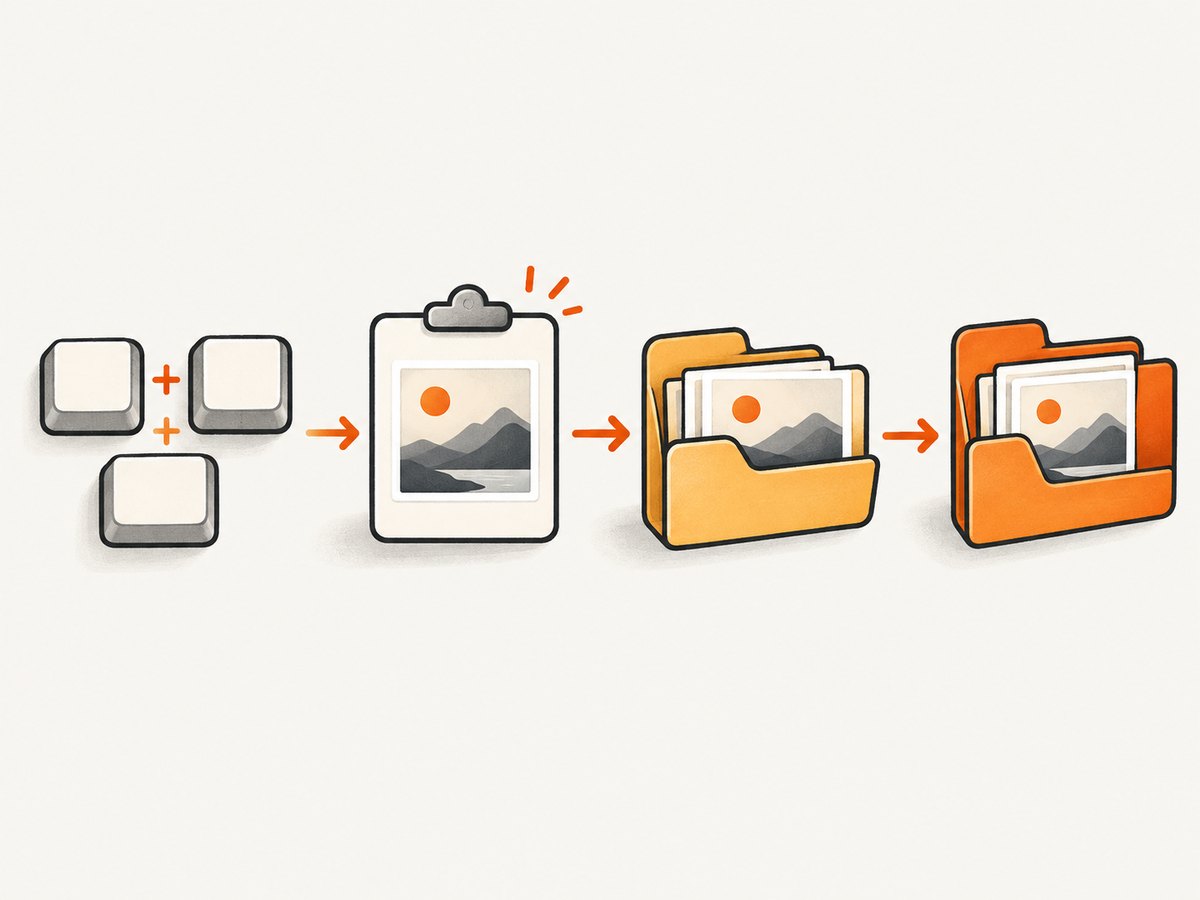
Windows+PrtScn saves to Pictures > Screenshots. PrtScn alone copies the image to the clipboard, so you need to paste and save it.

Short answer: If you took a screenshot with Windows + PrtScn, open File Explorer and go to Pictures > Screenshots. If you pressed PrtScn by itself, Windows copied the image to the clipboard; paste it into an app with Ctrl + V and save it from there. Snipping Tool captures are also saved to Screenshots by default according to Microsoft, though its Settings can change the save behavior or folder.
The important clue is which shortcut you used. “Print Screen” can mean a keyboard key, a clipboard action, or a saved image, and those do not all produce a file in the same place. This guide walks through each method, how to recover a capture that seems missing, and what to check if the usual folder is empty.
1. Check the folder for Windows+PrtScn screenshots
- Open File Explorer from the taskbar, or press Windows + E.
- Select Pictures in the navigation pane.
- Open Screenshots.
This is Microsoft’s documented location for screenshots made with Windows + PrtScn. The image is saved as a file, so you can open it, attach it to a message, or move it like another picture. If the Screenshots folder is missing or empty, continue to the recovery steps below; the capture may have gone to the clipboard or a different configured folder.
You can also navigate directly to your Pictures folder from File Explorer’s address bar by entering %USERPROFILE%\Pictures, then opening Screenshots. This shortcut is useful when the Pictures item is not visible in the navigation pane. If Windows or OneDrive has redirected Pictures, the folder may open at its redirected location.
2. Identify the shortcut you pressed
Before searching your drive, match the result to the keyboard shortcut. Microsoft documents different behavior for the common Print Screen shortcuts:
| Shortcut | What happens | Where to look |
|---|---|---|
| Windows + PrtScn | Captures the screen and saves an image file. | Pictures > Screenshots |
| PrtScn | Captures the whole screen and copies it to the clipboard. | Paste with Ctrl + V into an app that accepts images. |
| Alt + PrtScn | Copies the active window to the clipboard. | Paste with Ctrl + V, then save from the app. |
| Windows + Shift + S | Opens the Snipping Tool capture overlay. | Check Screenshots and Snipping Tool’s save settings. |
The distinction explains many “missing screenshot” cases: pressing PrtScn alone does not necessarily create a file at all. The image can be in the clipboard even though File Explorer has nothing new to show.
Save a clipboard capture as a file
- Open Paint, Word, or another app that accepts pasted images.
- Press Ctrl + V.
- Use the app’s Save or Save As command and choose a folder and filename.
If nothing appears after pasting, take a fresh capture and try again promptly. Clipboard contents can be replaced by a later copy operation. For an image you need to keep, save it as a file rather than relying on the clipboard.
3. Find a Snipping Tool capture
Microsoft’s current Snipping Tool guidance says captures are automatically saved in the Screenshots folder. The app also lets you change automatic-save behavior or the default Screenshots folder in Settings, and it can save an additional copy to a location you choose.
- Check Pictures > Screenshots first.
- Open Snipping Tool and inspect its Settings if the capture is not there.
- Look for a changed automatic-save setting or a different Screenshots folder.
- If the capture is open in Snipping Tool, use its save command to write another copy to a known location.
Snipping Tool behavior and available settings can vary by app version or configuration. If the interface does not match these steps exactly, use the Settings labels shown in your installed version and check the app’s save controls.
4. Recover a screenshot when Screenshots is empty
Work through these checks in order. Each one rules out a different reason the expected folder may have no file.
- Confirm the shortcut. If you used PrtScn or Alt + PrtScn, paste the image into an app and save it. Those shortcuts copy to the clipboard rather than following the Windows+PrtScn folder workflow.
- Check Pictures > Screenshots. Open File Explorer and inspect the documented location. Use Windows + E to get there quickly.
- Inspect Snipping Tool Settings. If you used the capture overlay, check whether auto-save is off or the default folder has changed. Save an additional copy from the app if the capture is still available.
- Search Windows or File Explorer. Search for a likely image filename or file type. Microsoft says Windows search can find files across the PC and OneDrive. If you know roughly when you captured it, sort search results by date modified.
- Check for a redirected or backed-up Pictures folder. If Pictures is included in OneDrive folder backup, screenshots in that folder may also appear in OneDrive. The folder may be redirected, so inspect the actual Pictures location shown on your PC.
Microsoft says the former dedicated “Save screenshots to OneDrive” setting is no longer available. Screenshots are backed up when Pictures is part of OneDrive folder backup. OneDrive is therefore a possible place to find or back up a screenshot, not a required step for saving one.
5. Use a keyboard without a PrtScn key
Some compact keyboards omit a dedicated Print Screen key or put its function behind another key. Microsoft documents Fn + Windows + Space Bar as an alternative screenshot shortcut for keyboards without PrtScn. The exact labeling and combination can depend on the device, so check the keyboard markings or device guidance if that combination does not work.
After capturing, determine whether the shortcut produced a saved file or a clipboard image by checking Screenshots and trying Ctrl + V in an image-capable app.
6. Troubleshooting common problems
| Symptom | Likely cause | What to do |
|---|---|---|
| Pictures > Screenshots is empty | You pressed PrtScn alone, used Alt + PrtScn, or Snipping Tool uses another folder. | Try pasting into Paint or another app; inspect Snipping Tool Settings; search for image files. |
| Ctrl + V inserts nothing | The clipboard no longer contains the capture, or the destination app does not accept image paste. | Capture again, then paste immediately into Paint or another image-capable app and save. |
| Pictures is not in the expected place | The folder may be redirected or included in OneDrive backup. | Open Pictures from File Explorer’s navigation pane and inspect the location it opens. Search Windows or File Explorer if needed. |
| Snipping Tool capture is not auto-saved | Its save behavior or default folder may have been changed. | Open Snipping Tool Settings, review automatic-save behavior and folder, and save a copy manually. |
| The laptop has no visible PrtScn key | The function may be omitted or assigned through an Fn combination. | Try Microsoft’s documented Fn + Windows + Space Bar alternative; check device-specific keyboard guidance. |
| You expect OneDrive to have a separate screenshot switch | The old dedicated “Save screenshots to OneDrive” setting is no longer available. | Check whether Pictures is included in OneDrive folder backup, or use Windows/File Explorer search. |
7. Avoid losing the next screenshot
- Use Windows + PrtScn when you want a file in the Screenshots folder.
- Use PrtScn or Alt + PrtScn when you want to paste a screen or active window directly into another app.
- After using Snipping Tool, save an additional copy to a folder you can find if you will need the image later.
- If you use OneDrive backup, verify that Pictures is included rather than looking for a separate screenshot-only setting.
- Give important captures a recognizable filename and put them in a project folder instead of leaving them among unsorted screenshots.
Or skip the browser setup
This Windows guide is about screenshots on your own computer. If you need screenshots of web pages from code, ScreenshotNeo is a website screenshot API and MCP server. It returns a PNG, JPEG, WebP, or PDF from one GET request and accepts options for full-page capture, a CSS element, viewport, device preset, dark mode, custom CSS, waits, headers, cookies, caching, and more. See the API documentation for the full parameter list.

curl -G "https://api.screenshotneo.com/v1/shot" -d access_key=YOUR_API_KEY --data-urlencode url=https://stripe.com -o shot.webpimport requests
r = requests.get("https://api.screenshotneo.com/v1/shot", params={"access_key": "YOUR_API_KEY", "url": "https://stripe.com"}, timeout=90)
open("shot.webp", "wb").write(r.content)const q = new URLSearchParams({ access_key: 'YOUR_API_KEY', url: 'https://stripe.com' });
const res = await fetch(`https://api.screenshotneo.com/v1/shot?${q}`);- Cookie and consent banners, newsletter popups, and chat widgets are removed before the shot; each cleanup step can be turned off.
- Bot checks, blank pages, failed loads, timeouts, and cache hits are never billed; response headers identify the page verdict and billing status.
- An MCP server gives AI agents tools to take screenshots, get page information, and capture PDFs.
- The Free plan includes 1,000 screenshots a month with no card. Paid plans start at $5 for 3,000 screenshots.
Sign up free for 1,000 screenshots a month, with no card required.
Frequently asked questions
Does pressing Print Screen automatically save a screenshot?
Not always. PrtScn alone copies the image to the clipboard. Windows + PrtScn follows the documented save-to-Screenshots workflow.
Where do Windows+PrtScn screenshots go?
Open File Explorer and choose Pictures, then Screenshots. If that folder is empty, confirm which shortcut you pressed and check whether Pictures is redirected.
Can I change where Snipping Tool saves captures?
Microsoft says Snipping Tool Settings can change the automatic-save behavior or default Screenshots folder. The app can also save an additional copy to a location you choose.
Can I recover a screenshot that was only copied to the clipboard?
If it is still in the clipboard, paste it into an app that accepts images and save it. If another copy operation replaced it, take the screenshot again if you can.
Are screenshots backed up to OneDrive automatically?
They can be backed up when Pictures is included in OneDrive folder backup. Microsoft says the separate “Save screenshots to OneDrive” setting is no longer available.


