How to Find Screenshot History in Windows 11
Find saved screenshots, recover a copied snip from Clipboard History, and check Recall snapshots in Windows 11.
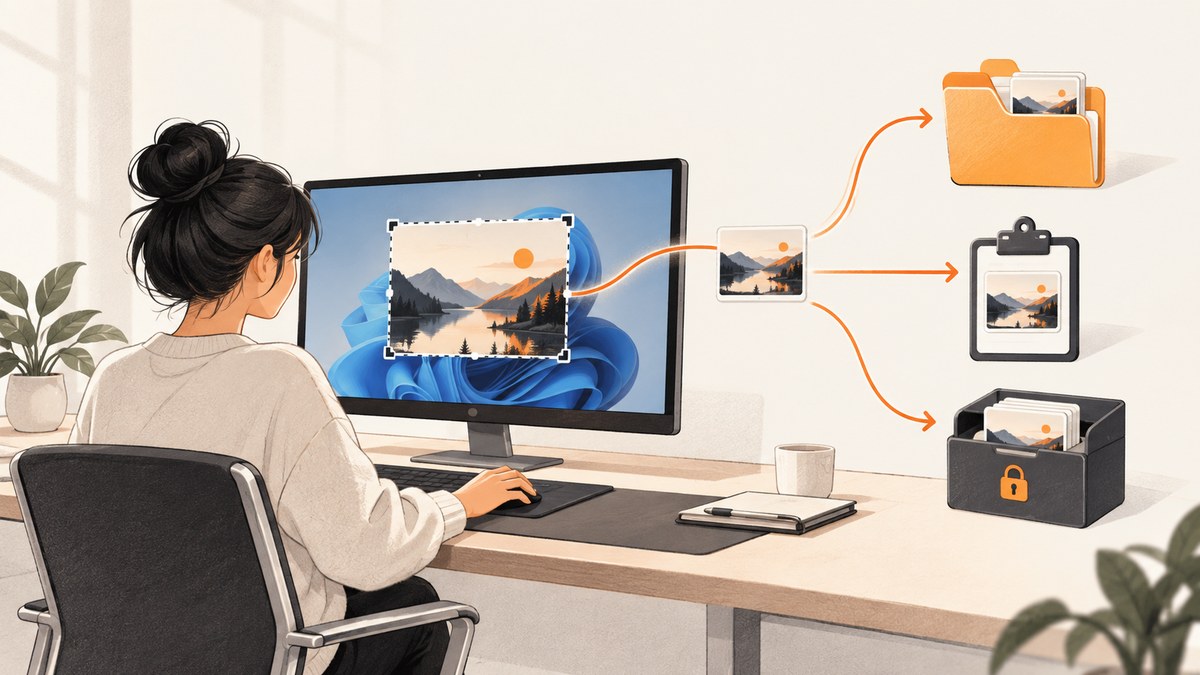
To find a screenshot you saved in Windows 11, open File Explorer > Pictures > Screenshots. You can also paste %USERPROFILE%\Pictures\Screenshots into File Explorer’s address bar. If you used Windows+Shift+S or Print Screen and copied the image instead of saving it, press Windows+V and check Clipboard History. If you mean a record of what you did on your PC, check Settings > Privacy & Security > Recall & Snapshots if Recall is available and enabled.
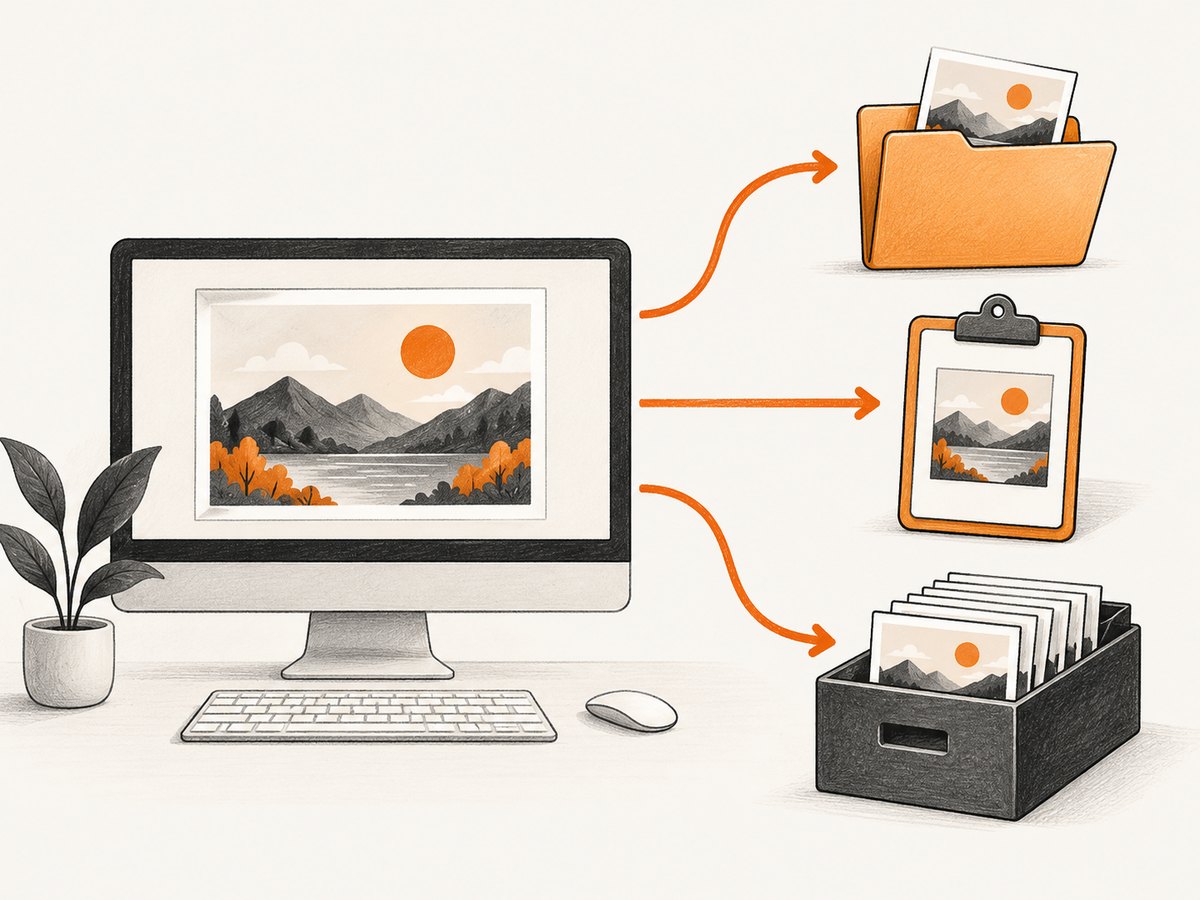
These are three different places: a screenshot file, a temporary clipboard item, and (on supported, configured devices) a Recall snapshot. The shortcut you pressed and Snipping Tool’s save settings determine which one to check.
1. Check the Screenshots folder
- Open File Explorer.
- Select Pictures, then open Screenshots.
- Sort by Date modified to bring recent captures to the top. Look for PNG files.
To jump directly to the conventional location, click File Explorer’s address bar, enter %USERPROFILE%\Pictures\Screenshots, and press Enter. This uses your Windows profile path rather than assuming a particular account name. Microsoft documents Pictures\Screenshots as the normal location for Snipping Tool captures when automatic saving is enabled; Microsoft’s Snipping Tool guidance says a capture is automatically saved to the Screenshots folder.
If the folder is missing or empty, your Pictures folder may have been redirected to OneDrive or another location. Open Pictures from File Explorer’s navigation pane and check its current location. A redirected Pictures folder can make the conventional profile path point somewhere other than the folder you normally use.
2. Check Clipboard History for a copied screenshot
- Press Windows+V.
- If Windows asks, enable Clipboard History.
- Look for an image tile. Select it, then paste it into Paint or another image-capable app.
- In that app, save the pasted image as a file in a location you can find again.
Clipboard History is separate from the Screenshots folder. It can help recover an image that was copied, but it is not a permanent screenshot archive. Do not assume a copied image will still be available after you replace or clear clipboard items. Microsoft documents clipboard synchronization for the same Microsoft or work account across devices; a screenshot copied under another account or on another device may not appear here.
If Windows+V shows no image, try pasting into Paint anyway. The current clipboard item may still be available even if it is not listed in Clipboard History. Save it from Paint if it appears.
3. Match the shortcut to the screenshot destination
| Shortcut | What it captures | Where to look |
|---|---|---|
| Windows+Shift+S | A selected region, window, or screen snip through Snipping Tool | Open the capture notification or Snipping Tool editor and save it. Automatic saving may also put it in Pictures\Screenshots. Check Windows+V if you copied it. |
| Windows+Print Screen | The full screen | Pictures\Screenshots on supported configurations. |
| Print Screen | Generally copies the screen to the clipboard | Windows+V, or paste into an editor and save. |
| Alt+Print Screen | The active window | Windows+V, or paste into an editor and save. |
Keyboard behavior can depend on your device and configuration. When a shortcut does not produce a file, check the clipboard and Snipping Tool before concluding that the capture is gone.
4. Verify Snipping Tool’s automatic-save setting
- Open Snipping Tool from Start.
- Open its menu or settings.
- Find the option to automatically save screenshots and verify it is enabled.
- Take a fresh test capture, then check both Pictures\Screenshots and Windows+V.
If the test capture appears in the clipboard but not in the folder, the image was captured but not automatically saved. Use the Snipping Tool editor or paste into Paint and save the file yourself. A capture you did not save and that is no longer in the clipboard may not be recoverable as an ordinary image file.
5. Check Recall for an activity snapshot
Recall is different from screenshot capture. Where supported and enabled, it saves snapshots to help retrace activity. To review its controls, open Settings > Privacy & Security > Recall & Snapshots and check whether Save snapshots is enabled. Microsoft says you can copy a Recall snapshot, open or edit it in another app, or delete it.
Recall availability, rollout, and policy controls vary. It may not be available on your Windows 11 device, and its snapshots are not files in the ordinary Screenshots folder. Use it only when you are looking for an activity history rather than a screenshot you intentionally captured.
6. Save and organize screenshots so they are easier to find
- Save from the capture editor: after a Snipping Tool capture, open the notification or editor and save the image to a folder you choose.
- Use a predictable folder: create a project-specific folder under Pictures and save related captures there.
- Name files with context: include the page or task and date, such as
checkout-flow-2026-09-30.png. - Confirm the destination: after saving, check the file’s location in File Explorer instead of assuming every shortcut uses the same destination.
- Keep sensitive captures deliberate: screenshots can include account details, messages, or private information. Review the image before sharing or syncing it.
7. Troubleshooting missing screenshots
| Symptom | Likely cause | What to do |
|---|---|---|
| Screenshots folder is empty | The image was copied, automatic saving is off, or Pictures was redirected. | Check Windows+V, verify Snipping Tool’s automatic-save setting, and open Pictures from File Explorer to find its current location. |
| Windows+V asks to enable history | Clipboard History is off. | Enable it when prompted, then make a new capture if the old image is not available. |
| Windows+V has no old image | The image was not retained in clipboard history, or you are using a different account or device. | Try pasting the current clipboard into Paint. Check the account used for synchronization, but do not expect clipboard history to act as a permanent backup. |
| Windows+Shift+S seems to do nothing | The capture overlay may be hidden behind another window, or the capture was made without opening its notification. | Check for a Snipping Tool notification, open the app, then inspect the Screenshots folder and clipboard. |
| Windows+Print Screen creates no obvious file | The device or configuration may handle the key combination differently, or the destination is redirected. | Check Pictures\Screenshots and the current Pictures location; use Snipping Tool for a capture you can explicitly save. |
| Recall settings are absent | Recall may be unavailable, not rolled out, or restricted by device policy. | Use the Screenshots folder or Clipboard History for ordinary captures. Do not treat Recall as a required Windows feature. |
| A screenshot is visible in an app but cannot be found later | It was pasted or displayed without being saved as a file. | Use the app’s Save or Save As command and note the chosen folder. |
8. Capture a website screenshot you can retrieve reliably
Windows shortcuts are useful for capturing what is on your own display. Developers who need repeatable screenshots of web pages may want a saved image generated from a URL instead of a desktop clipboard capture. ScreenshotNeo is a website screenshot API and MCP server from Yorker Media. One GET request can return a PNG, JPEG, WebP, or PDF. Its response identifies whether a page was clean, blocked, blank, failed, or served from cache, and only clean shots are billed.

Or skip the browser setup
Call the ScreenshotNeo API with a URL and access key. See the API documentation for request options and response details.
curl -G "https://api.screenshotneo.com/v1/shot" -d access_key=YOUR_API_KEY --data-urlencode url=https://stripe.com -o shot.webpimport requests
r = requests.get(
"https://api.screenshotneo.com/v1/shot",
params={"access_key": "YOUR_API_KEY", "url": "https://stripe.com"},
timeout=90,
)
open("shot.webp", "wb").write(r.content)const q = new URLSearchParams({ access_key: 'YOUR_API_KEY', url: 'https://stripe.com' });
const res = await fetch(`https://api.screenshotneo.com/v1/shot?${q}`);
if (!res.ok) throw new Error(`Screenshot request failed: ${res.status}`);
await Bun.write('shot.webp', res);ScreenshotNeo removes cookie and consent banners, newsletter popups, and chat widgets before capture; each cleanup step can be turned off. Bot checks, blank pages, timeouts, failed loads, and cache hits cost nothing. Its MCP server lets Claude, Cursor, and other MCP clients use take_screenshot, get_page_info, and capture_pdf. The free plan includes 1,000 screenshots a month with no card; paid plans start at $5 for 3,000. Sign up for 1,000 free screenshots a month, no card required.
Frequently asked questions
Where are screenshots saved by default in Windows 11?
Usually in Pictures\Screenshots when the capture method saves automatically. Pictures can be redirected, so check its current location in File Explorer.
Can I recover a screenshot after copying something else?
Possibly, if Clipboard History retained the image; press Windows+V. If it is no longer there and was never saved to a file, Windows may not have another copy to recover.
Does Windows+Shift+S save the screenshot automatically?
Snipping Tool can automatically save captures when that setting is enabled. The capture can also be available through its notification/editor or clipboard, so check those places if no file appears.
Is Recall the same as screenshot history?
No. Recall snapshots are an optional activity-history feature on supported devices. Ordinary screenshots are image files or clipboard items.
Can clipboard screenshots sync between devices?
Microsoft documents clipboard synchronization when devices use the same Microsoft or work account. Availability depends on settings and account context; it is not a guaranteed archive.


