How to Find Dynamically Added Selenium Elements After Drag and Drop
Wait for the page’s post-drop update, then locate the new element with a stable selector. This guide covers Python, Java, waits, stale references, and debugging.
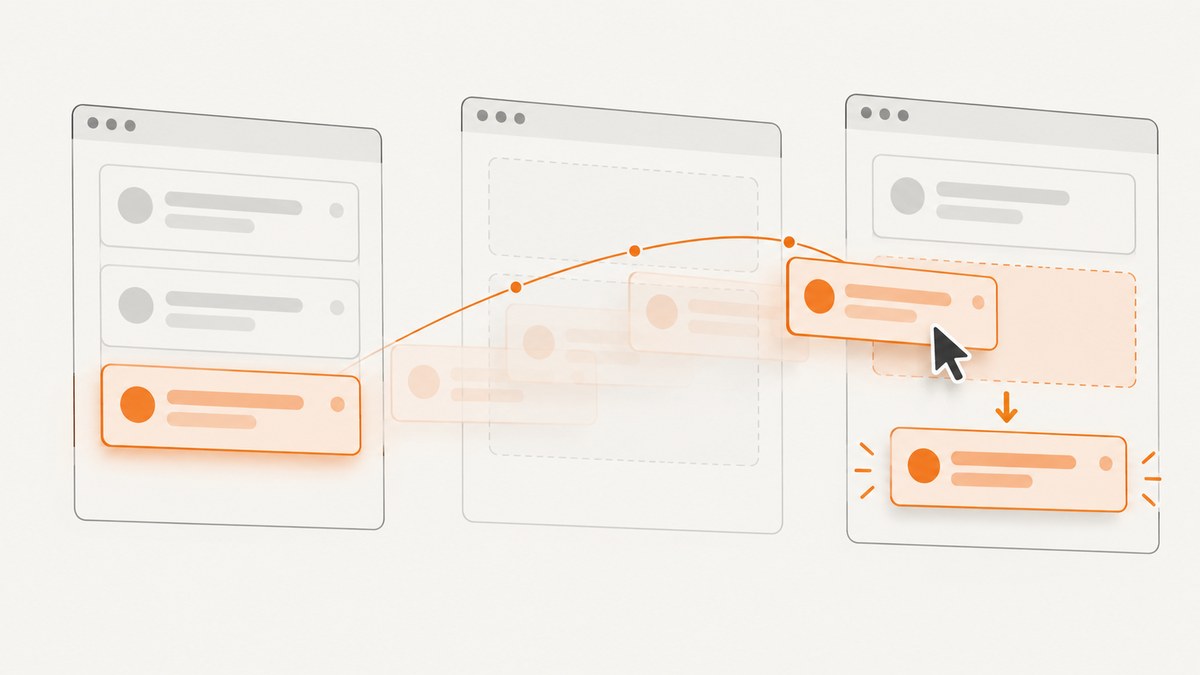
Direct answer: perform the drag, wait for the page’s observable post-drop update, and then locate the resulting element from the current DOM using a stable selector. A successful Selenium drag command only means the pointer action ran; it does not prove that the application finished updating. Use a presence wait if the node only needs to exist, or a visibility wait if you need to interact with it. If the app replaces an old node, wait for the old reference to become stale and find the replacement afresh.
The examples below use placeholder selectors such as [data-testid='added-item']. Replace them with selectors that actually occur in your application’s markup. Selenium locators query the current page DOM, so there is no need to predict or cache a handle to an element before the drop creates it.
1. Understand the three steps
A reliable drag-and-drop test has three distinct steps:
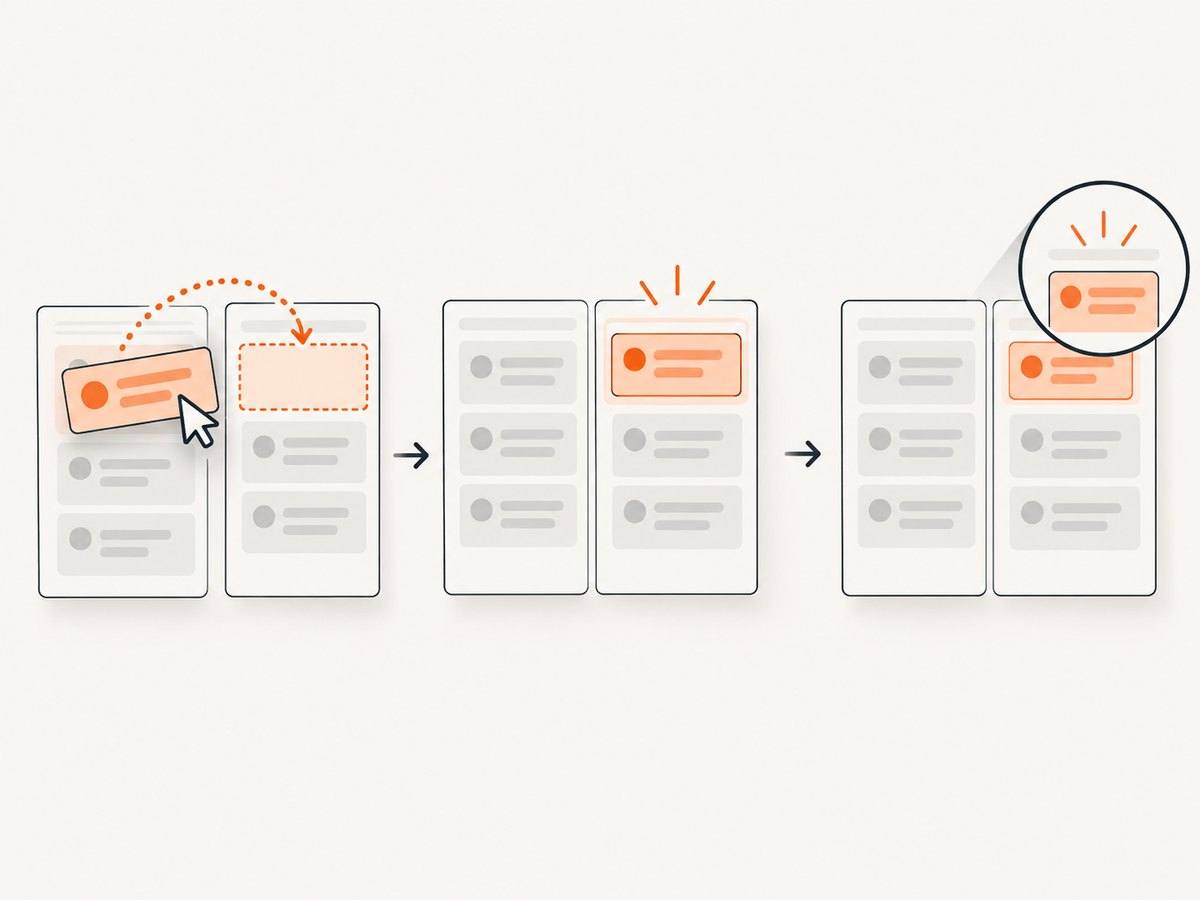
- Locate and drag: find the source and target and perform the pointer action.
- Wait for the application: wait for the result the application promises, such as an item appearing in a destination list.
- Re-query and verify: find the new node with a locator and assert the expected state.
These steps matter because page JavaScript may continue changing the DOM after navigation has reached its ready state. Selenium describes the resulting timing race as a common source of flaky automation: the page may be ready before or after the next WebDriver command. A fixed delay does not express what the test needs; an explicit wait does.
2. Python: wait for the new element
This Selenium 4 example waits for visible source and target elements, performs the drag, then waits for the inserted element to become visible. Save it as a Python script after installing Selenium and configuring a browser driver for your environment.
from selenium import webdriver
from selenium.webdriver.common.by import By
from selenium.webdriver.common.action_chains import ActionChains
from selenium.webdriver.support.ui import WebDriverWait
from selenium.webdriver.support import expected_conditions as EC

# Replace this URL and the data-testid selectors with your application values.
driver = webdriver.Chrome()
wait = WebDriverWait(driver, 10)

try:
    driver.get("https://example.com/board")

    source_locator = (By.CSS_SELECTOR, "[data-testid='source']")
    target_locator = (By.CSS_SELECTOR, "[data-testid='target']")
    added_locator = (By.CSS_SELECTOR, "[data-testid='added-item']")

    source = wait.until(EC.visibility_of_element_located(source_locator))
    target = wait.until(EC.visibility_of_element_located(target_locator))

    ActionChains(driver).drag_and_drop(source, target).perform()

    added = wait.until(EC.visibility_of_element_located(added_locator))
    assert added.is_displayed()
    print("Post-drop element is visible:", added.text)
finally:
    driver.quit()
The selectors are examples, not selectors for a particular site. Choose an identifier tied to the inserted item, preferably an ID or a stable data-* attribute, instead of a generated class that changes between runs. The Selenium locator APIs support strategies such as ID, CSS selector, and XPath; use the simplest selector that identifies the intended result.
Presence or visibility?
Use presence_of_element_located when the test only needs the node attached to the DOM—for example, to inspect its text or an attribute. Use visibility_of_element_located when the next action needs a rendered element. Selenium’s Python expected condition treats an element as visible when it is present and has nonzero width and height.
# DOM existence is enough
added = wait.until(EC.presence_of_element_located(added_locator))

# Use this when a user-like interaction requires a visible element
added = wait.until(EC.visibility_of_element_located(added_locator))
Wait for a count or a specific state
If several cards share the same selector, waiting for “some matching element” can return the wrong one. Scope the selector to the destination container, identify the item by a unique attribute, or wait for an expected list length. For example:
from selenium.webdriver.support.expected_conditions import (
    visibility_of_all_elements_located,
)

destination_items = (By.CSS_SELECTOR, "[data-testid='destination'] [data-testid='card']")
items = wait.until(visibility_of_all_elements_located(destination_items))
assert len(items) == 4  # Use the count expected for this test case.
Use a state assertion that fits the application: the item is in the destination, its status attribute changed, or the expected label is present. The drag returning without an exception is not sufficient evidence that the application accepted the drop.
3. Handle replaced nodes and stale references
Some interfaces update a card in place; others remove an old node and render a replacement. A Selenium WebElement is a reference to a particular DOM node. It does not automatically point to a replacement. If the old node is detached, interacting with that reference can raise a stale-element error.
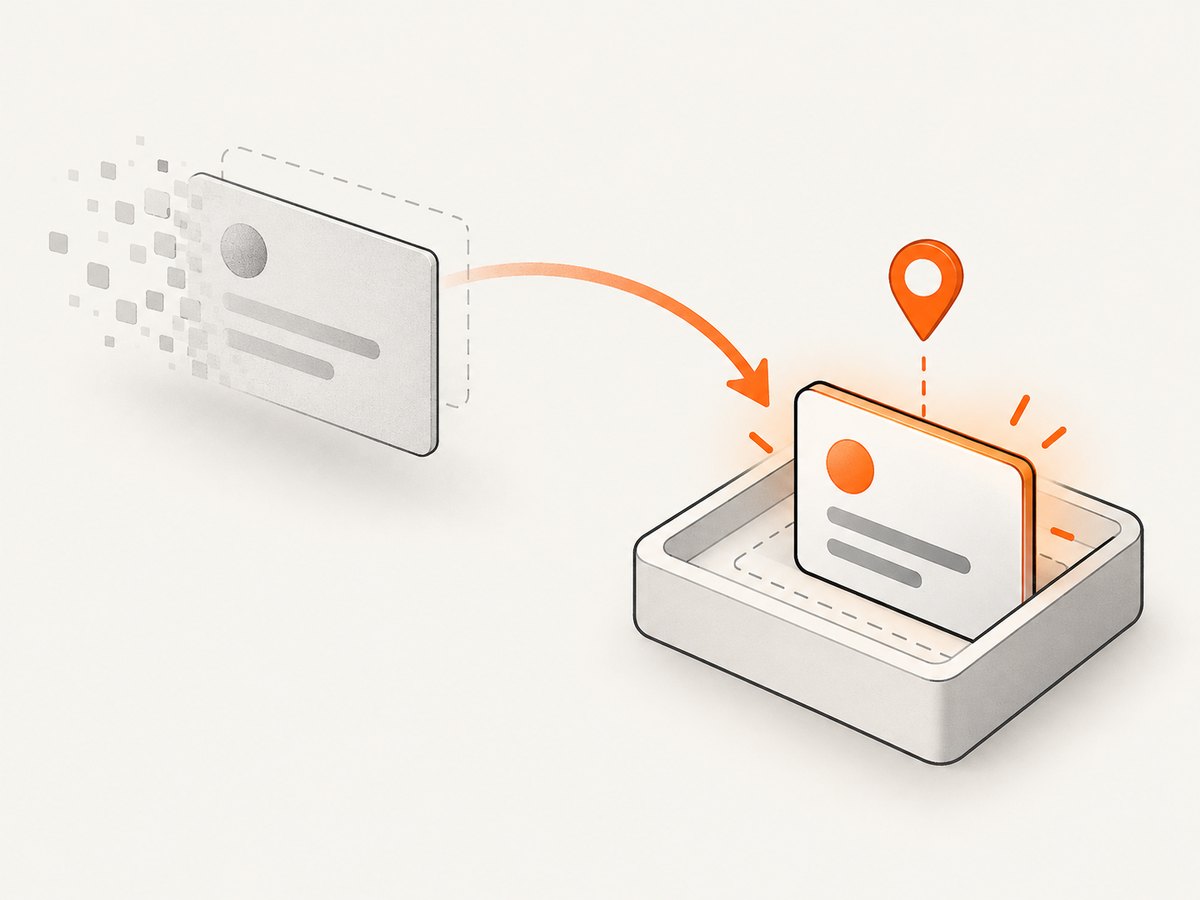
When the replacement itself is the expected outcome, retain the old reference only if you need to observe its removal. Wait for staleness, then find the new element using its locator:
old_card = wait.until(
    EC.visibility_of_element_located((By.CSS_SELECTOR, "[data-testid='source-card']"))
)

ActionChains(driver).drag_and_drop(old_card, target).perform()

# Only use this if the application replaces or removes the old node.
wait.until(EC.staleness_of(old_card))

# Locate the current node again; do not reuse old_card.
new_card = wait.until(
    EC.visibility_of_element_located((By.CSS_SELECTOR, "[data-testid='added-item']"))
)
assert new_card.is_displayed()
If the application appends a second matching node instead of replacing one, waiting for staleness is the wrong condition. Wait for the new item or the expected count instead. Conditions should match the actual DOM transition.
4. Drag by offset or in Java
Selenium’s Actions API describes dragAndDrop(source, target) as click-and-hold on the source, moving to the target, and releasing. It also supports dragging by an offset. If the application only starts a drag from a handle, locate that handle and build the pointer sequence around it, or use an offset appropriate to the element’s dimensions.
from selenium.webdriver.common.action_chains import ActionChains

handle = wait.until(
    EC.visibility_of_element_located((By.CSS_SELECTOR, "[data-testid='drag-handle']"))
)
target = wait.until(
    EC.visibility_of_element_located((By.CSS_SELECTOR, "[data-testid='target']"))
)

ActionChains(driver).click_and_hold(handle).move_to_element(target).release().perform()
added = wait.until(
    EC.visibility_of_element_located((By.CSS_SELECTOR, "[data-testid='added-item']"))
)
The matching Java pattern uses WebDriverWait and an explicit condition after the action:
import java.time.Duration;
import org.openqa.selenium.By;
import org.openqa.selenium.WebElement;
import org.openqa.selenium.interactions.Actions;
import org.openqa.selenium.support.ui.ExpectedConditions;
import org.openqa.selenium.support.ui.WebDriverWait;

WebDriverWait wait = new WebDriverWait(driver, Duration.ofSeconds(10));
By sourceBy = By.cssSelector("[data-testid='source']");
By targetBy = By.cssSelector("[data-testid='target']");
By addedBy = By.cssSelector("[data-testid='added-item']");

WebElement source = wait.until(ExpectedConditions.visibilityOfElementLocated(sourceBy));
WebElement target = wait.until(ExpectedConditions.visibilityOfElementLocated(targetBy));
new Actions(driver).dragAndDrop(source, target).perform();
WebElement added = wait.until(ExpectedConditions.visibilityOfElementLocated(addedBy));
if (!added.isDisplayed()) {
    throw new AssertionError("Expected post-drop item to be visible");
}
Adapt imports and wait syntax to the Selenium binding and version used by your project. The page’s own drag implementation also matters: if the convenience action does not trigger the expected application behavior, diagnose the interaction before changing selectors or adding delay. Different applications can handle pointer events differently, and the generic Actions API description cannot guarantee how an unknown page responds.
5. Choosing a locator and checking the right DOM
- Prefer stable markup: an application-owned ID or test attribute is usually less brittle than a visual class or a long positional XPath.
- Scope repeated items: search inside the destination container so a source item with the same selector cannot satisfy the wait.
- Re-find after updates: keep a locator for the new node, not only a previously fetched
WebElement. - Inspect the post-drop page: confirm the drop changed the destination or state before concluding that the locator is wrong.
If the target element is inside an iframe, switch into that frame before locating it. If it is inside a shadow root, query through the relevant shadow root using the APIs available in your Selenium version. These are diagnostic possibilities; the markup of your page determines whether either applies.
6. Troubleshooting
| Symptom | Likely cause | What to try |
|---|---|---|
NoSuchElementException immediately after drop |
The app has not rendered the result yet, or the selector does not match the new markup. | Wait for presence or visibility using the post-drop locator. Inspect the current DOM and verify the selector. |
TimeoutException from an explicit wait |
The condition never became true: the drop may not have succeeded, the locator may be wrong, or visibility may be too strict. | Check destination state, selector scope, and whether the node is present but hidden. Use presence only when DOM existence is enough. |
StaleElementReferenceException |
The app detached or replaced the node represented by an earlier WebElement. |
Wait for staleness if replacement is expected, then locate the current node again. |
| The wait finds the wrong card | Multiple elements match a broad selector. | Scope the locator to the destination, use a unique attribute, or wait for the expected item count/state. |
| Drag returns but nothing moves | The application may require a different drag handle or interaction path, or the target may not accept the drop. | Confirm the expected source/target and interaction in the page, then build an Actions sequence appropriate to that UI. A longer sleep does not repair a mismatched gesture. |
| Element exists but cannot be interacted with | It may be hidden, zero-sized, covered, or otherwise not ready for interaction. | Wait for visibility when appropriate and verify the state needed for the next command. |
| Element seems absent despite correct selector | The search context may be the wrong document, such as before switching into an iframe or querying a shadow tree. | Check the page structure and enter the relevant frame or shadow root before locating. |
7. Reliability, speed, and test cost
Use a wait timeout sized for the application and test environment, and make the condition as specific as possible. A short, relevant wait completes quickly when the UI updates promptly and fails with a useful timeout when it does not. A fixed sleep makes every run pay the full delay and can still be too short under load. Avoid mixing implicit waits with explicit waits without understanding their interaction; keep the synchronization policy predictable.
For reliable assertions, test the resulting state the user cares about rather than implementation timing. If a drag is asynchronous, wait for the destination item or changed state. If a test fails intermittently, capture enough diagnostic context to see whether the action occurred, what the destination contains, and whether the node was appended or replaced. Do not treat a retry as proof of correctness; it can conceal a synchronization or interaction defect.
Browser automation has runtime and infrastructure costs: browser startup, page loading, and waits all consume execution time. A precise condition reduces unnecessary waiting. For a large test suite, reuse a browser session where safe and isolate tests whose application state can interfere with one another. The right balance depends on the application and test runner; no single timeout or performance figure applies to every page.
8. Or skip the browser setup
If your goal is to capture a page for inspection or documentation rather than exercise the drag interaction, ScreenshotNeo can return a page screenshot with one GET request. It is a website screenshot API and MCP server for developers. This does not replace a Selenium test that must perform and verify a drag; it can help capture the page state you want to inspect.
See the ScreenshotNeo API documentation for request options. This one-call example saves a WebP response:
curl -G "https://api.screenshotneo.com/v1/shot" -d access_key=YOUR_API_KEY --data-urlencode url=https://example.com -o shot.webpCookie banners are accepted and removed before the shot, along with supported newsletter popups and chat widgets. Bot checks, blank pages, timeouts, failed loads, and cache hits cost nothing; response headers report the page verdict and billed status. The MCP server gives AI agents tools for screenshots and page information. The free plan includes 1,000 screenshots per month with no card, and paid plans start at $5 for 3,000 screenshots.
Create a free ScreenshotNeo account to get 1,000 screenshots a month with no card.
9. FAQ
Should I locate the new element before dragging?
No. Locate the source and target before the drag; locate the element that the application creates after the update, using a locator inside an explicit wait.
What if the post-drop element is already in the DOM but hidden?
Presence can succeed while visibility cannot. Decide whether your test needs existence or a visible, usable result, and wait for that exact condition.
Does drag_and_drop always fire the events my app expects?
The API documents its pointer sequence, but an unknown application’s event handling cannot be inferred from that alone. Confirm the page’s expected interaction and use the appropriate Actions sequence.
Why not wait for the whole page to finish loading?
The relevant update may be application JavaScript running after the document’s ready state. Wait for the specific post-drop result instead of a general page-load milestone.
Primary references
- Selenium: Waiting Strategies explains explicit waits and the race between application readiness and WebDriver commands.
- Selenium: Mouse Actions documents drag and drop pointer actions.
- Selenium Python expected conditions documents presence, visibility, and staleness conditions.


